


 OpenAI
 Perplexity
WordPress Email Delivery issues are among the most common ones anyone can face, and often relate to WordPress not sending emails properly.
Research shows 16.9% of WordPress emails are either delayed or never delivered. This leads to critical email delivery issues and is often searched as a fix for WordPress email not sending problems.
Wondering why? It’s because WordPress uses an outdated method, i.e., the basic PHP mail function, to send emails. This is where issues like WordPress mail function not working and wp_mail not working commonly appear.
By following the right steps to troubleshoot WordPress email, you can fix WordPress SMTP Issues, improve deliverability, and restore trust using the correct WordPress SMTP settings and SMTP server configuration WordPress.
In this guide, you’ll learn how to troubleshoot WordPress email delivery issues and why plugins like Post SMTP are essential to improve email deliverability.
What are WordPress Email Delivery Issues and Their Common Causes
WordPress email delivery issues happen when your website fails to send emails properly or when emails don’t reach the inbox, resulting in WordPress email errors.
This doesn’t always mean the email wasn’t sent. In fact, WordPress email not delivered issues usually occur because:
- The web hosting server blocks the email
- It gets filtered into spam by the receiving mailing server
- The recipient’s email provider rejects it
- Or it never leaves your website at all
By default, WordPress uses the PHP mail() function, which does not provide proper authentication mechanisms such as SPF, DKIM, or DMARC. As a result, email providers often treat WordPress messages as suspicious. Not fixing this leads to email sending issues and poor inbox placement.
This is why businesses often face WordPress password reset email failures, WooCommerce emails not sending, and WordPress contact forms not sending emails.
In short, email delivery issues stem from trust and authentication issues between your website and email providers.
Common Causes of WordPress Email Deliverability Issues
- Invalid “To” Email Address: If the recipient’s email address is misspelled or inactive, WordPress cannot deliver the message. Always validate email inputs on forms to reduce bounce rates.
- Your Emails Are Flagged as Spam: Without authentication (SPF, DKIM, DMARC), WordPress emails look untrustworthy. Spam filters block them, especially if your domain has a poor sender reputation.
- Incorrect Mailer Configuration: Misconfigured SMTP settings or missing API keys lead to WordPress SMTP issues and prevent WordPress from connecting to your email service.
- API Key Problems: Expired or incorrect keys stop email delivery.
- DNS Record Issues: Missing SPF, DKIM, or DMARC records directly impact authentication and email delivery issues.
- The SMTP Diagnostic Advantage: Tools like Post SMTP log every email attempt, making it easy to identify misconfigurations.
- Poor Sender Reputation: If your domain or IP has been flagged for spam in the past, providers may block your emails. Reputation improves with consistent, authenticated sending.
- Server-Side Issues: Hosting servers often restrict email functions or throttle delivery. Shared hosting environments are especially prone to blocking PHP mail.
- Exceeding Your Plan’s Sending Quota: Email services and hosting providers limit the number of emails you can send per hour/day. If you exceed limits, you may face exceeding email sending quota errors and failed deliveries.
- Poor Deliverability Optimization: Sending too many emails at once, using generic “from” addresses, or failing to warm up new domains worsens “reduce spam flagging”. Optimizing headers, authentication, and routing improves deliverability.
Understanding these causes is very important as it will help you troubleshoot effectively and ensure your WordPress site communicates reliably.
What to Look for in a WordPress SMTP Plugin to Fix Email Delivery?
Not all WordPress email plugins (also known as WordPress SMTP Plugins) have the capability to solve email delivery problems. Many simply patch over the default PHP mail() function without addressing the real causes of delivery failures.
Plugins like Post SMTP truly solve WordPress email delivery issues, replace the default mailer with authenticated SMTP protocol connections, provide delivery tracking, and offer multiple diagnostic tools.
When selecting a WordPress email plugin, look for these features:
- Delivery logging to track every email attempt.
- Offer test email configuration tools to confirm setup before going live.
- Authentication support (SPF, DKIM, DMARC, OAuth2).
- Active updates and documentation to keep up with changing email standards.
Avoid plugins that aren’t receiving many updates. Email authentication evolves quickly, and outdated tools can leave your site at risk.
You can also browse our curated list of the 8 best SMTP plugins for WordPress to see why Post SMTP stands out among its competitors.
How You Can Troubleshoot WordPress Email Delivery Issues
Remember, basic email delivery issues can be solved with simple checks:
- Exceeding Your Plan’s Sending Quota – If you’re sending too many emails per hour/day, upgrade your hosting/email plan.
- Server‑Side Restrictions – Some shared hosting providers block PHP mail. Contact your host to confirm whether email functions are allowed.
These quick fixes can address minor problems, but most WordPress email delivery issues stem from deeper causes, such as authentication failures, misconfigured SMTP settings, or poor sender reputation. That’s where Post SMTP comes in.
Fix 1: Install Post SMTP and Configure Mailer Settings
The first thing you should do is install Post SMTP if you haven’t already. It takes under two minutes:
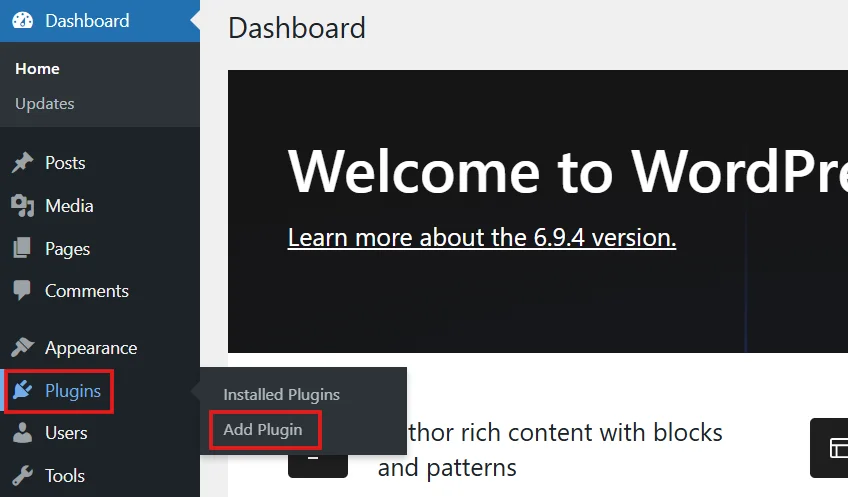
- Log in to your WordPress Dashboard
- Go to the Plugins → Add Plugin
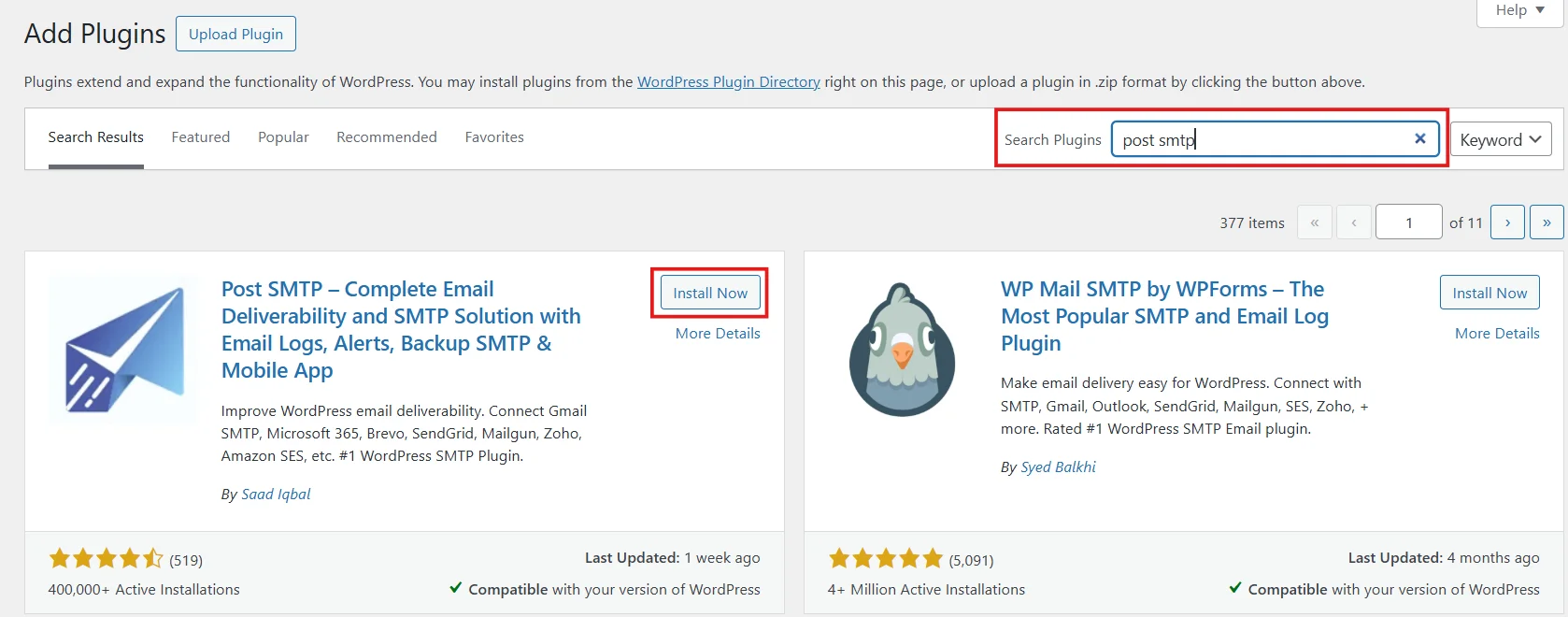
- Type “Post SMTP” in the search bar and click on “Install Now”, followed by Activate.
- Once activated, you will be redirected to the Post SMTP setup wizard.
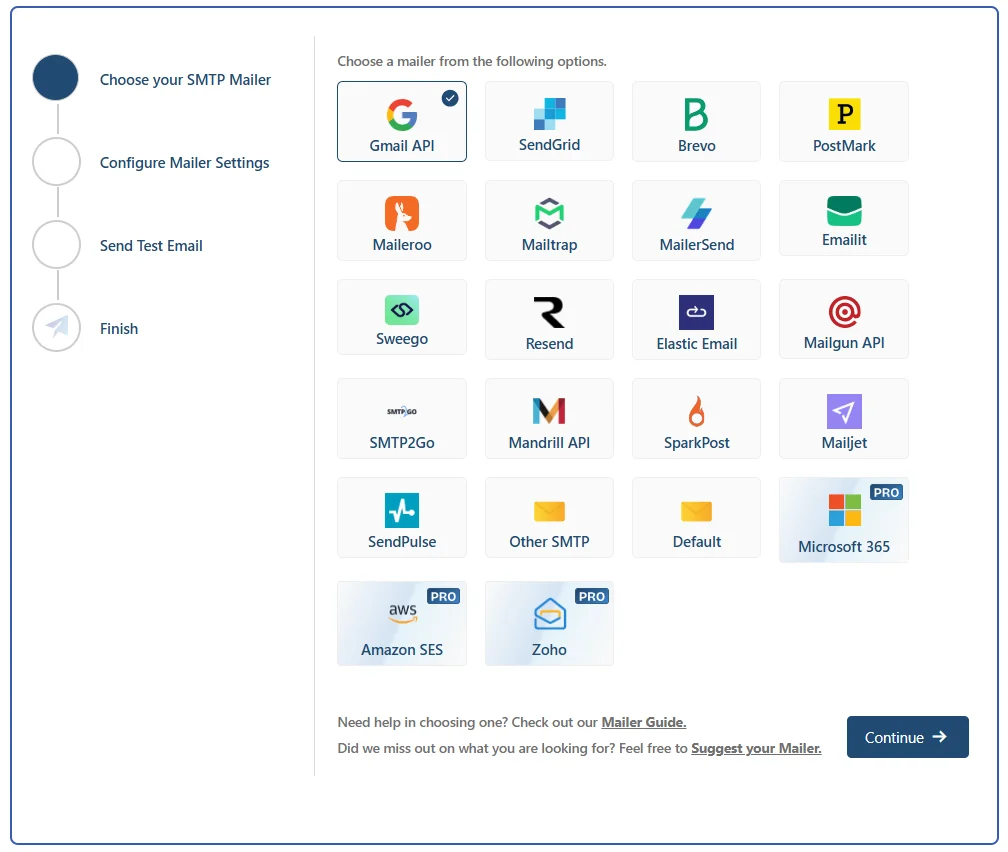
- From there, you can connect your go-to SMTP provider and click Continue.
- Set your desired From Address and From Name, and lock both in with the «Prevent plugins and themes from changing this» toggle.
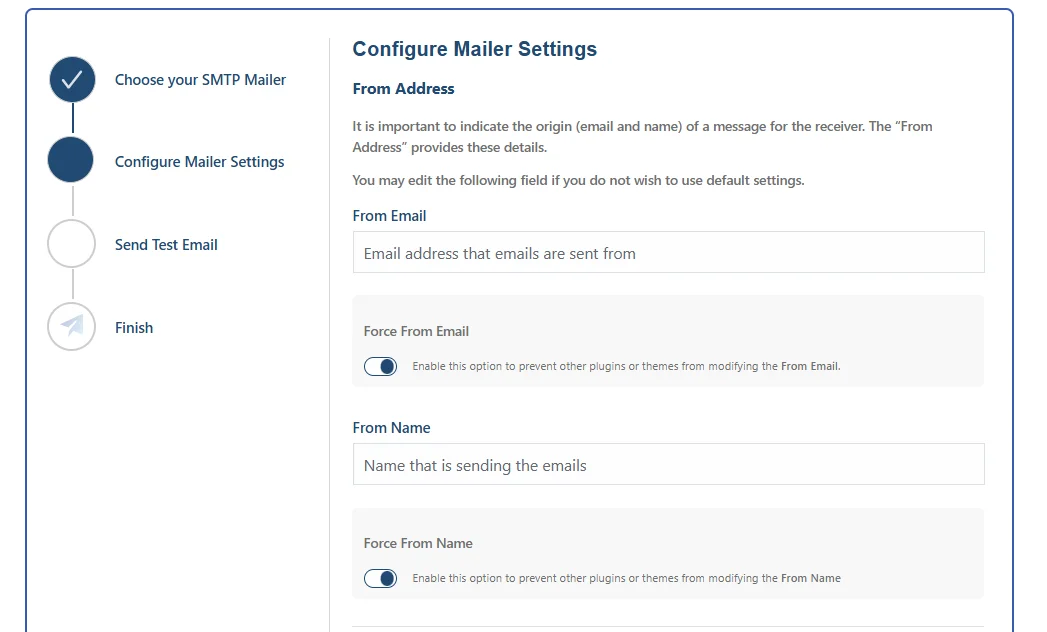
This will help avoid conflicts between plugins. Third-party plugins love to silently override your sender identity.
- Once you’re set up, hit Send Test Email right away.
If it lands in your inbox, you’re connected. If it doesn’t, Post SMTP logs the exact error, and that log entry is your starting point for everything below.
NOTE: If you need any further assistance with configuring WordPress SMTP, don’t hesitate to reach out to us for professional support.
Fix 2: Validate Recipient Email Addresses
A misspelled recipient address is one of those problems that’s easy to overlook. The email appears to send, but it never arrives, and without logging, you’d have no idea, causing customer inquiry emails to disappear or other issues.
Post SMTP records every delivery attempt in its log, including the full recipient address and the exact error returned by the mail server. If a specific address keeps failing, the log will indicate whether it’s a hard bounce (due to a full mailbox) or a soft bounce (due to a server timeout).
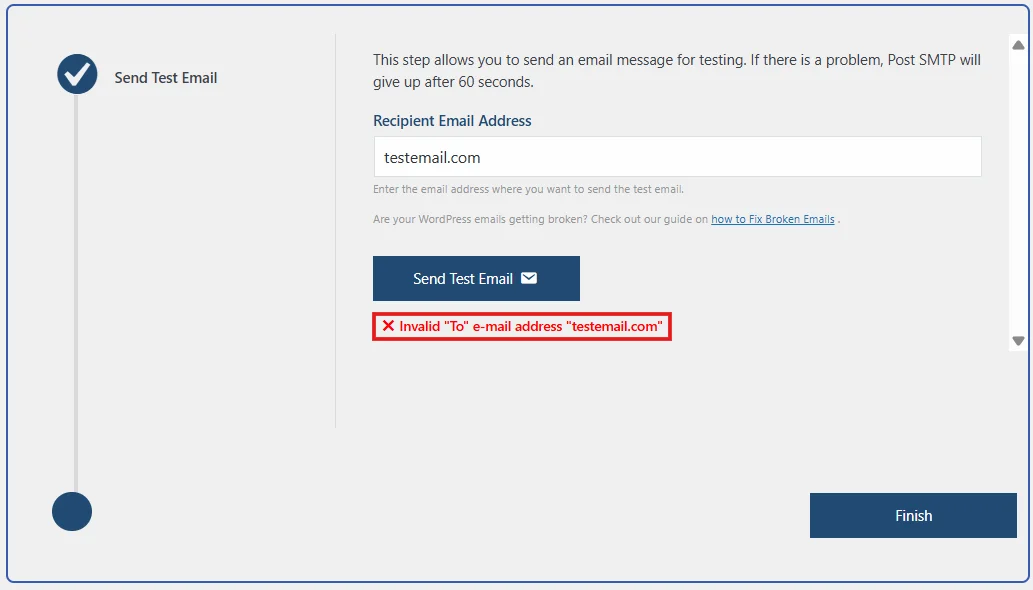
Post SMTP enables Validation Settings by default. This checks addresses against proper formatting rules. This one setting alone can meaningfully cut your bounce rate over time.
For important WordPress emails, such as security alerts, password resets, or other critical notifications, if they are not received, it’s always a good practice to manually authenticate WordPress emails.
Fix 3: Identify Deliverability Issues with a Spam Score Check
This is one of the most frustrating email delivery problems because everything looks fine on your end, emails are sent, but they’re landing in spam. The root cause is almost always missing email authentication.
Post SMTP’s Spam Score Checker is the fastest way to get a clear picture of where you stand. Head to your WordPress dashboard → Post SMTP, and on the right side under Troubleshoot, you will find Spam Score Checker.
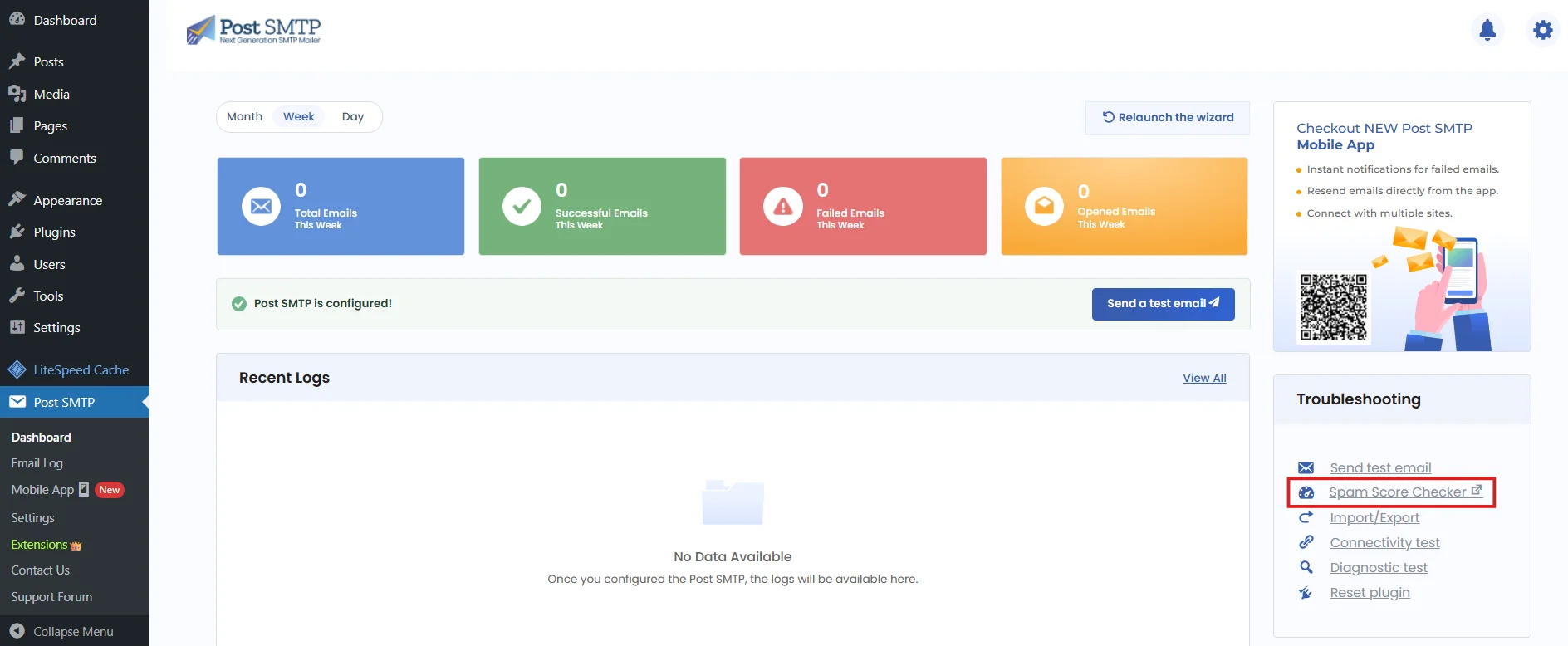
You will be redirected to Spam Score Checker.
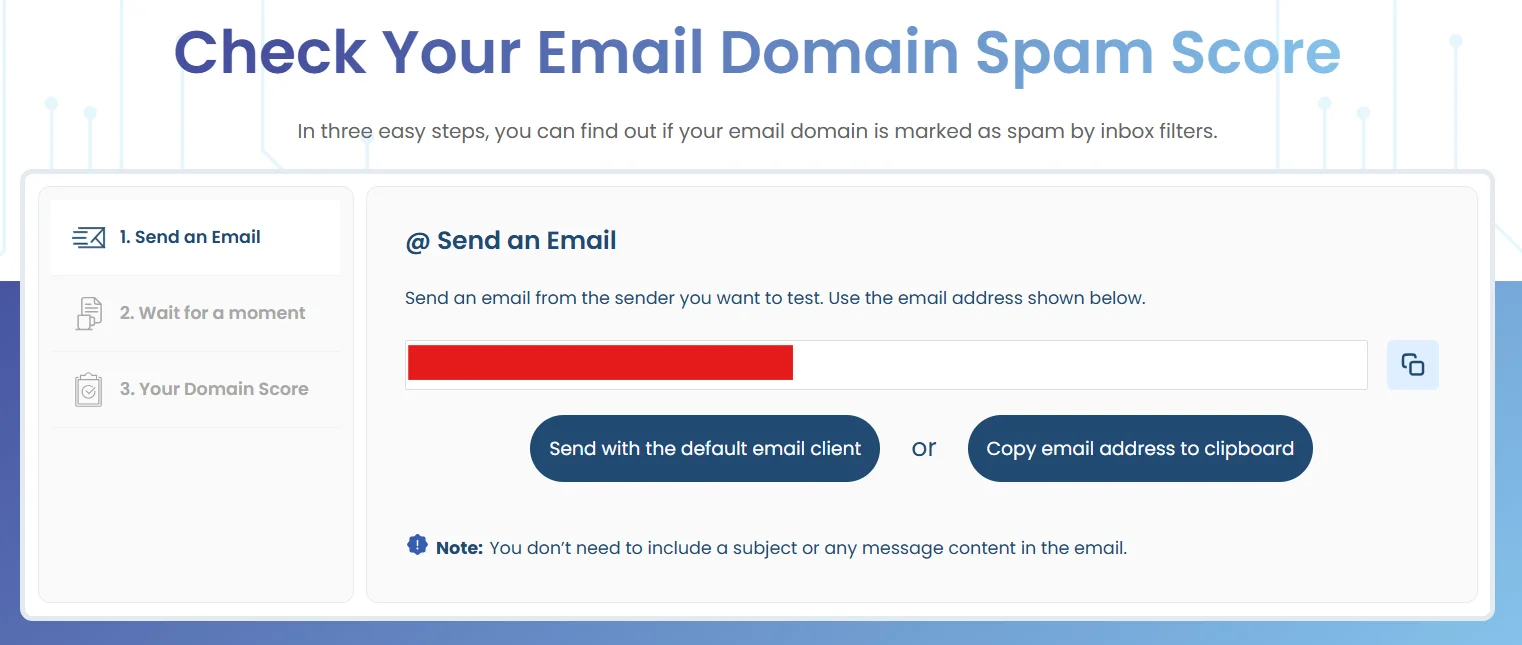
Click on the email address to copy, or click on the button and send an email from the sender you want to test.
After sending, click on Confirm email sent to begin testing your spam score.
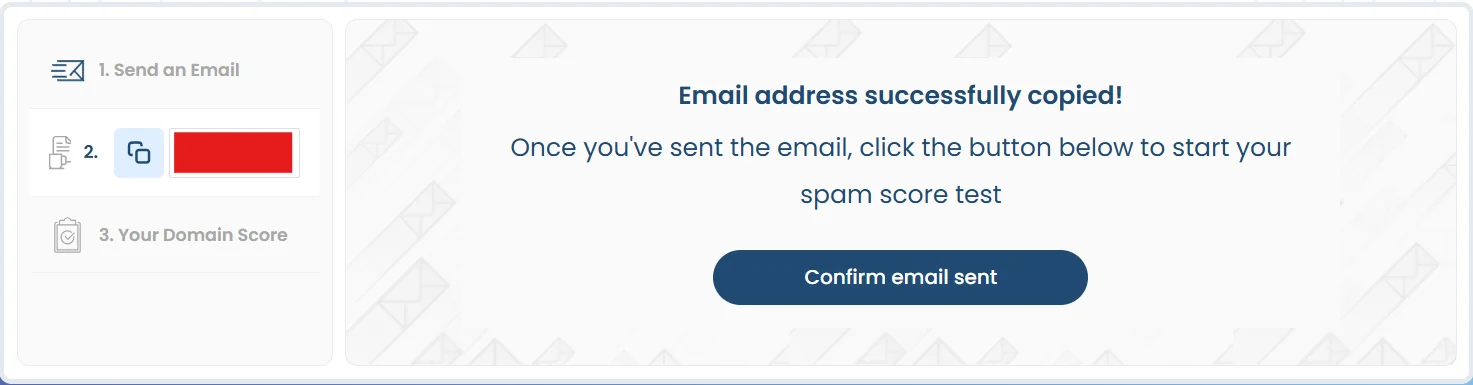
Post SMTP’s spam score checker returns your email’s spam score along with detailed SPF, DKIM, and DMARC results, helping you identify and fix deliverability issues.
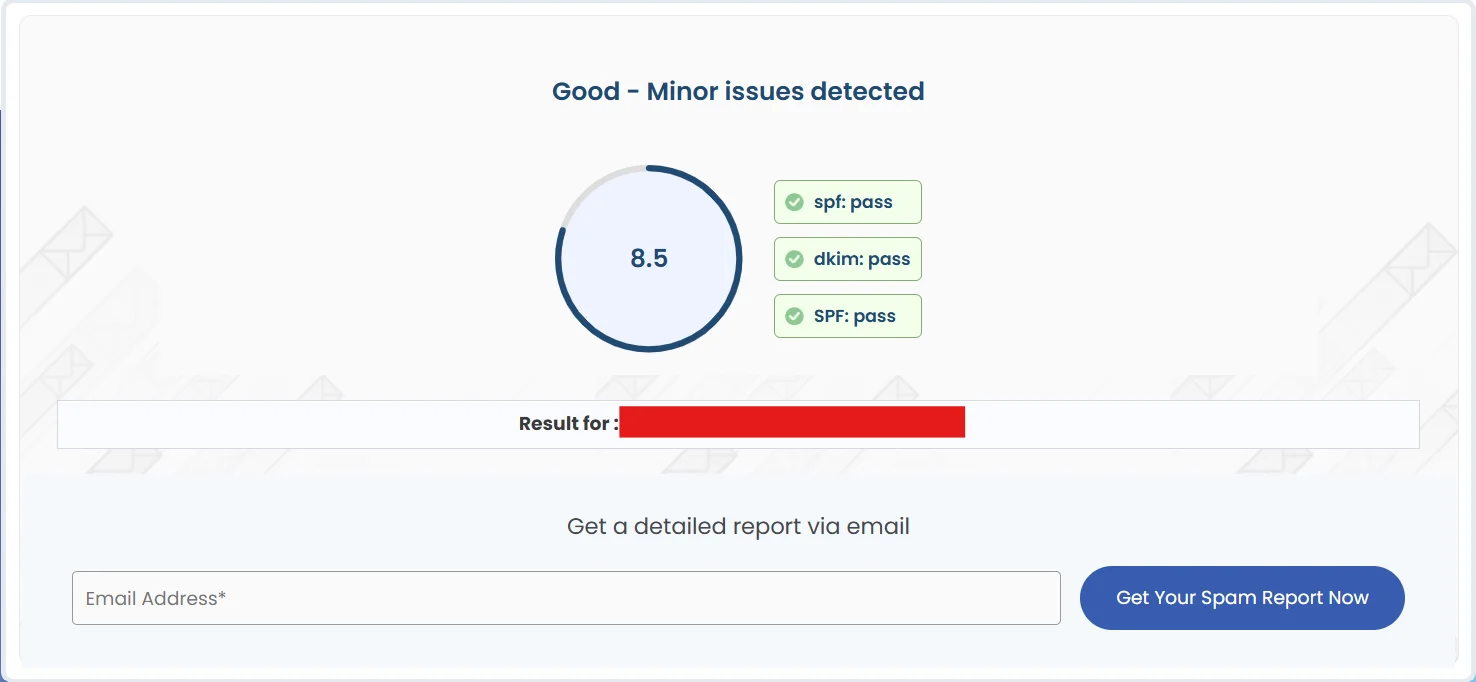
Beyond authentication, sending bulk emails looks suspicious to providers, and using generic “From addresses” reduces trust. You can use Post SMTP “email address” and “name” lock settings to keep your sender identity consistent. The Spam Score Checker gives you an ongoing way to verify that your emails land in clean inboxes.
Fix 4: Resolve API Key Problems
If you’re connecting Post SMTP to a transactional email provider like Mailgun or Brevo via API, and you enter an incorrect key, it cuts off all delivery the moment it becomes invalid. This happens often: after a key rotation, provider account change, or copy-paste error during setup.
Whenever you update or replace an API key, run Post SMTP’s Send Test Email immediately after saving.
Don’t assume it worked; verify it.
Post SMTP’s Diagnostic Test helps identify whether issues originate from API authentication or SMTP connection layers. In addition, Post SMTP logs every email delivery attempt with error messages and timestamps, so if something like an API key expires, you can quickly pinpoint when failures began.
Fix 5: Fix Your DNS Records
SPF, DKIM, and DMARC are the three DNS-based authentication standards that tell the internet your domain is authorized to send email. Without them, even a perfectly configured SMTP connection will produce untrustworthy emails. Missing records cause authentication failures. Badly formatted records can be just as damaging as having none at all.
Post SMTP’s Spam Score Checker audits your authentication records as part of its scoring process, flagging what’s absent, misconfigured, or conflicting. It gives you a list of fixes.
If the tool highlights a DNS record issue, you’ll need to configure your DNS settings correctly. Our guide, WordPress Not Sending Emails on GoDaddy, will help if you’re using GoDaddy for your domain or hosting.
Once you’ve published the updated records, use the Diagnostic Test to confirm they’re being recognized. Keep in mind that DNS propagation can take anywhere from a few minutes to 48 hours, and the diagnostic tool will show whether Post SMTP is detecting the records correctly yet.
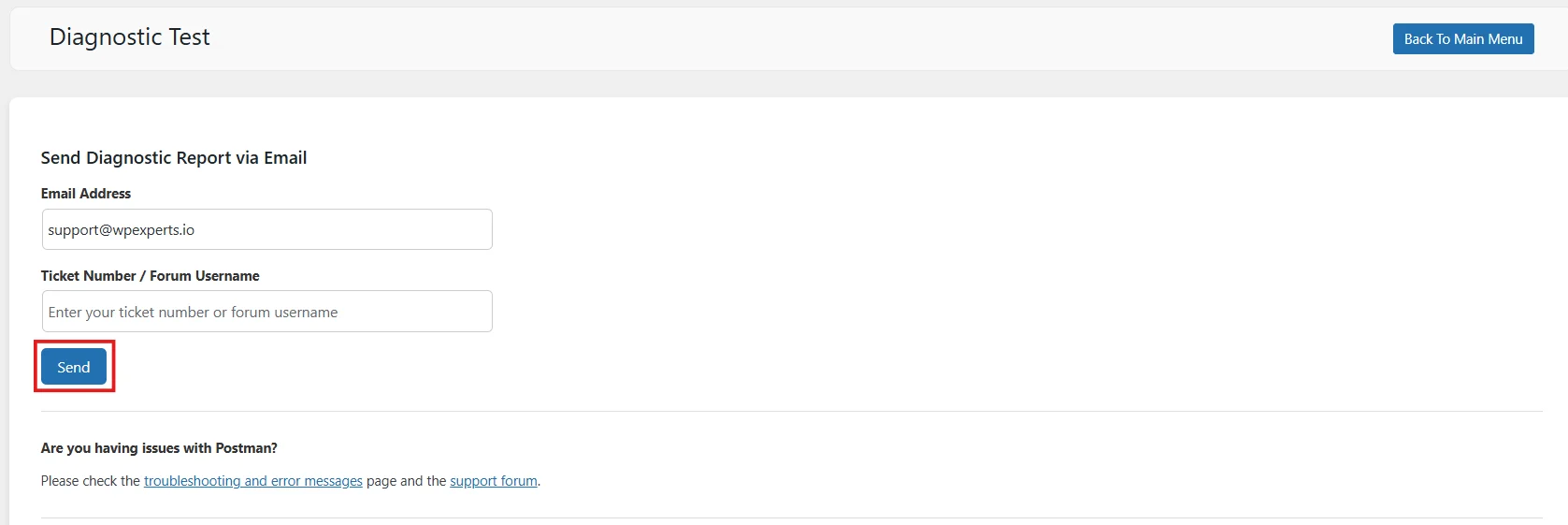
If you are unable to fix DNS records, the Post SMTP technical team is readily available to assist you. You can place your Instant Expert Assistance request.
Fix 6: Rebuild Your Sender Reputation
Sender reputation is the credit score of the email world. It’s invisible, but it shapes everything. If your domain or sending IP has historically generated spam complaints, high bounce rates, or inconsistent sending patterns, providers will throttle or block your emails. And like credit, reputation damage is slow to repair. Therefore, catching problems early is everything.
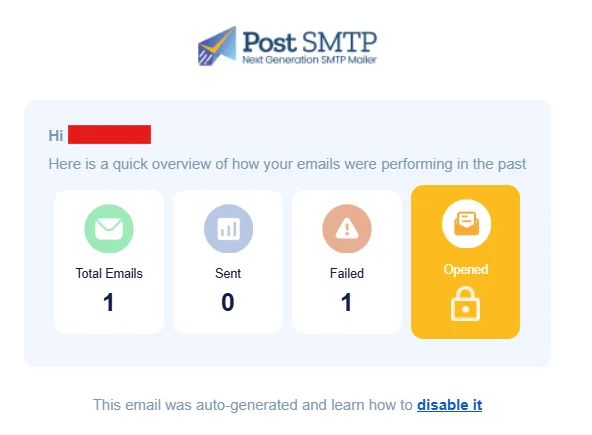
Post SMTP’s Email Health Reporting is your early warning system here. You can access it by going to Post SMTP → Settings → Email Reporting.
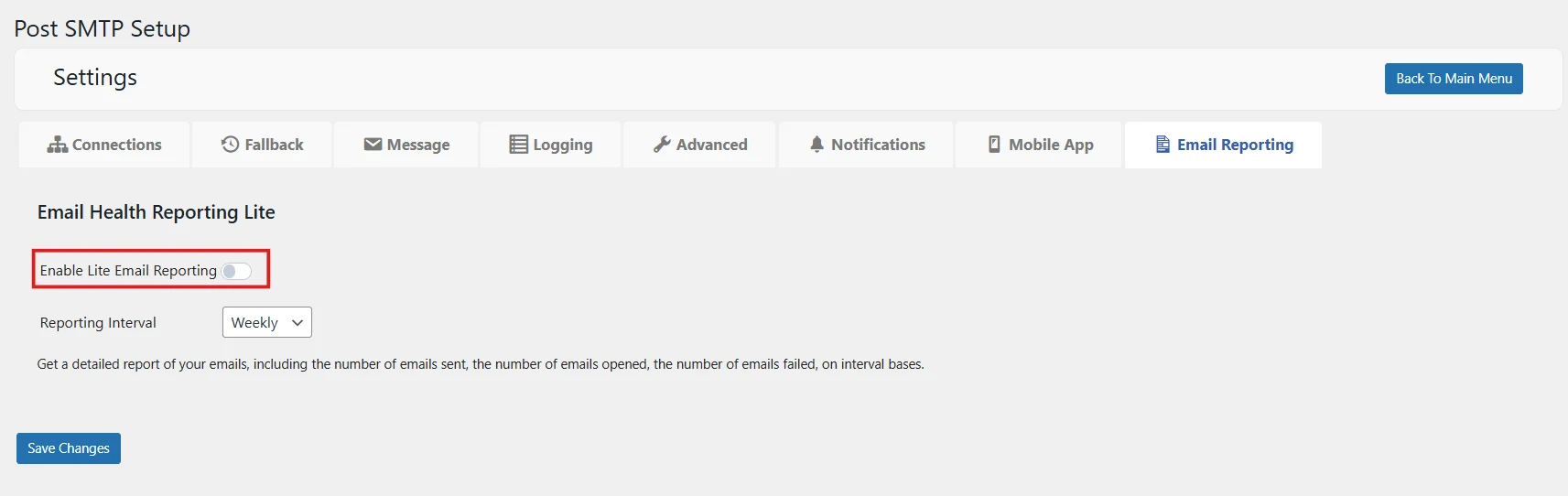
Set it to deliver a weekly report covering emails sent, opened, and failed, and you’ll start to see patterns before they become serious problems. A gradual rise in failure rates or a sudden drop in open rates are signals worth catching at week one, not week six.
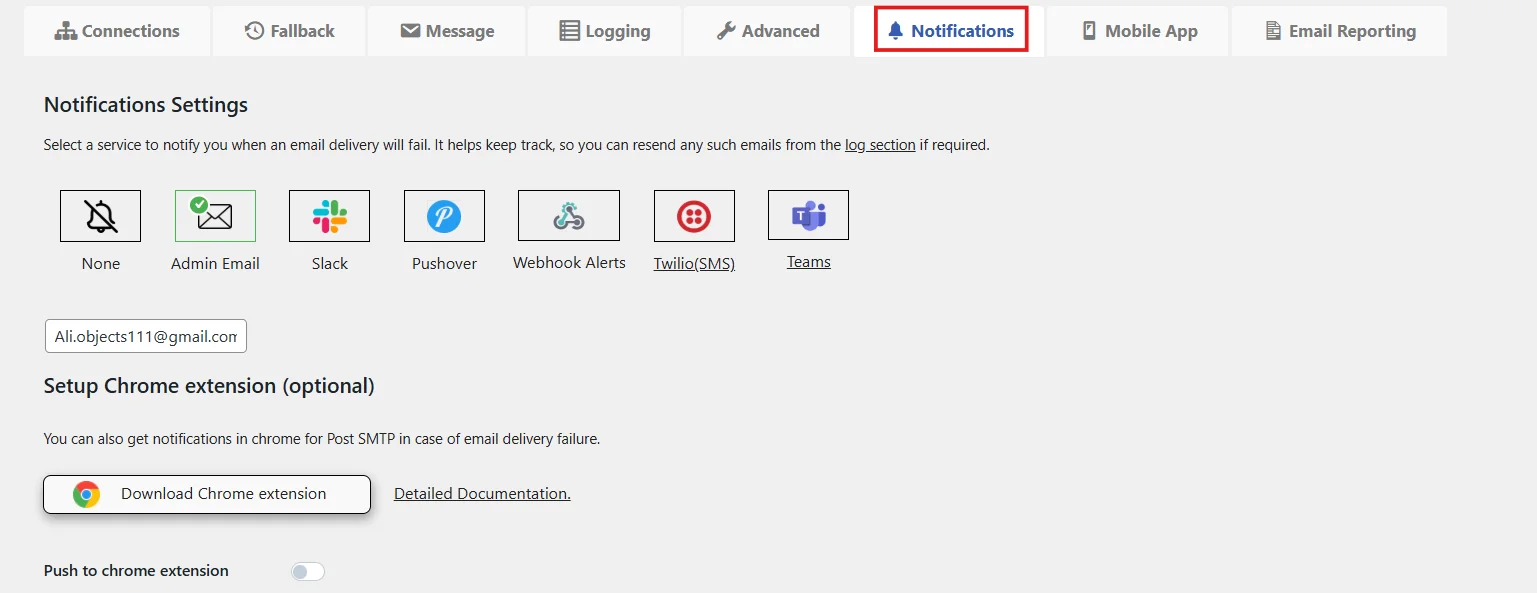
Post SMTP’s Notification Settings let you connect to Slack, Microsoft Teams, Twilio SMS, or a custom Webhook, etc, so you’re alerted the moment an email delivery fails. Staying aware of the failures is crucial to improving reputation over time.
Fix 7: Enable Failed Emails Fallback Feature
Even with proper authentication and a stable SMTP setup, email delivery can still fail due to various reasons.
When that happens, critical WordPress emails may never be sent. With Post SMTP Mailer, you can enable the Failed Emails Fallback feature to add a backup delivery path. By configuring a backup SMTP service, the plugin will automatically retry failed messages through the fallback mailer if the primary service becomes unavailable or exceeds its limits.
This is especially important for business-critical emails such as WooCommerce order confirmations, password resets, and contact form notifications. Instead of relying on a single delivery channel, fallback ensures your emails have a second route and plays a key role in overall email reliability.
To enable it, you have to follow the steps below:
Step 1: Go to your WordPress dashboard, then to Post SMTP → Settings → Fallback
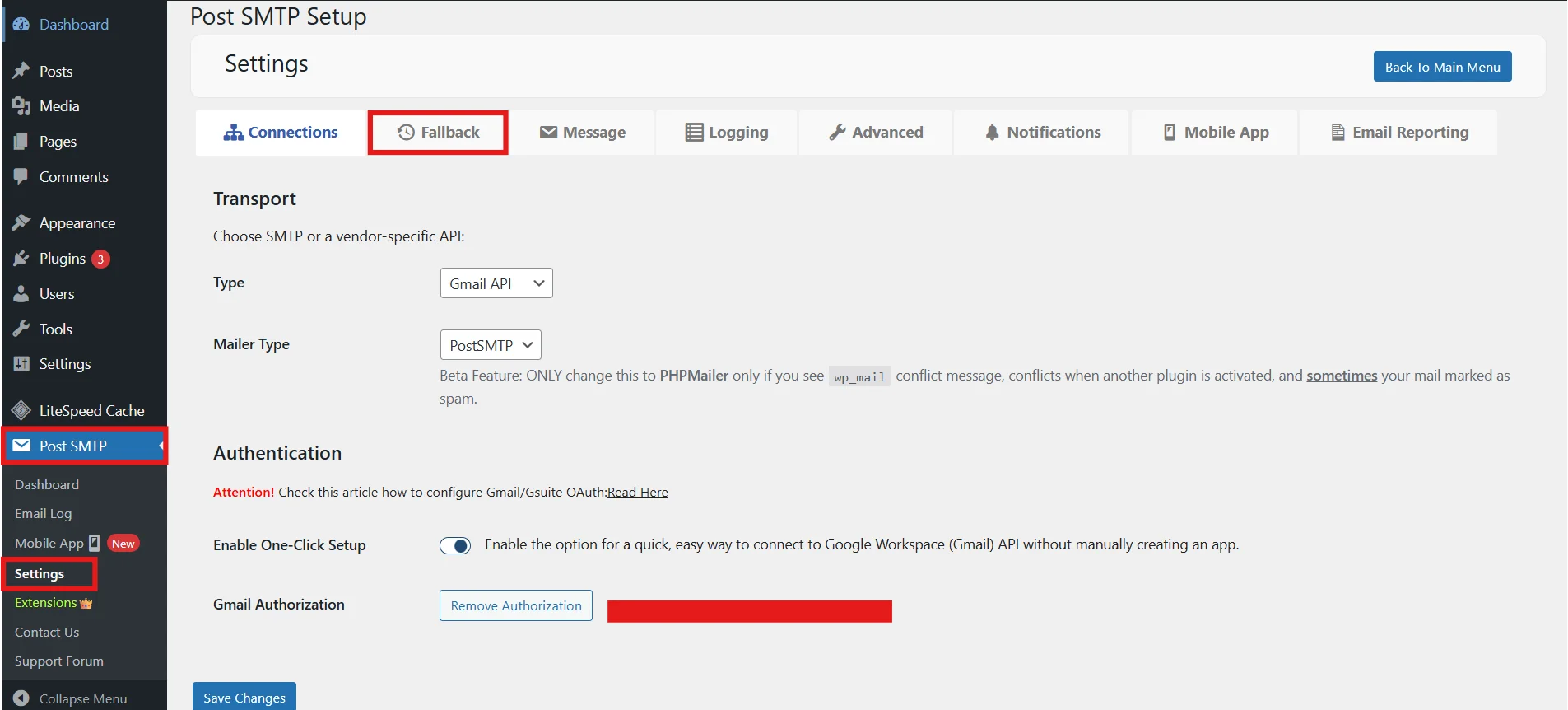
Step 2: Enable “Use Fallback?” by clicking on Yes.
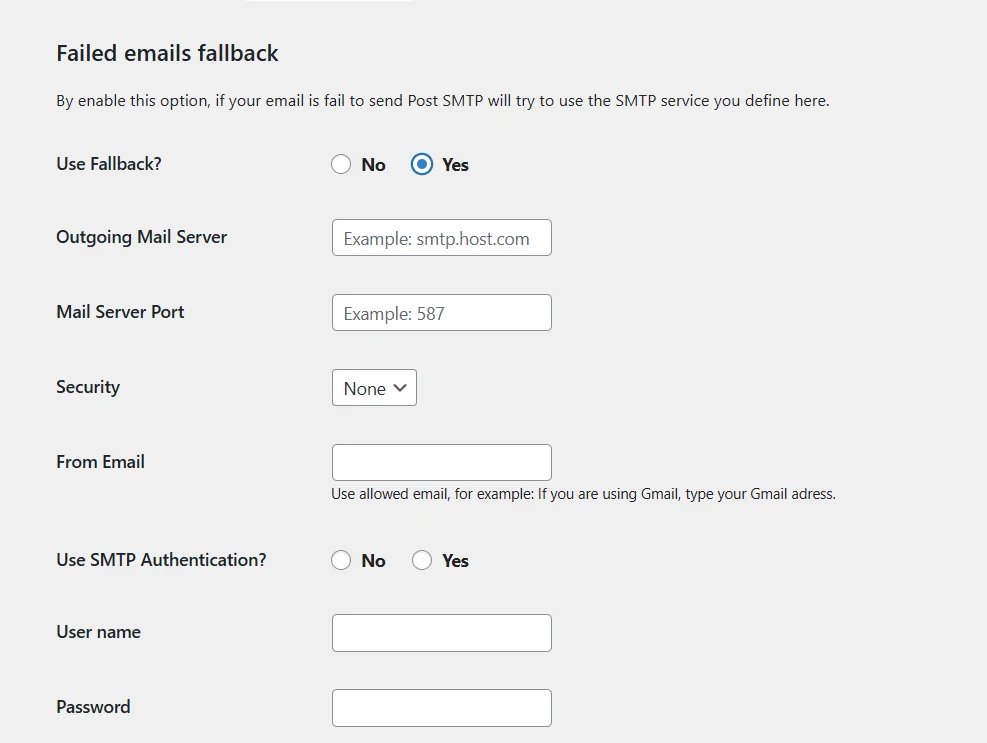
Step 3: Enter all the necessary information. Also, always enable SMTP Authentication unless your provider explicitly says not to.
Step 4: Click Save Changes.
Your backup SMTP is ready to use.
Combined with real-time alerts, you end up with a deliverability setup that actively monitors, catches order confirmation email missing problems, and keeps sending reputation intact.
Fix 8: Run a Connectivity Test
One of the more underrated causes of email delivery failure is a blocked port. When you configure an SMTP connection, your mail server expects to communicate over a specific port: typically port 25, 465, or 587. If your hosting provider or server firewall has blocked that port, WordPress simply can’t establish a connection to your mail server at all. Every email fails as the path is just closed.
This is where Post SMTP’s Connectivity Test earns its place.
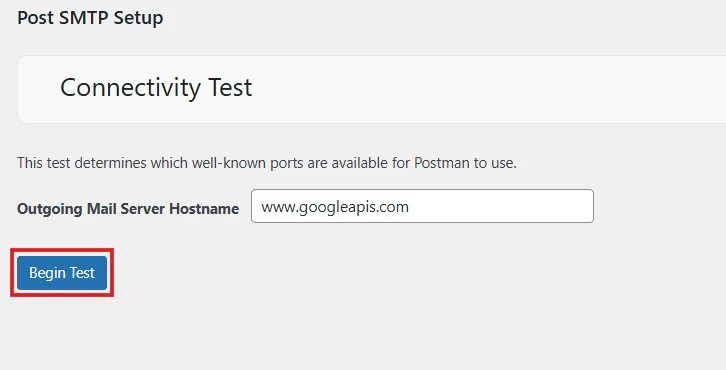
It scans the well-known SMTP ports and tells you exactly which ones are open and available for Post SMTP to use. If the port your mailer is configured to use comes back blocked, you know immediately to contact your hosting provider to get the restriction lifted.
It’s a simple test that takes seconds to run, but it answers a question that would otherwise take hours of back-and-forth with your host to diagnose. If you’ve double-checked your SMTP credentials, run the diagnostic, and emails are still failing, run the Connectivity Test. A blocked port is often the culprit.
Resend Failed Emails using Post SMTP
Now, if you are in the Post SMTP dashboard and notice failed emails, you’d normally look for ways to resend them. Let’s see how you can make this possible.
- Go to the Post SMTP dashboard.
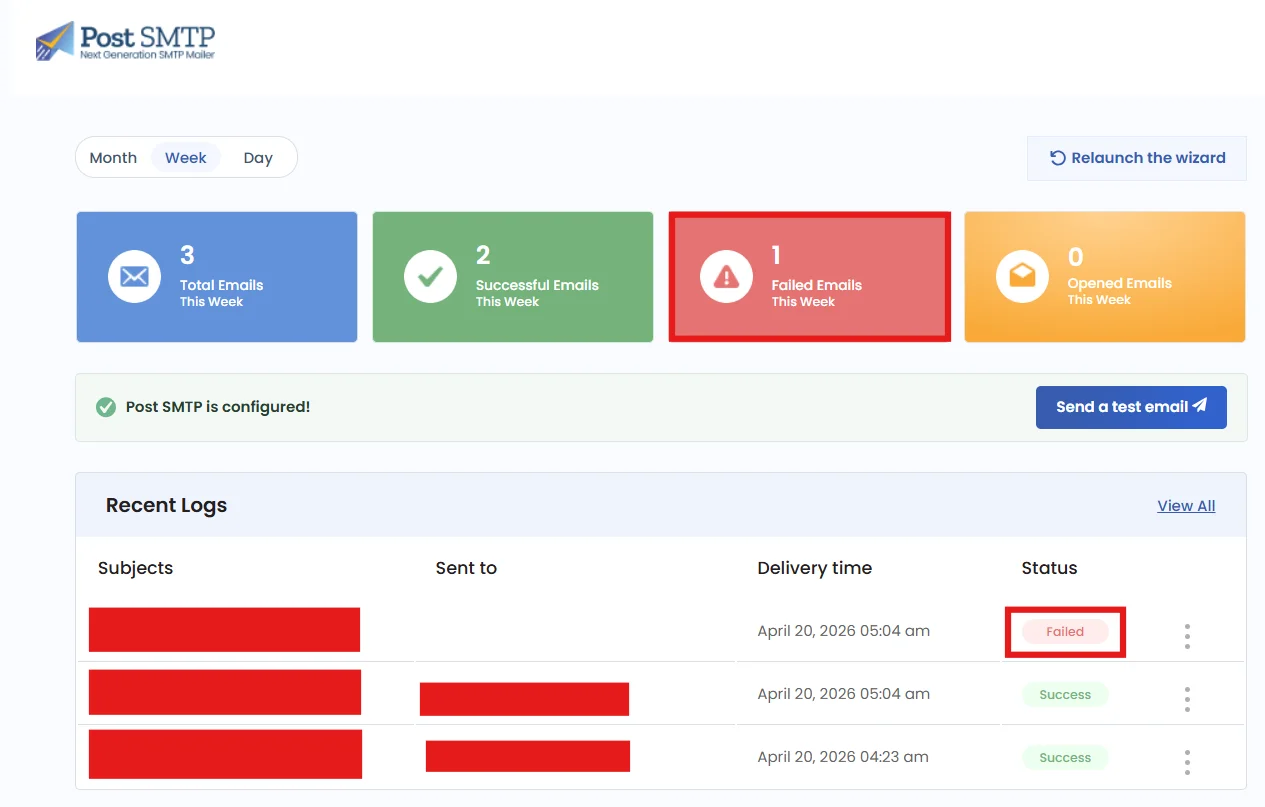
Here you will see a very user-friendly and clean interface, where you can see the total, successful, failed, and opened emails. You can also spot Recent Logs, where it’s a detailed overview of each email.
- Click on View All to access the entire email logs.
- Once in the logs, find the failed email, and click on resend.
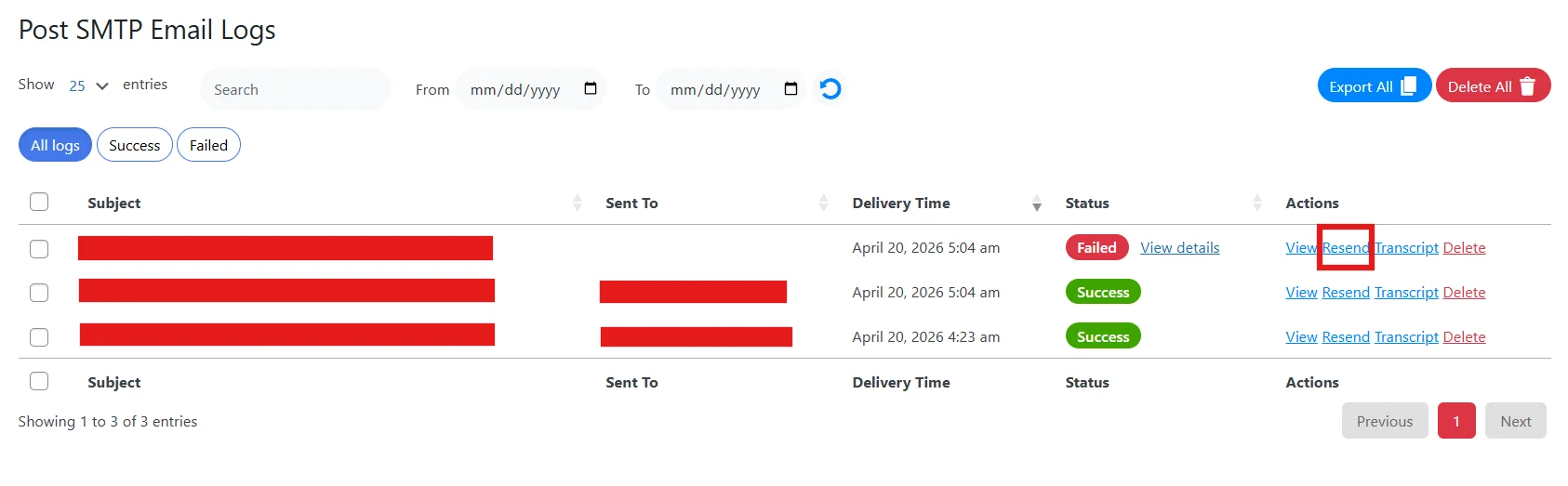
- Enter the recipient’s email and click the Resend button again.
Once a success message appears, you have successfully sent a failed email.
How to Enable WordPress Debug Mode for Email Issues
You can enable WordPress debug mode for email issues in two ways: through the file manager or a debugging plugin.
Enable WordPress Debug Mode with File Manager:
- In your WordPress dashboard, go to Plugins → Add New Plugin
- Enter Advanced File Manager in the search bar on the right.
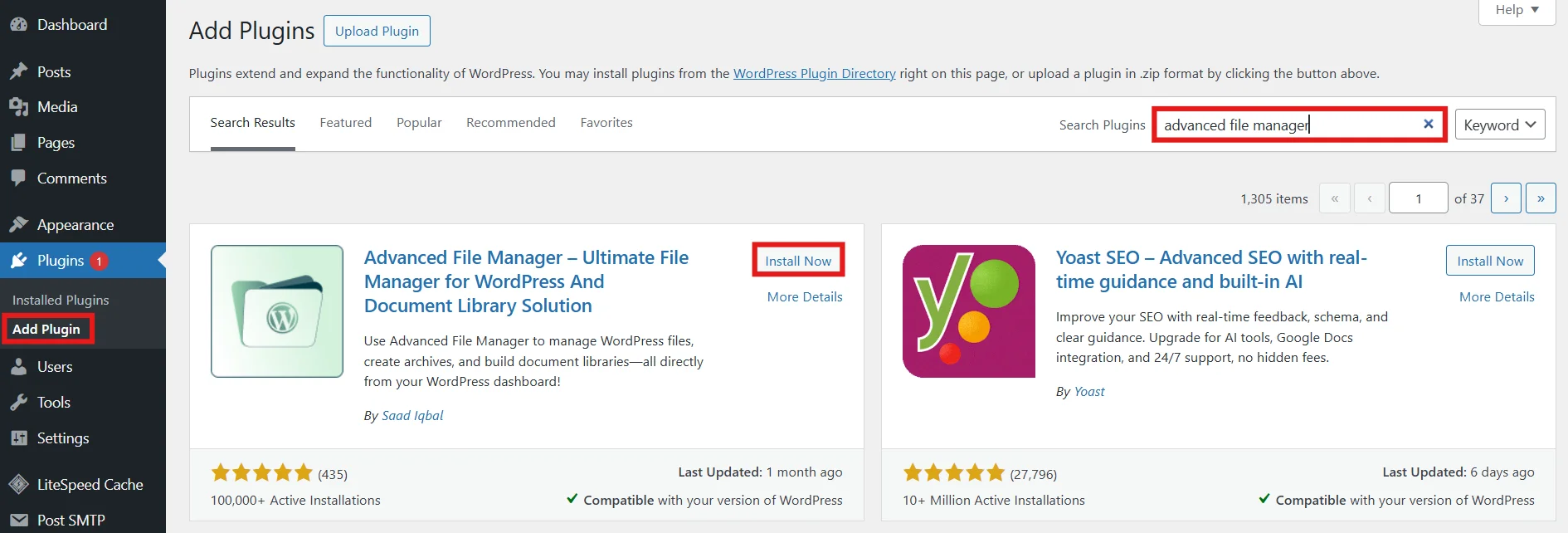
- Click on Install Now, followed by Activate.
- Once activated, go to File Manager on the WordPress sidebar. You will get access to WordPress core files.
- You can either scroll down and look for wp-config.php or search on the top right.
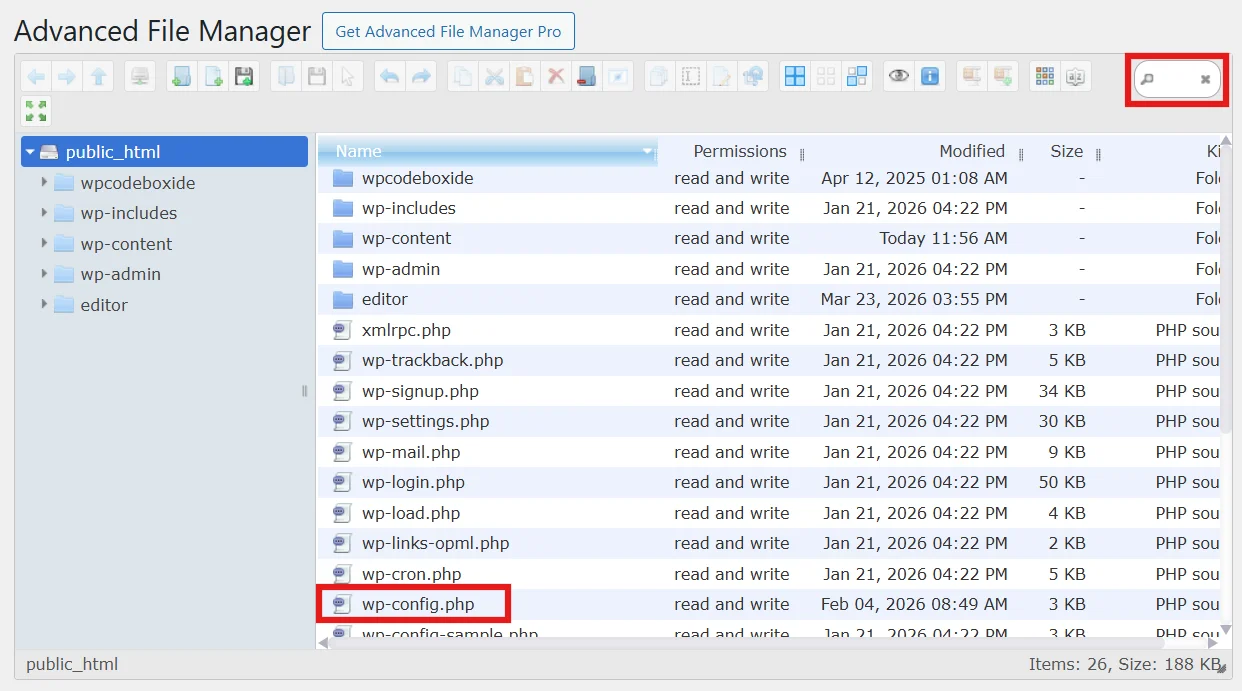
- After finding the file, press right-click and select code editor.
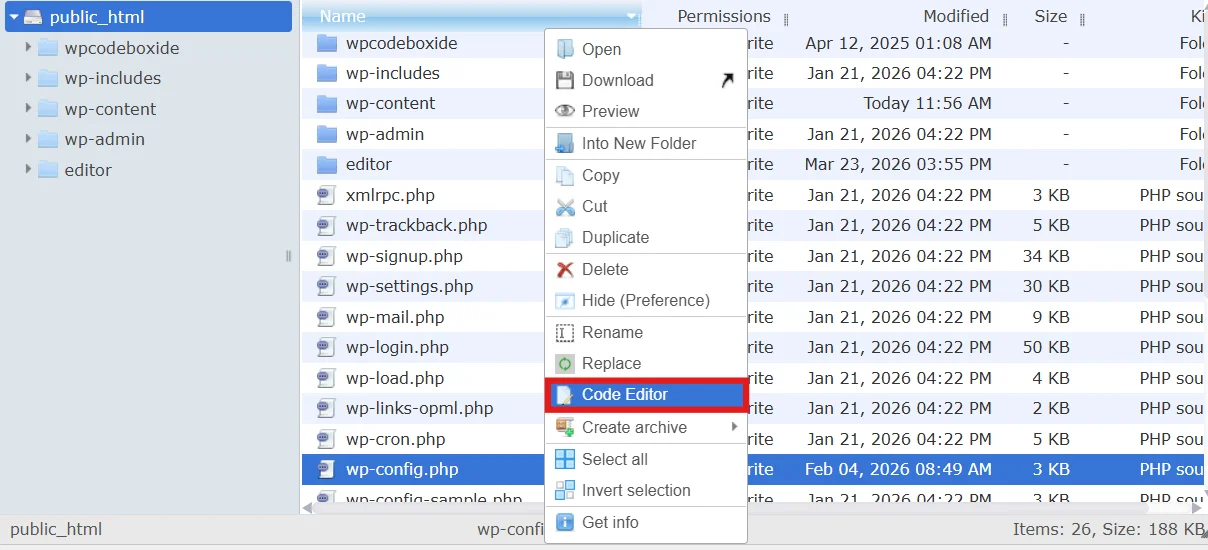
- Scroll down till you find:
define( ‘WP_DEBUG’, false );
Update it to:
define( ‘WP_DEBUG’, true );
define( ‘WP_DEBUG_LOG’, true );
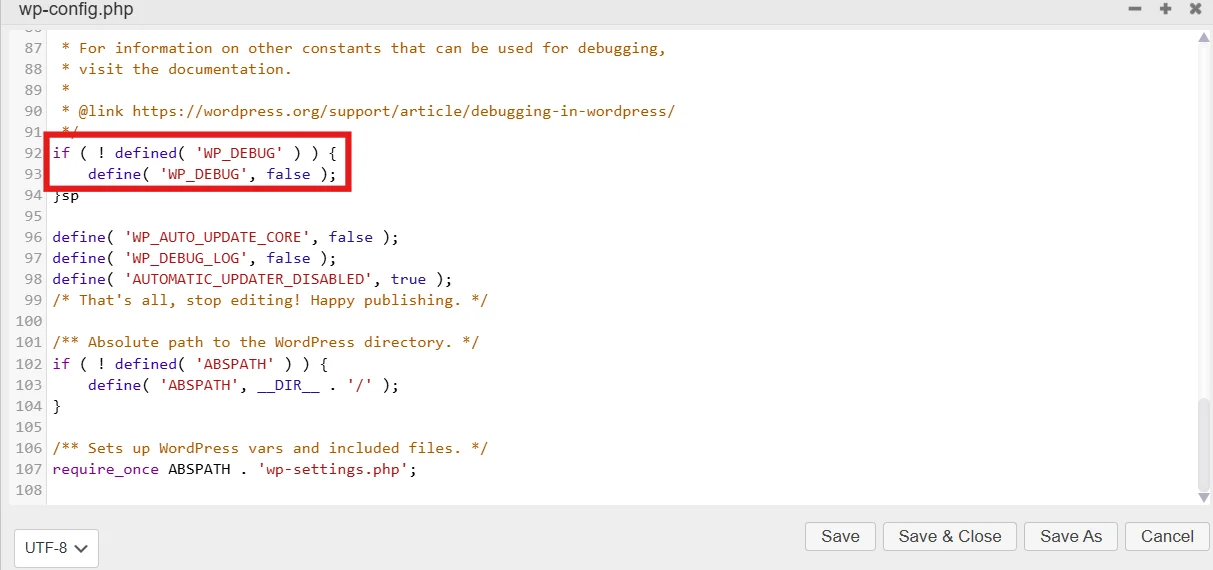
- Once you’re done, click Save As Settings.
- Open /wp-content/debug.log file.
- Review the debug log to identify any email delivery problem to a specific plugin or configuration option.
You have successfully enabled WordPress debug mode.
Common WordPress Email Errors and Their Meaning
If your WordPress emails aren’t behaving, the error messages can feel vague or a bit intimidating. Here’s a breakdown of what those common issues are actually telling you:
No email received
This usually means your site didn’t manage to send the email at all. A common reason is that your server’s PHP mail() function is turned off or restricted. In short, WordPress tried, but your server didn’t let it go out.
Emails going to spam
If messages are landing in spam folders, it’s often about trust. Missing email authentication records like SPF, DKIM, or DMARC can make your emails look suspicious to receiving servers.
550 / 554 errors
These codes mean the receiving server rejected your email. That could be due to an invalid recipient address or because your email looked like spam from their perspective.
Timeout / 500 errors
This points to a connection issue. Your hosting provider may be blocking the SMTP port you’re trying to use, so WordPress can’t connect to the mail server in time.
Plugin conflicts
Sometimes another plugin interferes with your email setup and blocks outgoing messages. If emails suddenly stop after installing or updating a plugin, that’s a strong clue.
These errors might look technical, but most of them come down to a few common causes: server restrictions, missing authentication, or something blocking the connection.
Start Troubleshooting with Post SMTP Today
WordPress email delivery problems always appear randomly. You will notice them when emails go missing, forms stop notifying, and customers never receive their confirmations. By the time you notice, the damage is already done.
Post SMTP gives you everything you need to stay ahead of it: a full diagnostic toolkit, real-time failure alerts, detailed delivery logs, and a Failed Emails Fallback so nothing slips through. Install it, run a test, and know exactly where your email stands.
You can unlock all features by upgrading to Post SMTP Pro to take full control of your email deliverability.
FAQs – WordPress Email Delivery
How can I test if my WordPress site is sending emails correctly?
Use Post SMTP’s Send Test Email feature. It sends an email through your mailer and logs the result instantly. If something’s wrong, the log tells you exactly where it failed. You can follow it up with the Diagnostic Test for a detailed check.
How often should I clean my email list?
Every three months is a reasonable baseline. Inactive and bouncing addresses drag down your open rates and damage your sender reputation over time.
Can changing my hosting provider solve email delivery issues?
Sometimes, but only if your host is the actual problem. If Post SMTP’s Connectivity Test shows all SMTP ports blocked, your host is likely the bottleneck. Keeping that into consideration, switching hosting providers won’t fix authentication failures or sender reputation, which follow your domain. Always diagnose with Post SMTP first before making any decisions.
Is it better to use a third-party email service or my hosting provider’s email service for my WordPress emails?
Third-party every time. Hosting providers’ infrastructure is shared, unoptimized, and far more likely to land in spam. Dedicated services like SendGrid, Mailgun, or Brevo are built for email deliverability. Post SMTP connects to all of them and gives you one place to manage everything.
