

























WordPress email deliverability issues have become increasingly common in recent years, especially after the rise in stricter spam filtering and email security standards.
Emails sent from WordPress often fail to reach the inbox or get marked as spam. These issues can affect critical emails such as login credentials, password resets, order confirmations, and other important notifications.
A more reliable approach is to replace the default system with an SMTP integration. Using Maileroo with the Post SMTP plugin ensures authenticated email delivery, secure transmission, and improved inbox placement.
In this blog, you will learn how to fix WordPress email deliverability issues using Maileroo and the Post SMTP plugin, along with setup steps, authentication tips, and best practices for consistent inbox delivery.
Why WordPress Emails Fail to Deliver
WordPress email issues usually come from how emails are sent by default.
By default, WordPress sends emails using the PHP mail function (wp_mail()), which relies on your hosting server configuration. This method lacks proper email authentication protocols such as SPF, DKIM, and DMARC, which leads to email deliverability issues.
Here’s why emails fail:
- No SMTP authentication: Emails are sent without verifying the sender’s identity through SPF, DKIM, or DMARC.
- Spam filters: Modern spam filters check authentication records like SPF and DKIM.
- Hosting limitations: Many servers restrict outgoing emails or mark them as suspicious.
- No sender reputation: Shared hosting IP addresses often have a poor or blacklisted reputation.
Because of these issues, emails are flagged as spam or not delivered at all. If you’ve faced this before, you can track failed emails and debug those issues by checking WordPress Email Logs using the Post SMTP plugin.
Using SMTP instead of the default method solves most WordPress email issues.
What is Maileroo?
Maileroo is a cloud-based SMTP service and email delivery platform designed for sending transactional WordPress emails reliably. As a third-party service, it handles authentication and infrastructure, ensuring your emails are delivered securely and consistently.
Key features include:
- High email deliverability: Ensures emails land in inboxes, not spam folders
- Secure email sending: Uses authenticated SMTP connections
- Real-time analytics: Monitor open rates, click-through rates, bounce rates, and delivery status.
- Email logs and reporting: Monitor every email sent from your site
- Scalable infrastructure: Handles small to high-volume email traffic
Maileroo also provides SMTP relay and API integration, making it flexible for developers and beginners. If you’re comparing options, you can explore the 8 Best SMTP Plugins for WordPress.
Benefits of Using Maileroo with Post SMTP
Using Maileroo with Post SMTP creates a reliable WordPress SMTP setup optimized for deliverability, security, and performance.
- Improved Deliverability: Maileroo ensures proper email authentication using SPF, DKIM, and DMARC. This improves inbox placement and significantly reduces spam issues.
- Easy Setup & Integration: Post SMTP (the best WordPress SMTP plugin) provides a guided setup wizard. You can connect Maileroo using an API key without complex configuration.
- Reliable Email Delivery: Unlike the default wp_mail() function, SMTP ensures emails are properly routed, authenticated, and delivered without silent failures.
- Detailed Email Logging & Tracking: You get complete email logs, delivery status, and failure reports inside Post SMTP. This makes troubleshooting fast and data-driven.
- Better Debugging & Error Handling: Instant alerts and logs help you quickly identify why an email failed, whether it’s DNS, authentication, or server-related.
- Security & Authentication: Emails are sent through secure SMTP servers with TLS encryption. This protects your site and ensures trusted email delivery.
- Improved Sender Reputation: Consistent sending through a trusted SMTP service helps build a positive domain and IP reputation over time.
- Separation from Hosting Limitations: You’re no longer dependent on your web host’s email restrictions or poor server reputation.
- Analytics & Performance Insights: Track open rates, clicks, and delivery performance to optimize your email strategy.
- Plugin Compatibility: Maileroo works smoothly with the Post SMTP plugin and other WordPress tools, ensuring strong plugin compatibility without conflicts or technical issues.
Step-by-Step Guide to Setting Up Maileroo with Post SMTP
Follow these steps to properly configure Maileroo in WordPress using Post SMTP.
Step 1: Create a Maileroo Account & Get Credentials
- Sign up or log in to Maileroo
- Go to Domains → Add Domain
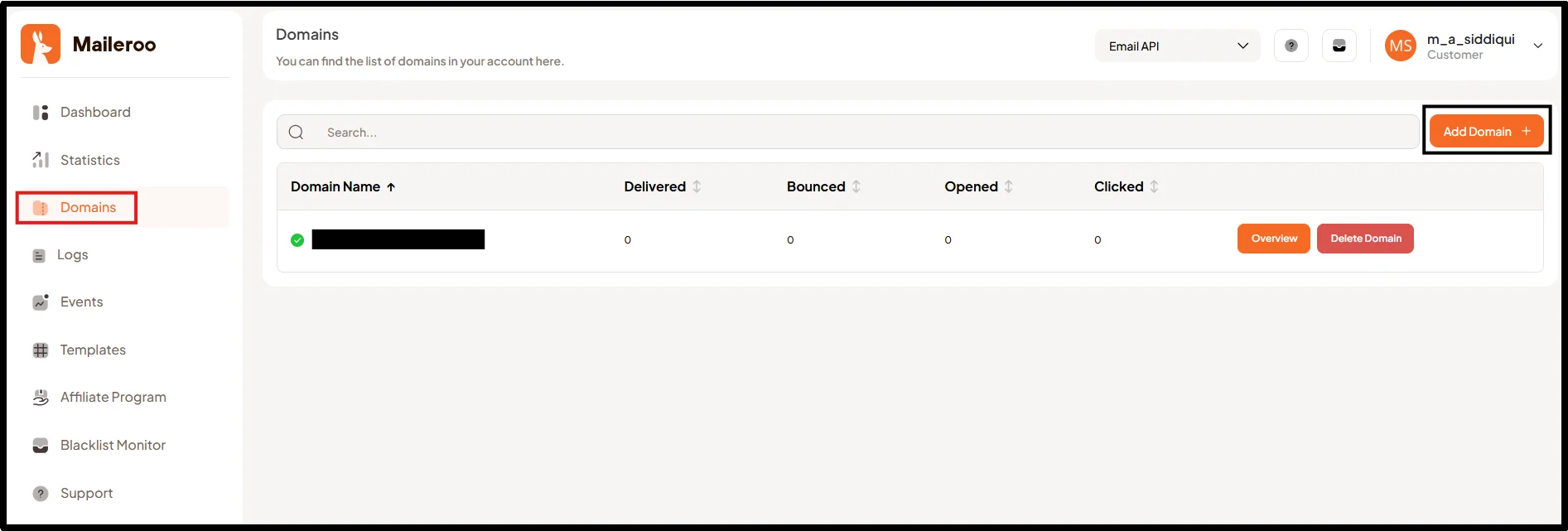
(You will notice a sandbox domain if you set up a fresh account – ignore it for now). After clicking Add domain, enter the domain name to proceed.
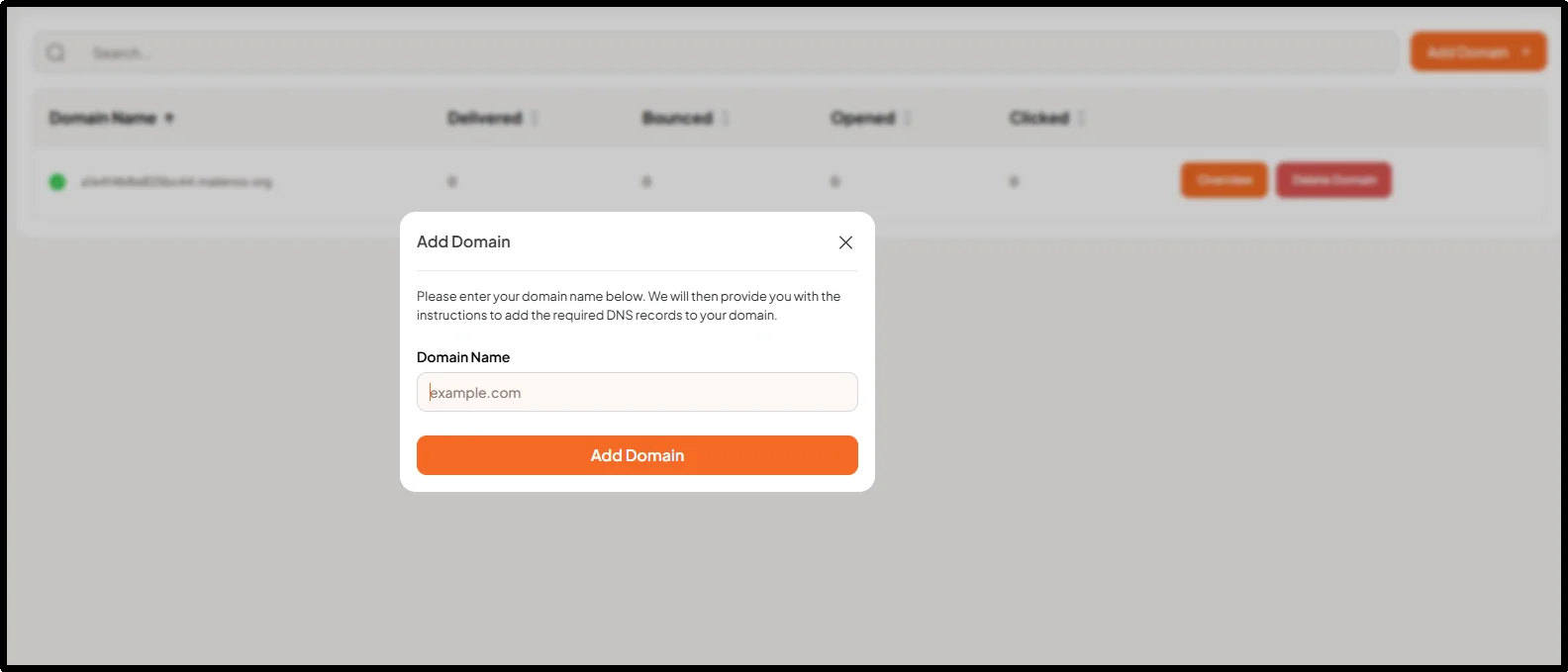
- You can now see your DNS records, and add them to your site for verification
- Click Verify DNS Records
- Navigate to Sending Keys
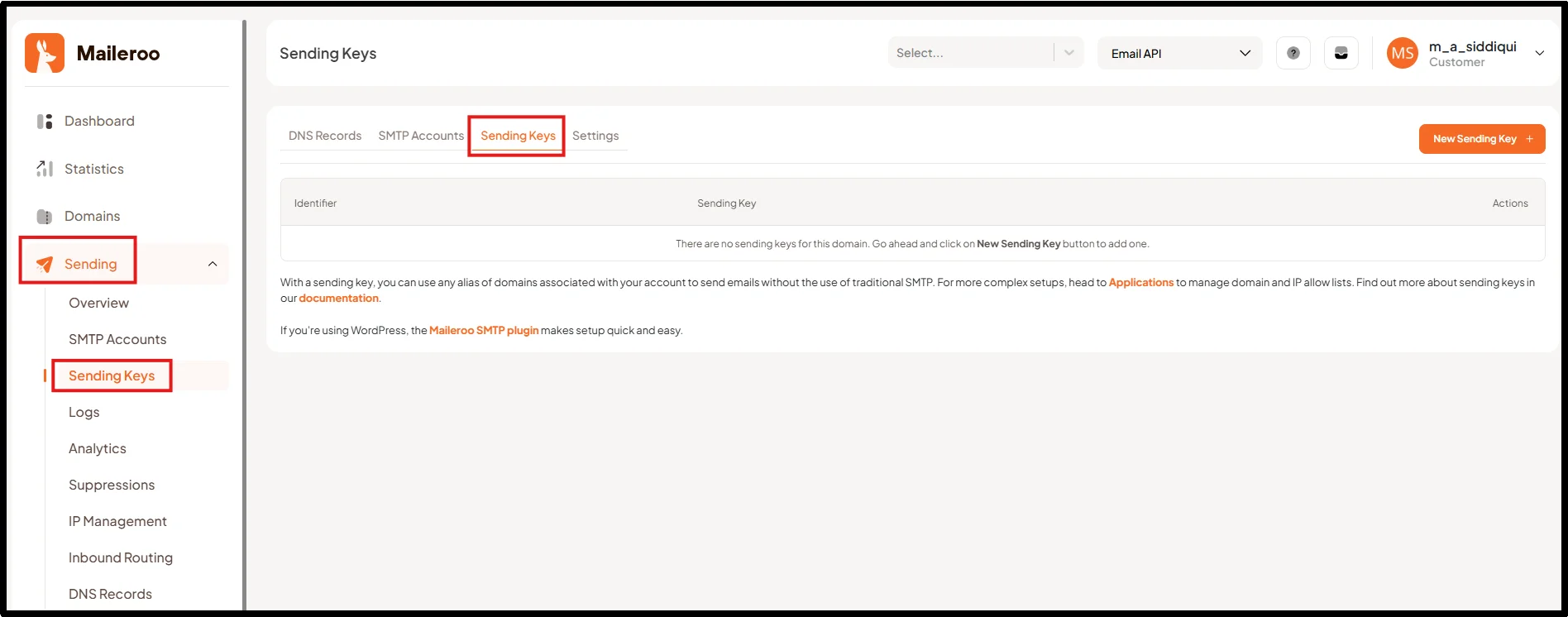
- Generate a new API key
Copy this API key, as you’ll need it when configuring Maileroo inside the Post SMTP plugin.
Step 2: Install and Activate Post SMTP Plugin
- Go to WordPress Dashboard → Plugins → Add Plugin
- Search for Post SMTP
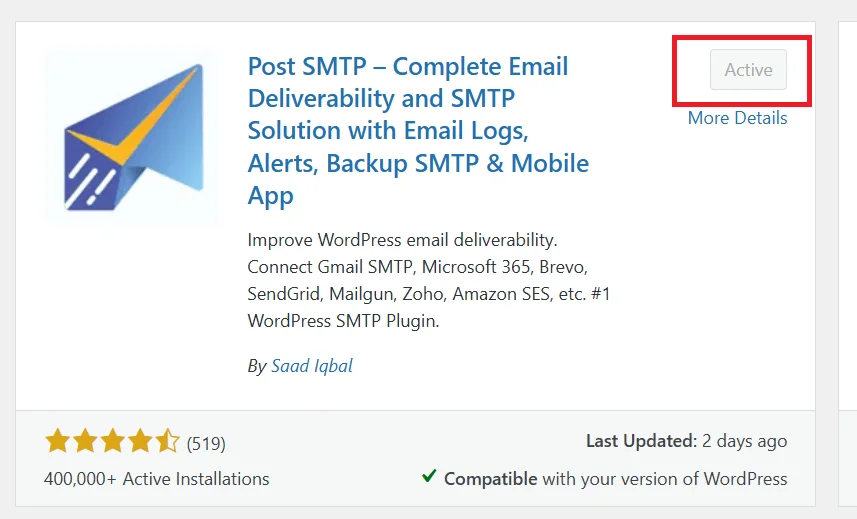
- Click Install Now and Activate
Once activated, open the setup wizard.
Step 3: Configure Maileroo Settings in Post SMTP
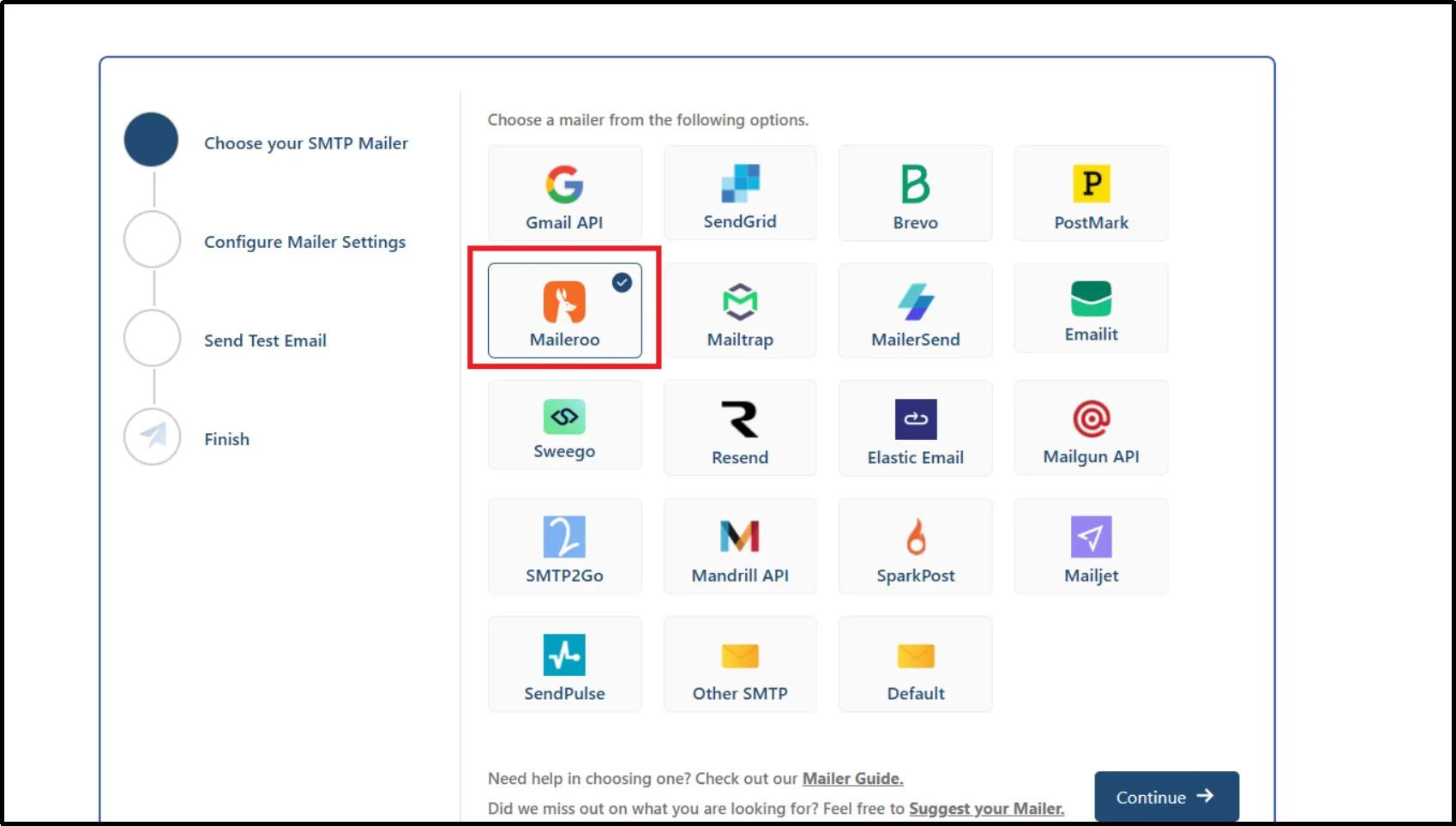
- Open Post SMTP → Start Setup Wizard
- Choose Maileroo as your mailer
- Enter key information:
- From Email Address
- From Name
- Paste your Maileroo API Key
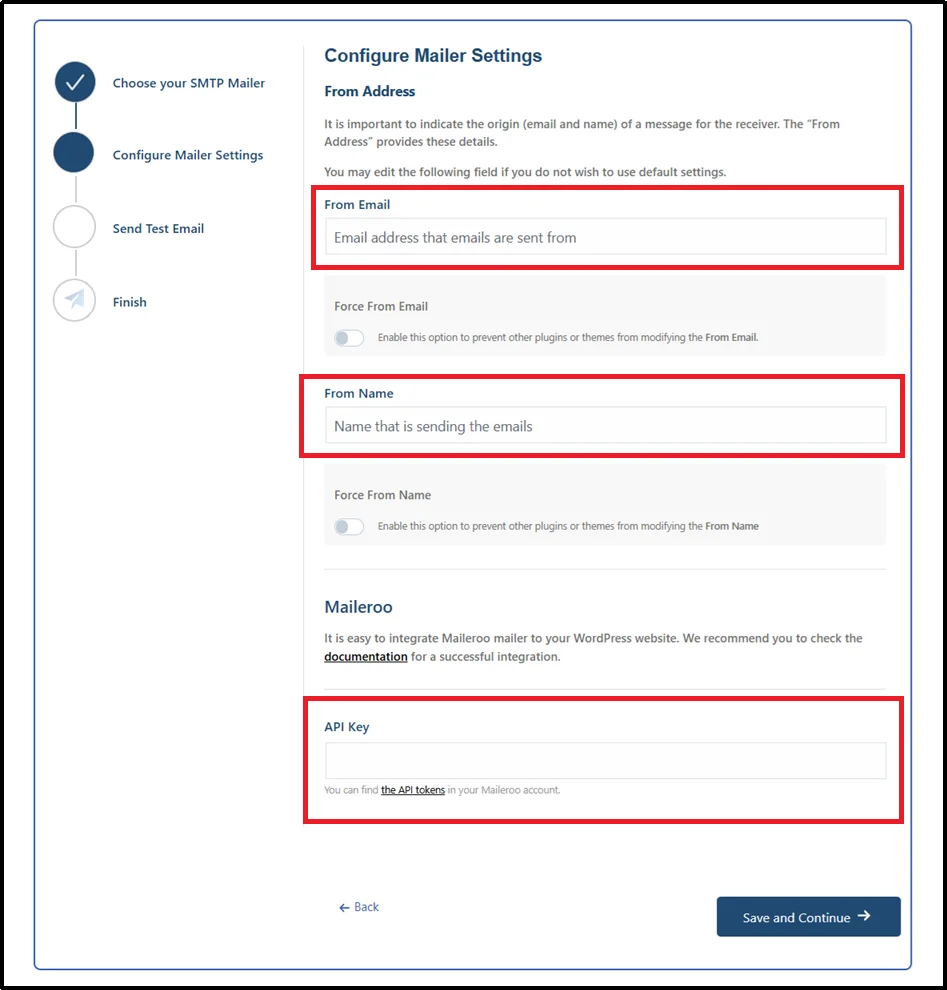
- Enable the toggle for email and name lock (recommended)
- Click Save and Continue
This step establishes a secure and authenticated SMTP connection between your WordPress site and Maileroo.
Step 4: Test Email Deliverability
The setup wizard will prompt you to send a test email to verify your configuration. You can also run a connectivity test within Post SMTP to verify that your server is properly communicating with Maileroo.
- Enter a recipient email address
- Click Send Test Email
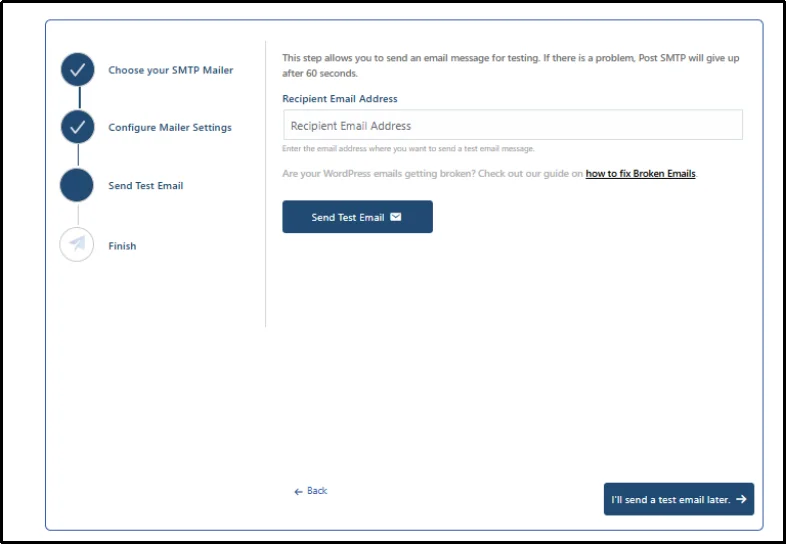
- Confirm delivery in the inbox
If successful, your setup is complete.
Best Practices to Maximize Email Deliverability
Setting up SMTP is just the first step. Follow these best practices to improve WordPress email deliverability further:
- Enable domain authentication: Add SPF records, DKIM signatures, and a DMARC policy to verify your sending domain and improve trust.
- Use a domain-based email address (e.g., yourname@yourdomain.com) instead of free email services like Gmail or Yahoo.
- Maintain email reputation: Send consistent and relevant emails
- Avoid spam trigger words: Words like “free money” can flag emails
- Enable email logs: Track failures and delivery issues
- Implement BIMI (Brand Indicators for Message Identification): Display your brand logo in supported inboxes to improve trust and brand recognition.
Maileroo vs Other SMTP Providers
Here’s a comparison of Maileroo with popular SMTP providers for WordPress:
| Feature | Maileroo | SendGrid | Gmail SMTP | Amazon SES |
| Deliverability | High | High | Medium | Very High |
| Setup Difficulty | Easy | Medium | Easy | Advanced |
| Analytics | Built-in | Yes | Limited | Advanced |
| Pricing | Affordable | Expensive | Free/Paid | Very Low |
| Best For | WordPress SMTP | Developers | Small sites | High volume |
Start Sending Reliable WordPress Emails with Maileroo & Post SMTP
WordPress email deliverability issues can seriously impact your website’s communication and trust.
By combining Maileroo with the Post SMTP plugin, you create a reliable, secure, and fully authenticated WordPress email delivery system.
This setup helps you:
- Fix common WordPress email issues
- Improve inbox placement and avoid the spam folder
- Secure emails with proper authentication (SPF, DKIM, DMARC)
- Track email performance with logs and analytics
If you want consistent, professional, and secure WordPress emails, this is one of the easiest and most effective solutions available. Set up Maileroo with Post SMTP today to improve email deliverability, avoid spam filters, and ensure your WordPress emails consistently reach the inbox.
