























Best Office 365 WordPress SMTP Plugin
Connect Microsoft 365 and Outlook SMTP to WordPress in One Click!
Post SMTP is the most trusted WordPress SMTP plugin for Microsoft 365 (formerly Office 365) and Outlook with OAuth 2.0 security, one-click setup, and real-time delivery logs.

300,000+ Active installs

One-Click Setup

4.7 / 5 Stars

Our Post SMTP Plugin has Featured on






Set Up WordPress Microsoft 365 SMTP with Post SMTP in Two Easy Ways
Choose the setup method that fits your technical comfort level. Both result in rock-solid Microsoft 365 email delivery for your WordPress site.

Open the Setup Wizard & Select Your Mailer
First, go to Post SMTP → Extensions and activate the Microsoft One-Click SMTP extension. After that, launch the Setup Wizard. Select Microsoft (Outlook / Office 365 API) and toggle on the One-Click Setup option.
Click “Sign in with Microsoft”
A Microsoft login window appears. Sign in with the Office 365 account that matches your From Email address; any mismatches cause a 403 error.
Accept Permissions & You’re Done
Microsoft asks for basic profile and mail-sending permissions. Click Accept. You’ll be redirected back to WordPress with a success confirmation. Send a test email to confirm.
Open the Setup Wizard & Select Your Mailer
First, go to Post SMTP → Extensions and activate the Microsoft One-Click SMTP extension. After that, launch the Setup Wizard. Select Microsoft (Outlook / Office 365 API) and toggle on the One-Click Setup option.
Register an App in Azure Portal
Log in to portal.azure.com with your Microsoft 365 email. Go to App Registrations → New Registration. Set the Supported account types to “Multitenant” and paste Post SMTP’s Redirect URI into the Web field.
Generate Client ID & Client Secret
Copy the Application (Client) ID from your new app’s overview page. Then navigate to Certificates & Secrets → New Client Secret.
Configure Post SMTP with Your Credentials
In WordPress, go back to the Setup Wizard. Enter your From Email, paste the Client ID and Client Secret, then click “Connect to Office 365.”
Authorize & Send a Test Email
Post SMTP redirects you through Microsoft’s consent screen. Grant permissions. Once you see “OAuth 2.0 authorization successful,” enter a test recipient email and confirm delivery.

WordPress Site Owners Love Post SMTP for Microsoft 365 and Outlook Email Setup
Don’t take our word for it. See what site owners and developers have to say.
Excellent support for a great plugin! After purchasing PostSMTP Pro and facing some incompatibility issues with other plugins…

Michae
WordPress Org

It’s a fantastic plugin. I’ve replaced it on all my websites. The customer support is fast and very helpful, excellent service! I highly recommend it!

decupe
WordPress Org

Why Post SMTP Is the Best WordPress SMTP Plugin for Microsoft 365 and Outlook Integration
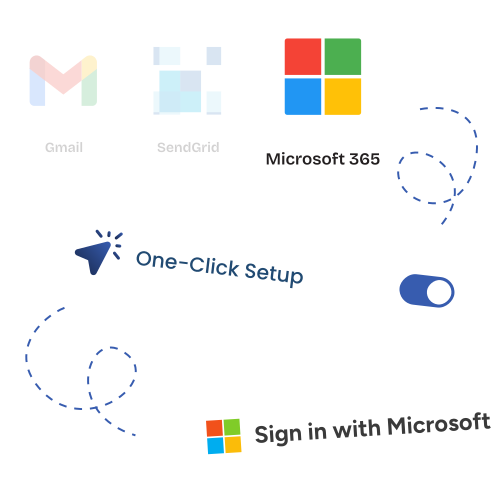
One-Click Microsoft 365 Configuration
Super Easy to Connect Microsoft 365 SMTP with WordPress
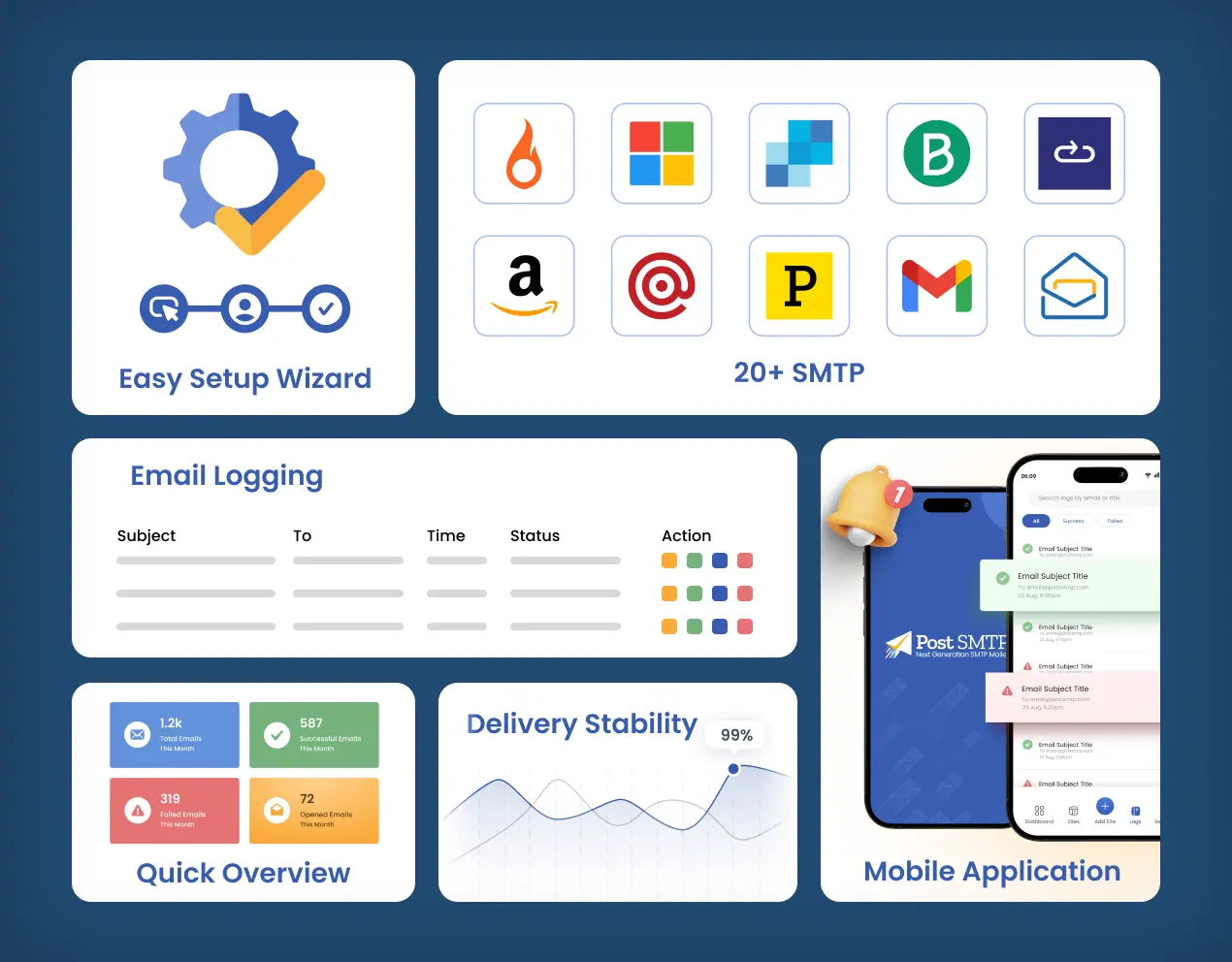
Comprehensive Email Logging


Email Reporting and Tracking
Get daily/weekly email reports with open tracking
Trusted by Thousands of WordPress Sites Worldwide
Join 300,000+ site owners who rely on Post SMTP for reliable email delivery.
Multiple Email Failure Alerts Options
Never miss an email delivery failure with instant notifications


On-Demand SMTP Configuration
Let our WordPress experts configure SMTP for you
Post SMTP Mobile App
Easily monitor your WordPress emails anywhere, anytime

Additional Useful Post SMTP Features for Microsoft 365 SMTP Users

Auto-Retry Failed Emails
Set the maximum number of retries to allow Post SMTP to resend any failed emails automatically.

Weekly Email Summary
Get a weekly recap of your WordPress email delivery report, including the number of emails sent, successful, failed, and viewed.

Diagnostic & Connectivity Testing
Built-in tools to run connectivity tests, SMTP diagnostics, and send test emails, so you can confirm your Office 365 connection is healthy before it becomes a problem.

Priority Customer Support
As a Post SMTP premium user, you get priority expert assistance via email, WordPress forum, and even live call support for SMTP Configuration issues.

Email Attachments Resending
Resend email attachments with a single click right from your email log screen.

Email Quota Scheduling
Limit the number of emails you send per hour, day, week, or month in order to prevent exceeding your Email Service Provider’s quota.

Fallback SMTP Connection
Set up a backup WordPress SMTP server in case the main mailer fails to send transactional emails.

Free Chrome Extension
Get WordPress email failure notifications right in your Chrome browser.
Join 300,000+ Happy Users: Read Our Verified Trustpilot Reviews
I used this POST SMTP plugin for some years and I really like it. When I like plugins, I like to contribute and pay for it. The functions are even….

Trustpilot



Frequently Asked Questions About WordPress Microsoft 365 SMTP Setup
Have a question about Microsoft 365 SMTP and Outlook connection in WordPress? Check out our frequently asked questions below. If you can’t find your question here, feel free to contact us directly.
Still struggling with setting up Microsoft 365 SMTP for WordPress?
Install Post SMTP now and set up Microsoft 365 SMTP for WordPress in one click!