



























Running a WooCommerce store depends on reliable transactional email delivery. Every order confirmation, shipping update, password reset, and customer notification plays a critical role in the buying experience. When WooCommerce emails fail to send, customers lose confidence, support tickets increase, and sales can suffer.
According to an industry email marketing firm, “GetResponse”, welcome emails consistently generate some of the highest open and click-through rates among all email types, highlighting how important email delivery is for customer communication.
The unfortunate reality is that many emails sent directly from a default WooCommerce setup get lost, delayed, or land in the spam folder.
This usually happens due to how WordPress handles email delivery by default. In this article, we will cover the reasons for failed WooCommerce transactional emails, how to fix, track, and resend failed WooCommerce emails with a single click.
Why is Tracking Failed WooCommerce Emails Significant?
Think of it this way: if you are a customer and you place an order, you would expect an instant confirmation in your inbox. And if that email doesn’t arrive, either you panic or you give up on that order. So, to fix this issue and prevent you from giving up, you need a reliable way to detect errors and take action.
Here is why tracking and monitoring your WooCommerce emails is so important:
- Secured Revenue: Customers expect immediate confirmation after they purchase. If emails such as order receipts or shipping updates fail, you risk losing sales or customers abandoning the payment process due to delays.
- Increased Customer Trust: When customers don’t receive expected emails, they get anxious and might think their payment didn’t go through. Quick tracking lets you resend the order confirmation in WooCommerce instantly.
- Improved Email Deliverability: High failure rates hurt your store’s reputation with major email providers. Your email logs help detect delivery failures and fix them quickly with the SMTP plugin for WooCommerce.
- Reduced Support Tickets: A failing email system creates extra work for your team. Customers email or call to ask, “Where is my order confirmation?” By proactively solving your email issues, you decrease the number of these common support requests.
- Simple Debugging: When a customer reports a missing email, detailed logging is your best tool for email debugging in WooCommerce. You can immediately see when your website attempted to send an email, whether delivery succeeded, and any errors returned by the mail server.
Now that you understand why email tracking is necessary, let’s examine why emails fail to deliver in the first place.
Why Do WooCommerce Emails Fail To Deliver?
You might think that if your online store is running, the emails must be working too. Unfortunately, that’s often not true. The main reason most WooCommerce emails don’t send is the way WordPress is set up by default.
WordPress uses the standard function wp_mail() to send all outgoing emails. While this function works fine for basic site notifications, it has a major drawback:
- It lacks proper authentication: The wp_mail() function relies on your web server, the computer that hosts your website, to send the email. Most web servers are not configured with the special security settings that modern mail providers (like Gmail, Yahoo, or Outlook) require.
- Mail goes straight to spam: Because emails are sent without these security checks, receiving email providers often flag them as suspicious or spam. They don’t trust that the email is truly coming from your store.
To wrap it up, WooCommerce’s default system is too unreliable for important transactional emails that affect your business and your customers’ experience.
To fix this problem and boost your WooCommerce email deliverability, you need to use email authentication. These are technical checks that verify your email is legitimate and not a fake sent by a spammer.
Here’s what these authentication protocols are and what they do:
- SPF (Sender Policy Framework): SPF allows domain owners to specify which servers can send emails on behalf of their domain. Receiving mail servers use this record to verify that a message originates from an authorized source.
- DKIM (DomainKeys Identified Mail): This adds a hidden, secure digital signature to your email. The receiving server checks this signature to confirm that the message was not altered during transmission and genuinely originated from your domain.
- DMARC (Domain-based Message Authentication, Reporting & Conformance): This acts as the final rule-maker. It tells the receiving server what to do if an email fails the SPF or DKIM checks. For instance, whether to send it to spam or reject it completely.
If you don’t set up these secure protocols, your essential emails won’t be delivered reliably. This can lead to the infamous WooCommerce email deliverability issues.
But now that you are here, you don’t have to worry. The next section will help you track failed WooCommerce emails and resend them reliably with a single click.
Why Major Email Providers Require Authentication
Modern email providers such as Gmail, Outlook, Yahoo, and Apple Mail increasingly rely on SPF, DKIM, and DMARC records to combat phishing and email spoofing. Stores that properly configure these records often experience higher inbox placement rates and fewer delivery failures.
Step-by-Step Process to Track and Resend Failed WooCommerce Emails
As we told you earlier, you need to set up SMTP for WordPress to improve email deliverability. For this, you need an SMTP plugin, and for this guide we will use Post SMTP.
Unlike basic SMTP plugins, Post SMTP provides detailed delivery diagnostics, API-based mailer integrations, failure alerts, retry automation, and fallback delivery systems. These tools help WooCommerce store owners identify and resolve email delivery issues before they impact customers.
Here are some of the key features of Post SMTP:
- Secure Authentication with OAuth: The plugin lets you connect to popular mailers (such as Gmail, Amazon SES, and Microsoft 365) using OAuth 2.0. This means you securely authorize the connection without ever saving your email password directly in your WordPress files, which is much safer.
- Detailed Email Logging: It keeps a complete record of every email sent from your site. This log shows the delivery status, recipient, subject, and any error message. This is essential for WooCommerce email debugging and the very feature we will use for tracking.
- One-Click Resend Failed Emails: If an important email fails to send, you can easily find it in the logs and resend it with just one click, immediately correcting the communication breakdown. Of course, we will also use this feature, along with email logging, to track and resend failed WooCommerce emails.
- Instant Failure Alerts: You get notified right away when an email delivery fails. This speed is key for resending emails before a customer even notices.
- Fallback Mailing: You can set up a backup SMTP service. If your main email sender stops working for any reason, the plugin automatically switches to the backup to ensure your crucial transactional emails continue to be sent.
- Dedicated Mobile App: You can monitor logs, check errors, and even resend failed emails directly from your phone, giving you control over your store’s communication wherever you are.
- Email Open Tracking: This feature lets you see whether customers are actually opening the emails you send, helping you analyze your campaign performance.
- And much more: You can check out our features page to see all of them.
Let’s set it up in two easy steps. Plus two optional steps that will ensure even higher deliverability rates.
Step 1: Install Post SMTP
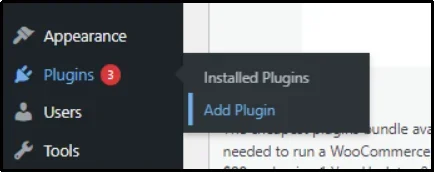
- Log in to your WordPress dashboard and navigate to Plugins → Add Plugin.
- On the subsequent screen, enter Post SMTP in the Search plugin bar on the right-hand side.
- Click the Install Now button, then wait until it changes to Activate.
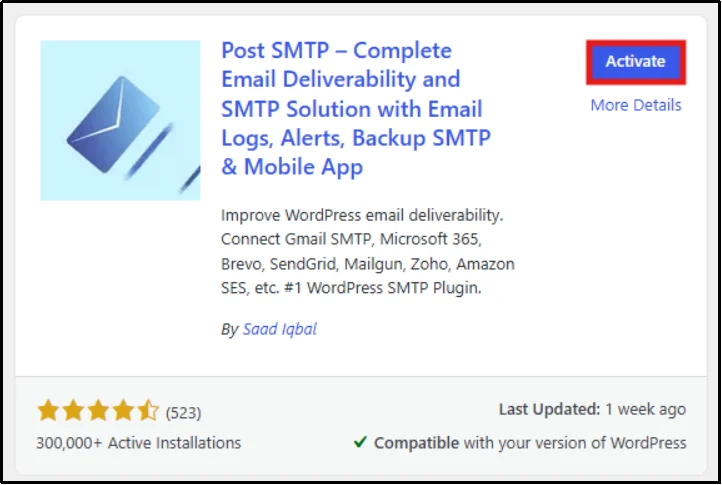
- Once Activated, you have completed half the work.
Since some features in the following guide are premium-only, you will also need to upload Post SMTP Premium to enjoy all the perks it offers. Hence, check out the plans and purchase one that fits your needs and budget.
- Once you have completed your purchase, you will receive a welcome email containing the plugin’s premium file and a unique license key. Save the license key for later use and install the zip file on your device.
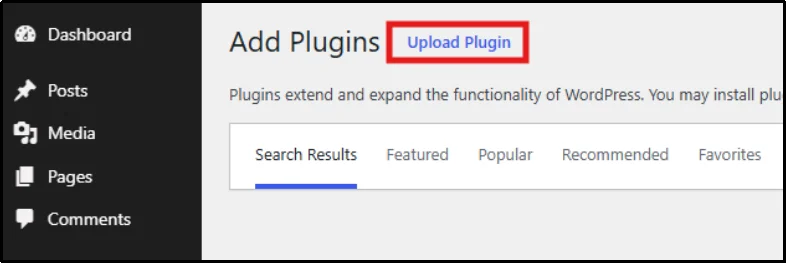
- Return to the Plugins → Add Plugins page, but this time click Upload Plugin in the top left corner.
- Click Choose File, browse to the zip file you saved on your device, and open it.
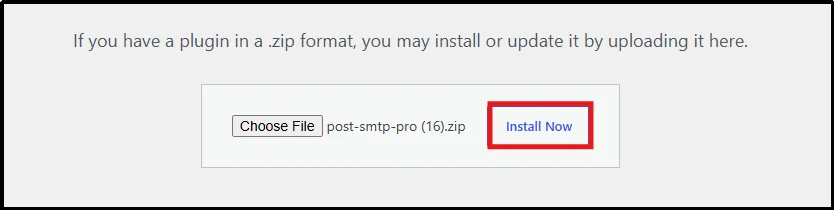
- Click Install Now.
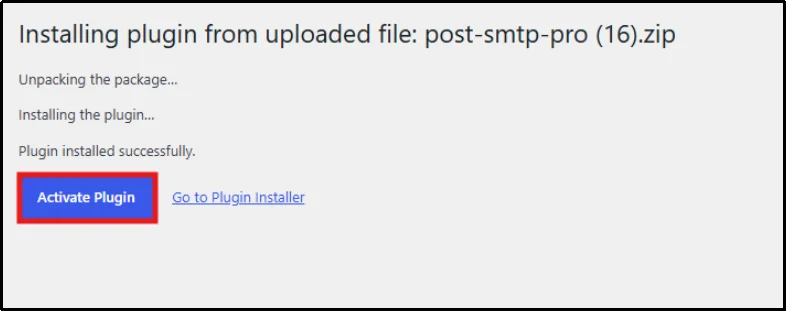
- After Installation is complete, click Activate Plugin.
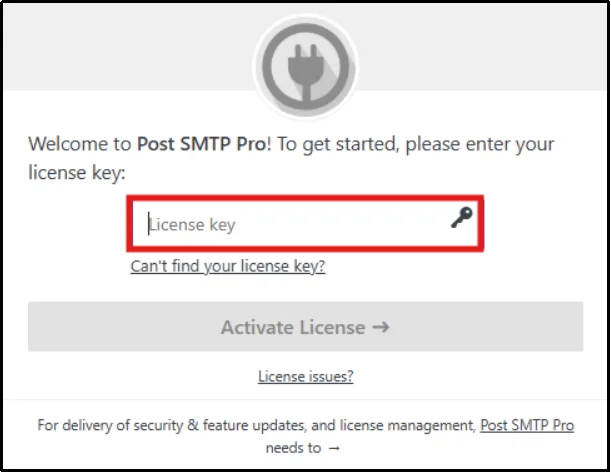
- Once activated, use your unique license key to activate all the premium perks.
Step 2: Track and Resend Failed WooCommerce Emails
Once Post SMTP is installed and activated, you can configure email logging and delivery monitoring.
- After activation, you will be redirected to the plugin’s dashboard.
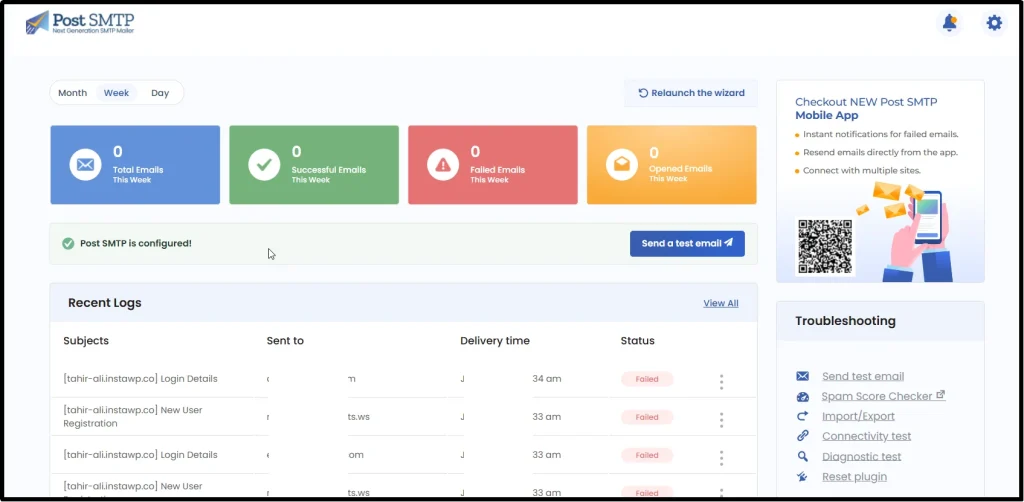
- Now, from the sidebar, go to Post SMTP – Extensions.
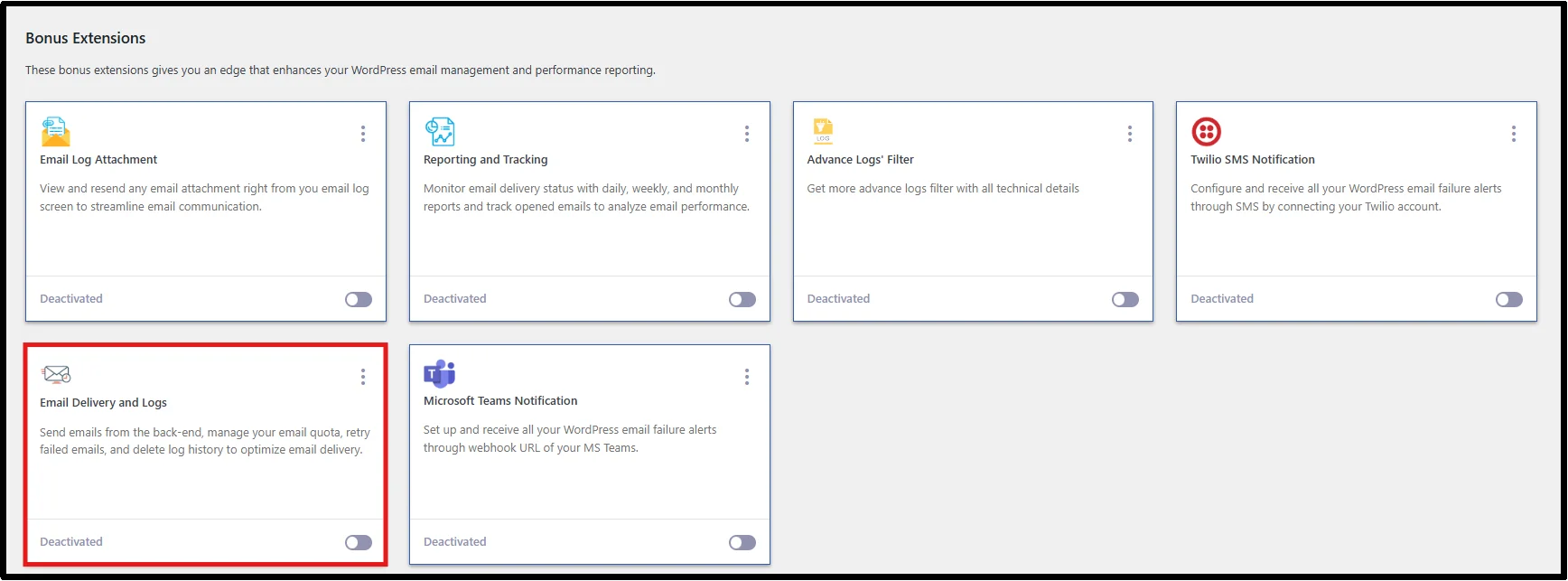
- Scroll down until you find the bonus extensions, enable Email Delivery and Logs, and save progress using the Save Changes button.
- Now, set up an SMTP connection using your favorite mailer. You can do so by starting the Setup the wizard.
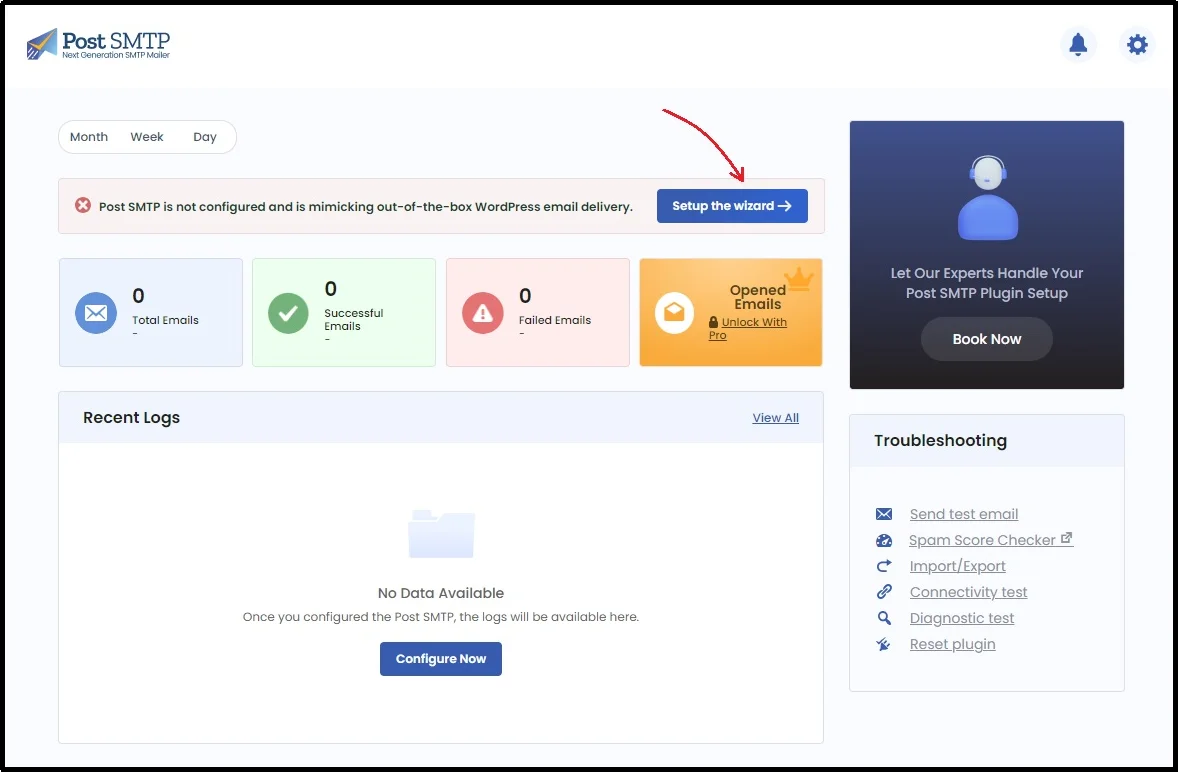
- Next, choose your favorite mailer and get their API keys.
The process differs for each mailer; if you need a step-by-step process, our SMTP Mailers documentation can assist you.
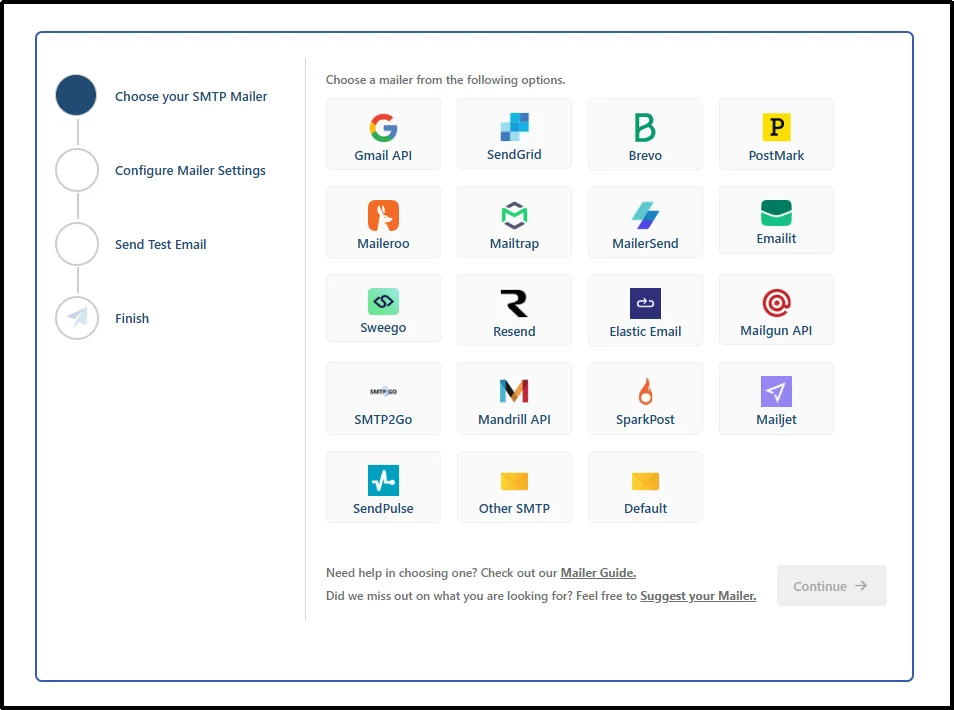
- For this guide, we are choosing Brevo.
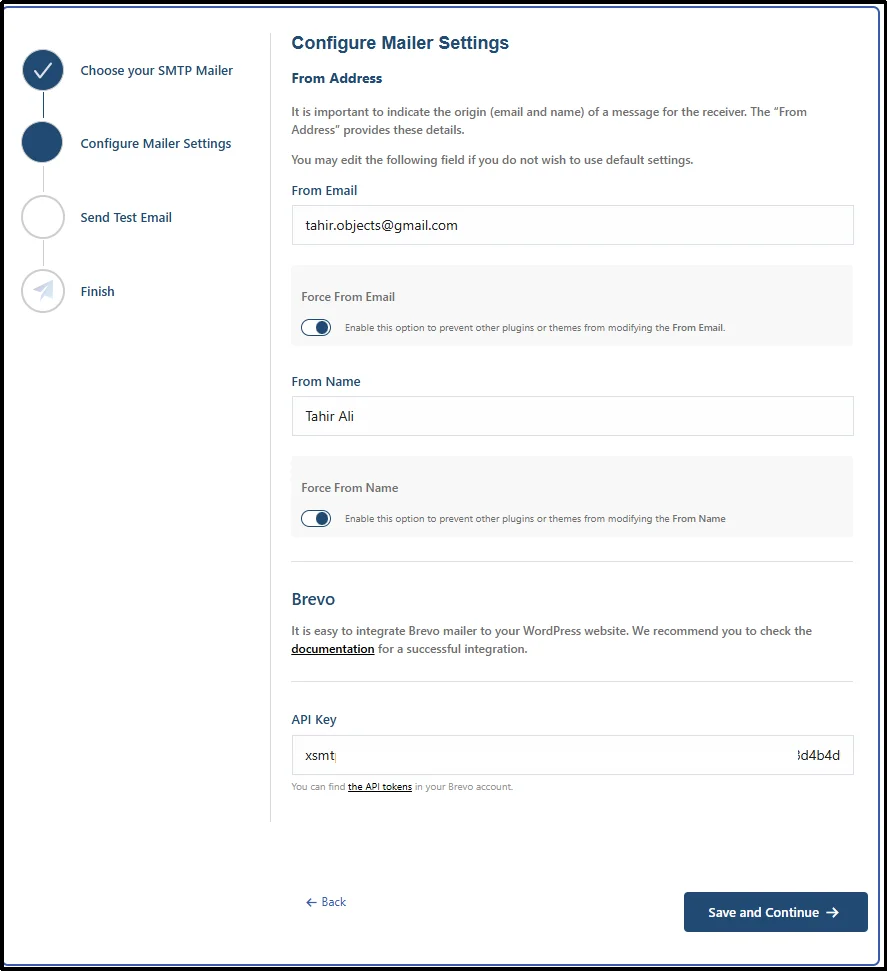
- On the subsequent screen. Enter From Address and From Name, and lock both in by enabling the “Prevent plugins and themes from changing this” toggle.
- After that, paste your API Key and hit Save and Continue. You can get this from your SMTP Mailer account.
- Next, enter a valid email address and click the ‘Send Test Email’ button.
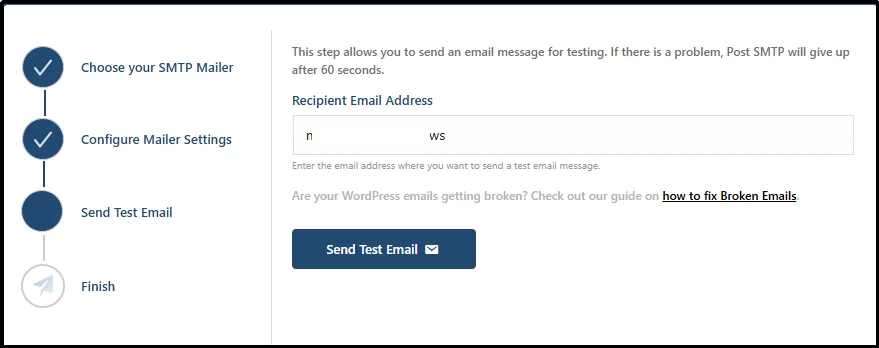
- Click Finish after you see the successful message.

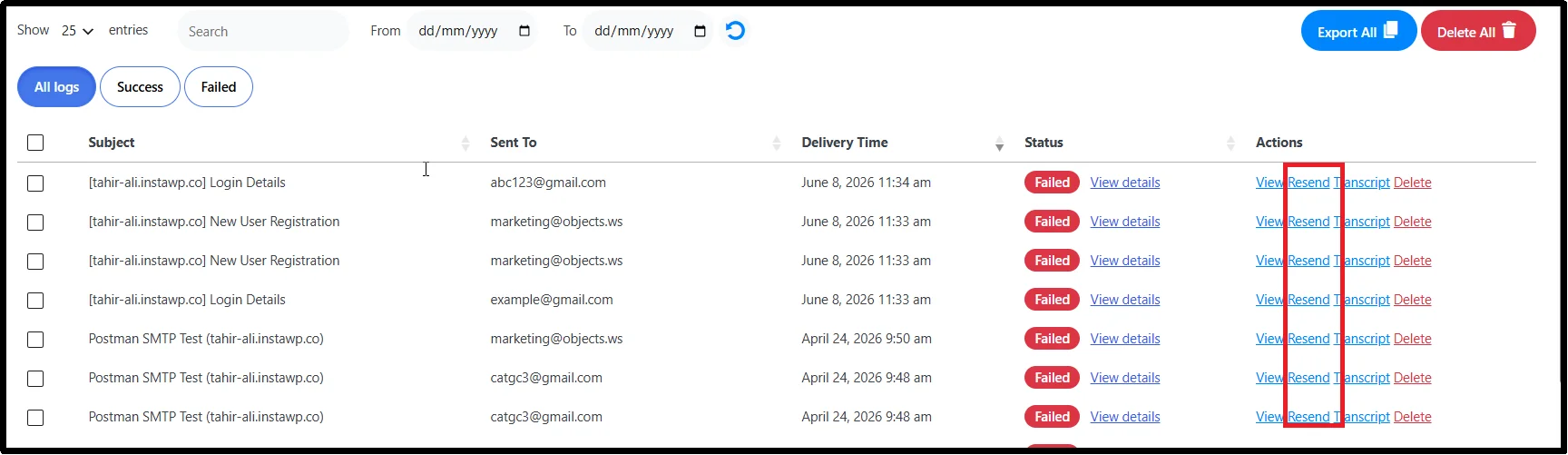
- Now, go to Post SMTP → Email Logs, where you can track all outgoing emails from your WordPress site.
- Click the ‘Resend’ button to send the failed email again.
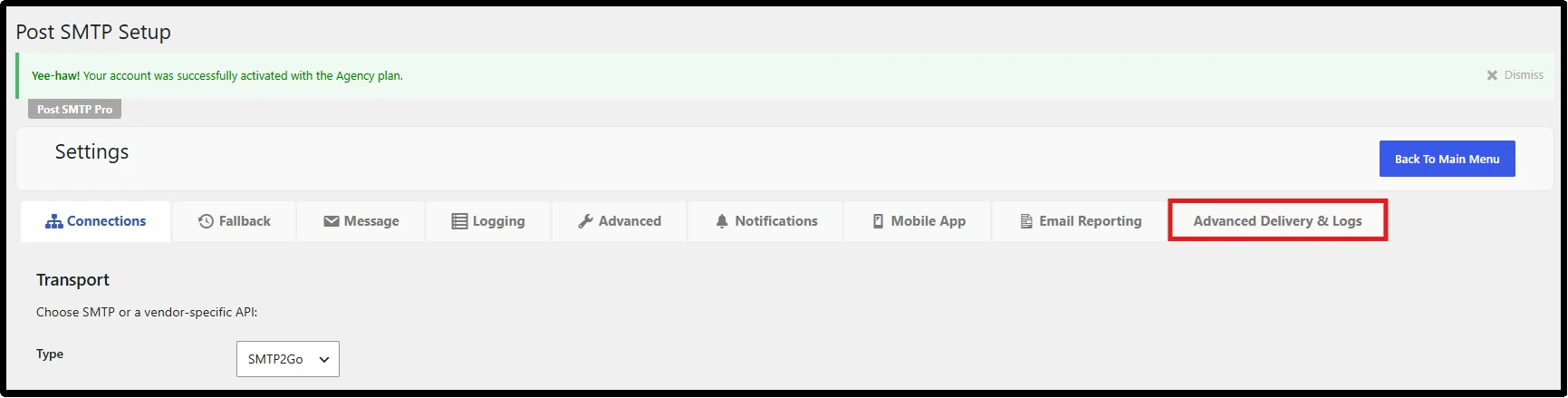
To stop these WooCommerce emails from failing in the first place, set up the Emails Auto Retry Feature in the Post SMTP plugin.
13. Navigate to Post SMTP → Settings, then the Advanced Delivery & Logs tab.
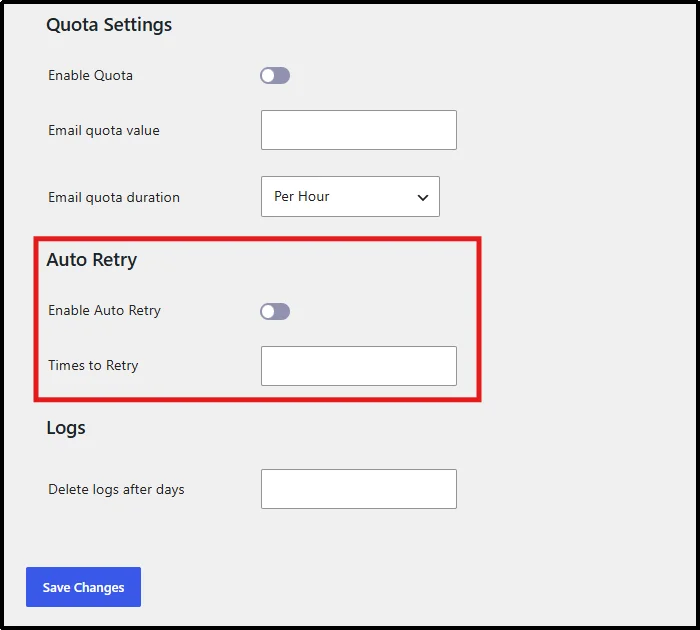
14. Scroll down until you find the Auto Retry option.
15. Enable the feature using the toggle button, then enter the number of times the plugin should retry sending a failed email.
Step 3: Set up a Fall Back Server [Optional]
As discussed earlier, Post SMTP allows you to configure a fallback server to take over when your main server fails. This amazing feature is super helpful to ensure none of your important emails fail to send.
A fallback mail server creates an additional layer of redundancy, helping ensure uninterrupted transactional email delivery even if your primary provider experiences downtime.
To set up the back-up SMTP, follow the steps below:
- Return to Post SMTP, then Settings, and finally the Fallback tab.
- Switch to Yes.
- Set up the outgoing mail server, configure the mail server port, choose SSL or TLS for security, and configure other important settings.
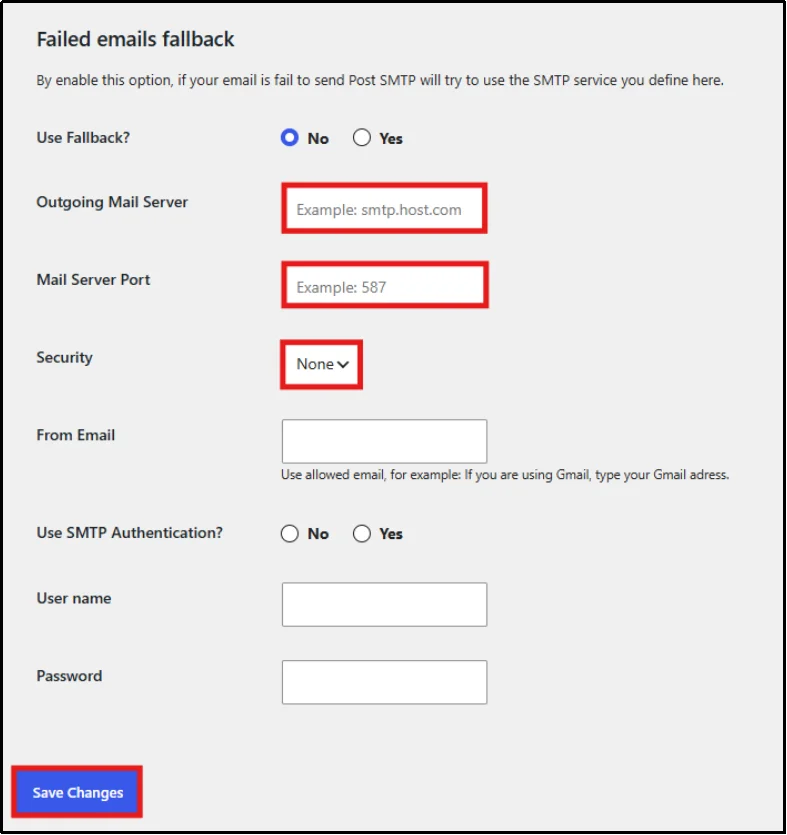
- Once done, save your changes using the Save Changes button.
[Optional] Step 4: Install Post SMTP Mobile App
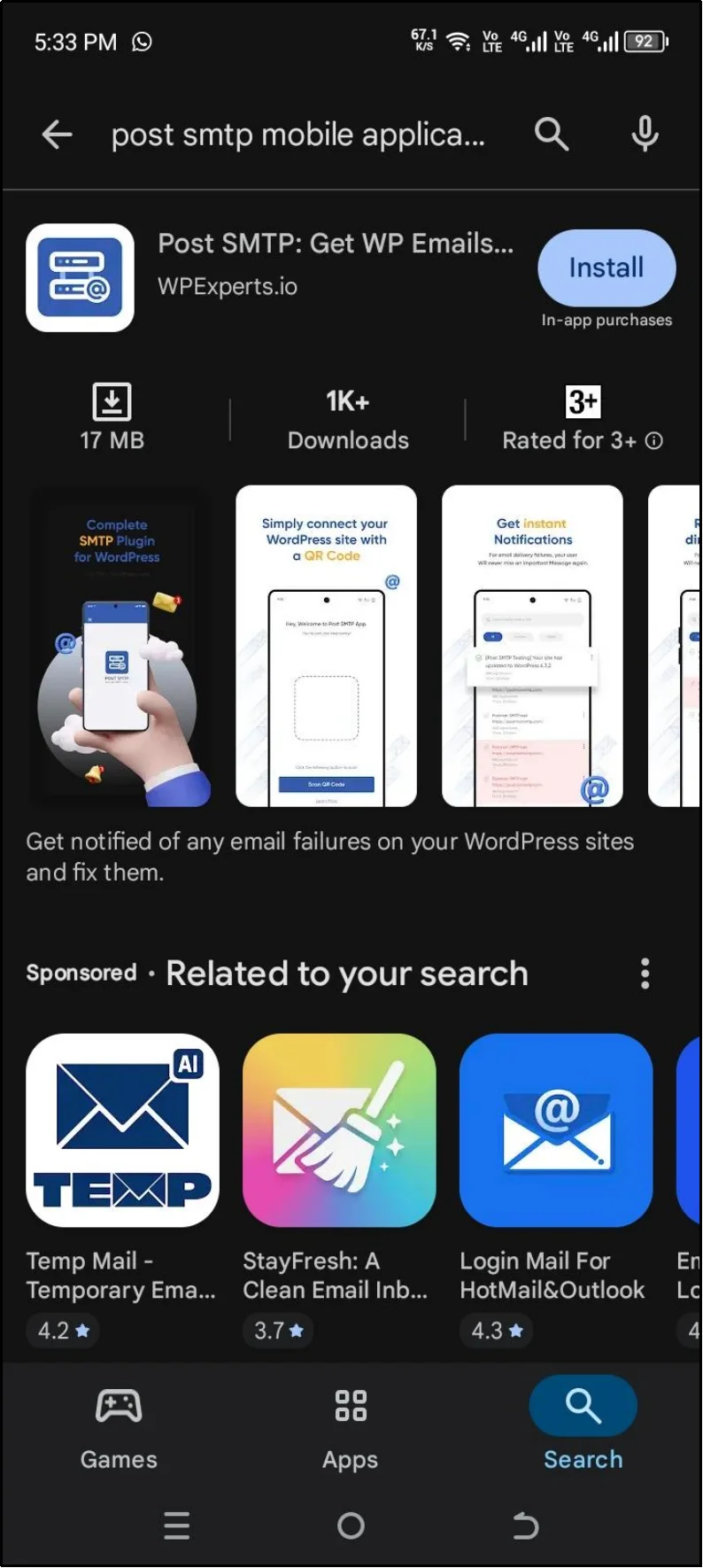
- To do so, go to the Google Play Store or App Store on your Android or iOS device and search for the Post SMTP mobile application.
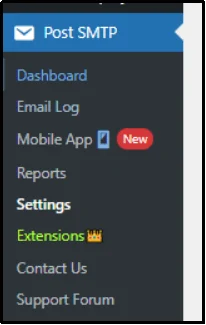
- After installing the application, open it and go to Post SMTP, and then select Mobile App.
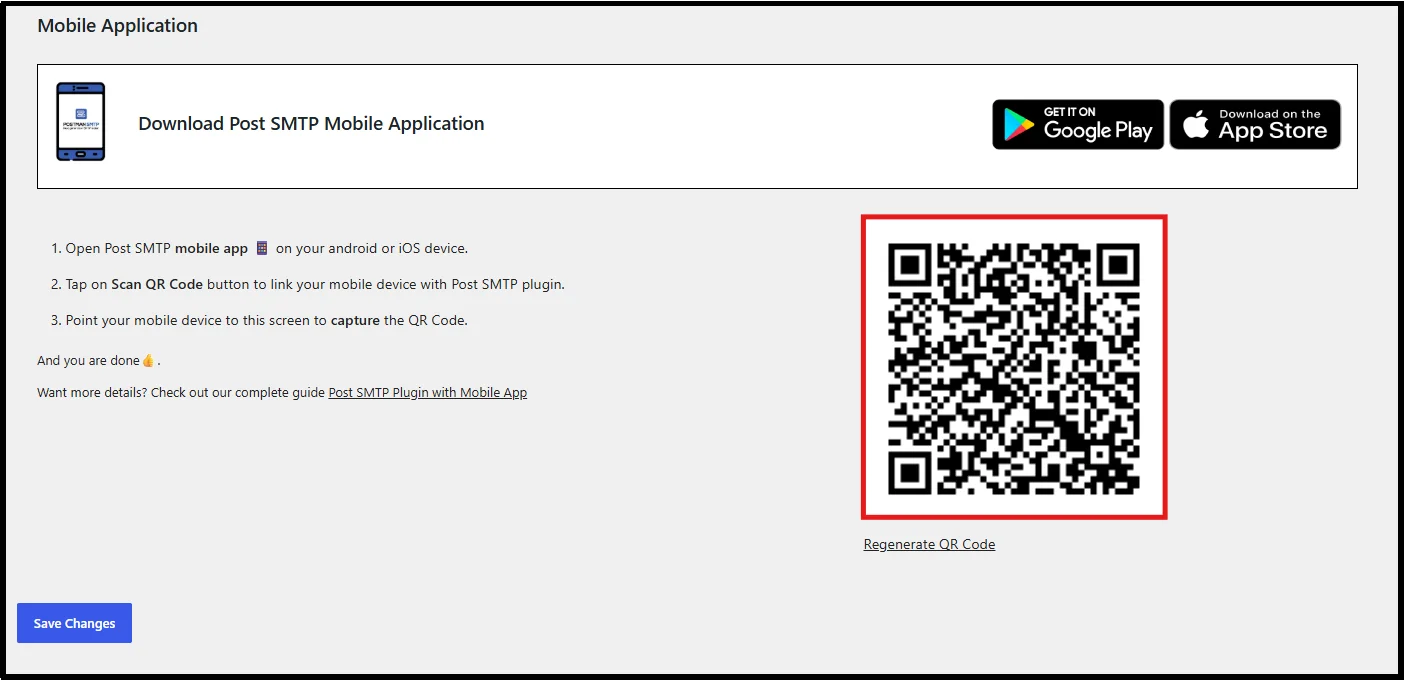
- Connect your phone to your website by scanning the QR code from the Post SMTP mobile app.
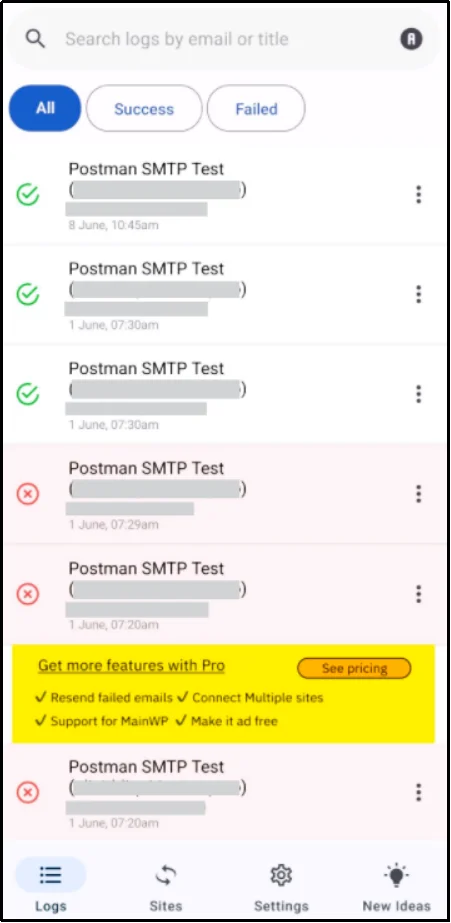
- Once connected, you can easily resend emails right from your mobile. This allows you to monitor delivery status, review email logs, and resend failed WooCommerce emails from anywhere.
Ensure Every WooCommerce Email Reaches Your Customers
Failed WooCommerce emails can lead to missed orders, frustrated customers, and unnecessary support requests. By implementing SMTP authentication, monitoring email activity, and enabling automatic retry systems, you can significantly improve email reliability and customer satisfaction.
Post SMTP simplifies the entire process with detailed email logs, one-click resend functionality, instant failure alerts, fallback delivery, and advanced monitoring tools. Whether you’re troubleshooting WooCommerce email notifications or building a more reliable email infrastructure, having visibility into every email sent from your store is essential.
Start tracking, monitoring, and resending WooCommerce emails today so every order confirmation, shipping update, and customer notification reaches the inbox successfully.
Frequently Asked Questions
Why are WooCommerce emails not sending?
WooCommerce emails often fail because WordPress uses the PHP mail() function by default, which lacks proper email authentication and can trigger spam filters.
How can I resend a failed WooCommerce email?
You can resend failed WooCommerce emails using an SMTP plugin like Post SMTP, which stores email logs and provides one-click resend functionality.
Does WooCommerce keep email logs?
WooCommerce does not store detailed email logs by default. A WordPress SMTP plugin such as Post SMTP can record delivery status, recipients, timestamps, and error messages.
What is the best SMTP plugin for WooCommerce?
A reliable SMTP plugin should provide email authentication, delivery tracking, email logs, failure alerts, retry automation, and fallback mail servers. Post SMTP offers all of these features.
