



























Is Ultimate Addons for Gutenberg not sending emails after a successful form submission? If so, then don’t worry. We have got you covered!
Whenever a user submits the contact form on your site, you must receive an email alert. However, if you are facing the ‘Ultimate Addons for Gutenberg not sending email’ issue, it can negatively affect your business.
In this WordPress email delivery guide, we will show you how to fix the ‘Ultimate Addons for Gutenberg not sending email’ issue so you and the user get email notifications right in the inbox.
Ready? Let’s begin.
What Is Exactly Ultimate Addons for Gutenberg?
Ultimate Addons for Gutenberg, now known as ‘Spectra – WordPress Gutenberg Blocks,’ is a powerful plugin that extends the functionality of the Gutenberg block editor by offering a versatile block library created by Brainstorm Force, the company behind the Astra theme.
With over 30 unique blocks, Spectra offers a comprehensive solution for users looking to elevate their website design without any coding knowledge.
Some of the standout blocks include:
- Container
- Info Box
- Countdown
- Heading
- Team Info
- Price List
- Call To Action, etc.
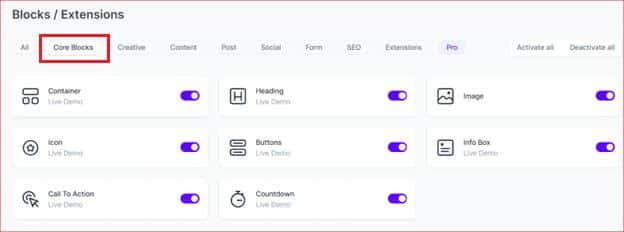
Additionally, Spectra features a contact form block for building basic forms and styling blocks for popular plugins like Contact Form 7, Elementor Form, Gravity Forms, etc.
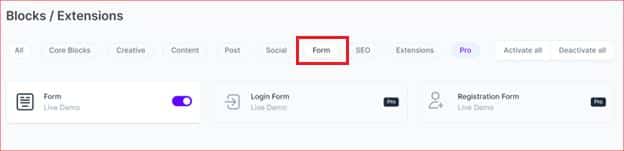
This functionality makes it a must-have plugin for anyone looking to add more design flexibility and advanced features to their WordPress site. Whether you’re a beginner or an experienced web developer, Ultimate Addons for Gutenberg helps you create professional and visually appealing websites with ease.
Why Is Ultimate Addons for Gutenberg Not Sending Email Alerts?
Before we get into the solution, let’s understand why Ultimate Addons for Gutenberg is not sending emails. Typically, there are two primary reasons for this issue:
- WordPress PHP Mail Function
- Incorrect Ultimate Addons for Gutenberg Contact Form Settings
Now, let’s discuss each one in more detail:
#1: WordPress PHP Mail Function
By default, Ultimate Addons for Gutenberg relies on the WordPress PHP wp_mail() function to send email notifications. This function does not include proper email authentication and depends on your web server’s configuration to deliver emails.
Unfortunately, many web servers require proper email authentication and encryption to prevent spam. As a result, even if Ultimate Addons for Gutenberg sends the emails, they might not reach the recipient’s inbox due to these restrictions.
#2: Incorrect Ultimate Addons for Gutenberg Contact Form Settings
The first time you configure the plugin, Ultimate Addons for Gutenberg assigns a default email address for notifications. This default address might not be the one you actually want to use.
You can find and update this email address in the «To» email field under the plugin’s email notification settings. Additionally, any typos or incorrect email addresses can lead to emails being rejected or marked as spam by the email server.
3 Easy Steps to Fix Ultimate Addons for Gutenberg Not Sending Email
Firstly, we will check the Ultimate Addons for Gutenberg Contact Form Settings to confirm that everything is set up correctly. After that, we will address the ‘WordPress not sending emails‘ issue by replacing the default PHP wp_mail function with a reliable SMTP mailer using the Post SMTP plugin.
Step #1: Check The Contact Form Settings
Ultimate Addons for Gutenberg includes a form builder and blocks that you can use to style Contact Form 7 and Gravity Forms. If you’re experiencing issues with Contact Form 7 or Gravity Forms not sending emails, refer to their specific guides.
For users of the Ultimate Addons for Gutenberg form builder, follow these steps to check and correct your contact form settings:
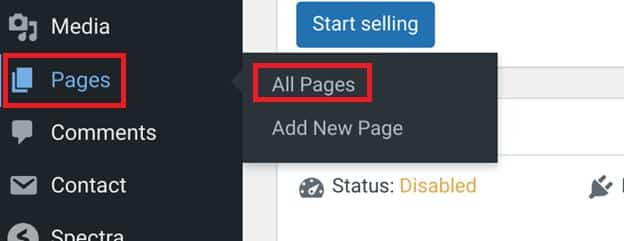
- From your WordPress dashboard, navigate to Pages → All Pages and open the page containing your contact form.
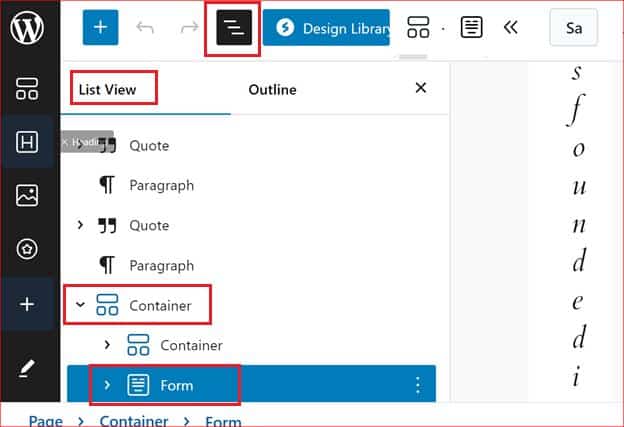
- Click anywhere on the page and press Shift + Alt + O to open the page outline, or click the three lines at the top to access the outline.
- From the ‘List View’ section, select ‘Forms’ to reveal the form settings in the right sidebar.
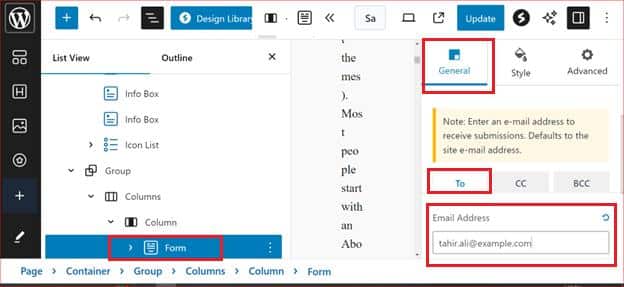
- In the sidebar, expand the ‘Actions’ section by clicking the down arrow (located under the ‘General’ settings). In the ‘To’ tab, enter the email address where you want to receive notifications.
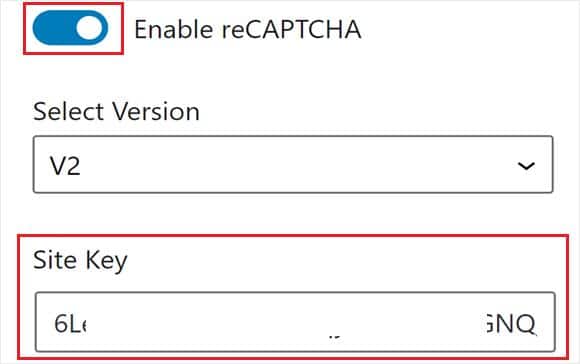
- Scroll down to the ‘Google reCAPTCHA’ section and verify that you have added the correct Site Key and Secret Key.
- Finally, click the ‘Update’ button in the top right corner to apply the changes.
Once we have the correct settings for the Ultimate Addons for Gutenberg contact form, the next step is to install the Post SMTP plugin to address any email deliverability issues.
Step #2: Install Post SMTP Plugin to Connect SMTP Server
Earlier in the article, we mentioned that the default WordPress email function often causes issues with email delivery. To resolve this, we’ll install the Post SMTP plugin, which replaces the wp_mail() function with Simple Mail Transfer Protocol (SMTP).
This plugin allows you to connect your website to leading SMTP service providers such as Amazon SES, Gmail (Gmail SMTP Server), Microsoft 365, SendGrid, Mailgun, and private SMTP servers.
Follow these steps to install and configure the Post SMTP plugin:
- As an administrator, log into the WordPress dashboard.
- Go to ‘Plugins’ → ‘Add New Plugin.’
- Type in ‘Post SMTP’ in the search bar and install the plugin named ‘Post SMTP – WP SMTP Plugin with Email Logs…..’.
- After installing the plugin, click ‘Activate.’
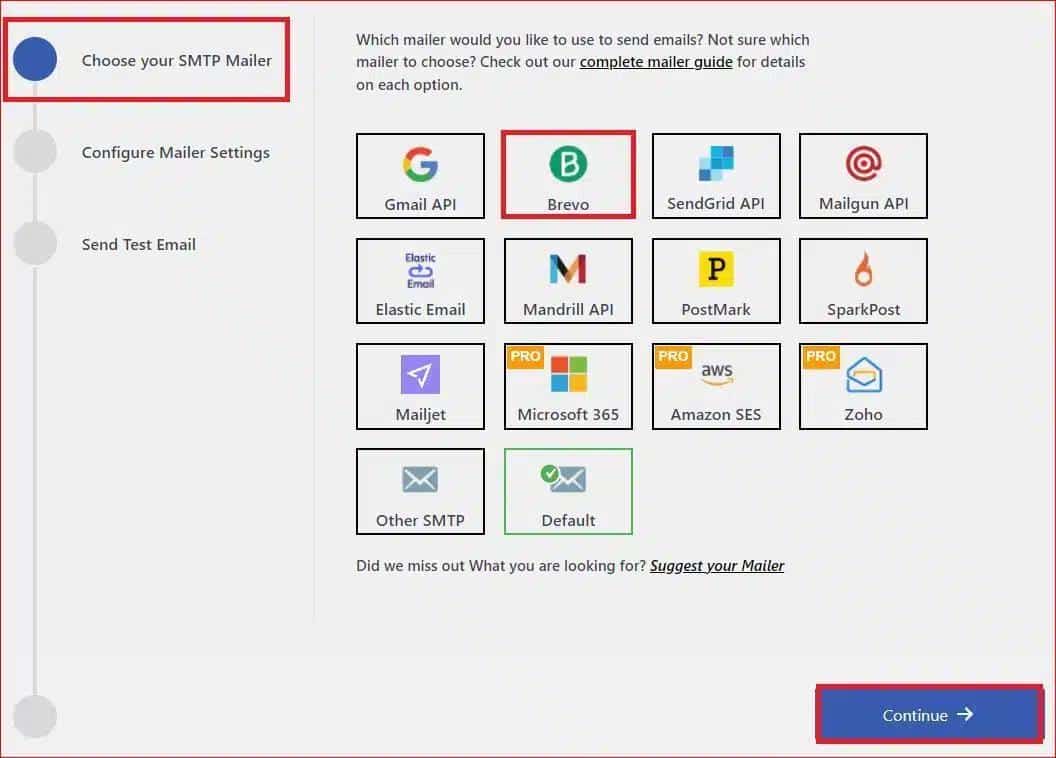
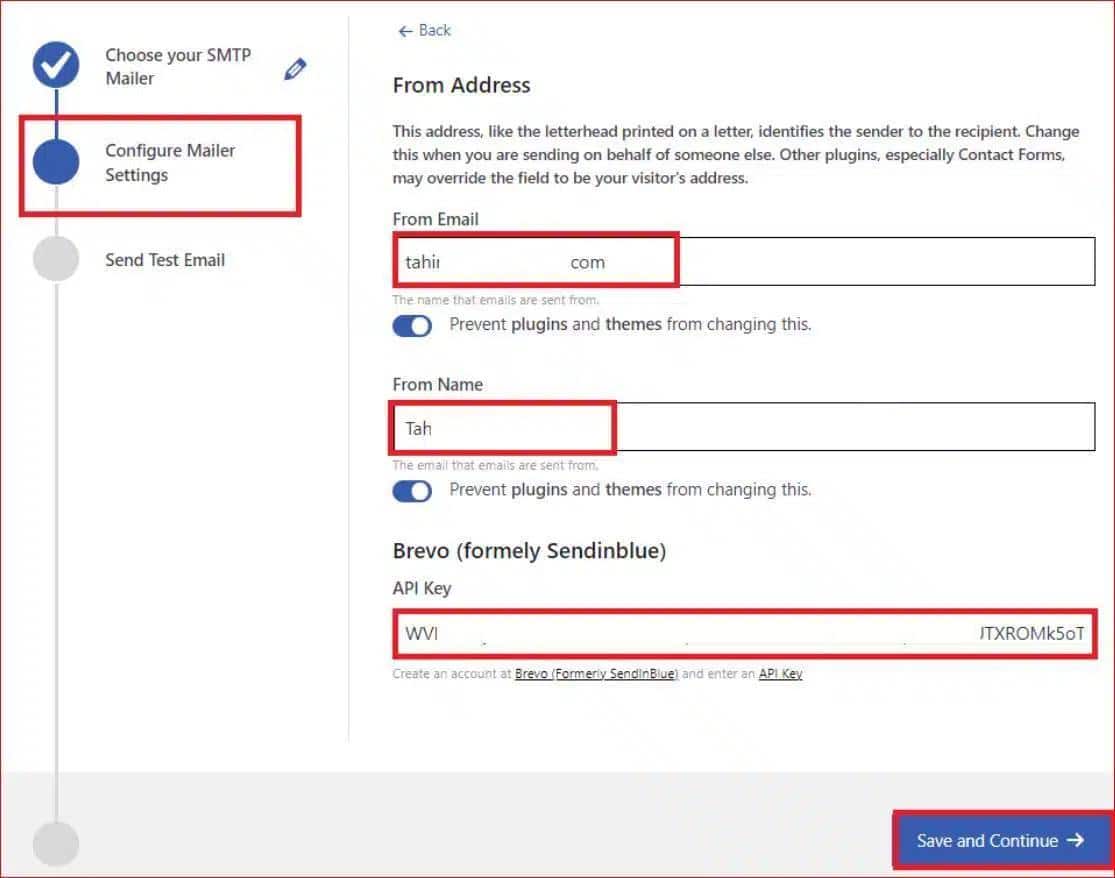
After activation, on the subsequent screen, you’ll see the 3-Step Setup Wizard.
- First, choose your preferred SMTP service and click ‘Continue.’
- Next, in the ‘From Email’ and ‘From Name’ fields, enter your email address and name.
- Also, specify your SMTP API Key for authentication and click ‘Save and Continue.’
- Type in a ‘Recipient Email Address’ to which you have access and click ‘Send Test Email.’
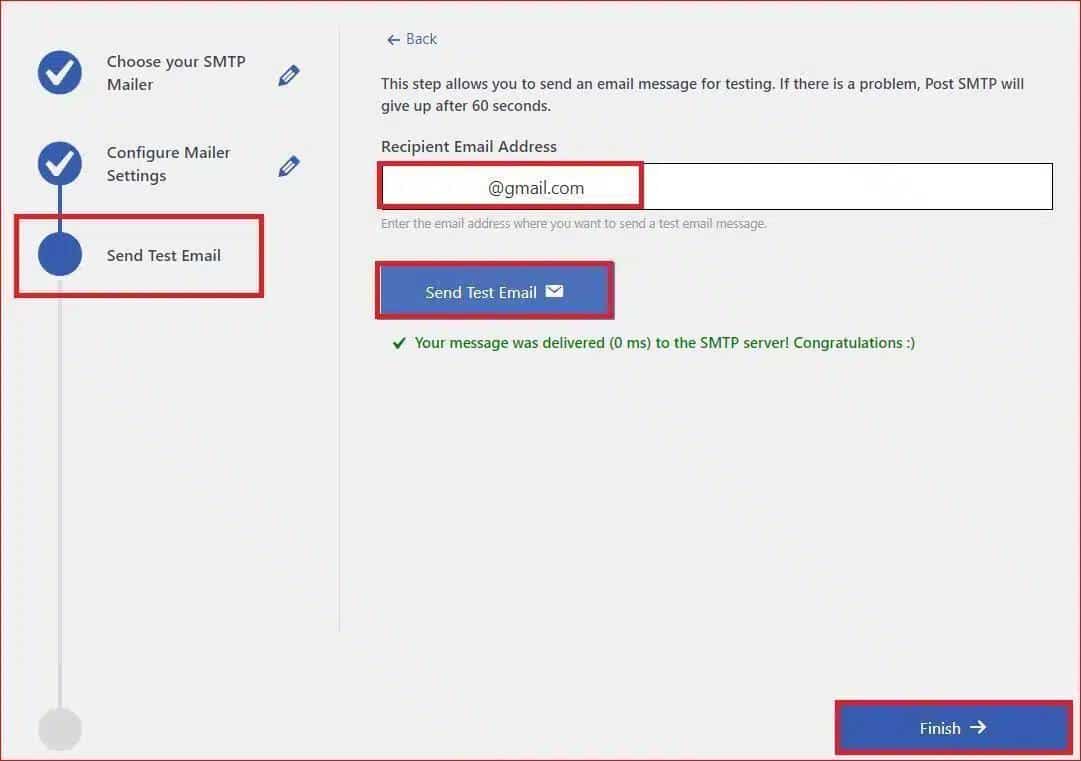
A green ‘Congratulations’ status will appear upon successful email delivery, as shown in the screenshot above.
- Click Finish to finalize the SMTP configuration.
After setting up the Post SMTP plugin, your Ultimate Addons for Gutenberg contact form should now send emails reliably. If the issue persists, proceed to the next step, where we’ll explain how to enforce the ‘From’ email address using Post SMTP.
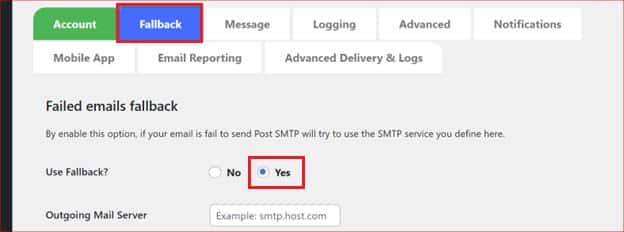
NOTE: If you want to set up a backup SMTP service for reliable email delivery, access the Post SMTP settings and go to the Fallback tab. In this tab, you have the option to manually set up additional SMTP services.
Step #3: Force the ‘From’ Email Address
In some cases, your contact form might be using an incorrect or different ‘From’ email address, which can cause email deliverability problems. To ensure the reliability of your emails, you can enforce the use of a specific ‘From’ email address for all outgoing emails, including those from your Ultimate Addons for Gutenberg contact form.
Here’s how you can do this via Post SMTP:
- First, go to ‘Post SMTP’ → ‘Settings’ → ‘Message’ tab.
- Inside the Message tab, find the ‘Email Address’ field and type in the email address that you would like to use as the ‘From’ address whenever you send an email.
- To keep this setting across all the plugins and themes, tick the box that says ‘Prevent plugins and themes from changing this.’
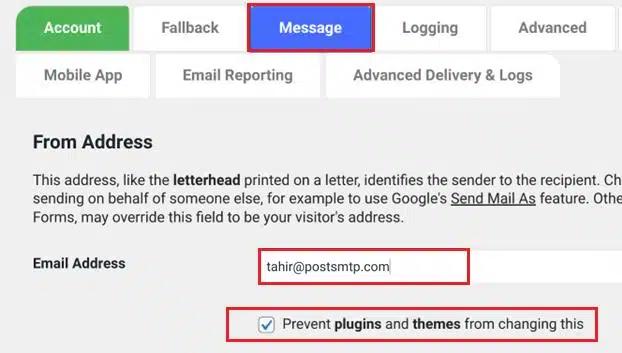
- Scroll down and click «Save Changes’ to update the new settings.
By enforcing a consistent ‘From’ email address, you can control who sends emails from your WordPress site. This step helps you improve the email delivery rate and reduces spam flagging.
Final Remarks on Ultimate Addons for Gutenberg Not Sending Email
Upon every successful form submission, your Spectra contact form sends an email notification to both you and the user.
However, if you’re facing the ‘Ultimate Addons for Gutenberg not sending email’ issue, simply follow the steps below to resolve the problem:
- Check Your Contact Form Settings
- Install and set up Post SMTP plugin
- Force the ‘From’ Email Address via Post SMTP
By following these steps, you can rest assured that you and the user will reliably receive email notifications after each successful submission.
If the issue continues or you require further assistance, feel free to contact us. We’re here to assist with any issues related to email delivery.
