


























When you migrate a WordPress site to a new server or domain, everything may appear normal. But behind the scenes, WordPress email delivery can break, and your site stops sending emails without warning.
This is one of the most frustrating WordPress email issues after migration, especially when form notifications, password resets, or order emails fail. It usually revolves around DNS records, SMTP settings, or email authentication protocols such as SPF, DKIM, and DMARC.
In this guide, you’ll learn why WordPress emails fail after migration and how to fix the issue step by step using SMTP, DNS configuration, and email authentication.
Why WordPress Emails Fail After Migration
This is a common question, and to understand why, we must learn the link between migration and WordPress email deliverability. Migrating a WordPress site changes its server environment, including hosting configuration, IP address, and DNS routing. This can alter or disturb some critical components of email delivery.
In simple terms, WordPress email issues after migration happen because critical email settings no longer match the new server environment.
When WordPress emails stop sending after migration, the problem is usually related to SMTP settings after migration, DNS misalignment, or PHP mail being blocked. Once you identify the root cause, you can fix the issue quickly and restore reliable email delivery.
Before fixing the issue, you need to understand the most common causes behind WordPress email failures after migration.
- DNS Records Not Updated After Migration: After the environment change, the DNS records after migration, such as SPF, DKIM, and DMARC, may not correctly direct to the new server.
- SMTP Configuration No Longer Works: Previous/Old credentials no longer work, causing a WordPress SMTP after migration failure. Emails cannot be relayed properly, leading to WordPress email delivery failing after migration.
- PHP Mail Function Disabled by Hosting Provider: The default PHP mail function, mail(), is often blocked by hosting service providers, and after migration, no one really notices that the default PHP mail is being used.
- Email Authentication Failures (SPF, DKIM, DMARC): After migration, authentication records may no longer match your new server or email provider. If SPF or DKIM is misconfigured, your emails can fail verification, and DMARC may block or send them to spam. Updating these records ensures proper authentication and improves email deliverability.
Step-by-Step Process to Fix WordPress Emails Not Sending After Migration Issue
You don’t need to follow every step. Start with Step 1, then move forward only if the issue is not resolved.
Step 1. Install Post SMTP and Configure Mailer
Start by setting up a reliable SMTP plugin like Post SMTP to replace the default WordPress mail function and improve email delivery.
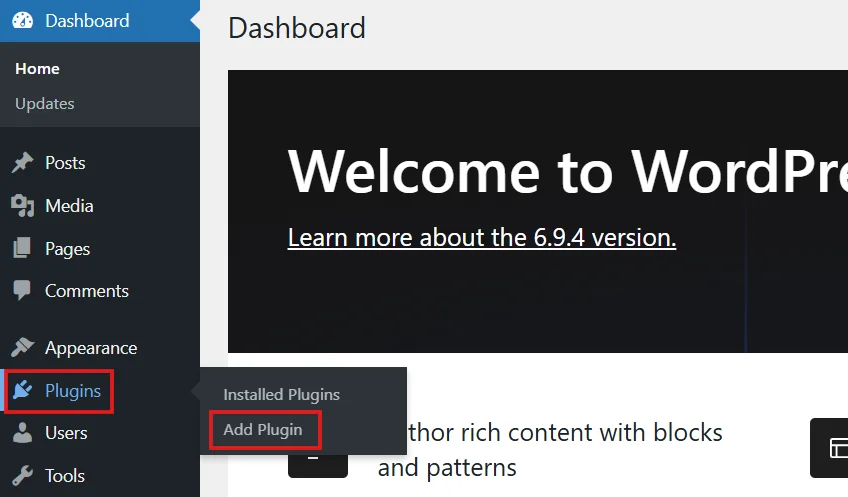
- Log in to your WordPress Dashboard
- Go to the Plugins → Add Plugin
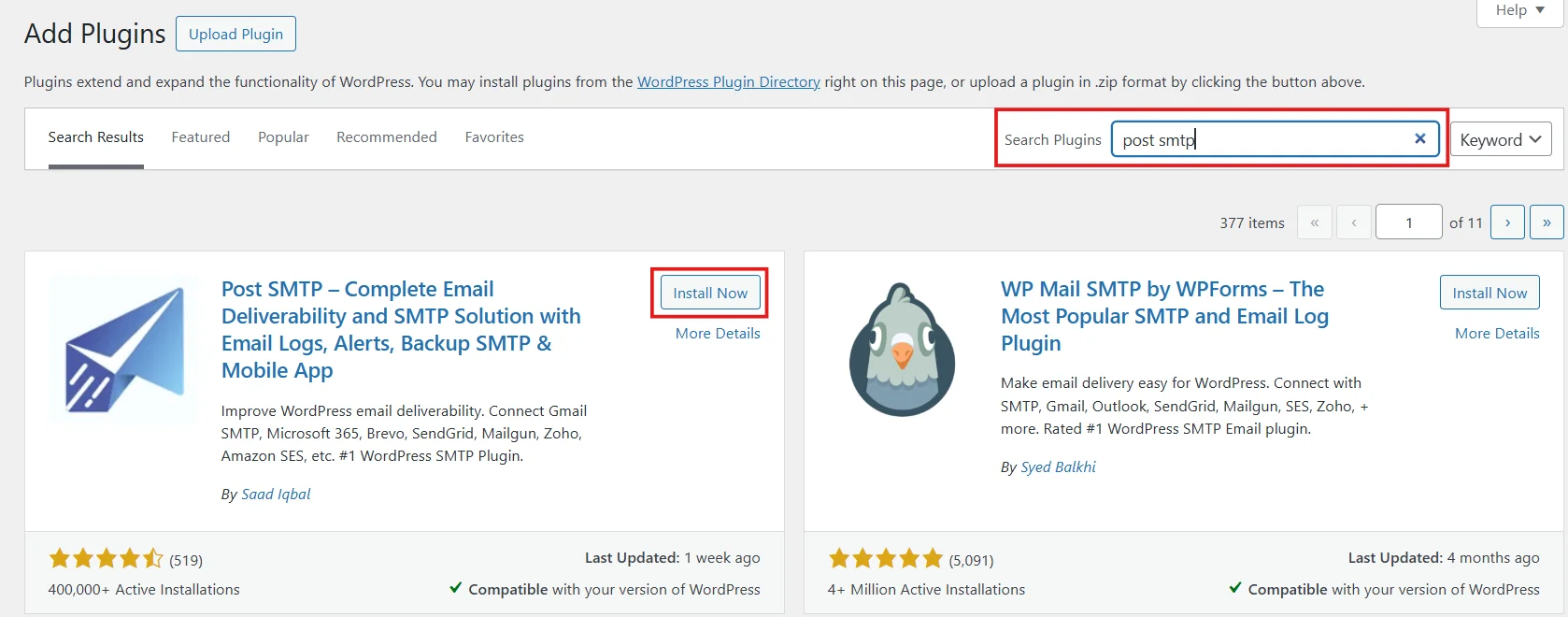
- Type “Post SMTP” in the search bar and click on “Install Now”, followed by Activate.
- Once activated, you will be redirected to the Post SMTP setup wizard.
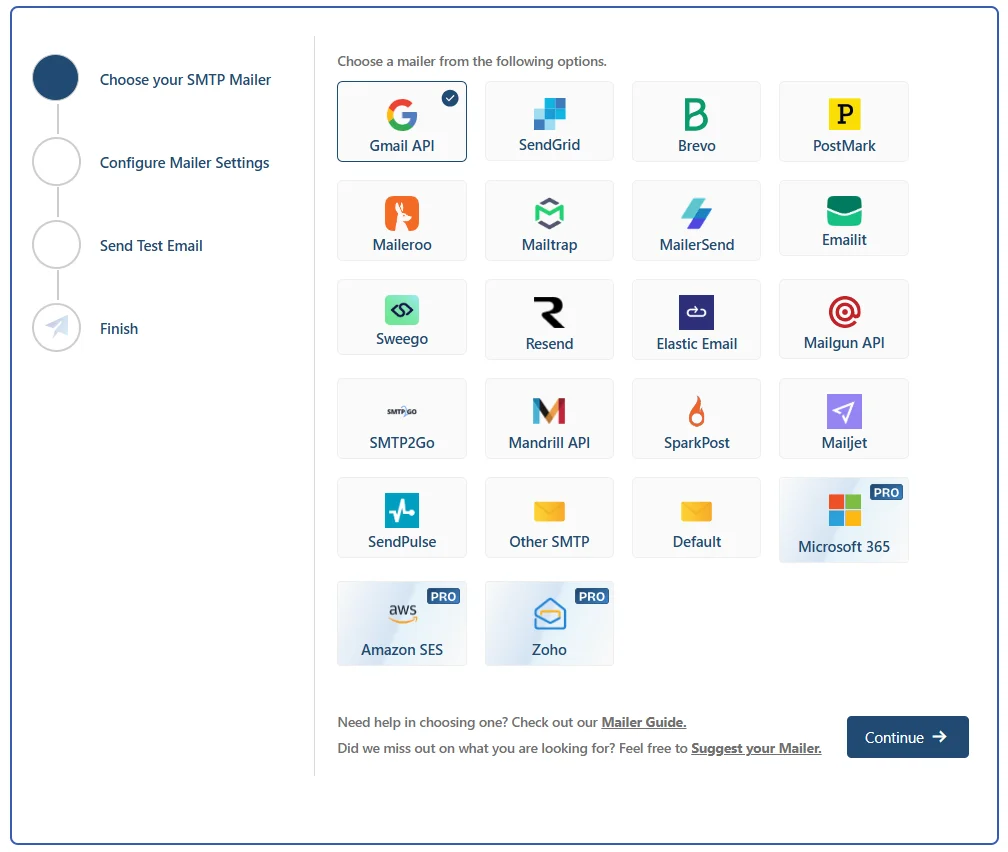
- Choose your preferred SMTP provider (Gmail, SendGrid, Outlook, etc.), then click Continue to proceed.
- Set your desired From Address and From Name, and lock both in with the “Prevent plugins and themes from changing this” toggle.
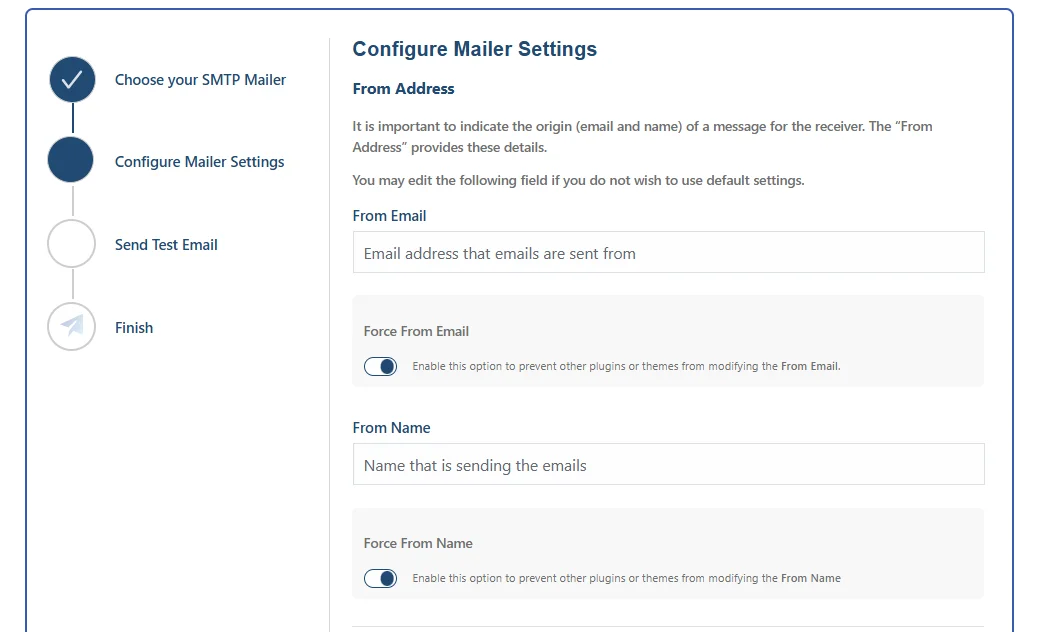
This will help avoid conflicts between plugins. Third-party plugins love to override your sender identity silently.
Step 2: Test Email Delivery
After configuring the SMTP mailer, it’s time to confirm whether WordPress can successfully send emails after migration. Using the Post SMTP plugin makes this process straightforward.
Enter a valid email address in the “Recipient Email Address” field and click “Send Test Email.”
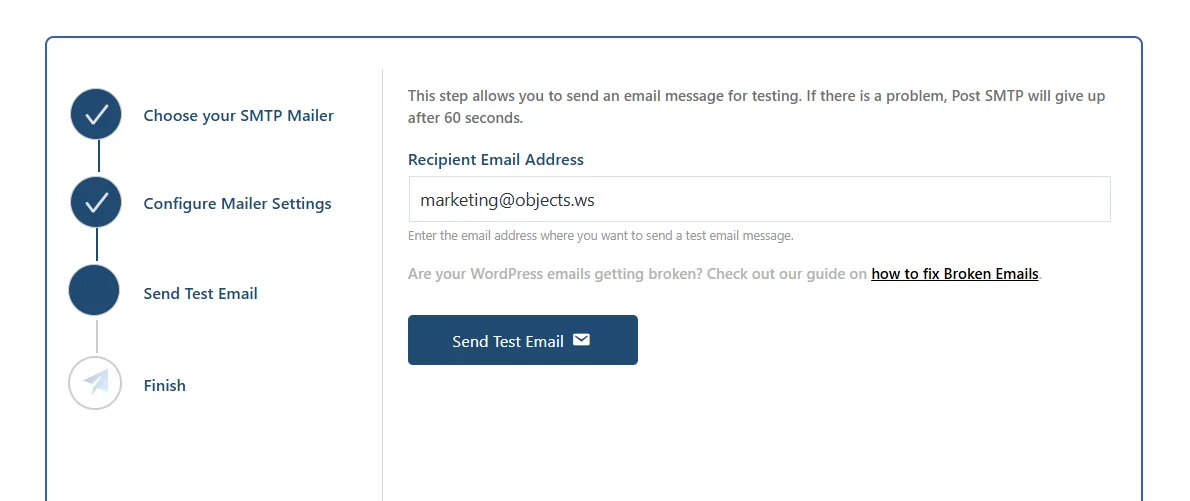
If the email arrives in your inbox, your SMTP setup is working correctly. If it doesn’t, Post SMTP logs the exact error, and that log entry is your starting point for everything below.
This step also helps identify SMTP errors, email delivery failures, and authentication issues in real time.
NOTE: If you need any further assistance with configuring WordPress SMTP, don’t hesitate to reach out to us for professional support.
Step 3: Use Email Logs to Identify and Resolve Failures
One of the most effective ways to troubleshoot is by examining WordPress email logs. With the Post SMTP plugin, every email attempt is recorded:
- Navigate to the Post SMTP dashboard in WordPress.
- Open the Email Log section.
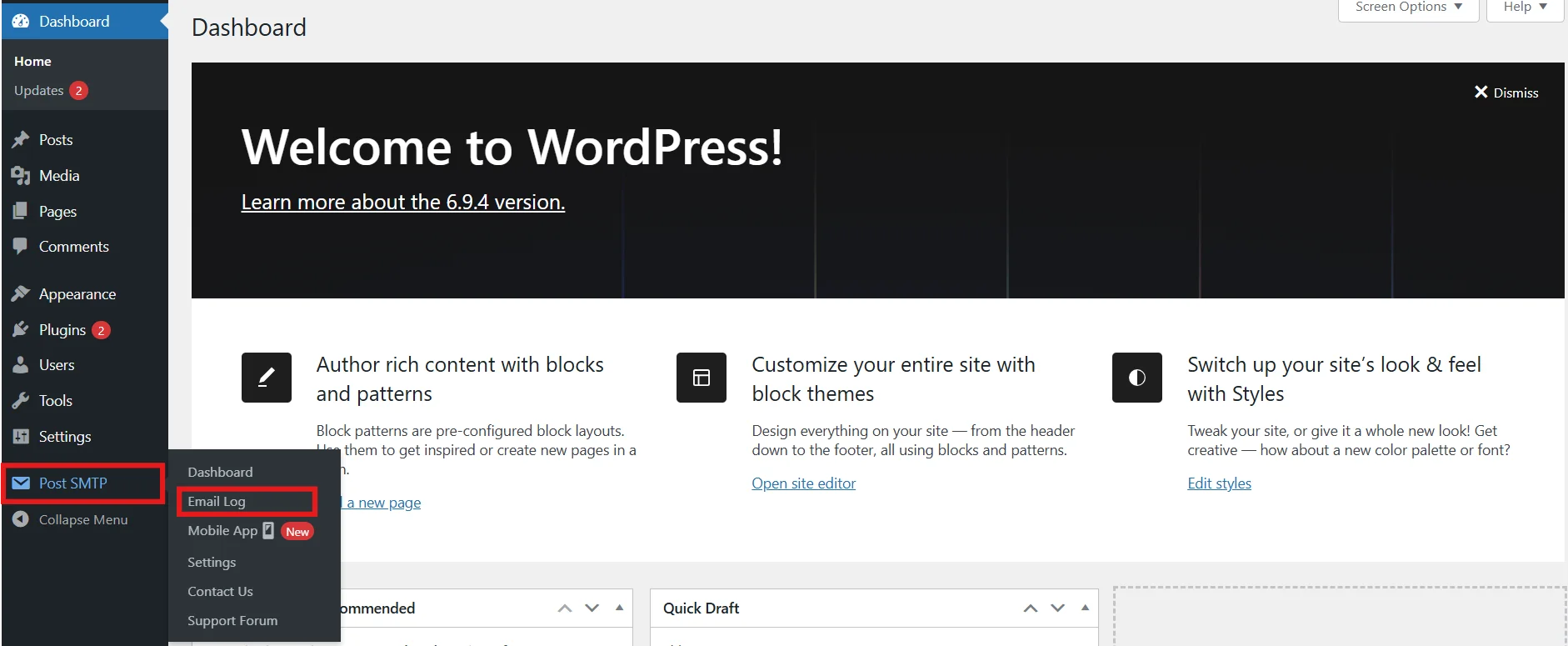
- Review whether emails are sent successfully; if not, note the reasons for failure.
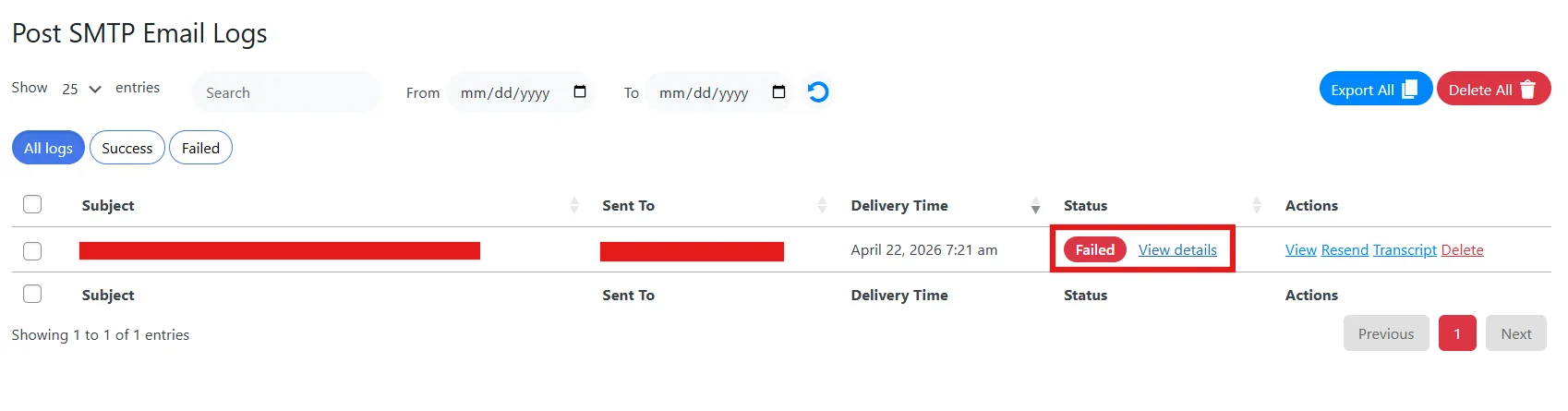
- Use these logs to identify if the problem is SMTP authentication, DNS misalignment, or server restrictions.
After applying the fix, send another test email and check the log for a successful status. This helps you diagnose email failures after migration more accurately.
Step 4: Verify and Update DNS records
Successful emails rely heavily on DNS records. If DNS records after migration weren’t updated during your website migration, there is a high chance that your emails will not be sent. To fix this, begin by verifying your records. You can use any online tool, such as MX Toolbox, to verify your DNS records. If any errors arise, follow the steps below to update the records.
- Log in to your hosting provider, such as Hostinger, GoDaddy, etc.
- Head to the domain whose DNS you want to verify and update.
- Click on Manage next to the domain.
- Go to DNS / Nameservers, and from there, you can access DNS records.
- Now you can add, edit, or delete DNS records.
- For SPF record: Add a TXT record with Name “@” and Value: provided by your email service (e.g., include:_spf.google.com for Gmail)
Keep in mind:
- Only ONE SPF record allowed per domain
- If one already exists, edit it instead of adding another
- For DKIM: Add a TXT or CNAME with Name such as “selector1._domainkey” and its value: long key string (provided by Gmail/SendGrid/etc.)
- For DMARC: Add a new TXT record named as _dmarc with value such as “v=DMARC1; p=none; rua=mailto:you@yourdomain.com”
After updating DNS records, you have to wait up to 24 hours for propagation. Once DNS records propagate, email delivery issues related to authentication often resolve.
Important: Also, make sure your MX records point to the correct mail server, as incorrect MX settings can prevent proper email routing.
Step 5: Check for Hosting Provider Email Restrictions
Some hosting providers impose strict rules on outgoing emails, which cause WordPress delivery failures after migration. The best way to confirm is by contacting your hosting provider’s customer support team and asking them directly:
- Is PHP mail disabled? Many hosts block the default PHP mail function for security reasons.
- Are there sending limits? Some providers restrict the number of emails you can send per hour or per day.
- Do they require specific SMTP settings? Certain hosts mandate using their own authentication method.
If restrictions exist, configure WordPress to use SMTP Mailer through the Post SMTP plugin. This ensures your emails bypass hosting limitations and reach recipients consistently.
Common Migration Mistakes That Break WordPress Emails
Even when the migration itself goes smoothly, small oversights can silently break your email functionality. Here are the most common mistakes that cause WordPress emails to fail after migration:
- Using Old SMTP Credentials After Migration: SMTP settings are often tied to your previous server or hosting environment. If you continue using outdated credentials, your emails won’t be authenticated or sent properly. Always update your SMTP host, port, username, and password based on your new server or email provider.
- Not Updating DNS Records (SPF, DKIM, DMARC): After migration, your DNS records must reflect the new server and email service. If SPF, DKIM, or DMARC records still point to the old environment, receiving mail servers may reject or flag your emails as spam. Double-check and update all authentication records to match your current setup.
- Relying on PHP mail() instead of SMTP: The default WordPress mail function, mail(), is unreliable and often blocked by hosting providers. After migration, this becomes even more problematic. Switching to SMTP ensures authenticated, secure, and consistent email delivery.
- Ignoring Email Logs and Error Messages: Many users skip checking email logs, which leads to guesswork instead of actual troubleshooting. Email logs provide clear insights into what’s failing, whether it’s authentication, DNS issues, or server restrictions. Always review logs before applying fixes.
- Incorrect MX or Mail Server Configuration: MX records control how incoming emails are routed to your mail server. If they are misconfigured or still pointing to the old server, email delivery can fail or behave inconsistently. Make sure your MX records correctly point to your current email provider.
Fix Migration Email Issues Instantly with Post SMTP
Relying on PHP’s default mail() function for emails, especially after migrating, is one of the biggest mistakes out there. PHP mail is outdated, unreliable, and often blocked by hosting providers. Post SMTP, on the other hand, is designed to solve these problems and ensure your emails reach their destination.
- Reliable Delivery: Post SMTP uses authenticated SMTP connections, guaranteeing that emails are actually sent and received.
- Authentication Support: Post SMTP works with SMTP providers that support SPF, DKIM, and DMARC, helping improve email authentication and deliverability.
- Error Logging & Debugging: In case of an email failure, inside Post SMTP email logs, you get the exact error, which helps you quickly identify the root cause.
- Security: Post SMTP uses TLS/SSL encryption to protect your credentials and secure email traffic.
- Flexibility with Mailers: Post SMTP connects seamlessly with Gmail, SendGrid, and other third‑party mailers.
If you want consistent and reliable email delivery after migration, switching to SMTP with Post SMTP is the most effective long-term solution.