



 OpenAI
 Perplexity
With over 70k active installs, Bookly is undoubtedly one of the leading online booking and scheduling plugins. However, like many WordPress plugins that rely on email communication, it can occasionally run into deliverability issues.
If your customers or staff don’t receive booking confirmations, reminders, or cancellations, this can create confusion and damage trust.
In this guide, we’ll discuss the common causes behind the issue and practical solutions to all email notification-related issues.
How Bookly Notifications Work?
Given that Bookly is an online booking plugin, email notifications play a critical role in its functionality. Whenever a customer books, reschedules, or cancels an appointment, Bookly automatically sends notifications to both the client and the service provider.
These can include confirmation emails, reminders, follow-ups, and status updates, helping ensure all concerned entities stay on the same page without manual effort.
Why Bookly Email Notifications May Not Send
Like numerous other learning management systems and form plugins, Bookly also rely on WordPress’s built-in wp_mail() function to send emails. Simply put, the plugin’s reliability depends on your WordPress site’s email configuration.
The biggest issue with wp_mail() is that it does not send emails using proper authentication. Email services like Gmail, Outlook, and Yahoo check for several security signs before accepting messages. If your email doesn’t have these signs, it may go to spam or not get delivered at all.
These signs are called authentication protocols, and the most common ones are:
- SPF (Sender Policy Framework): This tells email services which servers can send emails on your domain’s behalf.
- DKIM (DomainKeys Identified Mail): This adds a digital signature to your emails so the receiver knows they weren’t changed during delivery.
- DMARC (Domain-based Message Authentication, Reporting & Conformance): This gives instructions to email providers on what to do if an email fails SPF or DKIM checks.
When your emails don’t use these authentication signatures, email services might not trust them, hence causing complications with notifications’ deliverability.
💡 To learn more about authentication protocols and how to add them to your domain name systems (DNS), head over to this guide.
How to Fix Bookly Email Notifications Not Working
Luckily, you can easily fix this. It can be a problem with the plugin’s settings, or you may need to connect your WordPress site to a trusted third-party email server that handles authentication properly. Here’s how to do it.
Check The Plugins Settings
First and foremost, it’s important to check the plugin’s settings.
Bookly uses the site name and the admin’s email address as “From” name and address. This can cause inconsistency, which can cause deliverability issues. Therefore, the better alternative is to use a custom email address and keep it consistent across the site.
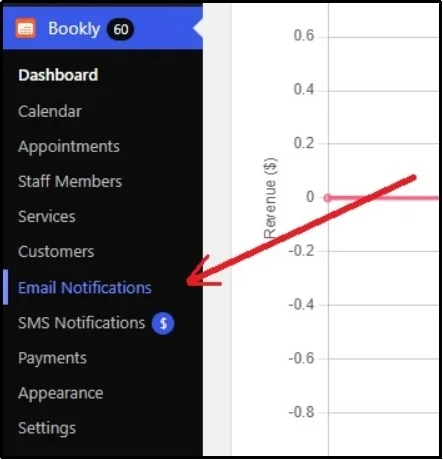
To tweak the plugin’s email settings, go to the Bookly settings ⇒ Email Notifications.
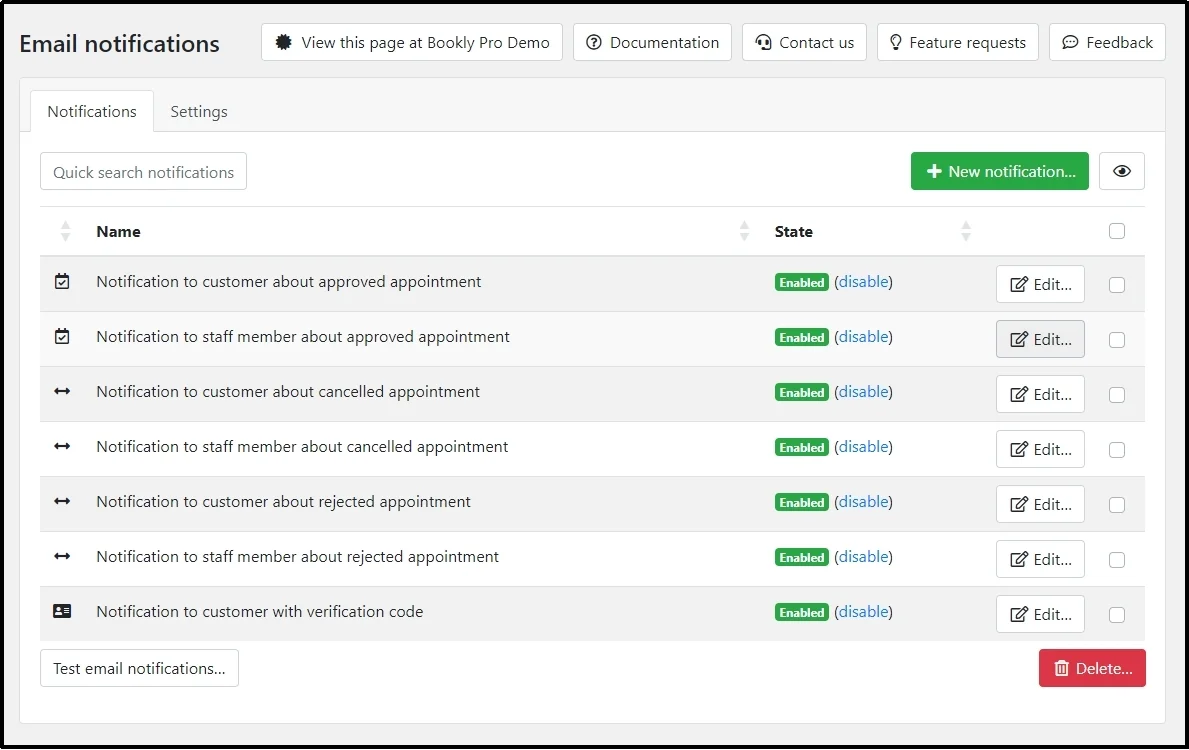
All the emails you see with the green Enabled in the State column are enabled. If they are disabled, make sure to enable them unless you wish otherwise.
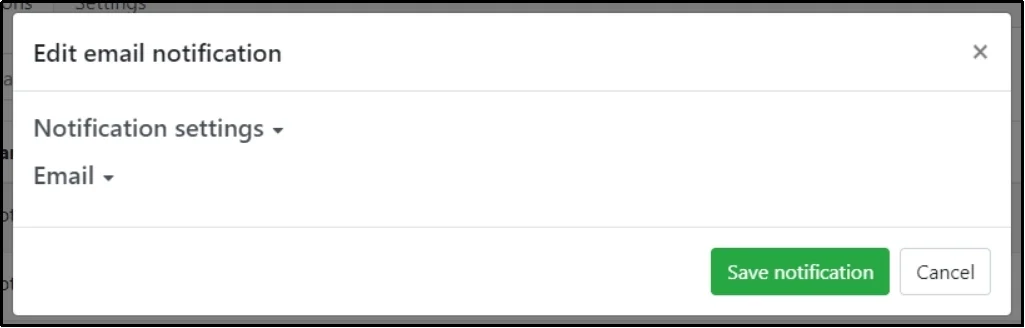
Click Edit next to the notification to reveal “Edit email notification” settings.
Click Notification settings, and you will see settings such as Name of the notification, state, type, appointment status, services, and finally, recipients.
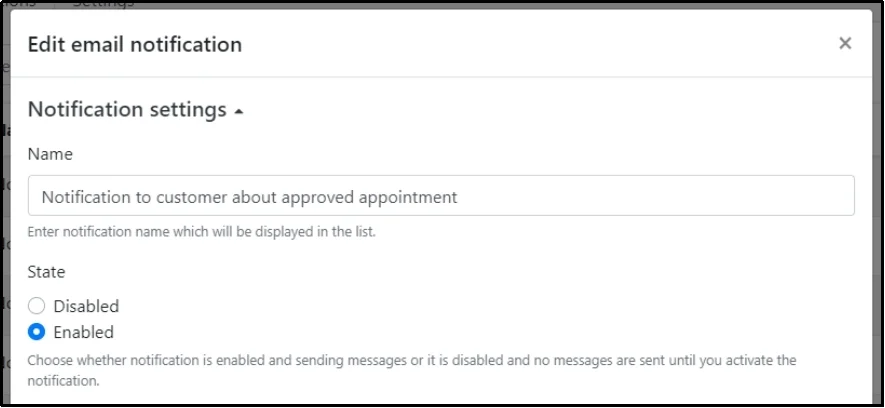
Tweak the settings as you want. Scroll down to the recipients section and check the boxes of who you want to receive the notification.
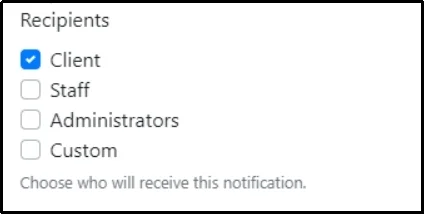
Now, do this with all the notifications and ensure every notification is set to be received by everyone it should reach.
Next, switch to the settings tab, and enter the “From” name and email address.
From “Name” and address are shown on the inbox, allowing the recipients to choose whether to open the email. Inconsistencies in this can cause deliverability issues.
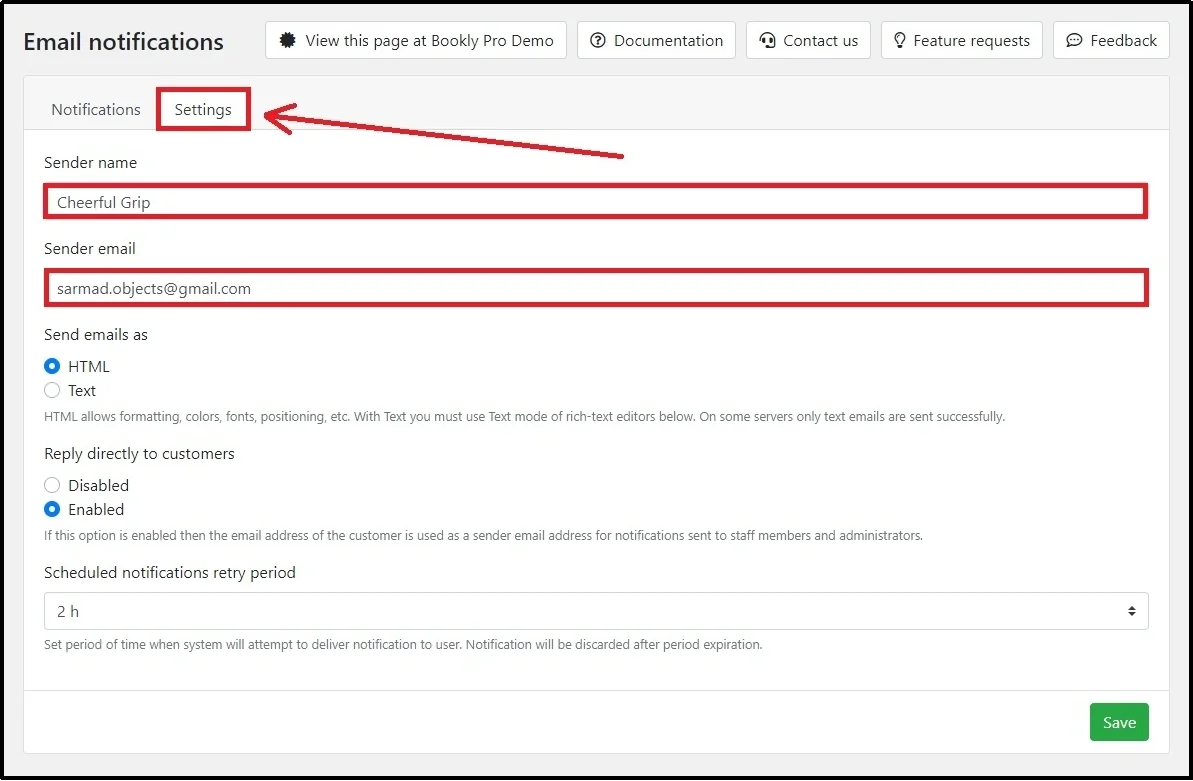
After you are done with the settings, save changes with the Save button.
Now, Bookly will keep these settings consistent across the website.
Finally, let’s put it to the test.
Scroll down to the Email notification tab and click Test email notifications.
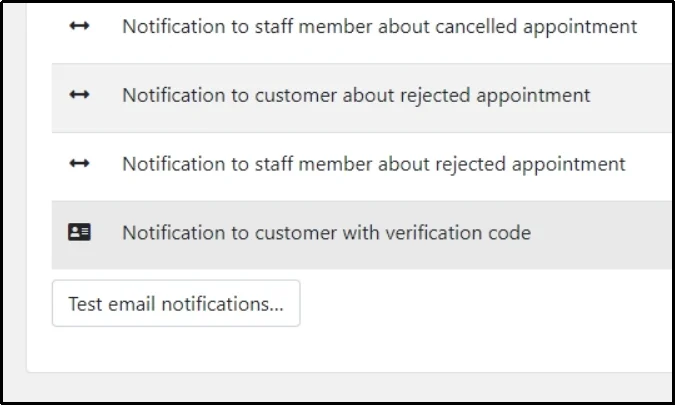
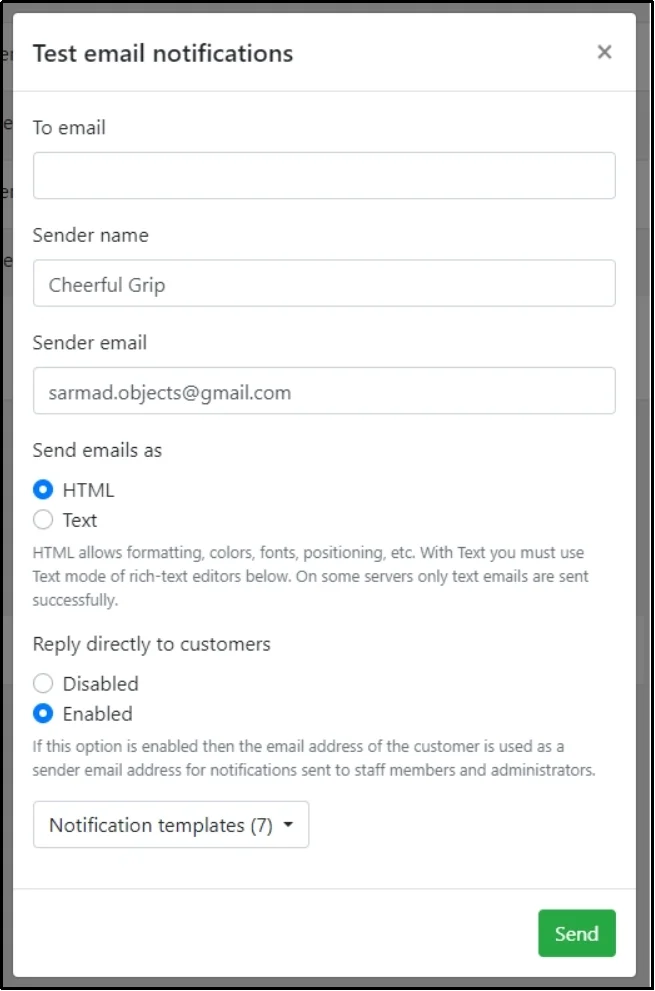
This tab will pop up. Enter the “To email” or the email address where you would like to receive the test email. Select the notification you want to test from the Notification templates drop-down at the end.
Finally, click Send.
If you received the email, perfect!
If you didn’t, the problem is not with the plugin’s settings, but your wp_mail() function. Which takes us to our second solution…
Replace Wp_mail() With a Third-Party Email Server
The easiest way to do so is by using Post SMTP; one of the best SMTP plugins.
So, install the plugin before we jump right into it.
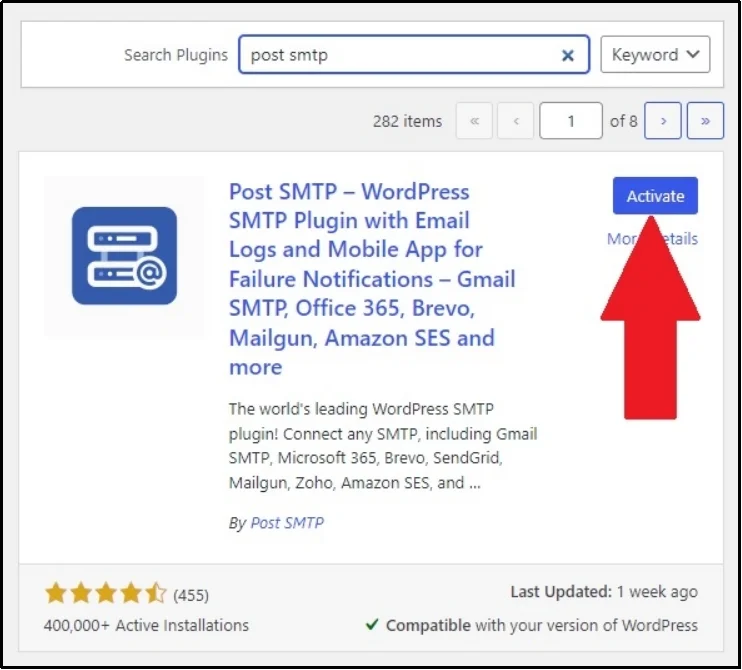
Go to WordPress ⇒ Plugins ⇒ Add Plugin ⇒ Search Post SMTP ⇒ Install and Activate.
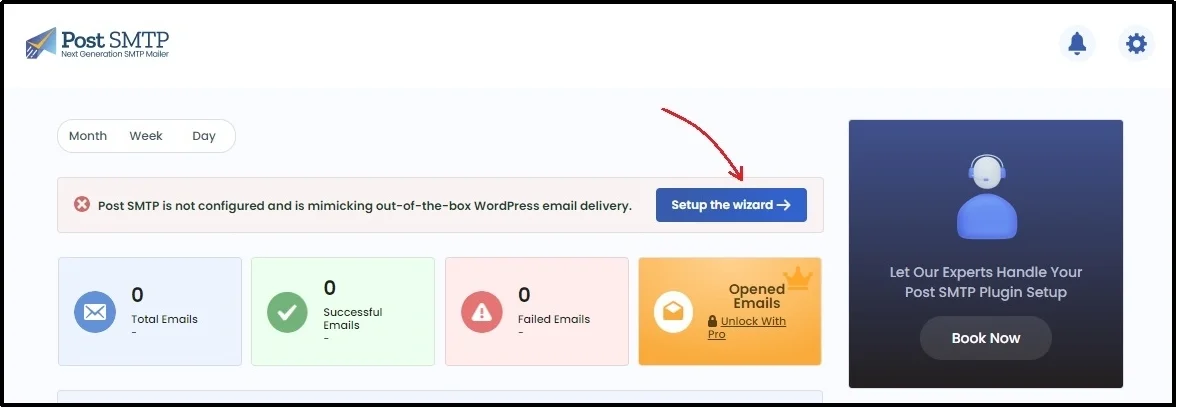
Open the wizard by clicking Setup the wizard.
You can see this three-step process. Firstly, you have to choose the mailer with which you would like to replace the wp_mail() function.
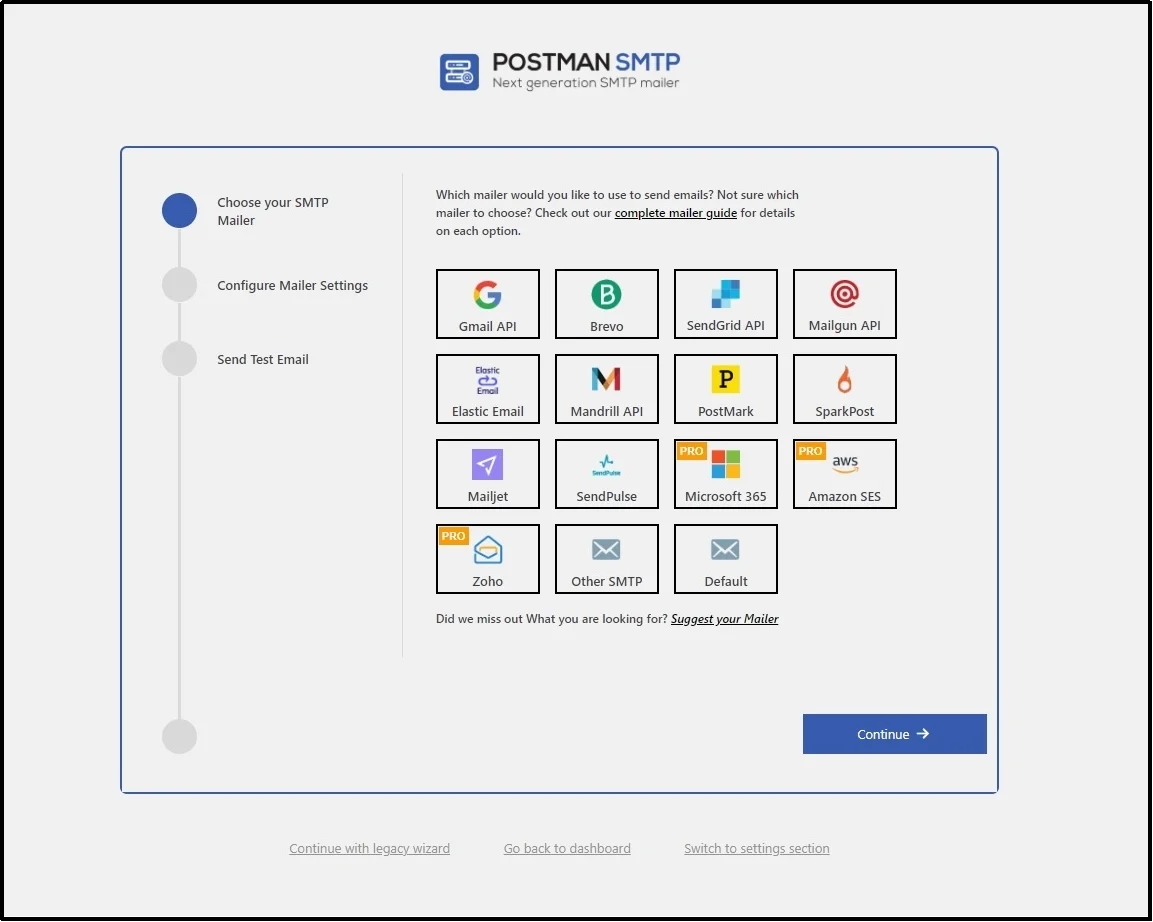
Post SMTP supports tons of mailers. Every mailer is linked to its documentation.
- Gmail API
- Brevo
- Sendgrid API
- Mailgun API
- Elastic Email
- Mandrill API
- PostMark
- SparkPost
- Mailjet
- SendPulse
- Microsoft 365 [Pro]
- Amazon SES [Pro]
- Zoho [Pro]
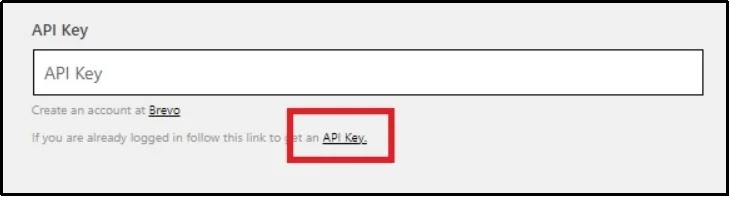
Fetch the API of the mailer of your choice and paste it in the setup wizard.
Post SMTP will send a test email. If the email is successful, you will receive a success message.

Conversely, if the email fails, that’s probably because of a misconfiguration of the email server.
If you can’t figure out why the email failed, our support team is here to help! The team can spot potential issues and set it up correctly for you, so you don’t have to compromise on email deliverability.
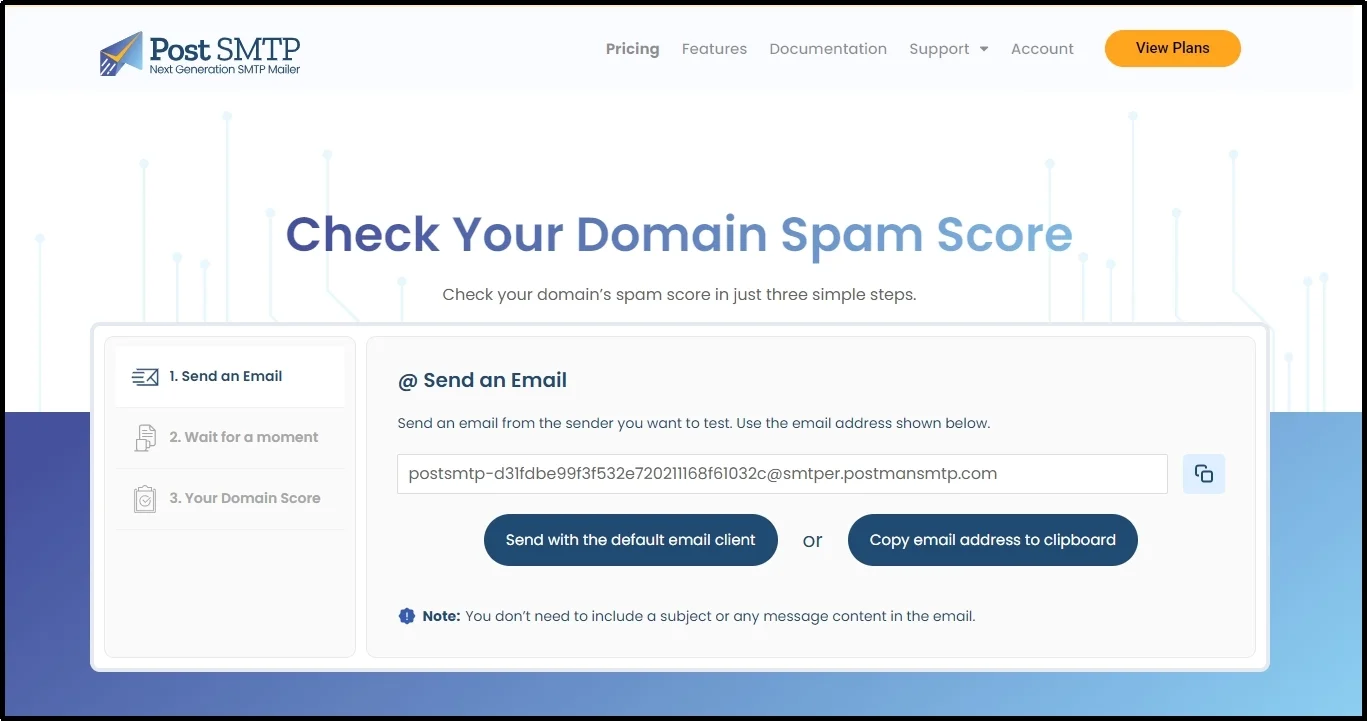
Alternatively, you can head over to Post SMTP’s Email Spam Score Checker tool and send an email to the unique string. Afterward, you can get a complete report about your domain’s spam score, highlighting the common problem that might be causing deliverability complications.
Force “From” Name and Email Address
Earlier, we discussed the dangers of incorrect “From” names and addresses. Thus, it’s imperative to keep them consistent across your site.
You can do so by navigating to Post SMTP ⇒ Settings.
Switch to the Message tab, enter the email address and name in the respective input boxes, and check the Prevent plugins and themes from changing this checkbox.
Once done, you can click Save Changes, and that’s it.
Fixing Email Deliverability Issues With Post SMTP
Email deliverability issues can quietly undermine your customer experience, especially with a booking plugin like Bookly that heavily relies on timely notifications. Fortunately, Post SMTP is here to help fix not only Bookly-related but also all your email deliverability problems.
Once again, if you’re still stuck or unsure where the problem lies, don’t hesitate to get expert assistance. Ensuring your emails reach their destination is an essential part of running a business.
Frequently Asked Questions
Why are my Bookly email notifications going to spam?
Bookly notifications may land in spam if your WordPress site uses the default wp_mail() function without proper email authentication. Without SPF, DKIM, or DMARC records set up on your domain, most email providers may not trust the source of your emails, causing them to be flagged as suspicious. Hence, landing in spam.
How do I test if Bookly email notifications are working?
You can test Bookly notifications by going to Bookly → Settings → Email Notifications, scrolling to the bottom, and clicking on Test email notifications. Enter a recipient email and select a notification template to send a test message.
What’s the best way to fix Bookly’s email deliverability issues?
The most reliable fix is to replace WordPress’s default email function with a third-party email service using a plugin like Post SMTP. This ensures your emails are sent with proper authentication, eliminating the chance of emails being flagged or not being delivered at all.
Can Bookly email templates be customized with HTML?
Yes, Bookly email templates are customizable with HTML. It allows customization and sending emails in HTML, with formatting options like bold, italics, and colored fonts. A built-in code editor enables direct modification of HTML and CSS for more control over appearance.
