

























Want to change the admin email in WordPress?
You are at the right place.
There are many reasons why you might decide to change the admin email in WordPress, such as losing access to the email already being used or switching to a professional email after starting with a basic one.
Whatever the reason might be, the solution is the same. And that’s exactly what this article will explore in four different yet easy ways. Let’s jump right in…
What is Admin Email in WordPress?
Admin email is the email address where WordPress sends essential emails, such as:
- Password recovery
- New accounts
- Admin user notifications
- Order confirmation
- Comment moderation notifications
- Auto-update installation
Receiving these emails is necessary to ensure the smooth operation of your business. However, sometimes, when starting a business, people use their personal email as their admin email in WordPress. Also, some hosting providers automatically set the email as admin that you use to log into the hosting provider’s account, which can also be troublesome because these emails usually end with the service provider’s name and are not very professional-looking domains.
Thus, most users decide to change the admin email in WordPress, especially when the business scales.
Pro Tip: If you want a professional email with a custom domain for completely free, check out this article: How to get an email domain for your business — 100% free.
Why Change The Admin Email in WordPress?
Changing the admin email in WordPress comes with a few unique benefits, such as:
- Enhanced Security: Using a unique and secure email address helps protect your site from hackers. It’s a good practice to avoid using publicly known or easily guessed addresses.
- Updated Contact Information: If the current admin email is outdated, inaccessible, or belongs to someone no longer associated with your site, updating it ensures you won’t miss critical communications.
- Site Ownership Changes: When transferring ownership of a WordPress site, changing the admin email reflects the new owner’s contact details and maintains proper communication.
- Improved Management: You might want to use a more professional or centralized email for better site management, particularly if multiple users are involved.
- Developer’s Email: If you hired a developer to code your website, they might have used their email temporarily, leaving it to you to change it.
By keeping your WordPress admin email up-to-date, you ensure your site remains secure, efficient, and properly managed.
Change Admin Email in WordPress: 04 Easy Methods
Now that you understand the importance of changing admin email in WordPress, let’s jump right into four easy ways to do so…
Method #1: Change It From The WordPress Settings
First and foremost, let’s change it using the easiest method. To do so, log into your WordPress.

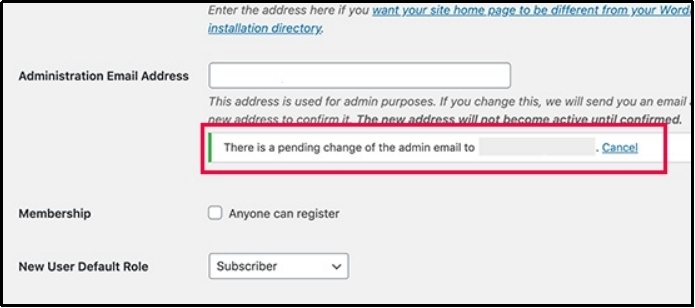
Once there, scroll down until you find this input box titled Administration Email Address.

Update your email and click the Save Changes button to save progress.
After saving changes, you will be required to verify your new email address.
⚠️ PLEASE NOTE: WordPress not sending emails is a common issue that might cause WordPress not to send confirmation emails. This problem can be overcome by changing your email sender. By default, WordPress uses the wp_mail() function to send emails, which is unreliable and causes further complications. You can easily replace it with another reliable service using Post SMTP. Our documentation can assist you with an easy-to-follow step-by-step process.
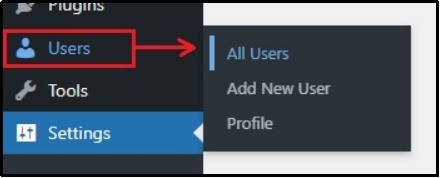
In contrast, if you just plan on changing the email address of a specific user account in WordPress, navigate to Users >> All Users.
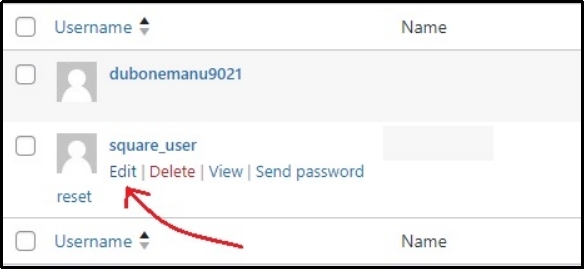
Afterward, select the user whose email you want to change and select Edit.
Scroll down until you find a section named “Contact Info.” In the contact section, the first input box is what you are looking for.
Enter your email address in it, and save the changes.

Similarly, you will receive a confirmation email on your new email, and once you verify it, the new email will be successfully set.
Method #2: Change Admin Email in WordPress Using a Plugin.
This method does not require further verification. If you lost access to the previous email, this might be a game-changer. Here’s how to use the Change Admin Email plugin to change admin email in WordPress without having to swing back and forth to your gmail account for verification.
To start, go to Plugins >> Add New Plugin >> and search for the Change Admin Email plugin.
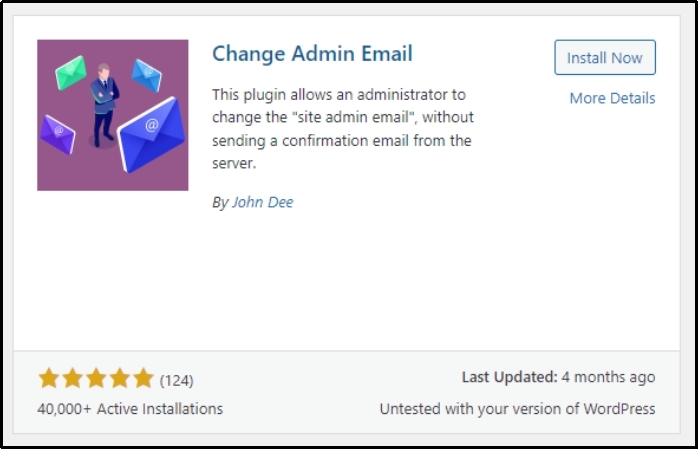
Install and activate it, and return to Settings >> General.
Now, you will see the settings, such as under:
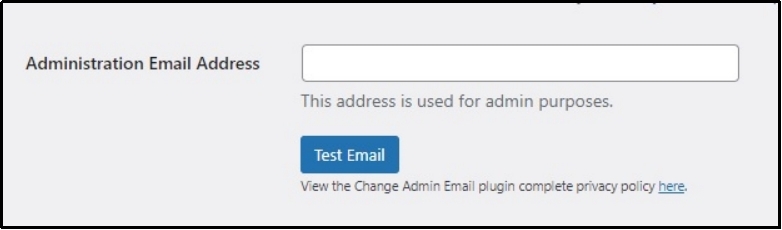
Enter your new email in the input box and save your progress with the Save Changes button. The plugin will also send you a test email to your newly specified email address.
Method #3: Change Admin Email in WordPress Via File Manager.
Now comes something a little more technical than the previous two. But don’t worry! With our five-step documentation, you will easily get through.
For this third method, we will use a file manager. You can access your files via phpMyAdmin. This method requires amendment with specific files, which means that regardless of how you access your files, it will work just fine.
Let’s begin!
Step 1: Access the File Manager or PhpMyAdmin
- Log in to your hosting provider’s control panel (cPanel or any other platform).
- Open phpMyAdmin if you’re comfortable working with the database, or use a file manager like the Advanced File Manager plugin for WordPress.
Step 2: Locate wp_options.
If you use phpMyAdmin:
- Select your WordPress database from the left sidebar.
- Find and open the wp_options table.2
If you use a file manager:
- Navigate to your WordPress installation folder (usually under public_html).
- Access the wp-config.php file to confirm your database name.
- Use phpMyAdmin to locate the correct database.
Step 3: Update the Admin Email
- In the wp_options table, search for a row where the option_name column is admin_email.
- Edit the value under the option_value column and replace it with the new email address.
Step 4: Save Changes
Click Save or Go (depending on your hosting interface) to apply the changes.
Step 5: Verify
Although you won’t receive a verification email using this method, ensure you can log in to your WordPress admin and receive notifications at the new email address.
Method #4: Change Admin Email in WordPress Using Post SMTP
Last, but not least, change the admin email using the Post SMTP WordPress plugin.
If you are not using the plugin, you must download it. It not only helps with changing admin email issues but can also help you fix most of the email deliverability issues.
Thus, head over to your WordPress, navigate to Plugins >> Add New Plugin >> Search for Post SMTP, and install and activate the plugin.

Once the plugin is activated, navigate to the plugin’s settings from your WordPress dashboard.

Once there, switch to the Message tab, replace the email address with the one you want to send emails with, and check the “Prevent plugins and themes from changing this” box.
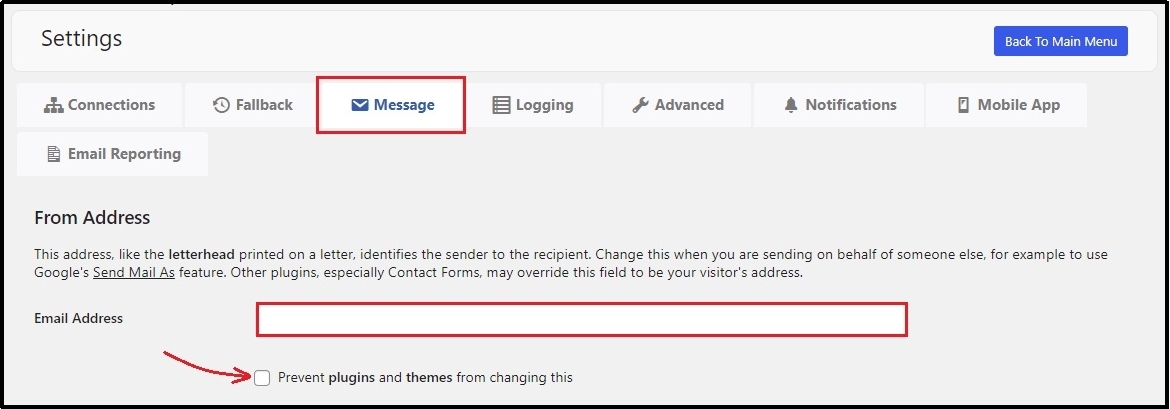
This will force all the emails to be sent from a single email address, which will fix your email deliverability problems.
Which Method Is For You?
The method you choose depends on your specific situation:
- Method #1 is the most straightforward and user-friendly option for those who can still access their WordPress admin dashboard.
- Method #2 is ideal if you don’t want to deal with email verification or need a quick solution.
- Method #3 is your go-to option if you’ve lost access to your admin email and dashboard.
- Method #4 is the best way as it not only helps with changing admin email in WordPress but also helps with fixing deliverability complications.
Final Words
It’s imperative to change admin email in WordPress and keep it up-to-date to maintain the security and efficiency of your site. Whether you’re switching to a professional email, updating outdated information, or transferring ownership, following the methods outlined in this article will make the process seamless.
The methods we’ve outlined—updating it via WordPress settings, using a plugin for convenience, or making changes through a file manager—cater to various scenarios and technical skill levels.
By choosing the approach that best fits your situation, you can confidently handle the update process without unnecessary hassle.
Frequently Asked Questions
Why can’t I change my admin email in WordPress settings?
If your email change isn’t saving, WordPress may require email verification. Check your new email inbox for a confirmation link. If you haven’t received it, try a different method, like using a plugin or updating it via phpMyAdmin.
What happens if I don’t verify my new admin email?
If you don’t verify your new email, WordPress will continue using the old one for notifications. The change won’t take effect until the new email is confirmed.
Can I change the admin email without logging into WordPress?
Yes! If you’ve lost access to your admin dashboard, you can change the admin email through phpMyAdmin or by using a file manager to update your database directly.
Will changing the admin email affect my website?
No, changing the admin email won’t affect your website’s content or functionality. It only updates where WordPress sends important notifications, such as password reset links and updates.
Is it safe to use a plugin to change the admin email?
Yes, using a trusted plugin like Change Admin Email is a safe and easy way to update your email without verification. However, always ensure the plugin is reputable and updated regularly for security reasons.