























If you are experiencing the “could not connect to SMTP host” problem, please know that you are not alone. It is a fairly common problem that can occur for several reasons.
But, the good news is that it is easily fixable, and a few amendments here and there can help you get over it quickly.
This article is here to guide you through everything you need to know about this error and the six things you can do to get rid of it for good.
But before that, let’s understand thoroughly why it occurs.
Why Does “Could Not Connect To SMTP Host” Occur?
The “Could Not Connect to SMTP Host” error on WordPress usually occurs when your website cannot establish a connection with the mail server you’re trying to use to send emails. This issue is pretty common when using dedicated SMTP plugins, like Post SMTP.
Basically, SMTP plugins override WordPress’s default email server, the wp_mail() function. Due to a lack of authentication protocols, the default mailer is detrimental to email deliverability. It can cause complications, such as emails going to spam, not delivering reliably, or logging issues.
The problem may stem from SMTP hosts, open ports, authentication protocols, or all of them.
But don’t worry! Unlike their names, the solution is relatively easy. Here are six reasons why you might be facing this problem and how to fix them.
Problem 1: Abrupt Server Downtime
First and foremost, it’s incumbent upon every WordPress user to check the non-technical aspects while tackling any WordPress-related error. Because verily, more times than not, minor complications can easily be fixed with simple changes to the plugin or software’s settings.
The same is the case here. Before diving into more complex solutions, let’s first verify that the server has not abruptly shut down, is not having a technical emergency, or is not conflicting with your hosting provider.
Solution: Check Your Site’s Status
Before taking any action, check whether your website is down and check the hosting provider’s status portal or social media pages. Companies usually communicate openly in such conditions and offer an estimated time until you can expect the fix.
Unfortunately, in such a condition, all you do is wait. However, the good thing is that these don’t last long. Reputable hosting companies fix such issues on priority and the downtime only lasts a few hours.
Also, you can check your server’s status by logging into your hosting account, navigating to Status or Server Status, and checking if it is active. If it is not, you can contact the host and get it running as soon as possible.
Problem 2: Firewall or Port Blocking
If you recently set up a firewall, or your hosting provider offers a firewall service, or blocks standard SMTP ports, such as 587, 465, or 25, for security reasons, there is a strong chance that the culprit is within the security system.
You can set Post SMTP to use multiple ports. Thus, if one of them is being blocked by either the firewall or your hosting service, there is a high chance you will see deliverability complications.
Moreover, hosting providers may also block additional ports to force users’ emails to route through their email system to enhance deliverability. This can, in fact, kick back, causing deliverability issues due to standard security authentication protocols.
Solution: Submit an Exclusion Request
If you have manually set up the firewall, take it down and check again if the issue persists. If it vanishes, you can try configuring the firewall’s rules to ensure they don’t conflict with Post SMTP’s settings.
Alternatively, verify which port is blocked, and reach out to your host and request to open it. Most providers will do it without further questions. However, if they don’t for some reason, you can switch hosts.
Problem 3: Other Plugins Are Not Compatible
Plugin compatibility can be another common issue, especially with security plugins or those that affect deliverability, security, or similar areas where Post SMTP usually works.
As discussed earlier, Post SMTP uses multiple ports depending on your chosen mailer. There are a number of them, including:
- Gmail (Google Workspace) API
- Brevo
- SendGrid
- Mailgun
- PostMark
- And many more.
Port settings can change depending on the mailer, and different plugins can alter port settings that may not work well with a particular mailer.
Solution: Find The Inflicting Plugin
You can easily check if this is the case by temporarily disabling all the plugins except Post SMTP. If the problem is resolved, you can manually activate them again one-by-one until you find the conflicting one.
In fact, other plugins, such as learning management systems, cache plugins, etc., can also send emails. Settings between these and Post SMTP may conflict, causing the “Could Not Connect to SMTP Host” and other deliverability issues.
Problem 4: Misconfigured Proxy Settings in Cloudflare
Cloudflare is a cloud-based connectivity service that provides multiple tools to enhance a website’s security and performance.
With over 24M users worldwide, many WordPress owners turn to the company to improve their website’s speed or security. Their robust web application firewall (WAF), content delivery network (CDN), and DDoS protection are the go-to services for most website owners.
However, tiny misconfigurations with the proxy settings can affect the email deliverability and cause issues such as the one you are trying to find the solution for.
Solution: Manually Configure The DNS Settings
If you recently shifted to Cloudflare, there is a strong chance this is the issue because Cloudflare retrieves the DNS records from the previous host and does not use the mailer settings you have set.
After setting a new domain, log into your account, go to your domain’s settings, and manually enter the necessary details, including authentication records such as SPF, DKIM, and DMARC.
However, if you don’t use an SMTP service and haven’t set up the records yourself, you can skip this step, as it is unlikely that this will cause the “can’t connect to SMTP host” issue.
Problem 5: Misconfigured SMTP Host or Port Settings
If the host isn’t blocking the ports, there might be a chance that you may have misconfigured the settings while setting the “other host” in Post SMTP.
Usually, Post SMTP fetches the port and host settings from the API of the mailer you use, such as Gmail, Mandrill, Zoho, etc., but if you plan on using the “other mailer,” you will have to set it up manually.
Solution: Configure The Settings Correctly
Navigate to Post SMTP ⇒ Settings ⇒ Connections.
Firstly, select the mailer type, choose Post SMTP here.
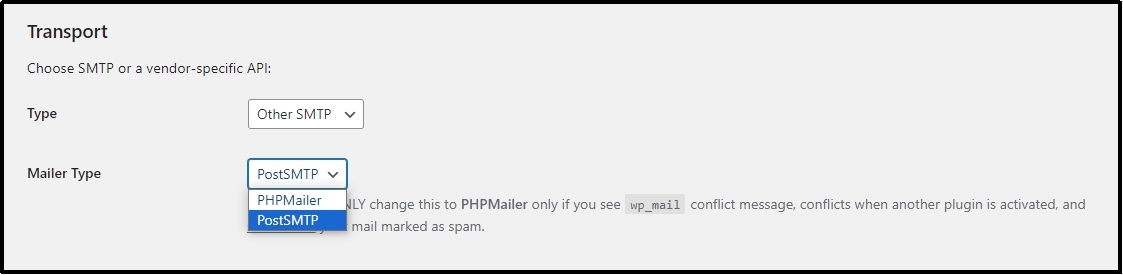
PHPMailer uses WordPress’ default wp_mail() system, which is unreliable due to its lack of adaptability with the latest security protocols. It uses port 25, which is blocked by most ISPs due to security concerns and spam.
Thus, you should always use PostSMTP.
Now, move on to the Transport Settings.
Enter the hostname in the first input box and enter your desired port in the “Outgoing Mail Server Port” box.
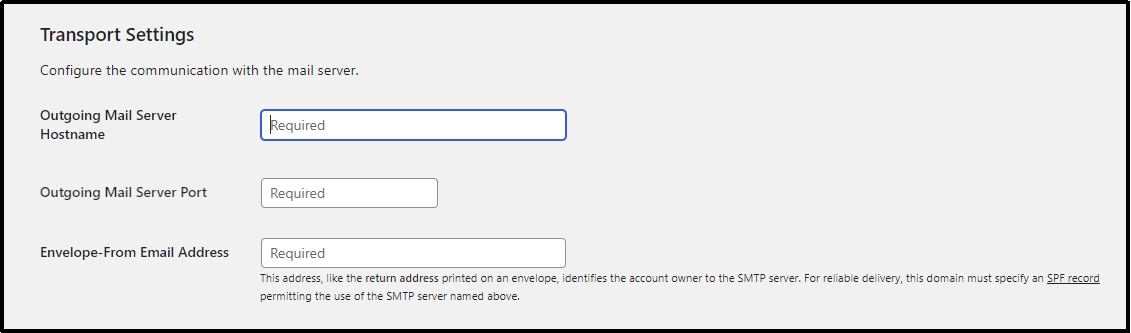
For reliability, the 587 port with TLS/SSL encryption is recommended. But, it may cause complications with older systems; in such a case, you can go for the 465.
However, it is imperative to switch to the latest one (587) as soon as possible, even if it requires a change of setup or software.
In the security drop-down, you can go for either STARTTLS or SMTPS.
Both SMTPS and STARTTLS provide secure email transmission, but they differ in how they establish the secure connection.
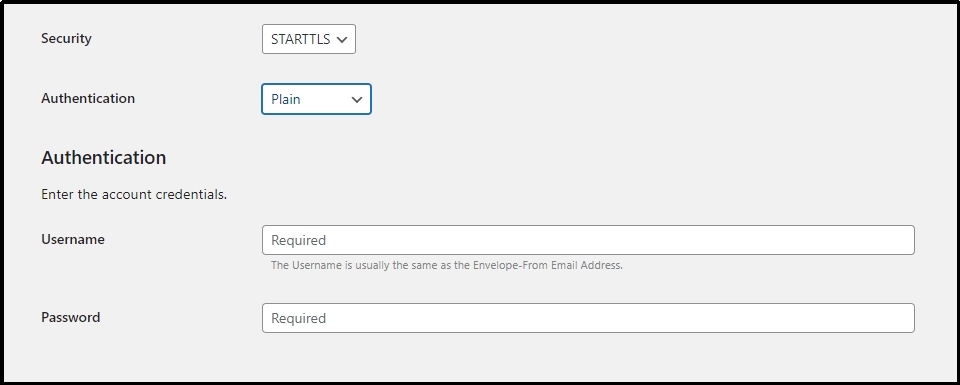
SMTPS, or implicit SSL/TLS, creates an encrypted connection right at the beginning of the SMTP session. In contrast, STARTTLS enhances an already open unencrypted SMTP connection by switching it to an encrypted one through TLS. To achieve the best security while ensuring compatibility, it is typically advised to use STARTTLS on port 587.
Problem 6: Inconsistent “From” Email
The “From” email address is shown in the email header and indicates who sent the message. It is a required field that reveals both the sender’s name and email address.
This feature is required because it helps recipients recognize the sender and decide whether to open the email.
As discussed, several kinds of plugins can send emails for specific reasons. In the example above, a learning management system such as LifterLMS sends multiple emails to students, professors, faculty, and others.
These emails may not have a definite “From” address. Also, another plugin, let’s say a form plugin, may have a different “From” name or email address, leaving the email server second-guessing which From Name to use while sending emails.
Solution: Force “From” Email Address
Navigate to Post SMTP ⇒ Settings ⇒ Messages.
Enter the email address and the name that you want to keep consistent across all the emails. Next, check the “Prevent plugins and themes from changing this” box between both input boxes.
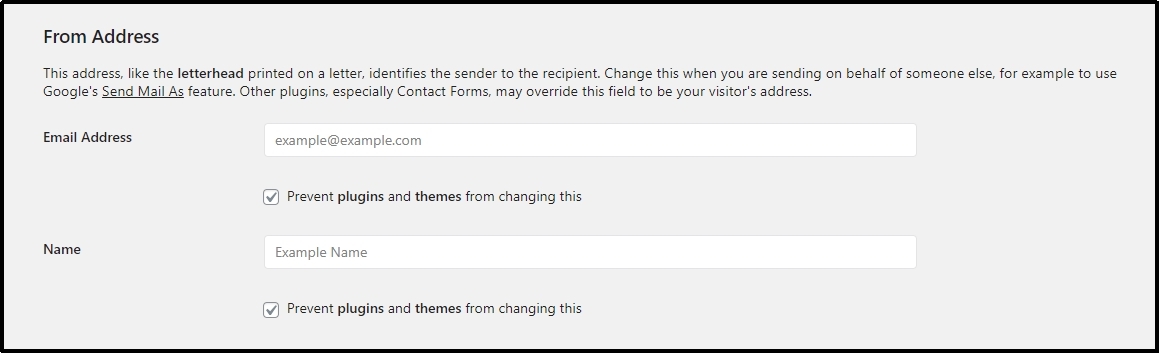
Now, no plugin or theme can override the settings.
Fixing Email Deliverability With Post SMTP
Unreliability in email deliverability can have catastrophic consequences for your business strategy.
With email deliverability offering a fantastic return on investment, reliable email delivery is no longer a choice. It’s a necessity for businesses of all sizes.
Email marketing is still a very effective and cost-effective solution for advertising in 2025 and beyond. It offers unreal ROI, builds meaningful relationships with the target audience, and drives abundant sales, making it a valuable part of a marketing strategy.
With Post SMTP, you can easily fix email deliverability problems like they never existed in the first place. Not only that, the plugin is feature-rich and boasts a number of helpful characteristics that can assist with fine-tuning your email marketing strategies.
To get started, check out our domain health checker. It will provide a personalized evaluation of your domain’s health and actionable solutions to fix the underlying issues.
Frequently Asked Questions
Why do I get the “could not connect to SMTP host” error in WordPress?
“Could not connect to SMTP host” is a common deliverability problem that can occur due to several reasons, including the server being down, the firewall or host blocking the ports, other plugins conflicting with the SMTP plugin, a misconfigured VPN or plugin settings, or an inconsistent from address.
How do you fix the SMTP error could not connect to SMTP host?
To fix the issue, we recommend checking your SMTP settings to ensure the SMTP plugin uses the correct port. You should also verify if the plugin uses the latest port and security protocols, which can also impact email deliverability. Lastly, make sure no other plugin is conflicting or causing the SMTP plugin to misbehave; if it does, it’s necessary to deactivate it temporarily while you troubleshoot the issue.
Which port should I use for SMTP in WordPress?
It is recommended to use the 587 port with TLS/SSL encryption for better email deliverability. However, an older or outdated system may conflict with these settings. In such a case, you can use the 465. Never use port 25, as most ISPs block it due to a lack of security.