























Email marketing remains one of the most powerful channels for driving revenue, delivering one of the highest returns on investment when executed properly.
However, many marketers have a major blind spot: they track open and click-through rates but lack visibility into whether their emails actually reach the inbox.
Email analytics help measure campaign performance by tracking key metrics across the entire journey, from delivery and opens to clicks and final conversions. This allows marketers to optimize future campaigns for better performance.
Understanding Email Analytics: The Data Behind Email Marketing Success
Email analytics is the practice of collecting and analyzing data from email marketing campaigns to understand how recipients interact with your messages, including opens, clicks, replies, and conversions.
Email analytics data typically comes from three primary sources: tracking pixels loaded when a recipient opens an email, link tracking that records which links recipients click, and email server responses that report bounces, rejections, and delivery failures.
The problem is that many email analytics platforms only track basic events like “sent” and “opened.” They rarely measure the metric that matters most: whether your emails actually reach the recipient’s inbox. In the world of WordPress, this is especially problematic because the default email functionality relies on PHP’s mail function, which provides no visibility into email delivery status or SMTP server responses.
To really optimize your emails, you need both front-end engagement data and back-end deliverability insights. That’s where Post SMTP changes the game, offering SMTP configuration with a bunch of email analytics for WordPress emails.
Core Email Marketing Metrics Every Marketer Should Know
Engagement Metrics
- Open Rate Tracking
Open rate measures the percentage of recipients who opened an email campaign. The formula for calculating open rate is relatively simple – divide unique email opens by total emails delivered. Every email is sent with a tracking pixel, which is a tiny image in your email code. When a recipient opens the email, the image is loaded, and the open rate is tracked.
A common problem most marketers report is associated with Apple’s Mail Privacy Protection mechanism, which now automatically preloads all images, meaning that even before the email is opened, the tracking pixel records the email as opened. As a result, marketers often see artificially inflated open rates for Apple Mail users.
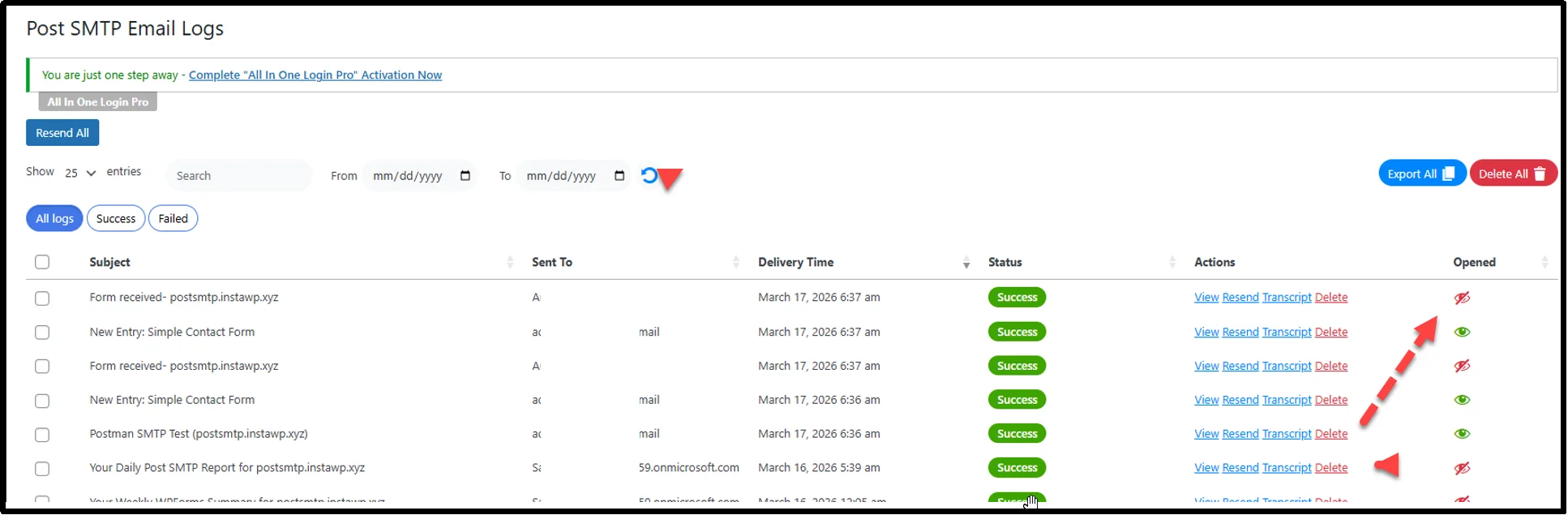
Post SMTP Pro includes email open tracking that displays open data directly on your email log screen, giving you visibility while acknowledging these limitations.
- Click-Through Rate (CTR)
Click-through rate (CTR) measures the percentage of recipients who clicked a link inside an email. This is calculated by dividing the total number of clicks by the total number of emails delivered. CTR is an important metric to consider when deciding whether your campaign was a success, because clicks on your email require deliberate action and indicate that someone is actively interested in your content.
- Click-to-Open Rate (CTOR)
Click-to-Open rate is often confused with Click Rate or Open Rate, but it’s kind of a combination of both. It is calculated by dividing unique clicks by total opens. This metric measures email content performance relative to the subject line. If 100 people opened and 20 clicked, your CTOR is 20%. A low CTOR suggests your email content isn’t delivering on the promise of the subject line.
- Conversion Rate Optimization
Conversion rate measures the percentage of recipients who complete a desired action on your website after clicking an email. The action, often a completed purchase, is marked as a conversion. This requires tracking beyond the email itself, typically using UTM parameters or CRM integration.
Post SMTP‘s detailed email logs help you identify which emails drove engagement, even if final conversion tracking happens in other tools.
Audience Health Metrics
- List Growth Rate
According to Bloomreach, email lists naturally decay at approximately 22.71% annually, or about 1.89% monthly. This makes it essential to track list growth and continuously engage subscribers before they leave your funnel. Also, you need to keep an eye on whether you have a negative growth vs. decay rate. If your audience is declining, investigate immediately.
- Unsubscribe Rate
Unsubscribe rate measures the rate at which your customer base opts out of receiving your email. Experts say that unsubscribes are healthy since they remove uninterested contacts from your email list. A significant increase in unsubscribe rate (more than 2%) indicates that you might have problems: you’re targeting the wrong audience, delivering irrelevant content, or spamming emails.
- Spam Complaint Rate
Spam complaint rate is one of the strongest negative signals affecting email deliverability and is possibly the most critical negative engagement signal.
In 2024, Google and Yahoo announced specific thresholds: spam complaints must remain below 0.1% and never exceed 0.3%. Between 0.1% and 0.3% is the “danger zone” where you may start seeing messages land in junk folders.
Technical Deliverability Metrics
- Bounce Rate Analysis
Bounce rate measures the percentage of emails that fail to reach recipients. There are mainly two types of bounce:
- Hard Bounces: Permanent failures like invalid email addresses or domains that don’t exist. These should be automatically removed from your list.
- Soft Bounces: Temporary issues like full inboxes or server problems. These may resolve on subsequent attempts.
Research shows 54% of senders are unable to classify hard bounces or are unsure if they can. This is dangerous because high bounce rates damage the sender’s reputation. Aim for bounce rates below 2%; anything above 5% is critical and requires immediate action.
- Email Response Time Analytics
Response time analytics reveal how quickly your SMTP server acknowledges sending requests and how long emails queue before acceptance. Slow response times may indicate misconfiguration or server blacklisting.
- Failed Email Tracking
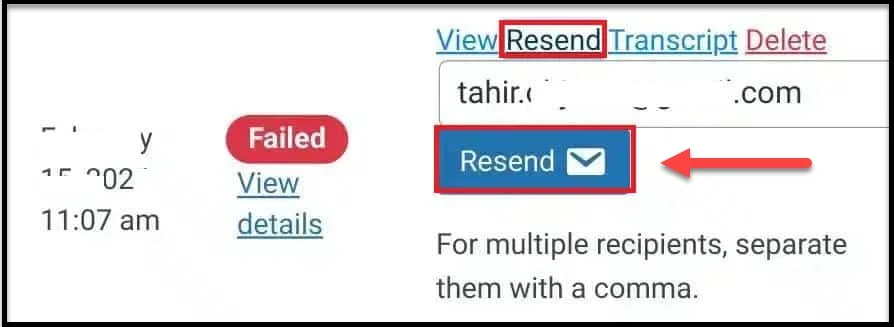
Complete failure logs show not just that an email failed, but why. It can be due to authentication errors, timeouts, or rejections. Post SMTP Pro includes a resending feature for failed emails, so you can resend emails directly from the email logs and even from the mobile app.
- Delivery Rate vs. Inbox Placement
As mentioned earlier in the article, the distinction between delivery rate and inbox placement is critical: Delivery rate measures emails delivered to any folder (including spam), while inbox placement rate measures emails delivered to the main inbox. Since 88% of senders don’t understand this difference, most are measuring the wrong thing.
The formulas:
- Delivery rate = (Emails delivered ÷ Emails sent) × 100
- Inbox placement rate = (Emails in inbox ÷ Emails delivered) × 100
Post SMTP’s SPF, DKIM, and DMARC checks help ensure proper authentication, which is the foundation of good inbox placement.
Get Your WordPress Email Stats and Reports with Post SMTP
The plugin provides the following key email stats on the dashboard:
- Overview Screen: Total Emails, Successful Emails, Failed Emails, and Opened Emails (Pro feature).
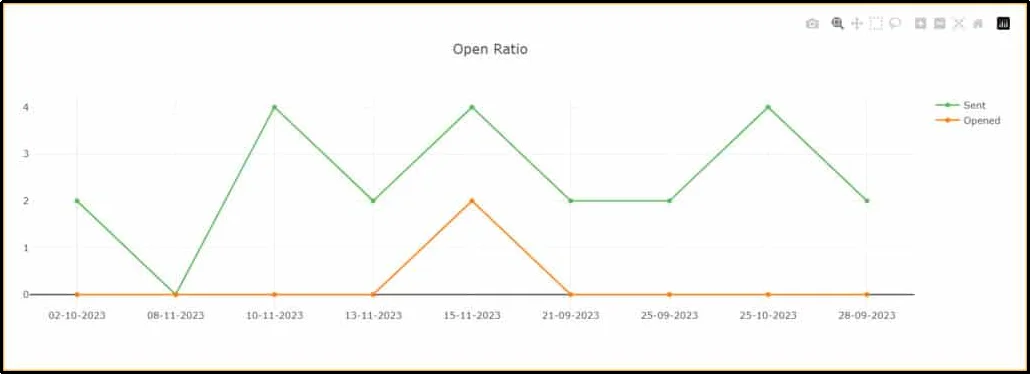
- Reports (Pro feature): Check the Delivery Stability and Open Ratio graphs.
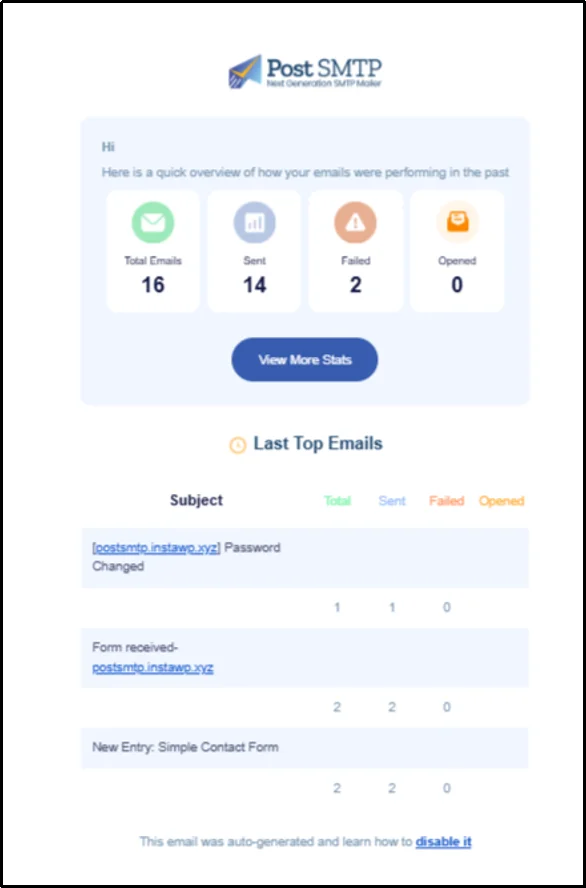
Post SMTP Pro also adds a Weekly Email Health Report delivered directly to your inbox, revealing total emails, failures, successes, and complete logs.
Track Email Performance with Post SMTP Mobile
The Post SMTP Mobile App delivers email alerts directly to your phone, allowing you to monitor deliverability on the go. You can:
- Track all emails sent from your WordPress site.
- Receive instant failure notifications.
- Resend failed emails with a one tap.
- Preview emails to check formatting.
- Connect multiple sites for centralized monitoring.
Peacocks Case Study: From “Sent” to “Profitable”
Peacocks is a well-established British fashion retailer. They were facing hidden issues with email deliverability. They saw their Microsoft domain open rates drop from 50% to just 9%, while Gmail and Yahoo performed fine.
The solution required a multi-faceted approach:
- Scanning legacy data for clean-up
- Implementing real-time verification to prevent invalid addresses
- Creating dedicated segments for problem providers
- Revamping list hygiene based on engagement
The results? Open rates climbed to 60-70%, an improvement of 51-61%, while revenue per 1,000 sendouts increased 54% year-over-year.
Common Email Analytics Mistakes (And How Post SMTP Fixes Them)
| Mistake | Why It Hurts | Post SMTP Solution |
| Relying on the “Sent” status as success. | False confidence in campaign performance. | Delivery confirmation via Email Logs. |
| No historical baseline. | Can’t identify sudden deliverability drops. | 30+ day log retention with search. |
| Unable to identify authentication failures. | Emails are not properly delivered: go to spam or are rejected. | SPF, DKIM, DMARC checks and reporting. |
| Assuming all opens are real | Apple MPP inflates open rates artificially. | Email Open tracking (Pro feature) with awareness of limitations. |
| Ignoring spam complaints | Leads to provider blocking. | Review error logs and bounce data to identify potential complaint patterns. |
Actionable Steps: Setting Up Email Analytics with Post SMTP
- Install and Configure Post SMTP using the 3-step setup wizard for quick SMTP configuration.
- Enable Email Logging to capture the maximum amount of data.
- Establish Baseline Metrics through a 7-day observation period.
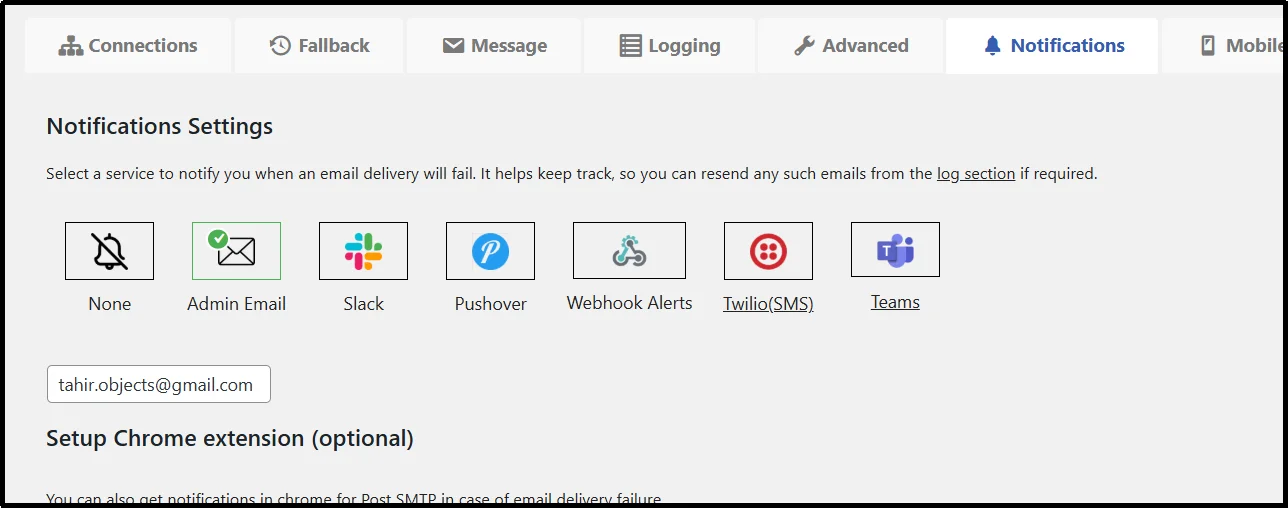
- Set Email Failure Alerts (Email, SMS, Webhook, Teams, Slack, etc.)
- Create a Weekly Review Cadence using the Email Health Report (Pro feature).
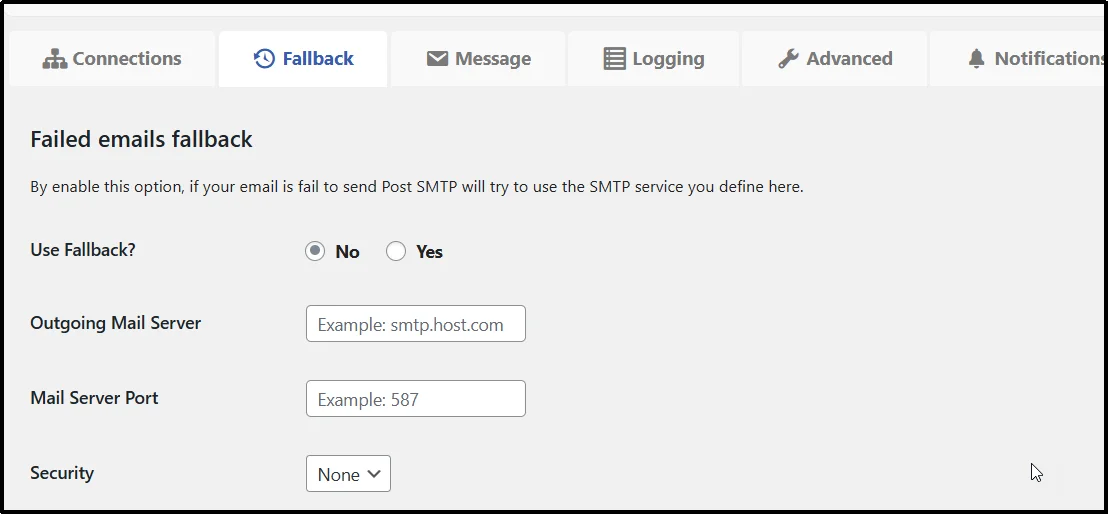
Pro Tip: Use Post SMTP Pro’s Fallback Mailing feature to set up a backup SMTP mailer. If the primary fails, Post SMTP automatically routes emails through the secondary connection.
Conclusion
Email analytics is no longer just about opens and clicks—it’s about understanding the entire journey from WordPress to the recipient’s inbox. In the era of strict spam filters and privacy changes, deliverability analytics is the new competitive advantage.
Post SMTP stands alone as the WordPress plugin that provides both SMTP delivery and enterprise-grade email analytics in a single interface. With detailed logs, open tracking, mobile monitoring, and comprehensive reporting, it transforms WordPress from an email black box into a transparent, optimizable system. The data doesn’t lie. When you can see exactly what’s happening to every email, you stop guessing and start improving. Install Post SMTP today, analyze your email logs, and finally gain full visibility into what happens to every email your WordPress site sends.