








Are your WordPress users not receiving password reset emails?
When customers can’t reset their passwords, they may lose access to their accounts or abandon the process altogether. The problem could stem from your hosting server, email configuration, or spam filters.
In this guide, we’ll explain why WordPress password reset emails fail and show you how to troubleshoot the issue using Post SMTP, test your email setup, and improve email delivery.
How WordPress Sends Password Reset Emails
When a user requests a password reset, WordPress generates a reset link and prepares an email through its wp_mail() function.
By default, WordPress uses PHPMailer with the server’s configured mail transport. If your hosting environment blocks outgoing mail or its mail service isn’t configured correctly, the message may fail to send.
An SMTP plugin such as Post SMTP can route WordPress emails through an external SMTP server or supported email service. This lets you authenticate your sending account, review sending errors, and troubleshoot delivery problems.
Why is WordPress Not Sending Password Reset Email?
If WordPress isn’t sending password reset emails, the issue usually isn’t the reset feature itself. In most cases, how your website sends email or how your hosting provider handles outgoing mail causes it.
By default, WordPress relies on PHP mail to send transactional emails, but this method isn’t always reliable. Combined with hosting restrictions, DNS authentication problems, sender identity mismatches, or plugin conflicts, password reset emails may fail to send, be delayed, or end up in the spam folder.
We have highlighted all the root causes below:
1. WordPress Default Email Delivery Is Unreliable
WordPress sends emails through the server’s default mail setup. However, delivery depends on how the server handles outgoing messages and how receiving email providers evaluate them.
Common problems include:
- Email authentication failures: Incorrect SPF or DKIM configuration can prevent receiving servers from verifying the sender. DMARC may also fail when the authenticated domain doesn’t align with the visible From domain.
- Spam filtering: Receiving providers may place password reset emails in spam based on sender reputation, authentication results, message characteristics, or other filtering signals.
- Sender address problems: A From address that isn’t authorized or properly configured for the sending service may trigger rejection or authentication failures.
An SMTP connection can improve control over email sending, but it doesn’t guarantee inbox placement. You must also configure the sender and domain correctly.
2. Your Hosting Provider May Restrict Outgoing Email
Your WordPress site may generate an email correctly but still fail to send it through the hosting server.
Check for these common problems:
- Sending limits: Your hosting plan may restrict the number of outgoing messages you can send within a set period.
- Mail server restrictions: Your host may block certain outgoing connections or require you to use an approved mail service.
- DNS authentication errors: Incorrect SPF, DKIM, or DMARC configuration can cause authentication failures, depending on your sending setup.
- Sender reputation: A poor reputation associated with your sending IP or domain can affect delivery.
If your host reports a sending error, review the error details and contact its support team when necessary. If the server accepts the message but the recipient never receives it, investigate the mailer’s delivery status, authentication results, and recipient-side filtering.
3. Your WordPress Email Settings May Be Incorrect
Incorrect sender settings can interfere with password reset email delivery.
Check the following:
- Incorrect account email: Confirm that the affected WordPress user’s account has the correct email address. Also review the site administration email if your troubleshooting involves administrative notifications.
- Mismatched sender identity: Use a From address that your chosen email service authorizes. Sending through a third-party service with an unrelated From domain can cause authentication or policy issues.
- Incorrect mailer credentials: Check that your SMTP credentials, API key, or account authorization remain valid.
Keep in mind that the site administration email and the affected user’s account email serve different purposes. Changing one does not automatically correct the other.
How to Fix WordPress Not Sending Password Reset Email in 6 Easy Steps
Once you’ve identified what may be preventing WordPress from sending password reset emails, the next step is to fix this email delivery problem. In many cases, configuring WordPress to send mail through a dedicated SMTP service can provide a more reliable delivery method than the default PHP mail system.
Follow the steps below to troubleshoot and fix password reset email issues using the Post SMTP plugin. Post SMTP also includes email logging and diagnostic features that can help identify delivery problems when an email fails to send.
Step 1: Identify Where the Email Problem Occurs
First, determine whether the problem affects all WordPress emails or only password reset messages.
- Log in to your WordPress dashboard.
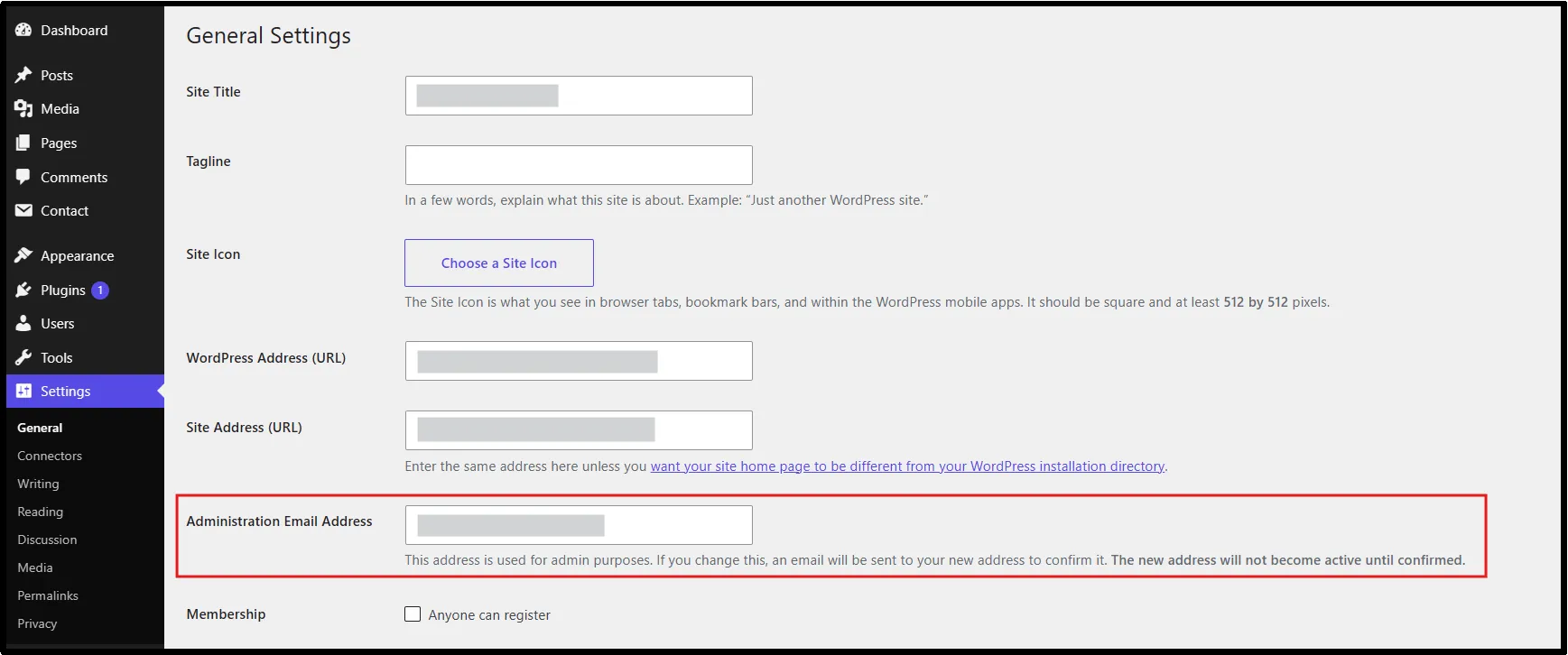
- Go to Settings → General and check the site administration email address.
- If possible, send a test email using your existing email tool or SMTP plugin.
- Visit the WordPress login page and select Lost your password?
- Enter the username or email address associated with a test account and submit the request.
- Check the recipient’s inbox, spam folder, and junk folder.
Compare the results:
| What happens | What to investigate |
| Neither test emails nor password reset emails arrive | The mail transport, host restrictions, or sending configuration |
| Test emails arrive but reset emails don’t | The password reset workflow, account email, plugin conflicts, or application errors |
| Messages appear in spam | Authentication, sender reputation, and recipient-side filtering |
| Only certain recipients miss emails | Recipient addresses, provider filtering, and delivery responses |
A successful test email is useful evidence, but it doesn’t confirm that the password reset workflow works. Check the email log and error details before deciding on the next step.
Still can’t identify the problem?
That’s where an SMTP plugin becomes useful. Instead of relying on your hosting server’s default mail system, Post SMTP lets you connect WordPress to a dedicated mailer and provides tools to test and monitor email delivery.
Step 2: Install and Activate Post SMTP
Once you’ve ruled out the common causes and confirmed that your WordPress site has an email delivery problem, the next step is to set up a more reliable way to send emails. Start by installing and activating the Post SMTP plugin on your WordPress website.
- Log in to your WordPress dashboard.
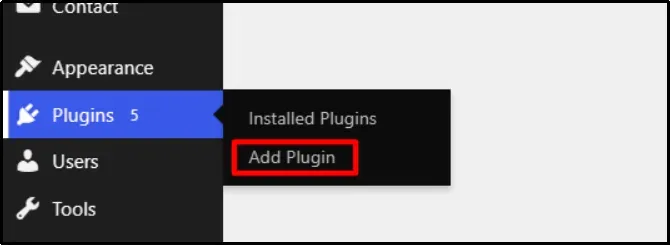
- Go to Plugins → Add Plugin
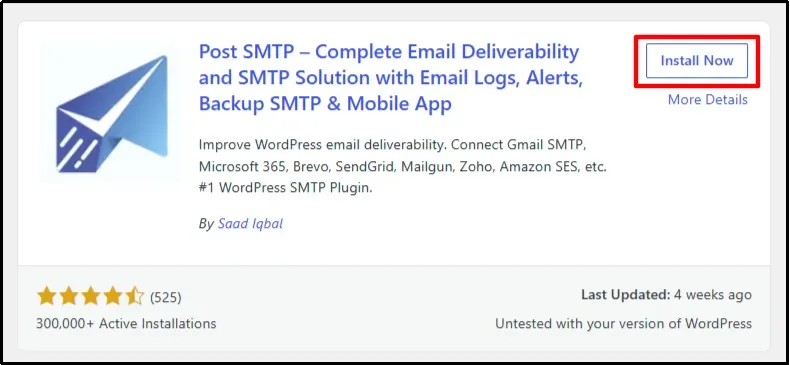
- Search for Post SMTP.
- Click Install Now, then Activate.
After activation, open Post SMTP in your dashboard and follow the setup wizard.
For detailed instructions, see our Post SMTP installation and activation guide.
Step 3: Configure your SMTP Mailer
With Post SMTP installed and activated, the next step is to connect it to an email service that can reliably send messages from your WordPress site.
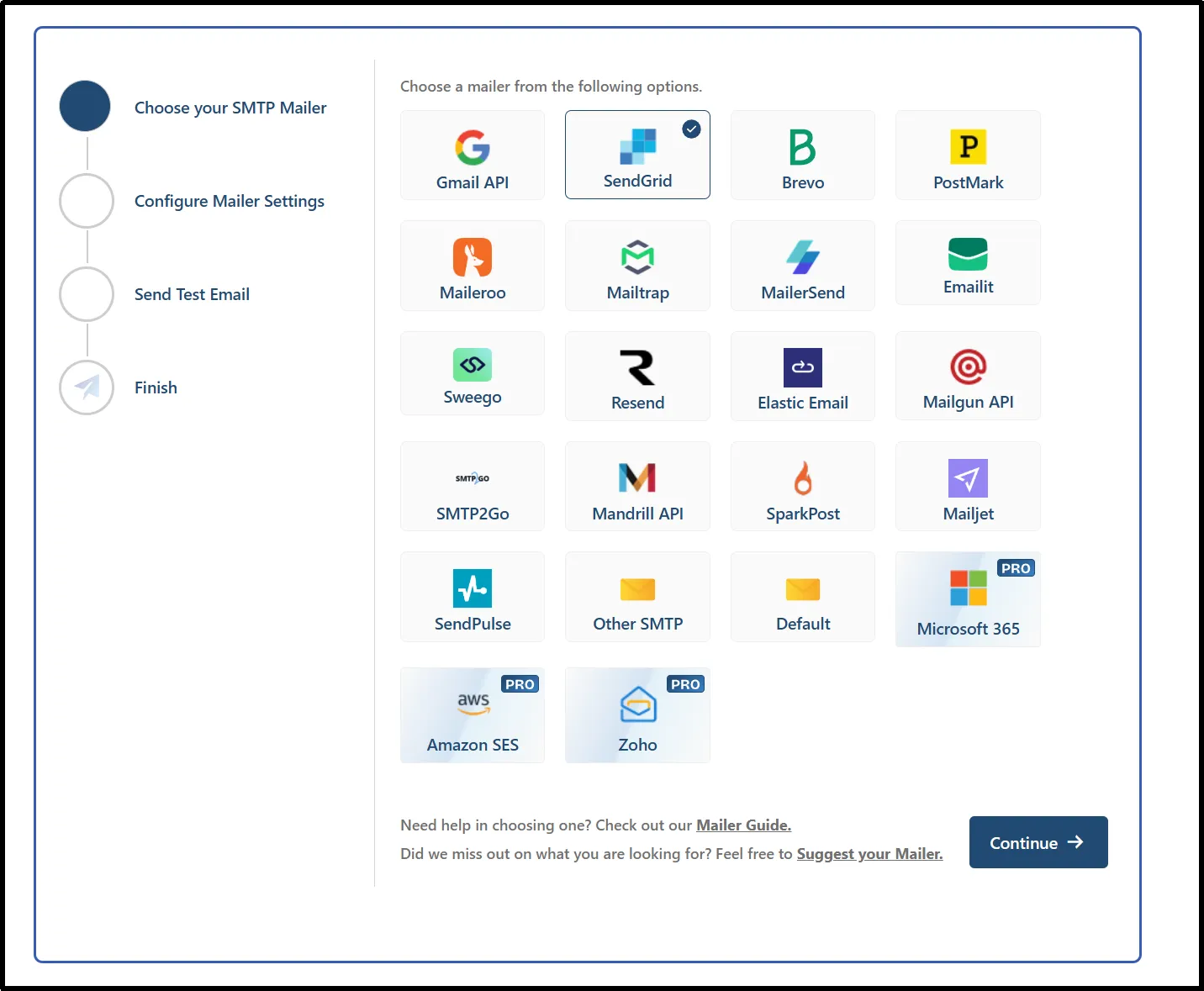
Post SMTP supports 20+ email services, including Gmail, Microsoft 365, Brevo, Zoho Mail, Amazon SES, SendGrid, SparkPost, Mailgun, and Resend. Available integrations and setup requirements vary by provider and plugin version.
Choose the mailer that matches your email account, then follow the instructions in our complete Post SMTP mailer guide.
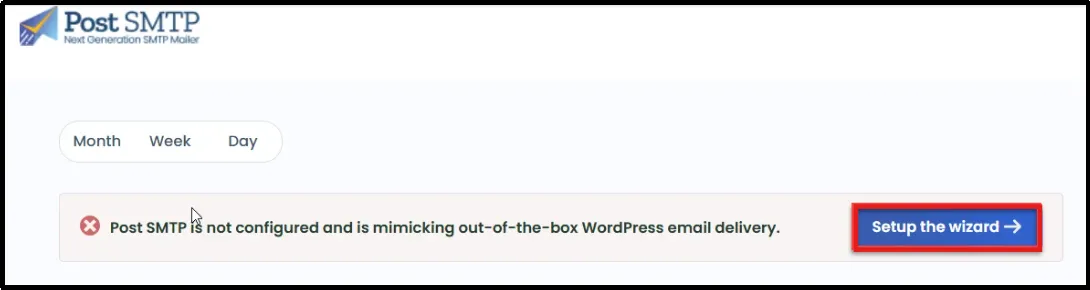
- Head to Post SMTP → Dashboard and click “Setup the Wizard.”
- Choose an email provider from the grid options (e.g., Gmail, Microsoft 365, Brevo, Zoho Mail, Amazon SES, and more). For this guide, we’ll use SendGrid.
- Now enter all the details carefully; make sure you don’t make any spelling mistakes: From Name, From Email, API credentials, OAuth credentials, and SMTP credentials.
Note: Toggle the Force From Email and Force From Name options, as this prevents plugins from changing any information.
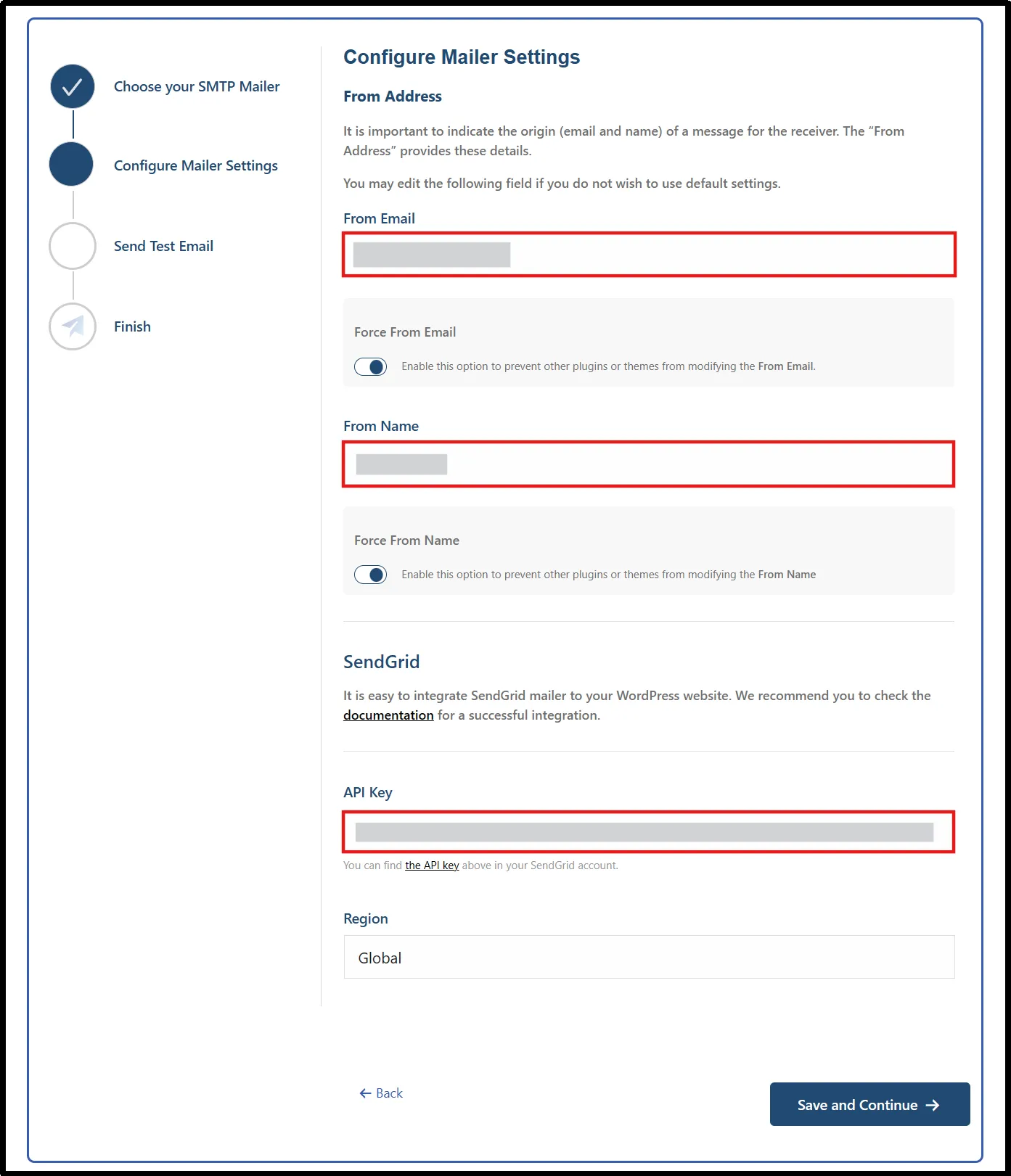
- Double-check what you just entered, and click on Save and Continue.
Follow the next step to send a test email.
Step 4: Test Your Post SMTP Configuration
After configuring your SMTP mailer, verify that everything is working correctly before testing the password reset workflow. Send a test email from Post SMTP and confirm that it reaches the intended inbox. If the test fails, review the error message and update your SMTP settings as needed before continuing.
After configuring your mailer, send a test email to confirm that Post SMTP can connect to the selected SMTP service and submit a message.
- After clicking on Save and Continue, the setup wizard will prompt you to send a test email.
- Enter an email address you can access.
- Click Send Test Email.
- Check the inbox and spam folder.
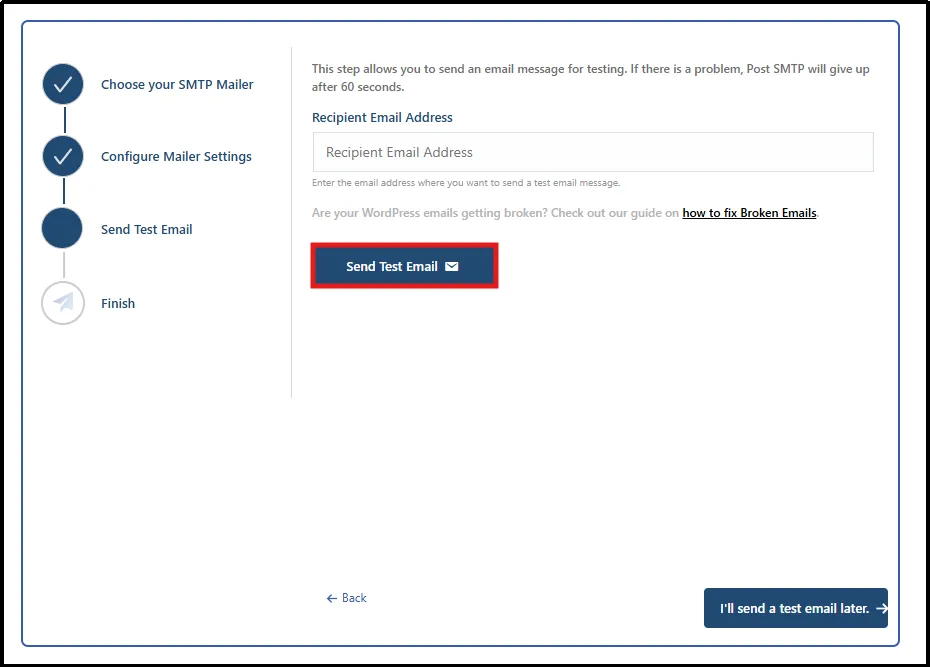
- If the test fails, review the error details and correct the configuration before continuing.
You can also use the Send Test Email option later in Post SMTP’s troubleshooting tools section.
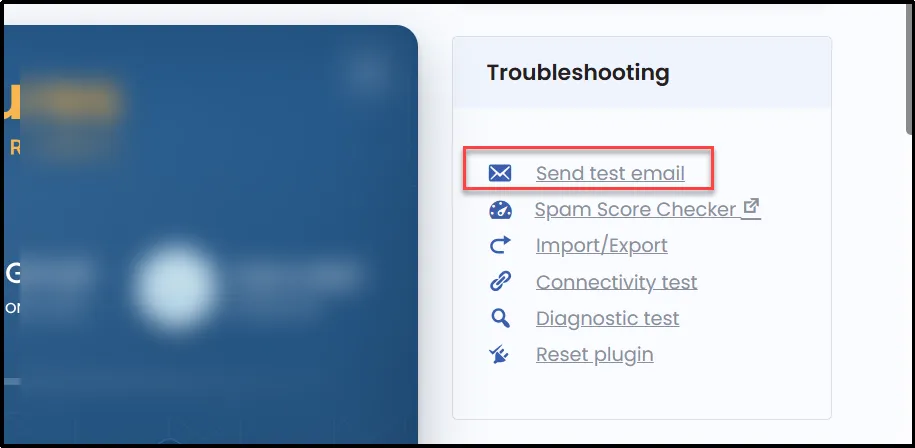
Once the test succeeds, submit another password reset request from the WordPress login page. Check whether that message appears in the Post SMTP Email Log and whether it reaches the recipient’s inbox.
A successful test confirms that the test message was processed by the configured mailer. It doesn’t guarantee that every WordPress email will reach the inbox. If the reset email still fails, investigate the password reset workflow and the specific error recorded for that message.
Step 5: Resend WordPress Password Reset Emails
Now that you’ve set up the Post SMTP plugin with an SMTP mailer, you can resend any password reset emails that previously failed. The plugin includes an Email Log feature that shows a list of all emails your site has sent, along with their delivery status.
Before resending a failed message, make sure you have fixed the underlying mailer or authentication problem. Otherwise, the new attempt may fail for the same reason.
To resend failed emails, follow these steps:
- In your WordPress dashboard, go to Post SMTP → Email Log.
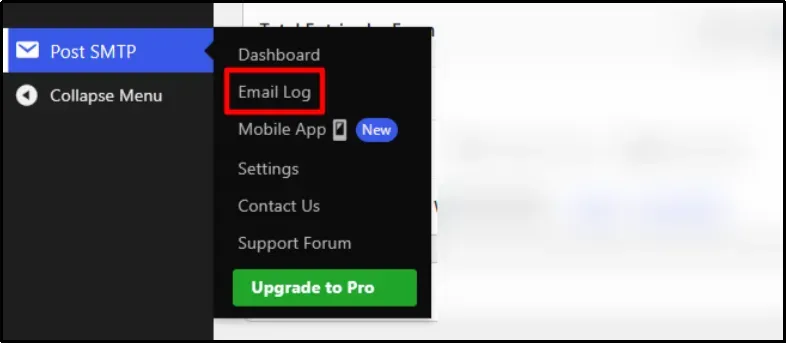
- Find any emails that failed to send (these will be marked with a red warning icon).
- Click the Resend button next to the failed password reset emails.
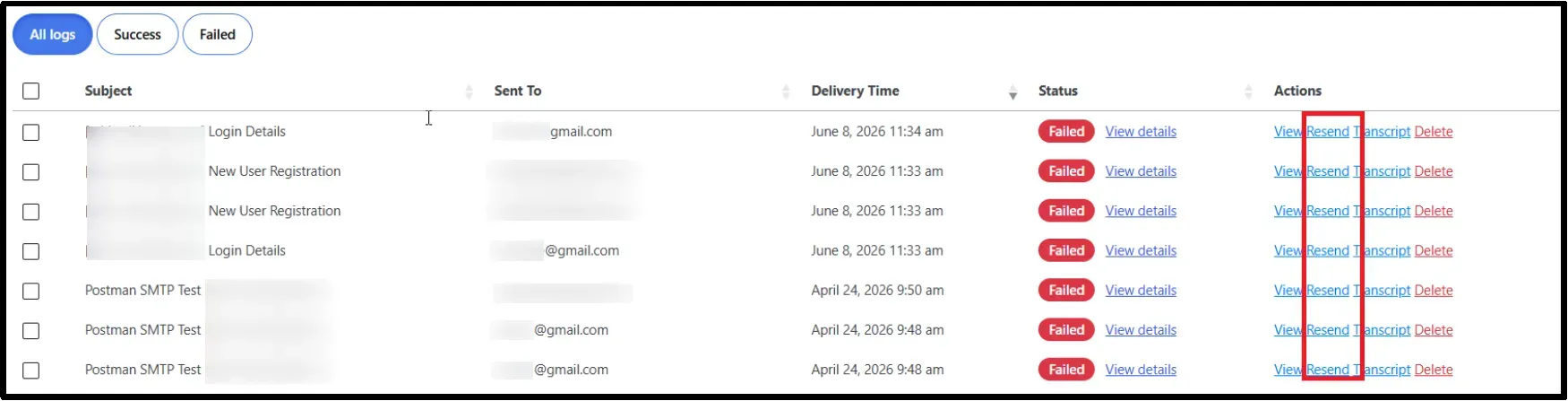
The plugin will resend the emails using the new SMTP configuration.
Step 6: Check Your Domain’s Email Authentication
If password reset emails still fail or land in spam, review your email authentication and sender configuration.
Use Post SMTP’s Domain Health Checker to assess your domain’s email health. The results can help identify issues that need further investigation.
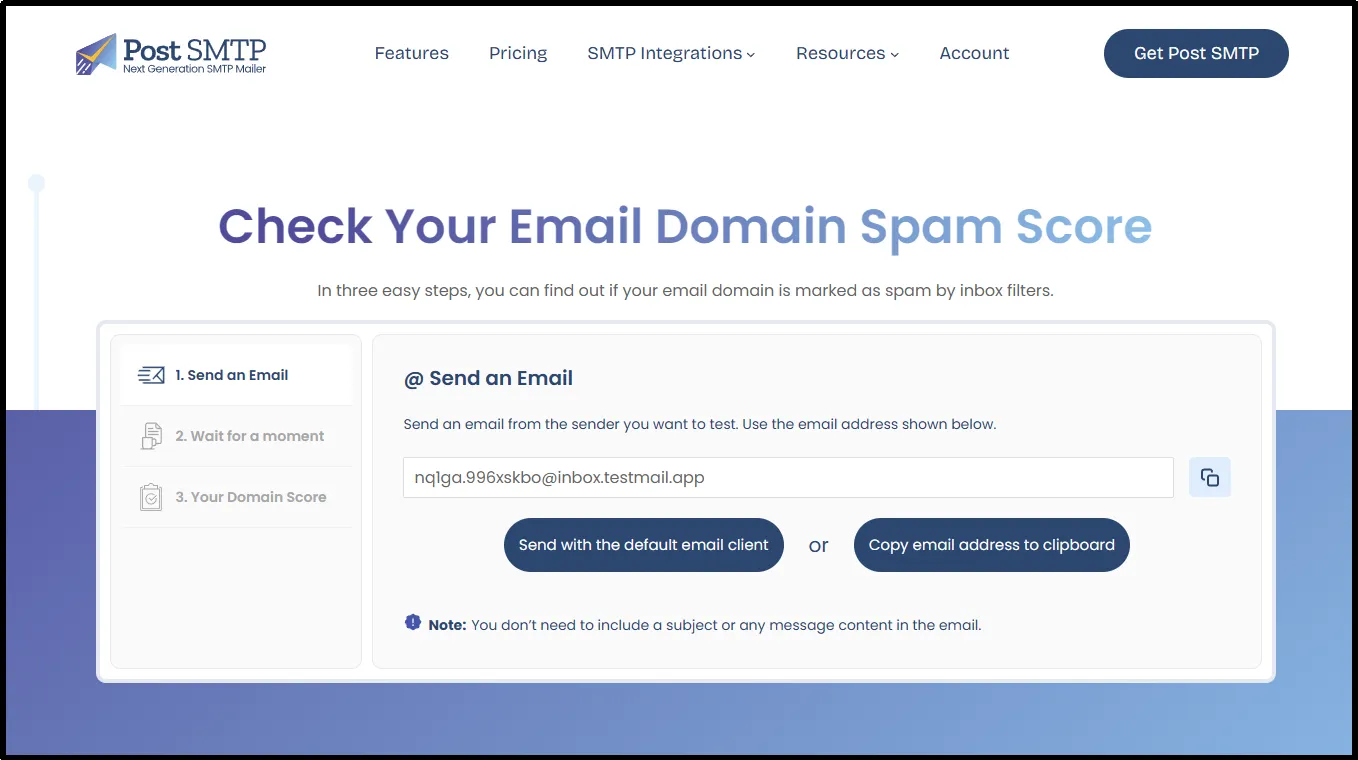
If you find authentication problems, review these records with your domain or email provider:
- SPF: Specifies which sending services are authorized to send mail for your domain.
- DKIM: Adds a cryptographic signature that receiving servers can use to verify message integrity and domain association.
- DMARC: Defines how receiving servers should handle messages that fail DMARC evaluation and provides reporting options.
Publish the records recommended by your email provider. Avoid adding duplicate SPF records for the same domain, and don’t copy DNS values from another provider’s setup guide.
After making changes, allow time for DNS updates to propagate. Then send a new test email and request another password reset.
Correct authentication records can help receiving servers verify your messages, but they cannot fix every delivery problem. If messages still fail, review the mailer error, sender reputation, and recipient-side filtering.
Restore WordPress Password Reset Email Delivery
When WordPress doesn’t send password reset emails, start by identifying where the process fails. Check the affected user’s email address, test your mailer, review Post SMTP’s Email Log, and verify your domain’s authentication records.
Post SMTP helps you connect WordPress to a supported email service and investigate sending errors. But if test emails work and password reset messages still fail, check the reset workflow itself rather than changing your SMTP settings repeatedly.
Still having trouble? Contact the Post SMTP support team for help reviewing your configuration and email delivery logs.
Frequently Asked Questions
Why am I not receiving a WordPress password reset email?
WordPress password reset emails may fail because of incorrect account details, hosting restrictions, mailer configuration problems, or recipient-side spam filtering. Check the account email address, review your email logs, and test your WordPress mailer to identify the cause.
Why is my WordPress password reset email not sending?
The problem could involve WordPress, the hosting server, an SMTP connection, or the password reset workflow. Configure a supported email service with Post SMTP, send a test email, and review the logs for errors. If other emails work but reset emails do not, investigate the password reset process itself.
How can I check whether WordPress sent a password reset email?
Open Post SMTP’s Email Log and look for the message associated with the reset request. Review its status and any available error details. A successful sending status does not always confirm that the recipient received the message, so also check the recipient’s inbox, spam folder, and provider delivery records when available.
Why aren’t password reset emails working on a local WordPress site?
Local development environments may not have an outgoing mail service configured. Set up a suitable SMTP service or mail-testing tool to handle outgoing messages. Then test the reset workflow and check the mailer logs to confirm that the message was processed correctly.
What should I do if SMTP works but password reset emails still fail?
Check whether WordPress generates the reset message, whether the correct user account and email address are used, and whether a plugin or theme conflict interferes with the process. Review the email log using Post SMTP and relevant WordPress or server error logs. If necessary, test with a fresh password reset request and seek support to identify the cause.
