






















Is your Beaver Builder contact form not sending emails after someone clicks Submit?
The form may look fine. But the notification might never arrive.
This problem can occur for several reasons. The recipient address may be incorrect, WordPress may fail to send the notification, or the recipient’s email provider may filter the message.
The fix depends on where the process fails.
In this guide, we’ll show you seven steps to troubleshoot Beaver Builder contact form email issues. You’ll learn how to check your form settings, configure Post SMTP, verify email authentication, and identify common WordPress conflicts.
Why Is My Beaver Builder Contact Form Not Sending Emails?
Beaver Builder’s native Contact Form module uses an AJAX-powered form to collect information and send email notifications through WordPress’s wp_mail() function. It supports fields such as Name, Email, Phone, and Message, along with optional Google reCAPTCHA protection.
Several issues can prevent the notification from reaching your inbox.
1. The recipient email address is incorrect
Beaver Builder uses the Send To Email field to determine where form notifications go.
If this field is empty, the module uses your WordPress administrator email address. A typo or outdated address can send notifications to the wrong place.
2. The form submission fails
Required fields, the Terms and Conditions checkbox, reCAPTCHA, or a JavaScript conflict may prevent the form from completing its submission workflow.
If the form doesn’t submit successfully, changing your WordPress email settings won’t solve the problem.
3. WordPress cannot send the notification
Beaver Builder passes its notification to WordPress through wp_mail(). WordPress uses PHPMailer to process outgoing email, and the actual sending method depends on your site’s mail configuration.
If the configured mail transport fails, Beaver Builder’s notification may not leave your website.
Configuring a suitable SMTP or API-based mailer can give WordPress an alternative email delivery route.
4. The email doesn’t reach your inbox
Even when WordPress processes an email successfully, the message may not reach the recipient’s inbox.
Spam filters, sender authentication problems, mailbox rules, and recipient-side restrictions can all affect delivery.
The key is to identify which stage is failing before changing your settings.
Diagnose Your Beaver Builder Email Problem
Start by submitting your Beaver Builder contact form once. Observe what happens, then use the table below to narrow down the possible cause.
| What happens? | Possible cause | What to check |
| The form doesn’t submit | Validation, reCAPTCHA, or frontend issue | Required fields, CAPTCHA settings, JavaScript errors |
| The form submits but no email arrives | Incorrect recipient or WordPress mail problem | Send To Email, WordPress mail configuration, recipient address |
| The email lands in Spam | Authentication or recipient filtering | Sender address, SPF, DKIM, DMARC, mailbox rules |
| Other WordPress emails also fail | WordPress mail transport or server issue | Hosting email restrictions, mail configuration, server errors |
| Only Beaver Builder notifications fail | Form-specific settings or conflict | Send To Email, form configuration, plugins, theme, JavaScript |
| The email reaches some recipients but not others | Recipient-side filtering or delivery restrictions | Spam folders, mailbox rules, provider restrictions |
Form submission, WordPress email processing, and final delivery are separate stages. Identify the stage that’s failing before choosing a fix.
If the form submits successfully but WordPress email delivery appears to be the problem, the next step is to configure a suitable mailer and test it. Post SMTP supports SMTP and API-based integrations with compatible email providers, and its email logs can help you investigate sending attempts after you configure it.
7 Easy Steps to Fix Beaver Builder Contact Form Not Sending Email
The seven steps below cover the most common problems in the Beaver Builder Contact Form workflow.
Start at the form level, then move into WordPress email delivery and carry on.
Step 1: Check and Correct the Beaver Builder Contact Form Settings
Start with the form itself.
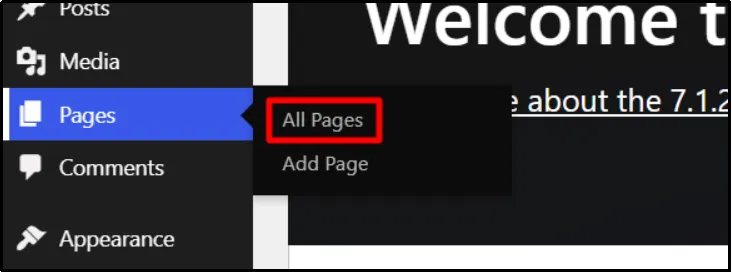
- Go to Pages → All Pages.
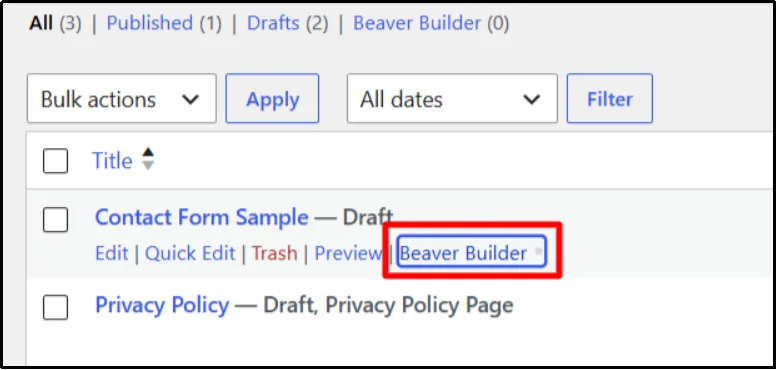
- Open the WordPress page that contains your Beaver Builder Contact Form by clicking on Beaver Builder.
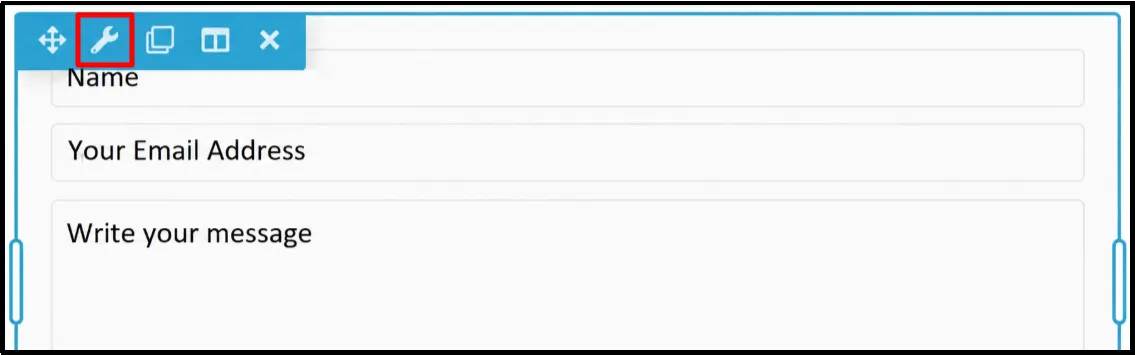
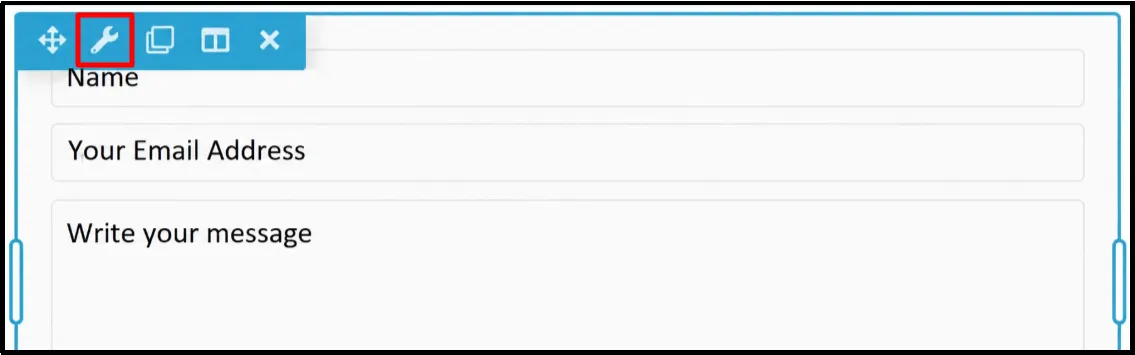
- Click the wrench (spanner) icon to open the settings of your contact form.
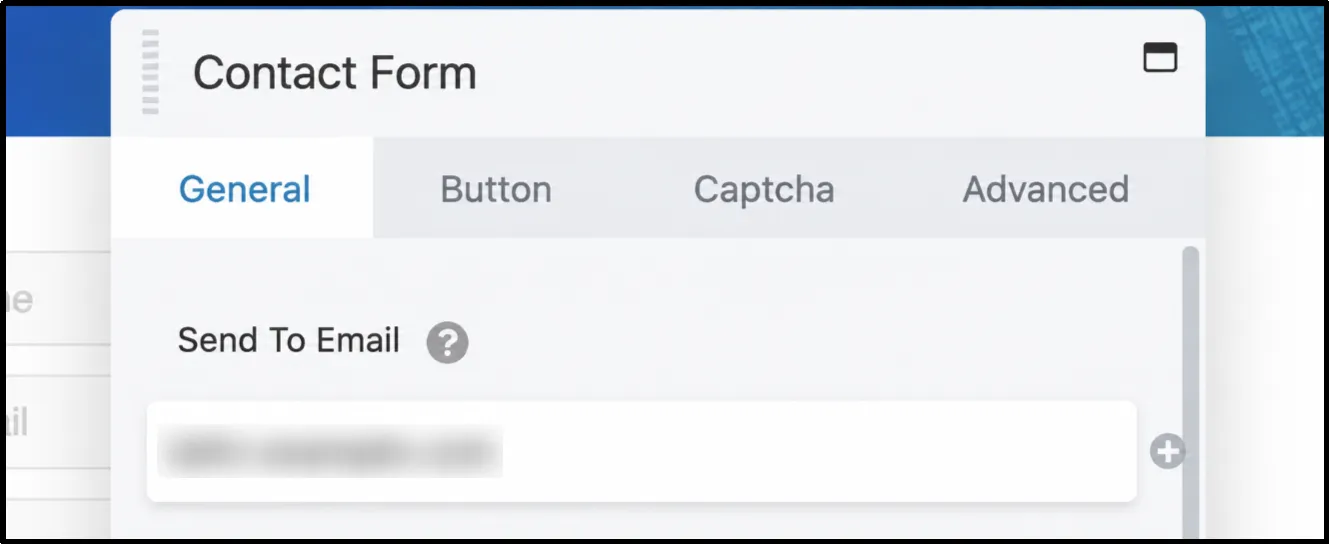
- Check the “Send To Email” Field:
- In the General Settings, look for the “Send To Email” option.
- If this field doesn’t have an email address, emails will default to the site admin address.
- Update the Email Address:
- If you want the notifications sent somewhere other than the default admin address, enter a valid email address in the “Send To Email” field.
- You should use a custom email address to improve deliverability. For example, use “contact@yourdomain.com” or “tahir@yourdomain.com” instead of a generic email address.
Need help in getting a business email domain, read our guide: How to Get an Email Domain for Your Business – 100% Free.
- Now click on Save Settings.
If you have verified that the email address is correct and you are still not receiving notifications, proceed to the next step.
Step 2: Resolve Beaver Builder Form Validation and reCAPTCHA Issues
Sometimes the email isn’t the problem.
The form never completes the submission.
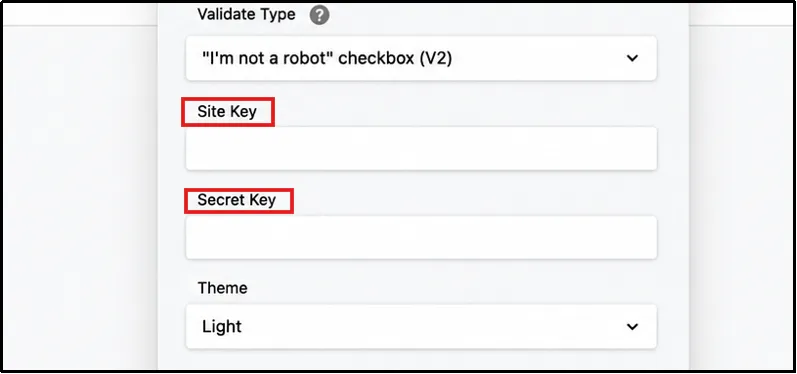
Beaver Builder supports Google reCAPTCHA in its Contact Form module to block automated submissions. The module supports reCAPTCHA v2 checkbox, invisible v2, and invisible v3 validation types.
If you enabled reCAPTCHA, check the configuration.
Check your reCAPTCHA keys.
- Go to the Beaver Builder contact form page → Settings.
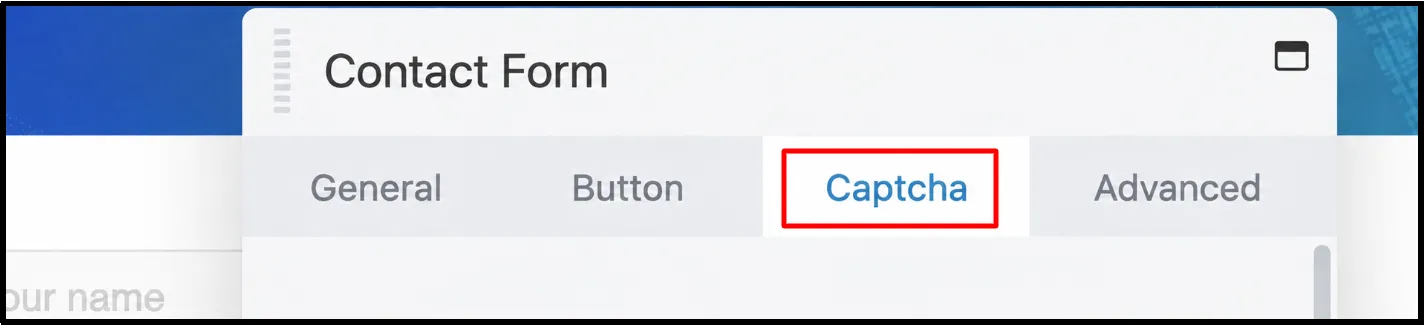
- Now click on Captcha.
- Verify that the site key and secret key is correct. It’s better to enter it again.
- Click on Save Settings.
If it still doesn’t work, move to the next step.
Step 3: Install and Configure Post SMTP
If Beaver Builder accepts the submission but WordPress can’t send the notification reliably, configure an authenticated mailer.
This is where Post SMTP fits.
Post SMTP enables WordPress to send email through a supported SMTP server or email API instead of relying solely on the site’s default mail transport.
Here’s how to install and set up Post SMTP:
- Go to WordPress Dashboard → Plugins → Add Plugin.
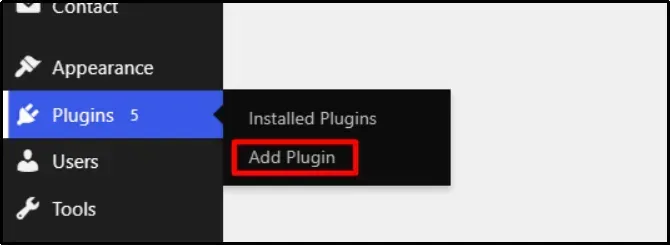
- Search for: Post SMTP.

- Click on Install Now, then Activate.
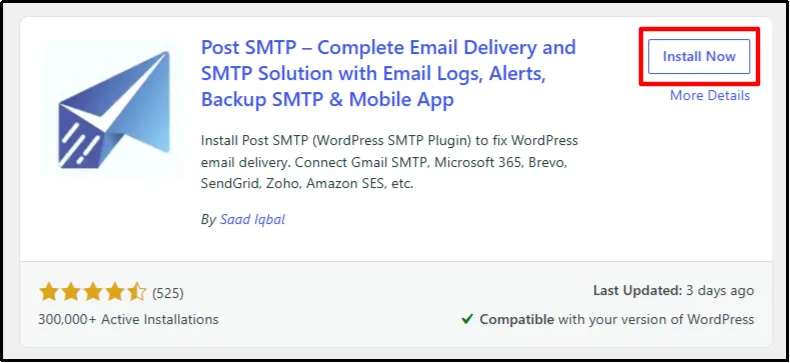
You will be redirected to the Post SMTP setup wizard.
- Choose your desired mailer. Then click Continue.
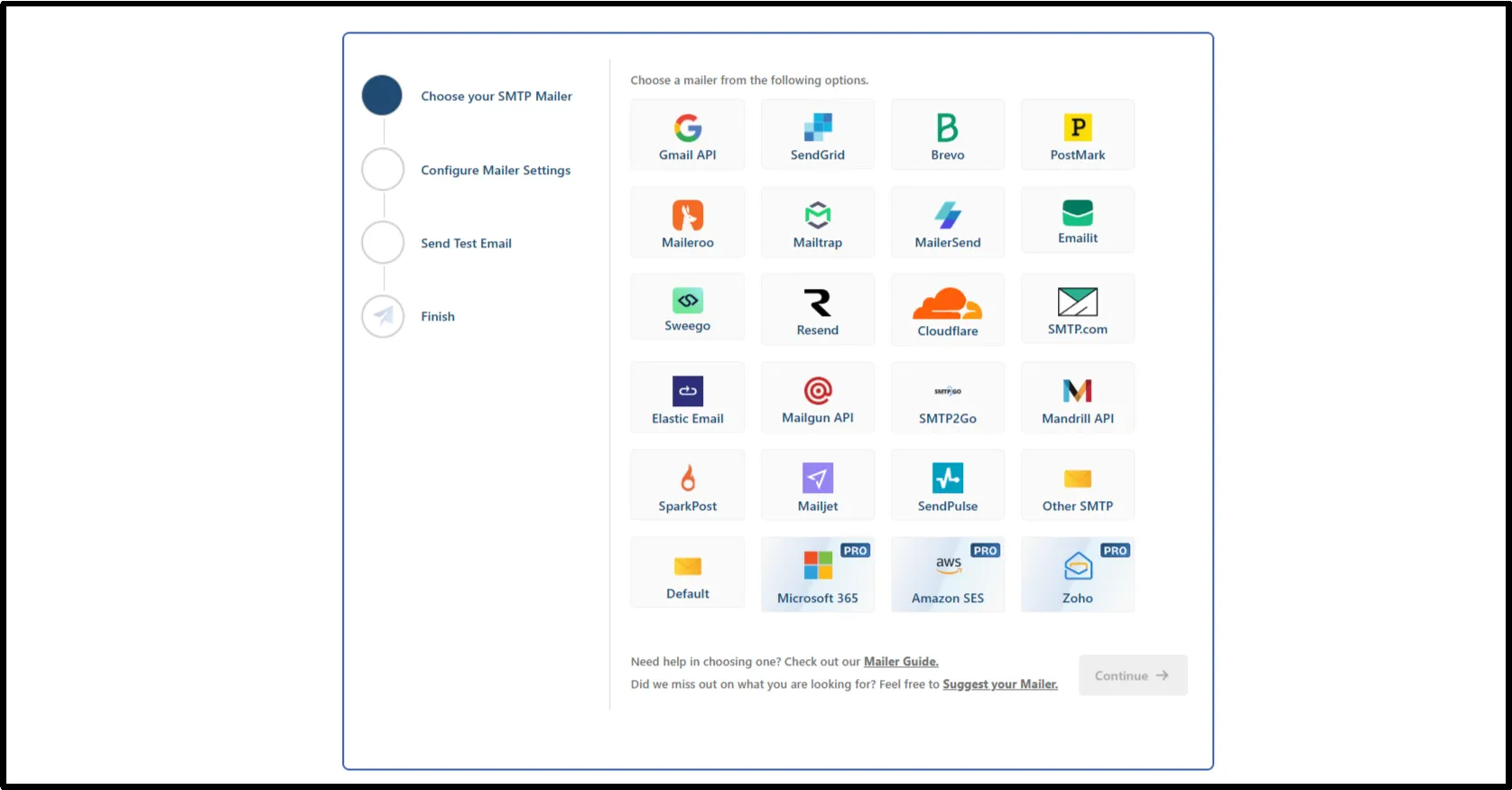
Depending on your provider, Post SMTP can connect through SMTP credentials, OAuth, an API, or another supported authentication method. Currently, Post SMTP includes 20+ integrations for services such as Microsoft 365, Mailgun, SendGrid, Resend, and other providers.
- Follow the mailer specific setup instructions. The main difference will be adding an API key or user credentials.
- Enter the From Email and From Name. Ensure you select the Force From options under each setting.
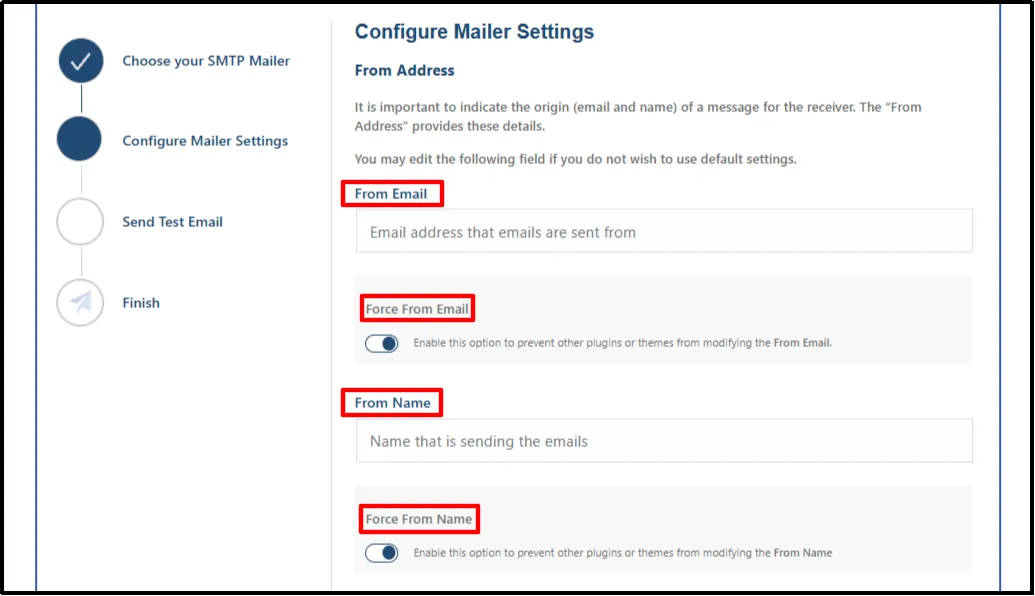
- Enter your API key or user credentials based on the SMTP mailer you selected.
- Click on Continue, and now you can send a test email.
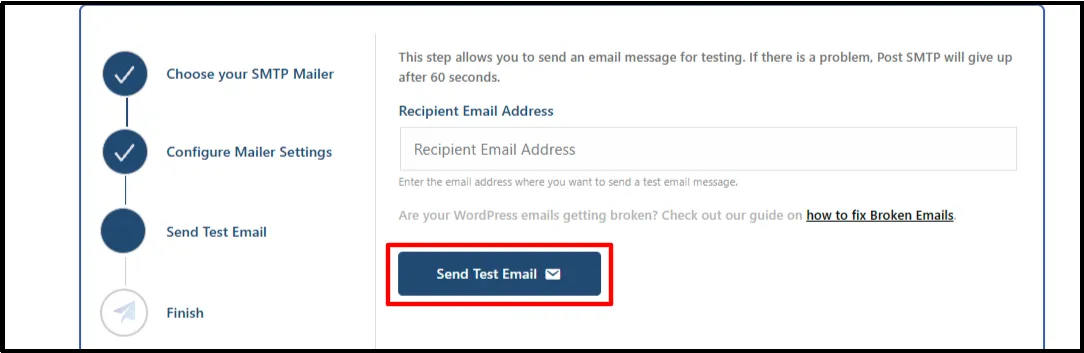
- Enter a valid email address and click on Send Test Email. Alternatively, you can send a test email later.
Post SMTP doesn’t replace Beaver Builder. It handles the WordPress mail transport after Beaver Builder triggers the notification.
So if Beaver Builder has an incorrect recipient address or the form can’t submit, changing the mailer won’t fix that form problem.
Step 4: Use a Domain-Based From Email and Correct Reply-To
The recipient address and sender address serve different purposes.
Keep them separate.
Use a sender address that belongs to your website’s domain when your mail provider supports it.
For example:
From: forms@example.com
Reply-To: visitor@example.com
To: support@example.com
When your form supports a Reply-To address, use the visitor’s email address there.
Don’t use the visitor’s Gmail, Yahoo, Outlook, or other personal email address as your From address.
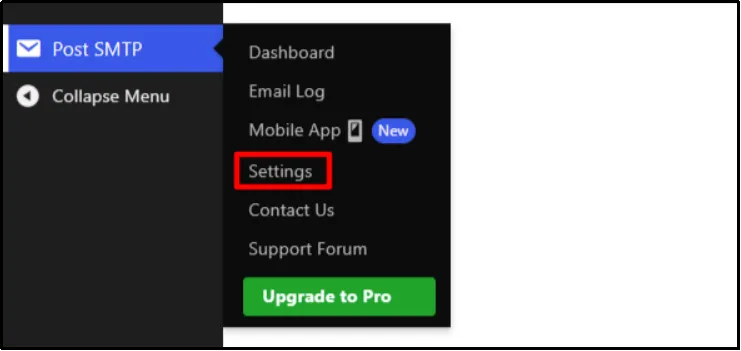
- Go to Post SMTP → Settings.
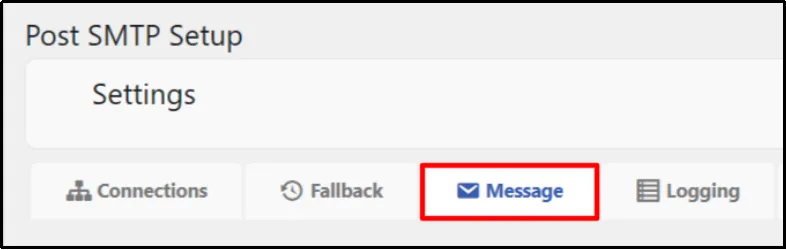
- Head to the Message tab.
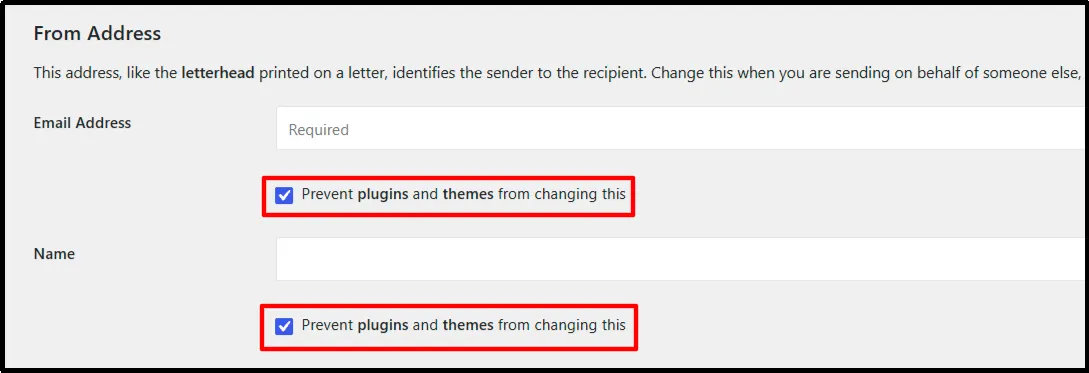
- Enter From Name and From Email
- Make sure you tick “Prevent plugins and themes from changing this.”
- Click Save Changes.
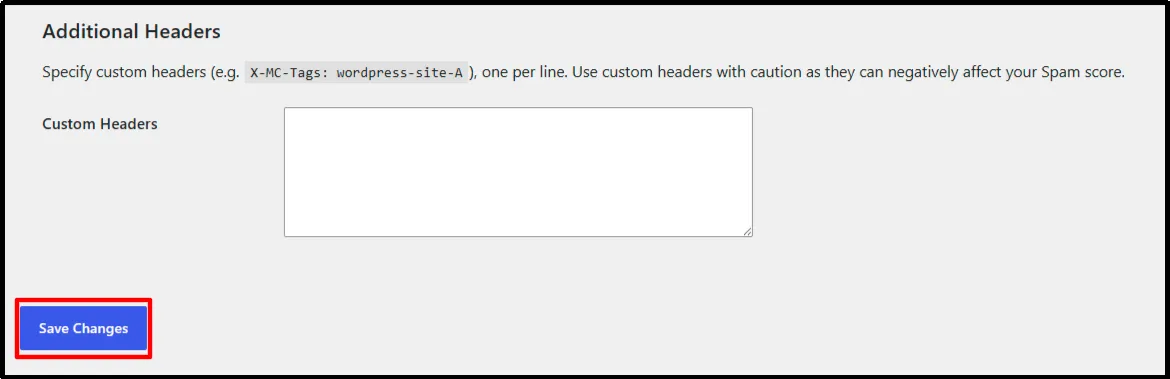
Fix the sender configuration before changing your other email settings.
Step 5: Check Your Email Authentication with Post SMTP
If your Beaver Builder form submits successfully and Post SMTP sends the notification, check whether your sending domain has the right email authentication records.
Post SMTP includes a Spam Score Checker that can check your domain’s email configuration.
- Go to the Post SMTP dashboard and, under Troubleshooting, open Spam Score Checker.
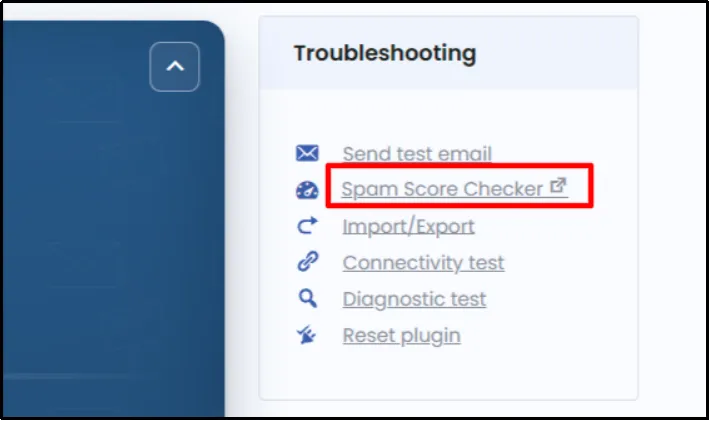
- Click Copy Email Address to Clipboard.
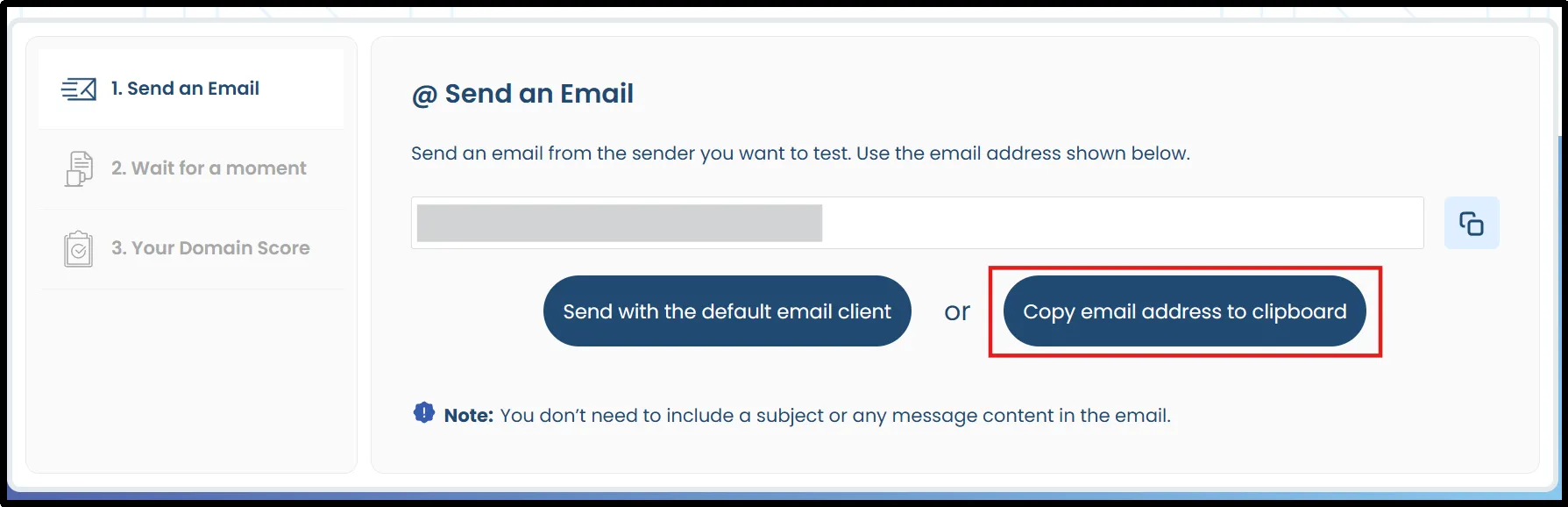
- Send a test email from your configured sending address.
- Return to Spam Score Checker and click Confirm Email Sent.
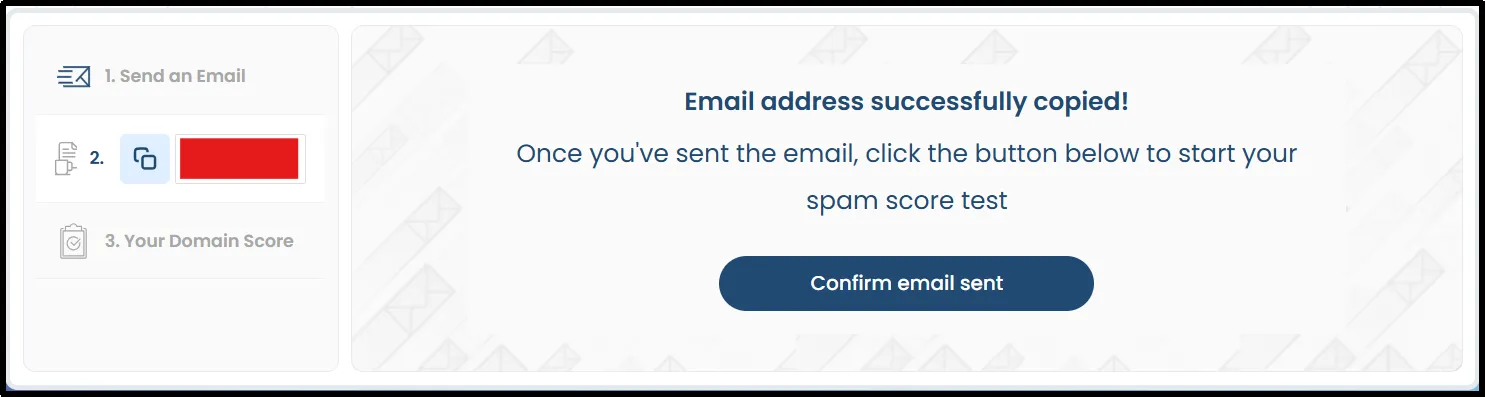
- Review the resulting checks.
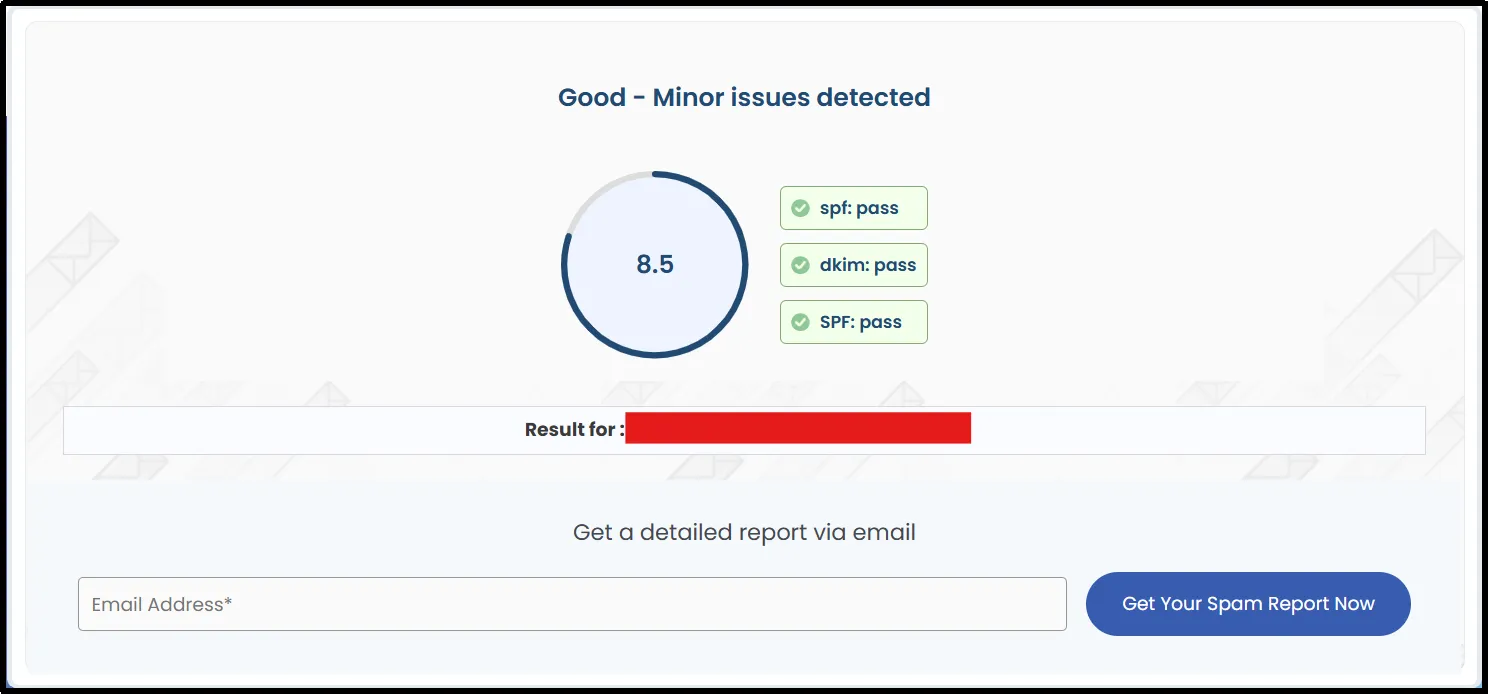
The checker can help you identify problems with your domain’s email authentication.
Once your authentication checks pass, submit the Beaver Builder form again.
If the form works but the notification still lands in Spam or Junk, continue to the next step.
Step 6: Check Why Beaver Builder Emails Go to Spam
If the Beaver Builder form submits successfully and Post SMTP shows that the email was sent, but you can’t find the message in your inbox, check the recipient-side filtering.
Start by checking the Spam or Junk folder.
If you find the message there, mark it as Not Spam or Not Junk.
Then check the following:
1. Check the recipient address
Go back to your Beaver Builder Contact Form settings and verify the Send To Email address.
Make sure there are no spelling mistakes or unwanted spaces in the address.
2. Check mailbox filters
The recipient’s email provider may move the message automatically based on its filtering rules.
3. Check the Post SMTP logs and Resend Emails
- Go to Post SMTP → Email Logs.
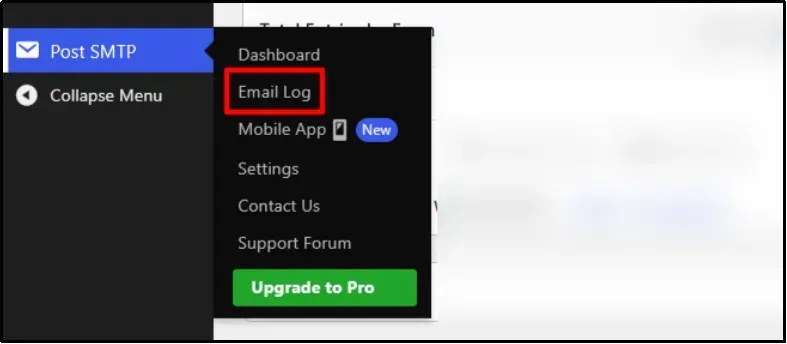
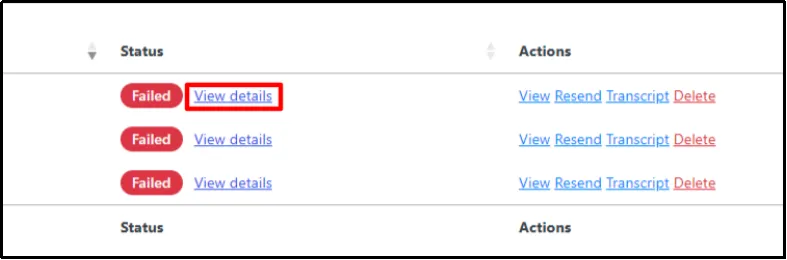
- Find the Beaver Builder contact form failure emails.

- Click on View Details beside its Failed Status.
- After fixing the issue, click on the Resend button under Actions.
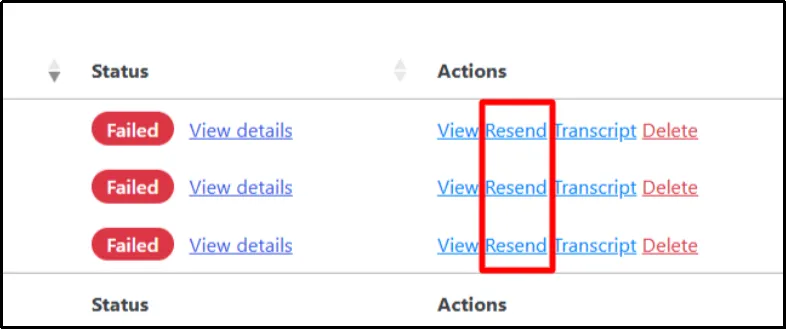
If the message doesn’t reach any recipient, continue to the next step and check for WordPress plugin, theme, cache, or JavaScript conflicts.
Step 7: Resolve Plugin, Theme, Cache, or JavaScript Conflicts
A WordPress conflict can break a contact form without affecting your email settings.
This can happen after a plugin update, theme change, caching change, or custom-code update.
Start with the simplest checks.
Clear your caches:
Clear:
- WordPress cache
- Server cache
- CDN cache
- Browser cache
Then open the published page and submit the form again.
Check for plugin conflicts:
Temporarily deactivate non-essential plugins.
Now submit the Beaver Builder contact form again.
If the form starts working, reactivate the plugins one at a time and test the form after each activation.
This helps you identify the plugin causing the conflict.
Check your theme and custom code:
If you recently changed your theme, added custom JavaScript, or modified the page containing the form, check those changes.
Open the form page in your browser and look for JavaScript errors in the browser console.
If the form stops working after a specific theme, plugin, or code change, undo that change temporarily and test the form again.
If the form still doesn’t work after checking for conflicts, continue to the next step.
How to Prevent Beaver Builder Email Problems
Once the form works, make the setup easier to maintain.
1. Use a domain-based sender
Use a sender address associated with your website’s domain.
Keep the visitor’s address in Reply-To when your configuration supports it.
2. Use authenticated email delivery
An authenticated mailer gives WordPress a defined sending path instead of relying solely on the server’s default mail transport.
Still having trouble with WordPress emails? Follow our guide on how to troubleshoot WordPress email delivery issues for more ways to identify and fix email delivery problems.
3. Keep SPF, DKIM, and DMARC configured
Review your DNS records when you change mail providers or sending domains.
Google recommends email authentication for domains that send messages to personal Gmail accounts.
4. Monitor email logs
Email logs can help you spot failed sending attempts and investigate errors before a customer reports a missing message.
5. Test after major changes
Run a fresh form submission after you change:
- WordPress
- Beaver Builder
- Plugins
- Theme
- Hosting
- DNS
- Mail provider
- SMTP/API credentials
- Sender addresses
- Security or caching settings
Don’t wait for a lost inquiry to discover that a form stopped working.
6. Keep another record of important inquiries
There’s an important limitation with Beaver Builder’s native Contact Form module: its entries don’t get stored in the WordPress database or site files. The email notification acts as the record of the submission. Beaver Builder recommends a third-party form plugin if you need a more central or permanent record.
For important leads, consider whether email alone gives you enough recovery options.
Troubleshoot Beaver Builder Email Delivery With Post SMTP
When your Beaver Builder contact form stops sending emails, don’t assume the SMTP connection is the only problem.
Start by checking the form settings, recipient address, required fields, and reCAPTCHA configuration. Then set up an SMTP mailer via Post SMTP, review the From and Reply-To addresses, and check your email authentication records.
If the form submits but the notification fails, Post SMTP’s Email Log can help you investigate the sending process and available error details. The Spam Score Checker can also help you identify potential email authentication issues.
Fix your WordPress email delivery issues with Post SMTP. Configure an authenticated mailer, inspect email logs, and troubleshoot failed notifications from your WordPress dashboard.
Frequently Asked Questions
Does Beaver Builder use wp_mail()?
Yes. Beaver Builder’s native Contact Form module sends notification emails through WordPress’s wp_mail() function. WordPress uses PHPMailer to process outgoing email.
Where does Beaver Builder send contact form emails?
Beaver Builder sends notifications to the address configured in the Send To Email field. If the field is empty, it uses the WordPress administrator email address.
Why does my Beaver Builder form submit but not send an email?
First, check the Send To Email address. Then set up an SMTP mailer using Post SMTP and submit the form again. After that open Post SMTP Email Logs to review the notification’s status and available error details
Does Beaver Builder save contact form submissions?
No. The native Contact Form module doesn’t store submissions in the WordPress database or site files. The email notification serves as the submission record. If you need persistent entry storage, consider a third-party form plugin.
What should I use as the From email for Beaver Builder?
Use a sender address authorized by your email provider, such as forms@yourdomain.com. When supported, use the visitor’s submitted address as Reply-To rather than as the From address.
How do I fix Beaver Builder emails after a plugin update?
Review the changes made before the problem started. Check form settings, JavaScript errors, caching, plugin conflicts, mailer credentials, sender settings, and DNS authentication. Then submit the form again and inspect the Post SMTP Email Log.
How can I resend a failed Beaver Builder contact form email?
If Post SMTP logged the notification and your setup provides a Resend option, open the relevant email log entry, fix the underlying issue, and resend the message. Check the new log entry to confirm the result.