























When you send emails from your WordPress site to Gmail accounts, you expect them to land in the inbox—not the spam folder. However, Gmail evaluates every sending domain using multiple signals, including authentication, domain reputation, user engagement, and technical compliance.
If you don’t monitor these signals, your Gmail inbox placement can decline without warning.
This Google Postmaster Tools guide explains how Gmail evaluates your sending domain, how to interpret Postmaster data, and how to improve WordPress email deliverability.
The goal is simple: protect your domain reputation and keep your emails in the inbox.
What Is Google Postmaster Tools?
Google Postmaster Tools is a free platform that gives domain owners visibility into how Gmail handles their outbound mail. It acts as a deliverability monitoring platform that shows how Gmail evaluates your sending behavior and domain reputation over time.
Inside the Google Postmaster dashboard, you’ll find:
- Spam rate
- IP reputation
- Domain reputation
- Authentication status
- TLS encryption
- Delivery errors
- Delivery volume trends
- Feedback loops (FBL)
- Compliance status
For WordPress site owners, this data is essential. Without visibility into these metrics, you’re essentially sending emails blindly.
If you use a WordPress SMTP plugin like Post SMTP to connect your site to email providers such as Gmail, SendGrid, Microsoft 365, Amazon SES, Zoho Mail, Brevo, etc., Google Postmaster Tools helps you verify whether Gmail trusts the sending domain and infrastructure used to deliver those emails.
Why Google Postmaster Tools Matter for WordPress Email Deliverability
Gmail’s bulk sender requirements are now fully enforced. Any domain sending significant volume, such as WooCommerce stores, membership sites, and newsletter blogs, must comply.
Failure to meet these standards results in spam placement, throttling, or blocking.
Gmail Bulk Sender Requirements You Must Meet
Spam & Complaint Rates
- Spam complaints should remain below 0.1%.
- Sustained rates near or above 0.3% may result in filtering or blocking.
- Spam rate in Postmaster reflects the percentage of Gmail users who mark your messages as spam after delivery.
Monitoring domain reputation in Google Postmaster Tools alongside spam rate provides a clearer picture of your email health.
Authentication & Domain Alignment
Gmail requires:
- Valid SPF
- Valid DKIM
- A published DMARC policy (minimum p=none for bulk senders)
- Proper domain alignment
This is where many WordPress sites fail.
If your “From” address is store@yourdomain.com, but your DKIM signature uses a third-party domain, DMARC alignment fails even if SPF and DKIM individually pass.
Proper email authentication using SPF, DKIM, and DMARC allows Gmail to cryptographically verify your sending domain and message integrity.
Encryption & Secure Transport
Emails sent to Gmail should use TLS encryption to ensure secure transport. Messages that are not encrypted may negatively impact security signals and deliverability.
Postmaster shows your TLS success rate inside the deliverability dashboard.
DNS & Sending Infrastructure
- Reverse DNS (PTR) should resolve to a valid hostname, and that hostname should resolve back to the sending IP address (forward-confirmed reverse DNS).
- IP reputation must remain stable.
- Gmail deferrals (4xx rate limits) must be respected.
Weak sending infrastructure can damage your domain reputation even if your email content is legitimate.
Unsubscribe Requirements (Bulk Senders)
If sending more than 5,000 messages daily:
- One-click unsubscribe must be implemented via the List-Unsubscribe header
- A visible unsubscribe link must be present
- Requests must be processed promptly
How to Set Up Google Postmaster Tools (Step-by-Step Guide)
If you’re wondering how to set up Google Postmaster, follow this exact process.
Step 1: Go to the Google Postmaster Tools website.
Step 2: Sign in with your Google account, and if you don’t have one, Create a Google Account.
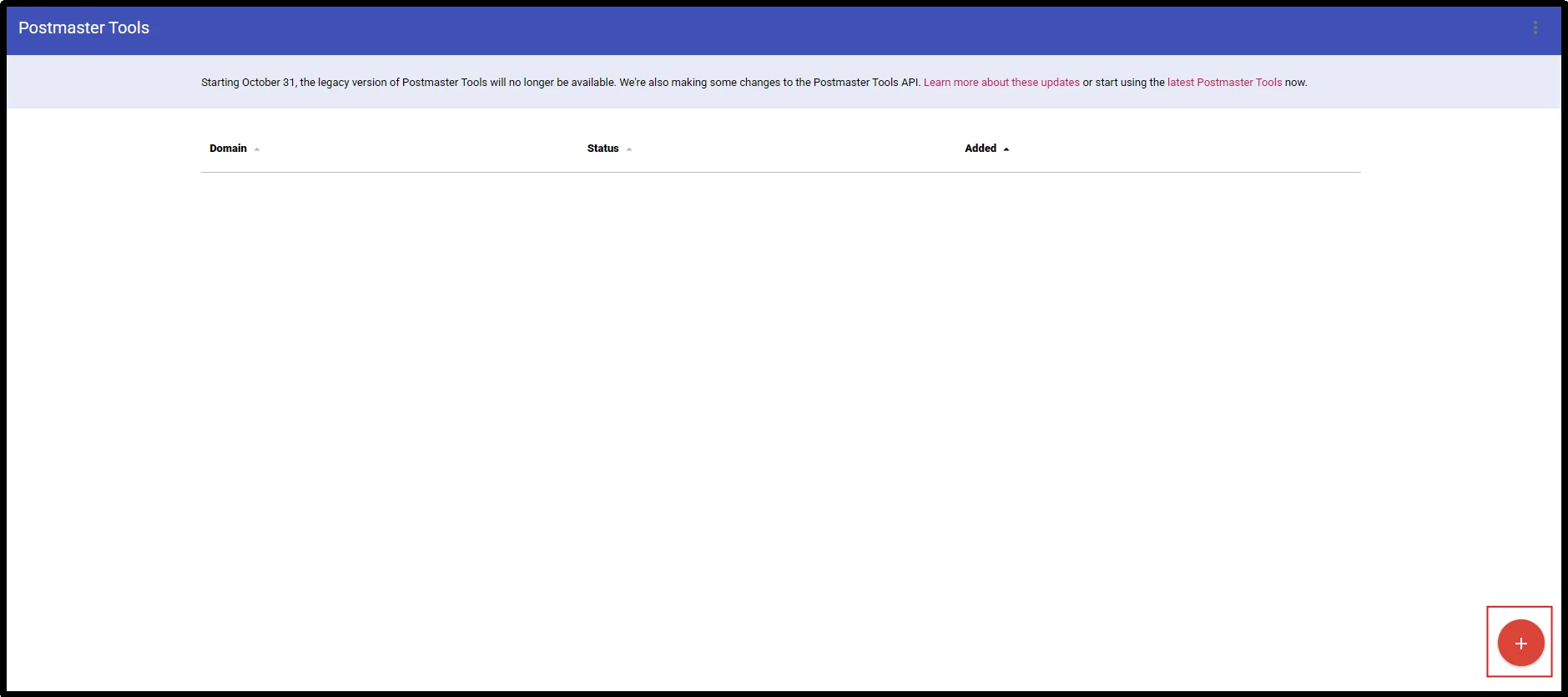
Step 3: Add your domain.
- Click the + button on the bottom right of the screen.
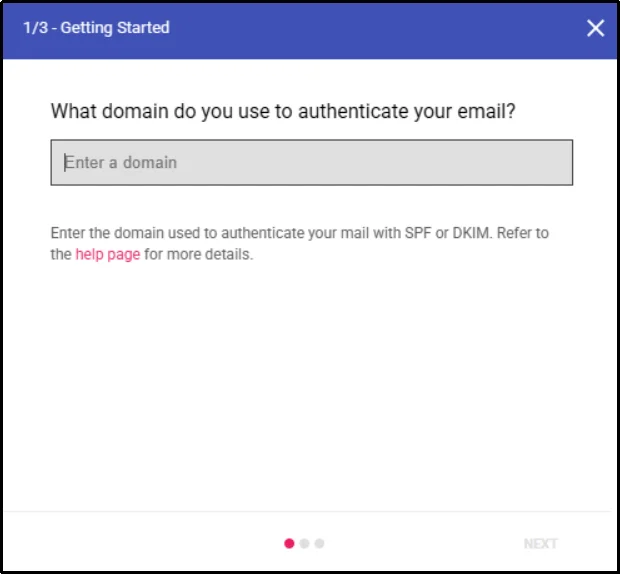
- Enter the domain you want to monitor and click Next.
Step 4: Verify your domain.
- You can do so by adding the TXT record value to your domain’s DNS server configuration.
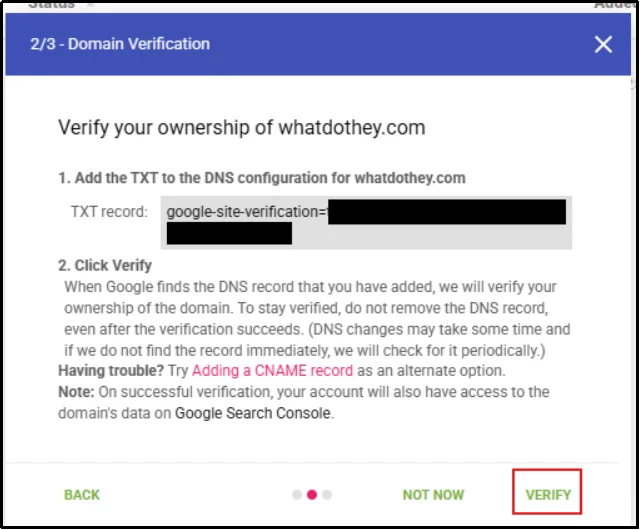
- Then click Verify to proceed.
Step 5: Add your desired monitoring email.
- Under “Manage Users,” add team members who should access reporting.
That completes the Google Postmaster Tools setup for domain owners. Data typically appears within 24–48 hours after sufficient volume is sent.
How to Improve Gmail Email Deliverability
Improving Gmail inbox placement requires more than writing better emails. Gmail evaluates domain trust based on measurable signals: reputation, authentication integrity, complaint rates, sending behavior, and infrastructure stability.
Below is a practical breakdown of how to use Google Postmaster data and WordPress SMTP configuration together to improve deliverability.
1. Understand the Google Postmaster Deliverability Dashboard
Optimization starts with interpreting the Google Postmaster Tools deliverability dashboard, as explained.
Inside the Google Postmaster dashboard, monitor:
- Domain Reputation: Rated as High, Medium, Low, or Bad, this reflects Gmail’s overall trust in your domain. Low or Bad reputation leads to inbox placement issues. Proper tracking of Google Postmaster Tools domain reputation for WordPress emails is critical.
- Spam Rate: Shows the percentage of recipients marking your email as spam. Treat 0.1% as your operational ceiling, even though Gmail throttles around 0.3%.
- IP Reputation: Using a shared SMTP provider? IP reputation may fluctuate based on other senders. When you connect WordPress to a reliable email provider using Post SMTP, your emails are sent through the provider’s infrastructure, which may use shared or dedicated IPs depending on your provider plan.
- Authentication: SPF, DKIM, and DMARC pass/fail rates. Proper email authentication using SPF, DKIM, and DMARC is essential for Gmail deliverability, and Post SMTP automatically detects DNS Records.
- Delivery Errors: Shows temporary deferrals or permanent blocks. Weekly monitoring via the Google Postmaster dashboard helps detect trends before they impact deliverability.
2. Fix Your WordPress Email Infrastructure with Post SMTP
By default, WordPress sends emails through wp_mail() using shared hosting servers, resulting in:
- Unpredictable IP reputation
- Weak authentication
- No detailed logging
Improving WordPress email deliverability requires a reliable SMTP configuration and proper monitoring with Google Postmaster Tools. Post SMTP replaces wp_mail(), logs every email, ensures proper authentication, and routes emails through reputable SMTP providers (SendGrid, Amazon SES, Mailgun, Brevo).
This makes your data inside Google Postmaster Tools accurate and actionable.
3. Implement Proper WordPress Postmaster Tools SMTP Configuration
A reliable WordPress Postmaster Tools SMTP configuration with Post SMTP includes:
- Installing the Post SMTP plugin
- Connecting to a reputable SMTP provider
- Ensure DKIM signing is enabled with your email provider
- Publishing SPF and DMARC records
- Verifying TLS encryption
- Aligning the From domain with DKIM
This setup also supports a proper Google Postmaster Tools WordPress plugin setup, ensuring your domain reputation for WordPress emails remains strong.
4. Protect Your Google Postmaster Tools Domain Reputation for WordPress Emails
Domain reputation is influenced by: Engagement (opens, clicks), Complaint rate, Bounce rate, sending volume consistency, and List hygiene.
To maintain a strong Google Postmaster Tools domain reputation for WordPress emails:
- Remove hard bounces promptly
- Suppress inactive users after 60–90 days
- Avoid sudden volume spikes
- Warm up new domains gradually
- Prioritize highly engaged users
Post SMTP provides detailed email logging and delivery diagnostics, helping you identify issues before they affect Gmail’s reputation.
5. Follow WordPress Postmaster Tools Best Practices
Key WordPress Postmaster Tools best practices include:
- Monitor the dashboard weekly
- Keep spam rate under 0.1%
- Gradually warm up new domains
- Avoid mass sends to cold lists
- Maintain accurate DNS records
- Respect Gmail rate limits
- Ensure unsubscribe compliance
- Review logs after WooCommerce or bulk campaigns
Consistent monitoring with Post SMTP ensures compliance and supports WordPress email deliverability with Google Postmaster Tools long-term.
6. Use the Google Postmaster API for Advanced Monitoring
For agencies or multi-domain teams:
- Use the Google Postmaster API to programmatically track metrics
- Google Postmaster v2 enables automated workflows
Combine API monitoring with Post SMTP logs to detect anomalies faster than relying on Postmaster alone.
💡 You might want to read this 👉 How to Set Up Gmail SMTP Server to Send WordPress Emails [6 Easy Steps]
7. Warm Up New Domains Gradually
Gmail is suspicious of domains that go from zero to high volume overnight. If you’ve set up a new sending domain or switched SMTP providers, start slow:
- Week 1: 10–25 emails/day
- Week 2: 50–100 emails/day
- Week 3: 150–300 emails/day
- Week 4+: Scale based on engagement
Send to your most engaged contacts first. Positive engagement signals during warm-up build domain reputation faster than volume alone.
Post SMTP’s rate limiting lets you cap outbound volume per hour, which prevents WooCommerce surges, plugin notifications, or missed schedules from blowing past your warm-up ceiling and triggering Gmail’s anomaly detection.
Improve WordPress Email Deliverability with Post SMTP
Email deliverability isn’t something you fix once and forget. Gmail’s filters are constantly evaluating your domain; every send either builds trust or erodes it.
Websites that consistently achieve strong inbox placement usually follow a simple formula. They maintain proper authentication, send emails to engaged subscribers, and identify deliverability issues before Gmail’s filtering systems react.
Post SMTP provides the connection layer that allows WordPress to send emails through reliable SMTP providers while offering logging, diagnostics, and delivery insights. Follow this Google Postmaster Tools guide, set it up, and configure a reputable email provider for your WordPress site using a WordPress SMTP plugin like Post SMTP, and check Postmaster weekly. That combination handles the vast majority of what Gmail rewards and what keeps your emails out of spam.