
 OpenAI
 Perplexity
Customer reviews are the social proof that fuels every successful WooCommerce store. They build trust, influence purchasing decisions, and strengthen your brand’s reputation.
However, customers barely leave reviews. Not because they didn’t like the product, but because of the thousands of things going on in their personal lives, they forget.
Hence, it’s always the best choice to send them a reminder to reconsider leaving a review. For that, email remains the most effective channel because it’s direct, personal, and measurable.
To make this strategy work, your messages must reach the inbox. If your review requests are trapped in spam folders, all your effort goes to waste.
This article explores the importance of email in getting more reviews, how to set up a reliable email system, best practices for doing so, and finally, how to automate the entire process.
Why Email is Key to Getting More Reviews?
When it comes to collecting product reviews, email consistently outperforms other channels.
A personalized email that lands directly in your customer’s inbox, addressing the audience with their first name, is not very easy to ignore or unsee. Here’s why email is the best option:
- Higher open rates: Post-purchase emails have 17% higher engagement rates compared to average automation. Customers who’ve just received their product are more likely to open a follow-up email from your store.
- Personalized and direct communication: Emails can be tailored to include the customer’s name, product details, and purchase date. This personalization feels authentic and increases the likelihood of getting a response.
- Measurable performance: Email gives you data on opens, clicks, and responses, helping you understand what works and refine your review-request strategy.
- Impressive ROI: Email marketing offers 4,200% ROI! Every $1 spent has the potential to return $42. Making emails the best marketing model.
- Affordable Solution: Email marketing is super cost-effective. With fantastic ROI and low costs, you can begin sending emails for free.
In short, email combines timing, personalization, and convenience in a way no other channel can. When paired with dependable deliverability from Post SMTP, your messages reach the inbox, ping customers, and get genuine reviews.
Why Set up an Email Server with Post SMTP?
Before you can start sending review-request emails, you need a system that guarantees your messages actually reach the customer.
WordPress relies on a built-in wp_mail() function to send emails, but this method often lacks proper authentication. As a result, messages can appear suspicious to mail servers, causing them to land in spam folders or fail altogether.
Instead of using your web host’s unreliable mail function, Post SMTP connects your WooCommerce store directly to trusted third-party mailers such as Gmail, Amazon SES, SendGrid, or Microsoft 365.
These services sign your emails with proper authentication protocols so they’re verified before reaching inboxes. These authentication protocols include:
- SPF (Sender Policy Framework): This protocol checks whether the mail server sending the message is authorized to do so on behalf of your domain. It compares the server’s IP address against a list defined in your domain’s DNS records. If the server isn’t listed, the email may be flagged as suspicious.
- DKIM (DomainKeys Identified Mail): DKIM attaches a cryptographic signature to each outgoing message. Receiving mail servers use your public DKIM key (stored in DNS) to verify that the message content hasn’t been changed during delivery.
- DMARC (Domain-based Message Authentication, Reporting & Conformance): DMARC builds on SPF and DKIM by defining what to do if an email fails these checks. It tells receiving servers whether to reject, quarantine, or allow the message if it fails one or both protocols.
Together, these protocols prove your emails are genuine and not spoofed or fraudulent.
For WooCommerce store owners, this means every order confirmation, password reset, and review request email is delivered securely and lands in the intended inbox. With Post SMTP managing deliverability, you can focus on writing the right message rather than worrying whether it will ever reach your customer.
3 Steps to Get More WooCommerce Reviews with Email
Following these three steps can enable you to get floods of reviews. That can improve your credibility and eventually attract more buyers.
Step 1: Setting up an Email System That Delivers with Post SMTP
Now that you already understand the importance of Post SMTP and using a third-party email API service instead of the default mail() function. Let’s begin the setup.
Start off by installing Post SMTP, which you can do by navigating to your admin dashboard and following the steps below:
- Navigate to Plugins and then click Add Plugin from the left-hand side navigation.
- Using the Search Plugin bar, search for Post SMTP.
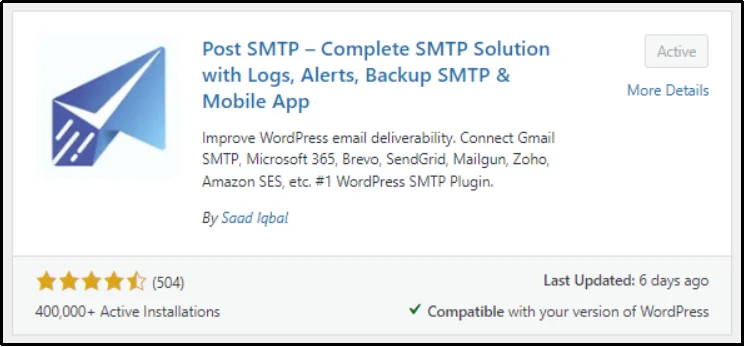
- Click Install and wait until the Install button turns into “Activate.”
- Once done, click Activate to activate the best SMTP plugin on your WordPress.
Now, the plugin is installed and active. However, to enjoy the maximum benefits, including using the premium email mailers, such as Gmail, Zoho, Microsoft, and Amazon, you would require a premium plan.
These emailers are incredibly affordable. In fact, you can set up an email server for less than $100 per month with these email servers.
If you want to go with these mailers and other amazing benefits, you must explore our pricing page and buy the perfect plan of your choice. These benefits include, but are not limited to:
- Automatic Retry for Failed Emails: If an email fails to send, the plugin will automatically try to send it again, which helps ensure higher email delivery success.
- Detailed Email Logs and Reporting: Get more detailed logs to track every email sent from your site. This includes:
- Email Open and Click Tracking: See if recipients open your emails and click the links inside.
- Email Health Reports: Receive weekly reports that summarize your email delivery statistics.
- Advanced Failure Notifications: Receive instant alerts about failed email deliveries through different channels, such as Twilio, notifications via Slack or Microsoft Teams, or Chrome browser extension alerts.
- Mobile App: The dedicated mobile application (app) offers more features for managing your email logs and alerts while you are away from your computer.
- Email Log Attachment Support: Save and view email attachments directly from the email log screen.
- Priority Customer Support: Get fast help from the support team to quickly resolve any issues you might have.
Once you are done with the installation, go to the plugin’s tab from the admin dashboard and run the setup wizard.
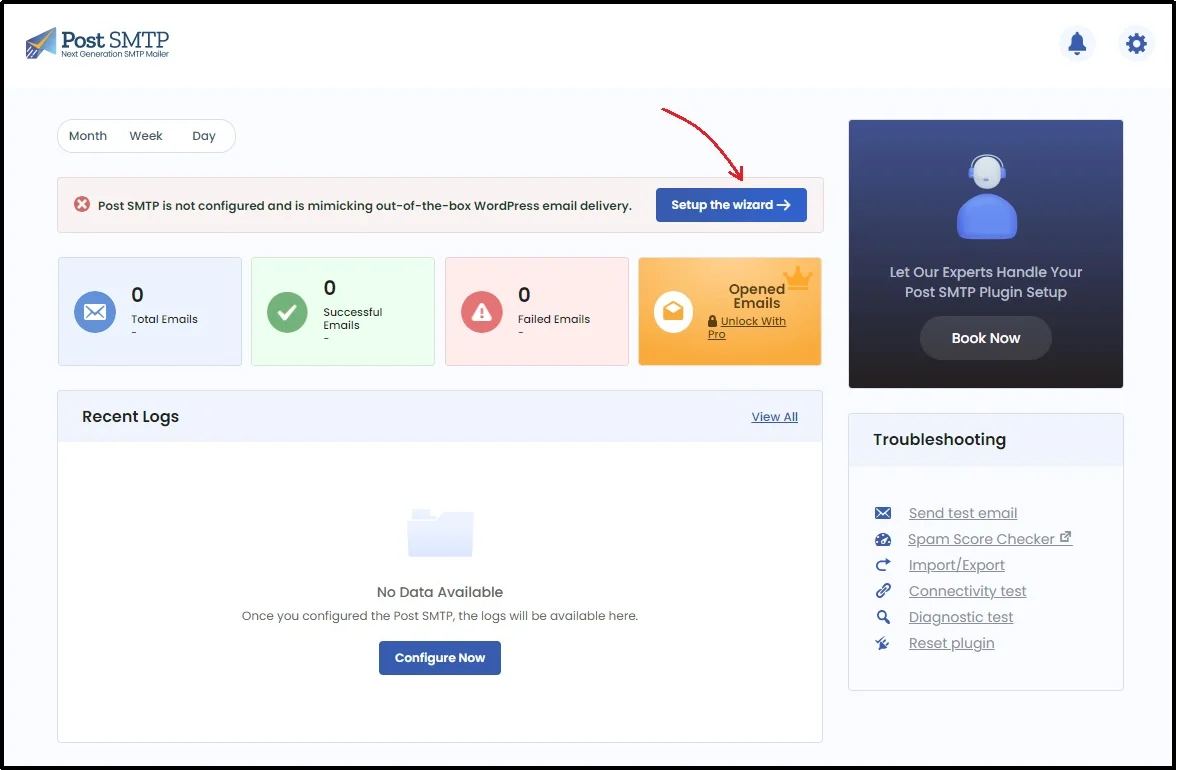
Inside, you will find multiple options, allowing you to choose your favorite mailer.
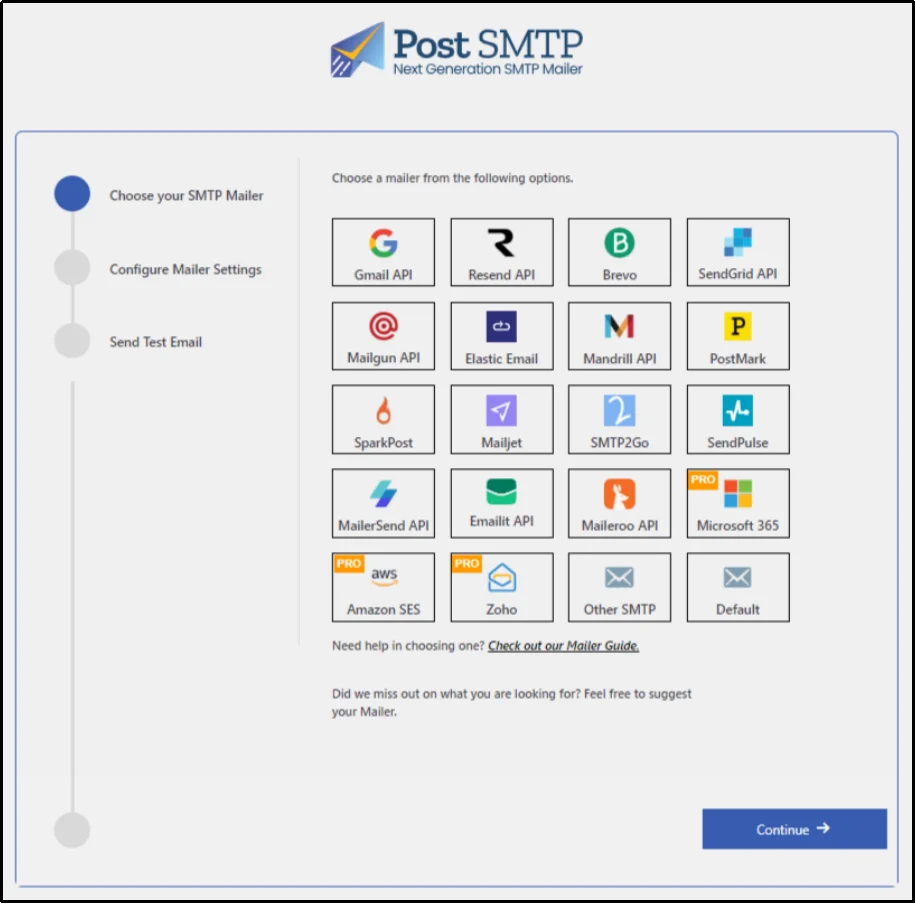
After choosing one, get their APIs and use them in the following section to send emails through your favorite mailer. The process can vary depending on the mailer you choose. Check out our documentation page for a step-by-step process for all mailers.
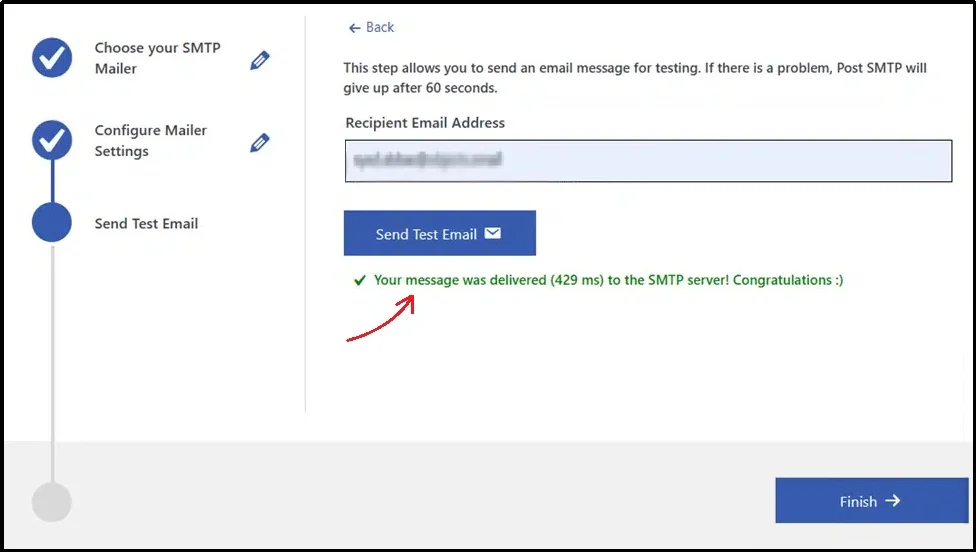
Once done, finally send a test email to ensure the email lands well.
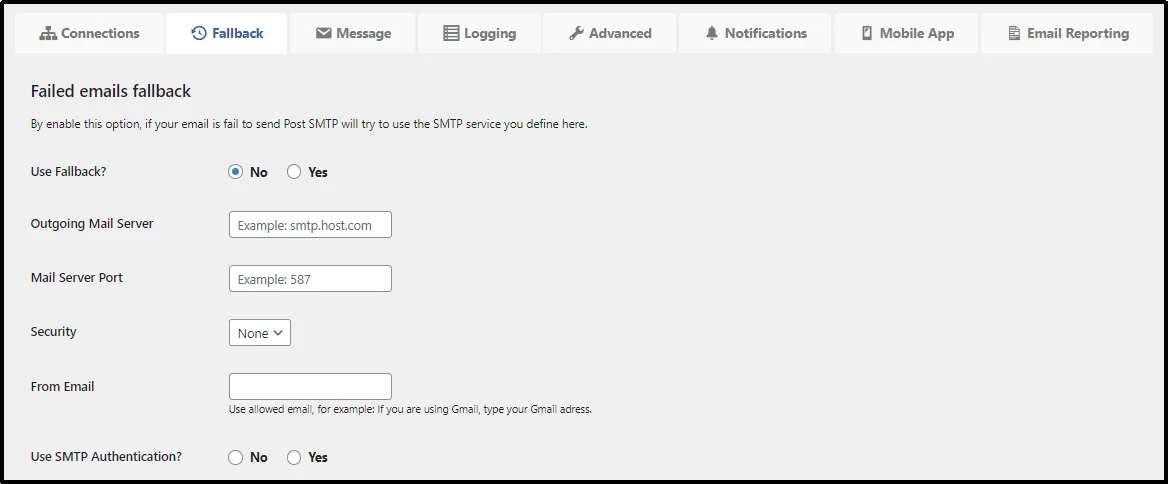
Moreover, you can also set up a Fallback server with Post SMTP. Simply put, a backup email server that takes over if the main one fails. You can do so by navigating to Post SMTP, then Settings, and finally Fall back tab.
Step 2: Write a Compelling Email Copy
Even the most reliable email system can’t make up for a poorly written message. The content of your review-request email determines whether a customer takes action or ignores it.
A good review-request email should feel human, relevant, and easy to respond to.
Here’s how to write one that converts:
- Keep it short and clear. Your customer doesn’t need a long explanation. A brief, two-to-three-line message is enough. A simple “We’d love to hear what you think” works better than a wordy paragraph.
- Personalize your message. Address the customer by their first name and mention the product they bought. This small detail makes your message feel genuine rather than automated.
- Add a clear call-to-action (CTA). Your CTA should be direct and easy to find. Use action-oriented text like Leave a Review or Share Feedback, and link it straight to the product’s review form.
- Use a friendly, conversational tone. Sound approachable, not corporate. Customers are more likely to respond when the tone feels personal and warm.
- Reinforce value subtly. Remind customers that their feedback helps other buyers and supports small businesses. It makes the request feel purposeful.
- Test and optimize. Experiment with subject lines, wording, and button placement, and find the message that customers respond to.
Writing a compelling review-request email is a mix of empathy and precision. When paired with Post SMTP’s dependable delivery, your thoughtful copy stands the best chance of being seen and acted upon.
Step 3: Automate WooCommerce Review Emails
You can’t manually send these emails again and again. It’s simply not practical. Especially if your brand gets a lot of orders.
Hence, it’s better to automate the process with any email marketing automation plugin.
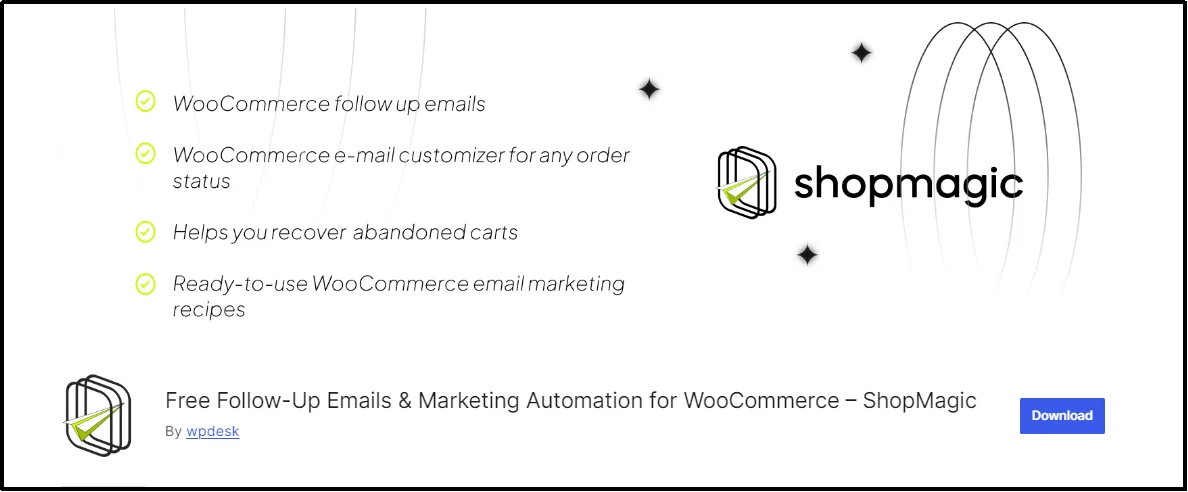
You can use ShopMagic, a perfect solution for WooCommerce review emails automation. It’s free and reliable.
Once installed, navigate to the plugin and then “Automations.”
Click “Add New”.
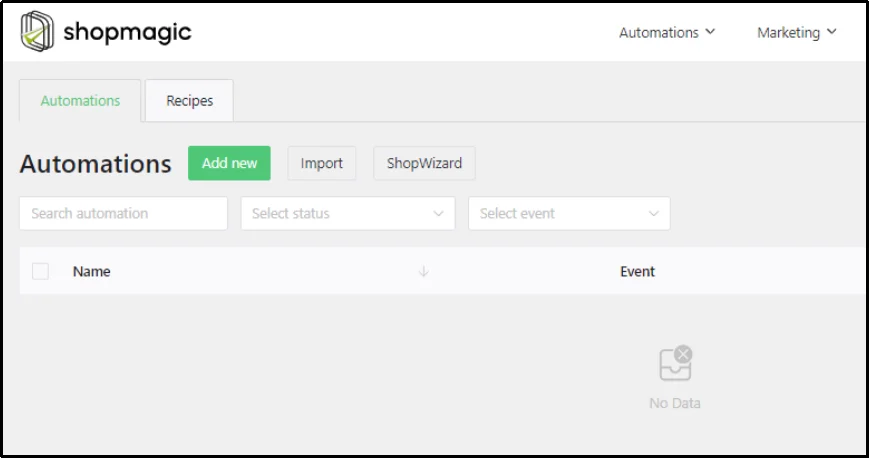
Set the email settings to match your preferences. Select the Event as “Order Completed” and Action as “Send Email”.
Scroll down and write a new email based on the best practices for writing an email that we learned in the second step.
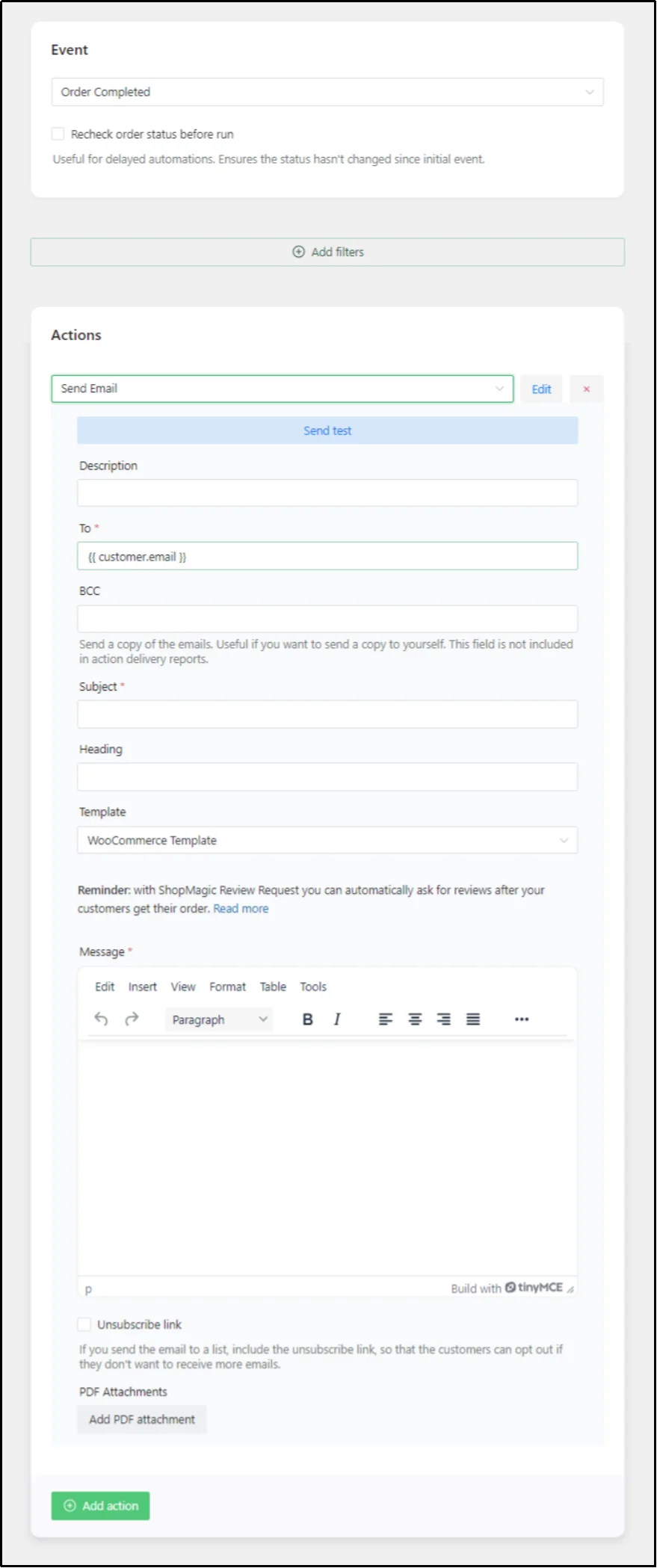
Here’s a ready-to-use sample email you can copy and paste it into your automation tool:
Subject: How’s your new [Product Name]? We’d love your feedback!
Body:
Hi [Customer First Name],
We hope you’re enjoying your recent purchase [Product Name]! Your opinion matters a lot to us and helps other customers make confident decisions.
Would you mind taking a quick minute to share your experience? Your feedback means the world to our small team.
[Leave a Review]
Thank you for being part of the [Store Name] family!
Warm regards,
The [Store Name] Team
If you’d rather write a custom message, you can use an AI chatbot like ChatGPT or Gemini. Just copy and paste the following prompt, and you’ll get a ready-to-edit email draft in seconds:
Prompt:
Write a professional yet friendly review request email for WooCommerce customers. The goal is to encourage them to leave a product review after receiving their order. The tone should be polite, genuine, and brand-appropriate. Include personalization placeholders for the customer’s first name, product name, and store name. Add a clear call-to-action button (like [Leave a Review]) and keep the email under 150 words. The email should sound human and appreciative, not pushy or salesy.
Once done, click Save and test your email by creating a test order in your store. Then head over to WooCommerce and then Orders to manually change the order status to “Completed.” This will activate and send you the email. Plus, you can use ShopMagic’s preview feature to instantly send a test email to yourself.
There you go! You have successfully built a system that sends WooCommerce review emails without your intervention. Thanks to Post SMTP, you don’t have to worry about them missing the inbox.
Turn Every Order Into a Review Opportunity
Customer reviews are one of the most potent assets your WooCommerce store can have. They influence buying decisions and help establish trust, attract new visitors, and improve your store’s search visibility.
But without a structured system in place, even your happiest customers might never leave one because of the hurdle of leaving a review. It takes effort to look up the service and then write a review. However, when a personalized email arrives with a link that takes you to directly to the product, you take away that hurdle.
That’s why combining Post SMTP with Shop Magic is the best thing you can do. Post SMTP ensures every email you send lands safely in the inbox. When paired with personalization and automation, you create a consistent review collection process that runs on autopilot.
Don’t let missed emails or technical errors stand between your store and valuable feedback. Set up Post SMTP today and start turning every satisfied customer into a verified voice for your brand. Install Post SMTP and boost your WooCommerce reviews today!