

























Every failed WooCommerce order represents a potential lost sale. When a customer’s payment fails and you don’t receive an email notification, you lose the chance to identify the problem, contact the customer, and recover the order before they abandon your store. Over time, unnoticed payment failures can reduce revenue and damage the customer experience.
That’s why having email alerts for failed WooCommerce orders is essential.
WooCommerce failed order email notifications instantly alert you whenever a payment attempt fails, allowing you to investigate payment gateway issues, contact affected customers, and recover lost sales before they disappear.
While helping thousands of WooCommerce store owners improve WordPress email deliverability with Post SMTP, we’ve consistently found that failed order notifications are either disabled, incorrectly configured, or never reach the inbox because WordPress isn’t using authenticated SMTP delivery.
In this article, we’ll explore why failed order email alerts are vital for WooCommerce stores, the causes of failed orders, and how to set up a reliable alert system in just three simple steps.
Why Set up Email Alerts for Failed WooCommerce Orders?
Every order that fails is a potential customer lost. Many store owners assume WooCommerce handles all order notifications automatically, but failed transactions often go unreported unless alerts are manually configured.
Without email notifications, you might never know why a payment didn’t go through or how often it happens. Over time, these unnoticed failures can add up, impacting both revenue and customer satisfaction.
WooCommerce failed order notifications keep you informed in real time whenever payment issues occur during checkout. You can review what went wrong, identify payment failures early, and recover lost sales before customers permanently abandon your store.
That alone can help you retain customers and even turn them into repeat customers because 73% of customers are likely to switch to a different brand after a bad customer experience.
Simply put, setting up email alerts enhances the customer experience and helps prevent your business from contributing to the $3.7 trillion lost annually due to poor customer experience.
How to Set up WooCommerce Failed Order Email Alerts in 3 Easy Steps
Setting up WooCommerce failed order email alerts helps you identify payment issues and incomplete transactions as soon as they occur. Follow these three simple steps to configure failed order notifications and respond quickly to potential order problems.
Step 1. Open WooCommerce Failed Order Email Settings
To begin, let’s identify the settings where we can configure the WooCommerce failed order email alerts.
- Log in to your WordPress dashboard.
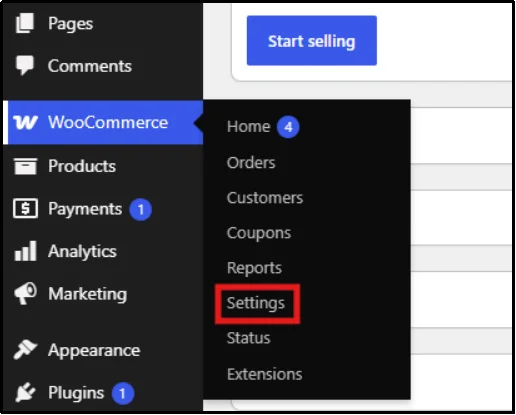
- Navigate to WooCommerce → Settings from the left navigation bar.
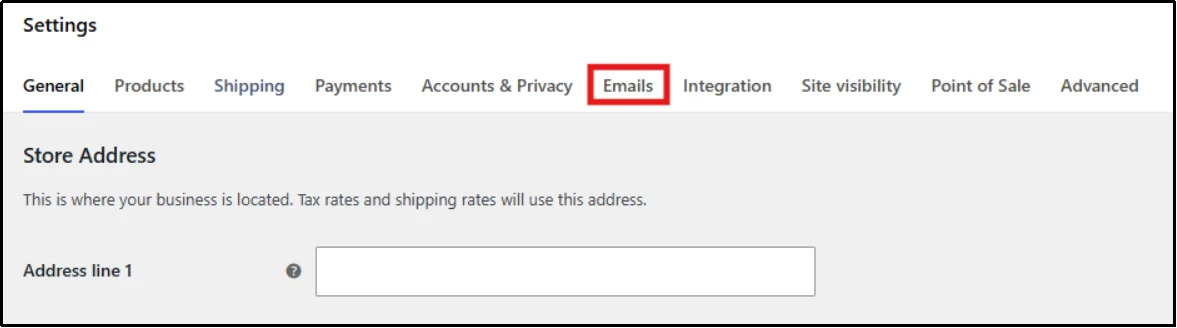
- Go to the “Emails” tab in the top bar.
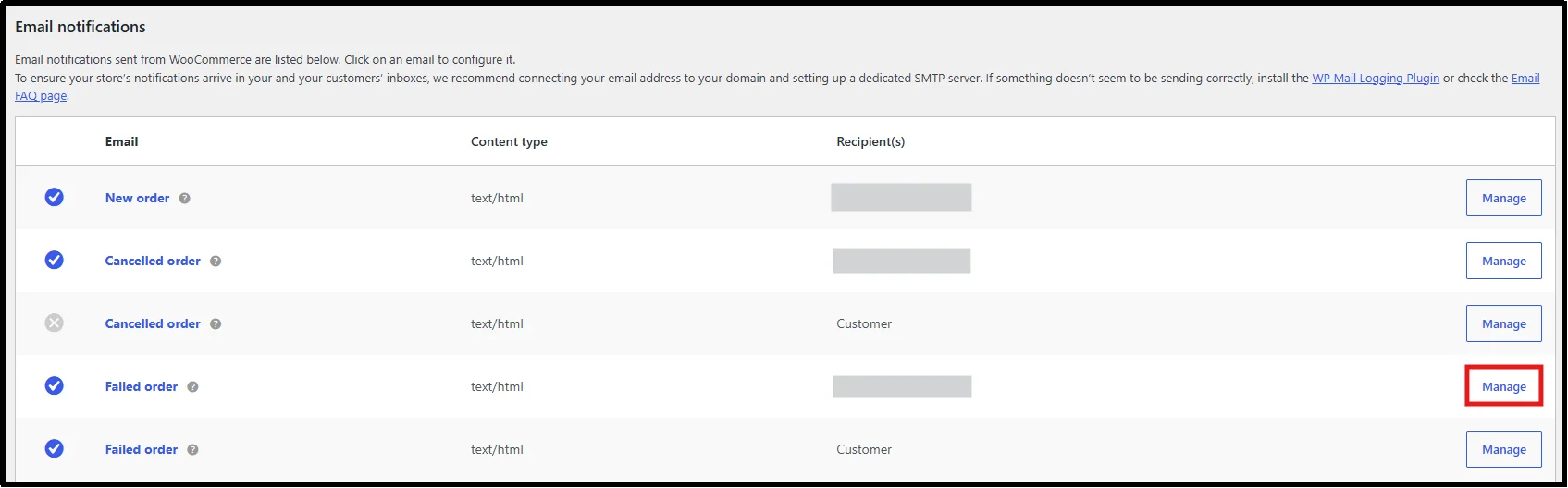
- Scroll until you find the Failed Order email notification.
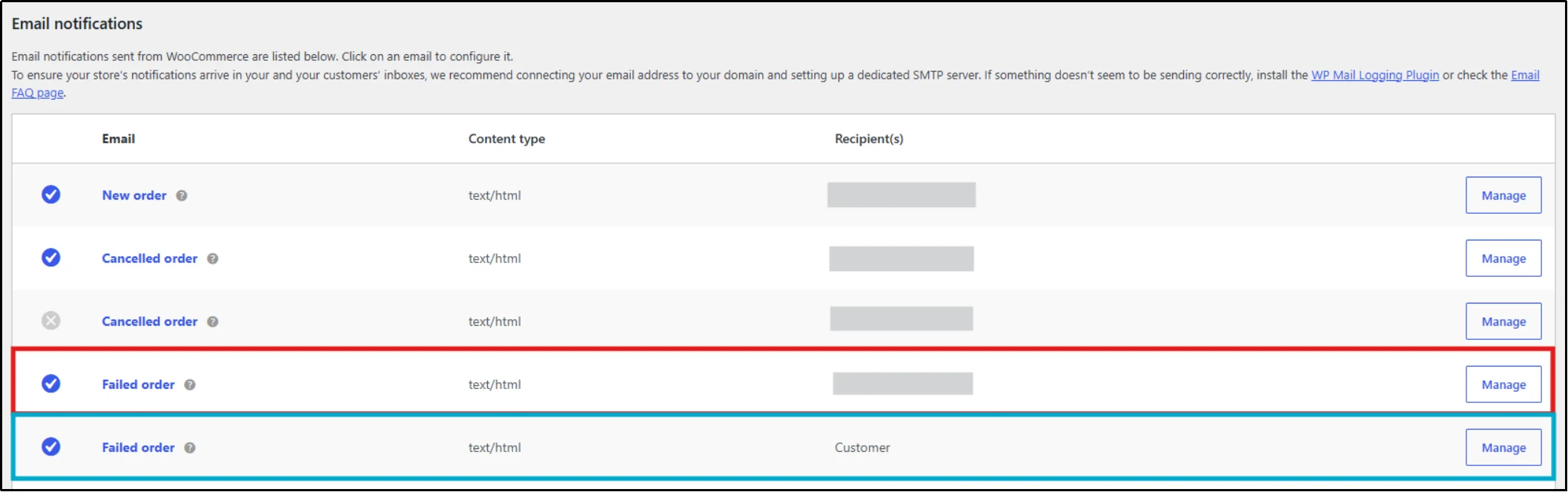
- You’ll see two Failed Order email notifications. One notifies the store administrator when an order fails, while the other notifies the customer. Click Manage next to the administrator notification to configure its settings.
Step 2. Configure Email Settings
Now that you have navigated to the email settings, configure them to enable email alerts for failed WooCommerce orders.
In the Failed Order email settings, configure the following options:
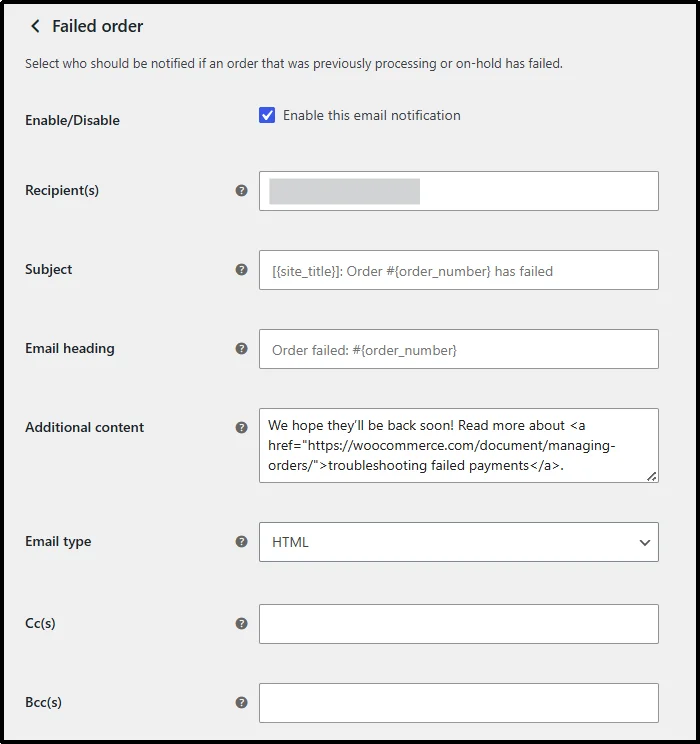
- Set up the following configuration values:
- Enable/Disable: Check the checkbox labeled “Enable this email notification.” As the name suggests, this will enable the failed order email alert.
- Recipient(s): Enter the email(s) where you would like to receive the failed order emails.
- Subject: Customize the subject line for your WooCommerce failed order email notification. WooCommerce also supports placeholders to personalize the message automatically.
- Additional content: Enter any extra text you’d like WooCommerce to include at the end of the email.
- CC: (Carbon Copy): The recipient in this box will also receive a copy of the email.
- BCC: (Blind Carbon Copy): Any email addresses you list here will also receive a copy of the email, but the email addresses are hidden from the other recipient and all other CC/BCC recipients. Only the sender knows who was on the BCC list.
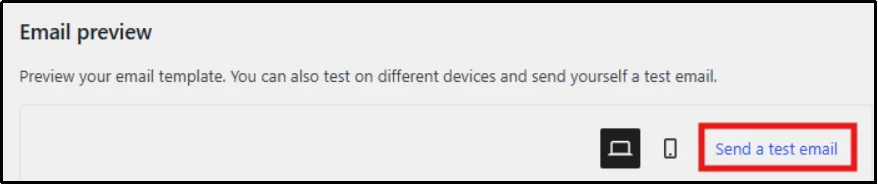
- Scroll down to review the email settings. If your WooCommerce version supports it, preview the email and send a test email to verify everything looks correct.
- Now click “Save Changes” and let’s move on to the next step.
Step 3. Set Up Post SMTP Plugin to Optimize Email Deliverability
Enabling WooCommerce failed order email alerts is only half the job. You also need to make sure those alerts actually reach your inbox.
By default, WooCommerce sends emails through WordPress’s built-in wp_mail() function. This function relies on your web hosting server to deliver emails using PHP mail. While this setup works on some servers, many hosting providers restrict or deprioritize PHP mail to reduce spam and server abuse.
Even when your hosting server sends the email successfully, receiving mail providers like Gmail, Outlook, and Yahoo often flag or reject these messages because they lack proper sender authentication. As a result, important WooCommerce transactional emails, including failed order notifications, order confirmations, invoices, and customer emails, may land in the spam folder or never arrive at all.
The best way to improve WooCommerce email deliverability is to replace WordPress’s default mail function with SMTP using a trusted WordPress SMTP plugin like Post SMTP.
Unlike the default WordPress mail function, Post SMTP routes your WooCommerce emails through authenticated SMTP servers or email APIs. It supports leading email providers such as Gmail API, Microsoft 365, Amazon SES, Zoho Mail, SendGrid, Maileroo, and many others. This approach helps your emails pass modern authentication checks and significantly improves inbox placement.
Post SMTP also includes advanced email delivery tools such as detailed email logs, email failure notifications, automatic fallback SMTP connections, email resending, open tracking, and email health reports. These features give you complete visibility into every WooCommerce email your store sends and make troubleshooting much easier.
To set up Post SMTP, follow the steps below:
- Log in to your WordPress website as an admin.
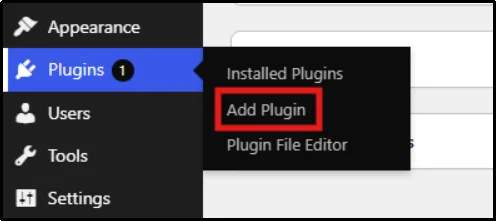
- Navigate to Plugins → Add Plugin.
- In the search bar, type ‘Post SMTP.’
- Click Install Now on the Post SMTP plugin.
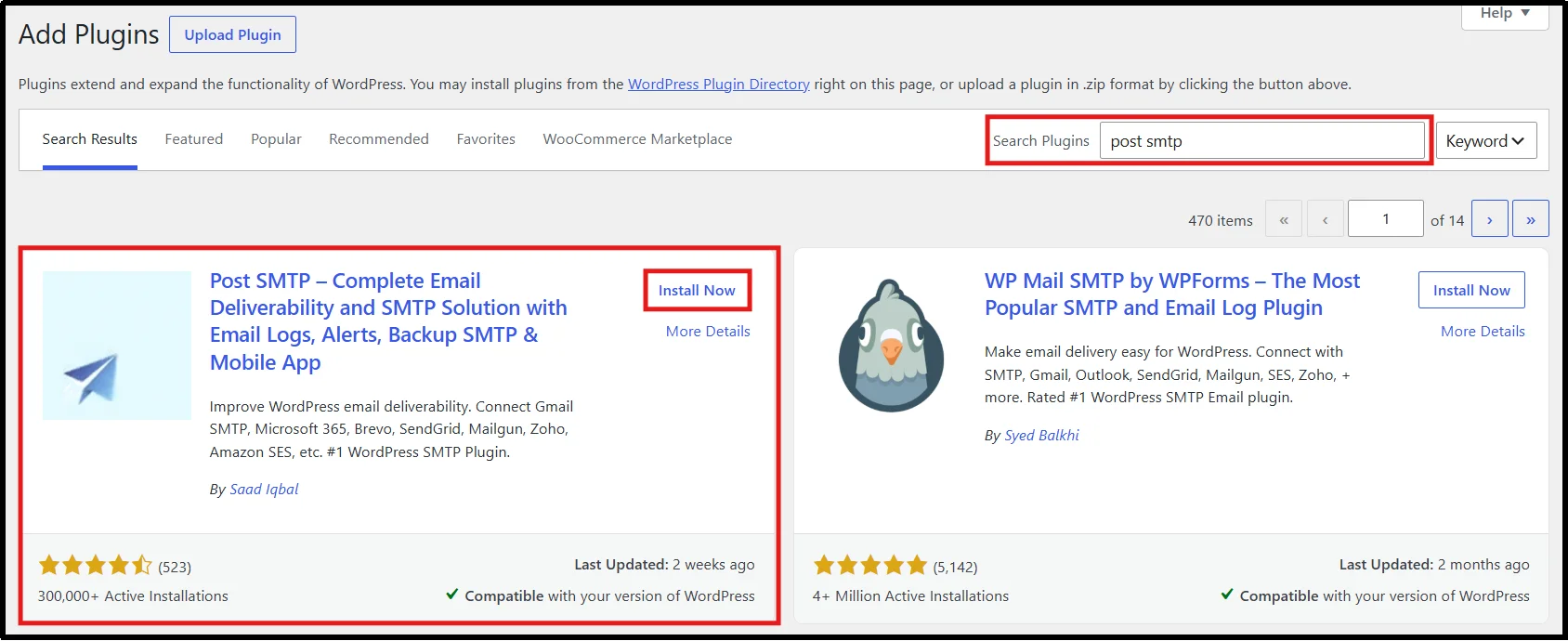
- Wait until the “Install” button turns into “Activate”. Once done, click it to turn on the plugin.
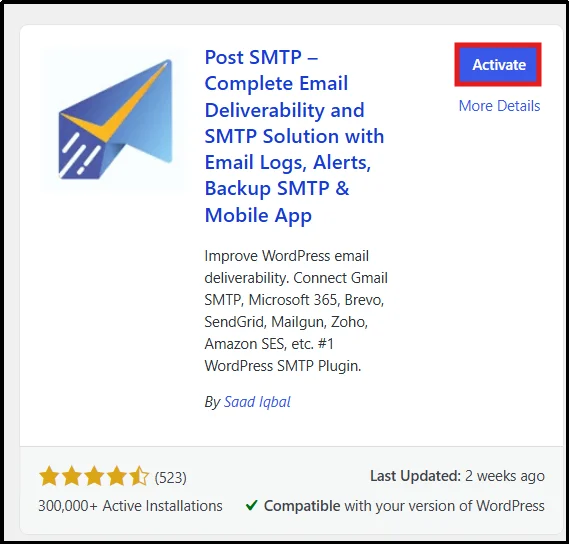
Now you have the plugin up and running.
Note: For enhanced email management and deliverability, consider upgrading to a Post SMTP premium plan. Premium features include open email tracking to monitor email performance, email quota scheduling to control sending limits and frequency, and the ability to resend multiple failed emails directly from the email logs screen.
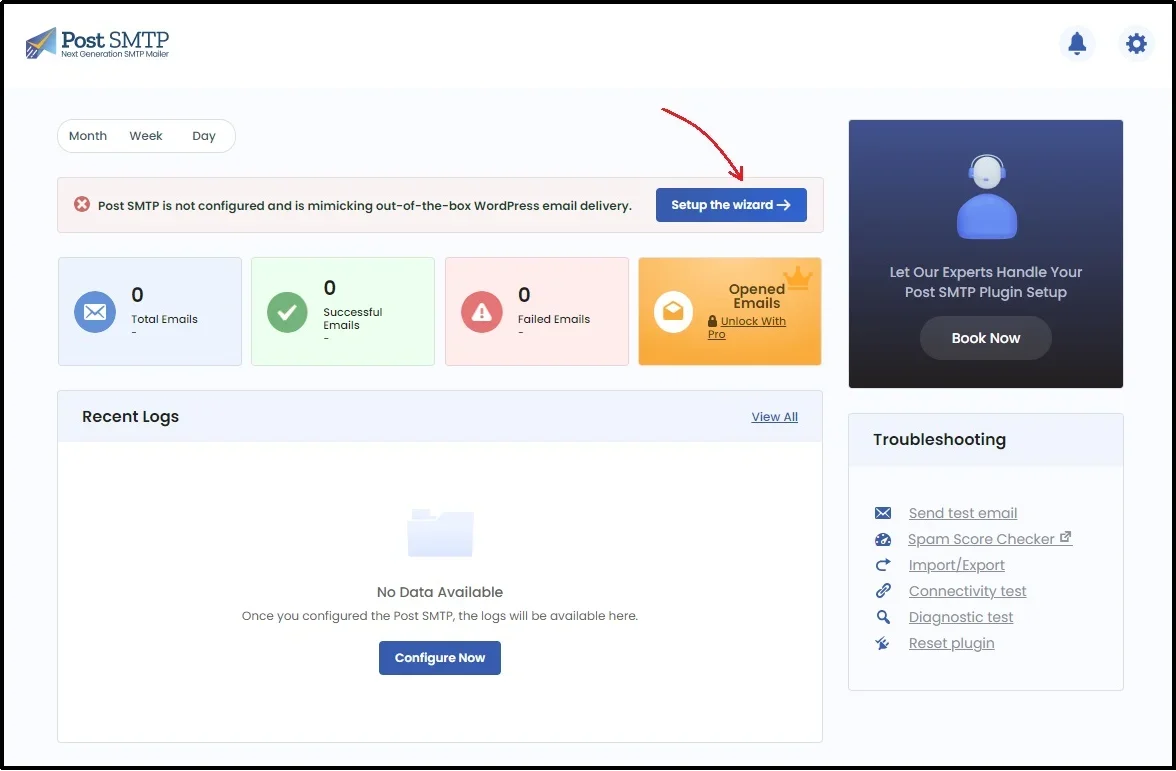
- Navigate to the Post SMTP dashboard and click Setup the Wizard.
- You have multiple options here, such as SendGrid, Maileroo, etc., and the ability to configure any email API service using the “Other SMTP” option.
For the best email deliverability, we recommend using a trusted email service such as Gmail API, Zoho Mail, Amazon SES, or Microsoft 365. In our earlier article, we used these mailers to set up an SMTP server for less than $100/month.
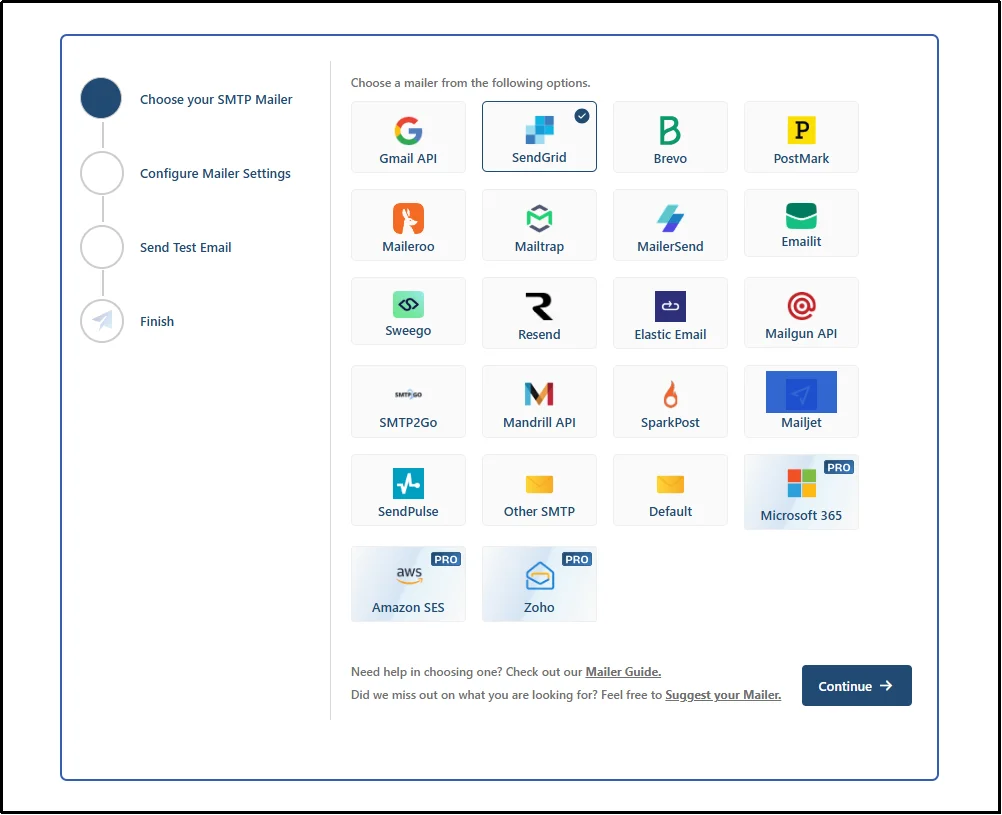
- Configure the mailer of your choice. Our documentation page has separate detailed instructions for setting up your favorite mailer.
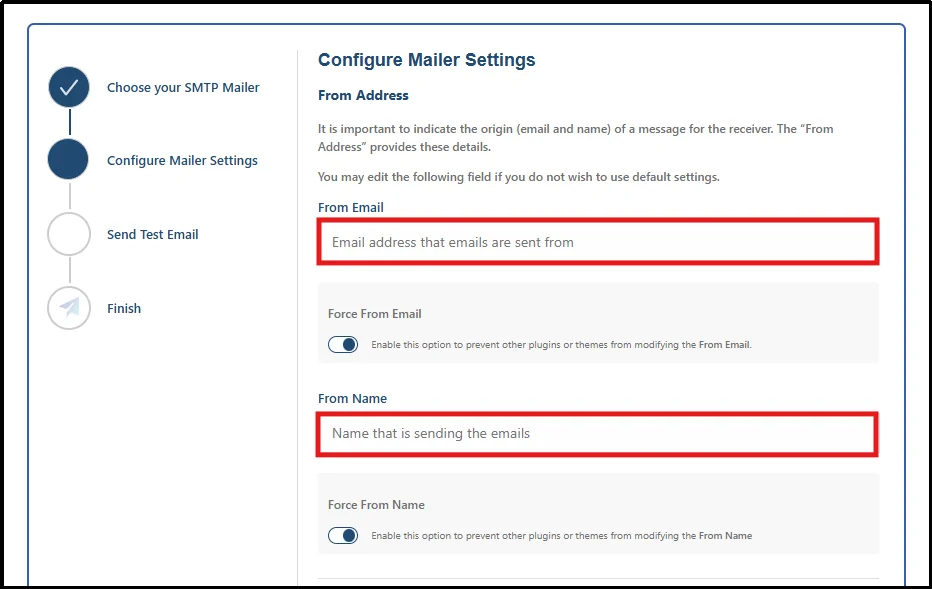
- Enter your desired From Email and From Name, and then enable Force From Email and Force From Name to ensure WordPress uses the same sender information for all outgoing emails.
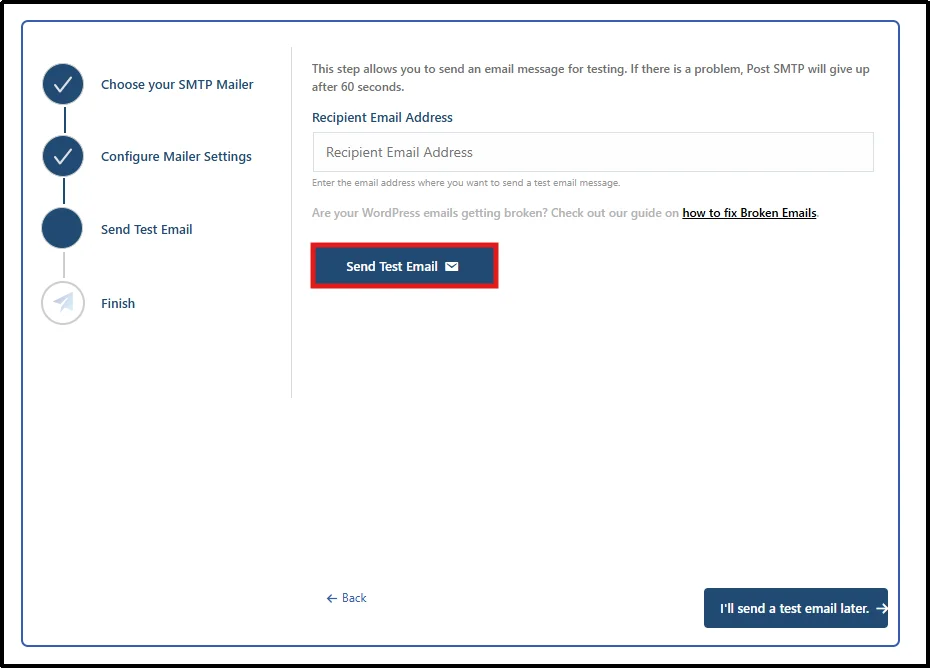
- Now send a test email to ensure the email lands. Once you see the success message, congratulations! The setup is exactly as it should be.
Your WooCommerce email notifications are now far more likely to reach your recipients reliably.
Troubleshooting Tip: If your test email still lands in the spam folder after setting up Post SMTP, verify that your domain’s SPF, DKIM, and DMARC DNS records are configured correctly. These email authentication records help receiving mail servers verify your identity and play a critical role in improving inbox placement. Even the best WordPress SMTP plugin cannot achieve optimal email deliverability without properly configured DNS authentication.
Step 4. Resend Failed WooCommerce Emails from the Post SMTP Email Logs
Even after fixing your WooCommerce email delivery, some failed order notifications may never have reached your inbox. Instead of waiting for another issue to occur, you can resend those missed emails directly from Post SMTP’s Email Logs.
Post SMTP records every email your WordPress site sends, including WooCommerce transactional emails such as failed order notifications, order confirmations, password reset emails, and customer emails. If an email fails, you can review the error details, identify the cause, and resend it after fixing your SMTP configuration.
Follow these steps:
- Navigate to Post SMTP → Email Log from your WordPress dashboard.
- Browse the list of emails and locate any entries with a Failed status.
- Click the failed email to review the delivery error if needed.
- Click Resend, or use the bulk resend option if multiple emails failed.
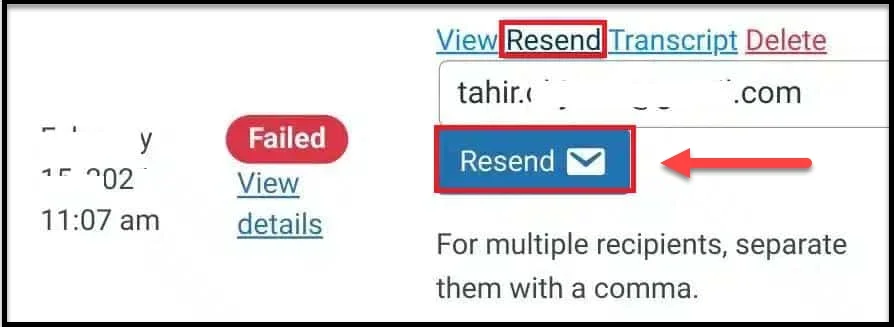
- Post SMTP immediately attempts to deliver the email again using your current SMTP connection.
After resending, confirm that the email status changes to Delivered. Your WooCommerce failed order notification, order confirmation, or any other transactional email should now reach its intended recipient successfully.
Optional Step: Set up a Fallback Server
Even the most reliable mailers can experience temporary downtime or rate limits. When that happens, your important WooCommerce notifications might not be sent at all.
While optional, setting up a fallback server provides an additional layer of reliability for mission-critical WooCommerce emails. It automatically switches to a secondary SMTP connection whenever your primary mailer becomes unavailable.
If your primary mailer fails for any reason, Post SMTP automatically switches to the fallback connection and continues sending messages without interruption.
This feature is particularly valuable for stores that process a high volume of orders or rely on time-sensitive notifications. Instead of manually identifying and resending missed emails, your system quietly handles it in the background.
To put it to work:
- Go to Post SMTP → Settings → Fallback tab.
- Enable Use Fallback by selecting Yes.
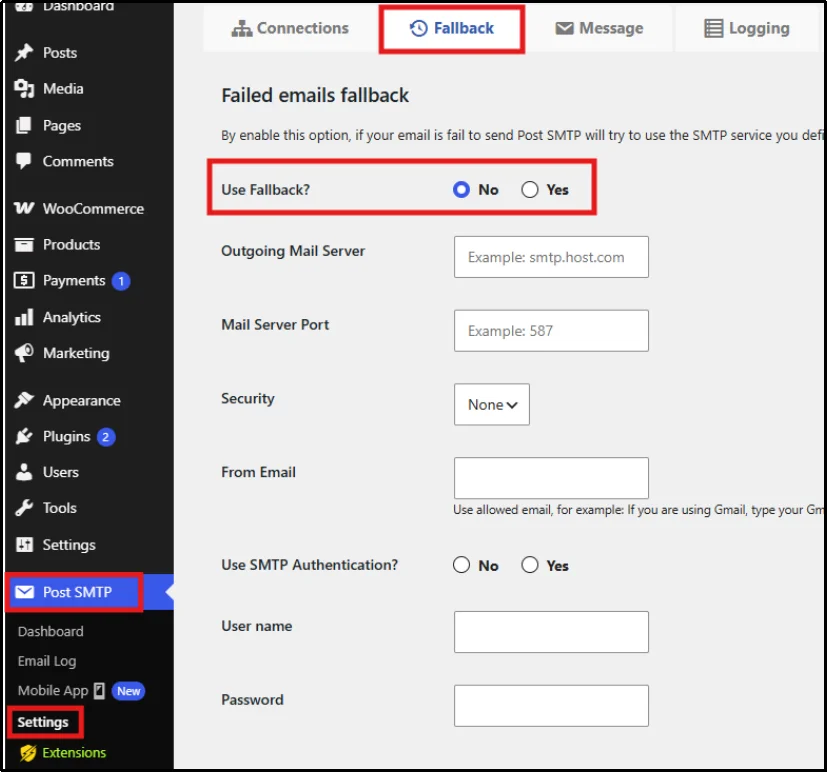
- Enter the necessary settings to set up the backup mailer, including Security, Mail Server Port, From Email, etc.
Save Changes, and there you go!
You might want to read this: How To Log Your WooCommerce Order Emails [3 Easy Steps]
Take Control of Your Failed Order Emails
Reliable WooCommerce email notifications are essential for running a successful online store. When failed order alerts reach your inbox immediately, you can resolve payment issues faster, recover lost sales, and provide a better customer experience.
Post SMTP helps improve WooCommerce email deliverability by replacing WordPress’s default mail function with authenticated SMTP or email API connections. Combined with detailed email logs, failure alerts, email resending, fallback SMTP connections, and support for leading email providers, it gives you complete visibility into every transactional email your store sends.
Trusted by more than 300,000 WordPress websites, Post SMTP helps store owners send WooCommerce emails with greater reliability and confidence.
Frequently Asked Questions
Does WooCommerce send failed order emails automatically?
WooCommerce includes failed order notifications by default, but administrators must ensure they are enabled and properly configured. Email deliverability issues may also prevent alerts from reaching the inbox.
Why am I not receiving WooCommerce failed order emails?
Common causes include:
1. Hosting providers blocking PHP mail
2. Disabled email notifications
3. WordPress email deliverability issues
4. Missing SPF, DKIM, or DMARC records
5. SMTP misconfiguration
6. Plugin conflicts
Can I resend failed WooCommerce order emails?
Yes. Plugins like Post SMTP allow you to review email logs and resend failed emails individually or in bulk.
How do I improve WooCommerce email deliverability?
Configure SMTP authentication using services such as Gmail API, Amazon SES, Microsoft 365, or Zoho Mail, and ensure SPF, DKIM, and DMARC records are properly configured.
How can I tell if WooCommerce emails are failing?
You can monitor WooCommerce email delivery using an SMTP plugin such as Post SMTP. It records every outgoing email, displays delivery status, logs server responses, and lets you resend failed emails after fixing the underlying issue.