
 OpenAI
 Perplexity
Running a successful online store with WooCommerce depends on reliable communication. More than just polite messages, they are essential transactional emails like order confirmations, shipping updates, and password resets.
When these crucial messages fail to arrive, you risk losing customer trust and, more importantly, revenue.
A study from Experian found that transactional emails have 8x higher engagement rates and can generate up to 6x higher revenue than standard promotional emails, making their reliable delivery non-negotiable.
The unfortunate reality is that many emails sent directly from a default WooCommerce setup get lost, delayed, or land in the spam folder.
The reason is straightforward, and one of the topics this article will cover, along with how to fix and track failed WooCommerce emails and resend them with one click.
Why Track Failed WooCommerce Emails?
Knowing if your customer emails are actually reaching the inbox is critical for both your business performance and customer satisfaction. Ignoring failed emails equals ignoring lost sales. You need a reliable way to check for errors and take action.
Here is why tracking and monitoring your WooCommerce emails is so important:
- Secured Revenue: Customers expect immediate confirmation after they purchase. If emails like order receipts or shipping updates fail, you risk losing sales or having customers abandon the payment process due to delays.
- Increased Customer Trust: When customers don’t receive expected emails, they get anxious and might think their payment didn’t go through. Quick tracking lets you resend the order confirmation in WooCommerce instantly.
- Improved Deliverability: High failure rates hurt your store’s reputation with major email providers. Monitoring your WooCommerce email logs lets you catch issues that you can easily fix with a reliable SMTP plugin for WooCommerce, ensuring emails consistently reach the primary inbox.
- Reduced Support Tickets: A failing email system creates extra work for your team. Customers email or call to ask, “Where is my order confirmation?” By proactively solving your email issues, you decrease the number of these common support requests.
- Simple Debugging: When a customer reports a missing email, detailed logging is your best tool for WooCommerce email debugging. You can immediately see the exact time the email was sent and any errors that occurred.
Now that you understand why email tracking is necessary, let’s examine why emails fail to deliver in the first place.
Why Do Emails Fail To Deliver?
You might think that if your online store is running, the emails must be working too. Unfortunately, that’s often not true. The main reason most WooCommerce emails won’t send is because of the way WordPress is set up to send mail by default.
WordPress uses a standard function called wp_mail() to send all outgoing emails. While this function works fine for basic site notifications, it has a major drawback:
- It lacks proper authentication: The wp_mail() function relies on your web server—the computer that hosts your website—to send the email. Most web servers are not set up with the special security details that modern mail providers (like Gmail, Yahoo, or Outlook) require.
- Mail goes straight to spam: Since the emails are sent without these security checks, the receiving email providers often flag them as suspicious or spam. They don’t trust that the email is truly coming from your store.
Simply put, the default system is too unreliable and straightforward for important transactional emails that affect your business and customer experience.
To fix this problem and boost your WooCommerce email deliverability, you need to use email authentication. These are technical checks that prove your email is legitimate and not a fake from a spammer.
Here’s what these authentication protocols are and what they do:
- SPF (Sender Policy Framework): This is a list of allowed senders from your email domain. Any email coming from your domain not listed in this “list” will signal unauthenticity and will be rejected, preventing spammers from pretending to be you.
- DKIM (DomainKeys Identified Mail): This adds a hidden, secure digital signature to your email. The receiving server checks this signature to confirm that the email’s content hasn’t been changed or tampered with.
- DMARC (Domain-based Message Authentication, Reporting & Conformance): This acts as the final rule-maker. It tells the receiving server what to do if an email fails the SPF or DKIM checks. For instance, whether to send it to spam or reject it completely.
By failing to use a secure setup that includes these protocols, many of your essential customer emails, such as order confirmations and important shipping details, are likely not being delivered reliably. This can lead to the infamous WooCommerce email deliverability issues.
But now that you have landed on this article, you don’t have to worry. The next section will help you track failed WooCommerce emails and enable you to resend them reliably and with a single click.
How to Track and Resend Failed WooCommerce Emails
To track and resend failed WooCommerce emails, we will be using the Post SMTP WordPress plugin. The best SMTP plugin that offers much more than just SMTP services, such as:
- Secure Authentication with OAuth: The plugin lets you connect to popular mailers (like Gmail, Microsoft 365, etc.) using the OAuth 2.0 protocol. This means you securely authorize the connection without ever saving your email password directly in your WordPress files, which is much safer.
- Detailed Email Logging: It keeps a complete record of every email sent from your site. This log shows the delivery status, recipient, subject, and any error message. This is essential for WooCommerce email debugging and the very feature we will use for tracking.
- One-Click Resend Failed Emails: If an important email fails to send, you can easily find it in the logs and resend it with just one click, immediately correcting the communication breakdown. Of course, this is also the feature we will be using along with the email logging to track and resend failed WooCommerce emails.
- Instant Failure Alerts: You get notified right away when an email delivery fails. This speed is key for resending emails before a customer even notices.
- Fallback Mailing: You can set up a backup SMTP service. If your main email sender stops working for any reason, the plugin automatically switches to the backup to ensure your crucial transactional emails continue to be sent.
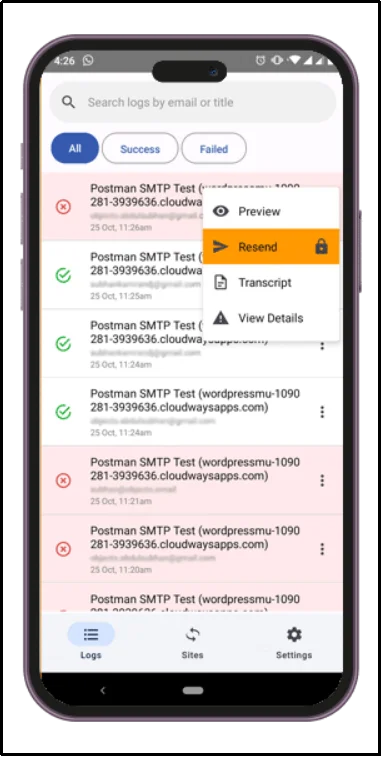
- Dedicated Mobile App: You can monitor logs, check errors, and even resend failed emails directly from your phone, giving you control over your store’s communication wherever you are.
- Email Open Tracking: This feature lets you see if customers are actually opening the emails you send, helping you analyze the performance of your campaigns.
- And much more: You can check out our features page to see all of them.
Let’s set it up in two easy steps. Plus two optional steps that will ensure even higher deliverability rates.
Step 1: Install Post SMTP
- Navigate to your admin dashboard and from the left-hand side navigation, choose Plugins and then Add Plugin.
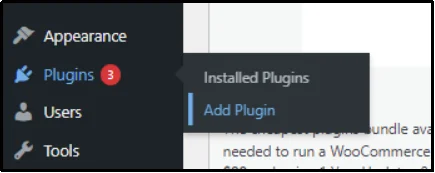
- On the subsequent screen, use the Search plugin bar on the right-hand side to search for Post SMTP.
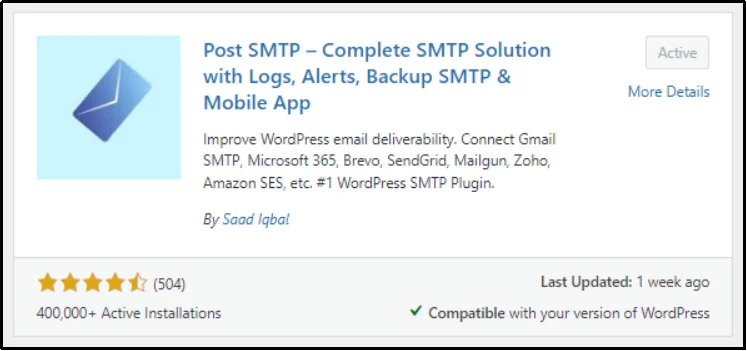
- Install the plugin using the Install button and wait until it turns into Activate.
- Once Activated, half the work is done.
Since some features in the following guide are premium-only, you will also need to upload Post SMTP Premium to enjoy all the perks it offers. Hence, check out the plans and purchase one that fits your needs and budget.
- Once you are done purchasing, you will receive a welcome email containing the plugin’s premium file and a unique license key. Save the license key for later use and install the zip file on your device.
- Return to Plugins, then the Add Plugins page, but this time click Upload Plugin in the top left corner.
- Click Choose File, browse, and open the zip file that you saved on your device.
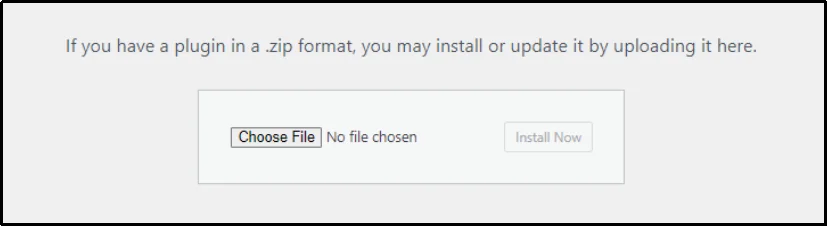
- Click Install Now.
- After Installation is complete, click Activate Plugin.
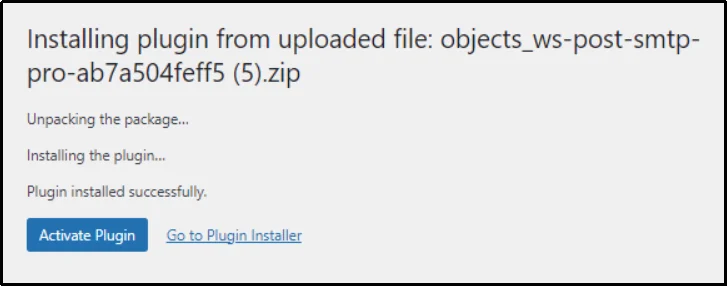
- Once activated, use your unique license key to activate all the premium perks.
Step 2: Track and Resend Failed WooCommerce Emails
Now comes the fun part.
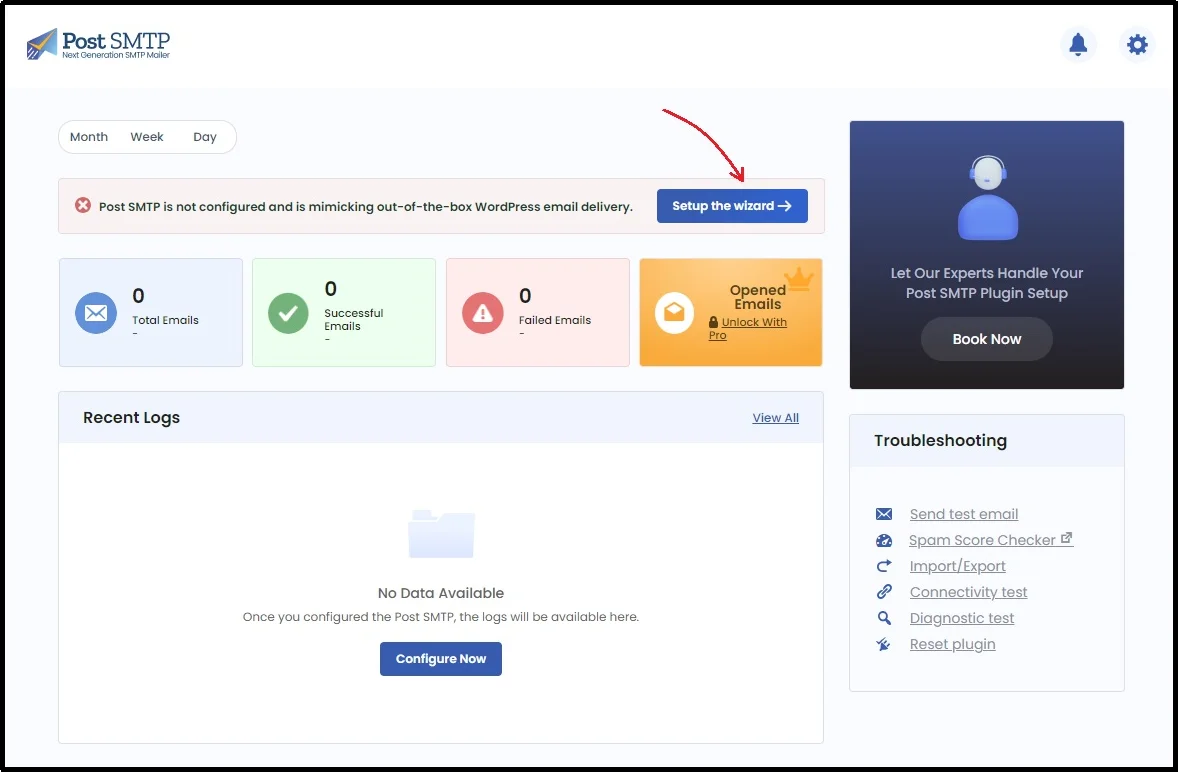
Post activation, you will be redirected to the plugin’s dashboard.
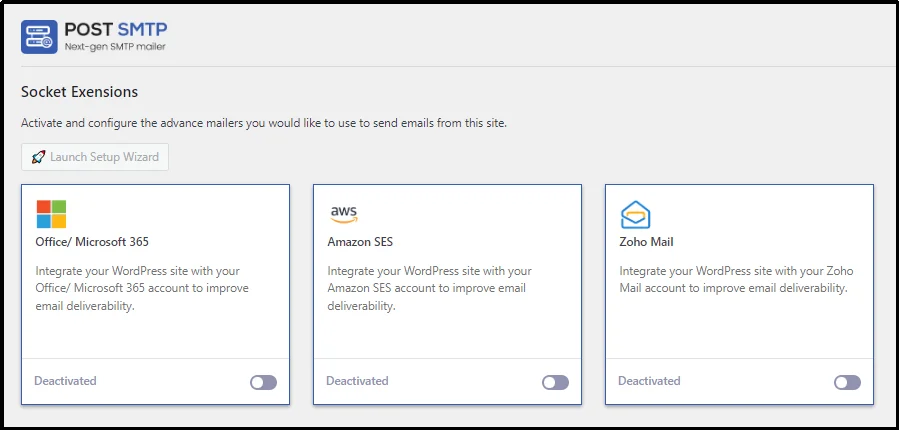
Here, scroll down until you find the bonus extensions, enable Email Delivery and Logs, and save progress using the Save Changes button.

Now, set up an SMTP connection using your favorite mailer.
You can do so by starting the Setup the wizard.
Next, choose your favorite mailer and get their API keys. The process differs for each mailer; if you need a step-by-step process, our helpful documentation can assist you.
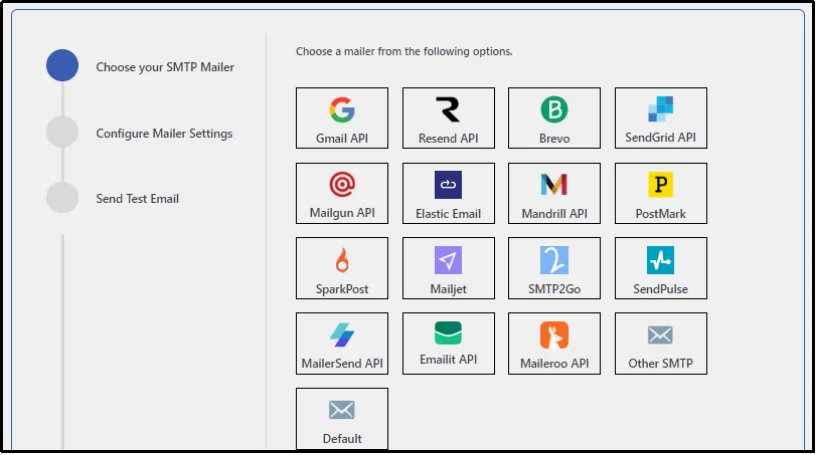
Get the API keys, and send a test email using the API of your chosen mailer.
As we learned, because these mailers properly authenticate emails, receiving servers place them in the inbox rather than the spam/junk folder.
After you are done, navigate to Post SMTP, then Settings, then Advanced Delivery and Logs tab.
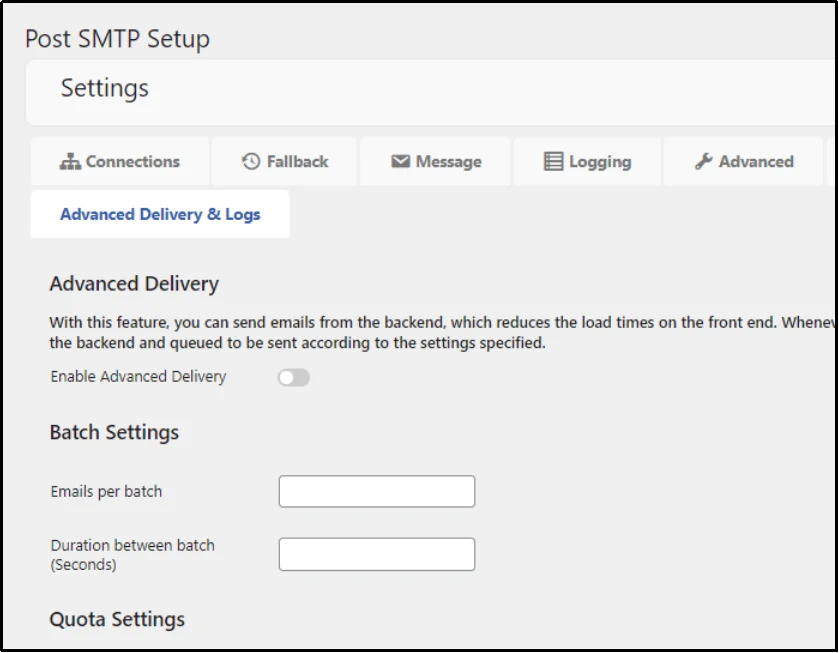
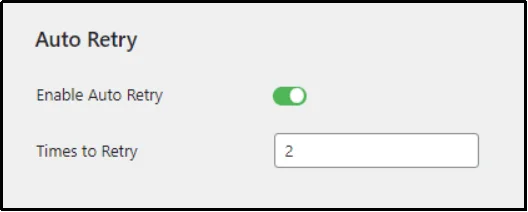
Scroll down until you find the Auto Retry options. Enable the feature using the toggle button, then enter the number of times the plugin should retry sending a failed email.
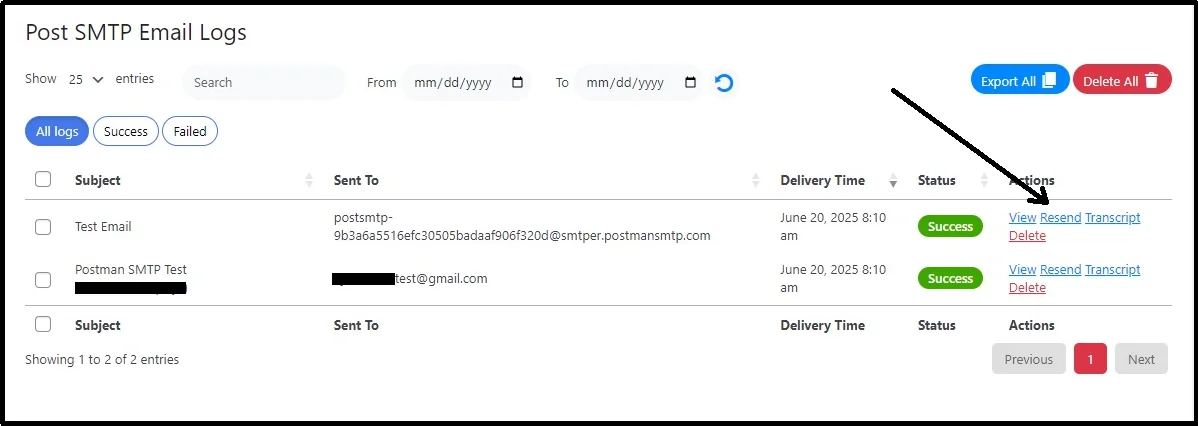
Alternatively, you can do so manually. To do so, go to Post SMTP and then Email Logs.
Click Resend to resend the email.
[Optional] Step 3: Set up a Fall Back Server
As discussed earlier, Post SMTP allows you to set up a fallback server that takes over when your main server fails. This amazing feature is super helpful to ensure none of your important emails fail to send.
To set one up, return to Post SMTP, then Settings, and finally the Fallback tab.
Switch to Yes. Set up the outgoing mail server, mail server port, and choose security from SSL or TLS, and other important settings.
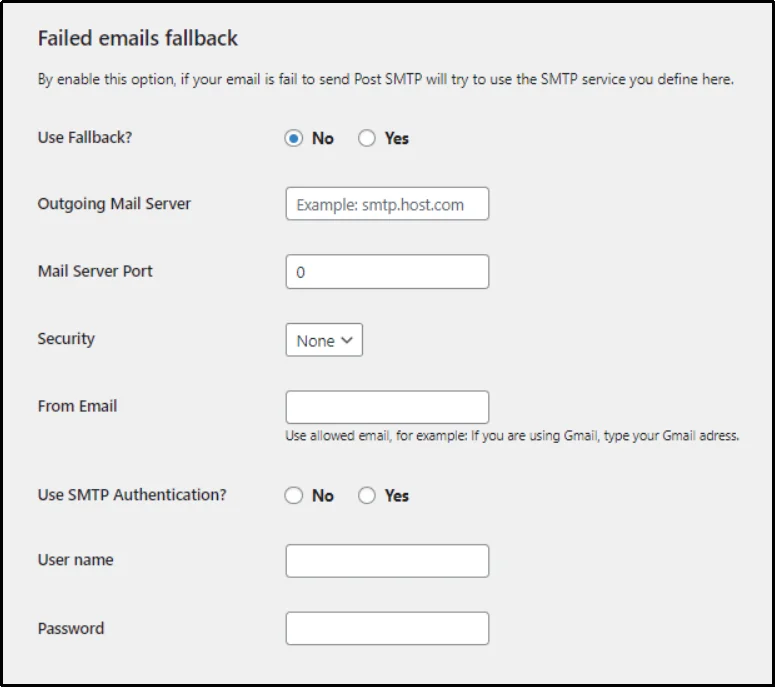
Once done, save progress using the Save Changes button.
[Optional] Step 4: Install Post SMTP Mobile App
To do so, go to the Google Play Store or App Store on your Android or iOS device, and search for the Post SMTP mobile application.
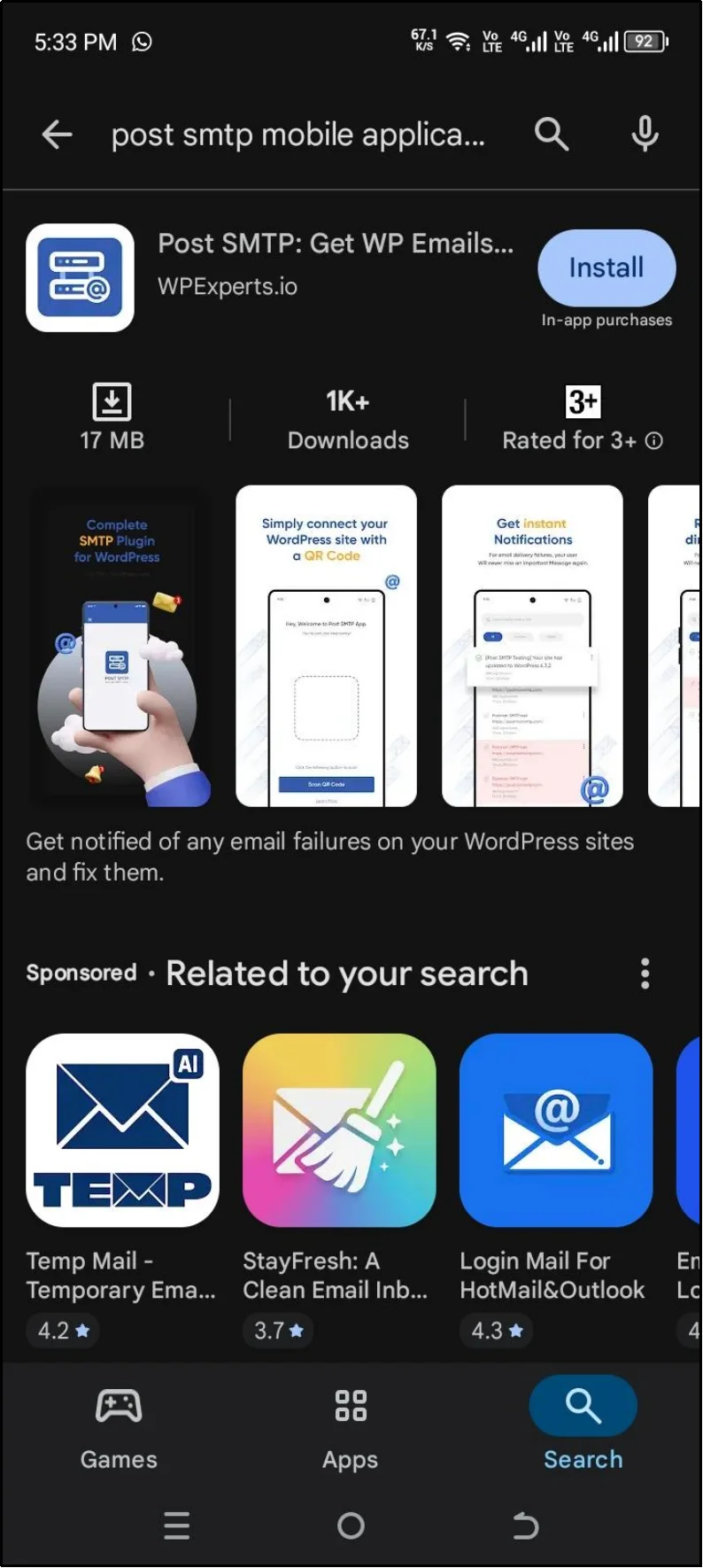
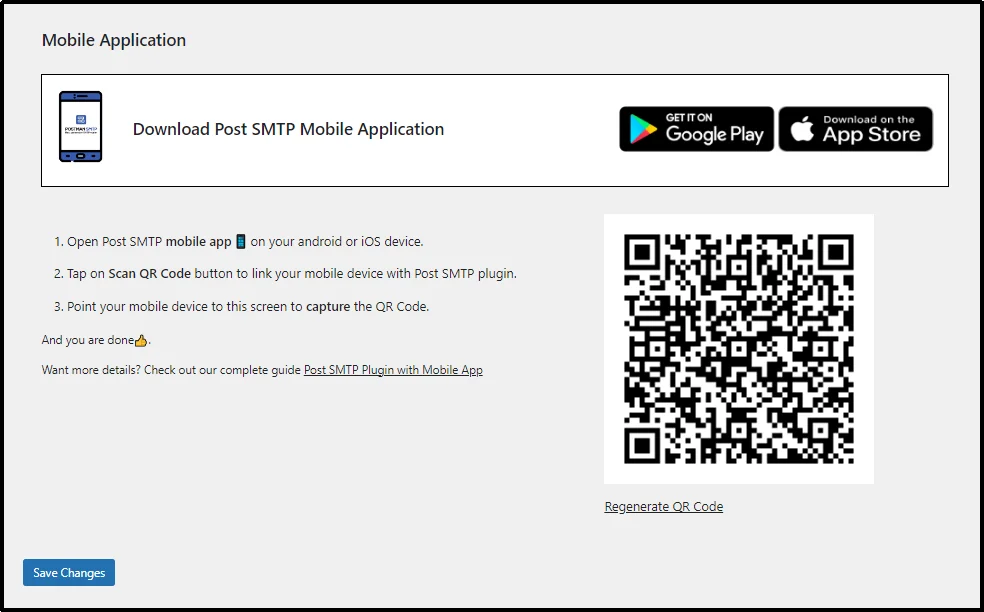
After installing the application, open it and go to Post SMTP, and then select Mobile App.
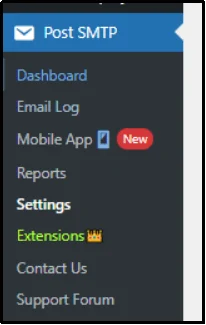
Connect your phone to your website by scanning this QR from the Post SMTP mobile app.
Once the connection is established, you can easily resend emails right from your mobile. Talk about convenience.
Stop Losing Sales to the Spam Folder!
You have learned that relying on the default WordPress mail function is a direct route to lost revenue and frustrated customers.
You now have a clear, step-by-step blueprint to implement the professional solution: Post SMTP.
This plugin installs a complete, reliable email delivery system right into your store, complete with logging, automatic retries, and mobile monitoring.
Don’t leave the success of your order confirmations and customer updates to chance any longer!
Take control of your inbox reliability today! Install Post SMTP and ensure all critical WooCommerce emails reach their intended recipients.