






















Putting a WordPress site into maintenance mode during updates is common. While developers work on backend changes, many site owners assume all website activity stops.
However, users may still attempt actions like placing orders, creating accounts, or requesting password resets. Most maintenance plugins block these front-end actions, which can prevent email notifications from being triggered. This can lead to missed orders, failed notifications, and a poor user experience.
So, do WordPress emails send during maintenance mode?
The short answer is yes. WordPress can still send emails if the trigger runs on the backend, but the default email system is unreliable and can fail under certain conditions.
In this article, we’ll explain how maintenance mode affects WordPress email delivery and how using a reliable SMTP plugin ensures your emails are sent correctly.
Let’s get started!
Understanding WordPress Maintenance Mode
Most website owners dive directly into the email mechanics without actually understanding what maintenance mode actually does to your site. At its core, maintenance mode affects your website’s front-end display, and when activated, visitors see a “maintenance” page instead of your actual website. Most visitors cannot perform tasks on the front-end while maintenance mode is active.
However, maintenance mode does not disable your website’s backend functionality. Behind the scenes, WordPress continues to run background processes such as database operations, scheduled tasks (WP-Cron), and email triggers.
There are generally two ways maintenance mode is triggered:
- WordPress Core Maintenance: WordPress temporarily creates a .maintenance file in the root directory during updates, and you are shown a maintenance message while the update completes. This type happens automatically during core, theme, or plugin updates.
- Manual Maintenance Mode Plugins: Many WordPress site owners use plugins to manually control the maintenance state of their website. These plugins may provide individual customization options but perform the same function: display a maintenance page to visitors while keeping the admin dashboard accessible.
The underlying problem isn’t the maintenance mode itself, but how your WordPress site is configured to send emails.
Why Emails Fail in Maintenance Mode
By default, WordPress sends emails using the PHP mail() function through the hosting server to send emails, but it’s unreliable for several reasons:
- Lack of authentication: Email providers like Gmail or Outlook may filter WordPress emails into spam because the messages lack proper authentication. In simpler terms, clients are unable to verify your identity. This is why most site owners lose business because their email ends up in the spam folder.
- Hosting restrictions: Hosting providers may restrict or disable the PHP mail() function to prevent spam. These providers suggest using an SMTP plugin for emails.
- No error reporting: The PHP mail() function provides little to no visibility into delivery failures. WordPress website owners might only discover the issue during a critical moment.
During updates or maintenance operations, your server may experience temporary load spikes.
Post SMTP is Your Email Delivery Safety Net
To ensure reliable and successful email delivery, you will need to bypass the PHP mail() function entirely and instead send emails through an SMTP server or email delivery provider. SMTP allows emails to be sent through authenticated mail servers that support modern authentication standards like SPF, DKIM, and DMARC, which results in a low spam score.
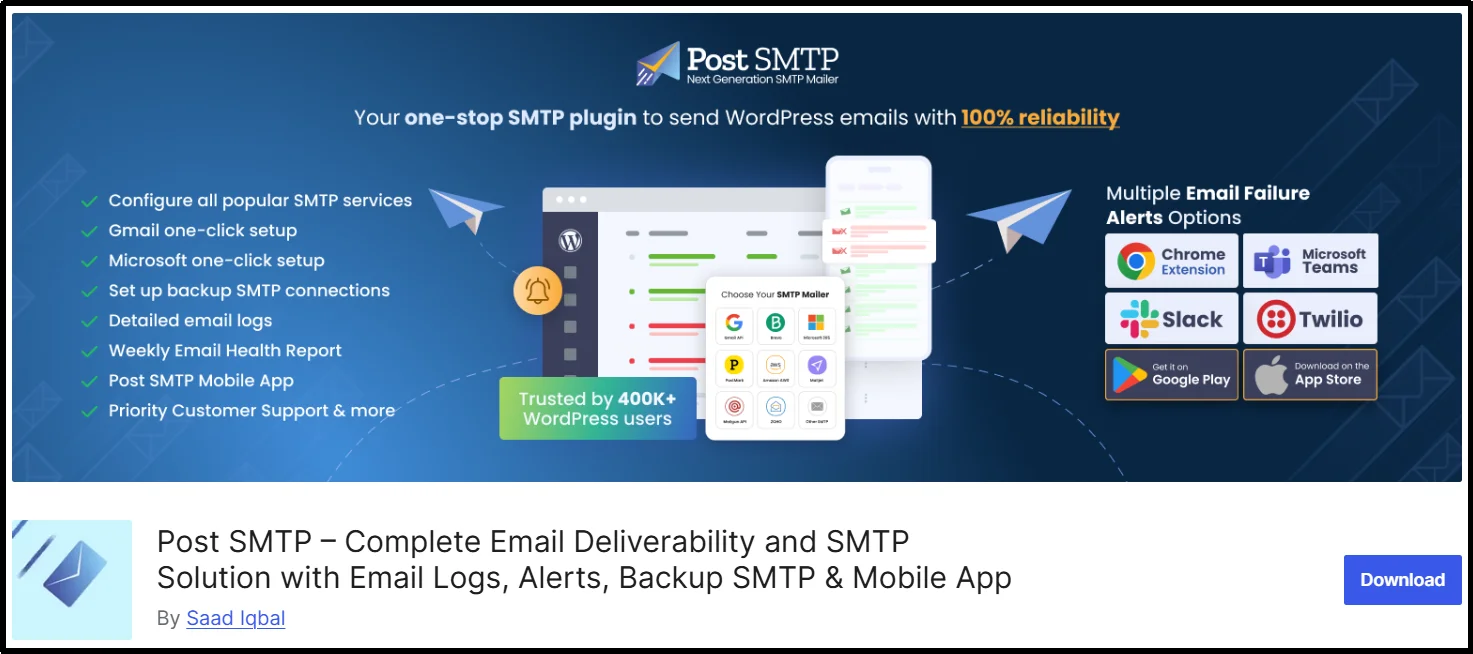
Introducing Post SMTP – a next-generation WordPress mail SMTP plugin designed to replace the default wp_mail() function and connect your WordPress site to trusted SMTP mail servers or email delivery providers.
To understand why SMTP is the gold standard, check out our guide on IMAP vs POP3 vs SMTP. It explains why SMTP is the preferred protocol for reliable email transmission.
Do WordPress Emails Send During Maintenance?
Let’s understand what actually happens to your emails during maintenance mode using three different scenarios. We will look at the trigger, the result, and how Post SMTP solves the problem.
Scenario A: Emails are sent
- The Trigger: A backend process, like a scheduled post published by WP-Cron, a WooCommerce subscription renewal, or a plugin sending a daily summary.
- The Result: Since the front-end maintenance screen doesn’t stop these backend tasks, the email trigger fires.
- How Post SMTP Helps: With Post SMTP configured, emails are sent reliably through your chosen SMTP service. You can even log into your Post SMTP Mobile App later to verify the email’s status and confirm successful delivery.
Scenario B: User is blocked by the maintenance screen
- The Trigger: A user action that requires the system to send an email, but the user is blocked by the maintenance screen. For example, a password reset request.
- The Result: The user never reaches the login or request page, so the trigger to send the email is never activated.
- How Post SMTP Helps: It’s a trigger failure. Post SMTP ensures that if a trigger fires, the email is sent.
Scenario C: Data is processed, but emails are not sent
- The Trigger: A user completes a contact form. The form submission may succeed, but the email notification fails to send due to a misconfigured email setup.
- The Result: This is a WordPress email delivery failure. The site uses the PHP mail() or a misconfigured SMTP WordPress maintenance setup, and the email is lost.
- How Post SMTP Helps: Post SMTP’s failure notifications and email logging help you identify the problem, and the fallback mailing feature helps you resend those emails.
Here is a detailed view of these features:
- Fallback Mailing (Secondary SMTP Connection): With Post SMTP Pro, you can set up a Secondary SMTP Connection. If your primary mailer (e.g., Gmail) fails, Post SMTP automatically retries delivery using a secondary SMTP connection. (e.g., Amazon SES or Zoho Mail).
- Email Logging: You can immediately check the Post SMTP Email Logs to see exactly why the first attempt failed.
- Instant Failure Notifications: You’ll receive an instant alert via email, Slack, Teams, or SMS (via Twilio in Pro) so you know about the issue in real-time, not hours later.
How to Test Email Functionality During Maintenance Mode
The best way to gain peace of mind is to test your setup. Here’s how to use Post SMTP to ensure everything works before and during maintenance.
It’s always good to test your setup every six months to make sure the system will not fail during maintenance mode. Here are a few steps and recommendations to test the email functionality:
- Install and Configure Post SMTP before entering maintenance mode. Use the easy 3-Step Setup Wizard to connect your preferred SMTP mailer, whether it’s Gmail, Microsoft 365, or another provider. Post SMTP supports OAuth 2.0 for secure connections without storing your password on your site.
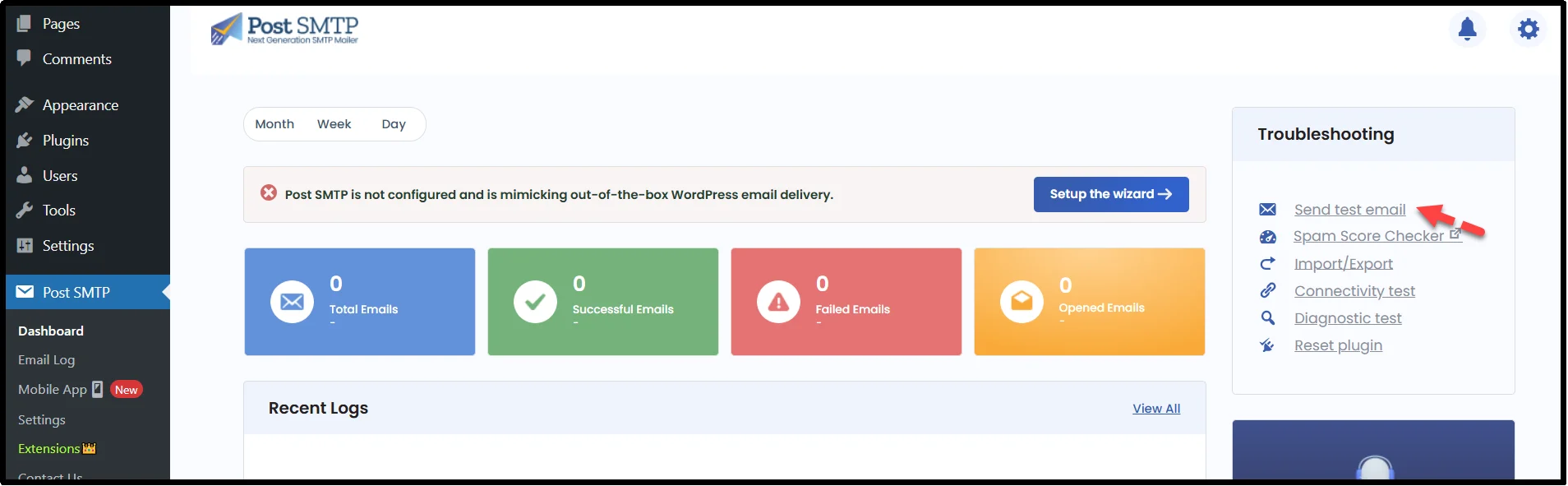
- Send a Test Email: Navigate to Post SMTP → Dashboard → Send test email.
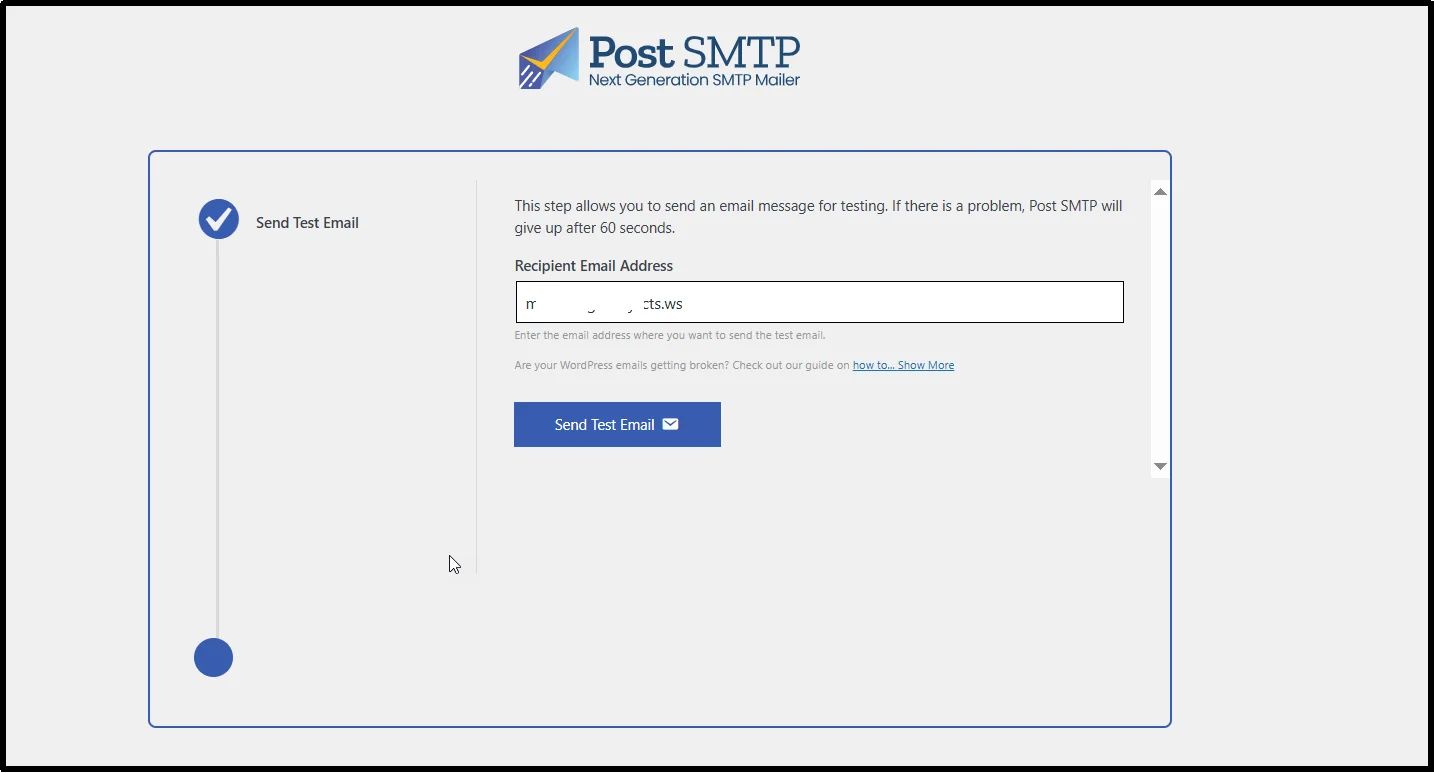
Type the valid email address and click the “Send Test Email” button. For a successful email delivery, the screen shows a green congratulations message.
- Test Critical Email Types: Place a test WooCommerce order or trigger a password reset to ensure all your essential emails are sent correctly.
During Maintenance Mode:
- Access Your Admin Area: As a logged-in administrator, you can still browse your site’s backend.
- Run Another Test: Send another test email from the Post SMTP settings page.
- Monitor Your Email Logs: Check the Post SMTP Email Log to see if any emails triggered during this period have a “Failed” status. This gives you immediate insight.
Troubleshooting: Maintenance Mode Email Not Sending
If you’re in the middle of maintenance and discover emails aren’t sending, use this checklist with Post SMTP’s tools to diagnose the problem.
- Step 1: Check Your Post SMTP Email Logs. This is your first line of defense. Are emails showing as “Sent” or “Failed”? If they’re “Sent,” the problem might be on the receiver’s end. If “Failed,” the log will provide a specific error message.
- Step 2: Review the Error Message. Post SMTP captures detailed error messages. A message like “SMTP Error: Could not authenticate” indicates a credential issue, which can be fixed quickly.
- Step 3: Check Server/Hosting Resources. Sometimes maintenance tasks spike CPU usage, causing the email function to time out. This is more likely if you’re on shared hosting.
Pro Tip: Hosting environments can be a major factor. Read our deep dive into Bluehost WordPress Emails Not Sending for common hosting-related blocks.
- Step 4: Activate Your Backup. If you have Post SMTP Pro, ensure your Secondary SMTP Connection is active. It will automatically handle any emails that fail to go through the primary connection.
Why Post SMTP Is the Best SMTP Plugin for WordPress Emails
For e-commerce and membership sites, WordPress emails in maintenance mode failing is not just an annoyance, it’s a direct hit to your revenue. Lost order confirmations mean customers don’t get their invoices. Failed member welcome emails can lead to cancellations and support tickets.
You need a proven, reliable system. Post SMTP is the complete package:
Free Core Features: The free version includes the powerful setup wizard, OAuth 2.0 support, SPF/DKIM checks, detailed email logs, and the Post SMTP Mobile App to monitor your site from anywhere.
For sites that cannot afford any email downtime, Post SMTP Pro offers game-changing features like:
- Secondary SMTP Connection (Backup Mailer).
- Microsoft 365, Zoho Mail, Amazon SES, and even One-Click Setup.
- Twilio (SMS) and Microsoft Teams Notifications.
- Auto-Resend Failed Emails and Email Open Tracking.
- Expert Assistance: Even if you get stuck, Post SMTP offers on-demand expert assistance for WordPress SMTP configuration.
You can also add an extra layer of protection with features like:
- Auto Resend Failed Emails: Configure Post SMTP to automatically retry sending an email a set number of times after a failure.
- Email Open Tracking: Know not just that an email was sent, but that it was opened, giving you confidence that your customers are being notified.
- Weekly Email Health Report: Get a summary of your email deliverability stats in your inbox every week, allowing you to spot trends and potential issues before they become critical.
Don’t Risk Losing WordPress Emails During Maintenance Mode
So, do WordPress emails go through in maintenance mode? They can, but only if you have a reliable email infrastructure in place. Relying on the default PHP mail() function is risky and could cost you sales and damage user trust.
Maintenance mode is designed to protect your site’s appearance during updates, but it doesn’t protect your email deliverability. Stop hoping your critical notifications are getting through and start knowing they are. Install Post SMTP to connect WordPress to a reliable SMTP server and ensure your critical emails are delivered even during site maintenance.