



























A single SMTP connection creates a single point of failure for your WordPress emails. If your SMTP provider experiences downtime, authentication issues, or sending limits, critical emails such as password resets, order confirmations, and contact form notifications may never reach your users.
Setting up a backup SMTP connection solves this problem. With WordPress SMTP failover, your website automatically switches to a secondary mailer whenever the primary SMTP provider fails, helping maintain uninterrupted email delivery.
In this guide, we’ll explain how backup SMTP connections work, why they matter, and how to configure SMTP failover in WordPress using Post SMTP.
What Is a Backup SMTP Connection in WordPress?
A backup SMTP connection is a secondary email delivery service that automatically takes over when your primary SMTP provider cannot send an email. This process is commonly known as SMTP failover or SMTP fallback.
Instead of allowing emails to fail, WordPress automatically routes messages through the secondary provider, helping maintain uninterrupted email delivery and protecting critical website communications.
How SMTP Failover Works in WordPress
SMTP failover is the process of automatically switching from a primary SMTP provider to a backup SMTP provider when email delivery fails. Under normal conditions, WordPress sends emails through the primary mailer.
If the primary SMTP server experiences an outage, authentication error, timeout, or sending limit restriction, Post SMTP automatically retries the message through the backup connection. This ensures important emails continue reaching recipients even when the primary provider becomes unavailable.
Primary vs. Secondary SMTP Connections
| Feature | Primary SMTP Connection | Secondary SMTP Connection |
| Purpose | Handles all outgoing emails by default | Acts as a backup if the primary fails |
| Usage | Always active under normal conditions | Remains idle until needed |
| Credentials | Uses the primary provider’s credentials | Uses separate credentials and authentication |
| SMTP Host | Primary SMTP server | Different SMTP server |
| Failover | No automatic backup role | Automatically takes over when the primary fails |
| Deliverability Role | Main sending route | Backup sending route |
| Failover Support | No | Yes |
| Downtime Protection | Limited | Provides redundancy |
| Email Continuity | Vulnerable | Protected |
What Happens During an SMTP Failure?
When the primary SMTP server can’t complete a send, whether due to downtime, an authentication error, or a connection timeout, the failure gets logged and the plugin immediately attempts to send that same email through the backup connection.
If the backup succeeds, the email is delivered and marked as sent via the secondary mailer. If both fail, the email is logged as failed so you can resend it manually.
This SMTP failover process maintains email continuity without requiring manual intervention. Users continue receiving important emails even when the primary provider experiences temporary issues.
Why You Should Use a Backup SMTP Connection?
Imagine an e-commerce store processing orders during a seasonal sale. If the primary SMTP provider experiences an outage, customers may not receive order confirmations, password reset links, or shipping updates. A backup SMTP connection prevents those interruptions by automatically rerouting messages through a secondary provider.
- Prevent Lost Emails During Service Outages: Even highly reliable email providers occasionally experience outages, maintenance, or API disruptions. A backup SMTP connection helps maintain uninterrupted transactional email delivery when those events occur.
- Improve WordPress Email Reliability: WordPress depends on email for notifications, user actions, and plugin functionality. A backup SMTP connection adds redundancy, reducing the risk of email delivery failures.
- Maintain Critical Website Communications: Important transactional emails need to be delivered without interruption. A secondary connection helps keep essential communications flowing when the primary provider is unavailable.
- Password Reset Emails: Users rely on password reset emails to regain account access quickly. Failover ensures these messages are delivered even during provider outages.
- Order Confirmation Emails: WooCommerce customers expect immediate confirmation after placing an order. A backup SMTP connection helps ensure order confirmations, invoices, shipping notifications, and customer account emails continue reaching recipients without interruption.
- Contact Form Notifications: Contact form submissions are often valuable leads or customer inquiries. A secondary SMTP connection helps ensure notifications and confirmations are not missed.
- User Registration Emails: Welcome and account activation emails are key parts of the onboarding process. Failover helps guarantee new users receive these messages without delays.
A backup SMTP connection does more than prevent failed emails. It protects critical website operations, improves email reliability, and helps maintain a consistent user experience during unexpected provider outages.
Common Causes of SMTP Delivery Failures
Knowing what typically breaks an SMTP connection makes it easier to understand when and why failover kicks in.
- SMTP Provider Downtime
Even major providers have outages. When the provider’s servers are down or degraded, every connection attempt from your site fails until service is restored.
- Authentication Errors
Expired API keys, revoked app passwords, or changed account credentials will cause the primary connection to reject every send attempt until the credentials are corrected.
- Sending Limits and Quotas
Free-tier and shared hosting SMTP services often cap how many emails you can send per hour or day. Once you hit that cap, every additional email fails until the limit resets.
- Temporary Network Problems
Brief network interruptions between your server and the SMTP provider can cause connection timeouts that have nothing to do with either party’s configuration.
- DNS Authentication Failures
Missing or misconfigured SPF, DKIM, and DMARC records can cause SMTP providers to reject messages or route them to spam folders.
Prerequisites Before Setting Up Backup SMTP Connections
A few things need to be in place before you configure a backup SMTP connection (Fallback), or else you’ll just be troubleshooting two broken connections instead of one 😆.
- A Reliable WordPress SMTP Plugin: Use a plugin that supports SMTP failover, email logging, and multiple mailer configurations. Post SMTP provides built-in fallback support and detailed email tracking. In the following section, we will show you how to install Post SMTP on your WordPress site.
- Have a primary SMTP Provider.
- Select a backup SMTP Provider: Choose a provider that’s genuinely independent from your primary, different infrastructure, different account, ideally a different company entirely. Using two services that share the same underlying infrastructure defeats the purpose of failover.
- Gather SMTP credentials: Have both sets of credentials ready: host, port, encryption type, username, and password or API key for each provider.
- Configure Email Authentication records: Both your primary and backup sending domains need proper authentication records, or your failover emails may land in spam even when delivery technically succeeds.
Step-by-Step Guide: Set Up Backup SMTP Connections for WordPress
Post SMTP’s Free plan includes backup SMTP connection support, letting you configure a secondary mailer that takes over automatically when your primary connection fails. Follow these steps carefully so you can easily set up a backup SMTP connection.
Step 1: Install and Activate Post SMTP
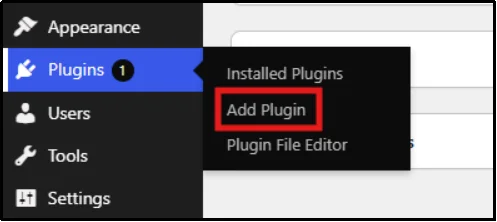
- Head to your WordPress admin dashboard, then go to Plugins → Add Plugin.
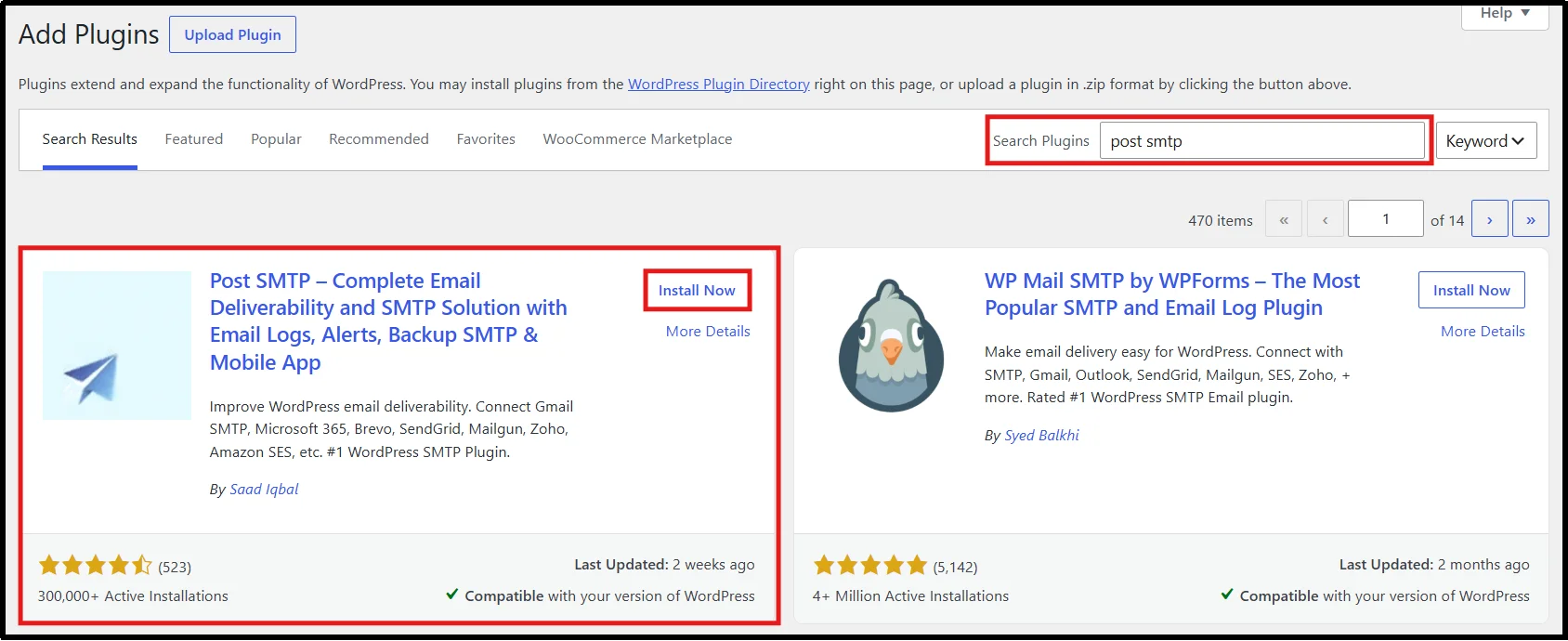
- Now enter Post SMTP in the top right search bar.
- Click Install Now on the Post SMTP plugin.
- Wait until the “Install” button turns into “Activate”. Once done, click it to turn on the plugin.
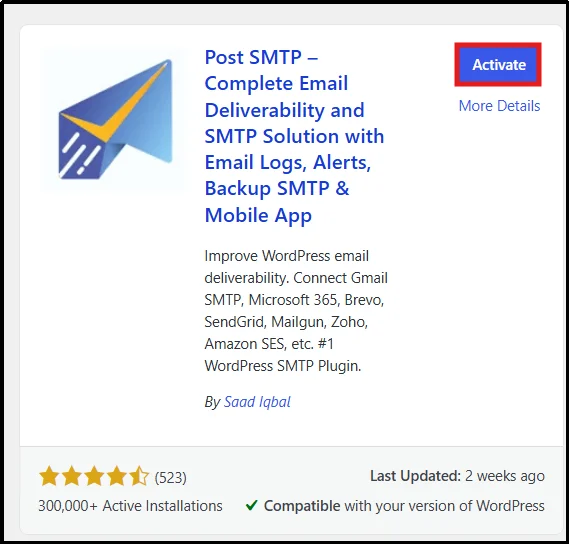
Once activated, Post SMTP launches its setup wizard automatically.
[Optional] Configure Your Primary SMTP Connection
Note: If you don’t have any primary smtp connection, then you should follow these steps first rather than hop onto step 2.
- You will be redirected to the setup wizard.
- Select any one from the multiple options here, such as SendGrid, etc., or configure any email API service by clicking on “Other SMTP” option. Our documentation page has detailed instructions for each mailer.
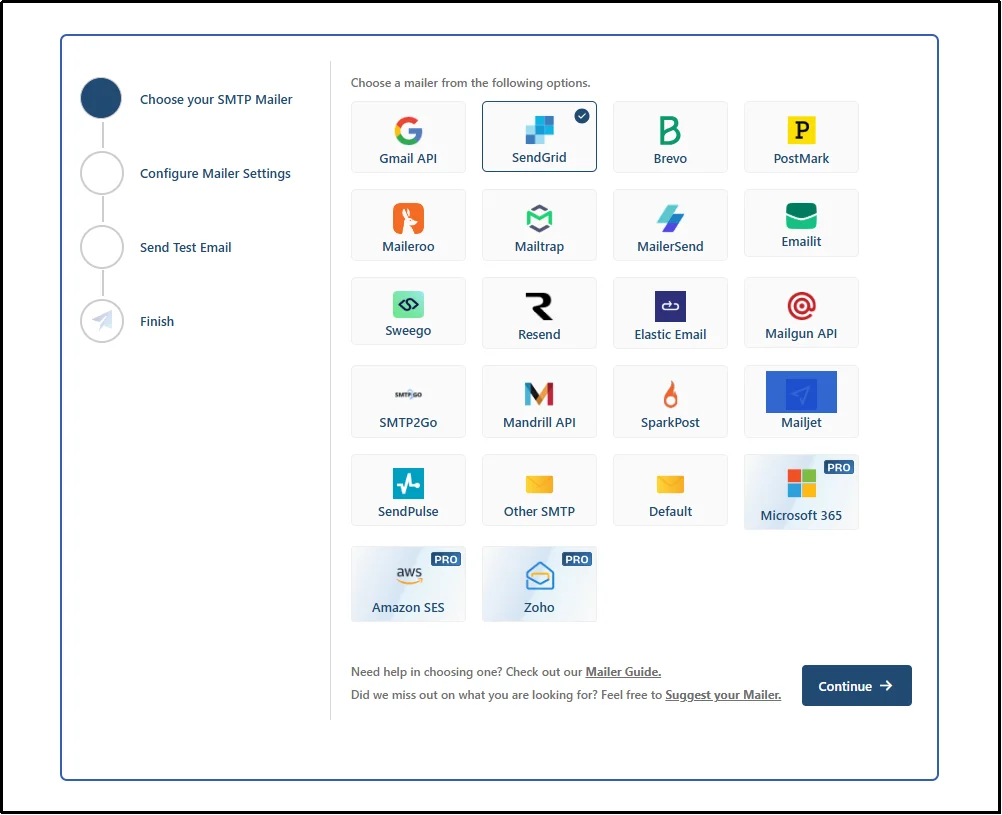
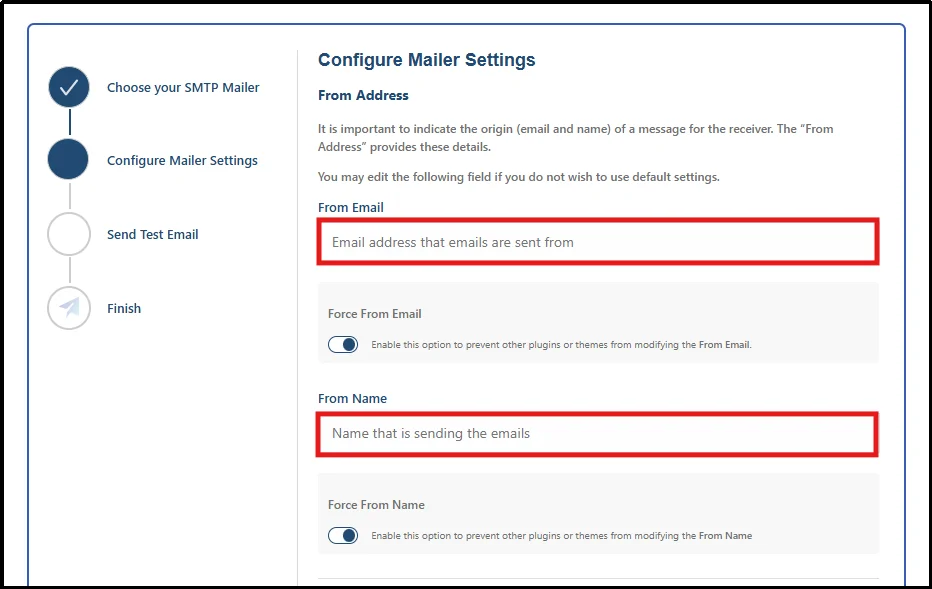
- Enter a From Email and From Name, and then toggle the Force From Email and From Name button on. Then click on Continue.
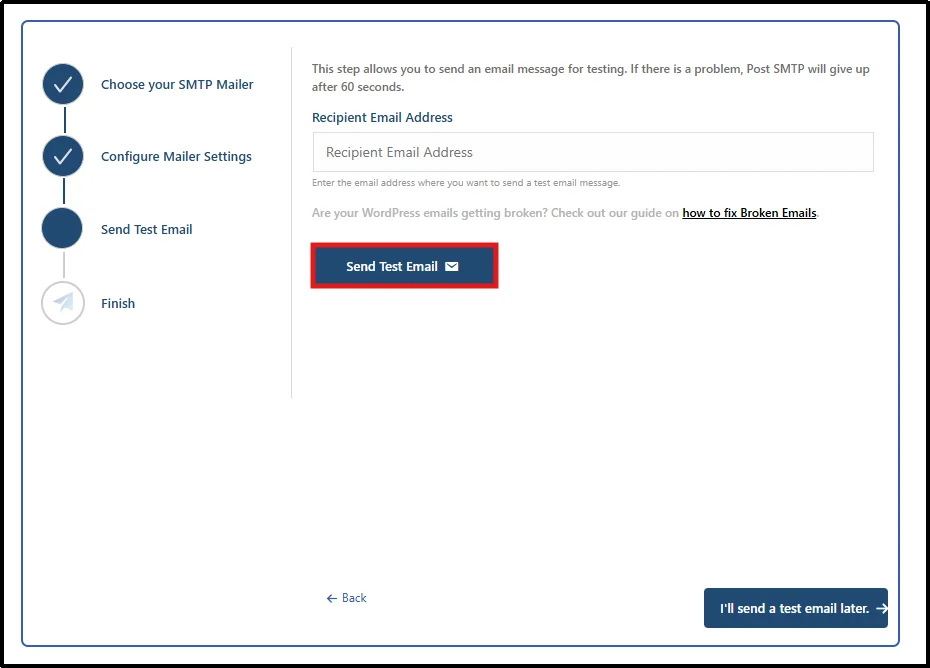
- Enter a recipient email address and then click on Send Test Email. Once you see the success message, congratulations! The setup is exactly as it should be.
Your primary SMTP connection is now ready for sending transactional emails.
Step 2: Add a Backup SMTP Connection
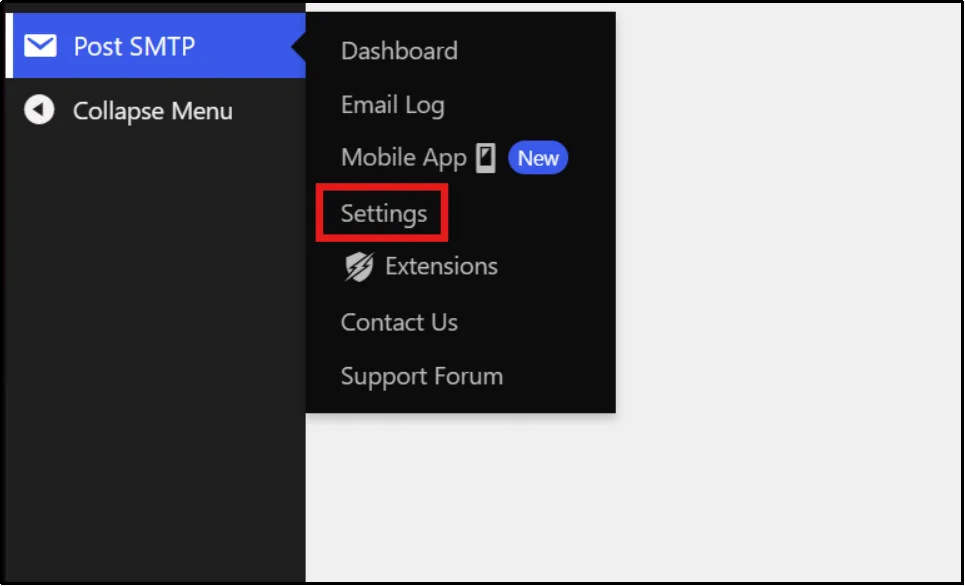
- Go to Post SMTP → Settings
- Select the Fallback tab from the top bar.
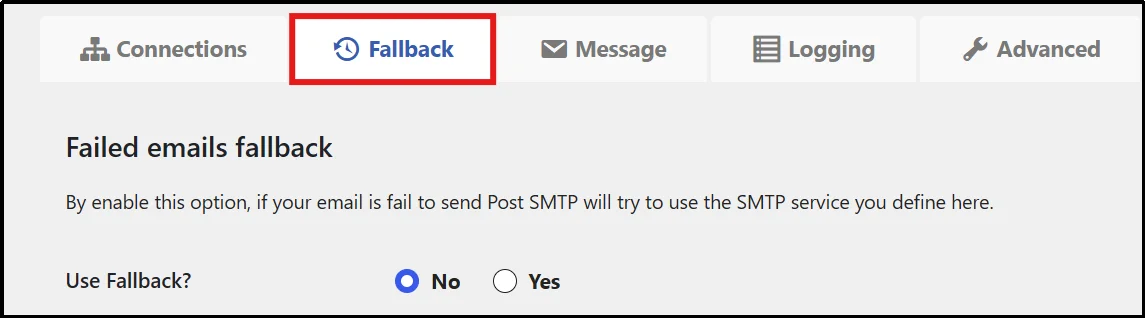
- Enable the Fallback feature by selecting the Yes radio button and entering your backup SMTP provider’s credentials, including SMTP host, port, encryption type, username, and password.
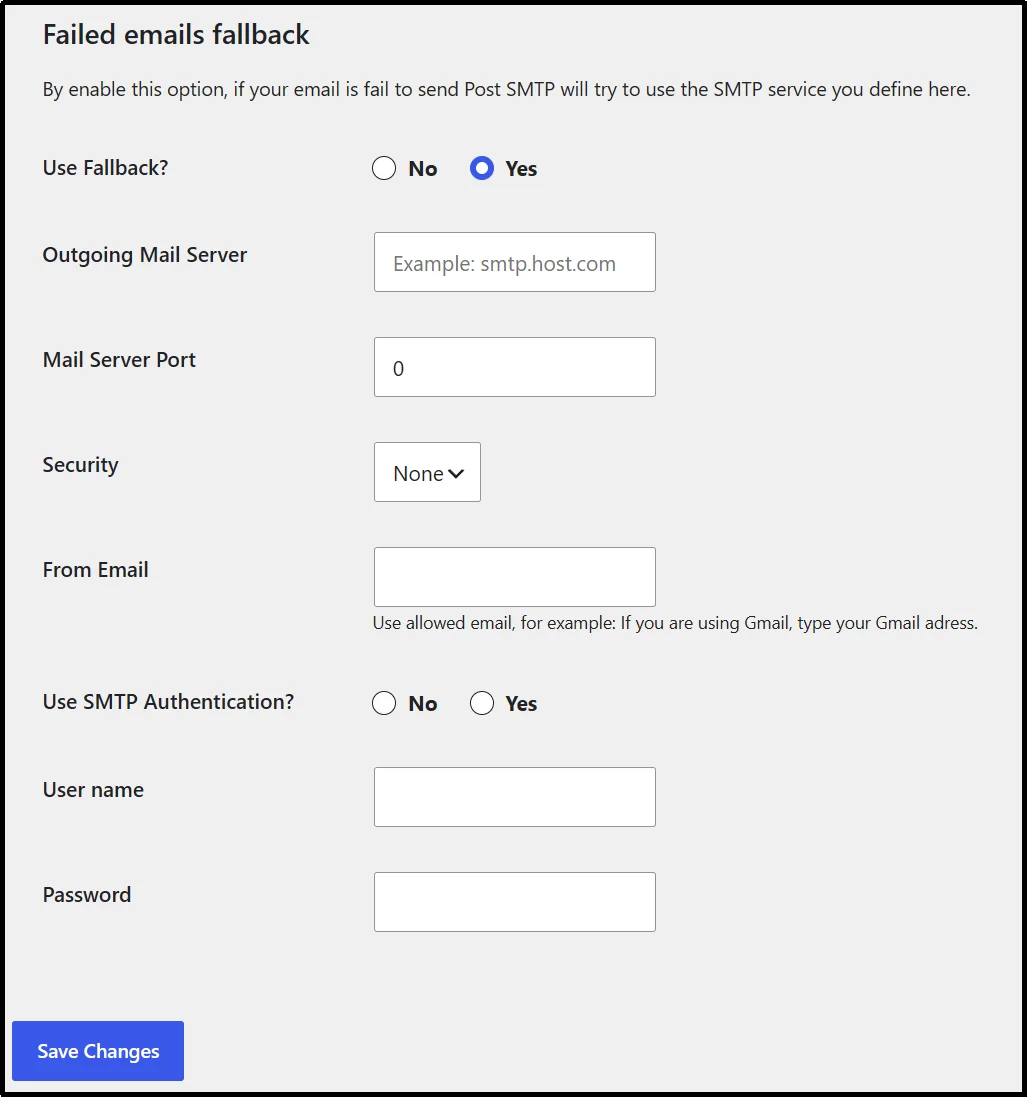
- Once you have entered the mailer information, click on Save Changes.
You have set up a backup SMTP connection for your WordPress site.
Step 3: How to Test Your Backup SMTP Setup
From this point on, Post SMTP routes all outgoing mail through the primary connection automatically, with the backup on standby. Don’t assume failover works just because you configured it. Test it before you need it in production.
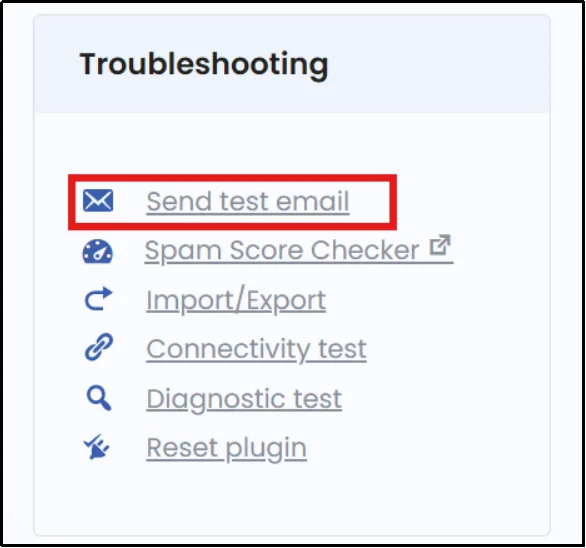
- Send a Test Email
Start with a basic test email through your primary connection to confirm normal sending is working as expected.
- Simulate a Primary SMTP Failure
Temporarily disable or enter incorrect credentials for your primary connection, then send another test email. This forces a failure condition so you can confirm the backup actually picks up the send.
- Verify Successful Fallback email
Check that the test email arrives and that it was sent through the backup connection rather than failing outright. Restore your correct primary credentials once you’ve confirmed this.
- Review Email Logs
Post SMTP’s email log shows which connection handled each send. Use it to confirm the failover test behaved the way you expected and to catch any failed sends that need a manual resend.
Recommended SMTP Provider Combinations for Backup Connections
Pairing the right providers matters as much as setting up the connection itself.
- Postmark + Amazon SES
Postmark specializes in transactional email delivery, while Amazon SES offers highly scalable infrastructure. Together, they create a reliable SMTP failover setup for growing websites.
- SendGrid + Mailgun
Both providers offer strong deliverability and detailed email analytics. Using one as a backup helps maintain email continuity during outages or quota restrictions.
- Microsoft 365 + Amazon SES
Businesses that send operational emails through Microsoft 365 can use Amazon SES as a scalable backup for uninterrupted email delivery.
- Gmail SMTP + Postmark
This combination works well for small businesses and websites that require a simple backup email solution with strong transactional email support.
When to Avoid Using Similar Providers
Avoid pairing two providers that run on the same underlying delivery infrastructure, or two services owned by the same parent company. If their infrastructure goes down together, your “backup” goes down with it.
Best Practices for SMTP Failover Reliability
Setting up a backup SMTP connection is only the first step. To get the most value from SMTP failover, you need to maintain both your primary and secondary mailers properly. A well-configured failover setup helps protect your website from email delivery disruptions, but regular monitoring, testing, and authentication are essential to ensure it works when you need it most. Follow these best practices to improve WordPress email reliability and keep critical messages flowing without interruption.
Use Different SMTP Providers
Choose two independent SMTP providers rather than relying on services that share the same infrastructure. If both providers experience the same outage or service disruption, your backup connection won’t provide any additional protection. For example, pairing Amazon SES with Postmark or Mailgun creates better redundancy than using two services from the same ecosystem.
Monitor Email Logs Regularly
Review your email logs frequently to identify failed sends, delivery errors, authentication issues, and unusual sending patterns. Monitoring email activity helps you spot potential problems before they affect users and allows you to take corrective action quickly. Tools like Post SMTP’s email logs make it easy to track delivery status and troubleshoot issues.
Test Failover Quarterly
Don’t assume your backup SMTP connection will work when needed. Schedule a failover test every few months by temporarily disabling the primary mailer and sending a test email. Regular testing confirms that your backup provider is configured correctly and ready to take over during an outage.
Maintain SPF, DKIM, and DMARC Records
Configure proper email authentication for both your primary and backup SMTP providers. Missing or incorrect SPF, DKIM, or DMARC records can cause emails to fail authentication checks, land in spam folders, or get rejected entirely. Keeping these DNS records updated helps protect your sender reputation and improves email deliverability.
Monitor Sending Limits and Quotas
Many SMTP providers enforce hourly, daily, or monthly sending limits. If your website exceeds those limits, email delivery may stop unexpectedly. Review your provider’s quotas regularly, especially during sales events, product launches, or periods of increased traffic, and ensure your backup provider can handle additional email volume when necessary.
When Do You Actually Need a Backup SMTP Connection?
Not every website needs SMTP failover immediately. However, websites that depend on transactional emails should strongly consider a backup SMTP connection.
Examples include:
- WooCommerce stores
- Membership websites
- Learning management systems (LMS)
- Appointment booking websites
- SaaS applications
- High-traffic business websites
If email delivery directly affects revenue, customer communication, or user access, SMTP failover provides an important layer of protection.
Never Let a Failed SMTP Server Stop Your WordPress Emails
A backup SMTP connection protects your WordPress website from email delivery failures caused by outages, authentication problems, sending limits, and temporary network issues.
By configuring SMTP failover, you ensure that critical emails such as password resets, order confirmations, user registrations, and contact form notifications continue reaching recipients even when your primary provider becomes unavailable.
Don’t wait for a provider outage to discover your website has a single point of failure. Set up SMTP failover using Post SMTP today and keep your WordPress emails flowing reliably, even when unexpected issues occur.
Frequently Asked Questions
What is SMTP failover in WordPress?
SMTP failover is the automatic process of rerouting an email through a backup SMTP connection when the primary connection fails to deliver it, so the email still reaches the inbox without manual intervention.
Can I use multiple SMTP providers in WordPress?
Yes. WordPress can be configured with multiple SMTP providers through plugins like Post SMTP, with one set as the primary connection and another as the backup.
Does Post SMTP support backup SMTP connections?
Yes. Post SMTP includes a backup SMTP connection feature, allowing you to configure a secondary mailer that activates automatically when the primary connection fails.
How often should I test my SMTP failover setup?
Test it once when you first configure it, then re-test every few months or after any change to either provider’s credentials or API setup.
Which backup SMTP provider is best for WordPress?
The best backup provider is one that’s genuinely independent of your primary infrastructure and a different company, with solid transactional deliverability. Postmark, Amazon SES, SendGrid, and Mailgun are common choices.
Can SMTP failover improve email deliverability?
SMTP failover primarily improves email reliability and availability. While it doesn’t directly increase deliverability rates, it helps prevent email loss when a provider becomes unavailable.
Does SMTP failover work with WooCommerce emails?
Yes. SMTP failover protects WooCommerce transactional emails, including order confirmations, invoices, shipping notifications, and password reset emails.
Should my backup SMTP provider use the same domain?
Yes. However, both providers should have proper SPF, DKIM, and DMARC records configured for the sending domain.
What happens if both SMTP providers fail?
If both the primary and backup SMTP providers fail, Post SMTP records the error in the email log so you can review the issue and resend the email after restoring service.
Does SMTP failover require two domains?
No. Most websites use the same sending domain for both SMTP providers. You simply need to configure proper SPF, DKIM, and DMARC records for each service.