























Is your Brizy contact form not sending emails? You’re definitely not alone. Many WordPress site owners run into this frustrating problem, and it can mean missing out on important leads, client inquiries, or customer support requests.
The good news? You don’t have to switch page builders or start over. This guide will walk you through step-by-step instructions to fix the Brizy contact form not sending emails.
We will cover why it happens, how to check your Brizy settings, and the exact process to set up reliable email delivery using the powerful Post SMTP plugin.
Ready? Let’s get started!
What Is Brizy?
Brizy is a popular drag-and-drop page builder plugin for WordPress that makes designing beautiful, responsive websites easy, even if you don’t know a single line of code.
With Brizy, you can start with a blank canvas or pick from dozens of professionally designed templates, available in both light and dark styles. Every element you need — from images and text blocks to advanced features like sliders and forms — is right at your fingertips in an intuitive, visual interface.
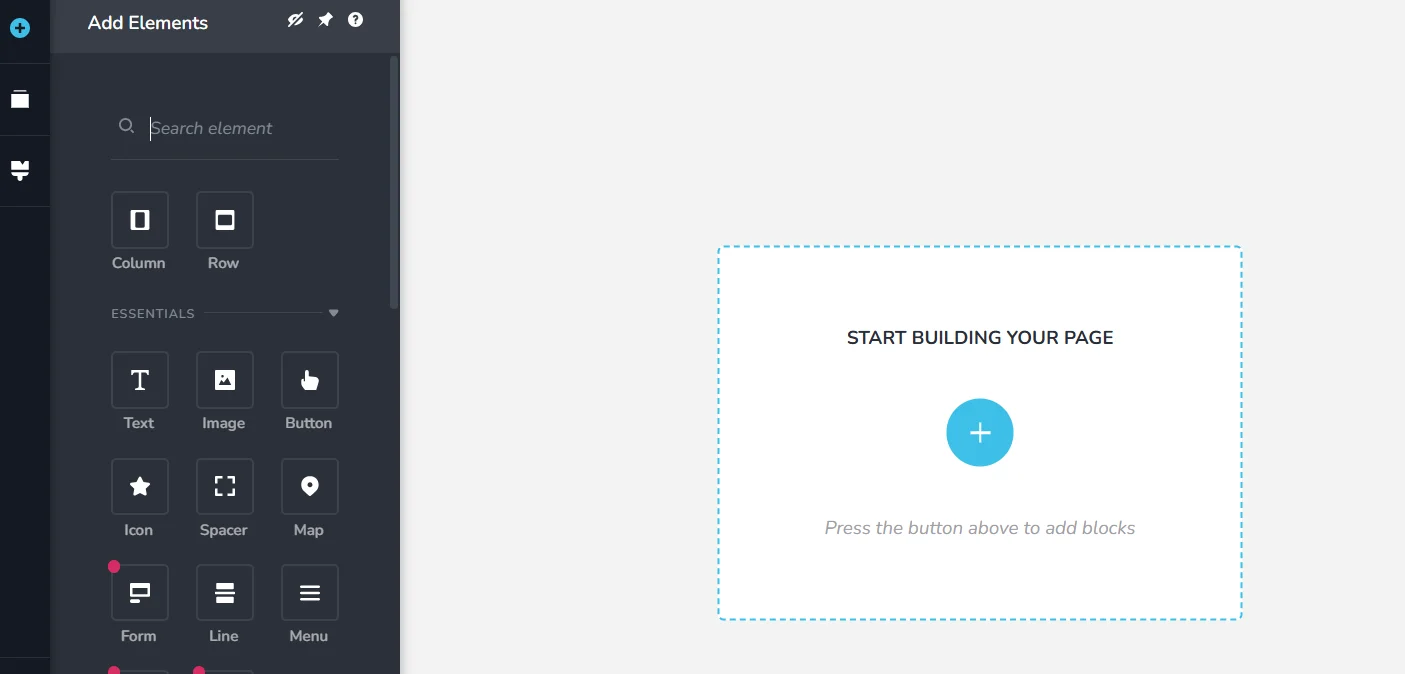
Brizy works on a freemium model. The free version covers most basic design needs, while the pro version unlocks advanced features like dynamic content, marketing integrations, premium templates, contact form element, etc.
The contact form element lets you quickly create and customize simple contact forms without installing a separate plugin. But despite how easy it is to set up, many users discover their Brizy forms don’t actually send emails.
Let’s check out the reasons behind Brizy’s contact form not sending emails.
Why Brizy Contact Form Emails Fail to Send
Brizy uses WordPress’s default mail function [wp_mail()] to send emails from your website. While this works sometimes, it’s notoriously unreliable and one of the main reasons behind WordPress not sending emails. Here’s why your Brizy contact form emails are not sending:
- Hosting Restrictions: Some shared and managed WordPress hosts (like GoDaddy or Bluehost) limit or completely block the PHP mail() function to cut down on spam abuse. If your server has restrictions, your emails never even leave your website.
- Multiple Plugins Using Different “From” Addresses: It’s common for other plugins on your site (like e-commerce or membership tools) to set their own sender email addresses. When these conflict with your Brizy form’s settings, mail servers often don’t know which sender is legitimate — leading to delivery failures.
- Missing DNS Records (SPF, DKIM, DMARC): These special DNS records prove to mail servers that your website is allowed to send emails on behalf of your domain. Without them, your domain lacks credibility, and inbox providers like Gmail and Outlook reject your emails altogether or dumped straight into the spam folder.
The bottom line is that relying on WordPress’s built-in PHPMailer without proper authentication is a recipe for undelivered messages. But don’t worry — the steps below will show you exactly how to fix these issues and make your Brizy forms reliable.
4 Easy Steps to Fix Brizy Contact Form Not Sending Email
Step 1: Check Email Settings in Brizy Contact Form
Before you install Post SMTP, the first thing to do is check that your Brizy contact form’s notification settings are correct. You can customize notification settings for each contact form separately.
To check the settings for your contact form, follow the steps below:
- Open Your Page in Brizy Builder: Go to the page with your contact form and launch the Brizy visual editor.
- Select the Submit Button: Click on your form’s submit button. When you do, a set of icons will appear — look for the last one on the right that looks like a plug.
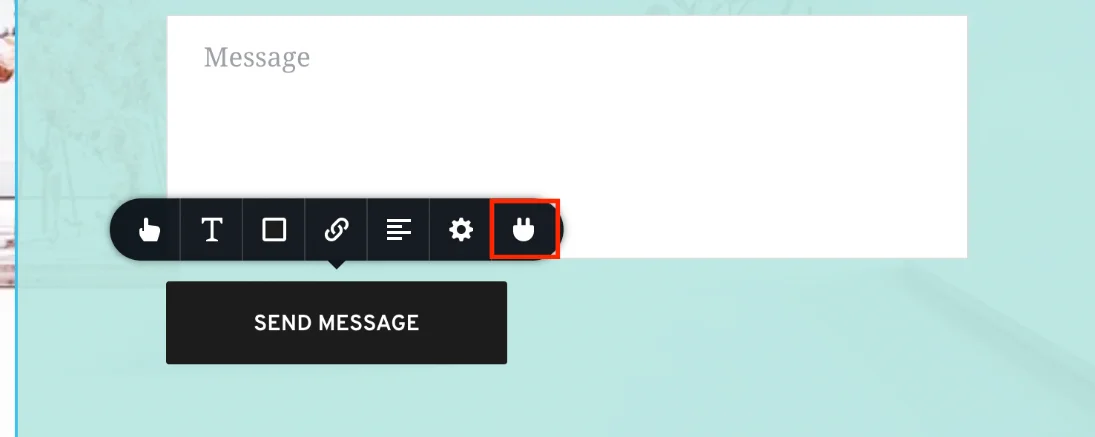
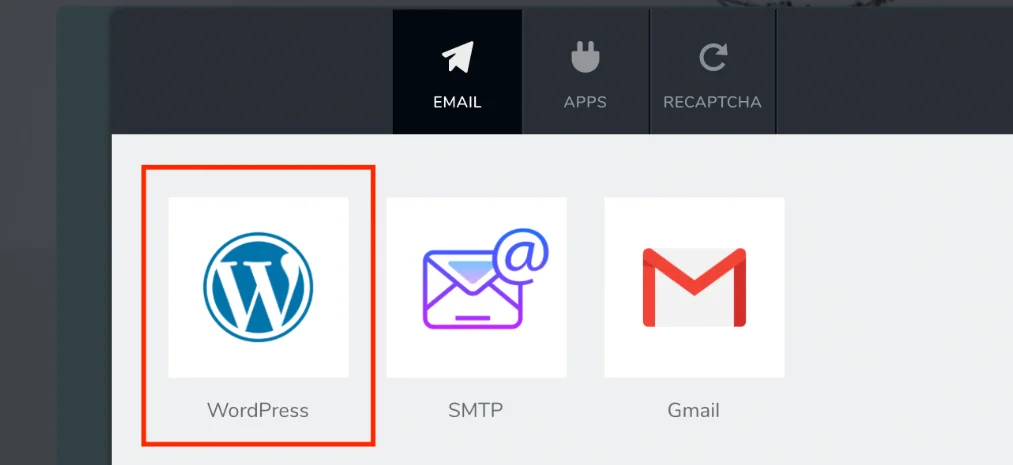
- Access Email Notifications: Click that plug icon to bring up the action settings for your form’s submit button. From the list of options, select WordPress — this uses WordPress’s native mail system.
- Adjust the Notification Fields: In the popup, you’ll see these fields:
- Email To: This is where form submissions will be sent. By default, Brizy fills in your WordPress admin email. It’s best to change this to a domain-based email you own (e.g., contact@yourwebsite.com).
- From Email: Enter an email address at your own domain (not a free email like Gmail or Yahoo). Using your domain-based address boosts deliverability and builds trust with mail servers.
- From Name: Set the name you want your visitors to see when they get an email from your website. This could be your website name or your personal/business name.
- Reply-To: Since this form notifies you (the website owner), you can leave this field empty. If you want replies to go somewhere else, you can fill in that address.
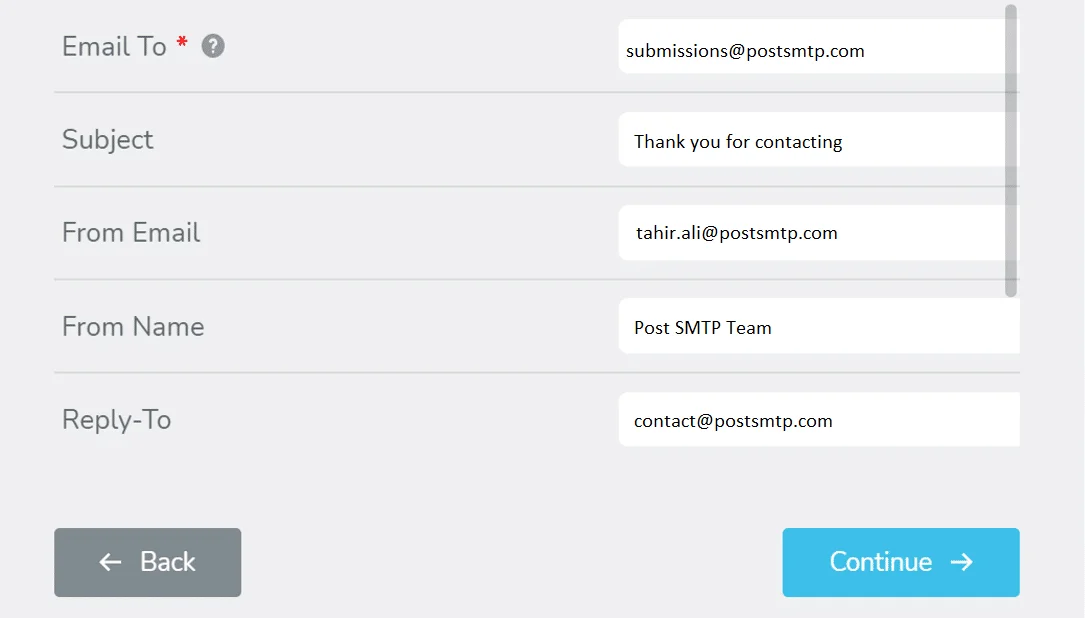
- Save Your Changes: Click Continue when you’re done, and you should see a success message confirming your email settings were saved.
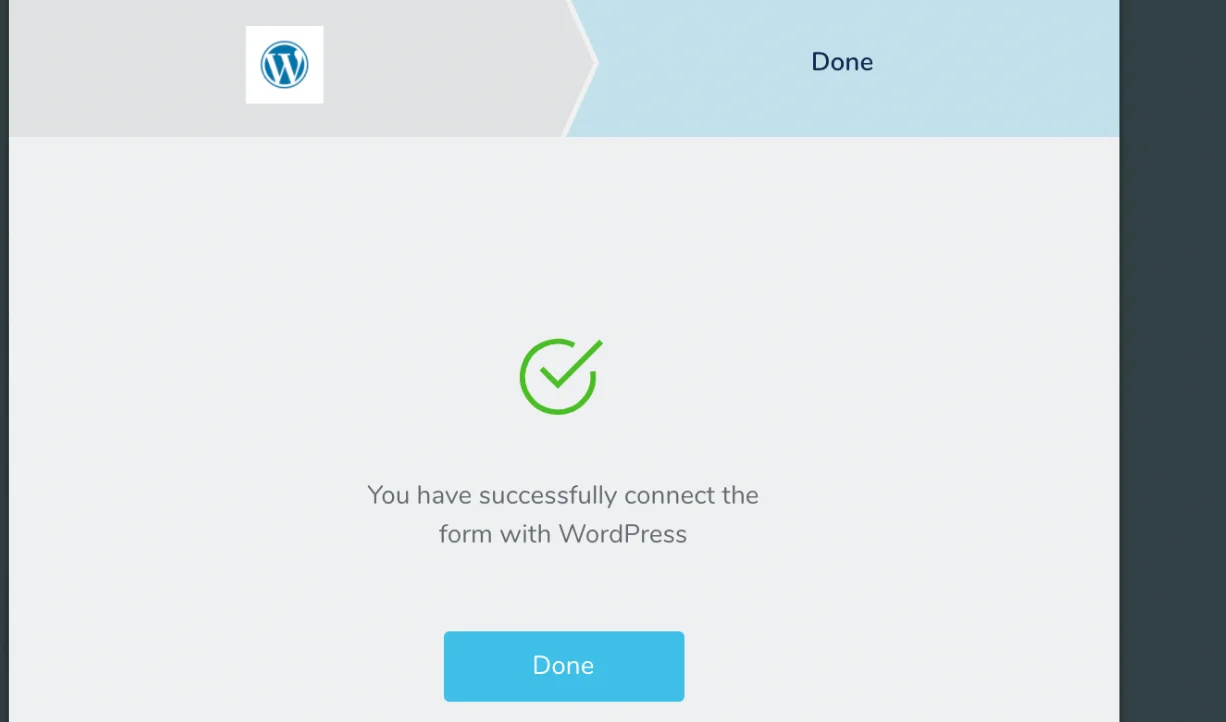
Setting these fields correctly gives your emails a much better chance of reaching the inbox. But since Brizy still uses WordPress’s unreliable wp_mail() function at this point, we’ll change it in the next step.
Step 2: Install & Set Up Post SMTP Plugin
As we told you, the wp_mail() function is not reliable for email delivery. That’s why you have to replace it with SMTP (Simple Mail Transfer Protocol) which is the industry standard for sending and receiving emails.
To do so, you need to install a dedicated SMTP plugin that authenticates your emails and routes them through a real mail server. This almost always solves deliverability problems.
One of the top choices is Post SMTP, a powerful plugin designed to replace WordPress’s built-in mail function with secure, authenticated SMTP delivery. It even includes features like email logs, delivery failure alerts, and advanced authentication methods like OAuth 2.0.
Here’s how to set it up:
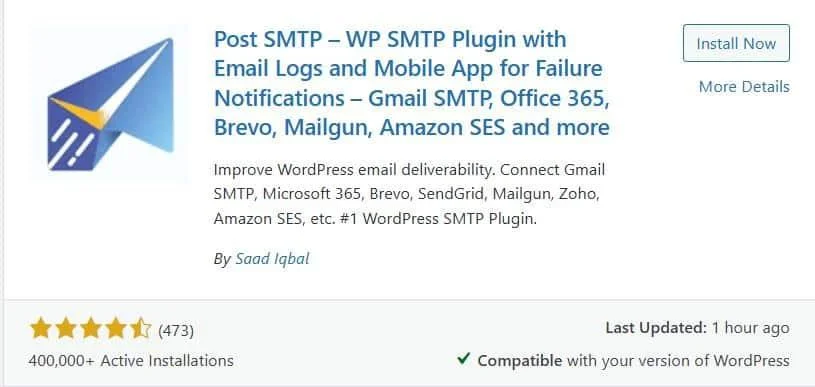
- In your WordPress dashboard, go to Plugins → Add Plugin.
- Search for “Post SMTP.”
- Click Install Now, then Activate once the plugin is installed.
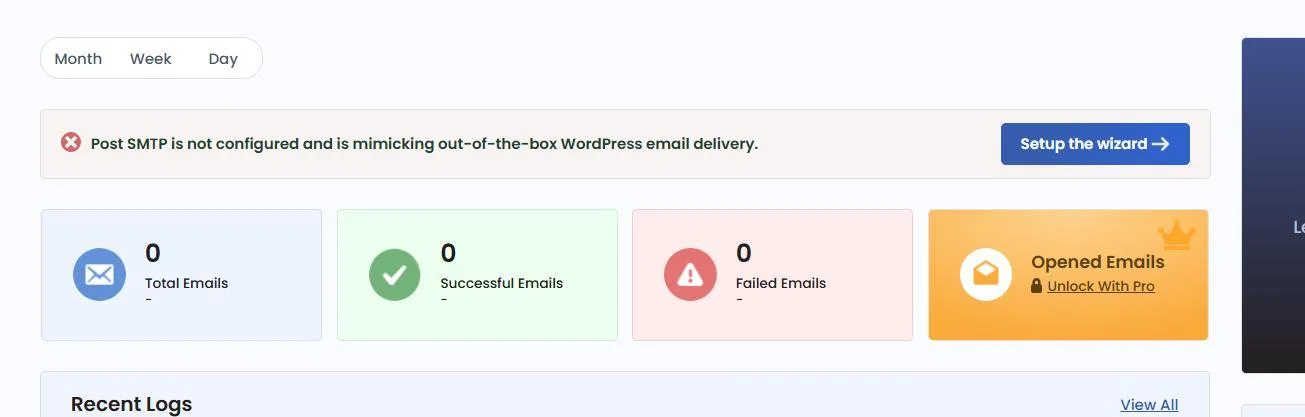
- After that go to Post SMTP → Dashboard and click Start the Wizard →.
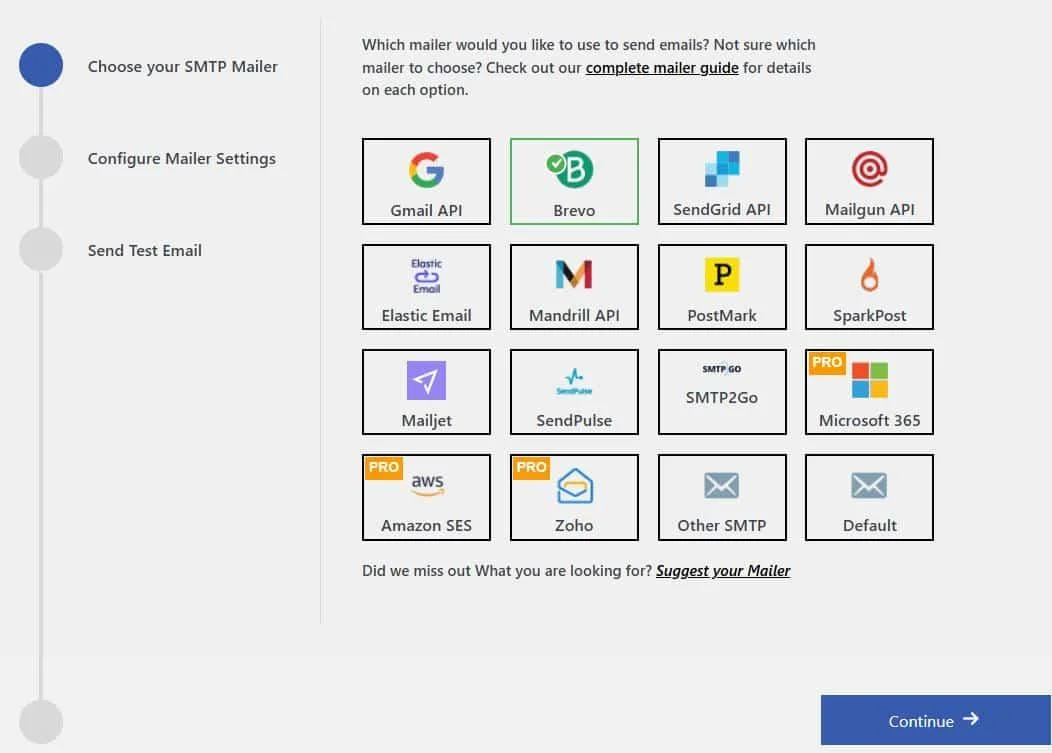
- On the subsequent screen, choose your email provider from the list. Post SMTP supports all major options: Gmail, Microsoft 365, Brevo, Mailgun, Amazon SES, Zoho Mail, and many more.
- For this guide, let’s say you pick Brevo — click Continue to proceed.
You’ll now see fields where you should fill in:
- From Email: Use a domain-based email address like you@yourwebsite.com. Enter the same email address you’ve added to the Brziy contact form notification settings.
- From Name: Enter your website name or your name. The same name you added to the Brziy contact form notification settings.
- API Key or SMTP Credentials: Depending on your provider, you’ll either paste an API key or fill in SMTP username, password, host, and port.
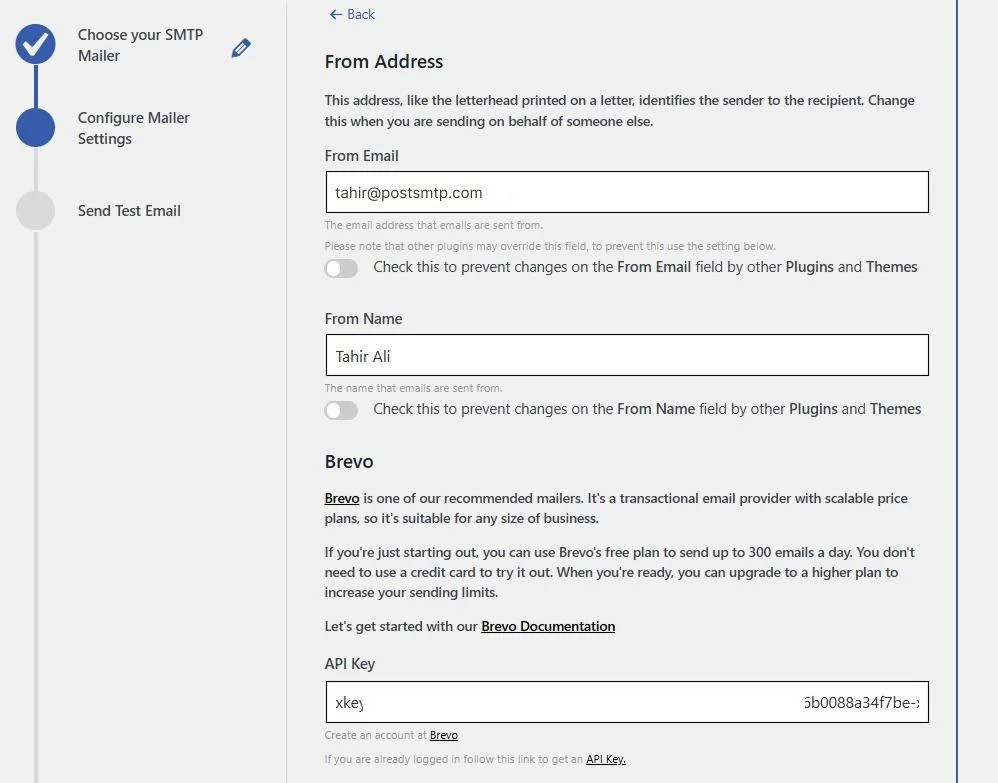
Once you’ve entered your information, click Save and continue. The wizard will prompt you to send a test email to verify your configuration.
Enter a valid email address and hit ‘Send The Email’ — if it arrives in your inbox, you’re good to go.
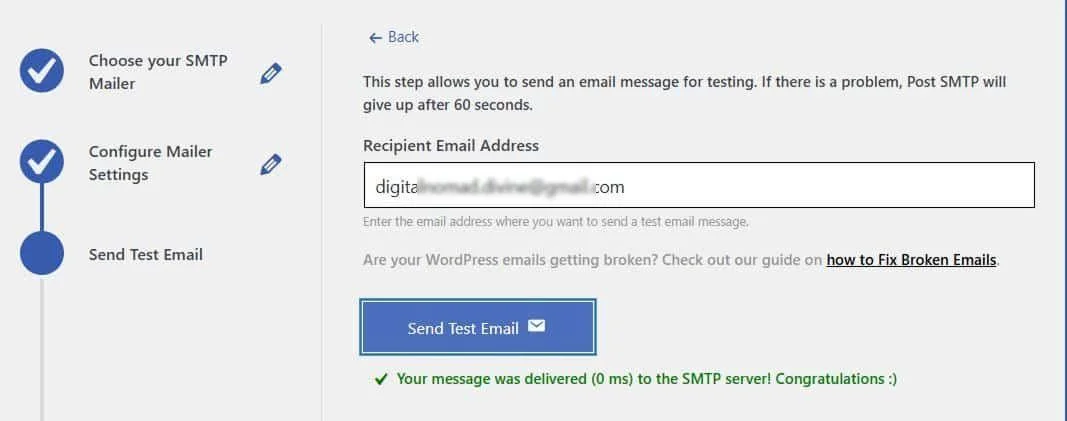
From now on, every email your WordPress site sends (including Brizy form submissions) will pass through your authenticated SMTP provider. That means they’re much less likely to be flagged as spam or blocked.
Step 3: Force a Consistent “From” Email Address
One of the sneakiest causes of email sending issues in WordPress is when different plugins and themes try to send messages using different sender addresses. For example, your Brizy form might use contact@yourwebsite.com, but another plugin might try to send from wordpress@yourhosting.com. This inconsistency confuses email servers and can trigger spam filters, causing emails to bounce or vanish.
The good news? You can easily fix this by forcing your entire WordPress site to use a single, consistent “From” email address. Post SMTP has a built-in option that locks your sender identity so no other plugin can override it.
Here’s how to set it up:
- Open Post SMTP Settings: Go to your WordPress dashboard → Post SMTP → Settings.
- Go to the Message Tab: Inside the settings, click on the Message tab. This is where you control the default sender information.
- Set Your Sender Email: In the Email Address field, type the email you want to use for all outgoing WordPress messages. Use the same email address you’ve added in the Brizy contact form notification settings.
- Prevent Other Plugins from Changing It: Under the email field, you’ll see a checkbox labeled ‘Prevent plugins and themes from changing this.’ Check this box. This powerful option tells WordPress to ignore any conflicting sender info from other tools you’re using.
- Save Your Changes: Click Save Changes at the bottom of the page to apply your new settings.
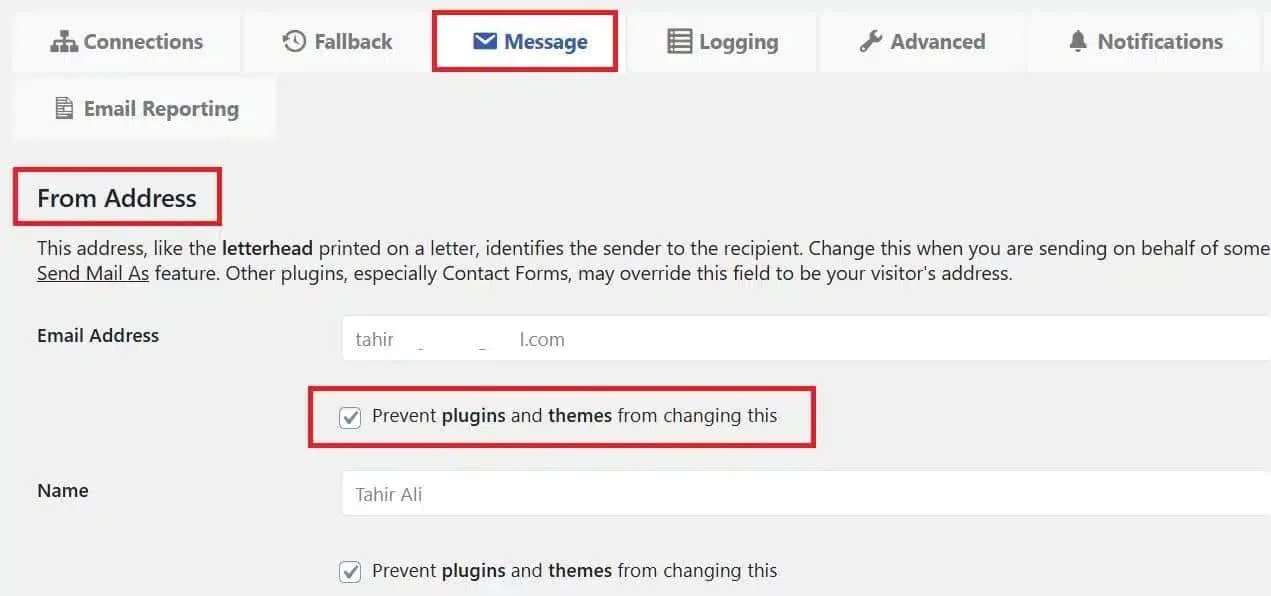
By forcing a consistent sender address, you eliminate one of the biggest reasons for email delivery failures in WordPress. This simple step makes your Brizy form emails — and every other message your site sends — much more reliable.
Step 4: Resend Missed Brizy Form Emails Using Email Log
If your Brizy contact form has been failing to send emails, there’s a good chance you’ve already missed some important messages from potential leads or customers. But don’t worry — you don’t have to leave those lost messages in the past. Post SMTP’s built-in Email Log feature makes it easy to find, review, and resend failed or missed emails directly from your WordPress dashboard.
Here’s how to use it:
- In your WordPress dashboard, navigate to Post SMTP → Email Log.
- Scan your email log for any entries marked as Failed or Pending. These are messages that didn’t reach their destination.
- Next to each failed email entry, you’ll see a Resend button. Click it, and Post SMTP will immediately attempt to resend the message using your newly configured SMTP settings.
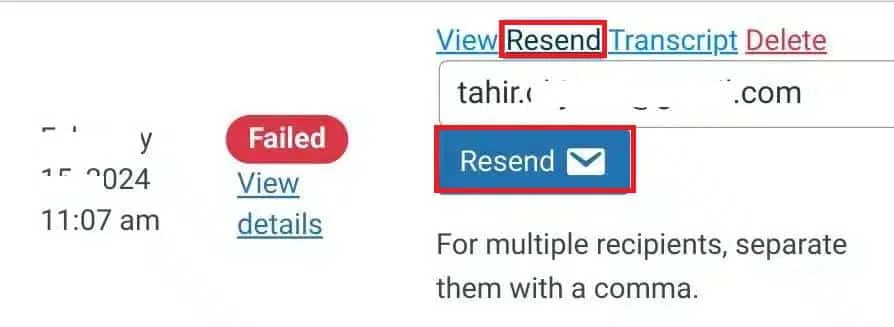
- Once present, check the updated status in the log to confirm it shows as Delivered. You should also receive the emails in your inbox or the recipient should confirm receipt.
You Can Use Email Log for Ongoing Troubleshooting
Even after you fix your Brizy form issues, keeping an eye on Post SMTP’s email log is a great way to keep track of your email messages. With email log screen, you can:
✅ Monitor every outgoing message in real time.
✅ Spot delivery problems early, before they impact your business.
✅ Resend important emails instantly if they don’t make it through the first time.
Pro Tips for Brizy Contact Form Email Deliverability
You’ve set up Post SMTP, fixed your sender address, and checked your Brizy email settings — but don’t stop there. These extra tips will help keep your contact form emails landing in inboxes reliably over the long term.
- Use a Domain-Based Email Address for All Communications: Using a free email like Gmail or Yahoo in your “From” address raises red flags with many inbox providers. Always send emails from an address linked to your website’s domain (e.g., hello@yourwebsite.com).
- Add SPF, DKIM, and DMARC Records to Your Domain: These DNS records tell receiving mail servers that your domain is authorized to send emails. They’re essential for proving your messages are legitimate and avoiding spam filters:
- SPF: Verifies your domain is allowed to send from your chosen mail servers.
- DKIM: Adds a digital signature to your emails so they can’t be tampered with in transit.
- DMARC: Based on SPF and DKIM checks, DMARC gives clear instructions to inbox providers on how to handle suspicious emails.
- Regularly Send Test Emails: After major WordPress updates, plugin installations, or theme changes, send a test email using Post SMTP’s built-in tool. This quick check helps you catch potential issues early.
- Avoid Using Overly Generic Subject Lines: Emails with vague subjects like “Contact Form Submission” can look spammy to filters. Make your subjects descriptive and unique to your site (e.g., “Message from [Your Site Name] Contact Form”).
- Keep Plugins Updated: Outdated plugins, including Brizy and Post SMTP, can introduce bugs or security issues that disrupt email sending. Regular updates keep everything running smoothly.
- Use a Backup SMTP Provider: Post SMTP allows you to set up a secondary SMTP service in case your primary provider goes down. This way, your Brizy contact forms keep working even during outages.
By following these simple but powerful tips, you’ll keep your Brizy contact forms sending emails reliably — and you’ll be ready to catch and resolve issues before they impact your business.
Get Expert Help for Persistent Brizy Email Issues
Even after setting up Brizy and Post SMTP, hidden server, DNS, or plugin issues can still block your emails. If you are facing any of these issues, get professional help and fix these problems quickly.
Here’s what we offer through our expert assistance:
✔️ Advanced SMTP setup for reliable delivery
✔️ Email testing with spam score checks
✔️ SPF, DKIM, and DMARC configuration
✔️ One-on-one session with an expert
Don’t let technical issues cost you leads or sales.👉 Book a session or submit a support ticket now to make sure your Brizy contact forms send emails every time.