OpenAI
 Perplexity
You are probably facing the “Easy Digital Downloads Email Not Sending” issue.
Right? Don’t worry.
We will show you the solution in this article!
When someone purchases a digital product from your store, they expect to receive the download link instantly. But if Easy Digital Downloads (EDD) emails are not delivered, customers might feel frustrated, which leads to high support requests and potential refunds. Ultimately, this issue can also hurt your store’s credibility and sales.
The good news is that fixing this problem is simple.
In this guide, you’ll learn why Easy Digital Downloads emails fail to send and how to resolve the issue in just four easy steps.
Reasons Behind WordPress EDD Email Not Working
If your Easy Digital Downloads emails aren’t reaching customers, you’re not alone. Many store owners face this issue, which leads to frustrated buyers who don’t receive their purchase confirmations or download links.
Let’s explore the main reasons behind this key problem.
Reason #1: Incorrect Easy Digital Downloads Email Settings
Easy Digital Downloads comes with built-in email settings that control order confirmations, receipts, and notifications. If these settings aren’t correct, emails might not deliver as expected.
One common mistake is using an incorrect “From” email address. If the email address doesn’t match your domain or isn’t properly authenticated, email providers may block or mark your messages as spam. Additionally, if email notifications are disabled in EDD settings, customers won’t receive purchase receipts or download links.
To avoid this issue, double-check your email settings in the Easy Digital Downloads dashboard. Make sure the correct email address is set, and verify that all essential notifications are enabled.
Don’t worry! Later in the article, we will show you how to review and correct your EDD email notification settings.
Reason #2: WordPress Default Mail Function
By default, WordPress uses the wp_mail() function to send emails, which relies on PHP’s built-in mail() function to deliver emails. This function lacks authentication and does not meet the industry standard for email deliverability. As a result, many emails sent through this method either fail to reach recipients or land in their spam folders.
Here’s a brief explanation of the reasons why the default WordPress email function isn’t reliable:
- Lack of Authentication – Emails sent via wp_mail() often don’t comply with authentication protocols like SPF, DKIM, or DMARC. Without these, email providers are highly likely to reject the messages or flag them as spam.
- Hosting Restrictions – Some web hosts disable PHP’s mail function to prevent spam abuse, which can prevent Easy Digital Downloads emails from being sent.
- Spam Filtering – Since WordPress emails lack proper authentication, they often get caught by spam filters, leading to missed notifications.
Because of these limitations, relying on WordPress’s default email setup isn’t a good idea for transactional emails like order confirmations. The best solution is to switch to an SMTP (Simple Mail Transfer Protocol) plugin, which we’ll cover in the next section.
04 Easy Steps to Fix the Easy Digital Downloads Email Not Sending Issue
The problem usually originates from incorrect email settings or WordPress’s unreliable default mail function. Fortunately, you can resolve this in just a few steps.
First, we will show you how to review your EDD email settings to confirm everything is configured correctly, followed by the installation and configuration process of the Post SMTP plugin to improve email deliverability.
Step 1: Review Email Settings of Easy Digital Downloads
To review your EDD email notification settings, go to your WordPress dashboard and navigate to Downloads > Emails to access the general email settings for Easy Digital Downloads.
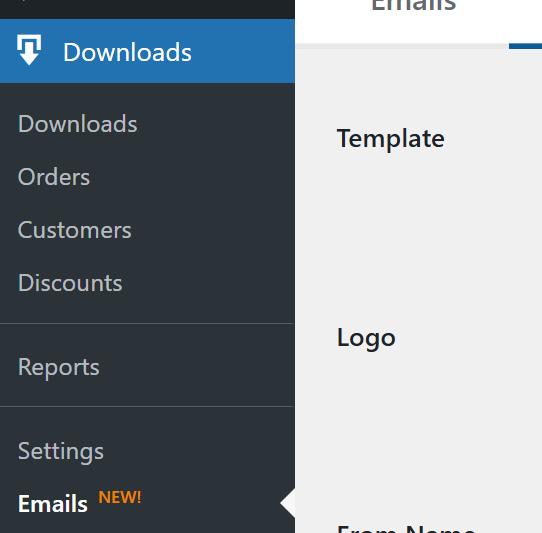
Now, click on the “Settings” tab and check the following email settings:
- Check the “From” Email Address: This should be an active email address that you regularly use. If the email address doesn’t match your website’s domain, email providers might flag your messages as spam. Using a domain-specific email also looks more professional than a generic Gmail or Yahoo address.
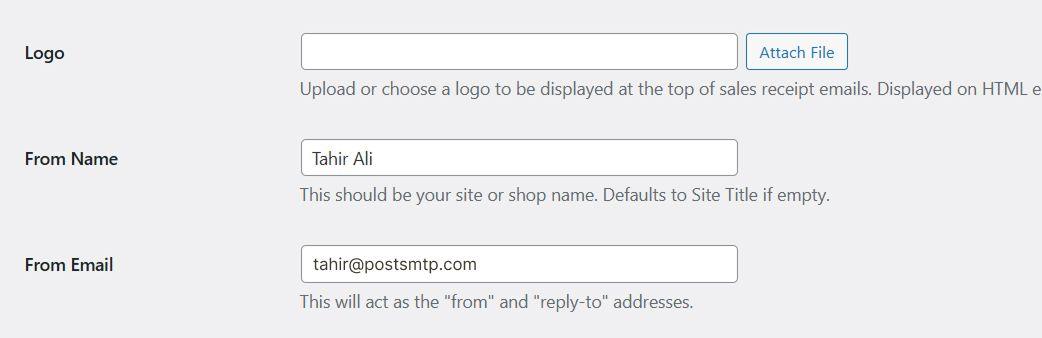
- Upload a Logo (Optional): You can add a custom logo design to your emails to maintain brand consistency.
- Save Your Changes: If you make any updates, click the “Save Changes” button.
Next, review the “Purchase Receipts” settings to verify that customers receive confirmation emails after completing a purchase. To do so, select the “Emails” tab and follow the steps below:
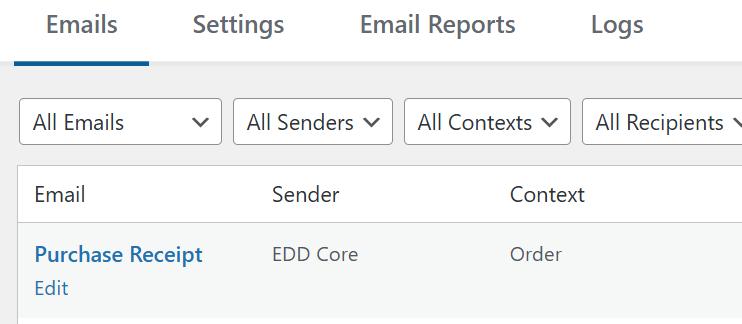
- Edit the Purchase Email Subject: Hover your mouse cursor over it and click “Edit” to modify the purchase report content. Avoid spam-triggering words like “100% FREE” or “Click Here,” as they can cause emails to be blocked.
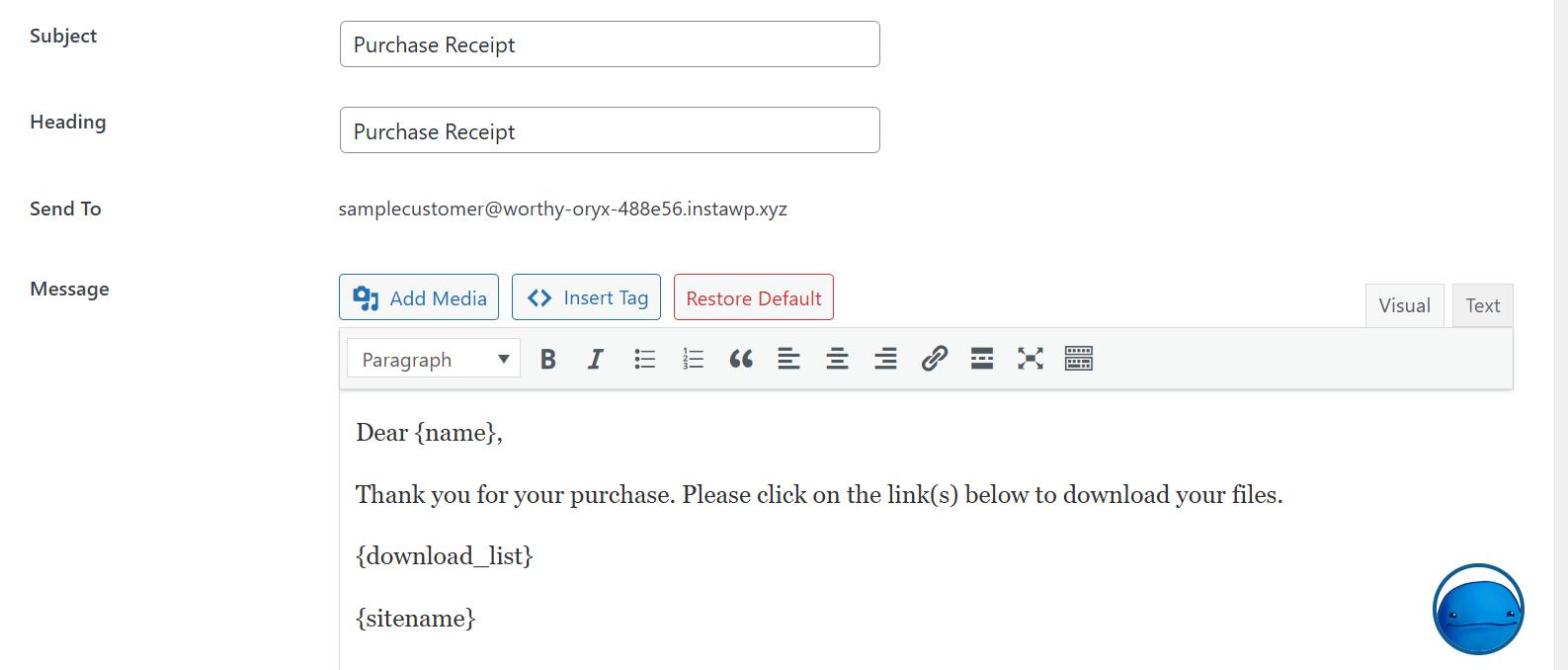
Next, go back and check the “Admin Sale Notification” settings.
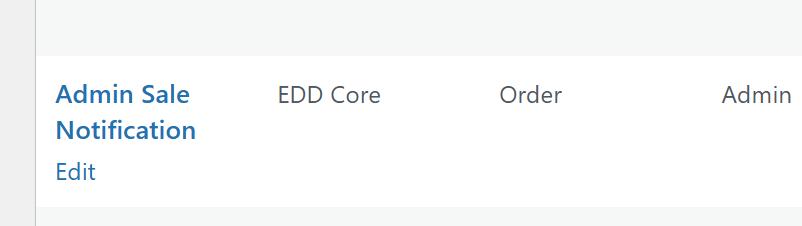
These settings control admin notifications when a sale is made. If you’re not receiving these emails, confirm that the correct admin email has been entered and that the admin sale notification has been enabled.
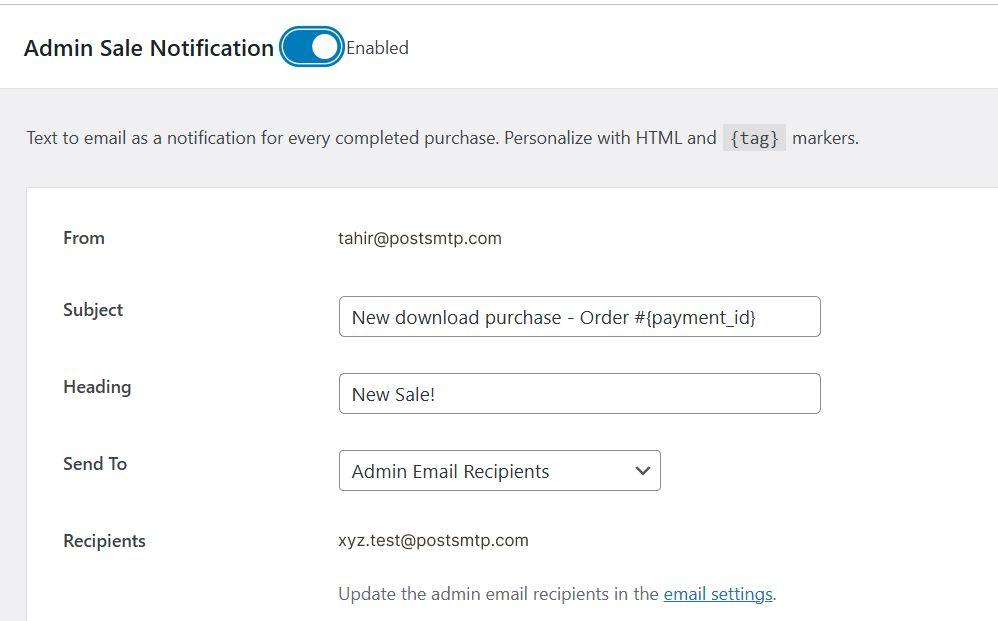
Even if everything looks correct, emails may still get filtered out as spam. To fully resolve email deliverability issues, proceed to the next step and set up the Post SMTP plugin.
Step 2: Install and Configure WordPress SMTP Plugin
As we told you earlier, the default PHP mail function often causes the “WordPress not sending emails” issue. To fix this, you need to install an SMTP plugin that connects your WordPress site to a reliable email service provider.
That’s where the Post SMTP plugin comes in! It is one of the best options for improving email deliverability. Post SMTP works with all popular email services like Gmail SMTP, Microsoft 365, Brevo, Zoho Mail, Mailgun, SendGrid, Mandrill SMTP, and more.
Besides, SMTP configuration Post SMTP also provides additional features, such as:
- Tracking every email sent from your site.
- Authenticating emails securely with OAuth 2.0.
- Setting up a backup SMTP mailer for failed emails.
- Automatically retrying failed email deliveries.
- Sending failure alerts via admin email, SMS, or Slack.
- Resending emails with attachments directly from the log screen
- Monitoring email delivery failures using a dedicated mobile app.
To set up SMTP on your WordPress site via Post SMTP, follow the steps below:
Install the Post SMTP Plugin
- Log in to your WordPress dashboard.
- Navigate to Plugins > Add New Plugin.
- Search for Post SMTP in the search box.
- Find “POST SMTP – WordPress SMTP Plugin…..” by Saad Iqbal and click Install Now.
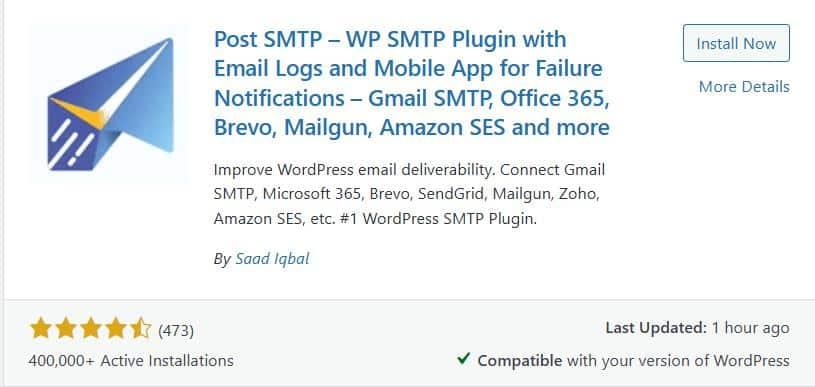
- After installation, click Activate.
Run the Setup Wizard
- Go to Post SMTP > Dashboard.
- Click “Setup the wizard” to begin configuration.
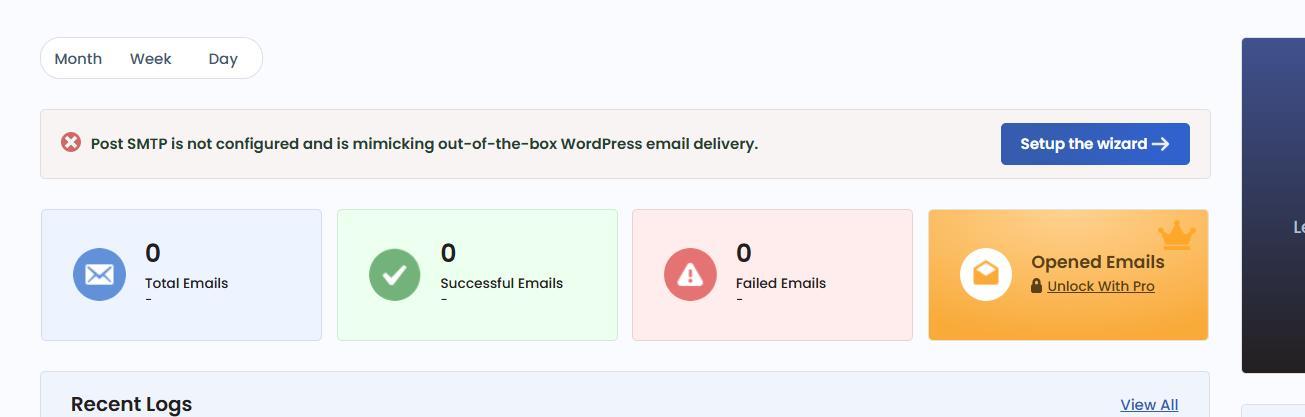
Choose Your SMTP Service
- Select the SMTP service you want to use, such as Gmail SMTP Server, Microsoft 365, Mailgun, Amazon SES, Zoho Mail, or Brevo. For this article, we will go with Brevo.
- Click Continue to proceed.
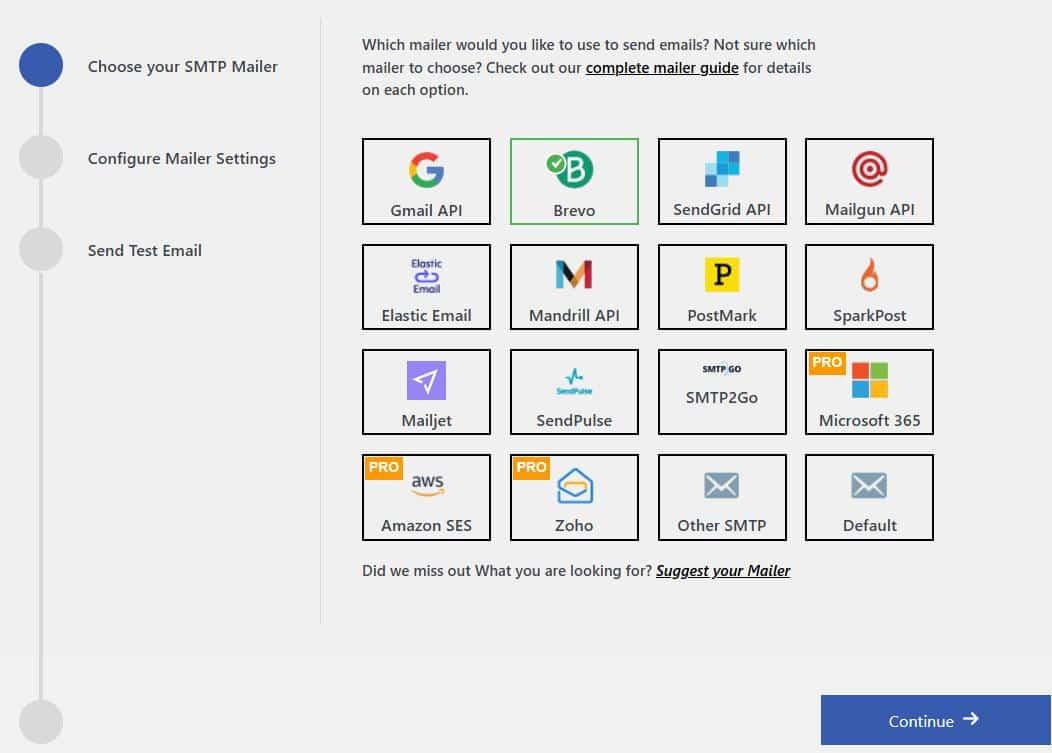
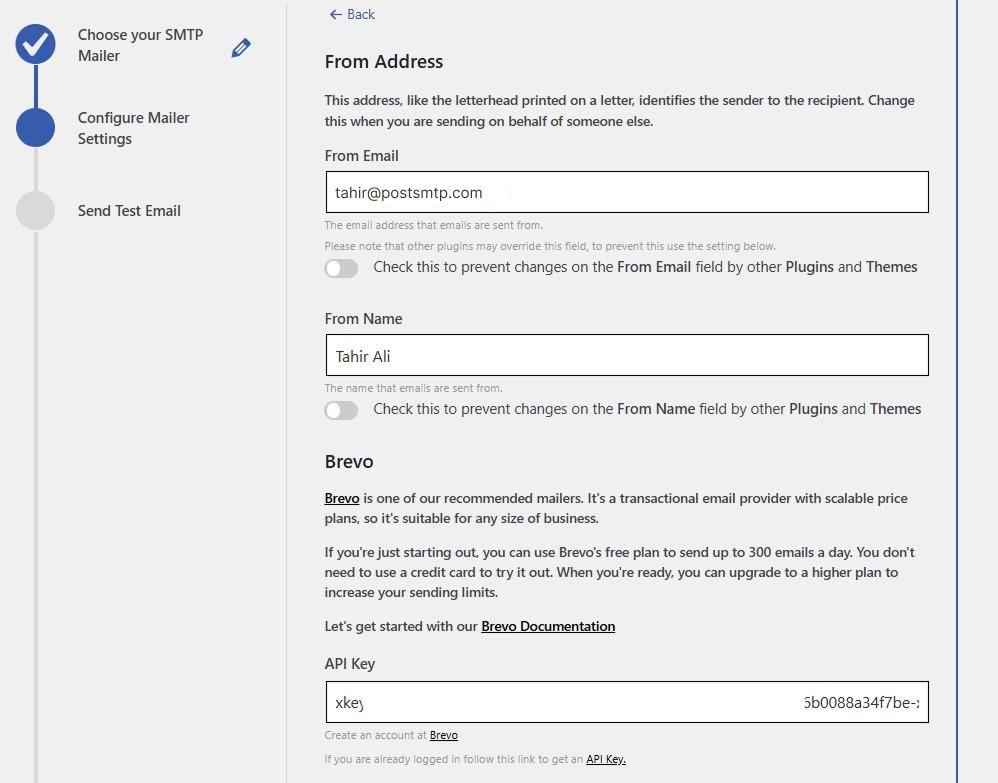
Enter Sender Details
- Fill in the “From Email” and “From Name” fields with your email address and sender name.
- Provide the “API Key” or SMTP credentials for your chosen service.
- Click “Save and Continue.”
Send a Test Email
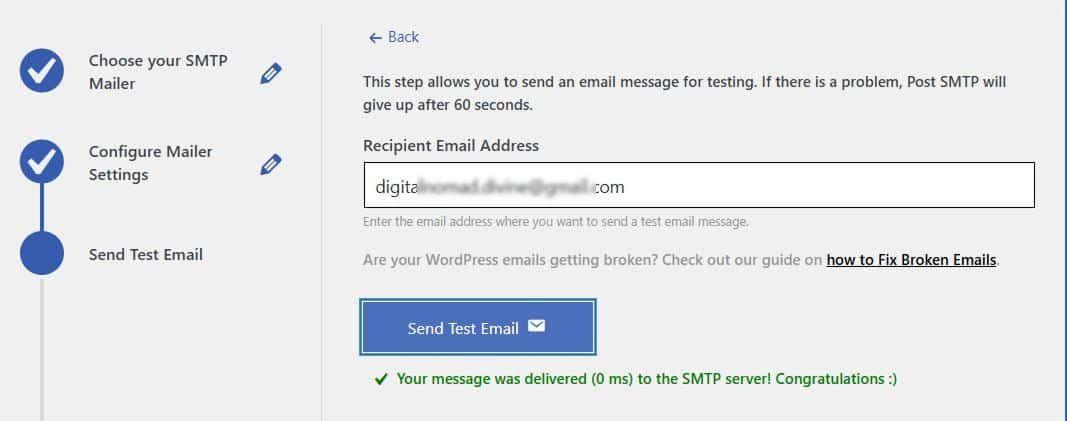
- Enter an email address you have access to in the “Recipient Email Address” field.
- Click Send Test Email to verify the setup.
If the test email is successful, you will see a confirmation message.
Complete the Setup
- Click Finish to finalize the SMTP configuration.
Once configured, Post SMTP will handle all outgoing emails from your WordPress site, reducing the chances of messages being blocked or marked as spam.
Step 3: Force the “From” Email Address
Using a consistent “From” email address for all outgoing messages helps prevent email conflicts and improves deliverability. If you set up multiple sender email addresses on different plugins, your emails might be flagged as spam or fail to send.
Post SMTP allows you to override these changes and enforce a single sender address for all emails sent from your WordPress site.
Follow these steps to configure a fixed “From” email address in Post SMTP:
Access Post SMTP Settings
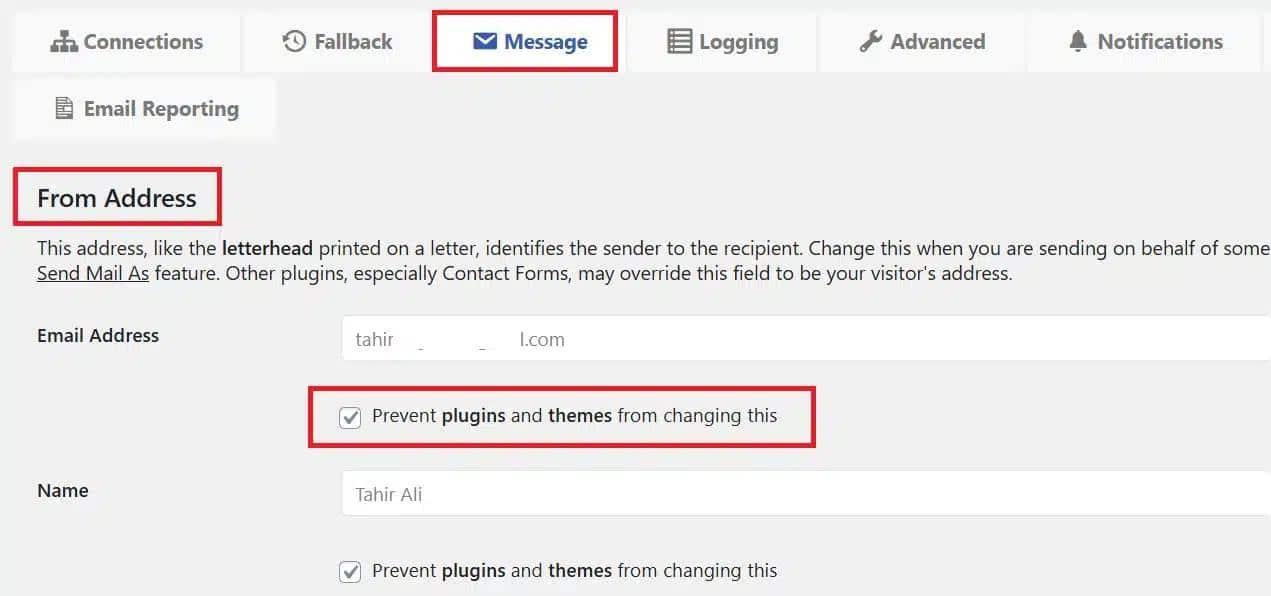
- In your WordPress dashboard, go to Post SMTP → Settings.
- Click on the Message tab to open the email configuration settings.
Set the “From” Email Address
- Find the Email Address field.
- Enter the email you want to use for all outgoing emails.
Use an email address that matches your domain to reduce the chances of emails being marked as spam.
Prevent Sending Address Conflict
- Check the box that says, “Prevent plugins and themes from changing this.”
This prevents other plugins or themes from modifying the sender address, keeping it consistent across all emails.
Step 4: Save Changes
- Click the Save Changes button to apply your settings.
Top Tip: Check Your Email Spam Score Regularly
If your Easy Digital Downloads emails still aren’t reaching inboxes, your email domain might have a high spam score. A high spam score increases the likelihood of your emails being filtered into spam folders or blocked by email servers.
Fortunately, you can use our Spam Score Checker tool to analyze your domain’s reputation and identify any issues affecting email deliverability. This tool provides actionable insights to help reduce the chances of your emails being marked as spam.
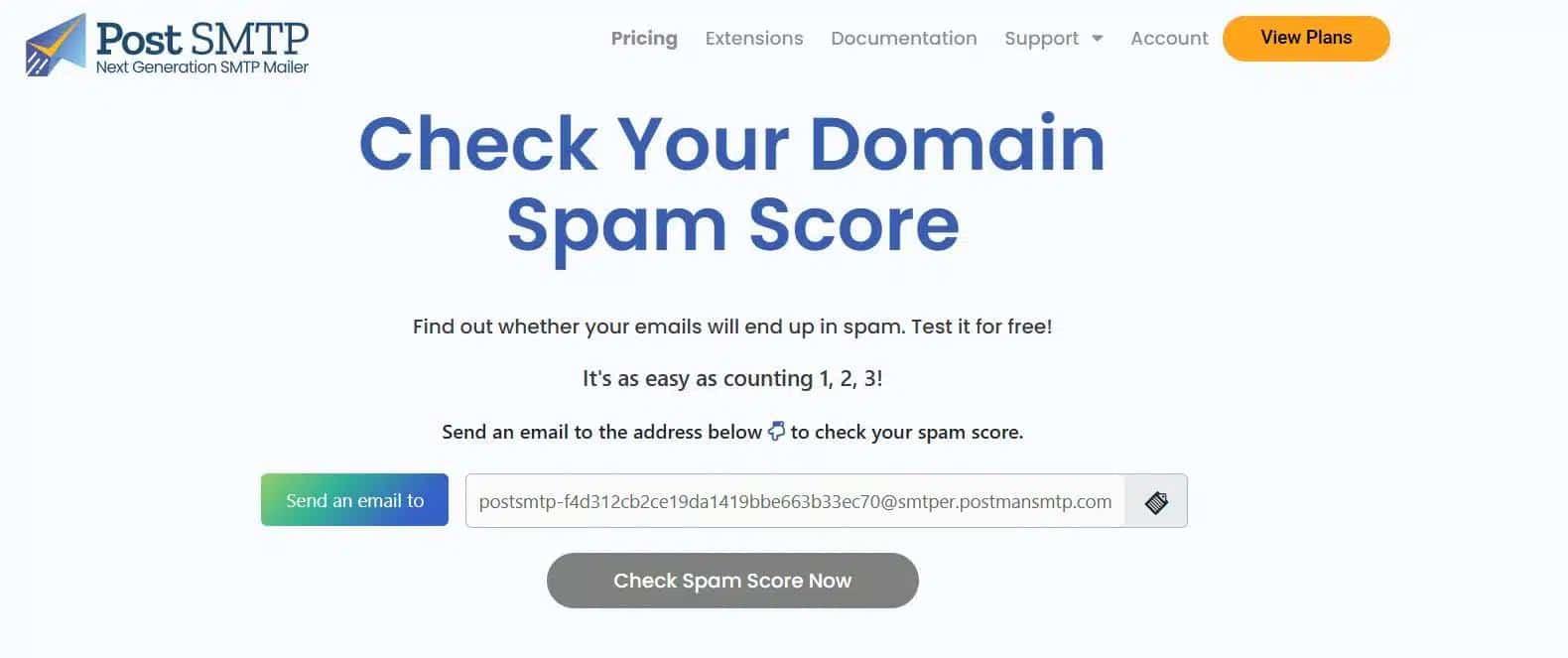
If your domain has a high spam score, take the following measures:
- Set Up SPF, DKIM, and DMARC Records – Configure these DNS records to authenticate your emails.
- Use a Professional Email Address – Sending from a domain-based email (e.g., yourname@yourdomain.com) instead of a free email service (e.g., Gmail, Yahoo) improves trustworthiness.
- Avoid Spam Trigger Words – Words like “free,” “guarantee,” or “urgent” in email subject lines can increase spam risk.
- Regularly Monitor Your Score – Keep checking your spam score and adjust settings to maintain a low-risk rating.
If you’re unsure how to configure DNS records or need help resolving email deliverability issues, consider reaching out to an expert for assistance.
Get Expert Assistance for Easy Digital Downloads Email Issues
If you’re still struggling with email delivery issues in EDD despite following the steps in this guide, professional assistance can save you time and frustration. Our technical email specialists can help you set up and optimize your email configuration for reliable email delivery.
With our SMTP & email configuration service, you will get:
- Advanced SMTP setup for optimal email deliverability
- Email delivery testing to verify outgoing messages
- Spam score analysis to detect and fix issues
- SPF and DKIM record setup to authenticate emails
- MX and TXT record configuration for better domain reputation
- 30-minute remote session (if needed) for hands-on troubleshooting
Don’t let email issues affect your sales! Request expert assistance today and make sure your customers receive their purchase emails without delay.