



























When Gutena Forms submits a form successfully but you don’t receive the email notification, the problem can occur somewhere in the WordPress email delivery process rather than the form submission itself.
Gutena Forms relies on WordPress’s wp_mail() function to send email notifications, while the configured mail transport handles the message delivery. Hosting restrictions, mailer configuration, sender settings, or missing email authentication can prevent the message from reaching the recipient’s inbox.
In this guide, you’ll learn how to troubleshoot Gutena Forms email notifications step by step. We’ll start with a quick checklist, then test WordPress email delivery, configure Post SMTP with an authenticated mailer, troubleshoot common delivery errors, and check your domain’s email authentication.
Quick Checklist
Before you start the detailed troubleshooting steps, run through this checklist. These checks can identify simple configuration and delivery problems before you change your SMTP settings.
- The recipient address in your Gutena Forms notification settings is correct.
- The WordPress Administration Email Address under Settings → General is correct and accessible.
- A test email sent through your WordPress mail system reaches the intended inbox.
- If your host doesn’t reliably deliver WordPress email, connect an SMTP plugin such as Post SMTP to an authenticated mail provider.
- Your sending domain has the SPF and DKIM records required by your email provider; configure DMARC based on your provider’s requirements and your domain’s email policy.
If this list doesn’t resolve your issue, continue below for the full step-by-step process.
How Gutena Forms Email Notifications Work
When someone submits a Gutena Forms form, the process involves more than the form itself. Understanding the email path makes troubleshooting much easier.
- The visitor submits the form.
- Gutena Forms processes the submission and triggers its admin email notification.
- WordPress processes the message through wp_mail().
- The configured mail transport, such as an SMTP or API-based mailer, sends the message to the recipient’s mail server.
- The recipient’s email provider evaluates authentication, reputation, spam signals, and other delivery factors before accepting, filtering, or rejecting the message.
This explains why a form can show a successful confirmation message while you never receive the notification: form processing can succeed even when WordPress or the mail provider encounters an email delivery problem.
Common Gutena Forms Email Delivery Problems
Gutena Forms email issues can appear in different ways. Sometimes form submissions succeed, but no notification email arrives. Other times, emails land in spam, fail with an SMTP error, or reach some recipients but not others.
Checking each part of the delivery path in order will help you identify the root cause without changing several settings at once.
1. WordPress Default Mail Limitations
By default, Gutena Forms relies on WordPress’s wp_mail() function to send email notifications. Depending on your hosting environment, this default mail path may lack the authentication and deliverability controls that an SMTP or transactional email provider offers.
A reliable email deliverability approach is to configure an SMTP plugin such as Post SMTP with an authenticated email service. Post SMTP routes WordPress email through the configured mailer, giving you more control over authentication, delivery, logging, and troubleshooting.
2. Gutena Forms Email Configuration Issues
If your SMTP mailer works but Gutena Forms still doesn’t send notification emails, review the form’s admin email notification settings and recipient address.
Common configuration mistakes include:
- An incorrect recipient email address
- An invalid or unauthorized From Email address
- An incorrect Reply-To address
- Notification emails being disabled
- A form notification configuration that doesn’t match the intended recipient
Verify your form’s notification settings and send a test submission to confirm that the configuration works.
3. DNS Records Not Configured Properly
If your SMTP configuration and Gutena Forms settings are correct but emails still aren’t being delivered, your domain’s DNS configuration may cause the problem.
Email providers use authentication signals such as SPF, DKIM, and DMARC to evaluate messages and decide whether to accept, filter, or reject them. Check that your domain has the DNS records required by your email provider, including:
DNS changes are not always visible immediately. Depending on your DNS provider, record TTL, and resolver caching, new records may take time to appear across DNS resolvers.
Once your DNS records show the correct configuration, send another test email to verify delivery.
What You’ll Need to Fix Gutena Forms Emails
Before you start troubleshooting, make sure you have:
- Administrator access to your WordPress dashboard
- Access to the email account that should receive Gutena Forms notifications
- Access to your domain’s DNS settings
- Your email provider account and authentication credentials
- Post SMTP installed if you need to configure an SMTP or API-based mailer
Step-by-Step Process to Fix Gutena Forms Not Sending Emails
The cause can vary from an incorrect notification address to a failed mail transport or an email authentication problem. Follow these steps to isolate the failure instead of changing several settings at once.
Step 1: Verify the Admin Email Address for Form Notifications
First, check the WordPress administration email and the recipient configured for Gutena Forms notifications.
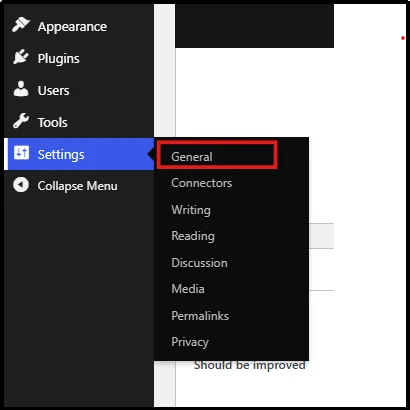
- Log in to your WordPress dashboard and go to Settings → General.
- Check the WordPress Administration Email Address and confirm that you can access that inbox.
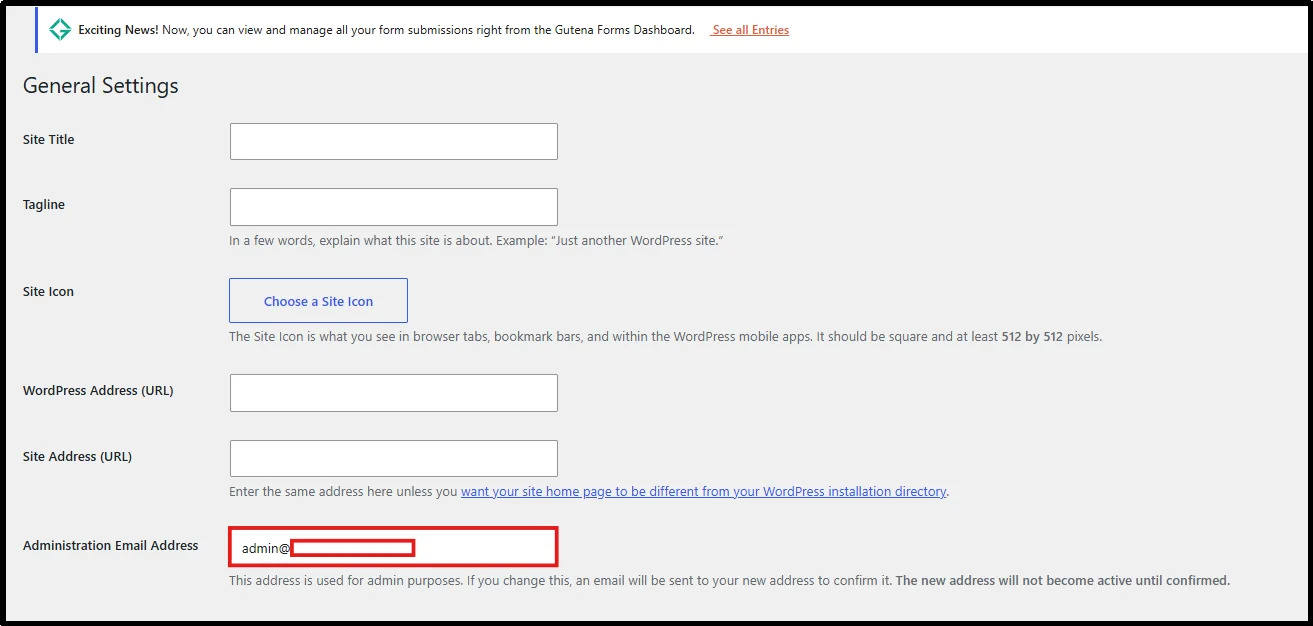
If you find an incorrect address, correct it and submit the form again before moving to the next step.
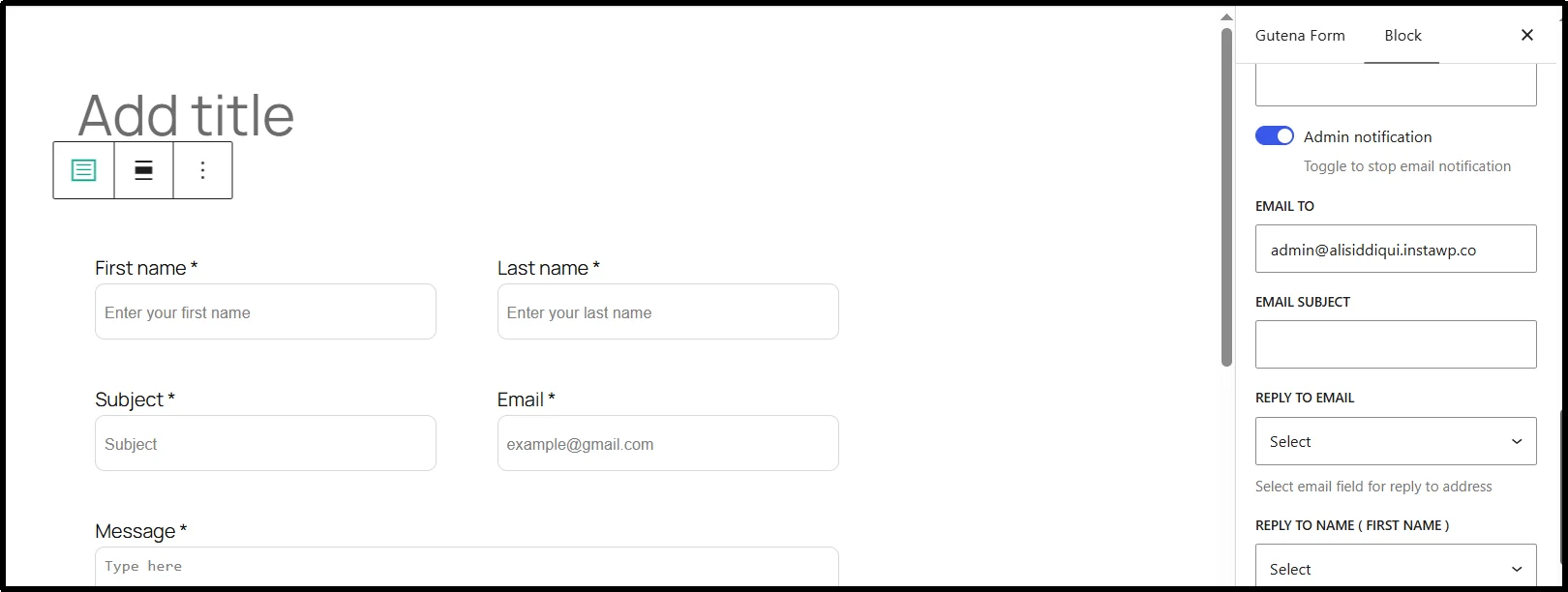
You can also update the admin email address for individual forms from the sidebar.
Step 2: Install and Activate Post SMTP
If your WordPress site doesn’t have reliable mail transport, install Post SMTP and connect it to an authenticated email service.
- Go to Plugins → Add Plugin.
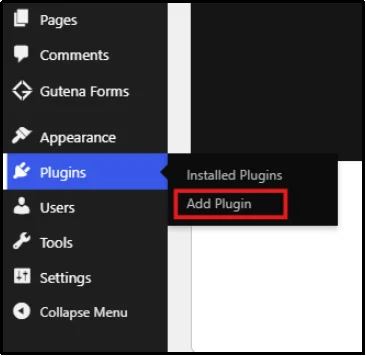
- Type Post SMTP in the search bar.
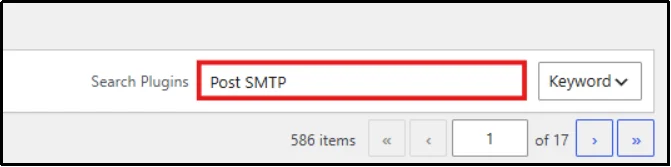
- Click Install Now, wait a moment, then click Activate when the button changes.
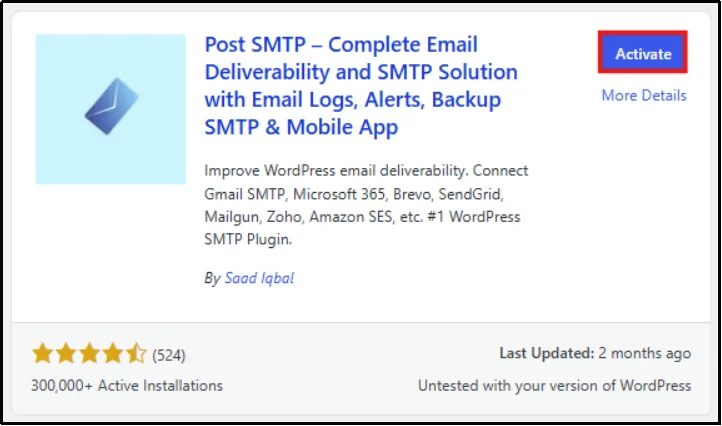
After you activate Post SMTP, continue to the setup wizard to configure your mailer.
Step 3: Use the Setup Wizard to Configure Your Mailer
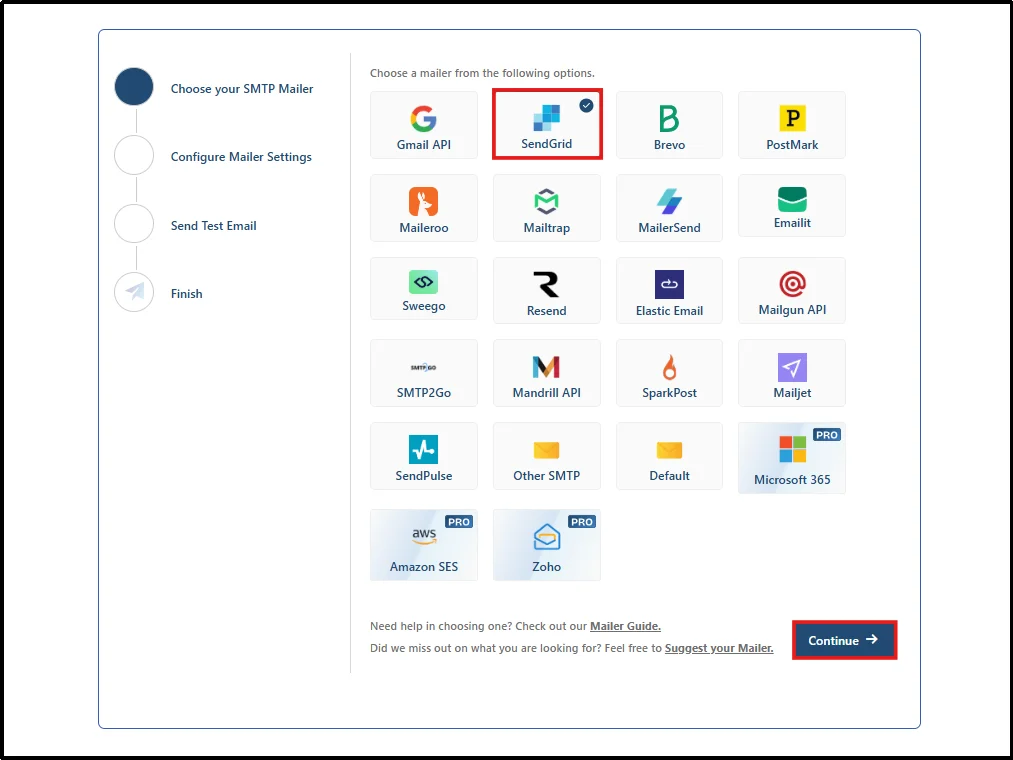
Post SMTP supports multiple mailers, including SMTP and API-based email services. In this tutorial, we’ll use SendGrid as an example.
- Once you activate the plugin, you’ll be redirected to the setup wizard. You can also open the setup wizard from the Post SMTP dashboard.
- Choose the mailer you want to use. In this tutorial, we’ll use SendGrid, then click Continue.
- Enter a From Email address that SendGrid allows you to use and a suitable From Name. Make sure you verify the sending domain or sender identity required by SendGrid before sending production emails.
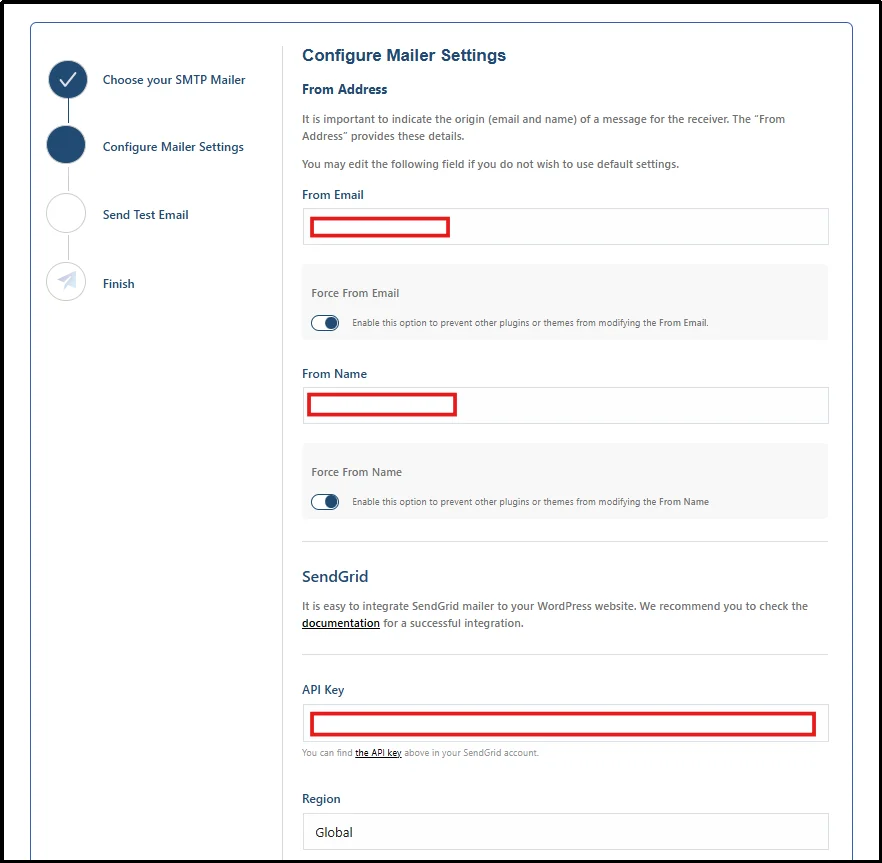
- Enter the API Key and select the region. Then click Save and Continue.
- Enter the recipient email address. You can either click Send Test Email or choose the option to send a test email later.
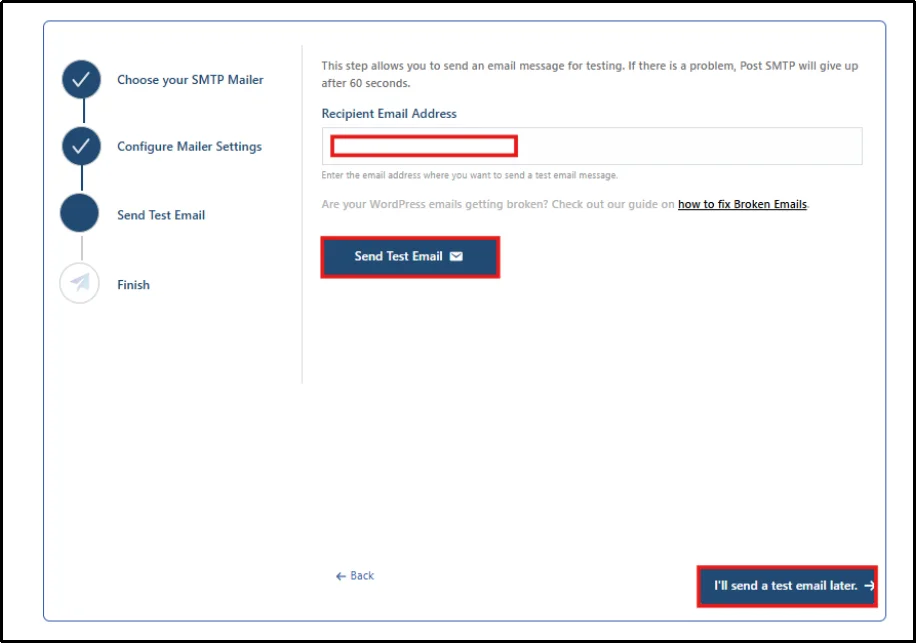
- Post SMTP will display the test result so you can determine whether the mailer accepted the message or returned an error. Then check the recipient’s inbox and spam folder to confirm that the message actually arrived.
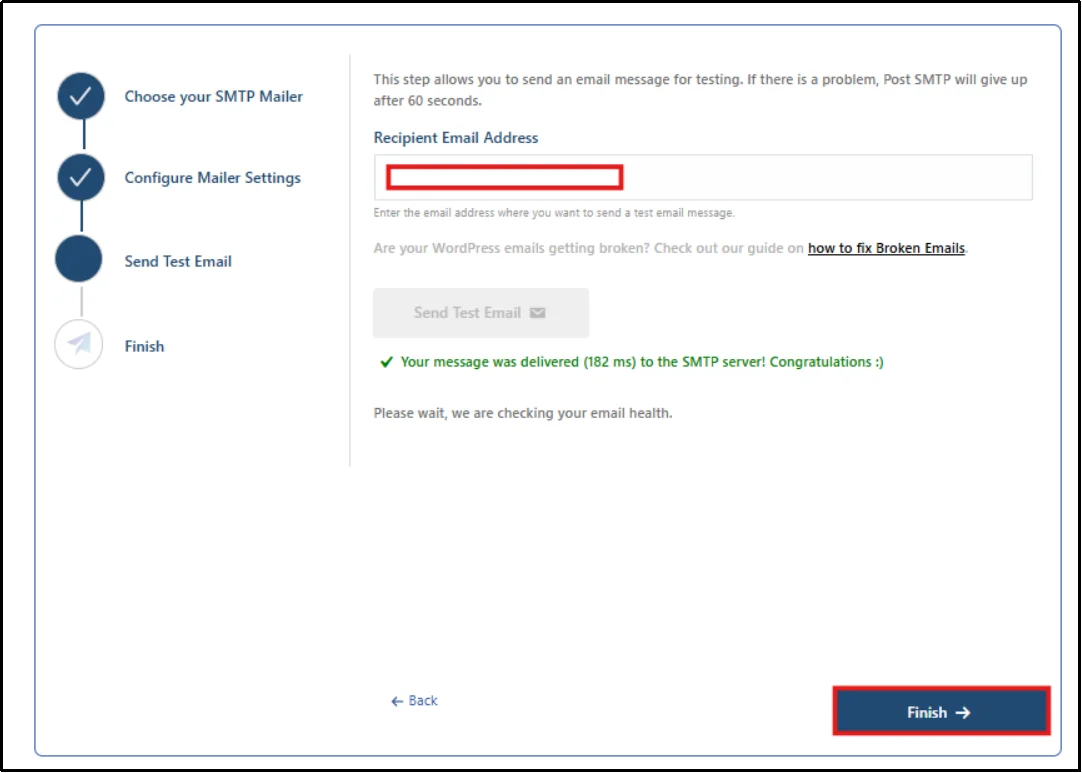
- Click Finish to complete the wizard setup.
Although this tutorial uses SendGrid, Post SMTP supports many popular SMTP and transactional email providers. Choose the service that best matches your budget, email volume, authentication requirements, and technical setup.
How to Send a Test Email Later
If you skip the test during the setup wizard, you can send one later from the Post SMTP dashboard.
- Go to the Post SMTP dashboard.
- Click Send a Test Email.
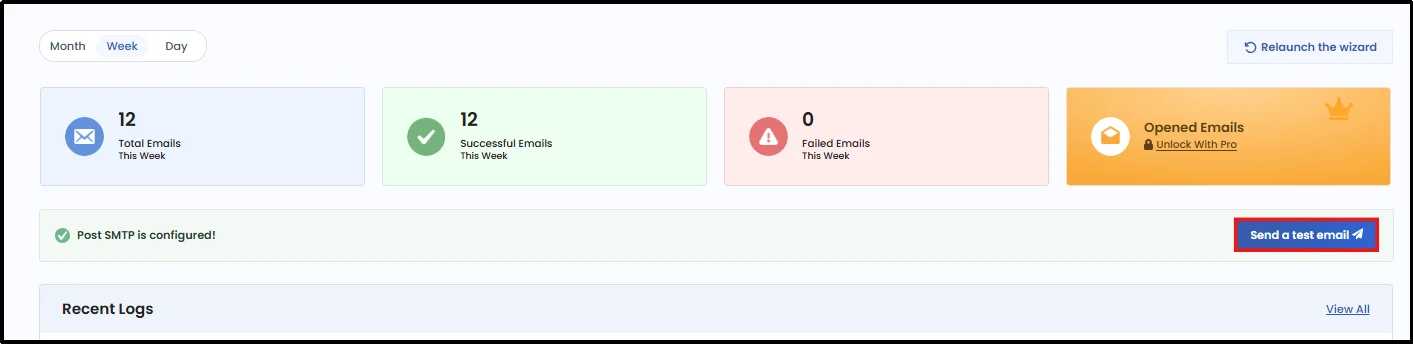
- The test email wizard will open. Enter your recipient email address, then click Send Test Email.
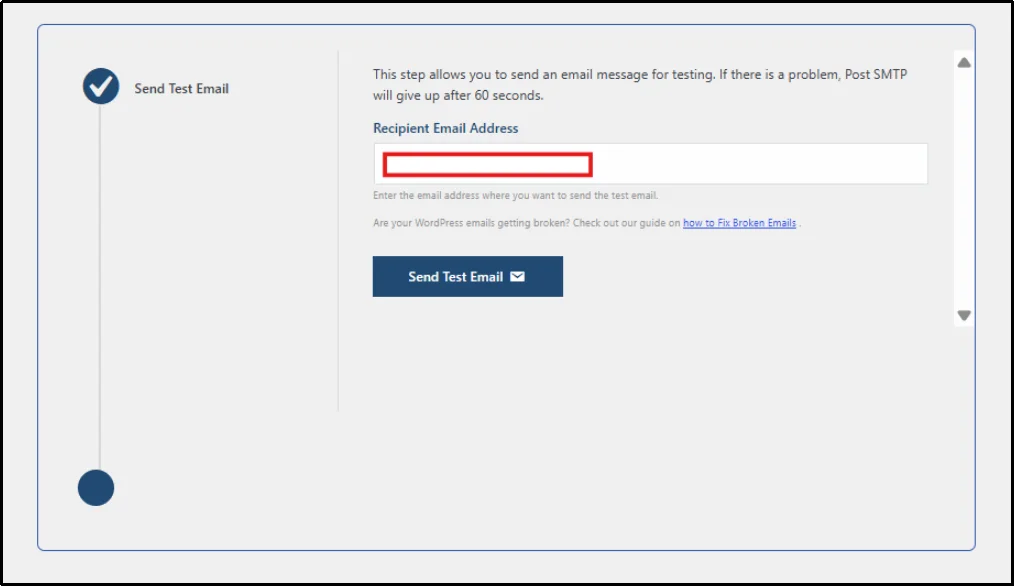
- Check the status message after Post SMTP attempts to send the email.
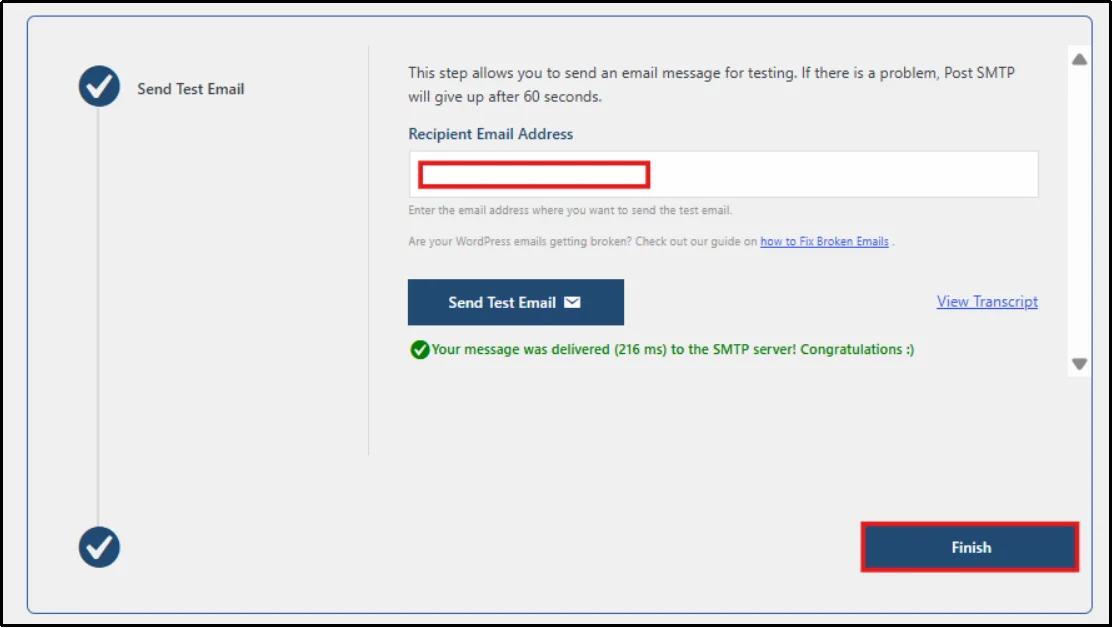
- Click Finish when you’re done.
If Post SMTP reports a successful test, check the recipient’s inbox and spam folder to confirm that the message arrived.
Best SMTP Providers for Gutena Forms
Here are several mailers you can use with Post SMTP. Free-plan limits and pricing can change, so check each provider’s current terms before choosing a service.
| Provider | Ease of Setup | Free Plan | Best For |
| Gmail SMTP | Easy | Yes, limited daily volume | Small sites and low email volume |
| Brevo | Easy | Yes, subject to current provider limits | Growing sites that need a free tier |
| SendGrid | Moderate | Yes, subject to current provider limits | Developers who want API access |
| Mailgun | Moderate | Limited | Transactional email at scale |
| Amazon SES | Advanced | Yes, with an AWS account and applicable limits | High-volume senders comfortable with AWS |
| Microsoft 365 | Easy | No, requires a subscription | Businesses already using Microsoft 365 |
| SMTP.com | Easy | No | Businesses that want dedicated email delivery support |
For a small WordPress site, Gmail or a transactional email provider such as Brevo can be a practical starting point. Your best choice depends on your sending volume, domain setup, authentication requirements, technical needs, and the provider’s current limits and pricing.
Note: Post SMTP supports 20+ SMTP service providers; here’s the complete list of ESPs (Email Service Providers).
Step 4: Check Email Logs
After you configure your mailer, submit your Gutena Forms form again. Then check whether WordPress generated the email and whether Post SMTP recorded the attempt.
- In your WordPress sidebar, hover over Post SMTP.
- Open Email Logs.
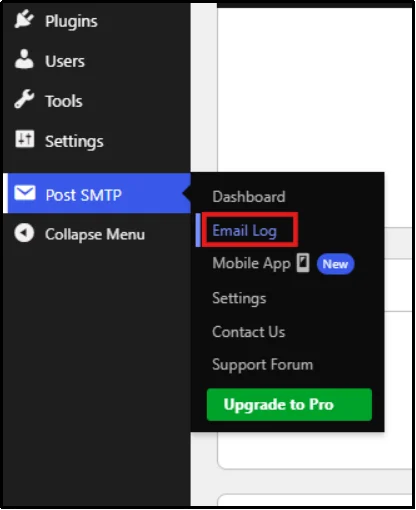
- Review the email status and look for failed messages, error details, recipients, and other available delivery information.

A Success status shows that Post SMTP processed the message successfully. It does not guarantee that the recipient’s provider placed the email in the inbox. If the log shows Success but you still can’t find the message, check the spam folder and recipient-side filters, then review your sender authentication and mail provider logs when available.
Step 5: Troubleshoot the Reported Error
If Post SMTP marks the message as Failed, inspect the failure details before changing your configuration.
- Click View Details next to the Failed status on the same log screen.
- Open the email’s failure details to view the reported error.
- Read the exact error message before changing any settings. The error can point to problems with authentication, invalid credentials, connection failures, sender verification, recipient addresses, or provider limits.
- Fix the underlying problem, then send another test email.
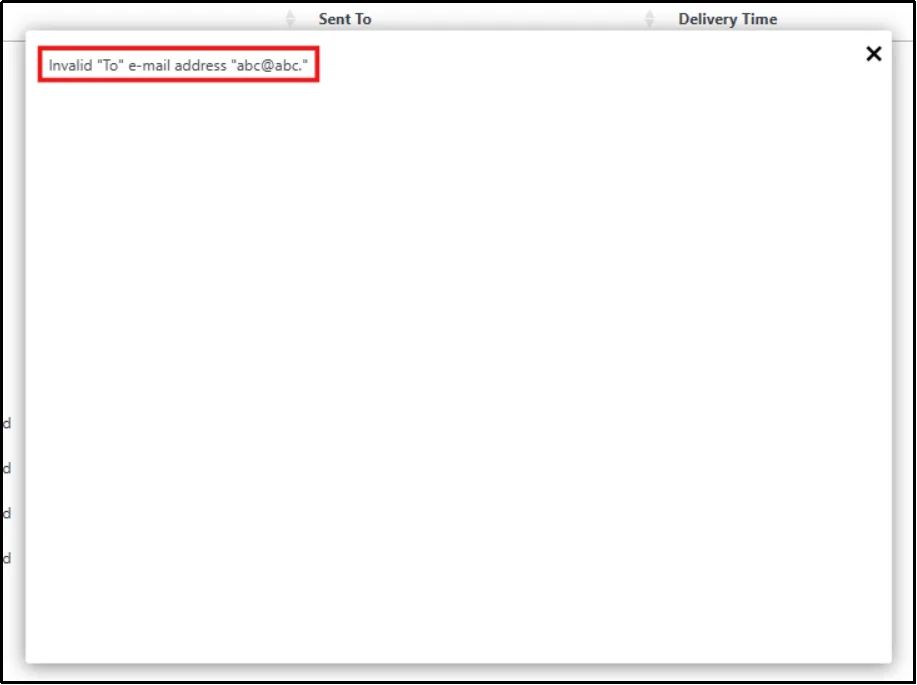
Don’t guess at the cause when the mailer provides a specific error. The exact error message can help you narrow the problem to the connection, credentials, sender identity, recipient, or email provider.
Step 6: Resend Failed Emails
After you fix the underlying problem, you can resend a failed message if your Post SMTP plan includes the Resend feature.
- Open Post SMTP → Email Logs and find the failed email.
- If your Post SMTP plan provides the Resend feature, click Resend and confirm the email details.
- After the resend attempt, check the recipient’s inbox and spam folder.
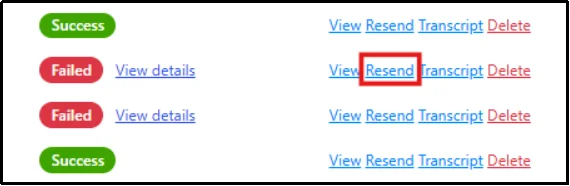
Resending works best after you fix the original delivery problem. Otherwise, the same error may cause the message to fail again.
Step 7: Check the Spam or Junk Folder
If Post SMTP shows a successful send but the Gutena Forms notification doesn’t appear in the inbox, check the recipient’s Spam, Junk, Promotions, or other filtered folders.
If the email consistently lands in spam, review:
- The From Email address
- SPF configuration
- DKIM configuration
- DMARC configuration
- Sending domain reputation
- Recipient-side filtering
- Email content and links
If the recipient’s provider rejects or filters the message, check the provider’s delivery logs when available. These logs can provide more information than the WordPress email log.
Step 8: Check SPF, DKIM, and DMARC
If your mailer can send emails but messages still land in spam or fail to reach recipients, review your domain’s email authentication.
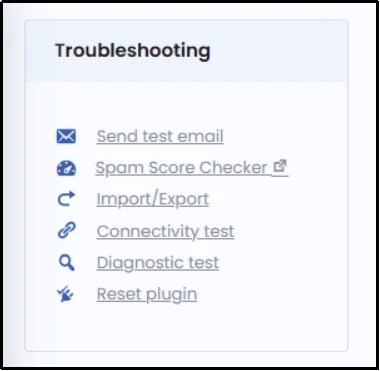
- Head to the Post SMTP dashboard.
- Under the troubleshooting box, select Post SMTP’s Spam Score Checker.
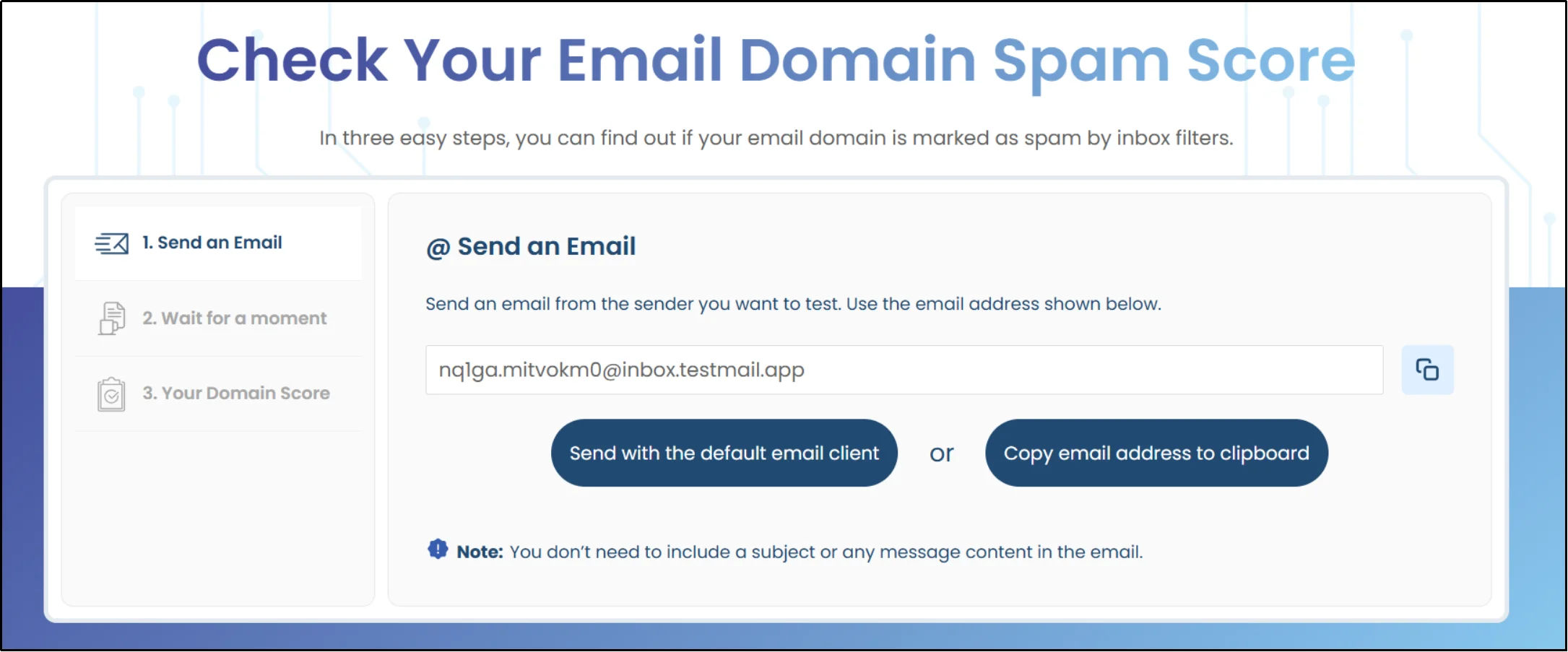
- Follow the checker’s instructions to review your domain’s email authentication.
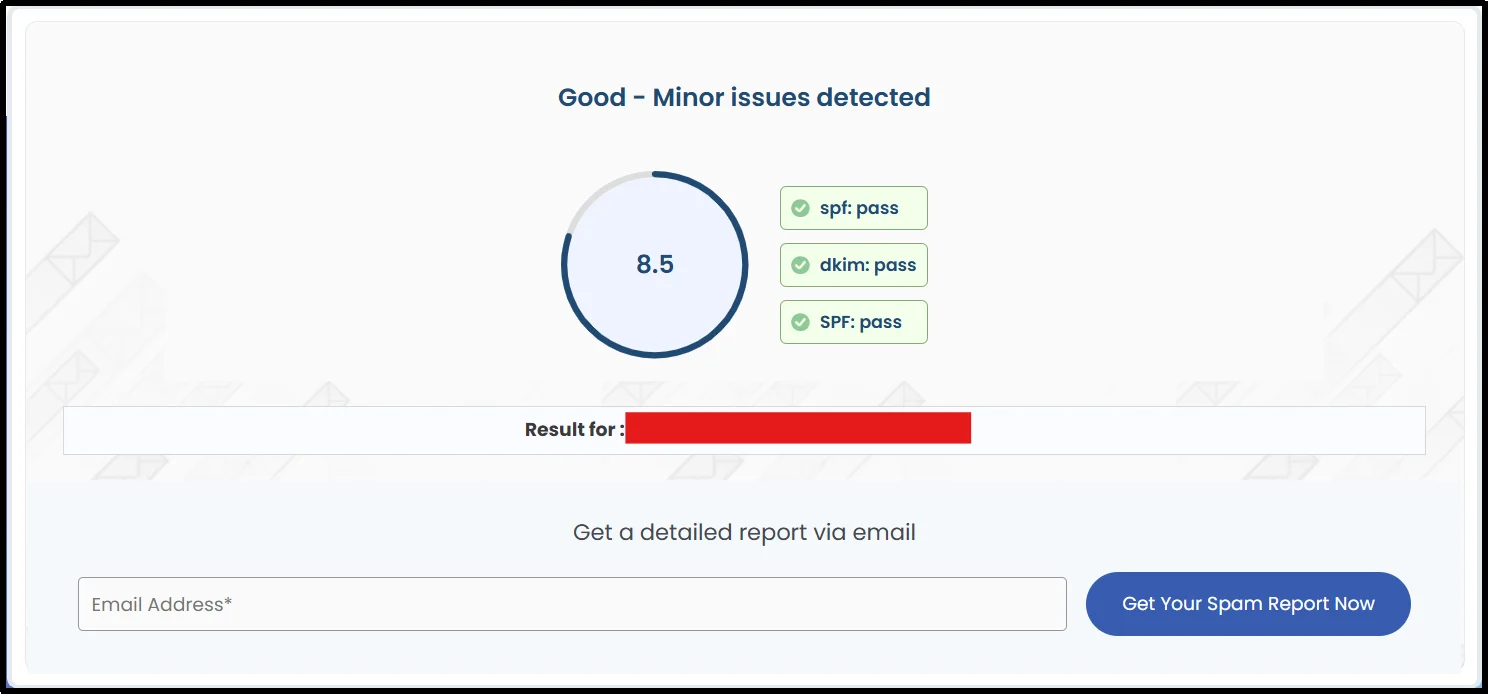
- Review the results and identify any missing or incorrectly configured DNS records.
- Update the affected SPF, DKIM, or DMARC records through your DNS provider.
After updating your DNS records, allow time for the changes to propagate. The exact timing depends on DNS caching and the record’s TTL.
Then send another test email and submit your Gutena Forms form again.
If the Post SMTP Test Email Works but Gutena Forms Emails Don’t
If Post SMTP successfully sends a test email but Gutena Forms notifications still don’t arrive, your mailer connection may already work. Focus on the form’s notification configuration instead.
Check these settings:
- Confirm the notification recipient address.
- Check the From Email and Reply-To settings.
- Submit the form again and look for the new message in Post SMTP Email Logs.
- If no Gutena Forms email appears in the log, investigate the form notification trigger or plugin configuration.
- If the message appears as successful but doesn’t reach the inbox, investigate spam filtering, sender authentication, and recipient-side filtering.
This diagnostic step helps you determine whether the problem starts inside Gutena Forms or somewhere in the WordPress email delivery path.
Common WordPress Email Errors and How to Fix Them
Use the error message and delivery status to narrow down the problem.
| Error or Symptom | Likely Cause | What to Check |
| Authentication failed | Incorrect credentials or OAuth/API configuration | Mailer credentials and authentication |
| Connection failed | Server, port, firewall, or network issue | SMTP host, port, encryption, and hosting restrictions |
| Invalid From address | Sender doesn’t meet provider requirements | From Email and verified sending domain |
| Recipient rejected | Invalid or blocked recipient | Recipient address and provider response |
| Email shows Success but never arrives | Spam filtering or recipient-side filtering | Spam folder, sender reputation, SPF, DKIM, and DMARC |
| No email appears in Email Logs | The form may not trigger the WordPress email request | Gutena Forms notification settings and form configuration |
When possible, use the exact error returned by your mailer instead of changing multiple settings at the same time. This approach makes troubleshooting faster and helps you identify the actual failure point.
How to Prevent Future Gutena Forms Email Problems
Once you’ve restored email delivery, use these practices to reduce the risk of future email problems.
- Use an authenticated SMTP or API-based mailer rather than relying on the default hosting mail transport.
- Monitor Post SMTP’s Email Logs periodically, not just when something breaks.
- Enable email failure alerts so you can investigate delivery problems before they cause missed leads or customer messages.
- Keep Gutena Forms and Post SMTP updated.
- Configure SPF, DKIM, and DMARC according to your email provider’s requirements, then verify them after DNS, domain, hosting, or mailer changes.
- Send a test email after any migration, domain change, or plugin update that affects email.
- Use a sender address on your authenticated domain instead of a personal free-mail address such as a Gmail or Yahoo address.
- Check your DNS records periodically, since a hosting change or registrar update can quietly break your email authentication.
Get Reliable Email Delivery for Gutena Forms
If Gutena Forms submits entries successfully but your notifications still don’t arrive, the problem can occur anywhere between WordPress and the recipient’s email provider. Hosting restrictions, incorrect sender settings, failed mail transport, missing authentication, or recipient-side filtering can all affect email delivery.
An authenticated SMTP or API-based mailer gives WordPress a more controlled way to send email. With Post SMTP, you can configure your mailer through a guided setup, send test emails, review Email Logs, troubleshoot failures, and resend messages when your plan supports that feature.
Ready to troubleshoot your WordPress email delivery?
Frequently Asked Questions
Why is Gutena Forms not sending emails?
Gutena Forms email notifications can fail because of an incorrect recipient address, sender configuration, hosting restrictions, mailer errors, or missing email authentication. If the form submits successfully, check the email delivery path separately from the form itself.
Does Gutena Forms use SMTP?
Gutena Forms uses WordPress’s email system for its notifications. An SMTP plugin such as Post SMTP can route those WordPress emails through an authenticated SMTP or API-based mailer.
How do I configure SMTP for Gutena Forms?
Install an SMTP plugin such as Post SMTP, run its setup wizard, connect a mail provider such as Gmail, Brevo, or SendGrid, and send a test email to confirm that the mailer connection works.
Why are Gutena Forms emails going to spam?
Check your From Email address, SPF, DKIM, DMARC, sender reputation, and recipient-side spam filters. A sender address that doesn’t align with your authenticated domain can also affect deliverability.
Why is Gmail not receiving Gutena Forms emails?
If Gmail doesn’t receive your Gutena Forms notifications, check the sender address, SPF and DKIM configuration, Post SMTP’s mailer connection, and the message’s delivery status. Also check the recipient’s spam or filtered folders.
Can I send emails using Gmail SMTP?
Yes. You can configure Gmail as a mailer in Post SMTP. For a low-volume WordPress site, Gmail can work well when you configure the account and authentication correctly.
Does Post SMTP work with Gutena Forms?
Yes. Post SMTP can send Gutena Forms notifications through its configured mailer because Gutena Forms uses WordPress’s email system. It also supports other WordPress plugins that send messages through wp_mail().
How do I resend failed emails?
Open Post SMTP’s Email Logs, find the failed entry, and use the Resend option if your Post SMTP plan includes that feature. First, correct the underlying delivery problem so the present message doesn’t fail again.
How do I test Gutena Forms email delivery?
Send a test email through Post SMTP first to confirm that the mailer connection works. Then submit the actual Gutena Forms form to test the full path from form submission to inbox.
What SMTP provider should I use?
The right SMTP provider depends on your email volume, authentication requirements, budget, and technical setup. Compare providers such as Gmail, Brevo, SendGrid, Mailgun, Amazon SES, Microsoft 365, and SMTP.com based on their current limits and pricing.
Why does the form submit but no email arrive?
The form processed the submission correctly, but the email step failed somewhere between Gutena Forms, WordPress, the mailer, or the recipient’s email provider. Check the Post SMTP Email Logs to identify whether WordPress generated and attempted to send the notification.
How do I fix WordPress not sending emails?
Install an SMTP or API-based mailer, connect it to an authenticated email provider, and verify the SPF and DKIM records required by that provider. Then send a test email and review the Email Logs for any delivery errors.