
























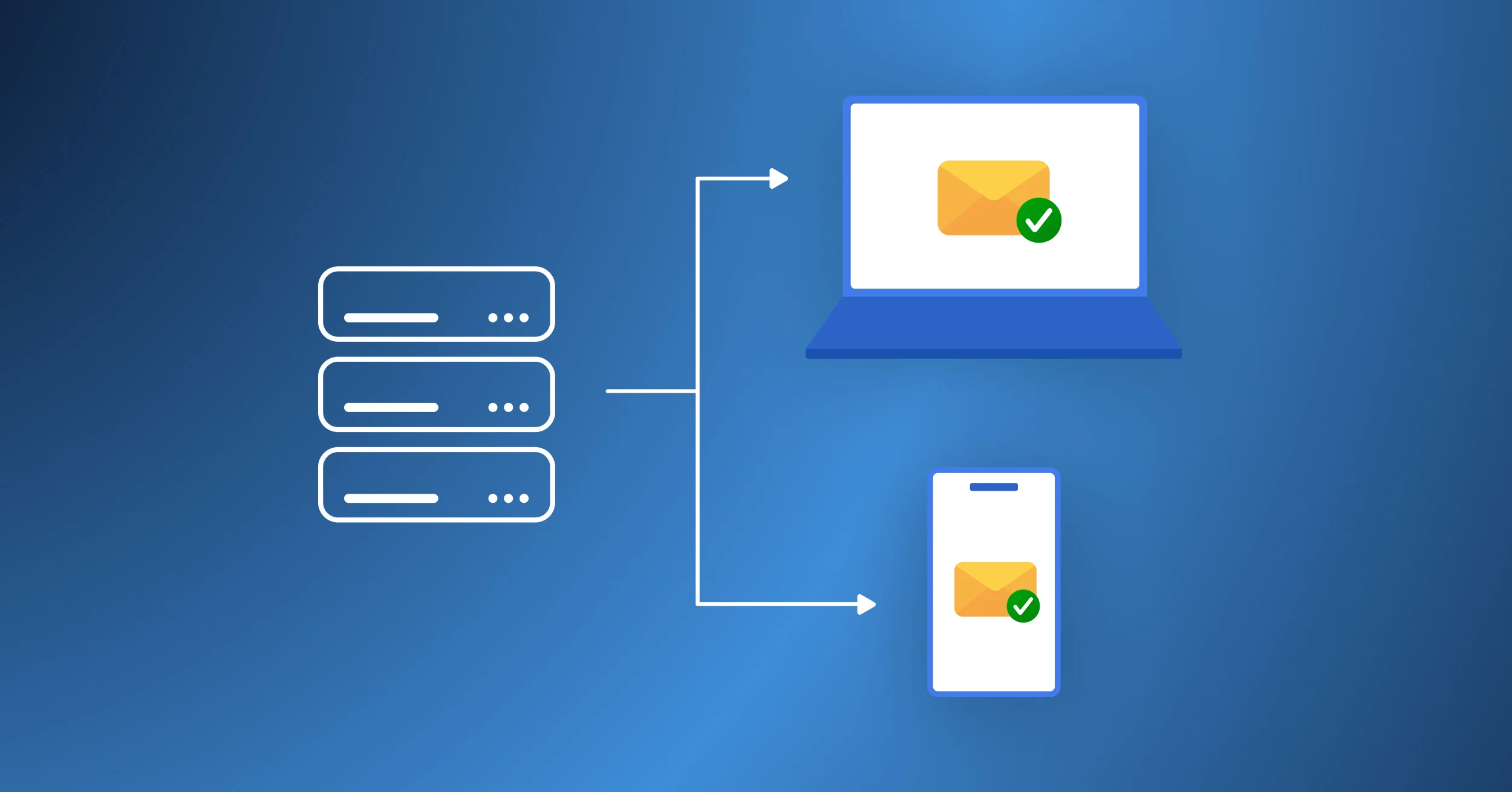


Email deliverability determines whether your emails land in the primary inbox instead of the spam folder. For WordPress site owners, the difference between these two outcomes comes down to three things: proper email authentication, the right sending method, and a clean email list. This guide walks you through each one with steps you can follow starting today.
Most WordPress sites fail at deliverability for a single reason. WordPress’s default email system uses PHP’s mail() function, which sends messages without essential email authentication protocols like SPF records, DKIM signatures, or a DMARC policy.
Receiving servers identify this unauthenticated traffic as spoofed email, filtering it into spam or rejecting it outright. Gmail, Yahoo, and Microsoft transformed this from a minor annoyance into a hard block (permanent 550 rejections for non-compliant emails ) when they tightened their bulk sender requirements between 2024 and 2025.
This guide is written for 2026 email deliverability standards. If your email setup has not been updated in the last two years, some of your emails are almost certainly not reaching inboxes. Let’s fix that.
Quick Summary: Key Takeaways
- The Core Problem: WordPress’s default mail() function lacks authentication, causing modern ISPs to reject emails with permanent 550 errors.
- The #1 Fix: Replace PHP mail with an authenticated SMTP plugin (like Post SMTP) connected to a reputable mailer.
- The 2026 Standard: Gmail, Yahoo, and Microsoft now strictly enforce SPF, DKIM, and DMARC. Missing these guarantees spam folder placement.
- The Goal: Achieve an inbox placement rate (IPR) above 95% by maintaining a spam complaint rate below 0.1% and a bounce rate under 5%.
What Is Email Deliverability? (And Why It Matters More Than Email Delivery)
Email deliverability measures the percentage of your emails that reach the recipient’s primary inbox. This metric differs from email delivery rate, which only measures whether the receiving server accepted the message initially. The distinction matters because a server can accept an email and then immediately file it in the spam folder. Your ESP dashboard might show 98 percent delivered, but if 40 percent of those went to spam, your real inbox placement is only 58 percent.
Here are the benchmarks you should know:
- 95%+: Excellent
- 85%–95%: Good
- Below 85%: Signals a problem that needs attention
The global average for marketing emails in 2025 was 83.5 percent, according to Validity’s sender benchmark. Transactional emails like password resets and order confirmations should target 98 percent or higher. Marketing emails have a wider range because engagement varies more across different industries and audience types.
Email Delivery vs Email Deliverability: What’s the Difference?
Marketers often confuse email delivery with email deliverability, creating a false sense of security. Here’s the difference between these two terms.
Email delivery is binary. The receiving server accepted your message and logged it as delivered, and that stays true even if the server then routes that message to the spam folder.
Email deliverability is qualitative. It answers the question: where did the email actually land? The inbox, the spam folder, the promotions tab, or silent quarantine.
Example: An ecommerce store sends 10,000 order confirmation emails. Their ESP dashboard shows 9,800 delivered, which is 98 percent. But they run an inbox placement test and discover only 6,000 reached Gmail inboxes. The remaining 3,800 went to spam or the promotions tab. Their real deliverability rate is 60 percent, not 98 percent.
This is the email delivery trap. You can’t fix what you aren’t measuring.
Why Email Deliverability Matters for Your Business
Poor email deliverability extends beyond vanity metrics; it directly impacts your bottom line. Every order confirmation that lands in spam creates a support ticket from a worried customer who thinks their payment failed. Every abandoned cart email that never arrives is a sale that will never close. Every password reset that gets filtered means a user who can’t access their account.
WooCommerce store owners can easily calculate this cost. If you send 1,000 order confirmations per month and your inbox placement is 80 percent, that’s 200 customers who never see their receipt. Even a fraction of those opening support tickets costs your team time and money.
For email marketers, the math is worse. A campaign that costs $1,000 to produce but only reaches 60 percent of your list is delivering 40 percent less ROI than your dashboard suggests. Good deliverability isn’t optional. It directly affects your revenue, your support workload, and your customer’s trust in your brand.
6 Signs Your Email Deliverability Is Getting Worse
Deliverability rarely drops overnight without warning. Watch for these signs and investigate immediately if you notice them:
- A sudden drop in open rates. If your open rate falls from 25 percent to 8 percent in a week, your emails are probably landing in spam or the promotions tab.
- An increase in spam complaints. Check Google Postmaster Tools. If your spam complaint rate climbs above 0.3 percent, you’re at risk of Gmail throttling or blocking your mail.
- Customers telling you they didn’t receive emails. Rising support tickets about missing password resets or order confirmations indicate that spam filters block your transactional emails.
- Bounce rate climbing above 5 percent. This signals your email list contains too many invalid or abandoned addresses.
- Domain reputation dropping to “poor” or “bad” in Google Postmaster Tools. Tracking this monthly helps you catch problems early.
- Emails landing in Yahoo’s promotions tab instead of the main inbox. Yahoo now evaluates domain reputation as its primary signal, so this points to a domain-level issue.
The 5 Factors That Decide Where Your Email Lands
Mailbox providers evaluate every email against five categories of signals. Understanding these gives you a clear path to fix your deliverability. Here’s each factor and what you can do about it.
Sender Reputation (Your Domain’s Credit Score)
Every domain has a reputation with Gmail, Yahoo, Outlook, and other providers. This reputation is the single biggest factor in whether your email lands in the inbox.
Your spam complaint rate, bounce rate, engagement rate, sending volume consistency, and proper authentication record configuration shape your sender reputation.
Building a strong sender reputation score takes time, but spam complaints destroy it instantly.
Domain Reputation vs. IP Reputation
Mailbox providers track both metrics, but they serve different purposes. Your domain reputation follows your brand permanently and remains the primary metric you actively manage. Your IP reputation, however, depends on the physical server sending the mail.
If you use a shared SMTP service, another user’s poor sending habits can temporarily impact your shared IP reputation. You can easily resolve shared IP issues by requesting a fresh IP from your provider or upgrading to a dedicated IP address for complete control.
Email Authentication (SPF, DKIM, and DMARC)
Authentication proves to mailbox providers that your email really came from your domain. Emails without authentication look like impersonation attempts. In 2026, Gmail, Yahoo, and Microsoft increasingly enforce authentication requirements, especially for bulk senders. Mailbox providers actively reject or filter unauthenticated messages directly into spam.
Three DNS records handle authentication:
- SPF authorizes specific servers to send mail for your domain.
- DKIM adds a cryptographic signature to each message.
- DMARC tells receivers what to do when SPF or DKIM checks fail.
Proper authentication significantly improves inbox placement, but sender reputation, engagement, and content quality also affect deliverability. Major mailbox providers actively filter, quarantine, or reject unauthenticated domains.
The PCI DSS v4.0 Compliance Factor
If your WordPress site processes credit card payments (e.g., via WooCommerce), DMARC is no longer just a deliverability best practice; it is a strict compliance requirement. The Payment Card Industry Data Security Standard (PCI DSS) v4.0 now mandates DMARC implementation for any organization handling cardholder data. This regulation actively prevents email spoofing and phishing attacks, making proper authentication a legal and operational necessity, not just an SEO or deliverability tactic.
Content Quality and Subscriber Engagement
How recipients interact with your emails feeds directly into your reputation.
High open rates, clicks, and replies tell mailbox providers that people want your mail.
Low engagement, deletions without reading, and spam complaints signal the opposite. Your email content is also evaluated directly.
Spam filters evaluate your email content directly, scanning for excessive capitalization, spam-trigger phrases like “act now” and “guaranteed,” too many exclamation marks, image-heavy messages with little text, broken HTML, and links to blacklisted domains.
Sending Volume and Consistency
Mailbox providers distinguish legitimate senders from spammers partly by volume patterns. Legitimate senders have consistent sending schedules. Spammers send in erratic bursts.
If your volume jumps from 500 emails a day to 5,000 overnight, filters take notice. The same applies when you start sending from a new domain or a new IP address.
Ramp up gradually over 2 to 4 weeks. Marketers call this IP warming, and it remains essential for new sending identities.
List Quality and Bounce Rate
Your bounce rate tells mailbox providers how clean your list is.
A bounce rate above 5 percent signals that you’re sending to invalid, abandoned, or mistyped addresses, and that pattern matches spam behavior.
Common causes include buying or renting email lists, letting subscribers go stale for 6 months or more without re-engagement, and not removing hard bounces after each send. Implementing double opt-in serves as the single best tool for maintaining email list quality.
Why WordPress Emails Go to Spam (The PHP Mail Problem)
By default, WordPress uses PHP’s mail() function (via wp_mail()) to send every email, from password resets to WooCommerce order confirmations. This function was designed for development environments, not production sending. It sends messages from your web host’s shared IP without authentication credentials or DKIM signatures.
Here is the critical technical nuance: Even if you perfectly configure SPF, DKIM, and DMARC in your DNS, WordPress emails will still fail authentication because the messages aren’t being signed when they leave your server. Mailbox providers see a message claiming to be from you@yourdomain.com, sent from an unverified shared hosting IP, and immediately reject it with a permanent 550 error or route it to spam.
The root cause isn’t your DNS records; it’s the sending mechanism. The fix is to intercept these emails and route them through a properly authenticated SMTP connection.
Post SMTP is a WordPress plugin that does exactly this. It intercepts every outgoing email from your site and routes it through a properly authenticated SMTP server or transactional email service. Post SMTP works with SendGrid, Mailgun, Postmark, Amazon SES, Brevo, Google Workspace, Microsoft 365, and many others.
Key Email Deliverability Metrics You Should Track
The following metrics give you a complete picture of your deliverability health.
| Metric | What It Tells You |
| Inbox placement rate (IPR) | The percentage of your emails that land in the primary inbox. The most important metric to track. |
| Delivery rate | The percentage of emails accepted by the receiving server. Misleading on its own, since it includes emails that went to spam. |
| Bounce rate | Splits into hard bounces (permanent failures from invalid addresses) and soft bounces (temporary failures from full inboxes or server issues). |
| Spam complaint rate | The percentage of recipients who mark your email as spam. Keep it below 0.1 percent. |
| Sender reputation score | Available through Google Postmaster Tools, Microsoft SNDS, and Sender Score by Validity. |
| Open rate & click-through rate | Engagement indicators that indirectly affect your reputation. |
How Email Authentication Works for WordPress Sites
Each authentication protocol serves a specific purpose. You need all three for full protection, plus a PTR record for extra verification. Here’s each one in detail.
SPF Records (Who Can Send Mail From Your Domain)
SPF stands for Sender Policy Framework. It’s a DNS TXT record that lists which IP addresses and servers are allowed to send email for your domain. When a mailbox provider receives an email claiming to be from yourdomain.com, it checks your SPF record to verify the sending server is on the list. You can only have one SPF record per domain. If you add a second record, both may fail, so always merge multiple entries using the include mechanism.
Example: v=spf1 include:sendgrid.net ~all
DKIM Signatures (Tamper-Proof Email Stamps)
DKIM stands for DomainKeys Identified Mail. It adds an encrypted digital signature to every email you send. The receiving server checks this signature against a public key stored in your DNS. If the signature matches, the server knows the email wasn’t altered in transit and genuinely came from your domain. Your mailer provides a unique DKIM key, which you add as a DNS TXT record. The signature is added automatically to every outgoing message after that.
DMARC Policies (and How to Deploy in 3 Phases)
DMARC stands for Domain-based Message Authentication, Reporting, and Conformance. It sits on top of SPF and DKIM and tells mailbox providers what to do when those checks fail. DMARC has three policy options:
- p=none: take no action, just send reports. Start here.
- p=quarantine: send failing emails to the spam folder.
- p=reject: block failing emails entirely, the most protective setting.
The correct way to deploy DMARC is in three phases. Start with p=none and monitor the daily reports for 2 to 4 weeks. You’ll discover legitimate sending sources you forgot to authorize, so add those to your SPF and DKIM records. Then move your policy to p=quarantine. Wait another 2 to 4 weeks, and if no legitimate email broke during quarantine, move to p=reject. Jumping straight to p=reject without testing will break legitimate email from services you forgot to include.
PTR Records (The Reverse DNS Record)
PTR stands for Pointer Record. It maps an IP address back to a domain name. Many mailbox providers check PTR records on every incoming connection. If your sending IP doesn’t have a PTR record matching your domain, it raises a flag. Your hosting provider manages PTR records. Request one through their support team; it takes them about five minutes to set up.
BIMI (Brand Logos in the Inbox)
BIMI stands for Brand Indicators for Message Identification. It displays your brand logo next to your emails in supported email clients. BIMI requires DMARC with p=quarantine or p=reject to be active. While BIMI doesn’t directly affect deliverability, it acts as a trust signal and improves brand recognition. Gmail and Apple Mail support BIMI, and Outlook is rolling out support during 2026.
How to Improve Email Deliverability in WordPress (Step by Step)
Complete each step before moving to the next. Doing them out of order can cause more problems than it solves. Each step below includes an approximate time commitment so you can plan accordingly.
Step 1: Install Post SMTP and Set Up SMTP Mailer (1 to 2 minutes)
To install and set up the Post SMTP plugin, follow the steps below:
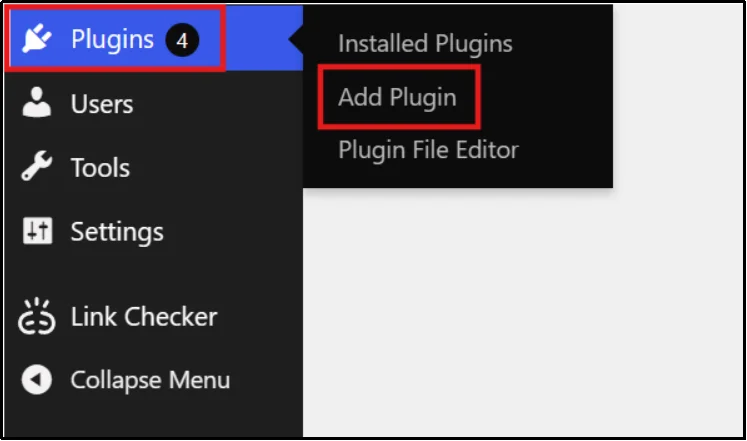
- In your WordPress dashboard, go to Plugins → Add Plugin.
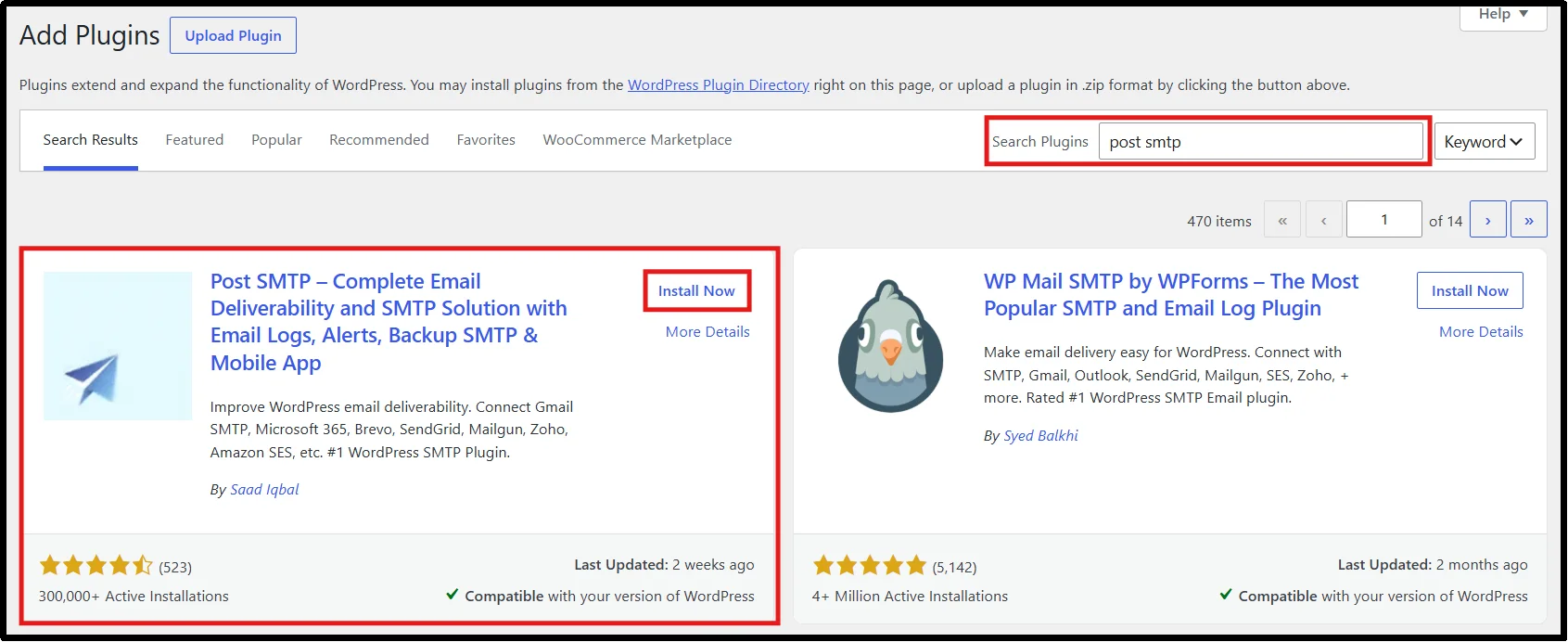
- Search for Post SMTP, click Install Now, then Activate the plugin.
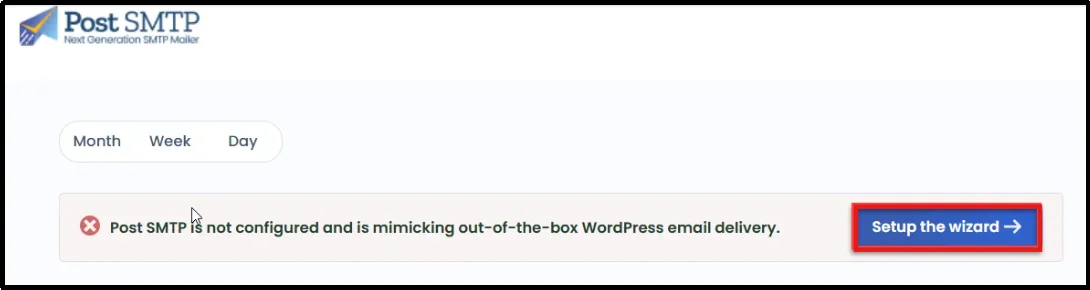
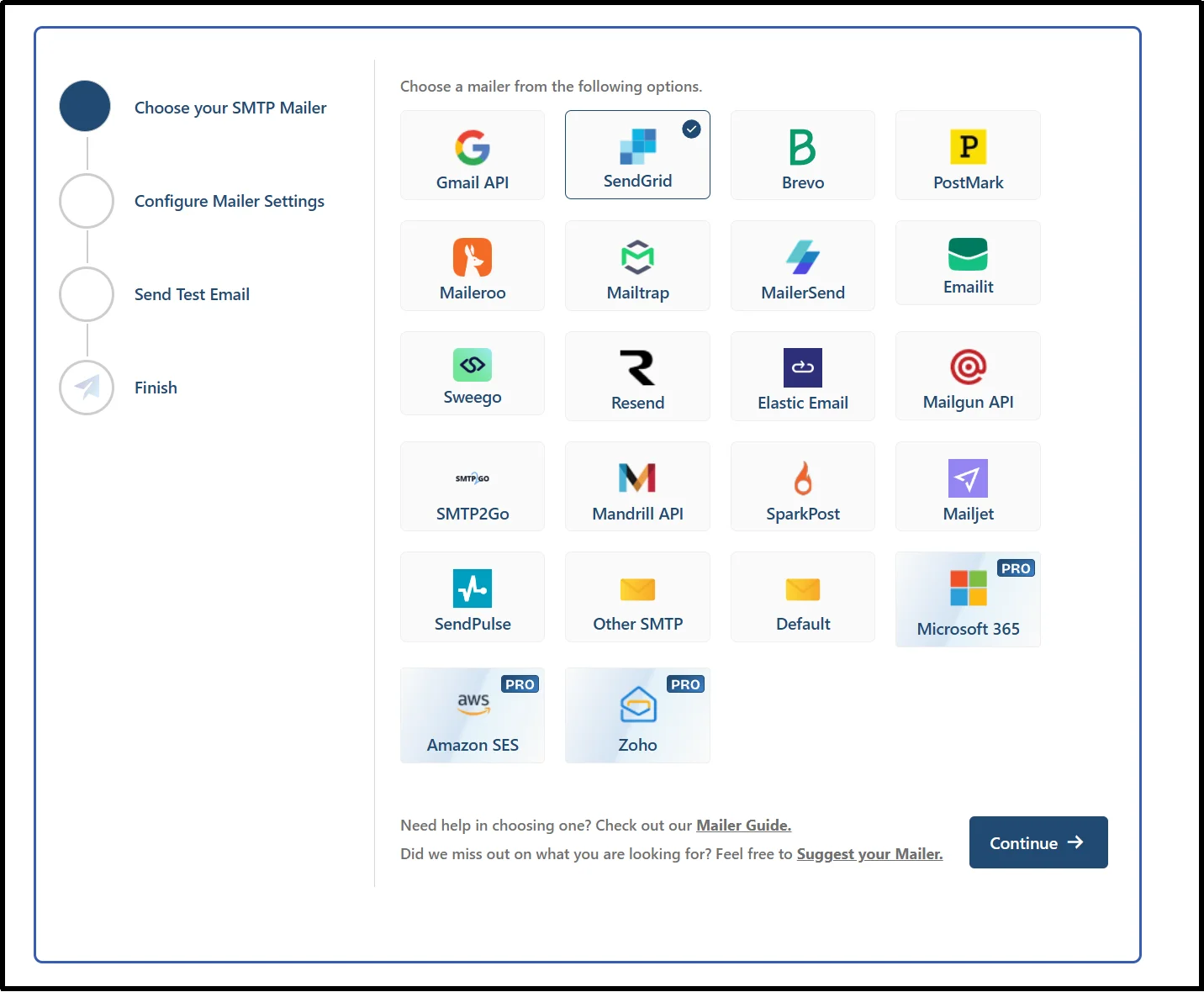
- Once activated, go to the Post SMTP Dashboard and click the Start the wizard button.
Post SMTP supports all major SMTP service providers, including Gmail (Google Workspace), Microsoft 365/Outlook, Amazon SES, Zoho Mail, Brevo (formerly Sendinblue), and many more.
Let’s say you’re using SendGrid as an example:
- Choose SendGrid and select ‘Continue.’
- On the subsequent screen, fill out the following details:
- Enter the From Email. Use the exact sender email address you configured in your WordPress or WooCommerce email settings (e.g., you@yourdomain.com), so recipients recognize it.
- Fill in your “From Name” field. This name will appear prominently in the recipient’s inbox.
- Enter your SMTP credentials or API key based on your chosen SMTP provider.
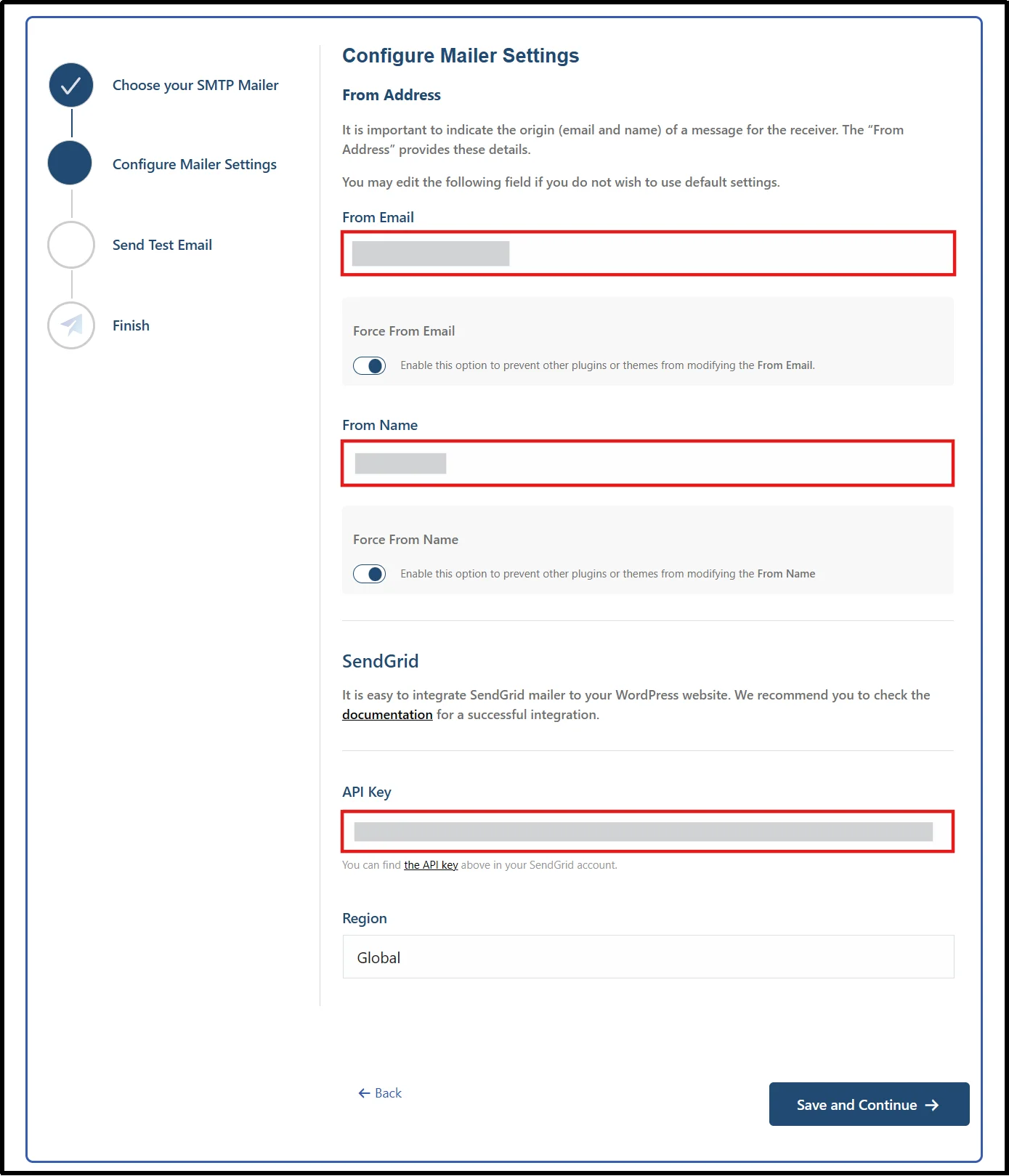
- Once everything’s filled out, click the “Save and Continue” button.
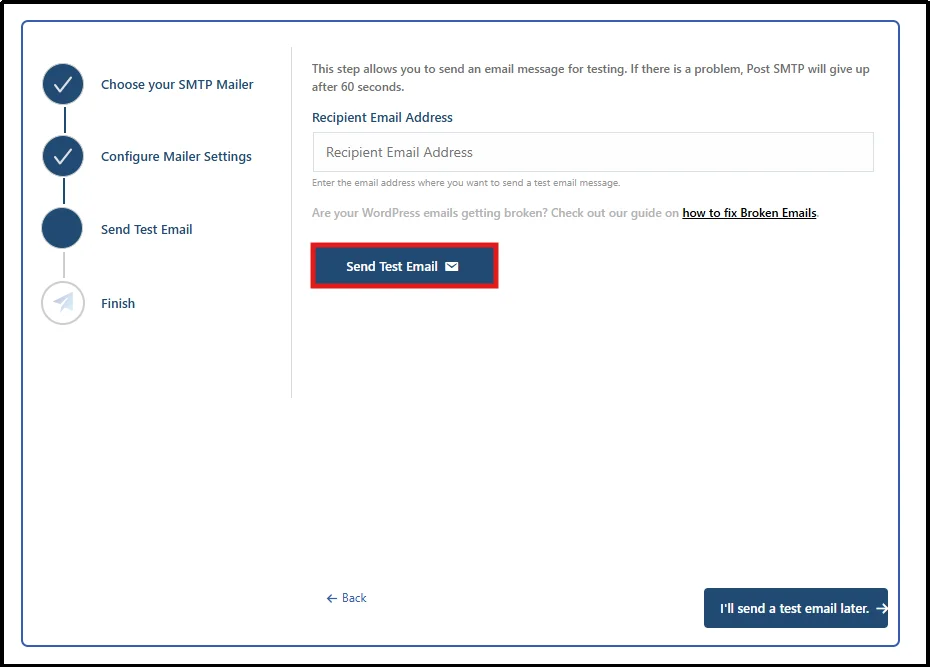
- The final step in the wizard lets you send a test message to verify everything works.
- Enter a valid email (your own is fine).
- Click the “Send Test Email” button.
If the email lands in your inbox, you’re set.
From now on, all WordPress emails will go through your SMTP provider. That means better deliverability, fewer spam issues, and no more missing transactional emails.
Step 2: Set Up SPF, DKIM, and DMARC in the Correct Order (20 minutes)
To authenticate your domain, follow these steps:
- Log in to your domain’s DNS management panel.
- Add the SPF TXT record provided by your SMTP service.
- Add the DKIM TXT record using the key provided by your mailer.
- Create a DMARC TXT record and start with the p=none policy.
- Save your DNS changes and wait for propagation.
- Verify all records using MXToolbox or your mailer’s verification tool.
Once all three records pass validation, your domain achieves proper authentication.
Read the detailed step-by-step process 👉: How to Set Up Email Domain Authentication (Step-by-Step Guide)
Step 3: Gradually Deploy DMARC (2 to 8 weeks total)
Deploy DMARC gradually to avoid blocking legitimate emails.
- Start with the p=none policy to collect reports.
- Monitor DMARC reports for 2–4 weeks.
- Add any missing sending services to your SPF and DKIM records.
- Change your policy to p=quarantine.
- Monitor for another 2–4 weeks.
- If everything works correctly, update the policy to p=reject.
Your domain is now fully protected against email spoofing.
Read the detailed step-by-step process 👉 :
Step 4: Monitor Your Reputation With Free Tools (15 minutes setup, 5 minutes weekly)
Keep an eye on your sender reputation by following these steps:
- Set up Google Postmaster Tools and verify your domain.
- Register with Microsoft SNDS if you send emails to Outlook or Hotmail users.
- Check your Sender Score by Validity regularly.
- Review your reputation, spam complaints, and authentication status every week.
- Investigate any sudden drops in reputation or increases in complaints.
Note on Google Postmaster Tools v2: Google recently updated its Postmaster Tools interface, replacing the old color-coded reputation bars with a strict pass/fail compliance model. This update makes it significantly easier to identify exactly which 2026 bulk sender requirements your domain meets or fails at a glance.
Step 5: Clean Your Email List and Use Double Opt-In (1 hour initial, 15 minutes monthly)
Maintain a healthy email list with these steps:
- Remove invalid email addresses and hard bounces.
- Identify subscribers who haven’t engaged in the last six months.
- Send a re-engagement email before removing inactive contacts.
- Delete subscribers who remain inactive.
- Enable double opt-in for all new signups.
- Repeat this cleanup process every month.
Step 6: Keep Spam Complaints Under 0.1 Percent (Ongoing)
Reduce spam complaints by following these best practices:
- Check your spam complaint rate in Google Postmaster Tools.
- Aim to keep complaints below 0.1%.
- Review campaigns that generate higher complaint rates.
- Reduce sending frequency if complaints increase.
- Implement a One-Click Unsubscribe Header: A clear, visible unsubscribe link decreases spam complaints because uninterested users have a frictionless exit. Furthermore, Gmail and Yahoo now strictly require the List-Unsubscribe header for bulk senders. Make unsubscribing a single click, not a multi-step hurdle.
- Remove inactive subscribers regularly.
Read the detailed step-by-step process 👉 :
Step 7: Avoid Spam Triggers in Your Email Content (Ongoing)
Write emails that mailbox providers trust.
- Use clear, natural subject lines.
- Avoid ALL CAPS, excessive punctuation, and spammy phrases.
- Balance text and images in your emails.
- Use clean HTML and limit unnecessary links.
- Avoid sending unnecessary attachments.
- Send a test email before every campaign.
5 Email Deliverability Mistakes That Hurt Your Reputation
These five mistakes are the most common causes of poor deliverability among WordPress site owners. Avoid each one.
- Using PHP mail instead of an SMTP plugin. The single most common mistake on WordPress sites. It makes every email look unauthenticated regardless of your DNS configuration.
- Buying email lists. This fills your list with invalid addresses, spam traps, and people who never agreed to hear from you. It destroys your sender reputation quickly.
- Ignoring DMARC reports. Setting up DMARC with p=none and never reading the daily reports defeats the entire purpose. The reports tell you who is sending email for your domain, including unauthorized senders you need to shut down.
- Hiding the unsubscribe link. This increases spam complaints because people click “report spam” instead of unsubscribing.
- Sending volume in erratic bursts. Three days with no sends followed by 3,000 emails in one hour looks exactly like spam behavior to mailbox providers.
Common Email Deliverability Problems and Quick Fixes
Different mailbox providers use different filtering logic. Here’s what to check for each one.
- Gmail. Check Postmaster Tools first. Verify SPF and DKIM are passing. Confirm DMARC is configured. Review content for spam triggers.
- Outlook and Hotmail. Reduce volume spikes and verify your PTR record.
- Yahoo. Ensure your From domain matches your authenticated domain and check DKIM alignment.
- Password reset emails not arriving. Install Post SMTP and set up authentication.
- Contact form emails. Same root cause, so the same fix applies.
Best Email Deliverability Tools Compared
- Post SMTP: Replaces PHP mail with authenticated SMTP, and connects your WordPress site to all popular transactional mailers. Also, the plugin provides a /daily/weekly/monthly email health report that includes delivery stats to help you monitor your emails more effectively.
- Google Postmaster Tools: Free, and shows Gmail-specific data like spam rate, authentication results, and domain reputation.
- Microsoft SNDS: Provides feedback for Outlook and Hotmail; the only direct channel Microsoft offers.
- Sender Score by Validity: Gives a third-party reputation benchmark on a 0 to 100 scale.
- Mail-tester: Scores individual emails from 1 to 10 with a breakdown of what’s hurting the score.
- MXToolbox: Checks DNS records and blacklist status for your domain and IP.
- Unspam.email: Tests inbox placement across multiple providers at once.
Weekly Email Deliverability Checklist
Use this checklist weekly to stay on top of your deliverability.
- Check Google Postmaster Tools for complaint rate and reputation changes
- Review any DMARC reports received in the last week
- Verify SPF and DKIM records are still active and passing
- Check recent bounces for patterns that might indicate list problems
- Send a test email through Mail-tester to catch new issues
- Scan your sending volume for unusual spikes or drops
Conclusion: Start With These 3 Fixes Today
Email deliverability isn’t a mystery. It’s a set of technical conditions you can verify and fix in a specific order. The majority of WordPress problems come from three causes: no authentication, PHP mail, and dirty lists.
Install Post SMTP today. Set up your authentication records this week. Test your deliverability with a free tool. That sequence alone solves roughly 80 percent of WordPress email deliverability issues.
The remaining 20 percent requires ongoing maintenance.
→ Monitor your reputation monthly.
→ Clean your list quarterly.
→ Keep complaints low.
→ Write honest emails.
Do these things consistently and your emails will land where they belong. You don’t need to be an email infrastructure expert. You just need to follow the steps in order.
Frequently Asked Questions
How do I set up SPF and DKIM for my WordPress site?
Connect Post SMTP to a mailer like SendGrid or Mailgun. Your mailer provides the exact SPF and DKIM records to add as DNS TXT records at your domain host. Verify with MXToolbox.
Is DMARC mandatory for email deliverability?
Not strictly, but it strongly improves trust with mailbox providers. It becomes more important the more email you send.
How often should I clean my email list?
At least every three months. Remove unengaged subscribers, invalid addresses, and hard bounces. Lists decay by 20 to 30 percent every year.
What happens if my spam complaint rate goes above 0.3 percent?
Gmail starts throttling or rejecting your messages. Persistent violators risk permanent delivery blocks. Keep complaints below 0.1 percent as a working target.
What is the best SMTP service for WordPress email deliverability?
SendGrid and Mailgun work well for most sites. Postmark is best for transactional emails. Amazon SES is most cost effective at scale. Post SMTP works with all of them.
How do I check if my emails are landing in spam?
Use Mail-tester.com for a quick check. Use Google Postmaster Tools and Microsoft SNDS for ongoing monitoring.
Do I need a dedicated IP for good email deliverability?
Most WordPress sites don’t. Shared IPs work fine for moderate volumes. Dedicated IPs help at very high volumes.
What is email warmup and do I need it?
Email warmup is gradually increasing send volume from a new domain or IP to build reputation. It’s essential for new domains and dedicated IPs.
How do Gmail and Yahoo’s rules affect small WordPress sites?
The rules target bulk senders sending 5,000+ emails per day, but the spam filters use the same signals for everyone. Even a site sending 100 emails a month needs authentication to reliably reach Gmail inboxes.
How does Apple’s Mail Privacy Protection (MPP) affect deliverability tracking?
Apple’s MPP pre-loads email images, which artificially inflates your “open rates.” Do not rely solely on open rates to judge deliverability. Instead, focus on hard metrics like click-through rates, spam complaint rates, and Google Postmaster Tools data to get an accurate picture of your inbox placement.