OpenAI
 Perplexity
Losing track of important customer order emails is one of the most frustrating aspects of being an online store owner. You rely on these notifications to confirm purchases, handle shipping, and build trust with your customers.
The main issue is that your WooCommerce store uses the default WordPress email function, which is highly unreliable. This basic system often fails to deliver critical notifications, leading to messages vanishing or ending up in spam folders.
When emails disappear, you have no way to see what went wrong or to resend the message quickly. This lack of visibility can quickly harm your business.
The solution is to use a powerful tool that includes email logging. Post SMTP is one of the most popular Simple Mail Transfer Protocol (SMTP) plugins for WooCommerce sites.
With the help of this plugin, you can fix delivery issues and keep a complete record of every email sent from your store. This guide will help set up Post SMTP to log all of your WooCommerce order emails, giving you total peace of mind.
What does Logging Your WooCommerce Order Email Mean?
Email logging is the process of keeping a detailed record of every email sent by your WordPress website. To run a WooCommerce store, one must constantly send emails for new orders, password resets, and shipping updates.
When an email fails to be sent using the basic WordPress system, you get no error message, no record, and no way to know why it vanished. An email log changes this completely. It records the email status, who it was sent to, when it was sent, and whether it was successfully delivered.
Using Post SMTP for logging means you gain complete transparency into your store’s communication. Along with numerous more benefits that we will look at in the next step.
Why Log Your WooCommerce Order Emails?
Logging your store’s emails does more than just record failures. It protects your customers and your reputation. Here are the most important reasons to log your WooCommerce order emails:
Stop Email Blind Spots
The most important reason to log emails is to eliminate email blind spots.
If a customer says they didn’t get their order confirmation or shipping notification, you are usually powerless to help. With email logging, you can check the record for that exact customer’s email. You can see whether it failed to send or was marked as spam. This lets you give the customer a clear answer and quickly resend the email.
Boost Deliverability and Trust
Deliverability is a technical term that simply means how often your emails actually land in the inbox rather than the spam folder.
When you use the Post SMTP service with logging, you send emails more reliably. The log shows which emails fail, so you can quickly spot patterns and fix them. This regular fixing helps keep your emails out of the spam folder, building trust with your customers.
Maintain a Complete Audit Trail
An audit trail is a detailed, chronological record of all events. Every time an email goes out about a payment, an order status change, or a refund, you need a record of it. Logging these emails creates a clear audit trail of all official communications your store sends.
This is essential for resolving disputes, meeting compliance requirements, and confirming that key information was actually sent at the correct time.
Save Support Time
When customers call or write because they did not receive an email, your support team has to spend time investigating. With Post SMTP logs, your team can find the answer in seconds. This faster response time saves a huge time.
How To Log Your WooCommerce Order Emails in 3 Easy Steps
Now that you know the enormous benefits of email logging, you are ready to set it up for your store. Using Post SMTP is the fastest and most reliable way to get complete visibility over your emails.
Follow these simple steps to start logging your WooCommerce order emails right away.
Step 1: Install and Activate Post SMTP Premium
The first step is to install the free version of the Post SMTP plugin on your WordPress site.
Log in to your WordPress dashboard. Go to Plugins and click Add Plugin.
In the search bar, type “Post SMTP” and find the plugin.

Click Install Now next to the correct plugin listing.
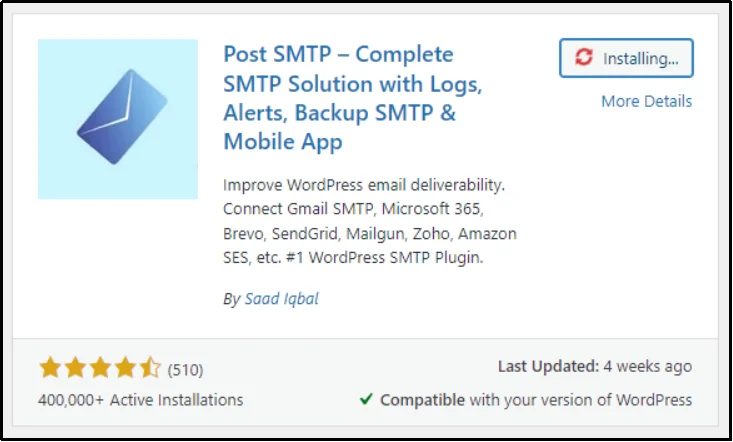
Once the installation is complete, click Activate.
The free version of Post SMTP immediately fixes your site’s core email delivery issues by switching to a reliable SMTP provider. Crucially, it also gives you access to the foundational email log, so you can see whether your emails are being sent successfully.
However, for a busy WooCommerce store, we highly recommend upgrading to Post SMTP Premium.
While the free version is a huge help, the Premium license gives you access to exclusive features essential for business-critical websites. These features include:
- Auto-Resend Failed Emails: This feature automatically re-sends any emails that failed, ensuring zero lost communication.
- Instant Mobile Alerts: Get immediate push notifications on your mobile device for any email failures, allowing you to fix issues right away.
- Detailed Analytics: Track open and click rates, and get in-depth reports on your email health.
- And much more that you can check on our features page.
To upgrade, simply visit our pricing page and purchase the plan that fits your business needs.
Once your payment is processed, you will receive the Premium plugin file.
You can then upload this file to your site via the Plugins tab. Click the “Add Plugin” button and then the “Upload Plugin” button at the top left corner.
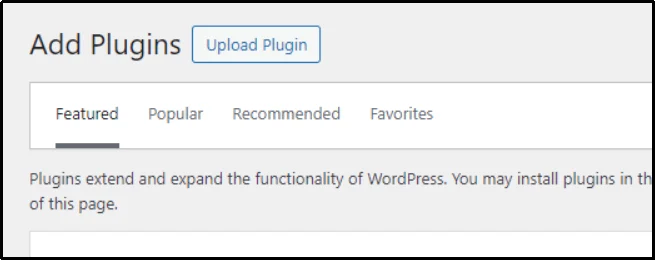
Click Activate Plugin, and unlock all the advanced features with your unique license key.
Step 2: Set up an SMTP Connection
After installing the Post SMTP plugin, the next step is to choose a reliable third-party mail service to handle your emails. This is the key step that fixes your deliverability issues. Post SMTP will replace the default, unreliable WordPress email system with this trusted service.
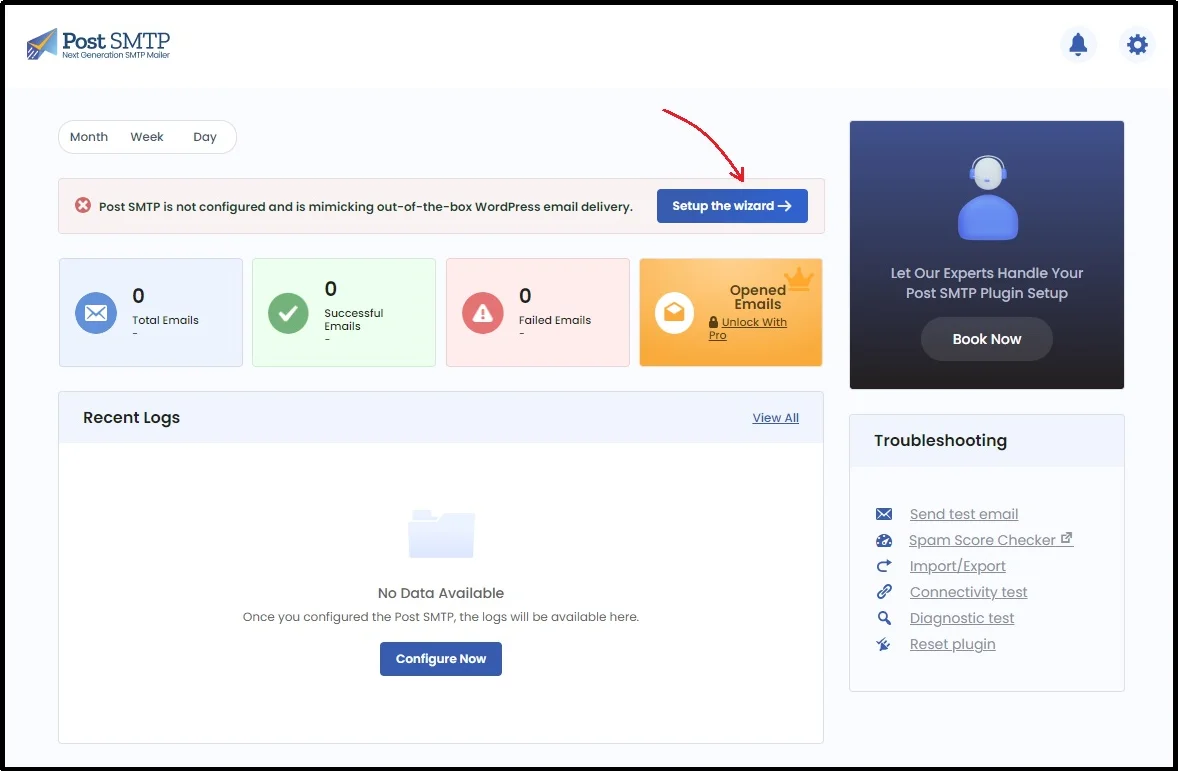
To set this up, navigate to the Post SMTP settings in your WordPress dashboard. Run “Setup the wizard.” This will guide you through the entire process, making a complex setup simple.
Choose a third-party SMTP service of your choice. You can choose from many popular options like Gmail, SendGrid, Mailgun, Amazon SES, and more. These services are designed to send emails reliably and ensure they reach the inbox.
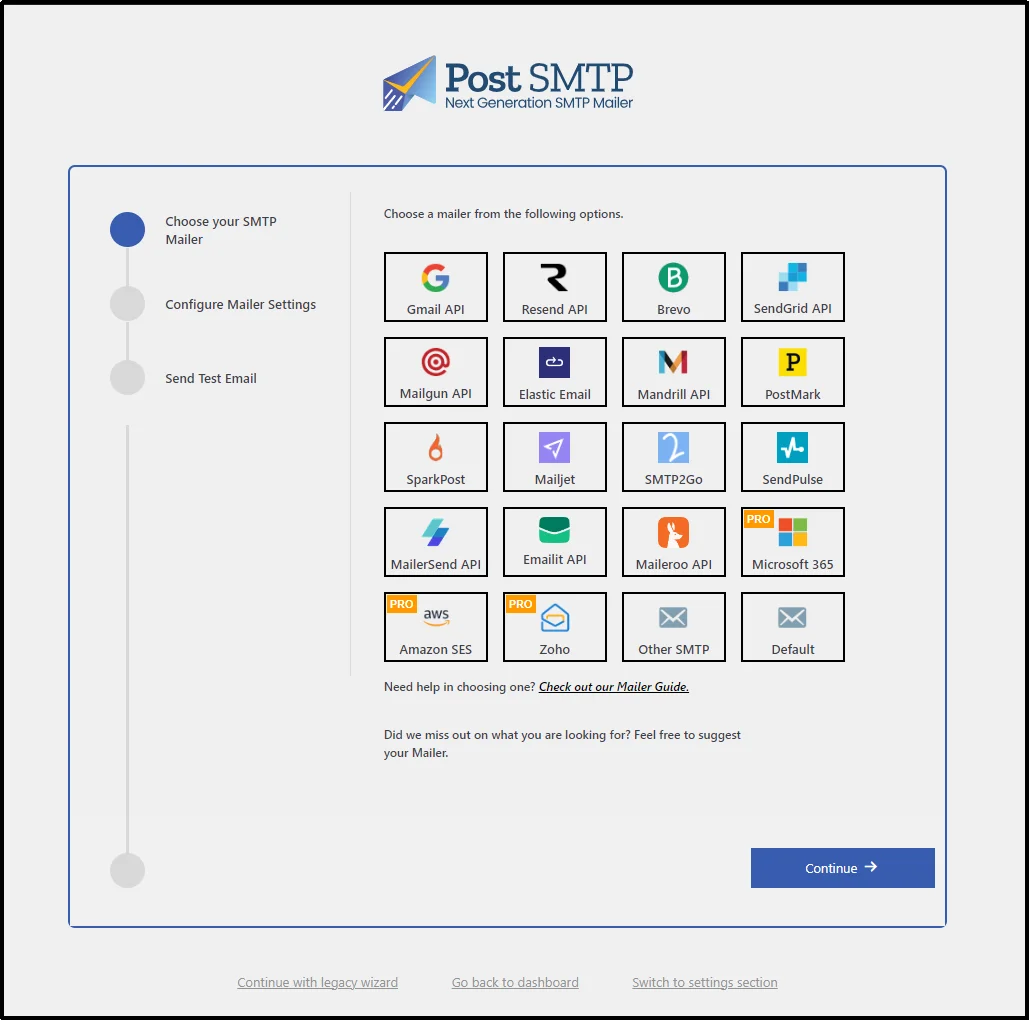
Once you choose a mailer, you will need additional credentials, such as API keys, to send emails through it. These keys are secure codes that allow Post SMTP to send emails through the mail service without needing your actual email password.
Afterward, send a test email to confirm it is delivered.
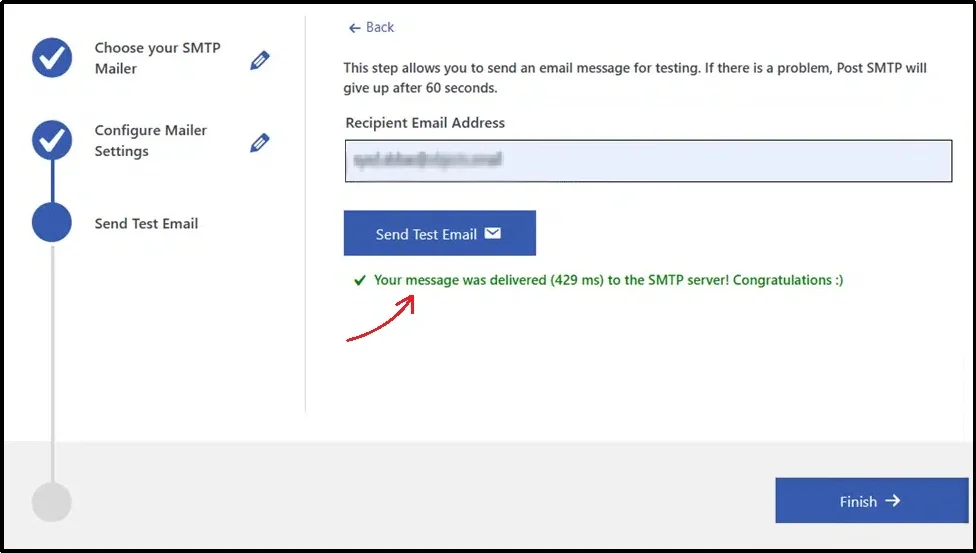
This confirmation message ensures that your WooCommerce store is now sending all order emails through a professional, logged, and reliable system.
Step 3: Track and Resend WooCommerce Order Emails
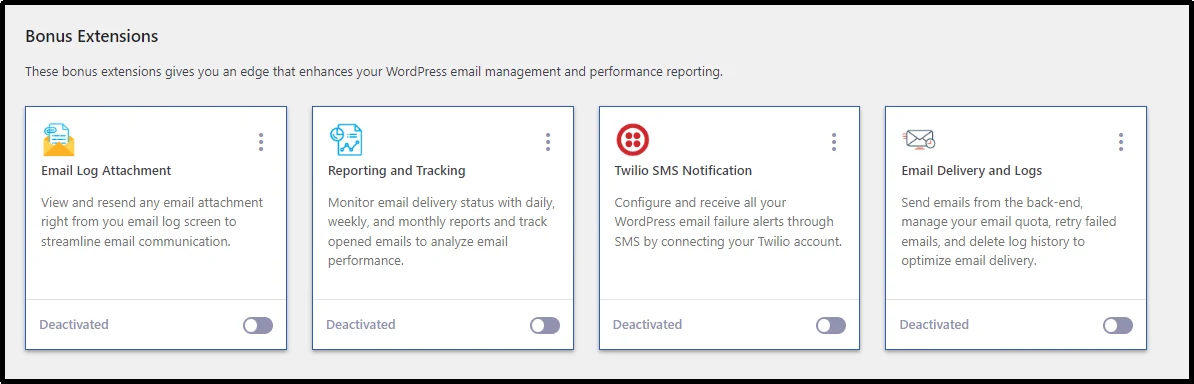
Once you enable the premium version, you will be welcomed by these bonus extensions, including Email Log Attachment, Reporting and Tracking, Email Delivery, and Logs. Enable all of them using the toggle button and click Save and Continue.
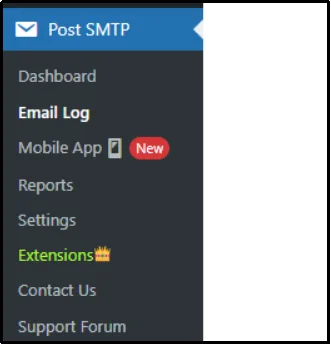
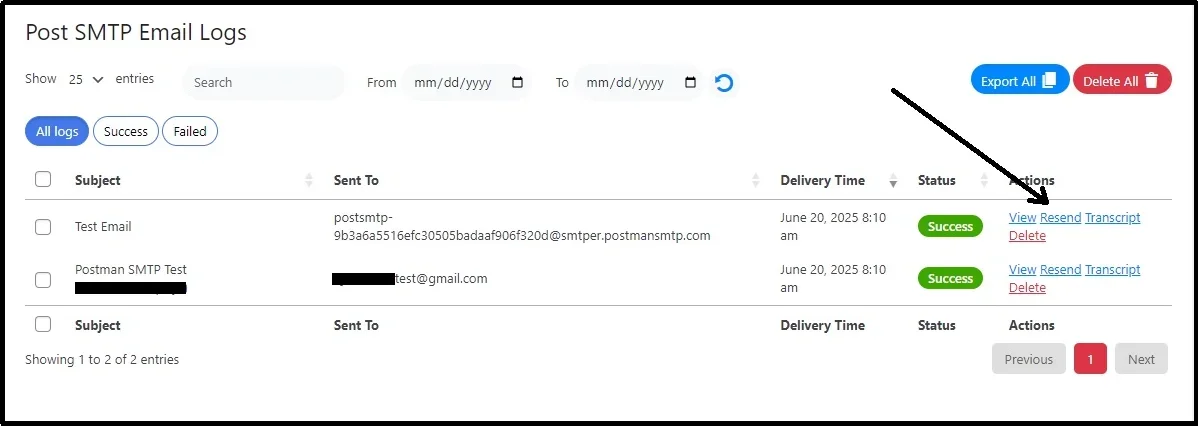
Now, you can track all the emails from the dedicated Email Log section.
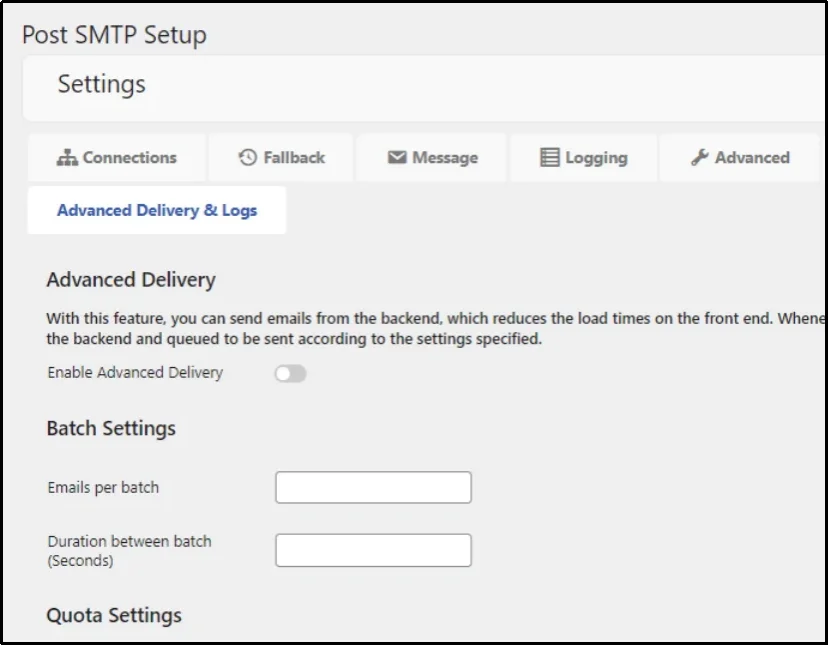
To automatically resend the failed emails, navigate to the plugin’s settings and the Advanced Delivery & Logs tab.
Scroll down until you come across the Auto Retry section. Enable the feature using the toggle button and enter the number of times you want the plugin to retry before giving up.
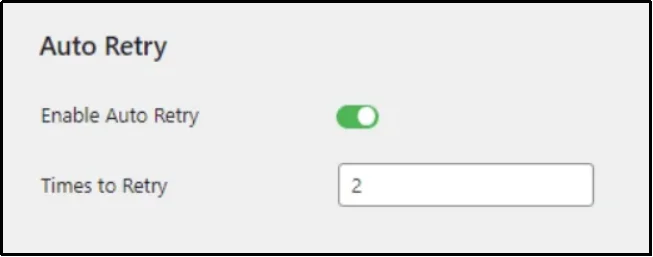
Save settings, and there you go!
Now, Post SMTP automatically handles your failed WooCommerce order emails.
Alternatively, you can manually resend each email from the Email Logs tab, using the Resend button.
Go One Step Higher With the Post SMTP Mobile App
You have successfully set up Post SMTP to log and auto-retry your WooCommerce emails. For the ultimate convenience and peace of mind, consider installing the dedicated Post SMTP Mobile App.
The mobile app puts the power of your email log right in your pocket. You no longer need to log into your WordPress dashboard every time a customer asks about a missing email. The app lets you monitor all your store’s emails in real time, no matter where you are.
One of the most valuable features is the Instant Mobile Alerts. If a vital email fails, the app sends a push notification to your phone right away.
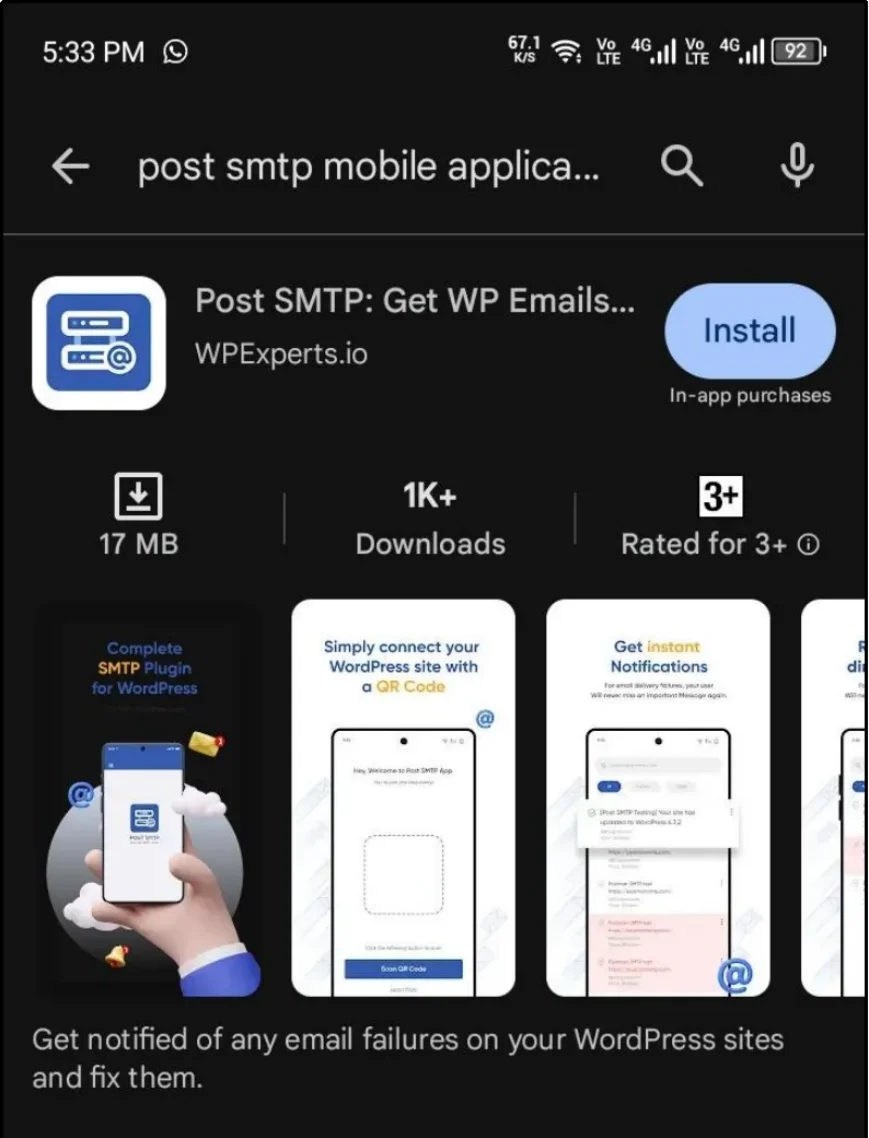
To connect your phone, simply download the Post SMTP app from the Google Play Store or the App Store.
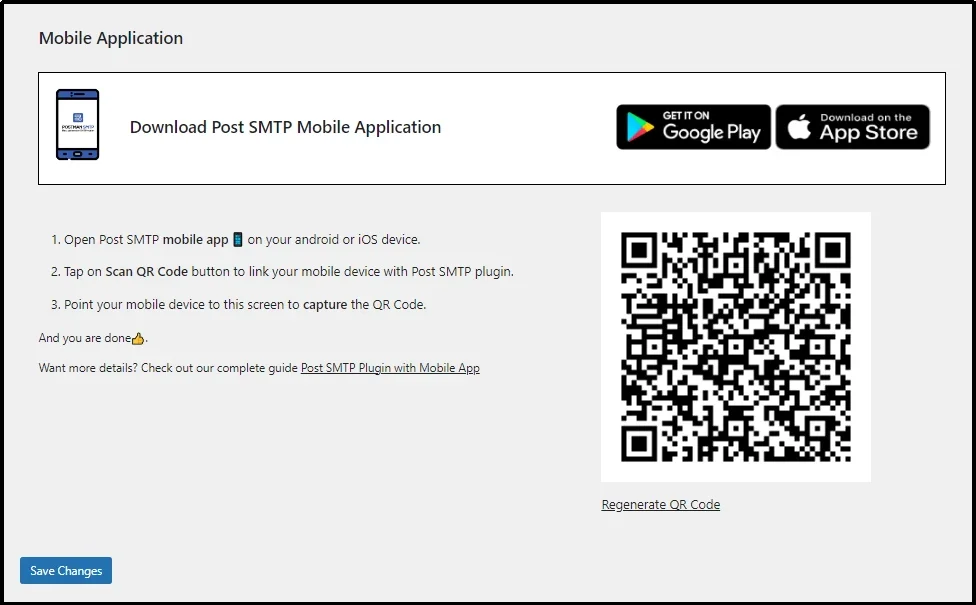
Then, go to the Post SMTP settings and find the Mobile App tab.
You will see a QR code; scan it with your phone, and the app will instantly sync with your website’s email log.
You now have a clear, step-by-step blueprint to implement a professional email solution for your WooCommerce store.
Relying on the default WordPress mail system is a direct route to lost revenue and frustrated customers. With Post SMTP, you install a complete, reliable delivery and logging system right into your store. This system protects your sales, improves customer satisfaction, and gives you total control over every email sent. Get Post SMTP now!