OpenAI
 Perplexity
Is UpdraftPlus not sending emails after running your backups? You’re not alone. Many WordPress users rely on these notifications to confirm their backups are working, but when those alerts don’t arrive, it leaves you guessing whether your data is really safe.
The good news is that this issue is usually easy to fix. Most of the time, it comes down to a few common settings or how WordPress handles outgoing mail.
In this guide, we’ll walk you through the exact steps to troubleshoot and fix the UpdraftPlus not sending email issue. By the end, your backup notifications will land right in your inbox, without getting lost or flagged as spam.
What Is UpdraftPlus and How Does It Send Emails?
UpdraftPlus is one of the most popular backup plugins for WordPress. It helps you create full or partial backups of your website and store them in multiple cloud storage services, such as:
- UpdraftVault (their own cloud storage)
- Google Drive
- Dropbox
- Amazon S3
- And several other cloud storage services
You can run backups manually or schedule them to run automatically in the background.
When it comes to email notifications, the free version of UpdraftPlus gives you basic alerts. For example, it can send you a confirmation email when a backup is completed successfully. If you upgrade to the premium version or purchase the Reporting addon, you’ll get more flexibility, such as emails when a backup fails or warnings when something goes wrong.
These emails are important because they act as your confirmation that backups are happening as planned. Without them, you may not realize there’s an issue until you actually need to restore your site, which could be too late.
Why UpdraftPlus Isn’t Sending Emails (3 Main Reasons)
If your UpdraftPlus notifications aren’t reaching your inbox, it usually comes down to one of three problems. Let’s break them down so you know exactly what’s going wrong.
- Misconfigured UpdraftPlus Settings
Sometimes the issue is inside the plugin itself. In the free version, UpdraftPlus only sends an email when a backup is successful. If a backup fails, you won’t get any notification at all. That can easily cause confusion if you’re expecting an alert after every attempt.
The first place to check is the backup log inside UpdraftPlus. If the log shows that no email was triggered, it’s likely just a settings issue rather than a delivery failure.
- WordPress’s Built-In Mail Function Isn’t Reliable
By default, UpdraftPlus uses WordPress’s wp_mail() function to send emails. This relies on your web host’s PHP mail() function, which is widely considered outdated.
Here’s the problem: most modern email providers like Gmail, Outlook, and Yahoo treat these messages as suspicious because they don’t use proper authentication. As a result, emails often get blocked, delayed, or sent straight to spam.
Also, some web hosts even disable the PHP mail() function completely, which means the messages never leave your server in the first place.
- Spam Filters Are Blocking the Emails
Even if the message is technically sent, it might not reach your inbox because spam filters look at authentication records like SPF, DKIM, and DMARC, as well as things like consistent headers and sender reputation.
Since UpdraftPlus doesn’t handle this authentication on its own, many providers will flag the email as spam or sometimes outright blog the email. That’s why you might never get the email.
Step-by-Step Process to Fix UpdraftPlus Not Sending Emails
Now that you know why UpdraftPlus emails might not be arriving, let’s walk through the fixes. Follow these steps in order to get your backup notifications working again.
Step 1: Check Your UpdraftPlus Backup & Reporting Settings
The first step is to make sure UpdraftPlus is actually configured to send notifications.
- Click ‘UpdraftPlus’ from the side menu and go to the ‘Settings’ tab.

- Look for the ‘Email’ option under “Choose your remote storage” and check if notifications are enabled.

- Run a manual backup by clicking ‘Backup Now’ inside the ‘Backup/Restore’ tab.
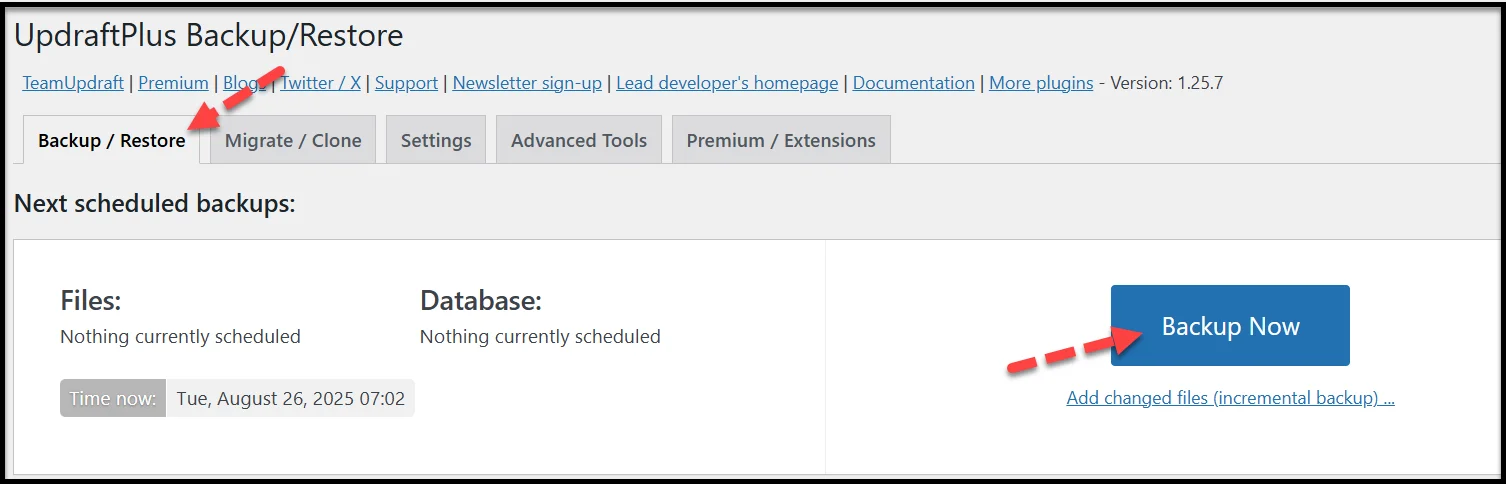
- When the backup completes, click ‘View Log’ to see if an email was triggered.
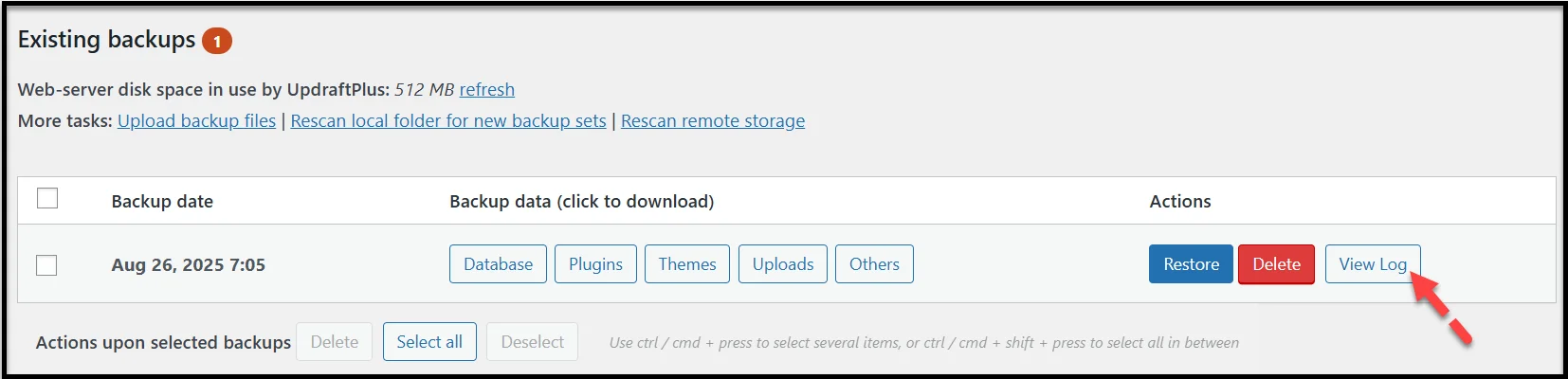
In the log file, you should see an entry indicating that the email has been sent.

If you’re using the free version, remember that emails only go out when a backup succeeds and not when it fails.
👉 In case you are using the premium version or the Reporting addon, you need to check the following settings:
- Head to the ‘Email Reports’ section.
- Make sure you have added the correct email addresses (separated by commas).
- Also, double-check whether you selected the ‘Email the report only when there are warnings/ errors’ option. If that’s checked, you won’t get alerts for successful backups.
Step 2: Install & Configure Post SMTP Plugin
If your backup logs show that an email was triggered but nothing landed in your inbox, the problem isn’t UpdraftPlus; it’s WordPress’s unreliable mail system, which is the main cause behind most WordPress email delivery issues.
The easiest and most effective fix is to use the Post SMTP plugin, which replaces WordPress’s default wp_mail() function with a proper, authenticated SMTP connection.
Here’s how to set it up:
- In your WordPress dashboard, go to ‘Plugins → Add Plugin.’
- Search for Post SMTP.
- Click ‘Install Now,’ then ‘Activate’ the plugin.
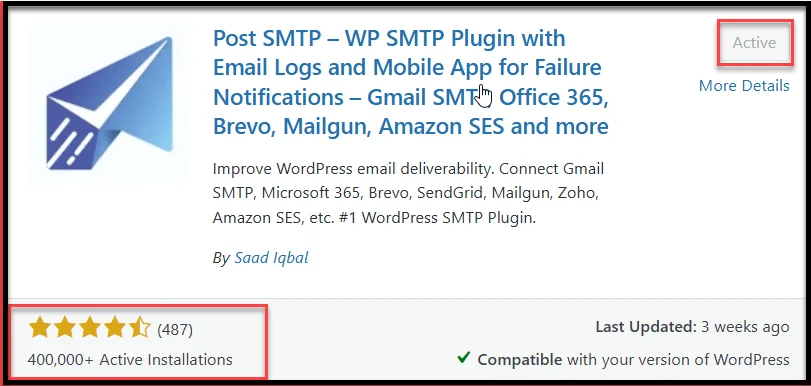
- Once activated, go to ‘Post SMTP → Dashboard’ and click ‘Start the Wizard.’
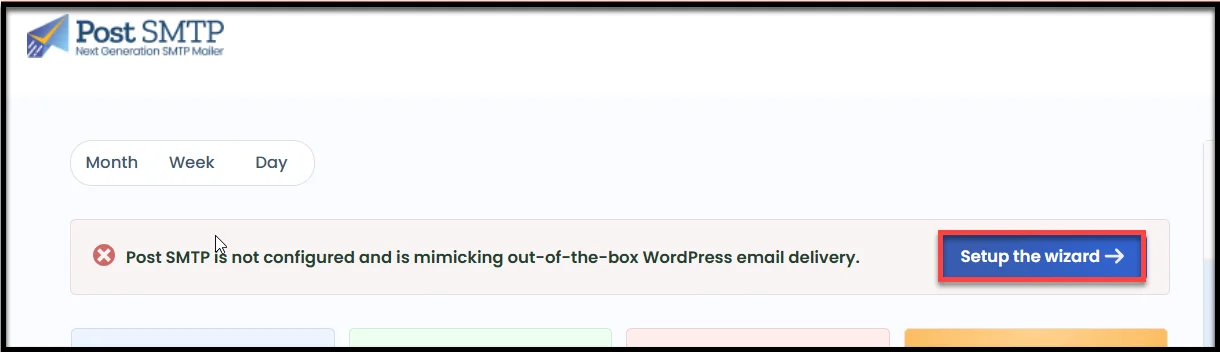
The setup wizard will walk you through connecting your site to a reliable email provider. Post SMTP supports all major services, including:
- Gmail (Google Workspace)
- Outlook (Microsoft 365)
- Amazon SES
- Zoho Mail
- Brevo (formerly Sendinblue)
- …and many others.
For this guide, we have picked ‘Brevo,’
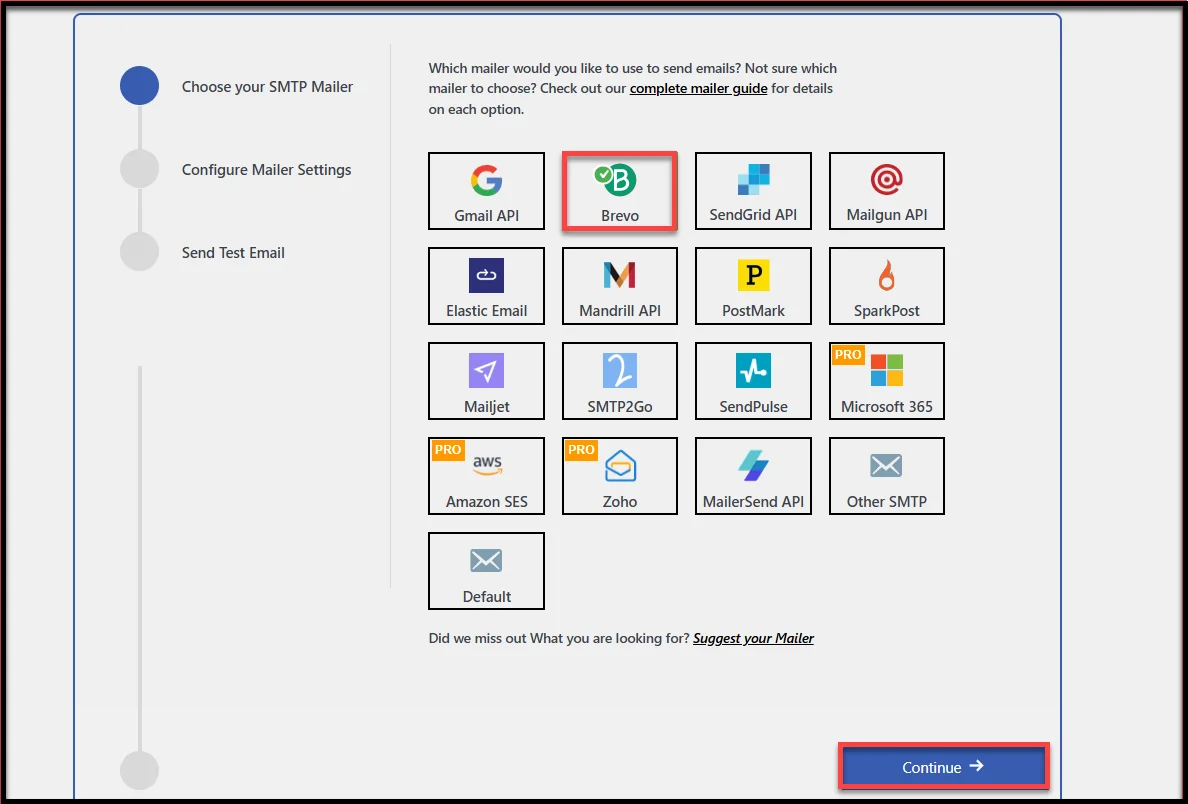
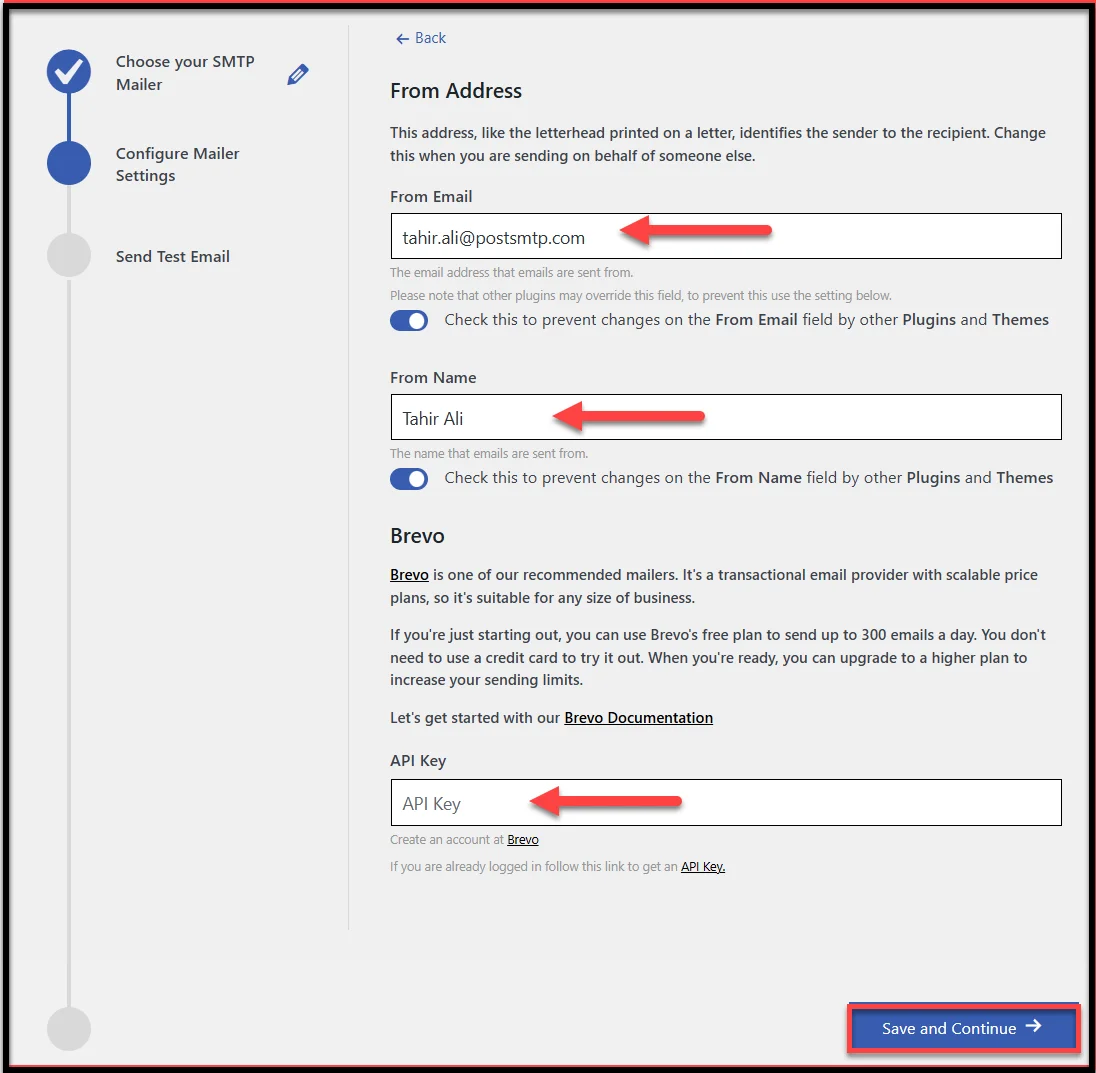
On the subsequent screen, provide the following details:
- Enter your ‘From Email’ (use the same domain-based email you want your backup alerts to come from, like example@yourdomain.com).
- Enter your ‘From Name’ (the name that shows in your inbox).
- Add your SMTP credentials or ‘API key.’
- Click ‘Save and Continue.’
The final step lets you send a test email. Enter your email address and click ‘Send Test Email.’
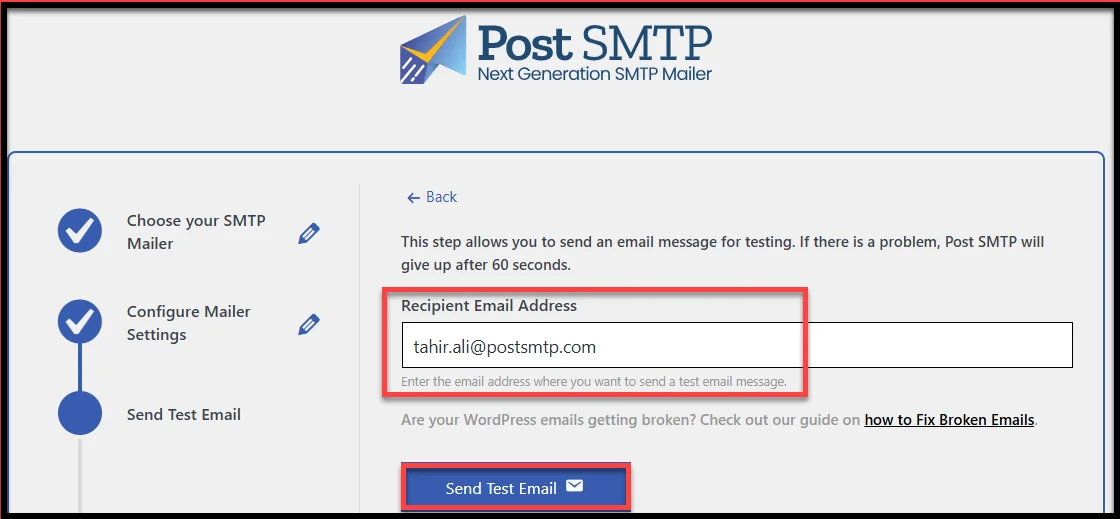
If it lands in your inbox, you’re good to go. From now on, all WordPress emails, including UpdraftPlus notifications, will use your SMTP provider for reliable delivery.
Step 3: Enable the Post SMTP Email Health Report
Once Post SMTP is set up, your backup notifications should already start reaching your inbox. But what about tomorrow or next week? How do you know your emails will keep working over time? That’s where the Email Health Report comes in.
This feature inside Post SMTP keeps track of how your emails are performing and sends you regular updates. It’s a simple way to stay confident that your UpdraftPlus alerts are still being delivered.
Here’s how to enable it:
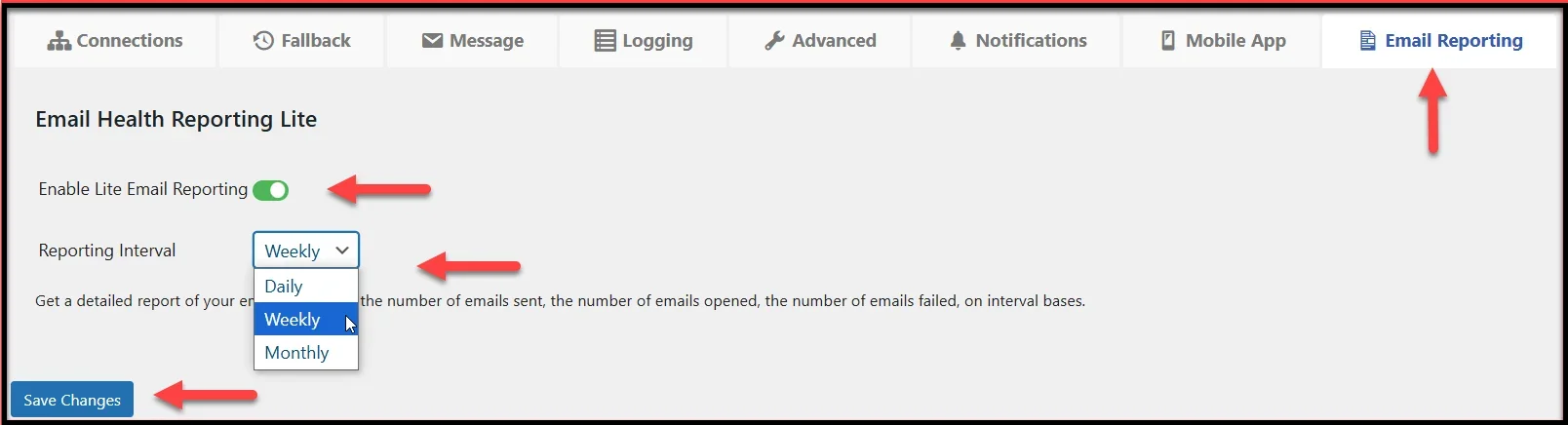
- In your WordPress dashboard, go to ‘Post SMTP → Settings.’
- Click on the ‘Email Reporting’ tab.
- Toggle the switch to ‘Enable.’
- Choose how often you want reports:
- Daily
- Weekly
- Monthly
- Click ‘Save Changes.’
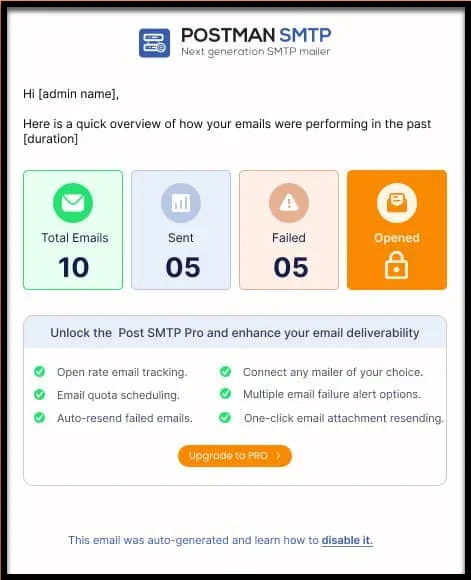
Now, you’ll get consistent reports summarizing your email delivery status as shown in the screenshot below.
Next, Fix Missing Backup Email Attachments in UpdraftPlus
UpdraftPlus doesn’t just send notifications; it can also send your actual backup files as email attachments. While this might sound convenient, it often causes problems. Many users notice that their backup emails arrive with missing files, or sometimes the emails don’t show up at all.
Here’s why this happens:
- Attachment size limits: Most email providers restrict file sizes, often between 20 and 25 MB. If your backup exceeds that, the email either gets blocked or stripped of its attachments.
- Security filters: Because attachments are a common way to spread malware, providers like Gmail and Outlook are extra cautious. They may block or remove files automatically.
- Unreliable delivery: Larger backups are usually split across multiple emails. Some may arrive, while others disappear, making your backup incomplete.
To troubleshoot this, use your Post SMTP email logs to confirm if attachments were sent. If the log shows they were included, but you didn’t receive them, the problem lies with your email provider.
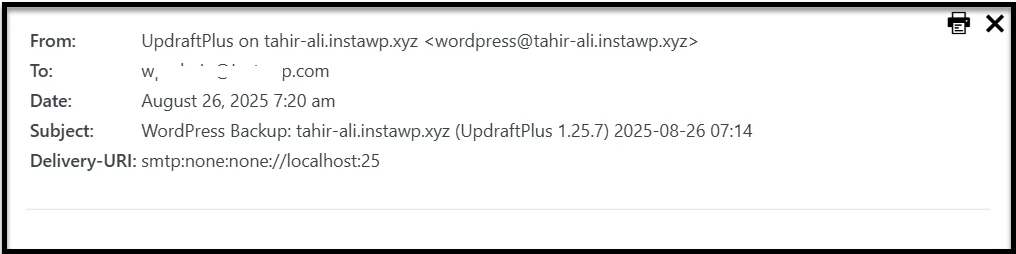
Moreover, if the backup files are too large, sending them by email isn’t practical.
Instead of relying on email attachments, configure UpdraftPlus to send your backups to a remote storage location like Google Drive, Dropbox, or Amazon S3. You’ll still get a notification email (delivered through Post SMTP), but the actual backup files will be safely stored in the cloud, without hitting email size limits.
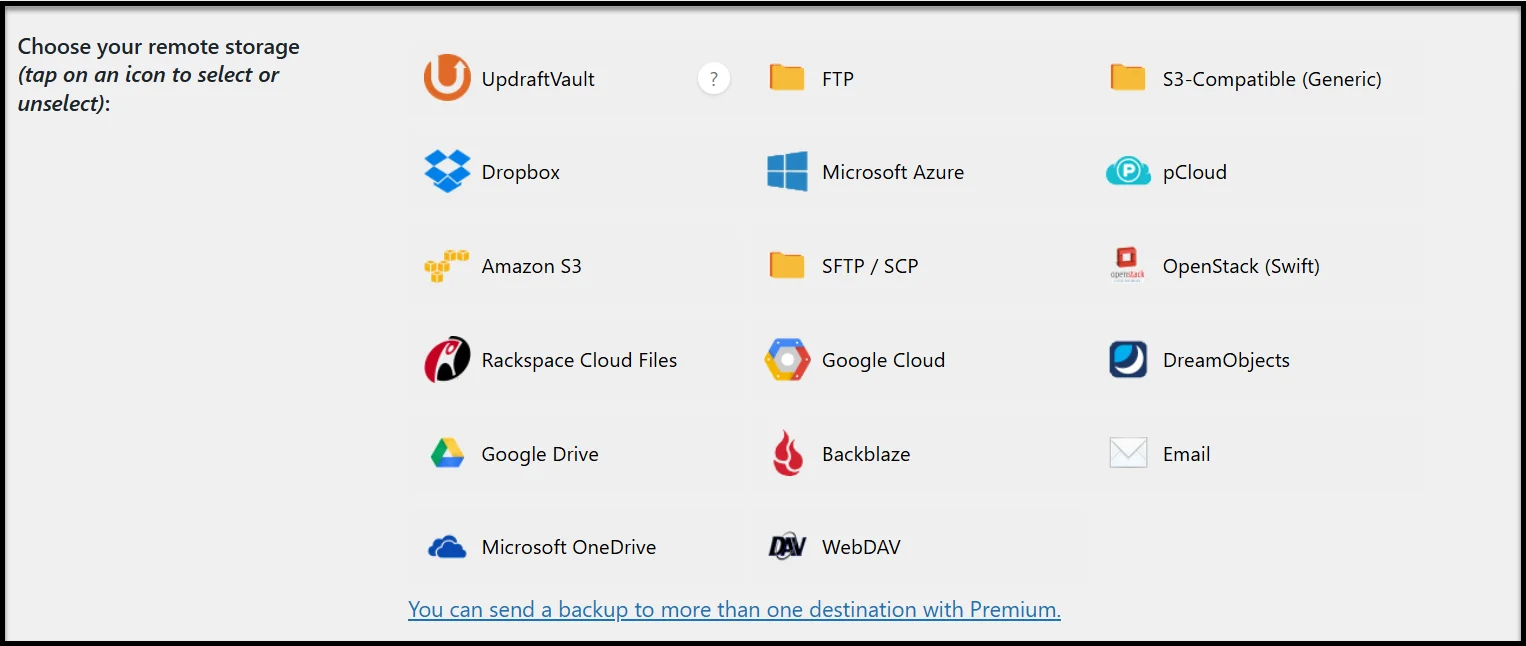
This way, you’ll know when a backup finishes and always have access to your files, even if attachments fail.
Bonus Tip – Use MainWP Post SMTP Extension (Optional)
If you only manage one website, the steps above are enough. But if you run multiple WordPress sites, whether for clients, an agency, or your own projects, keeping track of email delivery on each one can be time-consuming.
That’s where the MainWP Post SMTP Extension comes in handy. When connected to your MainWP Dashboard, it lets you:
- View email health reports from all your connected sites in one central place
- Get alerts if any child site has failed or is missing emails
- Configure SMTP settings across multiple sites more efficiently
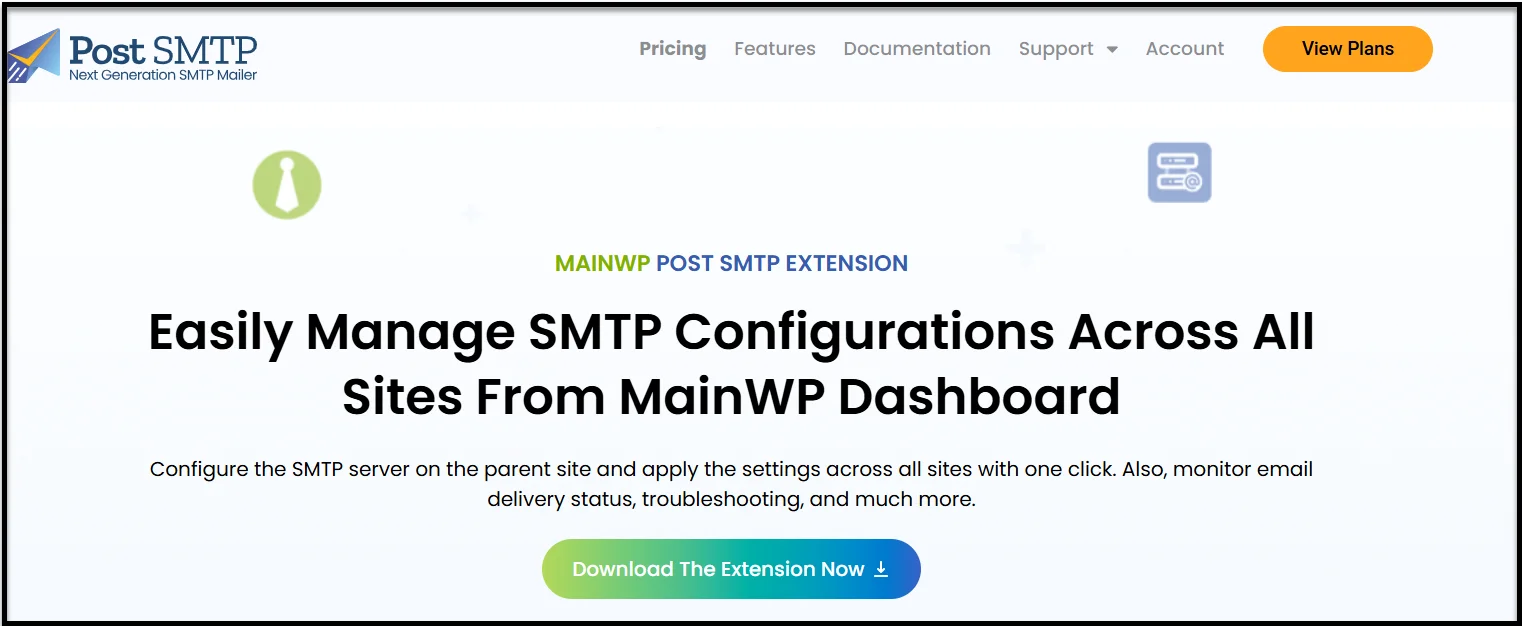
This saves hours of manual checking and gives you confidence that your clients’ or projects’ backup alerts are never slipping through the cracks.
Upgrade to Post SMTP Pro for Reliable Email Delivery and Full Control
If you’re tired of wondering whether your UpdraftPlus notifications are actually arriving, upgrading to Post SMTP Pro gives you complete confidence and control over your WordPress email delivery.
The free version fixes the basics, but Pro takes things much further with advanced tools built for reliability. Here’s what you unlock:
- Premium SMTP Connections: Connect to Amazon SES, Microsoft 365, Zoho Mail, and 15+ other top-tier providers with ease.
- Email Quota Scheduling: Control how many emails your site can send per hour, day, or month.
- Email Health Reports: Get detailed stats on how many emails were sent, opened, and failed.
- Instant Failure Alerts: Get notified immediately via email, SMS, Slack, webhook, or the mobile app if an email fails.
- Auto-Retry for Failed Emails: Never lose an important message; failed emails are automatically resent.
- Resend with Attachments: If an email fails, you can resend it right from your log—including its original attachments.
- Mobile App Access: Connect multiple sites, monitor, resend, and manage email delivery from anywhere.
With these features, you’re not just fixing UpdraftPlus notifications; you’re taking control of all WordPress emails across your site.👉 Don’t leave your backup confirmations to chance. Upgrade to Post SMTP Pro today and get peace of mind knowing your emails are always delivered.