

 OpenAI
 Perplexity
The wp_mail() function or the WordPress default mail system has numerous reliability issues.
Since cyberattacks are escalating and validation checks are getting stricter, the wp_mail()—which is outdated and not aligned with modern email security protocols—often fails to send emails reliably.
There is a super simple solution for it.
This article explores why this common issue occurs and how you can easily fix it by replacing the mailer with a reliable third-party email service.
Why Wp_mail Doesn’t Work?
There are multiple reasons behind this common problem. A few of them include:
- Lack of authentication. The biggest reason behind unreliability is the lack of verification for the receiving server. Since the framework is old, it doesn’t sign emails using the necessary security protocols before sending them. Hence, receiving servers reject emails upon reception. These security protocols include:
- Sender Policy Framework (SPF): SPF marks the domain servers allowed to send emails on behalf of a domain. This data is public and stored in the Domain Name System. When an email is received, the receiving server checks it against the data to ensure it comes from a valid server and is not a spoof.
- DomainKey Identified Mail (DKIM): DKIM signs emails with a digital signature in the header. Receiving servers let the email pass if the signature is present.
- Domain-based Message Authentication, Reporting, and Conformance (DMARC): DMARC evaluates based on the aforementioned protocols and rejects or quarantines the email.
- No error logging. When wp_mail() fails, WordPress doesn’t always log the failure clearly. This makes it hard to identify whether an email was never sent or just never arrived.
- Blocked by hosting providers. Many shared hosting providers block outbound SMTP connections or restrict default mail functions to prevent spam, which can cause it to crash or not send emails properly.
- Misconfigured ‘From’ email address. If the default sender email is something like wordpress@yourdomain.com and that address doesn’t exist or isn’t authorized, most mail servers will reject it. Also, several themes and plugins may change these settings, which can also cause complications.
- Running on local host. It is also important to note that the local host does not support the wp_mail() function.
How to Fix Wp_mail Not Working: 4 Steps
One solution can resolve all these problems. You can force WordPress to send emails through a reliable third-party email sender instead of the wp_mail() function. Fixing all the issues stemming from it.
Here is how to do it in four simple steps.
Step 1: Download and Activate Post SMTP
Install and activate the Post SMTP plugin.
The plugin has over 400k active installs and 4.7 stars on the WordPress plugin directory. It is the best SMTP plugin, offering much more than setting up an SMTP server.
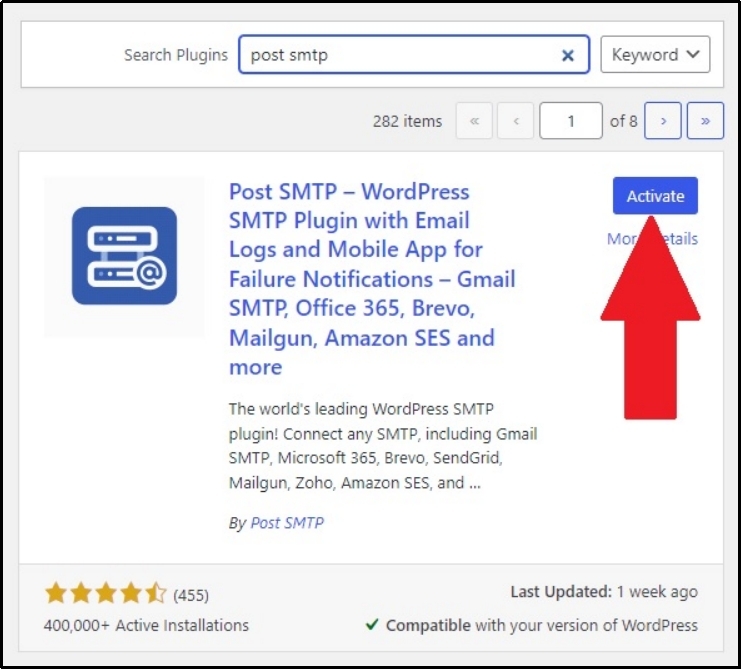
Head over to WordPress ⇒ Plugins ⇒ Add New.
Using the search plugin bar, search for Post SMTP.
Install the plugin and click Activate.
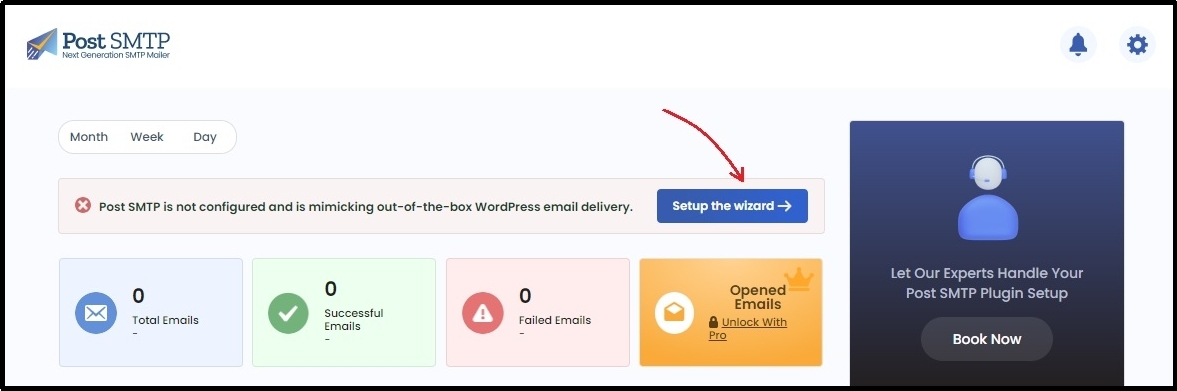
Once activated, open the plugin and run the wizard by clicking Setup the wizard →
Step 2: Setting Up a Mailer
This step requires setting up the mailer of your choice.
Once you run the setup wizard, you will see multiple mailers on the screen to choose from.
You can choose one or use the Other SMTP button to use one that is not on the list.
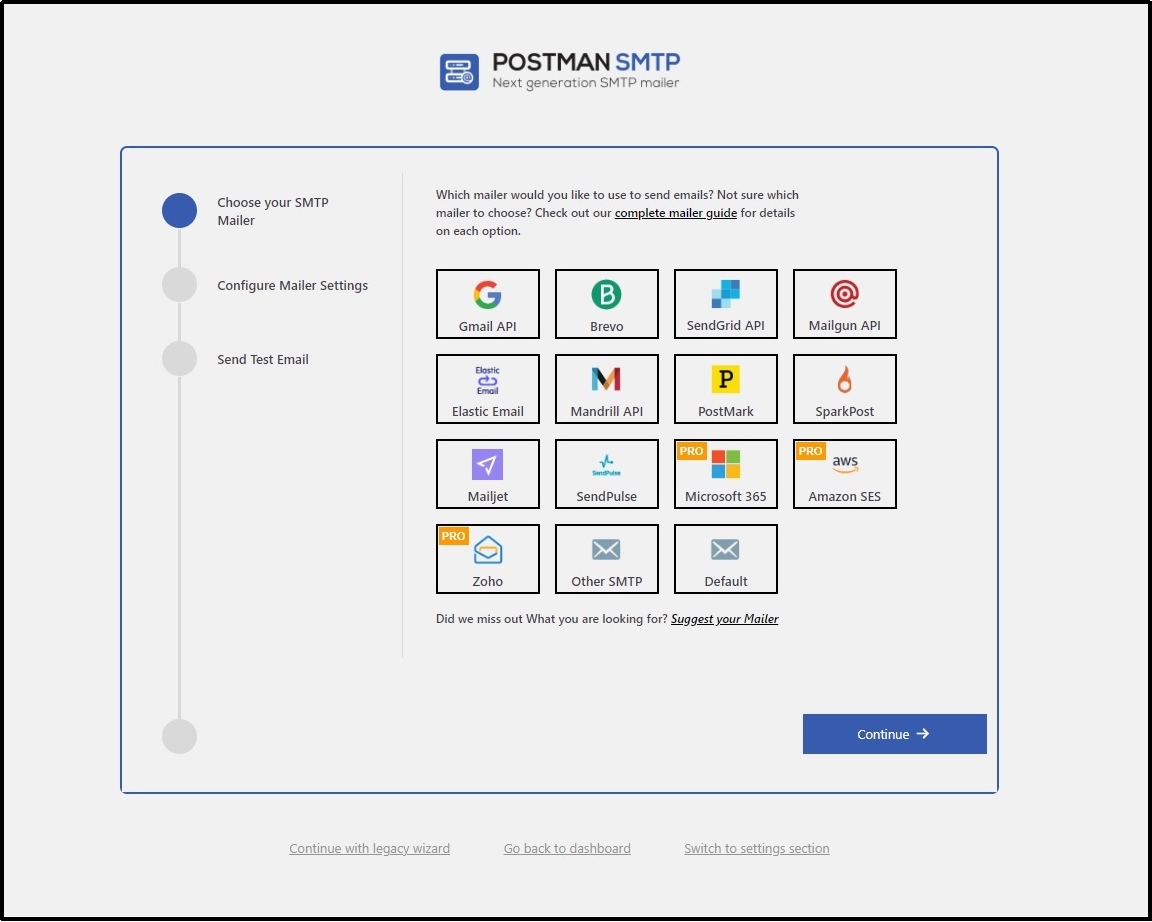
ℹ️ Want your favorite mailer to be on the list? Use the Suggest your Mailer button to send a proposal.
Once you choose one, you must add the mailer’s API key to the input box.
If you are already logged in to the mailer, you can use the API key button directly.
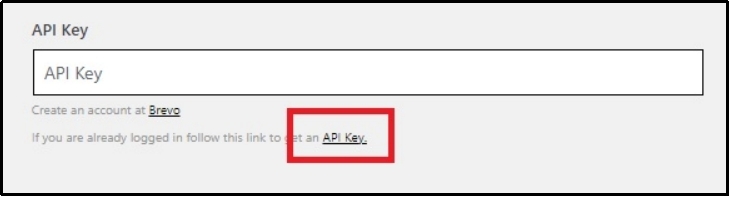
Otherwise, every mailer is linked to its documentation below. Click on your preferred option for instructions.
- Gmail
- Brevo
- SendGrid
- Mailgun
- Elastic Email
- Mandrill
- PostMark
- SparkPost
- Mailjet
- SendPulse
- Microsoft 360
- Amazon SES
- Zoho
After getting the keys, add them to the API Key box.
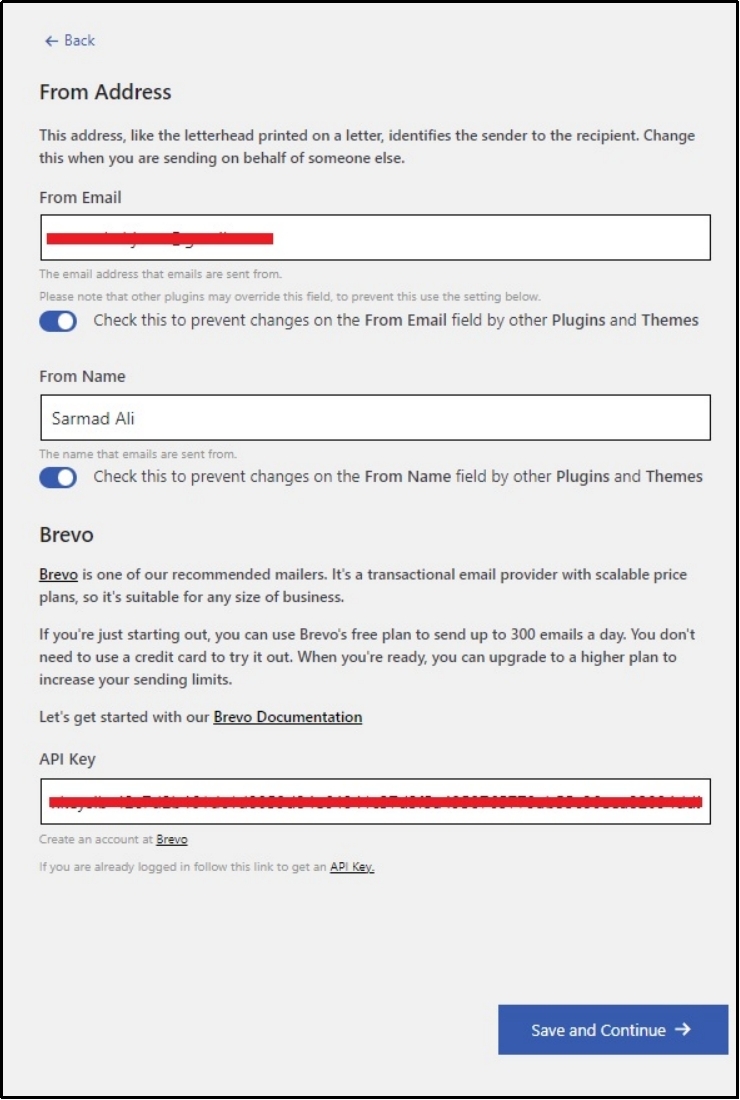
Click Save and Continue.
Step 3: Send Test Email
Afterward, the plugin allows sending a test email to verify whether the mailer was correctly set. Specify the receiving email address (this email will receive the message) and click Send Test Email.
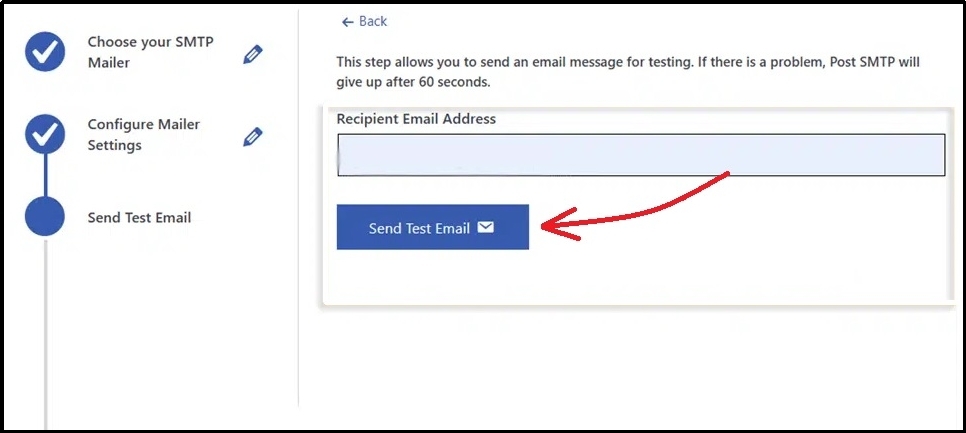
A success message will appear if you receive the message within 60 seconds.
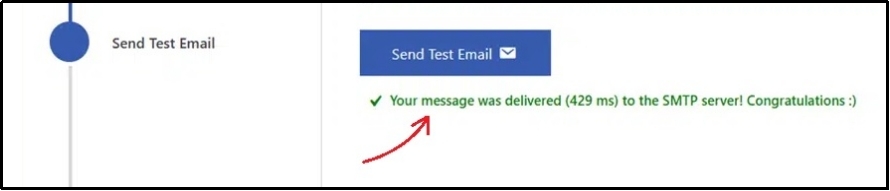
Otherwise, there can be an error with the configuration.
In such a case, feel free to contact our support team. We can help you configure it correctly so no message is left undelivered!
Alternatively, you can also go to our tools page and choose from:
- SMTP Email Tester: A tool that helps test your integration. Enter the username, mail from, mail to, password, host, and specify the port.
- Email Spam Score Checker: As the name suggests, the tool enables you to find out your email spam score, which is simply the probability that the email will land in spam or the inbox.
If the test is clear, we can proceed to the final and fourth step, which requires a tiny modification of the plugin’s settings.
Step 4: Force “From Emails”
Earlier, we discussed plugins and themes causing inconsistencies in “From” emails.
It is an essential aspect of an email. The sender’s name appears in your inbox, which helps users choose whether to open the email. Therefore, it’s necessary to keep it consistent throughout the website.
To do so, navigate to the Post SMTP ⇒ Settings ⇒ Messages tab.
Enter the email address and the name in the respective boxes, and check the boxes underneath.
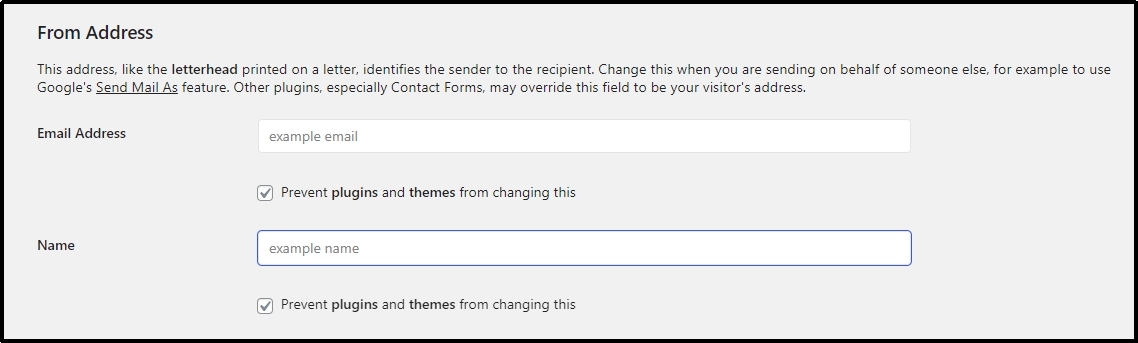
Click Save Changes.
That should keep emails consistent throughout.
That’s how you can solve this very common problem with a super simple solution. It is also the culprit behind learning management systems, forms, or other tools failing to send emails properly.
The Solution To All Your Deliverability Problems
Email is the backbone of user communication on any WordPress site. Whether it’s sending password resets, form submissions, purchase confirmations, or LMS notifications, your site can’t function properly when those emails don’t reach your users.
Thankfully, the solution is pretty simple.
Post SMTP solves all of these problems in one go. With built-in support for modern authentication protocols, detailed logging, and much more, it completely replaces the unreliable wp_mail() function with a secure, authenticated email system.
Just as a recap, the plugin:
- Supports all major email services (Gmail, SendGrid, Outlook, Amazon SES, and more)
- Uses secure APIs and SMTP connections with SPF, DKIM, and DMARC compatibility to send emails reliably.
- Includes a robust system for tracking email failures.
- Keeps your “From” email consistent across your site.
- Offers additional tools like spam score checkers and SMTP testers.
If you’ve struggled with emails not sending, getting marked as spam, or just vanishing without explanation, Post SMTP can help. Download today!
Frequently Asked Questions
What is wp_mail?
Wp_mail is the default mail system WordPress uses to send emails. However, it cannot reliably send emails because it lacks industry-standard security protocols.
Why is wp_mail not working on localhost?
If your site runs on localhost, wp_mail will not work simply because localhost does not support the wp_mail() function. Thus, you can either switch to a host or set up a third-party mailer using Post SMTP.
Why is my WordPress email not working?
There are several common reasons why WordPress emails may not be sending, including a lack of authentication, blockage from the host, an inconsistent or invalid “from” email, or a problem with your email settings.