























Are your donors not receiving confirmation emails after making a donation through the GiveWP donation form? That’s a problem.
When the GiveWP plugin fails to send donor emails, particularly donation receipts, it creates doubt and confusion for your supporters. They might think the payment didn’t go through—or worse, they will hesitate to donate again.
That’s the last thing you want during a fundraising campaign.
The good news? This issue is very fixable. In this guide, we will explain the reasons behind the GiveWP Donor Email Not Sending issue and how to fix it step by step.
Ready? Let’s get started!
What Is GiveWP & How Does It Work?
GiveWP is one of the most popular donation plugins for WordPress, and for good reason. It offers nonprofits, charities, and individuals the tools to collect donations online, eliminating the need to hire a developer or deal with complex code.
You can create donation forms, set up recurring contributions, track donor activity, and generate reports—all from your WordPress dashboard.
On top of that, every time someone donates, GiveWP is supposed to send them a confirmation email. This message usually includes the donation amount, transaction ID, and other important details. It acts like a receipt and confirmation rolled into one.
When these emails aren’t sent, it breaks that vital communication link with your donor. It can lead to confusion, lost trust, or even chargebacks if donors aren’t sure their payment went through.
That’s why solving this email issue isn’t just a technical fix—it’s a major part of keeping your fundraising efforts credible and successful.
Why GiveWP Emails Fail to Send
If GiveWP donation emails aren’t arriving in the inbox, the problem usually isn’t with GiveWP itself. Instead, the issue often lies in how your WordPress site is set up to send emails.
Let’s break down the most common causes:
Reason #1: Wrong GiveWP Email Alerts Settings
If your GiveWP donor emails aren’t being sent, the first place to check is the Email Alerts settings. Sometimes, specific email alerts are disabled by accident, or they’re set to send only to admins instead of donors.
Under GiveWP → Settings → Emails, review both Donor and Admin emails.
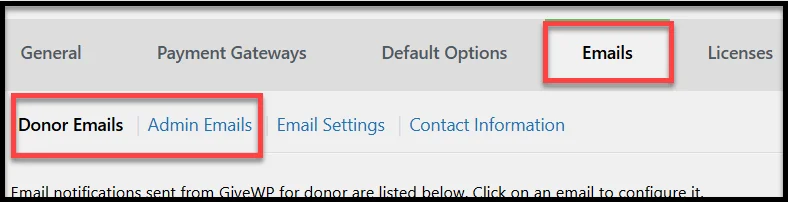
Key events for donor emails include:
- Donation Receipt
- Donation Processing Receipt
- Offline Donation Instructions
- User Registration Information
- Donation Note
For the admin, the following email alerts are available:
- New Donation
- New Offline Donation
- New User Registration
If any of these are turned off or the recipient address is incorrect, emails will not be delivered.
Reason #2: WordPress Default PHP mail() Function
Many WordPress hosts, especially shared ones like Bluehost or GoDaddy, put strict limits on sending emails from your site using PHP’s default wp_mail() function. Some even block it entirely to reduce spam and server abuse.
So while GiveWP might think it’s sending the email, your host might be silently blocking it from leaving the server.
Reason #3: Conflicting “From” Email Addresses
Multiple plugins on your site (like contact forms, eCommerce tools, or membership systems) may each try to use a different sender address for outgoing emails. This inconsistency can raise flags with email providers like Gmail or Outlook.
When a mail server sees different “from” addresses being used across the site, it doesn’t know which one is legitimate. As a result, your messages may get filtered as spam or never delivered at all.
Reason #4: Missing DNS Authentication (SPF, DKIM, DMARC)
Email authentication is a big deal. Starting from May, Microsoft Outlook started to crack down on bulk email senders who fail to update their DNS records. Google was doing that for a couple of years.
Without proper DNS records like SPF, DKIM, and DMARC, email service providers don’t trust that your site is authorized to send messages on behalf of your domain.
Fortunately, you don’t need to become a tech wizard to fix this. In the next sections, you’ll learn exactly how to fix these issues step-by-step.
5 Easy Steps to Fix the GiveWP Donor Email Not Sending Issue
First, we will review the GiveWP email notifications settings, and after that will replace the WordPress default email function with a reliable SMTP server.
Need Expert Assistance?
Feeling stuck or don’t have time to troubleshoot? Let a WordPress email expert handle the issue for you—fast and error-free. Skip the guessing and get your donation emails working right the first time.
Here’s what our email specialist will help you with:
✔️ Full Post SMTP configuration (including backup mailer)
✔️ SPF, DKIM, and DMARC records are set up correctly
✔️ Spam score testing to catch issues before they hit
✔️ Personalized one-on-one session to troubleshoot your site
To stop letting donation emails go missing, 👉Book a 1-on-1 session with our email expert and let an expert fix it for you.
If you want to fix the issue on your own, follow the steps below:
Step 1: Check Donation Receipt Settings in GiveWP
Start by checking the GiveWP Donor emails settings, and here’s how to do so:
- In your WordPress dashboard, go to GiveWP → Settings.
- Click on the Emails tab at the top.
- Look for the Donor Emails sub-tab.
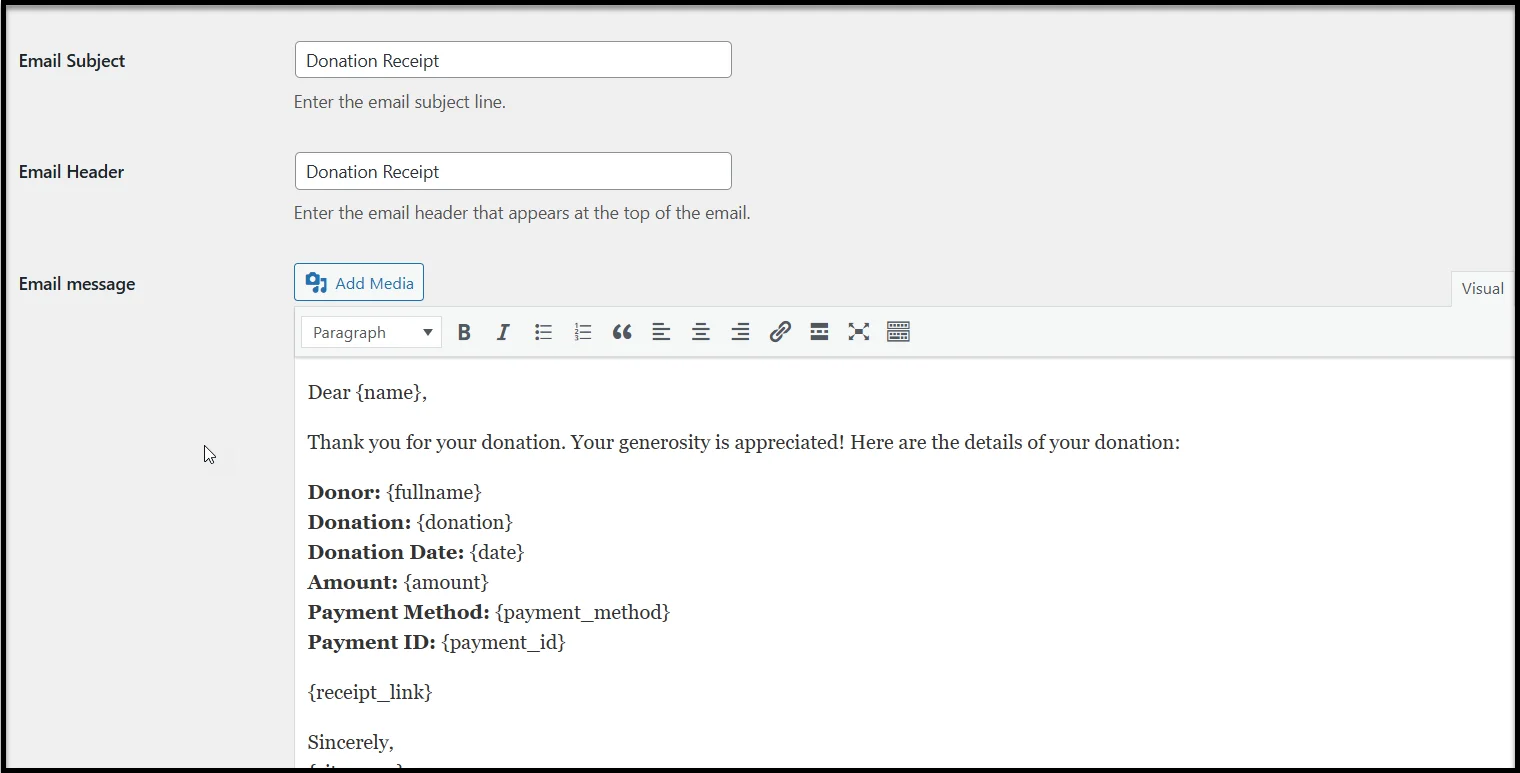
- Make sure the Donation Receipt email is enabled. You should see a green checkmark beside it.
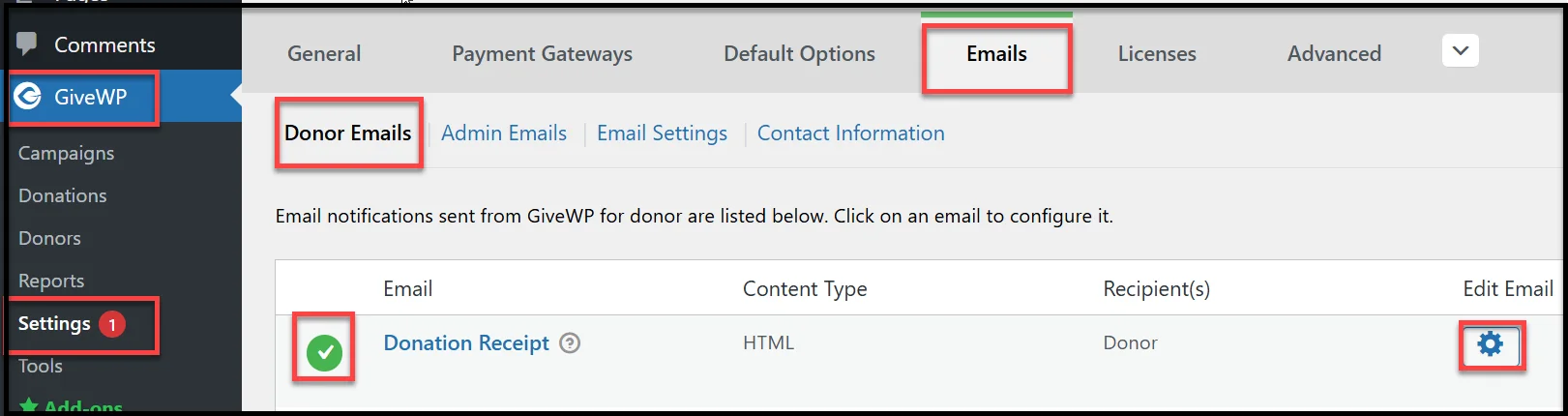
- If it’s not active, click the gear icon next to “Donation Receipt” to open its settings. Then select the ‘Enabled’ radio button as shown in the screenshot below.
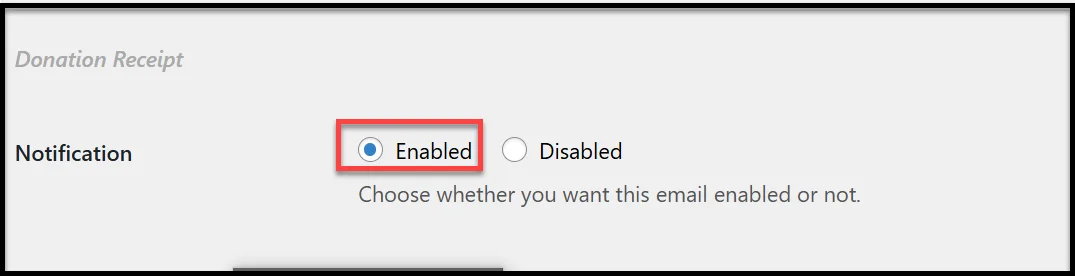
From now on, every time a donor makes a contribution, this email will be triggered.
Also, while you’re there, scroll down and double-check the content of the email. Make sure it includes the essential details like donation amount, date, and transaction ID. That way, your donors have everything they need in their inbox.
This may seem simple, but it’s a common oversight, especially if your site has recently been migrated, cloned, or updated.
Step 2: Verify GiveWP Email Settings
Even if your donation receipt is enabled, it won’t matter much if the email is being sent from a sketchy or mismatched address.
Email providers pay close attention to the “From” address. If it doesn’t match your domain or looks suspicious, it’s far more likely to be flagged or blocked entirely.
Here’s how to fix that inside GiveWP:
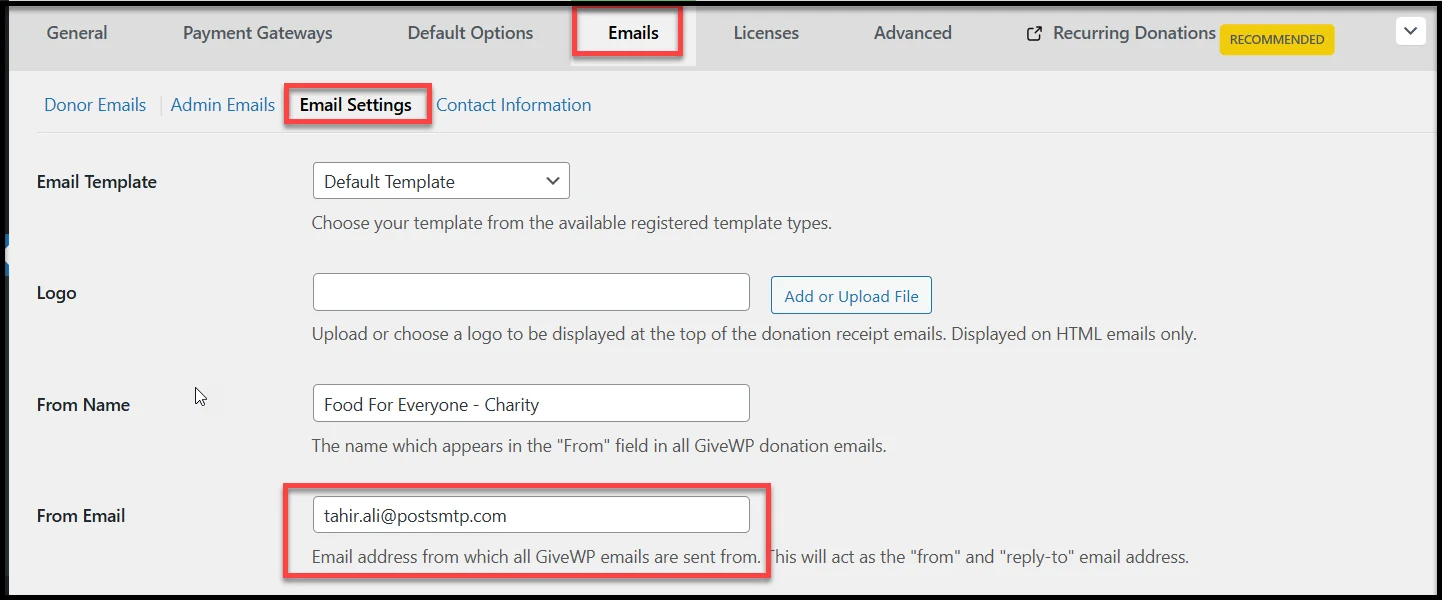
- Still inside the GiveWP → Settings → Emails tab, click the Email Settings sub-tab.
- Look for the From Email field.
- Change this to a domain-based email address, like you@yourwebsite.com.
Once that’s done, you’ve removed one of the most common causes of email delivery failure.
Step 3: Install & Configure Post SMTP Plugin
Now that GiveWP is set up to send emails correctly, it’s time to make sure they actually get delivered. That’s where the Post SMTP plugin comes in.
As we mentioned earlier, WordPress’s default mail system (wp_mail) is a primary reason why WordPress fails to send emails. It has no authentication, no security, and zero reliability.
Post SMTP allows you to replace that default maligun system with a reliable SMTP server, which is what email providers expect.
To install and set up the Post SMTP plugin, follow the steps below:
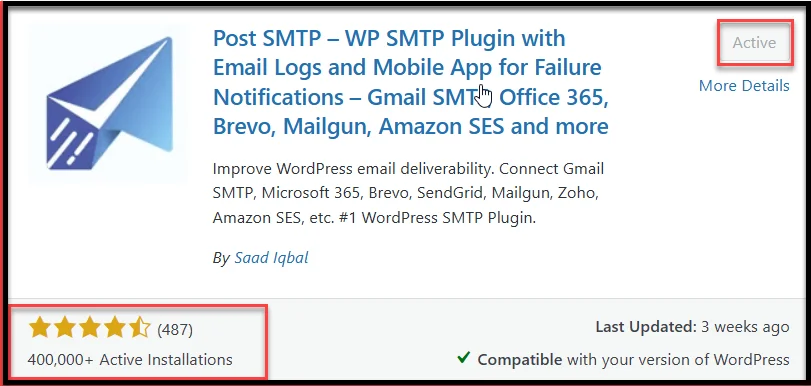
- In your WordPress dashboard, go to Plugins → Add Plugin.
- Search for Post SMTP.
- Click Install Now, then Activate the plugin.
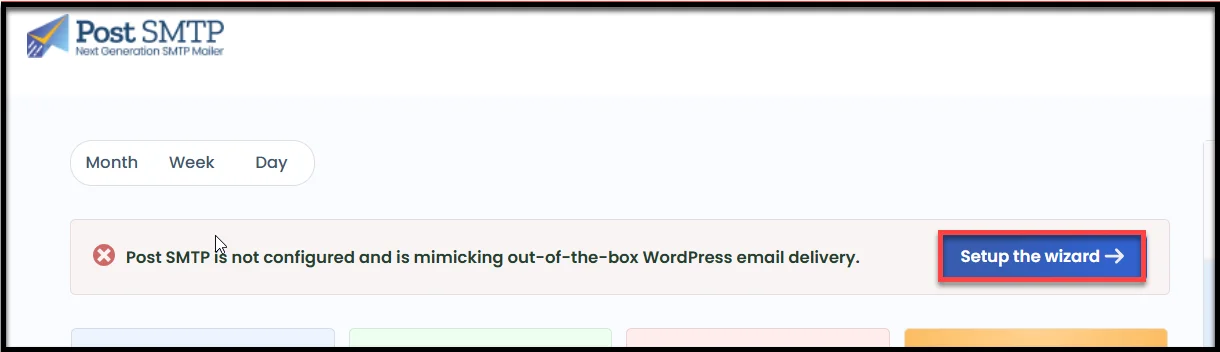
- Once activated, head over to Post SMTP → Dashboard and click the Start the wizard → button.
Post SMTP supports all major SMTP service providers, including Gmail (Google Workspace), Microsoft 365/Outlook, Amazon SES, Zoho Mail, Brevo (formerly Sendinblue), and many more.
Let’s say you’re using Brevo as an example:
- Choose Brevo and select ‘Continue.’
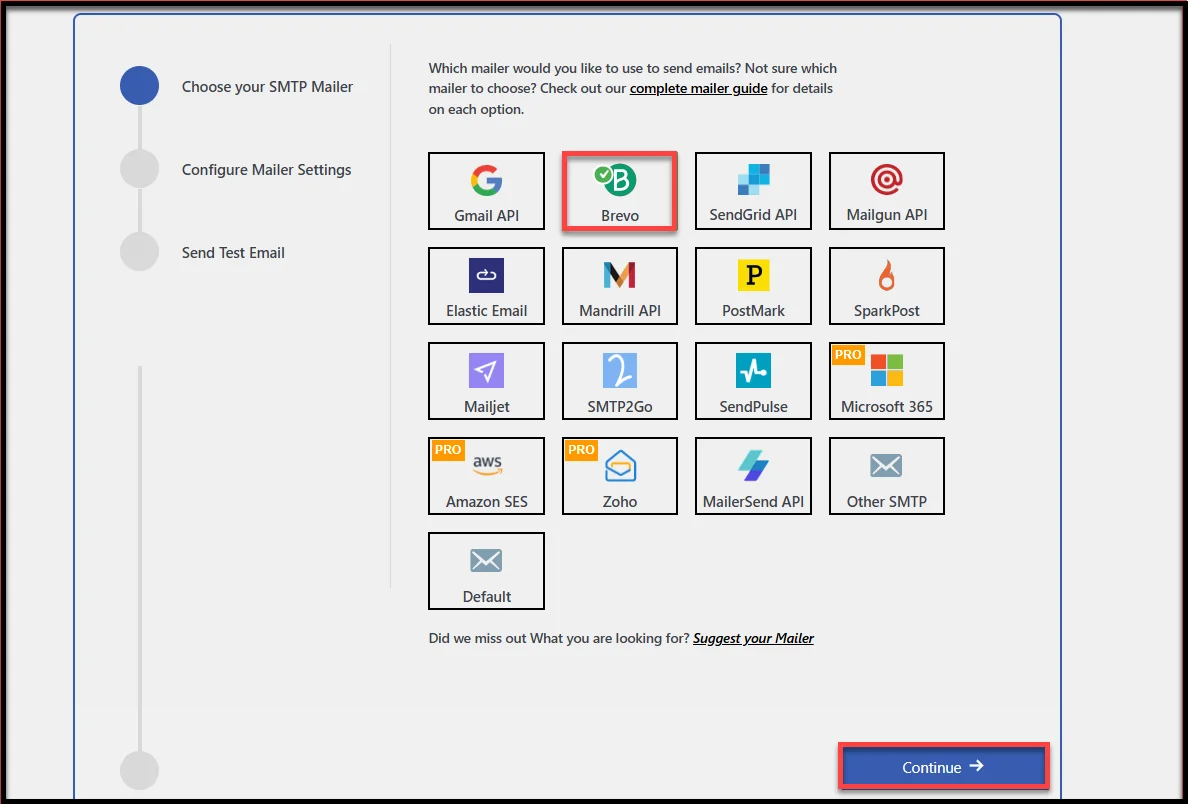
- On the subsequent screen, fill out the following details:
- Enter the From Email. This is the sender email address that donors will see—use the same one you’ve set in GiveWP email settings (e.g., you@yourdomain.com).
- Fill in your “From Name” field. This will appear in the donor’s inbox.
- Enter your SMTP credentials or API key based on your chosen SMTP provider.
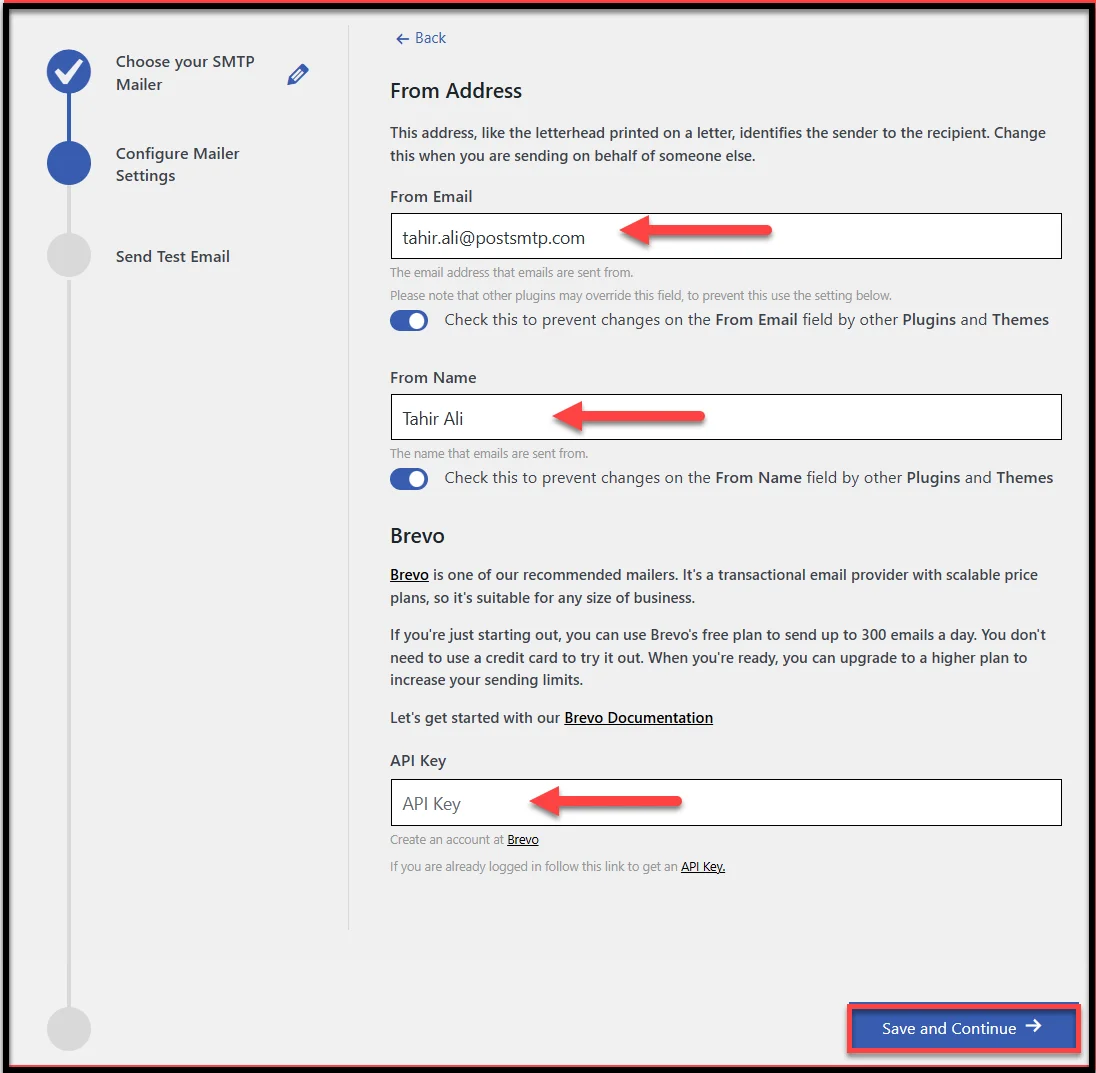
- Once everything’s filled out, click the “Save and Continue” button.
The final step in the wizard lets you send a test message to verify everything works.
- Enter a valid email (your own is fine).
- Click the “Send Test Email” button.
- If it lands in your inbox, you’re set.
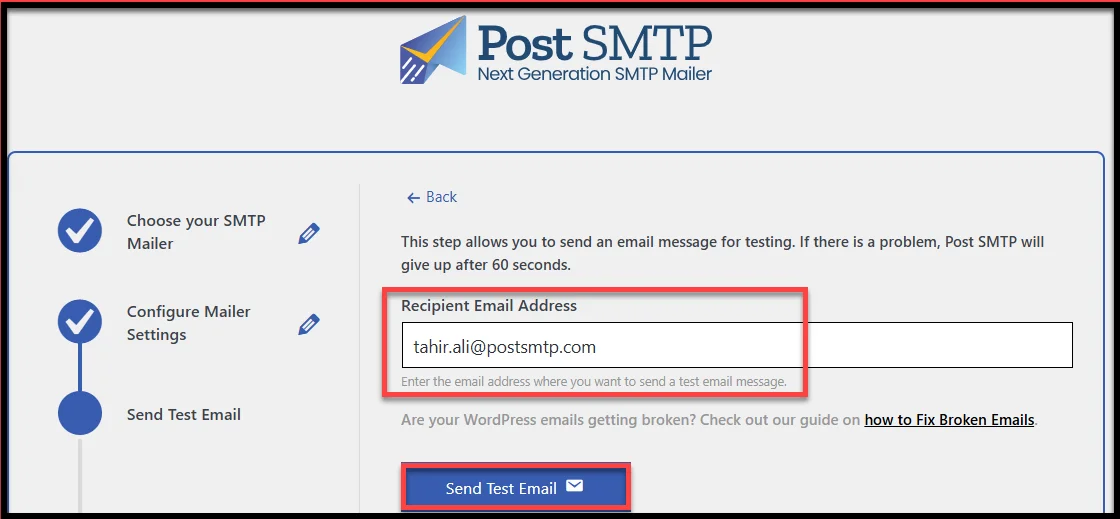
From now on, all WordPress emails, including GiveWP donation receipts, will go through your SMTP provider. That means better deliverability, fewer spam issues, and no more missing donor confirmations.
Step 4: Force a Consistent “From Email Address”
Even after setting up SMTP correctly, if you have inconsistent “From Email” addresses across different plugins, it will negatively impact your website’s email deliverability.
For example:
- GiveWP sends emails from donations@yourdomain.com
- A contact form plugin sends from thankyou@yourdomain.com
- Another plugin might use admin@yourdomain.com
When mail servers see this kind of inconsistency, they get suspicious. It makes your site look unreliable, and your emails might end up in spam or not get delivered at all.
The fix? Lock your site into using a single, verified sender email for everything.
Here’s how to do it using Post SMTP:
- Go to your dashboard → Post SMTP → Settings
- Click on the Message tab
- In the “Email Address” field, type the same domain-based email you used earlier (e.g., donations@yourdomain.com)
- Scroll down and check the box labeled “Prevent plugins and themes from changing this.”
This setting forces all outgoing emails—regardless of plugin—to use your verified sender address.
- Click the “Save Changes” button.
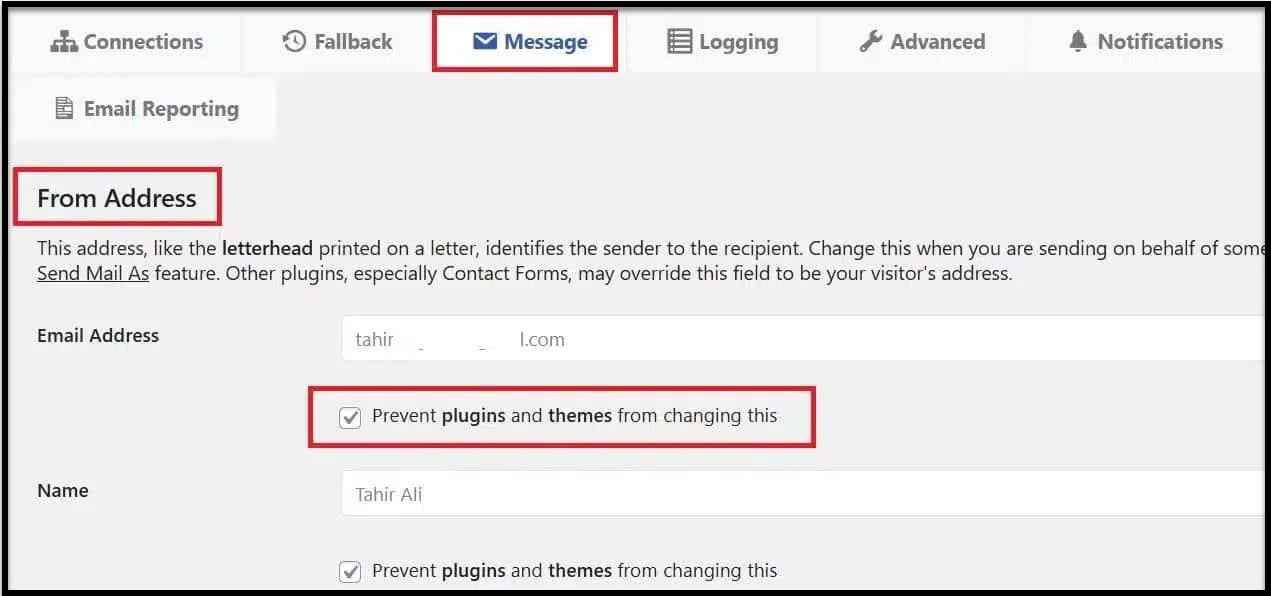
That’s it! From now on, all transactional emails from your site will be delivered from the same email address.
Step 5: Resend Missed Emails Using Post SMTP’s Email Log
If GiveWP wasn’t sending emails before you fixed things, you’ve probably missed a few donor messages already.
Good news: You don’t have to leave those in the past.
Post SMTP has a built-in Email Log feature that keeps track of every message your site tries to send. Not only can you see which ones failed, but you can resend them, right from your WordPress dashboard.
Follow the steps below to resend failed emails:
- In your dashboard, go to Post SMTP → Email Log
- You’ll see a list of all recent emails sent from your site.
- Look for entries marked as “Failed” or “Pending.”
- Next to each failed message, you’ll see a “Resend” button.
- Click it, and Post SMTP will immediately send the email again using your updated SMTP configuration.
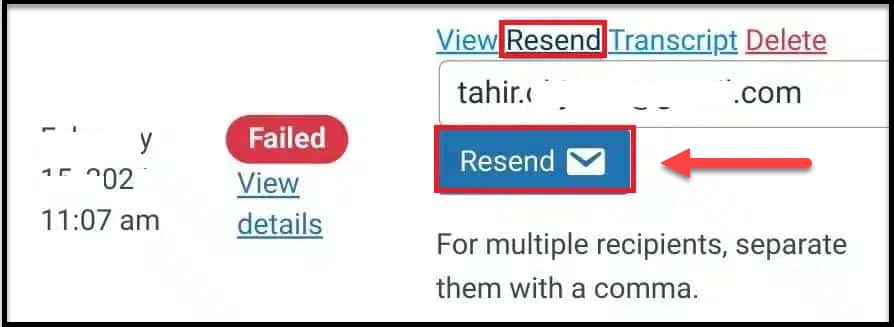
Once the email has been successfully delivered, the status should change to Delivered, and the donor will receive the email they were supposed to get earlier.
Next, Set Up a Backup SMTP Provider (Optional)
Post SMTP lets you add a secondary SMTP provider that kicks in if your primary one fails. This is especially useful during outages or configuration issues.
You’ll find this option under Post SMTP → Settings → Fallback tab.
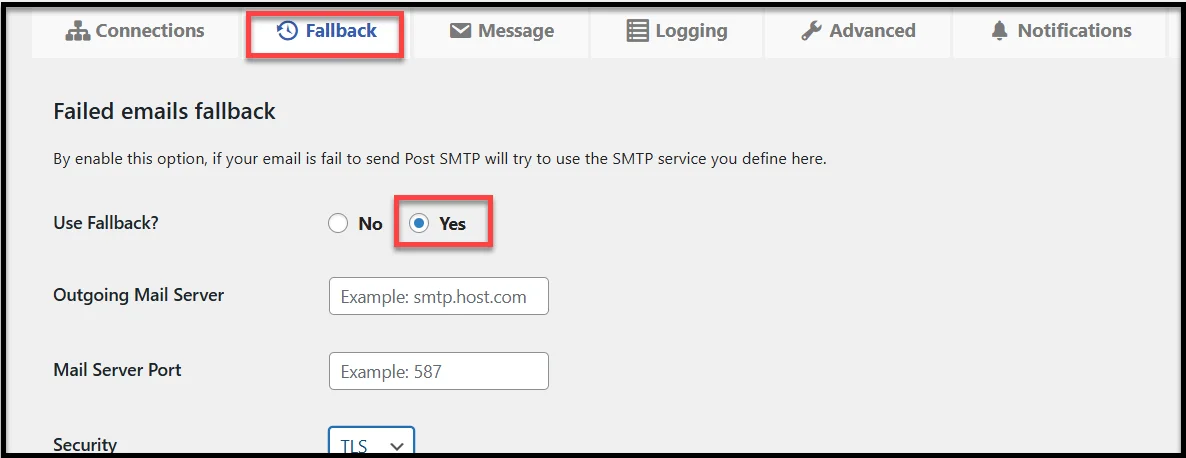
Even if your main email provider goes down, your donation emails will still be sent without interruption.
With these tips in place, your GiveWP emails will be more reliable than ever, so you can focus on fundraising, not fixing tech issues.
Upgrade to Post SMTP Pro for Reliable Email Delivery and Full Control
If you’re tired of donor emails going missing or ending up in spam, Post SMTP Pro is your ultimate solution. It doesn’t just allow you to set up an SMTP server with WordPress—it gives you complete control over how, when, and where they’re delivered.
Here’s what you unlock with Post SMTP Pro:
✅ Premium SMTP Connections: Easily connect with Amazon SES, Microsoft 365/Outlook, Zoho Mail, and 15+ top SMTP providers.
✅ Email Quota Scheduling: Control how many emails are sent per hour, day, week, or month.
✅ Email Health Reports: Get daily, weekly, or monthly email performance stats, including send, open, and failure rates.
✅ Instant Failure Alerts: Get notified via email, SMS (Twilio), Slack, Webhook, or mobile app the moment an email fails.
✅ Auto-Retry Failed Emails: Never lose an email—Post SMTP will automatically resend failed messages.
✅ Resend Emails with Attachments: Quickly resend any failed email include the original attachment, right from the email log.
✅ Mobile App Access: Monitor delivery, resend emails, and manage multiple WordPress sites—all from your phone. Don’t leave donor communication to chance. Upgrade to Post SMTP Pro Now and take full control of your WordPress email delivery.