



























Customer reviews help increase trust, improve conversion rates, and strengthen your WooCommerce store’s reputation. The easiest way to collect more reviews is by sending automated WooCommerce review emails after customers receive their orders. These post-purchase emails remind customers to share their experience while it is still fresh, helping you generate more authentic product reviews without manual follow-up.
Many studies have found that customer reviews influence buying decisions and build trust in online stores. That’s why sending review request emails shortly after customers receive their orders helps increase response rates while the purchase experience is still fresh.
In this guide, you’ll learn why review emails work, how to improve email deliverability with Post SMTP, and how to automate review requests in WooCommerce using ShopMagic.
Why Email Is the Best Way to Collect More WooCommerce Reviews
When it comes to collecting product reviews, email consistently outperforms other channels.
Personalized post-purchase review emails and review reminder emails consistently generate higher engagement than generic marketing campaigns.
Here’s why email is the best option:
- Higher open rates: According to Klaviyo benchmarks, post-purchase emails often outperform standard marketing campaigns by 17% because customers already recognize and trust the sender.
- Personalized and direct communication: Emails can be tailored to include the customer’s name, product details, and purchase date. This personalization feels authentic and increases the likelihood of getting a response.
- Measurable performance: Email gives you data on opens, clicks, and responses, helping you understand what works and refine your review-request strategy.
- Impressive ROI: Email marketing delivers an average ROI of $42 for every $1 spent, making it one of the highest-performing digital marketing channels.
- Cost-effectiveness: Email marketing remains one of the most affordable customer retention strategies for WooCommerce stores. With fantastic ROI and low costs, you can begin sending emails for free.
In short, email combines timing, personalization, and convenience in a way no other channel can. When paired with dependable deliverability from Post SMTP, your messages reach the inbox, ping customers, and get genuine reviews.
Improve WooCommerce Email Deliverability with Post SMTP
NOTE: If you’re new to SMTP, read our complete guide on why WordPress emails go to spam and how SMTP authentication improves email deliverability before continuing with this tutorial.
Before you can start sending review-request emails, you need a system that guarantees your messages actually reach the customer.
Based on our experience building and maintaining Post SMTP for more than 300,000 WordPress websites, we’ve found that email deliverability—not email copy—is often the biggest obstacle to collecting more customer reviews. If review request emails never reach the inbox, even the best-written message cannot generate feedback.
By default, WordPress uses the wp_mail() function, which relies on your hosting environment for SMTP email delivery. Without proper SMTP configuration and authentication, emails may fail authentication checks and land in spam folders.
Instead of relying on your web host’s default PHP mail() function, Post SMTP connects your WooCommerce store to trusted SMTP providers and email APIs such as Gmail, Amazon SES, SendGrid, Brevo, Mailgun, Microsoft 365, etc.
These providers support authentication standards such as SPF, DKIM, and DMARC to improve email deliverability and verify sender legitimacy.
These authentication protocols include:
- SPF (Sender Policy Framework): This protocol checks whether the mail server sending the message is authorized to do so on behalf of your domain. It compares the server’s IP address against a list defined in your domain’s DNS records. If the server isn’t listed, the email may be flagged as suspicious.
- DKIM (DomainKeys Identified Mail): DKIM attaches a cryptographic signature to each outgoing message. Receiving mail servers use your public DKIM key (stored in DNS) to verify that the message content hasn’t been changed during delivery.
- DMARC (Domain-based Message Authentication, Reporting & Conformance): DMARC builds on SPF and DKIM by defining what to do if an email fails these checks. It tells receiving servers whether to reject, quarantine, or allow the message if it fails one or both protocols.
Together, SPF, DKIM, and DMARC authenticate your emails, protect your domain from spoofing, and improve inbox placement.
For WooCommerce store owners, this means every order confirmation, password reset, and review request email is delivered securely and lands in the intended inbox. With Post SMTP managing deliverability, you can focus on writing the right message rather than worrying whether it will ever reach your customer.
3 Steps to Get More WooCommerce Reviews with Email
Following these three steps can help you get a flood of reviews. That can improve your credibility and eventually attract more buyers.
Step 1: Set Up Reliable WooCommerce Email Delivery with Post SMTP
Now that you understand why reliable email delivery matters, let’s configure Post SMTP to send WooCommerce review emails through a trusted SMTP provider or email API.
Start by installing Post SMTP, one of the best SMTP plugins on WordPress, which you can do by navigating to your admin dashboard and following the steps below:
- Navigate to Plugins and then click Add Plugin from the left-hand side navigation.
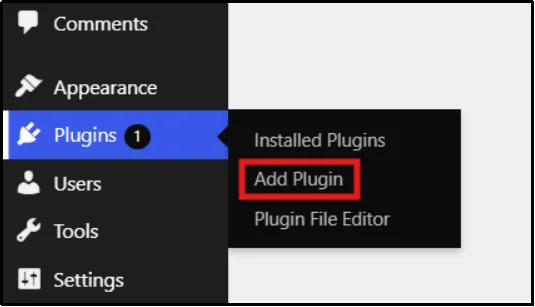
- Using the Search Plugin bar, search for Post SMTP.

- Click Install, then wait until the Install button changes to “Activate.”
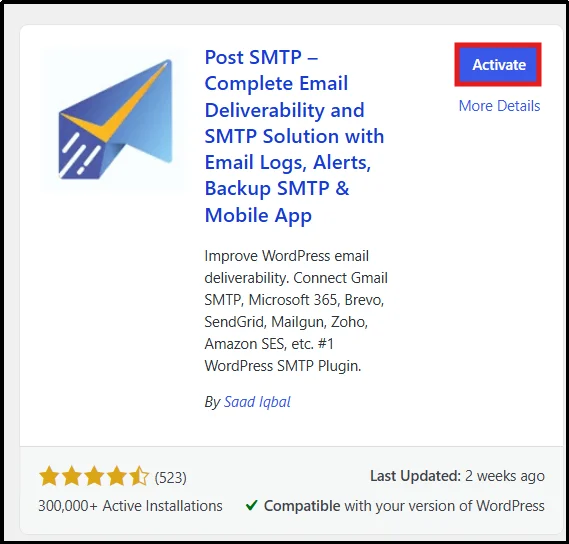
- Once done, click Activate to begin using Post SMTP.
Now, the plugin is installed and active. While the free version works with many SMTP providers, Post SMTP Pro unlocks advanced email logging, multiple email failure notification options, email open tracking, backup SMTP connections, and additional mailer integrations such as Gmail One-Click, Amazon SES, Microsoft 365, and Zoho Mail.
If you want access to these advanced features, visit our pricing page and choose the plan that best fits your business. Post SMTP Pro includes:
- Automatic Retry for Failed Emails: If an email fails to send, the plugin will automatically retry it, helping improve email delivery success.
- Detailed Email Logs and Reporting: Get more detailed logs to track every email sent from your site. This includes:
- Email Open and Click Tracking: See if recipients open your emails and click the links inside.
- Email Health Reports: Receive weekly reports that summarize your email delivery statistics.
- Advanced Failure Notifications: Receive instant alerts about failed email deliveries across channels, including Twilio, Slack, or Microsoft Teams, and a Chrome browser extension.
- Mobile App: The dedicated mobile application (app) offers more features for managing your email logs and alerts while you are away from your computer.
- Email Log Attachment Support: Save and view email attachments directly from the email log screen.
- Priority Customer Support: Get fast help from the support team to quickly resolve any issues you might have.
- And much more. See all features.
After installation, continue with the following steps:
- Go to the plugin’s tab from the admin dashboard and run the setup wizard.
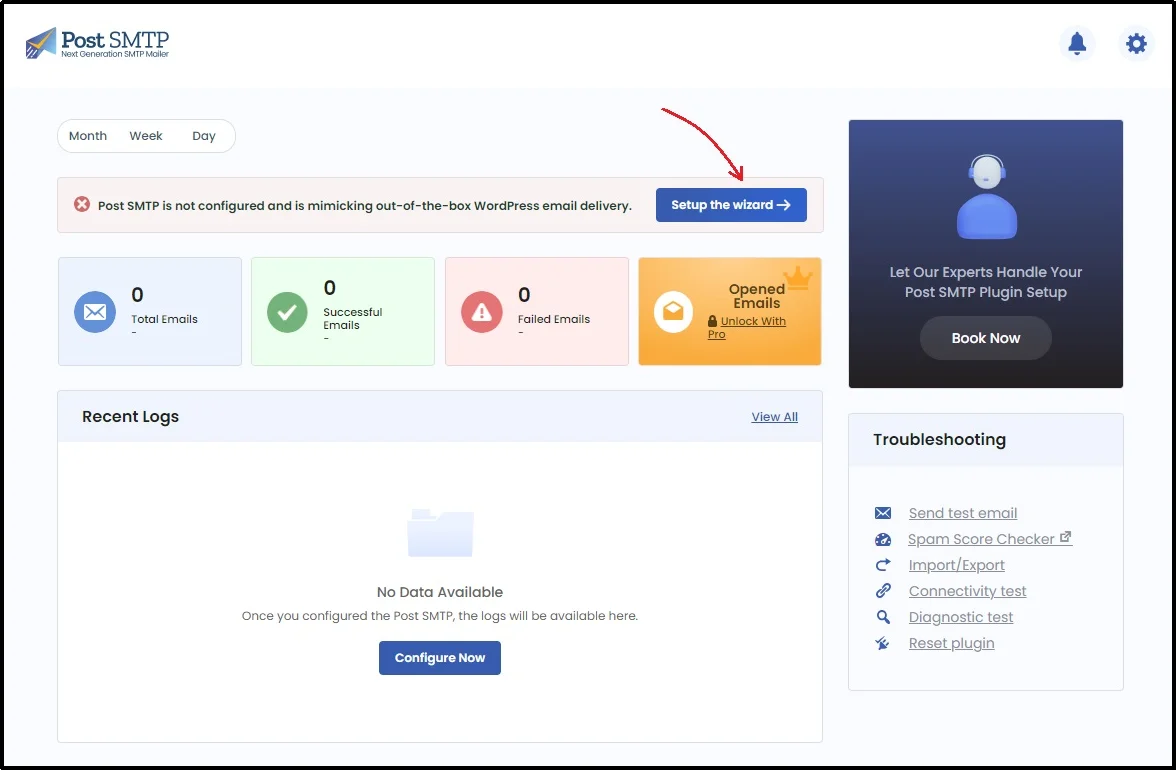
- Inside, you will find multiple options to choose from, allowing you to choose your favorite mailer.
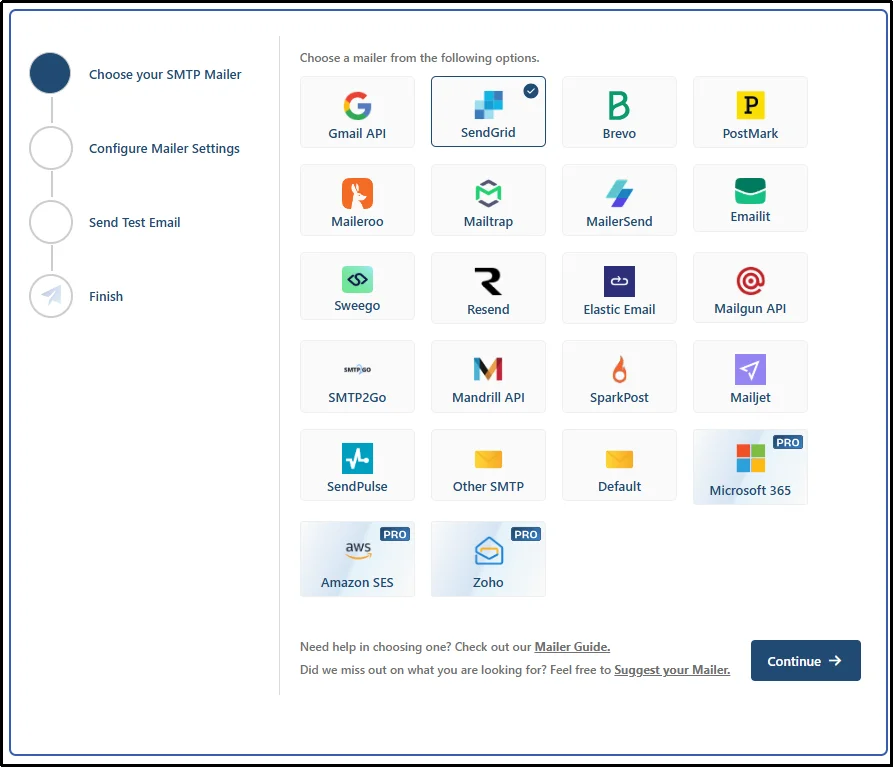
- After choosing one, generate your API credentials and complete the authentication process for your chosen mailer. The process can vary depending on the mailer you choose.
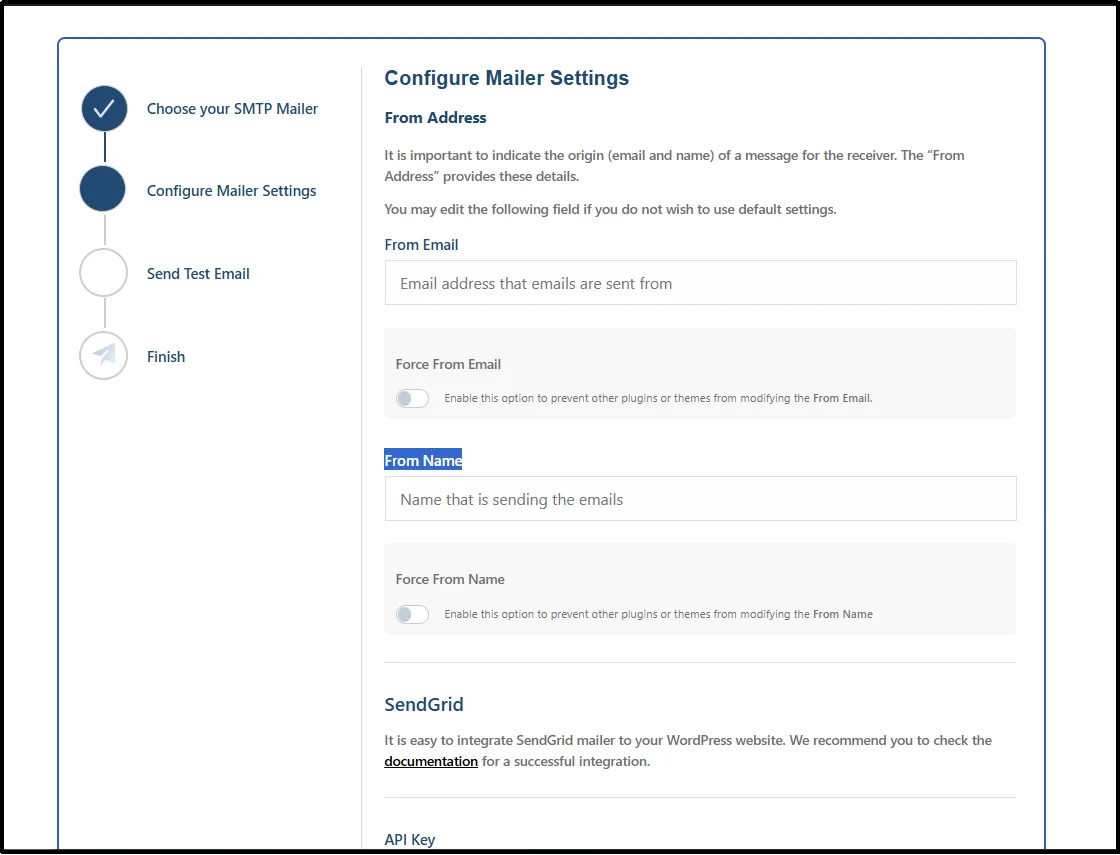
Check out our documentation page for a step-by-step process for all mailers.
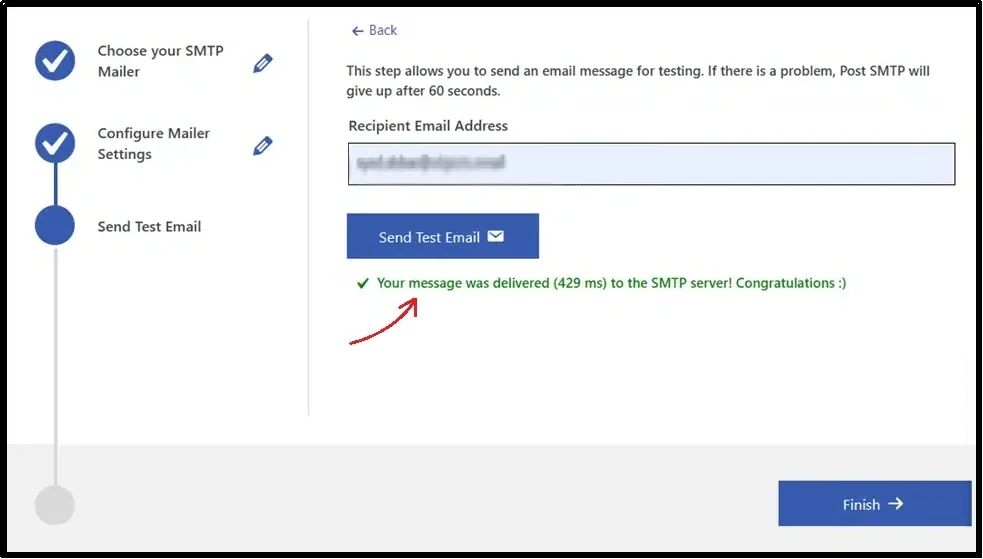
- Once done, finally send a test email to ensure the email reaches the recipient’s inbox successfully.
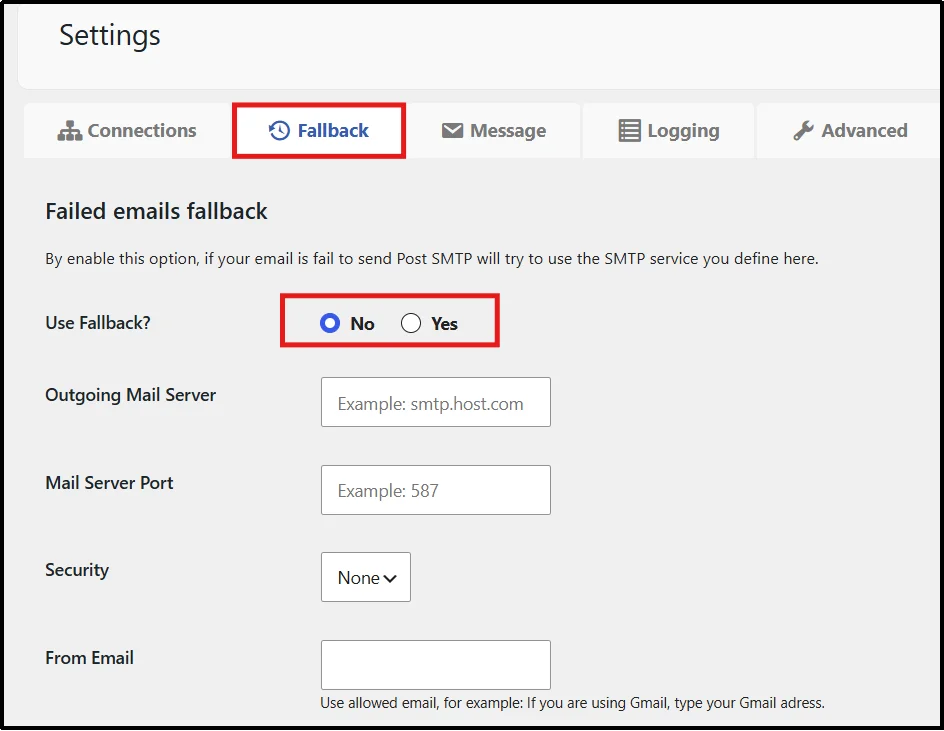
- Moreover, with Post SMTP, you can also configure a backup SMTP connection that automatically sends emails through another provider if your primary mailer becomes unavailable. You can do so by navigating to Post SMTP, then Settings, and finally the Fallback tab.
Step 2: Write a Compelling Email Copy
Even the most reliable email system can’t make up for a poorly written message. The content of your customer feedback emails determines whether customers take action or ignore your request.
A good review-request email should feel human, relevant, and easy to respond to.
Here’s how to write one that converts:
- Keep it short and clear. Your customer doesn’t need a long explanation. A brief two- to three-line message is enough. A simple “We’d love to hear what you think” works better than a wordy paragraph.
- Personalize your message. Address the customer by their first name and mention the product they bought. This small detail makes your message feel genuine rather than automated.
- Add a clear call-to-action (CTA). Your CTA should be direct and easy to find. Use action-oriented text like “Leave a Review” or “Share Feedback,” and link it directly to the product’s review form.
- Use a friendly, conversational tone. Sound approachable, not corporate. Customers are more likely to respond when the tone feels personal and warm.
- Reinforce value subtly. Remind customers that their feedback helps other buyers and supports small businesses. It makes the request feel purposeful.
- Test and optimize. Experiment with subject lines, wording, and button placement to improve review conversion rates over time.
- Send at the right time: Send your review request after customers have had enough time to use the product. Most stores see better response rates when emails arrive 7–14 days after delivery.
Writing a compelling review-request email is a mix of empathy and precision. When paired with Post SMTP’s dependable delivery, your thoughtful copy stands the best chance of being seen and acted upon.
Step 3: Automate WooCommerce Review Emails
You can’t manually resend these emails. It’s simply not practical, especially if your brand gets a lot of orders.
Sending review request emails manually isn’t practical, especially as your order volume grows.
That’s why, it’s better to automate the process with any email marketing automation plugin.
You can use ShopMagic, a popular WooCommerce email automation plugin that helps automate review request workflows.
- Go to Plugins → Add Plugin.
- Enter ShopMagic in the search bar.
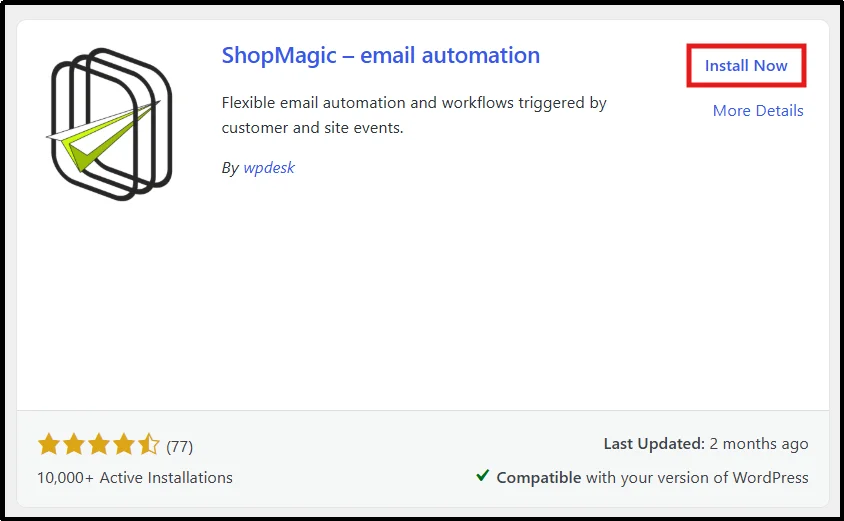
- Click Install Now, followed by Activate on the Plugin – Email Automation.
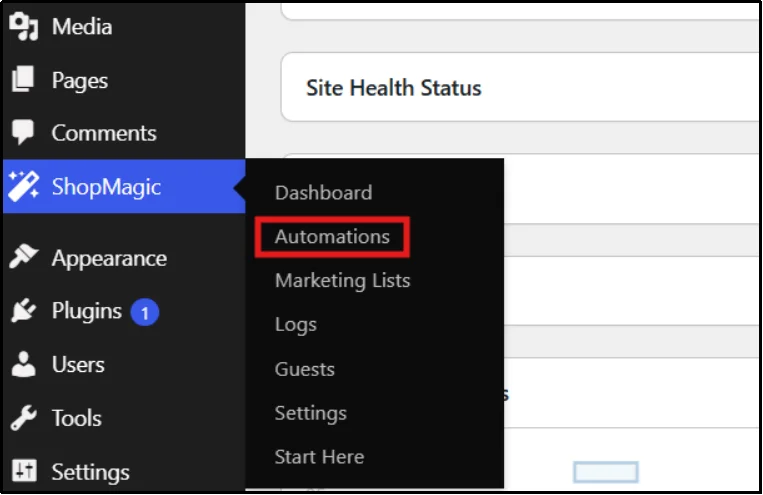
- Go to your WordPress dashboard, then navigate to the ShopMagic → Automations.
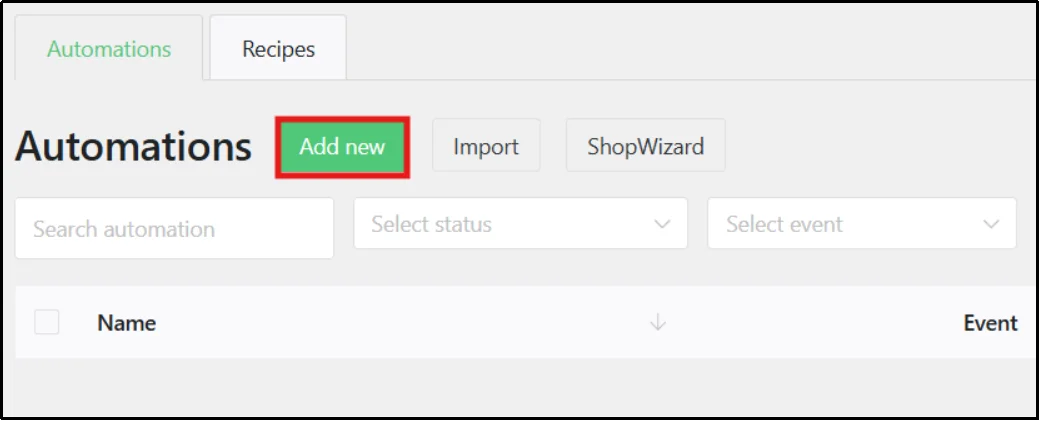
- Click “Add New”.
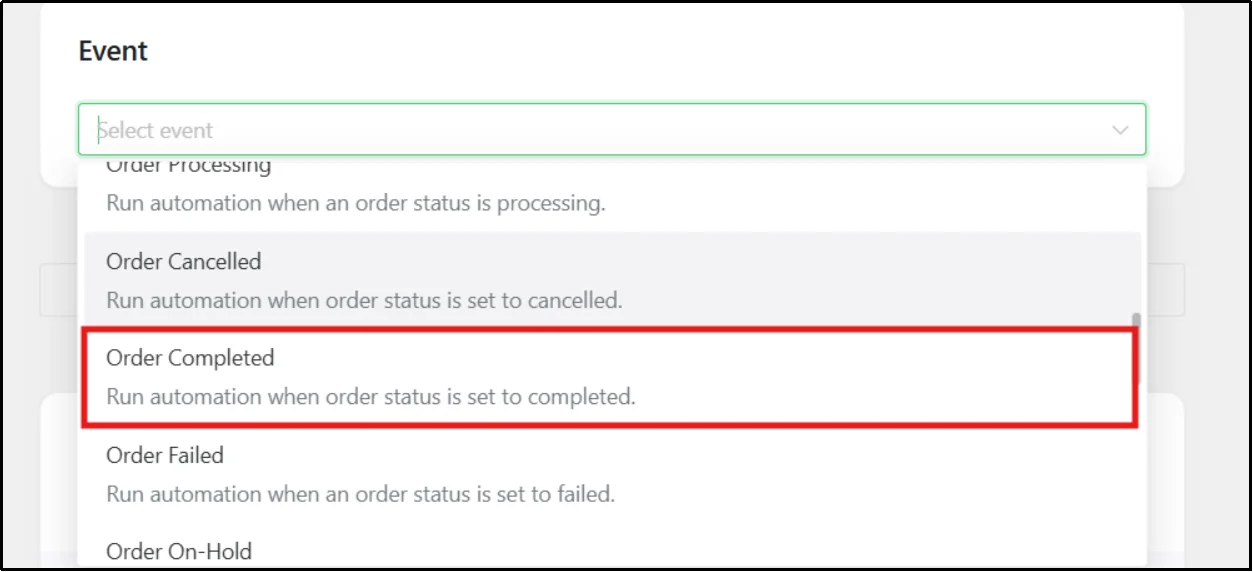
- Select the Event as “Order Completed” and Action as “Send Email”.
- Scroll down and write a new email using the best practices covered in Step 2
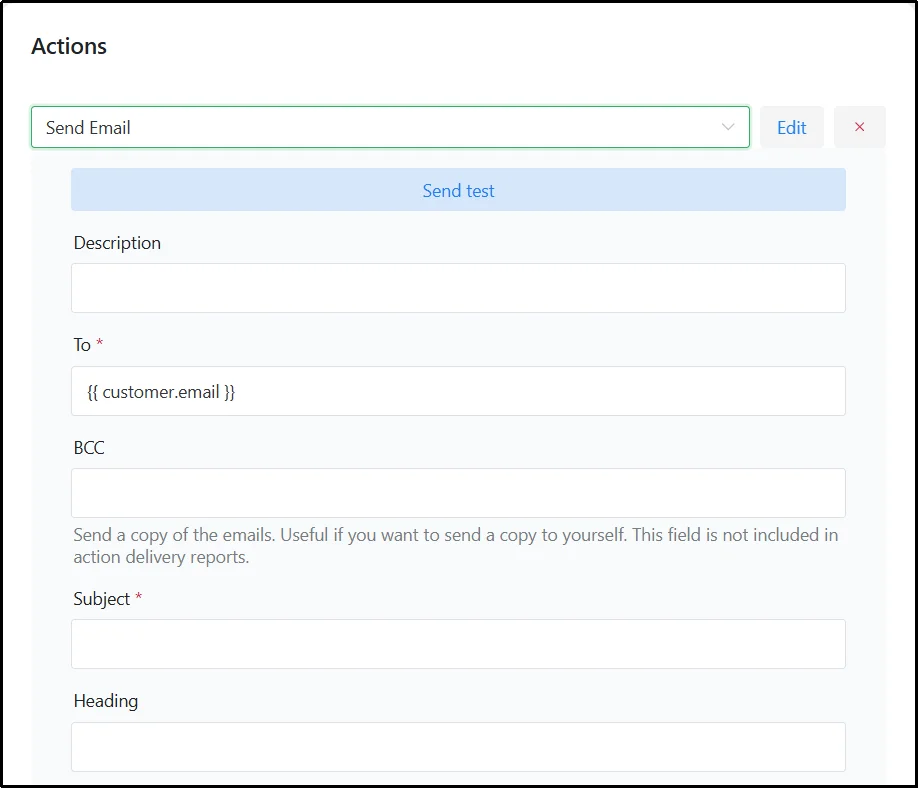
Using proven review request templates saves time and helps maintain consistency across your review campaigns. Here’s a ready-to-use sample email you can copy and paste into your automation tool:
Subject: How’s your new [Product Name]? We’d love your feedback!
Body:
Hi [Customer First Name],
We hope you’re enjoying your recent purchase [Product Name]! Your opinion matters a lot to us and helps other customers make confident decisions.
Would you mind taking a quick minute to share your experience? Your feedback means the world to our small team.
[Leave a Review]
Thank you for being part of the [Store Name] family!
Warm regards,
The [Store Name] Team
If you’d rather write a custom message, you can use an AI chatbot like ChatGPT or Gemini. Just copy and paste the following prompt, and you’ll get a ready-to-edit email draft in seconds:
Prompt:
Write a professional yet friendly review request email for WooCommerce customers. The goal is to encourage them to leave a product review after receiving their order. The tone should be polite, genuine, and brand-appropriate. Include personalization placeholders for the customer’s first name, product name, and store name. Add a clear call-to-action button (like [Leave a Review]) and keep the email under 150 words. The email should sound human and appreciative, not pushy or salesy.
Once done, click Save and test your email by creating a test order in your store. Then head over to WooCommerce → Orders to manually change the order status to “Completed.” This will activate and send you the email. Plus, you can use ShopMagic’s preview feature to send a test email to yourself instantly.
You have successfully built a system that sends WooCommerce review emails without your intervention. Thanks to Post SMTP, you don’t have to worry about them ending up in the spam folder.
Turn Every Order Into a Review Opportunity
Customer reviews are one of the most valuable assets your WooCommerce store can have. They influence buying decisions and help establish trust, attract new visitors, and improve your store’s search visibility.
But without a structured system in place, even your happiest customers might never leave a review because it requires extra effort. It takes effort to look up the service and then write a review. However, when a personalized email arrives with a link that takes you directly to the product, you take away that hurdle.
That’s why combining Post SMTP with ShopMagic creates a reliable workflow for collecting customer reviews. Post SMTP ensures every email you send reaches the inbox reliably. When paired with personalization and automation, you create a consistent review collection process that runs on autopilot.
Don’t let missed emails or technical errors stand between your store and valuable feedback. Set up Post SMTP today and start turning every satisfied customer into a verified voice for your brand. Install Post SMTP to improve WooCommerce email deliverability and help every review request reach your customers’ inboxes.
Frequently Asked Questions
How do I automate review emails in WooCommerce?
Use plugins such as ShopMagic to trigger review requests automatically after order completion.
When is the best time to send WooCommerce review emails?
Most stores achieve higher response rates by sending requests 7-14 days after product delivery.
Why are WooCommerce emails going to spam?
Improper SMTP configuration and missing SPF, DKIM, or DMARC records often cause deliverability issues.
How does Post SMTP improve WooCommerce email deliverability?
Post SMTP helps configure authenticated email delivery through third-party providers, improving inbox placement.