


























Potential customers enter your WooCommerce store, click “Add to Cart”, and then vanish. Cart abandonment costs your store far more than you realize.
According to the Baymard Institute, the average cart abandonment rate across all industries sits at 71.72%. This means roughly seven out of every ten shoppers leave their carts without buying.
Want to stop this revenue leak? A well-timed WooCommerce abandoned cart recovery strategy wins many of them back.
In this guide, you will learn exactly how to set up abandoned cart emails in WooCommerce. You will start recovering lost sales and improve your checkout conversion rate without spending another cent.
What Are WooCommerce Abandoned Cart Emails?
WooCommerce abandoned cart emails are automated messages sent to shoppers who add products to their cart but leave before completing a purchase. These emails remind customers about the items they left behind and encourage them to return and finish checkout. When implemented correctly, abandoned cart emails can recover lost revenue and improve overall conversion rates.
Why Do Shoppers Abandon Carts? (Understanding the Psychology)
Before you recover abandoned carts, you must understand why shoppers abandon them. Cart abandonment psychology goes much deeper than a simple change of mind. The most common causes of checkout friction include:
- Unexpected extra costs: Shipping fees, taxes, or hidden fees that appear only at checkout trigger nearly half of all abandonments.
- Forced account creation: You lose buyers when you require them to create an account before making a purchase.
- A complicated checkout process: Buyers leave when they face a confusing, multi-step user experience (UX).
- Trust issues: Shoppers hesitate when they doubt your store’s security, reviews, or payment gateways.
- Comparison shopping: Many shoppers simply browse and weigh options.
- Distractions and timing: A phone call, a meeting, or a slow website sends shoppers away even when they fully intend to return.
Understanding these friction points shapes every decision you make about your email marketing automation strategy.
Requirements to Set Up WooCommerce Abandoned Cart Emails
Before diving into the setup, gather these essential building blocks. Your store needs the following elements to run a successful abandoned cart recovery workflow:
- A functional WooCommerce store
- A dedicated WooCommerce cart recovery plugin (We recommend FunnelKit Automations)
- A WordPress SMTP plugin (i.e., Post SMTP) to guarantee email deliverability
- An email service provider (ESP)
- Guest checkout is enabled in your WooCommerce settings, so your recovery plugin can support guest cart recovery.
- A verified sender email address
Technical Note: To enable guest cart capture, go to WooCommerce → Settings → Accounts & Privacy, and check the box for “Allow customers to place orders without an account.”
Set Up WooCommerce Abandoned Cart Emails in 5 Steps
Let’s walk through the full setup. We’ll use FunnelKit Automations for this tutorial since it has a generous free tier, but the core principles apply to any WooCommerce recovery plugin.
NOTE: In our experience helping WooCommerce store owners improve email deliverability, abandoned cart campaigns often underperform because recovery emails never reach the inbox. Setting up SMTP before launching your automation workflow helps eliminate this problem and improves recovery performance from day one.
Step 1: Install & Activate Post SMTP
By default, WordPress sends WooCommerce transactional emails through the wp_mail() function. Many hosting providers route these messages through PHP mail, which often results in poor email deliverability and placement in spam folders. Post SMTP replaces this setup with a properly authenticated SMTP connection.
- Log in to your WordPress admin dashboard.
- Go to Plugins → Add Plugin and enter “Post SMTP” in the search bar.
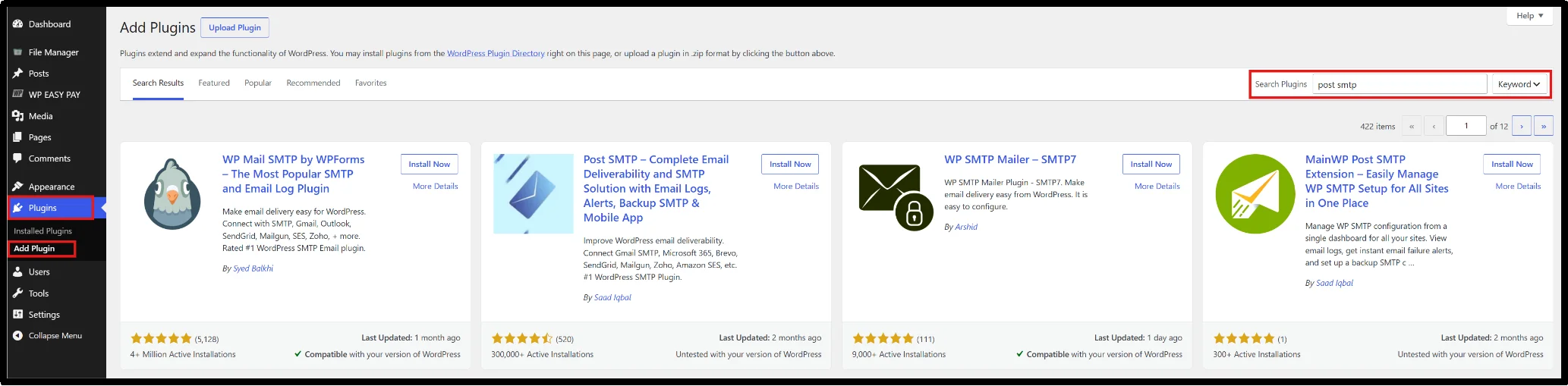
- Find the Post SMTP plugin, click Install Now, and then click Activate.
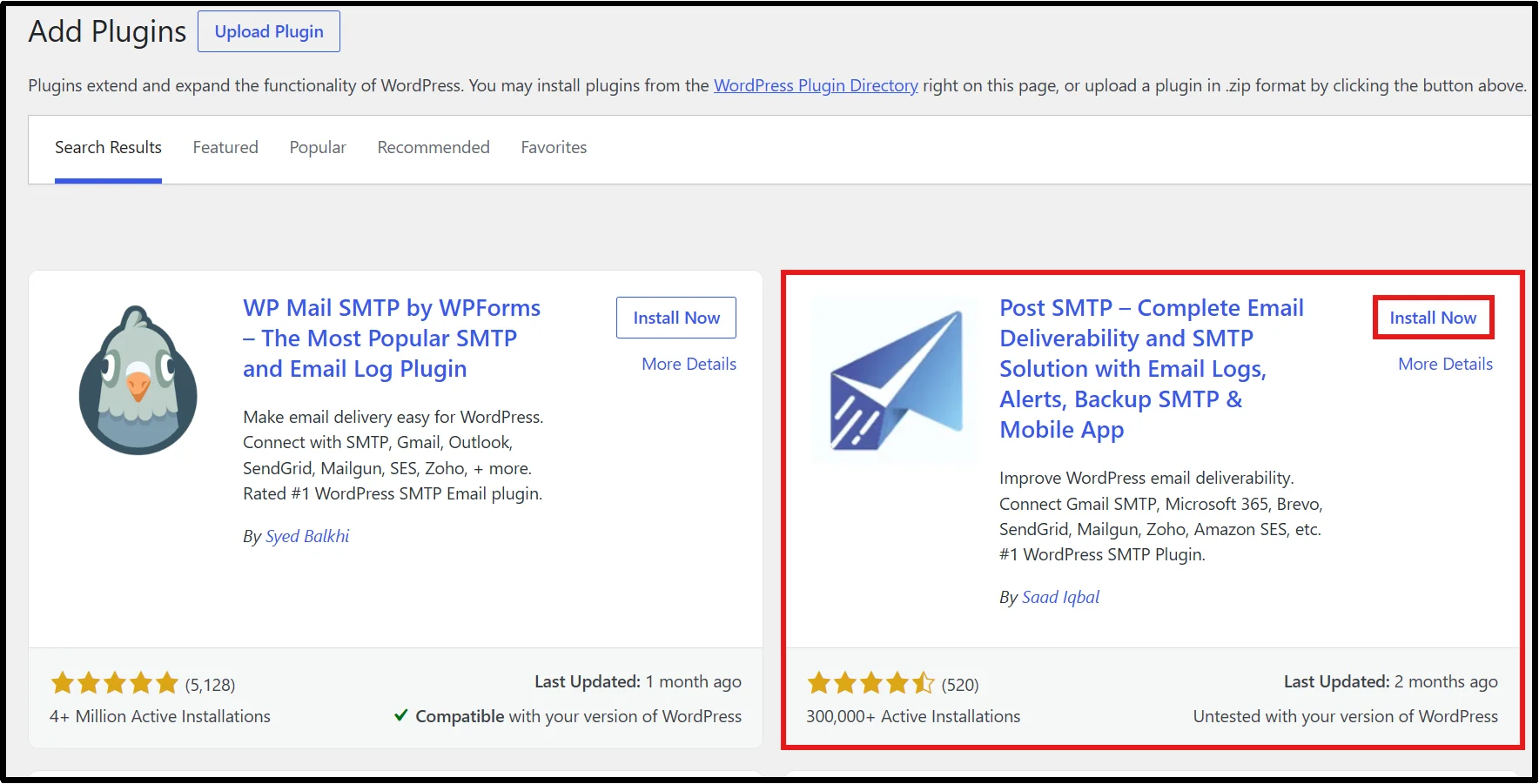
Note: Post SMTP Pro unlocks features highly valuable for recovery email monitoring, including automatic retries, extended reporting, mobile alerts, and backup SMTP routing.
To install the Pro version:
- Visit the Post SMTP pricing page and purchase your preferred plan.
- Check your inbox for a welcome email containing your license key and a link to download the Pro ZIP file.
- In your WordPress dashboard, go to Plugins → Add Plugin, click Upload Plugin at the top, select the ZIP file, and click Install Now, then Activate.

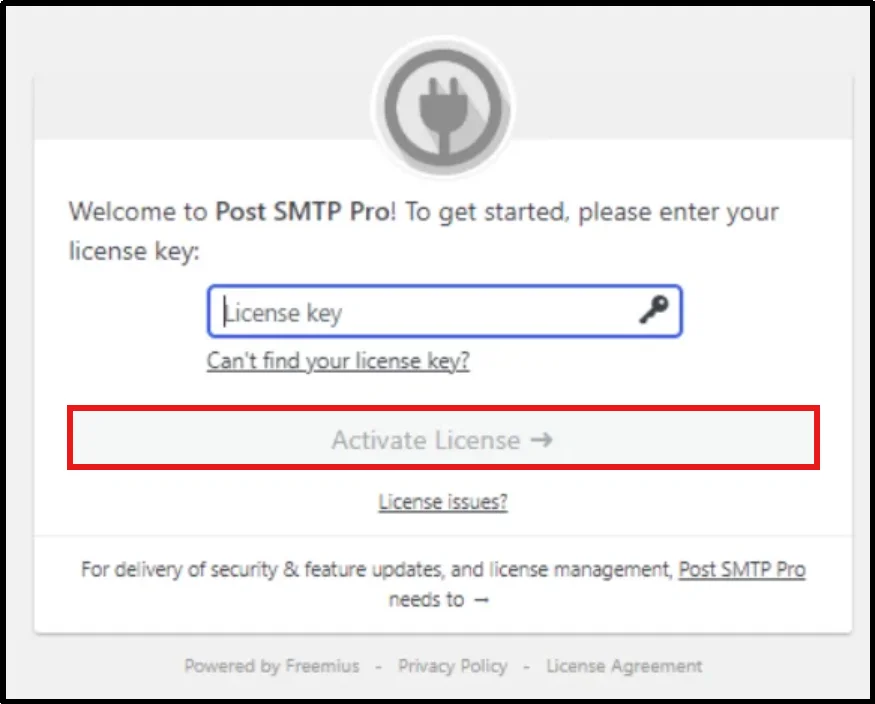
- Enter your license key when prompted and click Activate License to unlock all features.
Step 2: Install & Activate FunnelKit Automations
Now that you have secured email delivery, install the plugin that builds and sends your recovery sequences.
- Go to Plugins → Add Plugin and search for “FunnelKit Automations.”
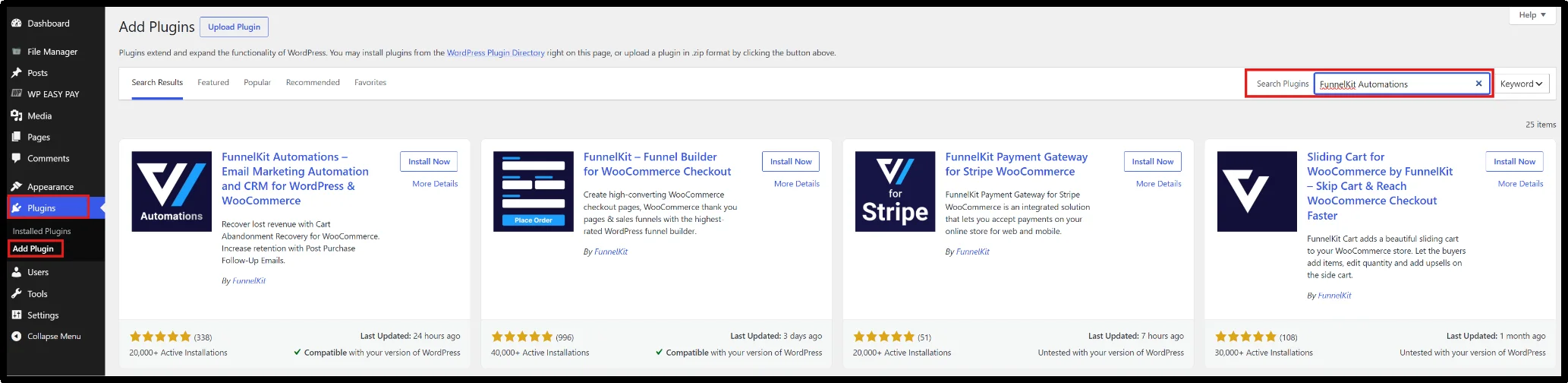
- In the results, find the correct plugin, click Install Now, then Activate.
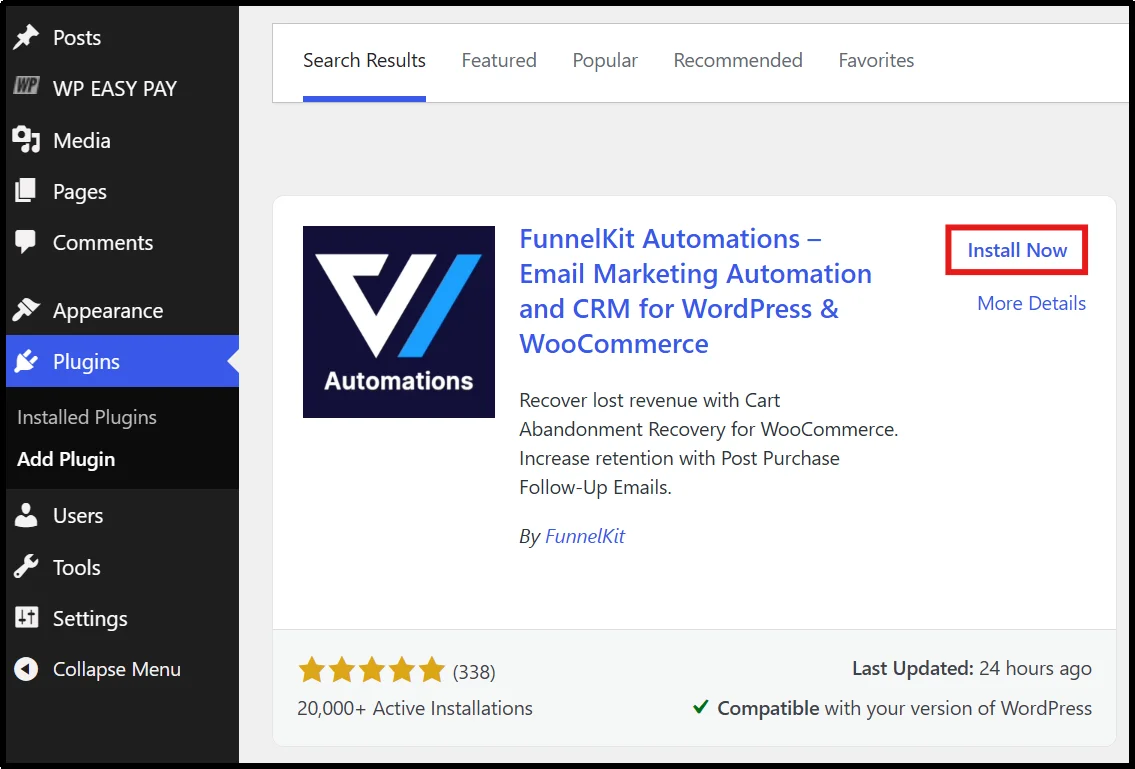
The free version is enough to get a fully functional abandoned cart sequence running. If you later want to add SMS recovery, advanced conditional logic, or deeper analytics, those are available in the Pro version.
Step 3: Configure Your Cart Tracking Settings
Before any automation can run, FunnelKit needs to know when a cart qualifies as abandoned.
- Go to FunnelKit Automations → Settings and click the Cart tab.
- Turn on Enable Cart Tracking – this is the switch that makes everything else possible.
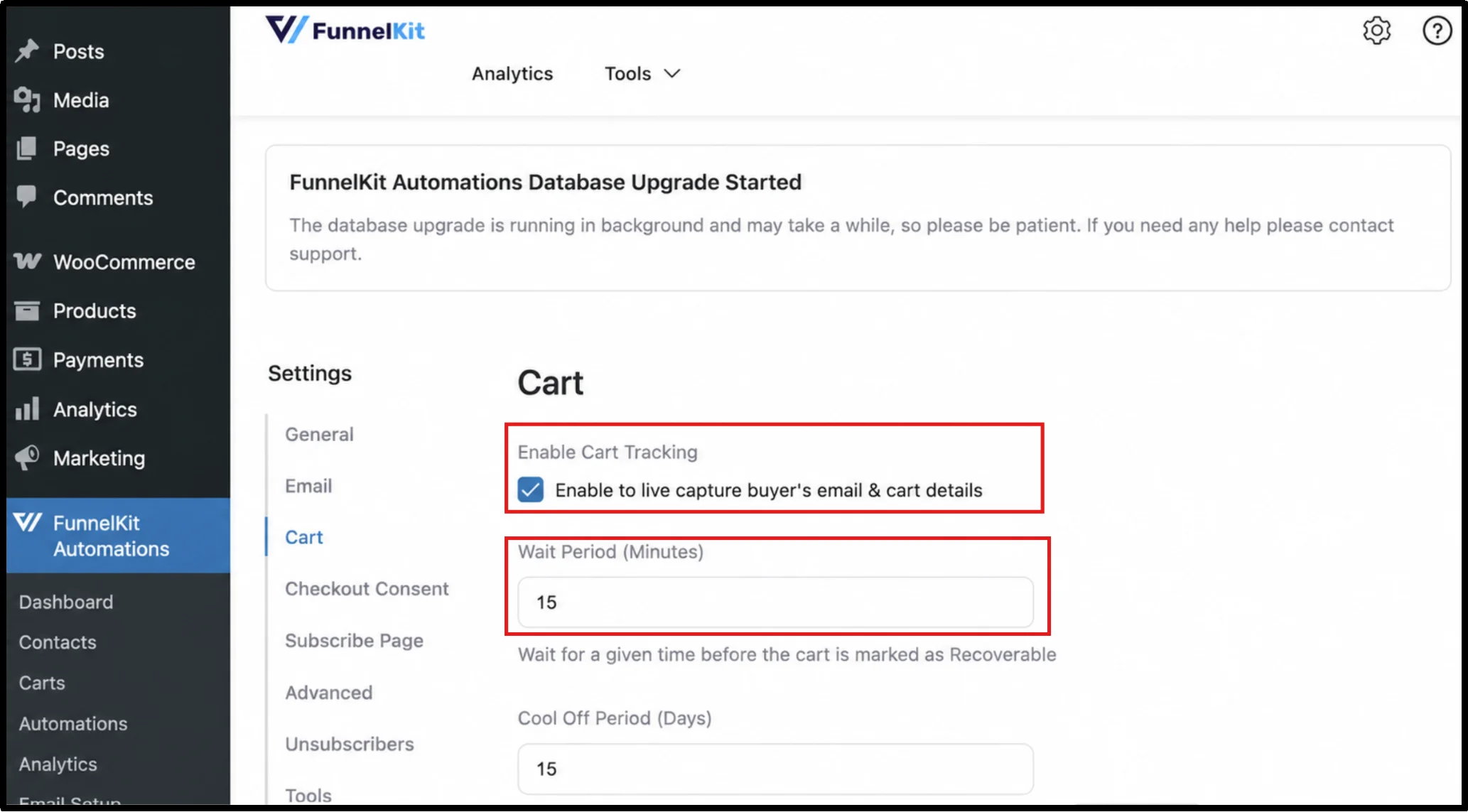
FunnelKit waits 15 minutes of inactivity before it flags a cart as abandoned. You can shorten or extend this window to improve your cart recovery rate. If you sell to European customers, enable GDPR-compliant tracking.
- Click Save when you finish.
Step 4: Import and Customize the Abandoned Cart Workflow
Rather than building your automation sequence from scratch, you can opt for a ready-made template that you can import and customize in minutes.
- Go to FunnelKit Automations → Automations and click Create Automation.
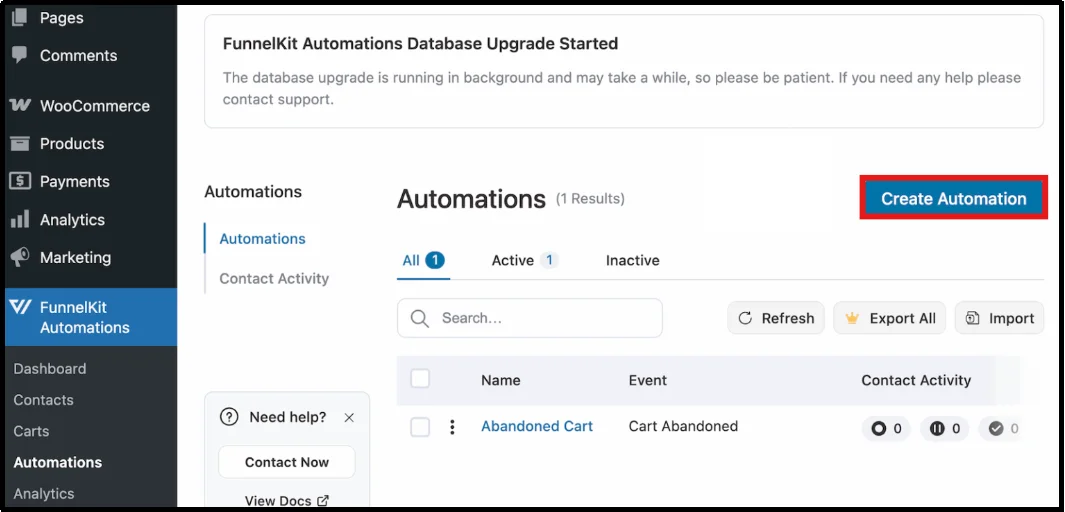
- Search for “Abandoned Cart” and select the Abandoned Cart Reminder template.
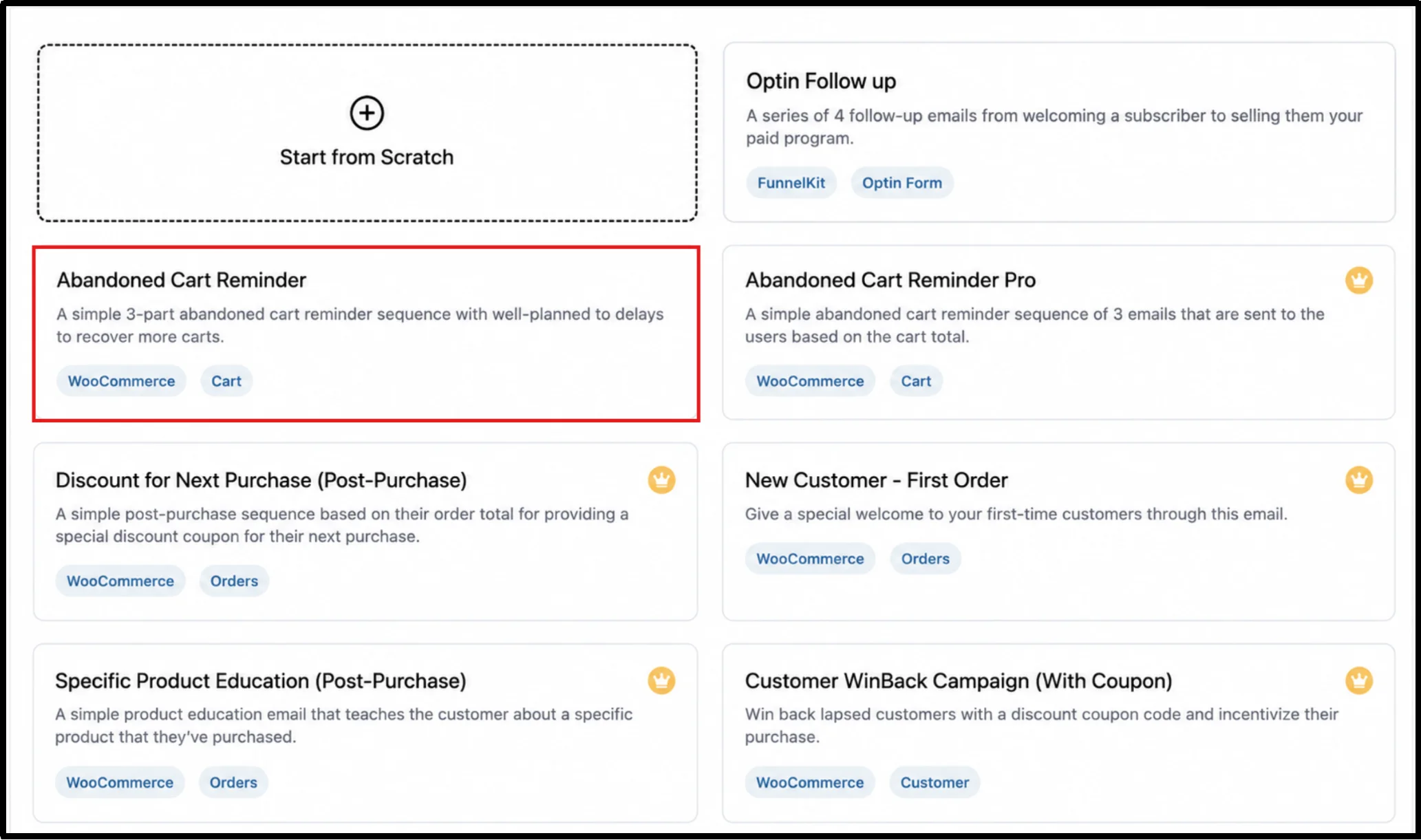
- Click Import Recipe, give your automation a name, and click Create.
FunnelKit will load the full three-email workflow into the editor. The default sequence follows this structure:
Email 1: 30 minutes after abandonment — Friendly reminder
Email 2: 12 hours later — Address hesitation and reinforce value
Email 3: 36 hours later — Create urgency with a limited-time incentive
- Click on any step to adjust the send delay, edit the subject line, update the email body, or swap in a dynamic coupon code. When everything looks right, toggle the automation to Active.
Expert Tip: Before going live, test the full sequence yourself. Add a product to your cart, abandon it, and confirm all three emails arrive at the right times with the correct content.
Step 5: Test Email Deliverability Before Going Live
Your automation sequence only works if your emails actually reach the inbox. Run through these checks first:
- Send yourself a test email. Preview each email in FunnelKit and send it to your own inbox. Open it on both desktop and mobile and check for broken links, formatting issues, and CTA buttons.
- Check your spam score. Head to the WordPress dashboard → Post SMTP, send your test email to the address provided, and review your score.
- Review your delivery logs. In Post SMTP, go to Post SMTP → Email Logs to see a full record of every outgoing email with its delivery status, timestamp, and recipient. If anything failed, hit Resend to push it through.
- Authenticate Your Domain: To maximize inbox placement, configure SPF, DKIM, and DMARC records for your sending domain. Email providers use these authentication methods to verify your emails and reduce spam complaints. Even the best abandoned cart recovery strategy can underperform if your domain authentication is incomplete.
Once everything checks out, you are ready to go live. Monitor your email logs weekly for the first month. Keep a close eye on open rates, click rates, and any spike in unsubscribes or bounce rates.
Best Practices for High-Converting Recovery Emails
Setting up abandoned cart emails is only the first step. To maximize your cart recovery rate, you need emails that persuade shoppers to return and complete their purchase. These four practices will make your store stand out and recover within an excellent range.
- Nail your timing: The first email that you send within one hour of abandonment consistently outperforms all others. Shoppers remain in buying mode; their intent stays warm. Every hour you wait, that intent cools. The “1hr → 24hr → 48hr” pattern remains the industry standard for obvious reasons.
- Use dynamic coupon codes strategically: Slapping a discount on an email does not guarantee conversion. In fact, you might train customers to abandon carts on purpose just to get a deal. Create dynamic coupon codes for your third email, make them single-use, and set a time limit. This gives reluctant buyers a reason to act.
- Write human subject lines: Subject lines like “You left something behind” or “Your cart misses you” outperform generic “Abandoned Cart Reminder” subject lines because they feel human. A/B test your subject lines regularly; a 2% improvement in open rate compounds significantly over time.
- Keep it focused: A recovery email should do one thing: get the shopper back to their cart. Do not include links to other products, blog posts, or social media. Every additional link creates a distraction from your main goal.
Measuring Your WooCommerce Cart Recovery Success
You can’t improve what you don’t monitor. Once your abandoned cart sequence is live, track these key metrics from your plugin’s analytics dashboard:
- Open Rate: Cart abandonment emails average around 45% to 50% open rate, significantly higher than standard promotional emails. If you’re below 30%, test your subject lines.
- Click-Through Rate (CTR): Industry average CTR for recovery emails is around 6% to 10%. If yours is lower, your email design or CTA may need work.
- Revenue Recovered: The total sales that your recovery sequence generates. Most plugin dashboards surface this number automatically.
- A/B Testing: Run split tests on subject lines, CTA copy, discount amounts, and send times to boost your overall customer lifetime value (CLV).
Use this data to continuously refine your cart abandonment recovery workflow over time.
Recover More Revenue With Reliable WordPress Email Delivery
Cart abandonment represents one of the biggest missed opportunities in e-commerce growth, and WordPress gives you everything you need to turn it around. The strategy remains simple: understand why shoppers leave, pick the right recovery plugin, build a timed three-part email sequence, and track your results to maximize your ROI.
However, none of this works if your emails never reach the inbox. Pairing your recovery plugin with a reliable SMTP mailer like Post SMTP builds the foundation that your entire strategy rests on. Set it up once. Keep optimizing. The revenue already sits in your abandoned carts—you just need a reliable way to go get it.
Upgrade to Post SMTP Pro today to ensure your recovery email reaches every potential buyer.
Frequently Asked Questions
How many abandoned cart emails should I send?
Most stores see the best results with a sequence of three emails sent within 48 hours of cart abandonment.
Can WooCommerce send abandoned cart emails without a plugin?
WooCommerce does not include abandoned cart recovery functionality by default. You need a recovery plugin such as FunnelKit Automations.
What is a good abandoned cart recovery rate?
Most stores recover between 5% and 15% of abandoned carts, while highly optimized campaigns can recover 20% or more.
Do abandoned cart emails work for guest users?
If your recovery plugin captures guest email addresses during checkout, you can send recovery emails even when customers do not create an account.