

























Is Sugar Calendar not sending emails from your WordPress site? Missing ticket receipts, RSVP confirmations, and booking notifications can leave attendees without important updates. You may also miss admin alerts about ticket sales and new bookings.
These problems can stem from disabled notification settings, incorrect recipient details, WordPress mail configuration, or email authentication issues.
In this guide, we’ll show you how to troubleshoot Sugar Calendar email problems, test WordPress email delivery with Post SMTP, and identify the cause of missing notifications.
Why Is Sugar Calendar Not Sending Emails?
Sugar Calendar relies on WordPress email functionality to send many of its notifications. If an email doesn’t arrive, the problem may involve the plugin’s settings, recipient information, WordPress configuration, mail server, or recipient’s inbox.
Here are some common reasons Sugar Calendar emails aren’t working:
- The relevant email notification is disabled.
- The recipient’s email address is missing or incorrect.
- A ticket or RSVP workflow hasn’t triggered the expected notification.
- A booking service uses its own notification settings.
- The sender address doesn’t meet your mail provider’s requirements.
- WordPress cannot connect to the configured mail server.
- Your domain lacks the required SPF or DKIM authentication.
- The recipient’s email provider rejects or filters the message.
- A plugin conflict or recent configuration change interrupts the process.
To narrow down the cause, identify which email failed to arrive and whether other WordPress notifications are affected.
How to Identify Where a Sugar Calendar Email Failed
Use the following table to narrow down the problem before making changes.
| What you notice | What to check first |
| Only ticket emails are missing | Ticket notification settings, attendee details, and ticket records |
| RSVP confirmations don’t arrive | RSVP notification settings and recipient information |
| Booking emails are missing | Booking email settings and service-specific overrides |
| Admin notifications work, but attendee emails don’t | Attendee notification settings and recipient addresses |
| No WordPress emails arrive | WordPress mail configuration and your sending provider |
| Emails appear in spam | Sender authentication, reputation, and message content |
| A test email fails | Mailer credentials, connection settings, and the reported error |
| A test email succeeds, but Sugar Calendar emails don’t | The notification workflow, template settings, recipient details, and email logs |
A successful test email doesn’t prove that Sugar Calendar generated the missing notification. Likewise, a successful WordPress mail handoff doesn’t guarantee that the recipient’s server accepted the message or placed it in the inbox.
6 Ways to Fix Sugar Calendar Not Sending Emails
Work through these fixes in order. Start with Sugar Calendar’s notification settings and recipient details. Then check WordPress email delivery, sender configuration, domain authentication, spam filtering, and possible plugin conflicts.
Fix 1: Check Sugar Calendar Email Notification Settings
Start by confirming that Sugar Calendar has enabled the email you expect to receive. The plugin provides separate notification settings for event ticketing, RSVPs, and bookings.
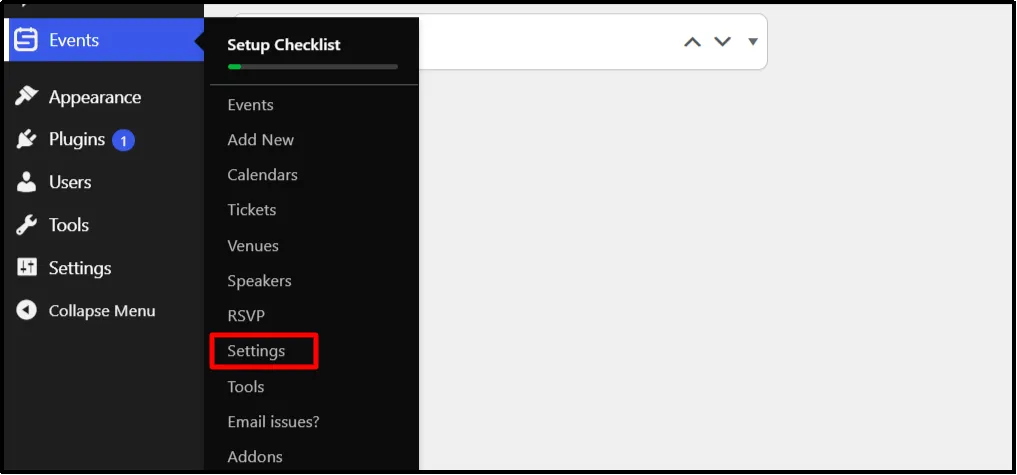
- In your WordPress dashboard, go to Events → Settings.
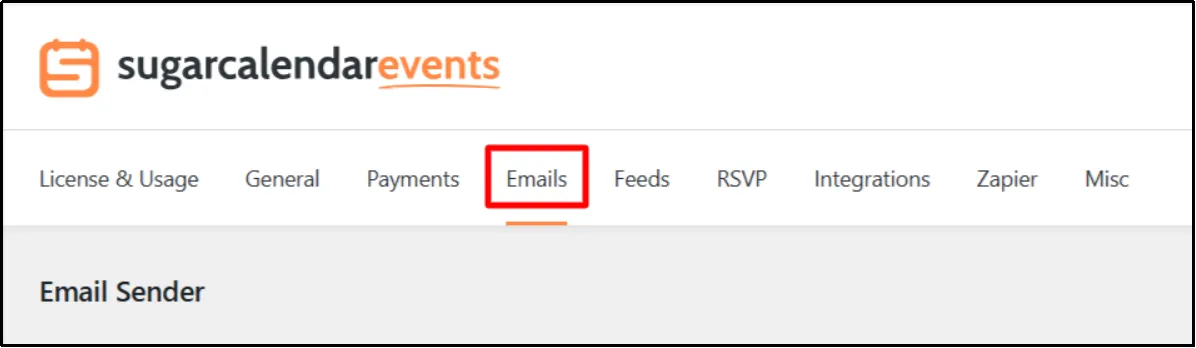
- Click on the Email Tab.
- Review the Email Sender settings: From Email Address and From Email Name.
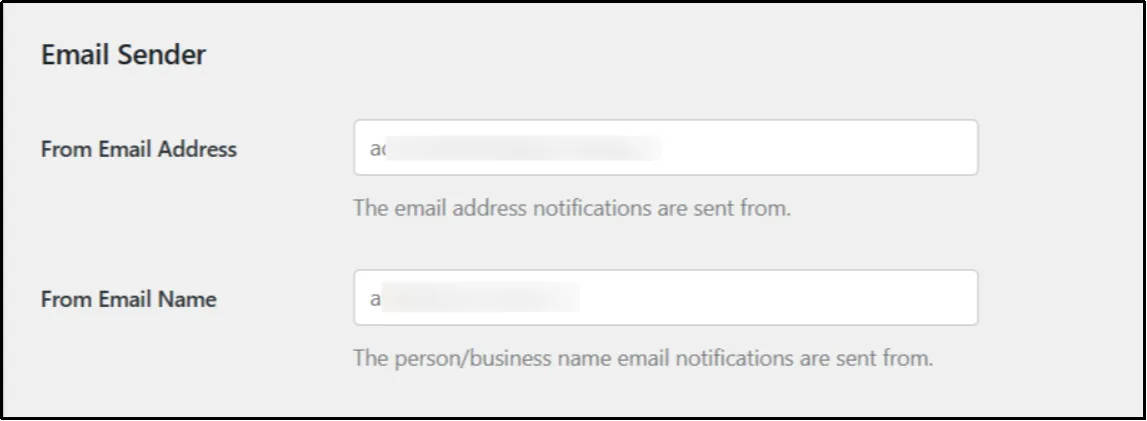
- Enable the specific notification toggles that you need. Check the administrator and attendee sections separately, and confirm that the affected email template is enabled.
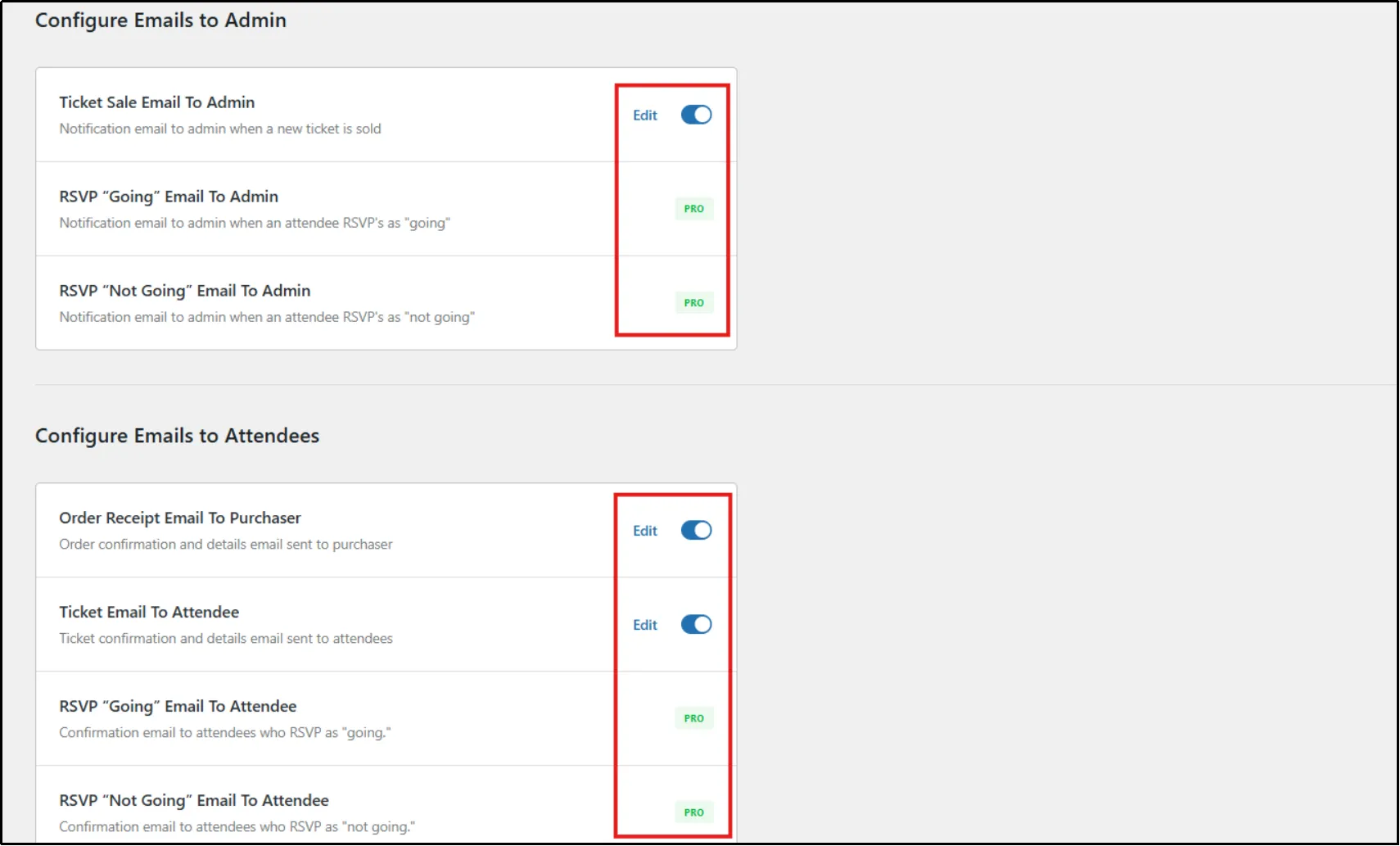
- Save your changes and test the affected workflow again.
For booking notifications, check the relevant booking email settings as well. Some booking workflows use separate notification controls, so changing the general event settings might not resolve the problem.
Why this helps: Disabled notifications and incorrect template settings can prevent Sugar Calendar from generating the expected email. An SMTP plugin cannot send a notification that Sugar Calendar never triggers.
Fix 2: Verify the Recipient’s Email Address and Registration Details
A notification may fail because Sugar Calendar doesn’t have the correct recipient information.
Start by checking the affected ticket order, attendee record, RSVP, or booking.
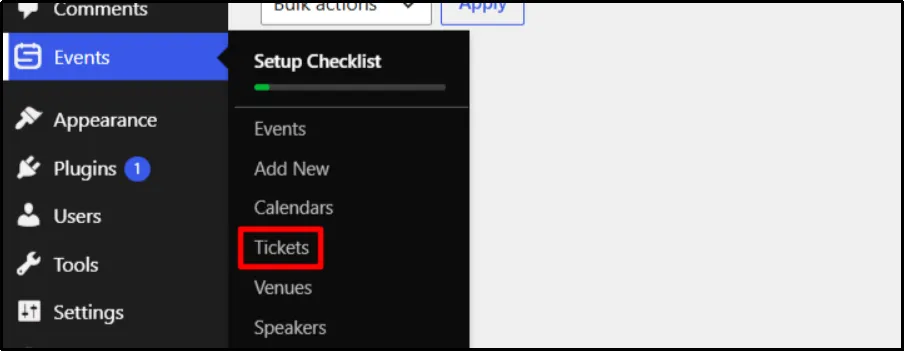
- Open the relevant record in your WordPress dashboard. For instance, we are going to the ticket order – Go to Events → Tickets.
- Check the email address for spelling mistakes, missing characters, or an outdated address.
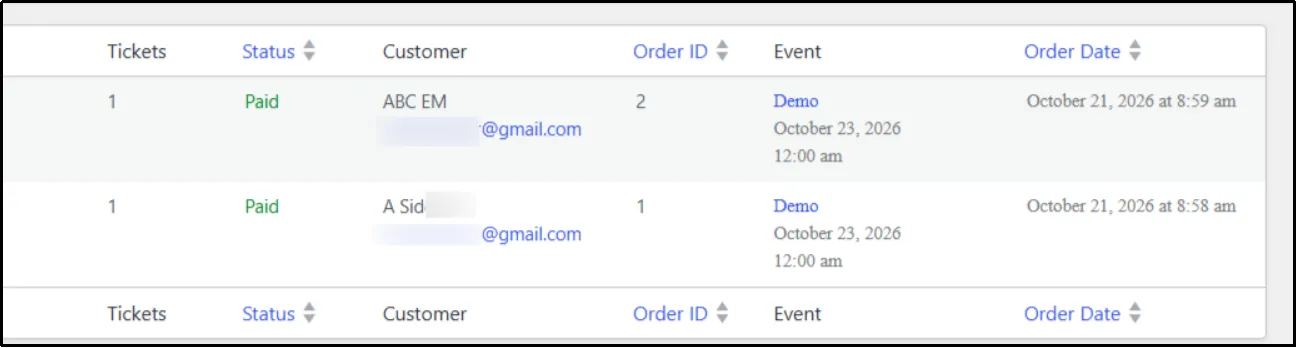
- Confirm that the ticket purchaser or attendee completed the required registration fields.
For ticketing notifications, you can also use Sugar Calendar’s Notify Attendees feature when available:
- Under the Tickets tab, click on Notify Attendees.

- Either select Event Attendees from the Event dropdown, or add Custom Recipients.
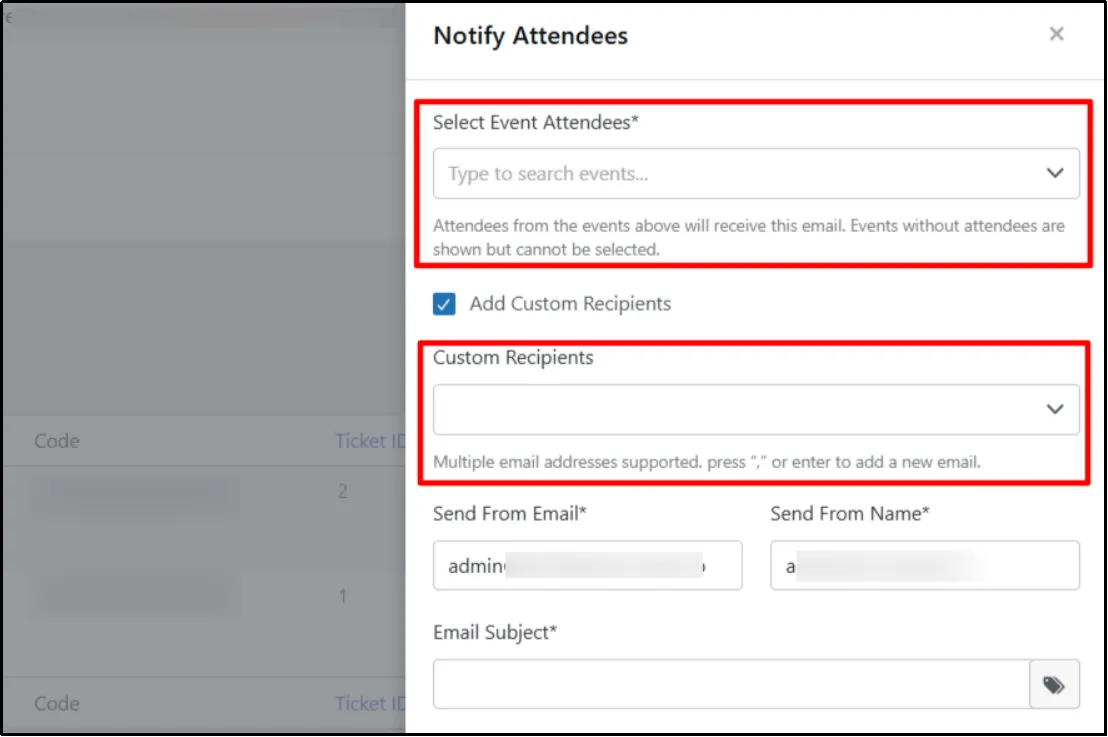
- Then check if your Send From Email and Send From Name are correct.
- Enter your desired Email Subject and Body, then click on Send.
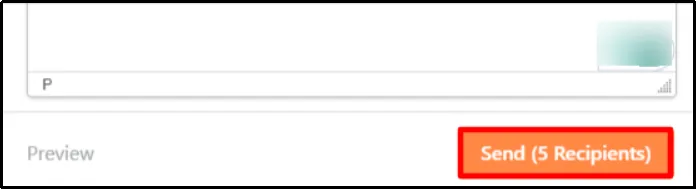
Use this feature to test or send a ticket-related notification. It doesn’t replace checking the automatic email settings for RSVP confirmations or booking notifications.
Fix 3: Install and Configure Post SMTP to Test WordPress Email Delivery
If Sugar Calendar’s notification settings and recipient details look correct, check whether WordPress can send emails successfully.
WordPress uses wp_mail() functionality to process outgoing messages. If the configured mail transport fails, Sugar Calendar notifications may not reach their recipients even when the plugin settings are correct.
Post SMTP lets you connect WordPress to an SMTP service or supported email API rather than relying solely on the site’s default mail transport.
Install and Activate Post SMTP
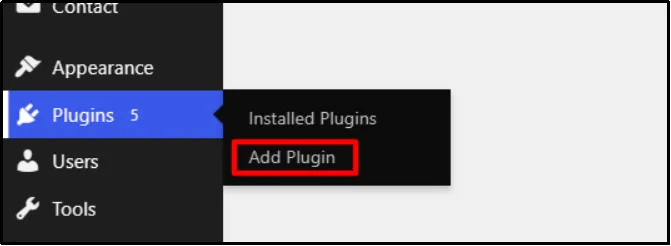
- In your WordPress dashboard, go to Plugins → Add Plugin.
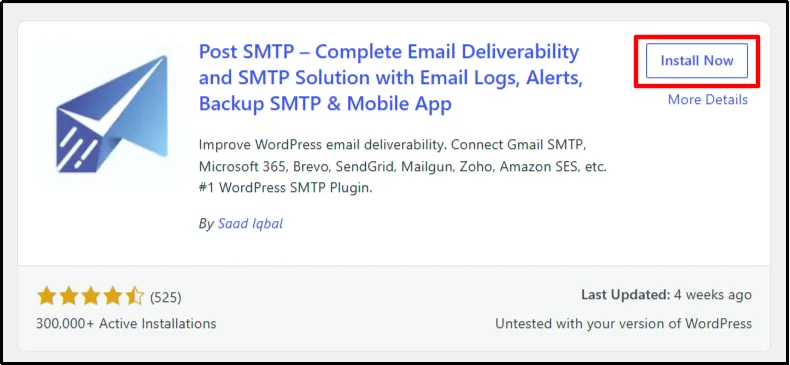
- Enter “Post SMTP” in the top search bar, then click Install Now and Activate.
Configure Post SMTP With Your Email Provider
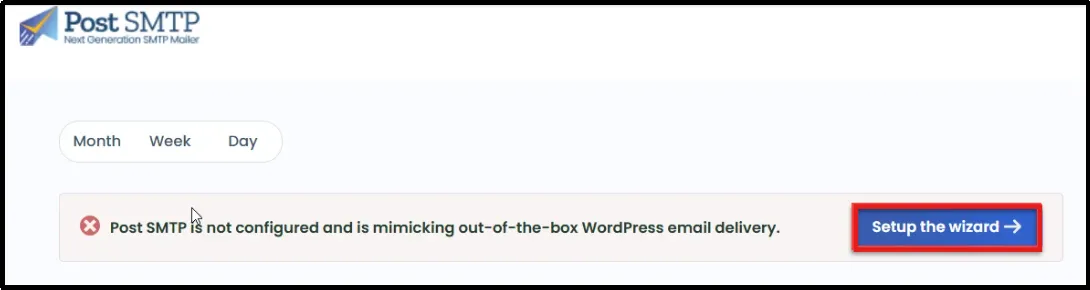
After activation, open the Post SMTP setup wizard. If the wizard doesn’t open automatically, launch it from the Post SMTP dashboard.
- Choose an SMTP mailer of your choice and click ‘Continue.’
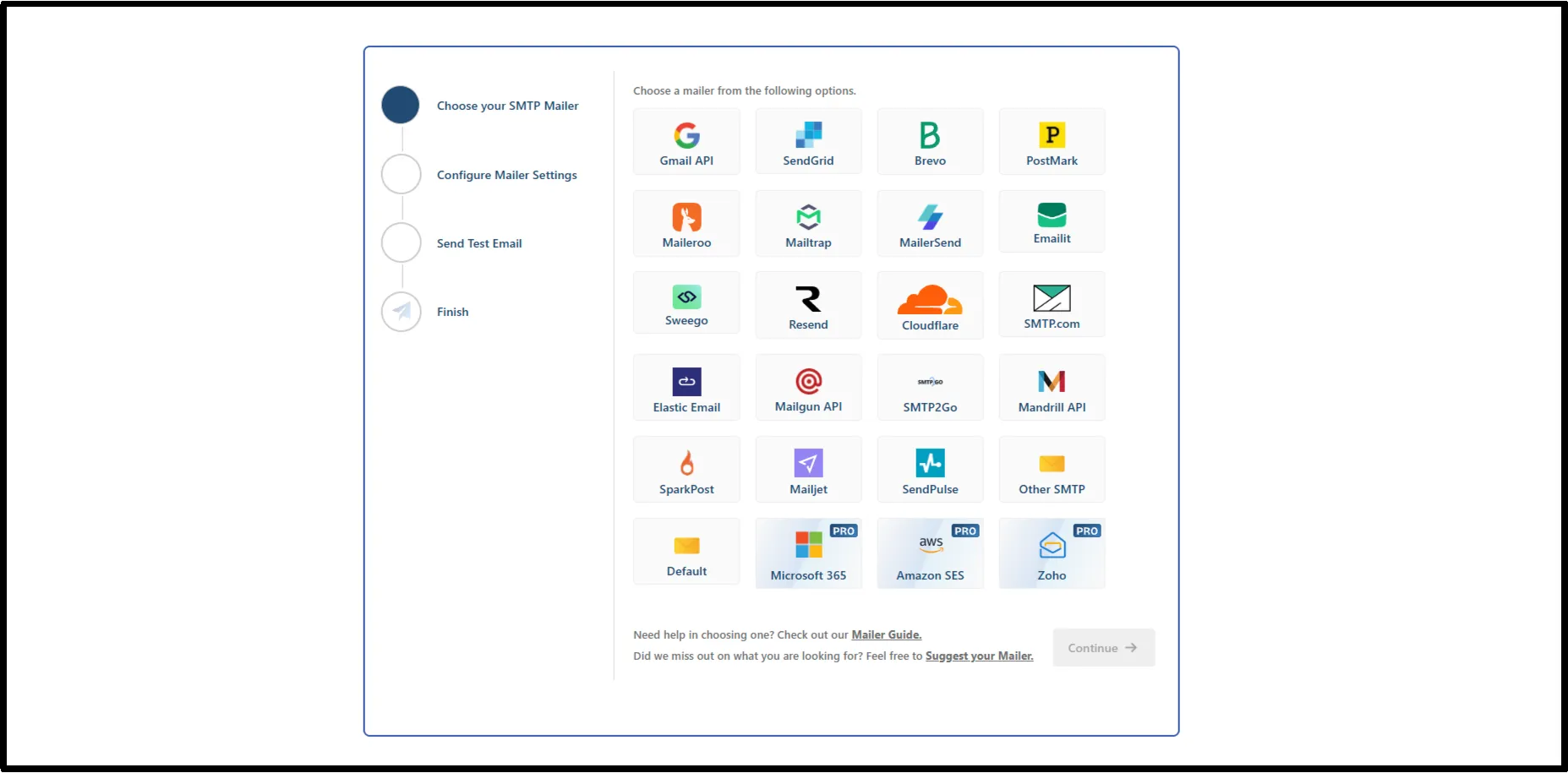
- Follow the setup instructions for that service.
Depending on your setup, you may use an SMTP connection or an API-based integration. Post SMTP supports 20+ SMTP mailer integrations, including services such as Gmail, Microsoft 365, Brevo, Zoho Mail, Amazon SES, and others.
- Enter the required sender details, API key, or authorization information. The exact fields depend on the mailer you’ve selected.
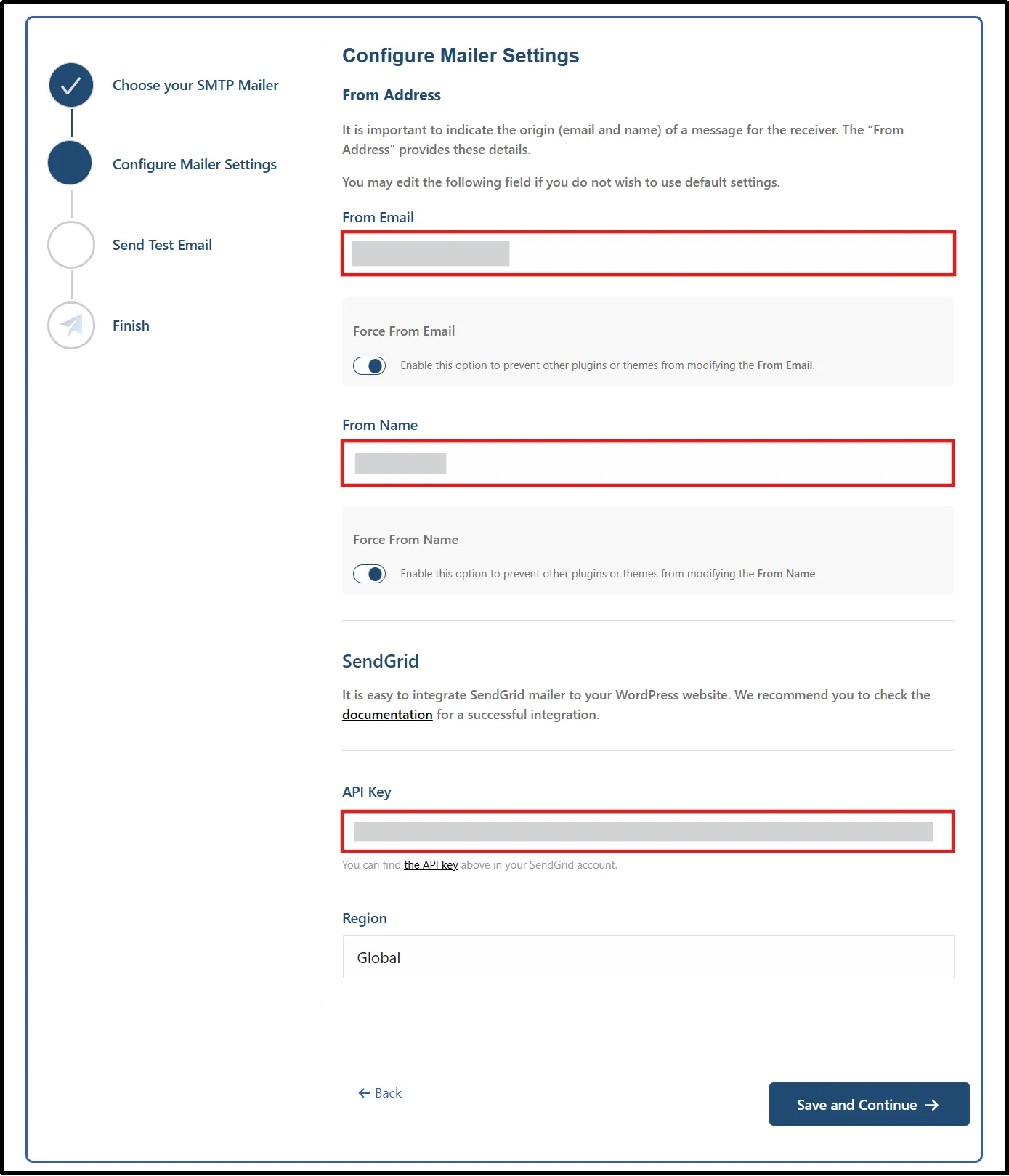
- Configure the From Email and From Name values to match your intended sender identity.
- If appropriate for your setup, enable the Force From options to prevent other plugins and themes from overriding those values.
- Click Save and Continue.
Post SMTP will then let you send a test message.
Send a test email
- Use a valid email address that you can access.
- Click Send Test Email.
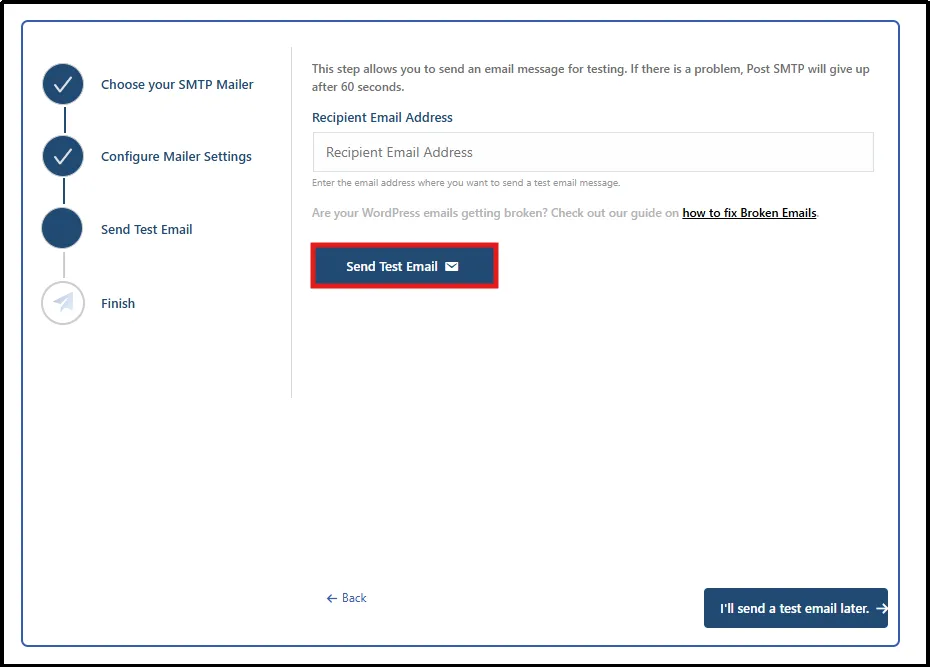
- Then check the destination inbox.
A successful Post SMTP test confirms that the configured mailer can process a test message. It doesn’t confirm that Sugar Calendar generates every notification correctly.
To test the affected workflow:
- Return to Sugar Calendar.
- For a ticket-related test, use Notify Attendees and enter your own address as a custom recipient, where available.
- For an automatic ticket receipt, RSVP confirmation, or booking email, trigger the relevant workflow separately.
- Check whether the expected message arrives.
If you receive the manually triggered notification but the automatic email remains missing, revisit the notification settings and reproduce the original ticket, RSVP, or booking action.
Post SMTP helps investigate WordPress email delivery, but it cannot enable a disabled Sugar Calendar notification or guarantee inbox placement.
Fix 4: Set a Consistent From Address in Post SMTP
Your sender address affects how receiving mail servers evaluate your messages. A sender address that conflicts with your email provider’s configuration can contribute to authentication or delivery problems.
- In your WordPress dashboard, open Post SMTP → Settings.
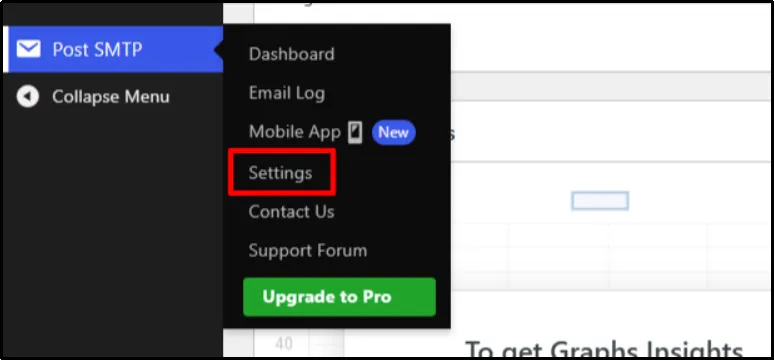
- Open the Message tab.
- Find the From Email and Email Address fields and enter an address authorized by your sending provider.
- Enable Prevent plugins and themes from changing this to keep other plugins and themes from overriding the configured address.
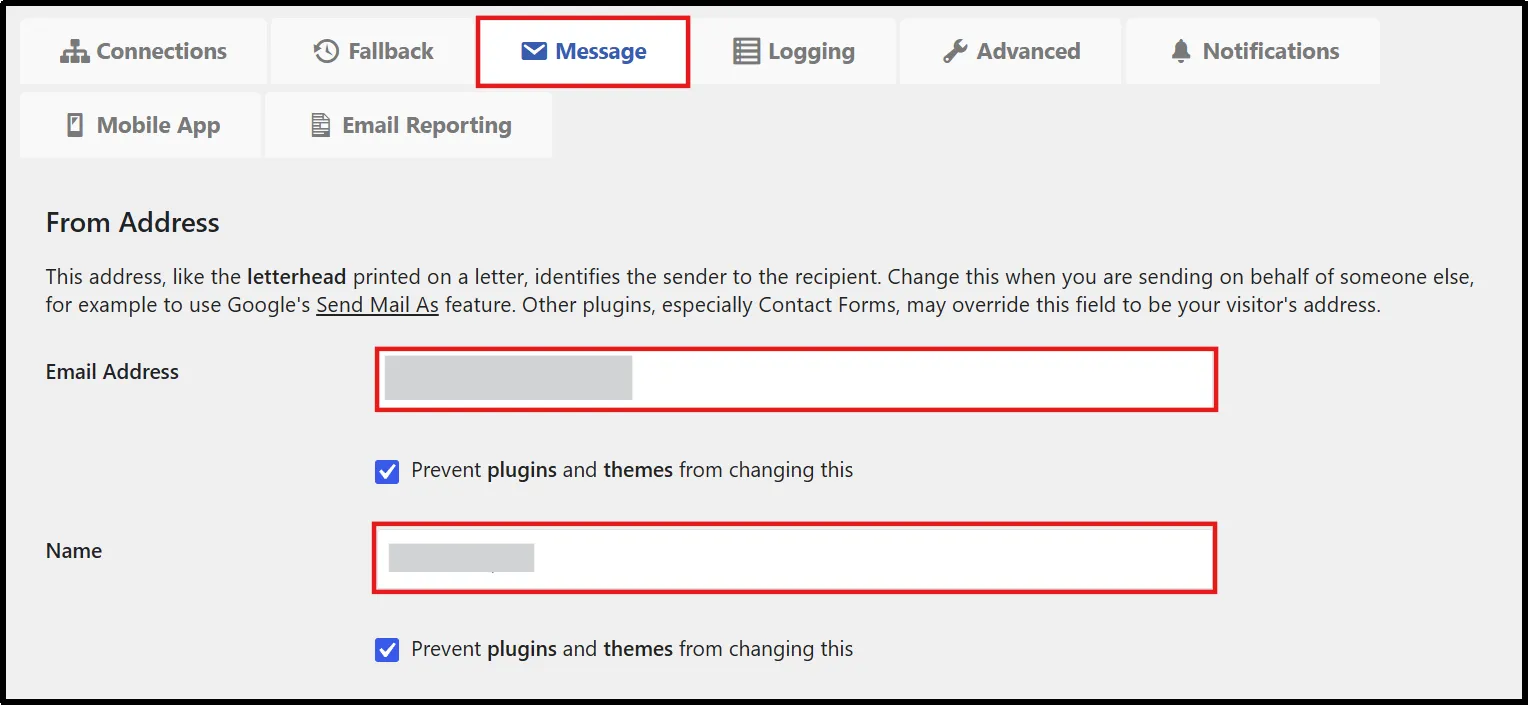
- Save your changes and test the affected Sugar Calendar notification again.
For example, if your website uses example.com, you might configure events@example.com as the sender, provided your mail provider authorizes that address.
Keep the sender identity consistent with your mail provider’s requirements. If your form or booking workflow supports a visitor’s email address as Reply-To, use that field for replies rather than placing the visitor’s personal address in the From field.
Fix 5: Troubleshoot Sugar Calendar Emails Going to Spam
If Sugar Calendar sends emails that land in spam or get rejected, investigate sender authentication, email reputation, message content, and recipient-side filtering.
Post SMTP includes a Spam Score Checker that can help you identify potential domain authentication issues.
To use it:
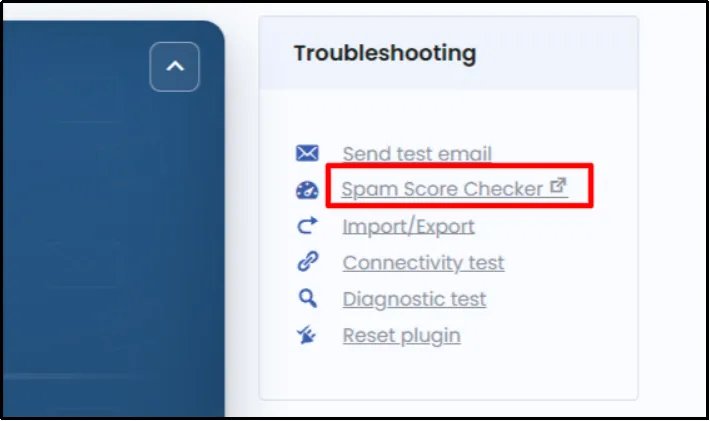
- Navigate to Post SMTP → Troubleshooting.
- Open Spam Score Checker.
- Click on Copy Email Address to Clipboard.
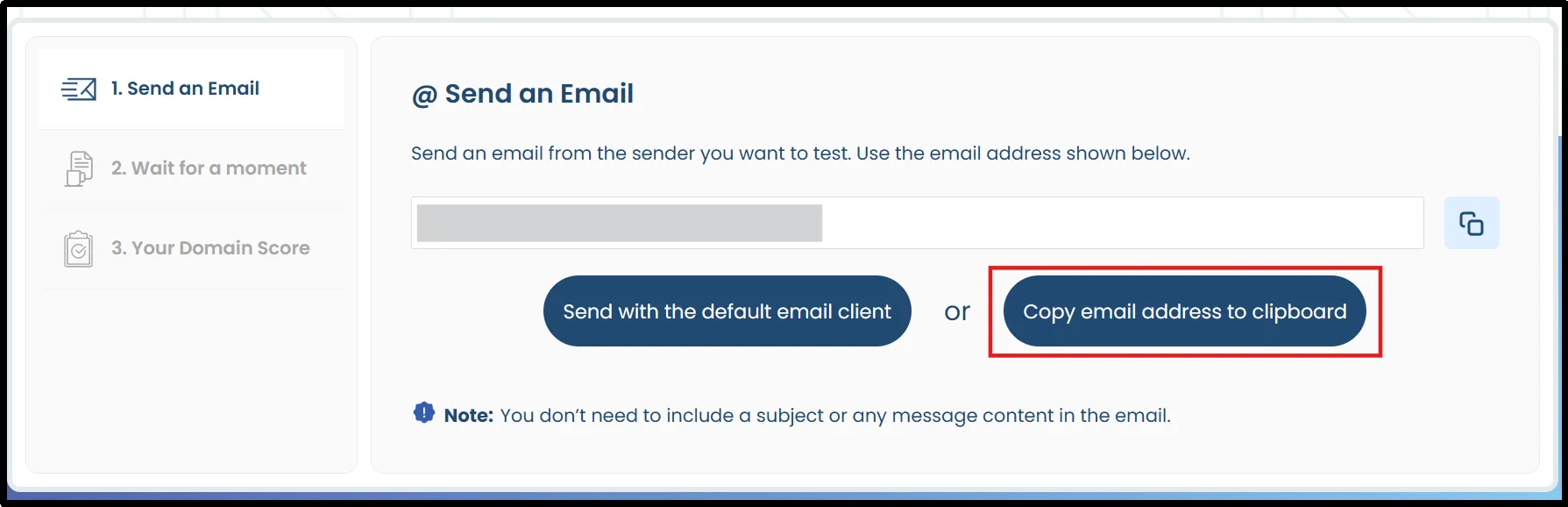
- Send a test email from your configured sending address.
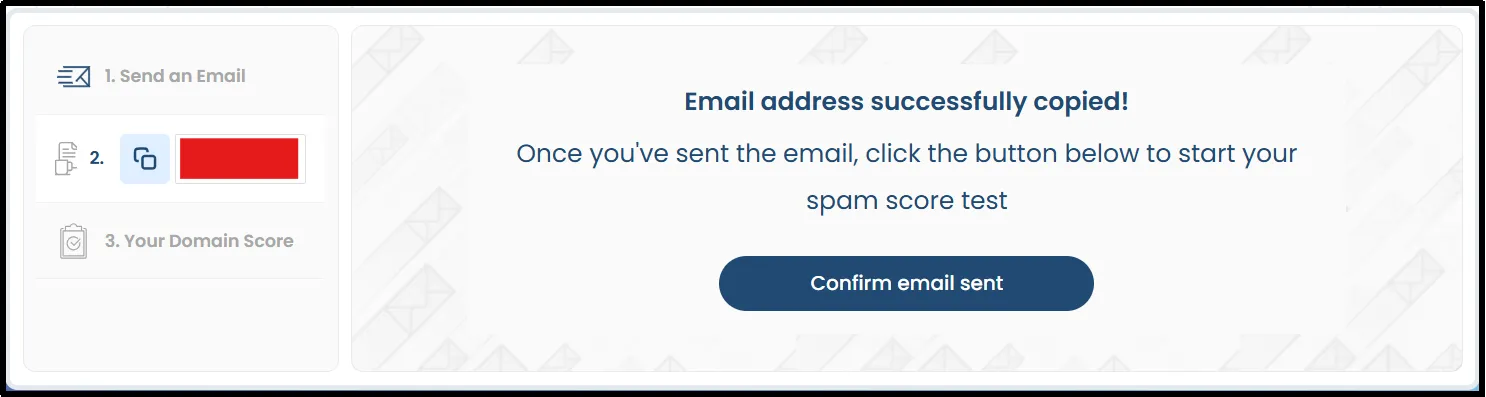
- Return to Spam Score Checker and click Confirm Email Sent.
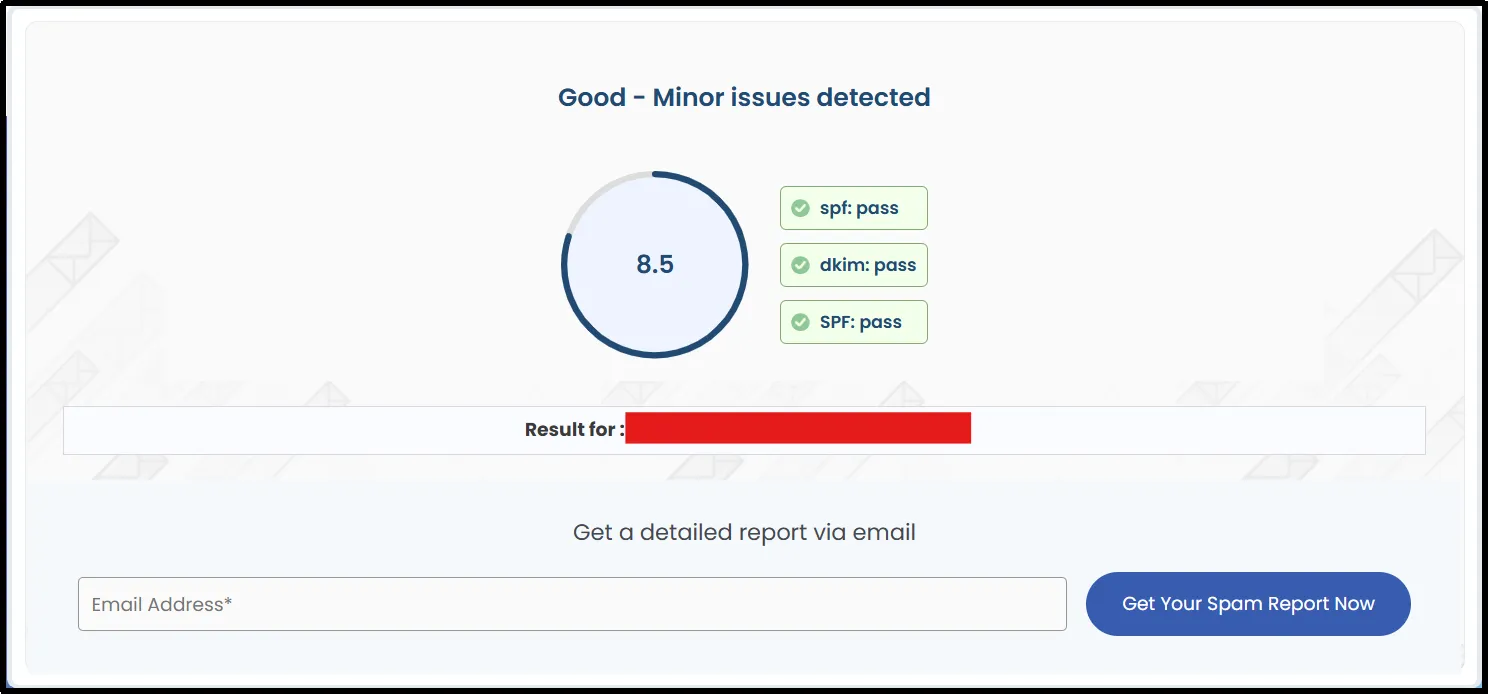
- Review the resulting checks to identify any authentication or domain-related issues.
Check SPF
SPF tells receiving systems which servers and email services are authorized to send messages for your domain. Make sure the SPF record published in your domain’s DNS matches the requirements of your mail provider or sending service.
Check DKIM
DKIM adds a cryptographic signature to outgoing messages. Receiving systems use this signature to verify that an authorized domain signed the message and that the content hasn’t been altered.
Check DMARC
DMARC builds on SPF and DKIM. It lets your domain publish instructions for messages that fail authentication and helps receiving systems evaluate whether the visible From domain aligns with the authenticated sending domains.
If you use multiple sending services, make sure your DNS records account for each authorized service without creating conflicting records.
Passing these checks doesn’t guarantee inbox placement. If the messages still land in spam, inspect the recipient’s spam or quarantine folder, review any bounce messages, and check the recipient provider’s filtering rules.
For a deeper explanation, read our guide about SPF, DKIM, and DMARC.
Fix 6: Check for WordPress or Plugin Conflicts
If the notification settings, recipient details, sender configuration, and mailer all look correct, check for a possible plugin or theme conflict.
A recent update to WordPress, Sugar Calendar, your theme, or a plugin may introduce a compatibility issue. Other plugins can also interfere with email handling or disrupt the expected workflow.
Follow this process:
Review recent WordPress, Sugar Calendar, theme, and plugin updates. Check your available WordPress and server error logs for messages that coincide with the failed notification.
If you suspect a plugin or theme conflict, reproduce the problem on a staging site when possible. Temporarily deactivate non-essential plugins and reactivate them one at a time while testing the affected workflow.
Avoid disabling essential plugins or changing your live site’s theme without a backup and a safe testing plan. Clear caches only if you have a specific reason to suspect that cached content or configuration is involved.
If the problem persists, contact Sugar Calendar support with the affected notification type, steps to reproduce the issue, relevant error messages, and the results of your mailer test.
How to Test WordPress Email Delivery for Sugar Calendar
After applying the relevant fix, verify both WordPress email delivery and the actual Sugar Calendar notification.
Use this checklist to confirm what works:
- Send a test email through Post SMTP, if configured.
- Confirm that the test reaches an inbox you can access.
- Trigger the specific Sugar Calendar workflow that previously failed.
- Check the intended recipient’s inbox and spam folder.
- Review available email logs, bounce messages, or provider reports.
- Confirm that both the notification and recipient details are correct.
If the test email succeeds but the Sugar Calendar notification remains missing, return to the notification settings and reproduce the exact event, ticket, RSVP, or booking action.
If the mailer can send test messages but the original notification still fails, focus on Sugar Calendar’s notification settings and workflow rather than repeatedly changing SMTP settings.
Prevent Future Sugar Calendar Email Problems With Post SMTP
Fixing a missing email solves the immediate problem. But if your website handles ticket sales, RSVPs, or bookings, you also need a way to respond when email delivery fails again.
Post SMTP offers additional features that can help you monitor failures and maintain a backup sending route.
Receive failed email alerts on your phone
You don’t have to keep your WordPress dashboard open to discover that a message failed. Post SMTP has an Instant Alerts for Failed WordPress Emails feature.
Connect your site to the Post SMTP mobile app to receive push notifications about email failures on your phone.
You can review the available error details and respond while you’re away from your computer.
You can view our detailed documentation for Post SMTP on a mobile phone for step-by-step guidance.
This can help you spot a problem before a missed ticket receipt or booking notification turns into a customer support issue.
Configure a fallback mailer
Your primary mail service may occasionally become unavailable, reject a request, or reach a sending limit. If that happens, messages that depend on that service may fail.
Post SMTP supports a fallback mailer that provides a backup sending route when the primary mailer fails.
To configure it:
- In your WordPress dashboard, go to Post SMTP → Settings → Fallback.
- Enable the fallback option.
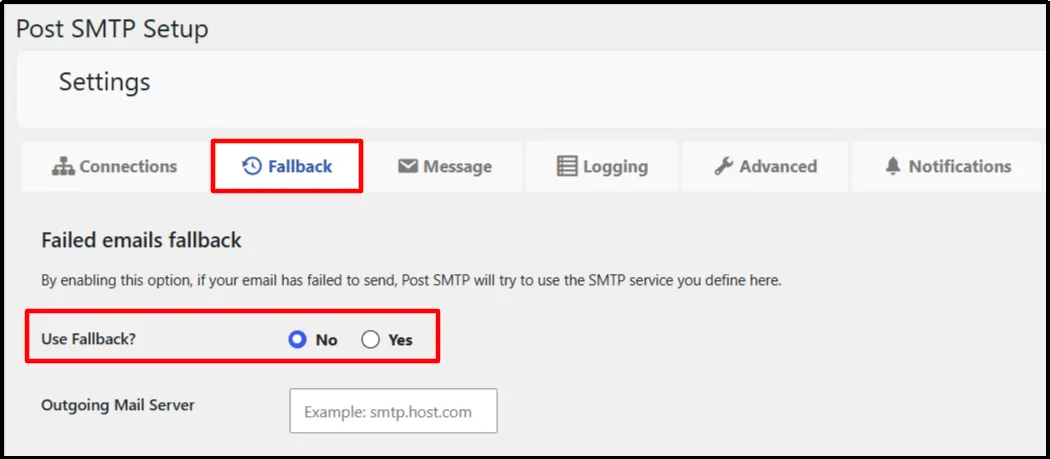
- Enter the connection and authentication details for your backup mailer.
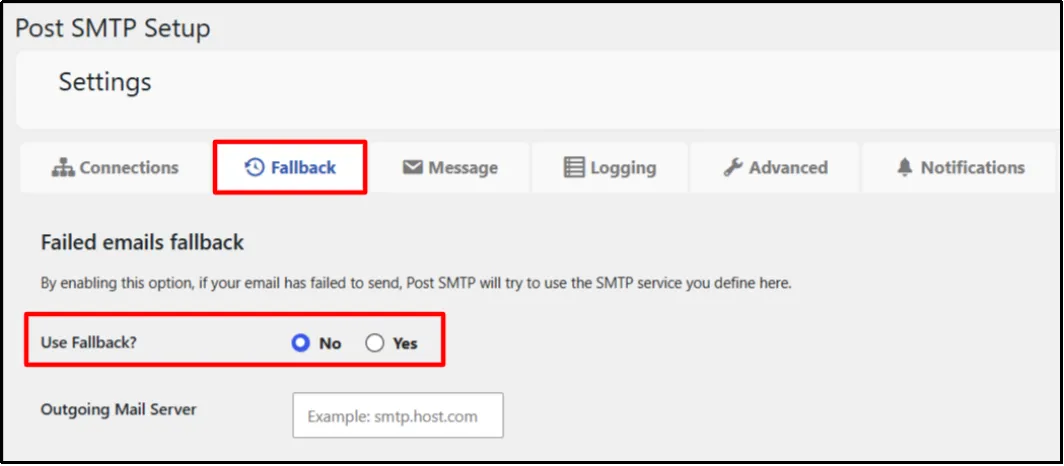
- Save your settings and verify the configuration according to your provider’s instructions.
For step-by-step configuration, follow our detailed documentation on Fallback Email Setup.
A fallback mailer can provide another route for eligible failed sending attempts.
For websites that rely on ticket receipts and booking notifications, combining an appropriate primary mailer, a fallback route, and failure alerts can make email problems easier to detect and manage.
How to Resend a Missing Sugar Calendar Ticket or Booking Email
After fixing the email delivery problem, if Post SMTP logged the original message, you may be able to resend it without repeating the workflow. First, correct the underlying issue and confirm that the relevant message is available in the email logs.
Resend a Sugar Calendar Email Using Post SMTP
- Open Post SMTP email logs.
In your WordPress dashboard, navigate to the Post SMTP email log section and locate the failed or affected message.
- Find the correct email.
Identify the message associated with the missing Sugar Calendar ticket receipt, RSVP confirmation, or booking notification.
- Check the error details.
If Post SMTP recorded a sending error, review it before retrying. Confirm that you’ve corrected the underlying issue, such as an SMTP authentication failure or incorrect mailer configuration.
- Resend the email.
Open the relevant log entry and use Post SMTP’s Resend option, when available, to retry sending the message.
- Verify the result.
Check the sending status and confirm with the recipient that the message arrived. If it doesn’t arrive, investigate the latest error or check whether the recipient’s email provider filtered or rejected it.
For detailed instructions, see our guide on how to resend an email from Post SMTP’s email logs.
Post SMTP’s resend feature helps you retry an email without repeating the original Sugar Calendar workflow. However, the message must be available in the logs, and resend availability depends on the features included in your Post SMTP setup.
Fix Sugar Calendar Email Delivery Problems With Post SMTP
Sugar Calendar email problems can start with disabled notifications, missing recipient details, or WordPress mail delivery failures. First, check the affected workflow, then use Post SMTP to test delivery, review error logs, and identify the cause.
Once your emails work, configure failure alerts and, where appropriate, a fallback mailer. These tools can help you detect future sending problems and respond before they disrupt ticket sales, RSVPs, or bookings.
Set up Post SMTP to troubleshoot WordPress email delivery and monitor future failures.
Frequently Asked Questions
Does Sugar Calendar need an SMTP plugin?
Not necessarily. Sugar Calendar can use WordPress’s built-in email functionality. However, configuring an SMTP or API-based mailer with Post SMTP can help troubleshoot sending errors, improve delivery reliability, and provide email logs and failure alerts.
How do I fix Sugar Calendar ticket emails not sending?
Check the ticket email settings, purchaser and attendee addresses, and the affected ticket record. Send a test email through Post SMTP, then test the actual ticket workflow. Review the email logs and resend the message if it’s available and the feature is supported.
Why do Sugar Calendar emails go to spam?
Missing or incorrect email authentication records, sender reputation, message content, and recipient-side filtering can cause emails to land in spam. Check SPF, DKIM, and DMARC, review bounce messages, and ask recipients to check their spam or quarantine folders.
Which SMTP settings should I use for Sugar Calendar?
Your SMTP settings depend on your email provider. Use the hostname, port, encryption method, and authentication details your provider specifies. If you use an API-based mailer, follow its authorization and setup instructions instead.
Can Post SMTP fix every Sugar Calendar email problem?
No. Post SMTP can help configure WordPress email delivery and diagnose sending errors, but it can’t enable a disabled Sugar Calendar notification, supply missing recipient information, or guarantee inbox placement. You must also check the relevant notification settings and workflow.