OpenAI
 Perplexity
Nothing is more frustrating than watching your emails bounce back without any apparent reason. Well, actually there’s always a reason.
Email delivery failure is a super common issue that occurs all the time on WordPress, regardless of the hosting provider. Even though you may think your emails look perfectly nice and clean, there might be underlying issues causing the rejection from the receiving server.
Most of the time, the culprits are the authentication protocols. Their absence or misconfiguration interrupts the authentication process, causing the server to mistake a legitimate email for spam.
If you are experiencing the same issue on SiteGround, don’t worry! This article explores easy steps to overcome this problem.
Understanding The Issue: Why Emails Are Not Sending on SiteGround
Before we dive into the fix, let’s understand why such a nuisance can occur. As discussed, it usually comes down to a few things, such as:
SiteGround’s Mailbox Quota
Mailbox quota refers to the limit of storage allocated to an email account for emails and attachments. Once an account hits its quota, it cannot accept new emails until the older ones are deleted or the quota is increased.
SiteGround allows unlimited free email accounts per domain; however, each account has a default quota that usually goes up to 10,000 MB. Although the storage sounds generous, it can fall short for websites receiving tons of emails every day or emails with heavy attachments.
Conflicting Plugin’s Settings
If a specific plugin is causing complications on SiteGround, the problem might be with the plugin’s settings and configuration rather than SiteGround. For instance, there might be inconsistencies with the From Name or From Email settings, confusing the server about which one to use.
This can especially be the case if you use multiple plugins that send emails. Let’s take an example of a learning management system (LMS) and a form plugin, both of which send emails for respective purposes, and inconsistencies can lead to deliverability problems.
Misconfigured or Missing Authentication Records on DNS
Earlier, we discussed authentication protocols. The common ones include SPF, DKIM, and DMARC. Receiving servers, check against these records to ensure the email is legitimate and not spoofed.
Here’s what these protocols mean:
- SPF: Stands for Sender Policy Framework and allows the domain owner to specify the mail servers allowed to send emails on behalf of your domain. This data is public, so the receiving servers use it to verify if the email comes from a legitimate server.
- DKIM: Stands for DomainKey Identified Mail; it electronically signs emails before sending them using a cryptographic signature in the email’s header. The receiving server then checks for the signature to validate authenticity.
- DMARC: Stands for Domain-based Message Authentication, Reporting & Conformance. This protocol allows the domain owner to decide what to do with the emails if they fail SPF or DKIM. One can quarantine such emails, reject them, or let them pass.
WordPress Sends Emails Through the wp_mail() Function
By default, WordPress uses the wp_mail() function to send emails unless changed. The problem is, this mailer was introduced in 2004. That’s why it lacks proper email authentication protocols—the ones we discussed in the previous section—and isn’t made considering modern email security standards.
This causes the receiving servers to reject emails coming in from this source.
4 Easy Fixes For WordPress Not Sending Email on SiteGround
Now that you understand the issue, let’s get to the fixes. These four fixes are sure to help you overcome this common problem.
1. Increase Mailbox Quota
If your website receives a great many emails every day, there is a high chance that you might be facing a mailbox quota restriction. You can easily lift this restriction by increasing your email Quota.
To do so, go to SiteGround and log in to your account.
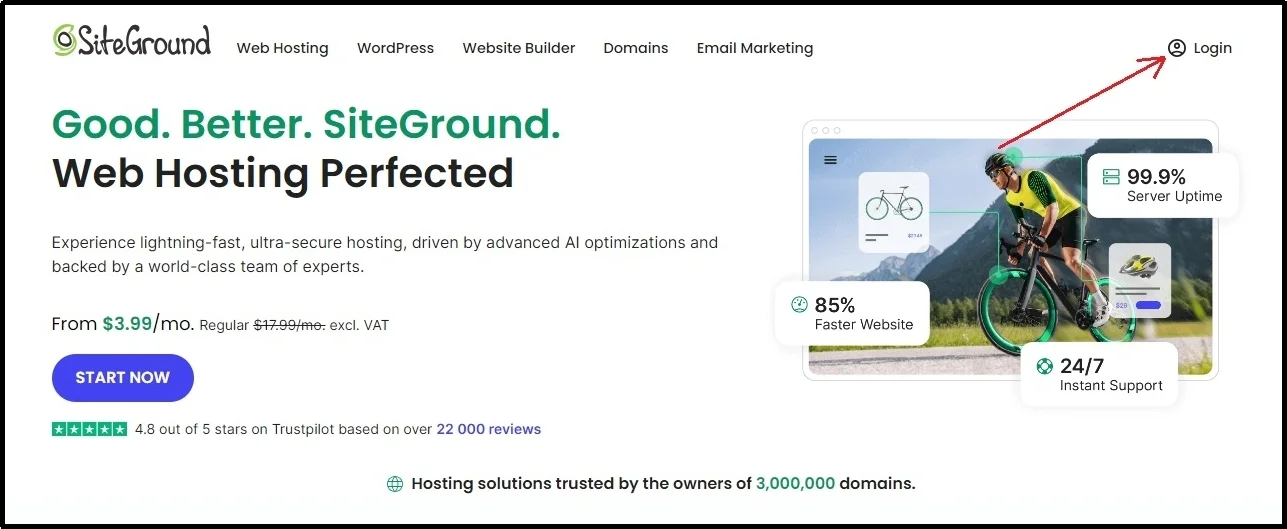
Choose the domain you want to increase the email quota of and use the three dots next to it.
Select Change Quota.
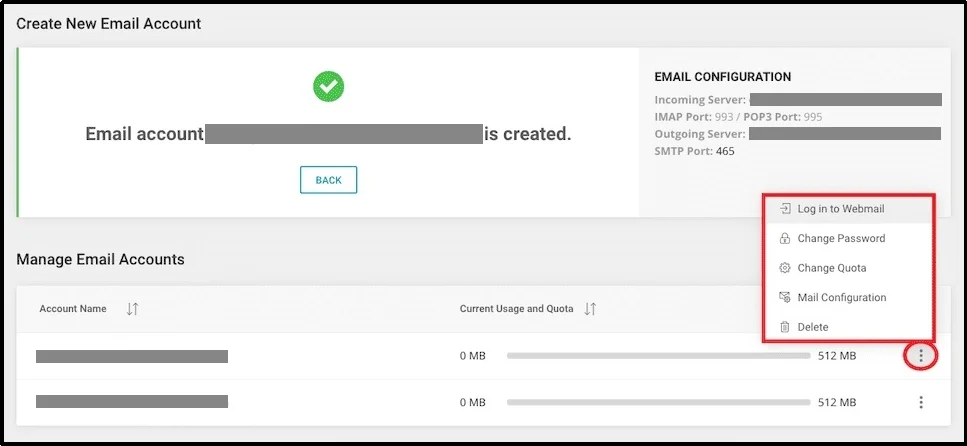
Drag the slider to the value you would like to set the email quota to.
2. Checkout The Plugin’s Settings
If the problem arises after downloading a certain plugin or theme, the problem must be with that plugin.
Often, misconfigured plugin settings can cause deliverability issues. Although the settings can differ based on the plugin, you can check for From Name and From Address.
These refer to the text you see to decide whether to open the email. This is a crucial detail and inconsistency regarding this aspect can cause deliverability problems. Thus ensure to set a similar name for each plugin or theme. Alternatively, if you send emails through Post SMTP, there is an easier fix for you.
Just go to the plugin’s settings ⇒ Messages tab ⇒ insert the email address and name, check the Prevent plugins and themes from changing this box.
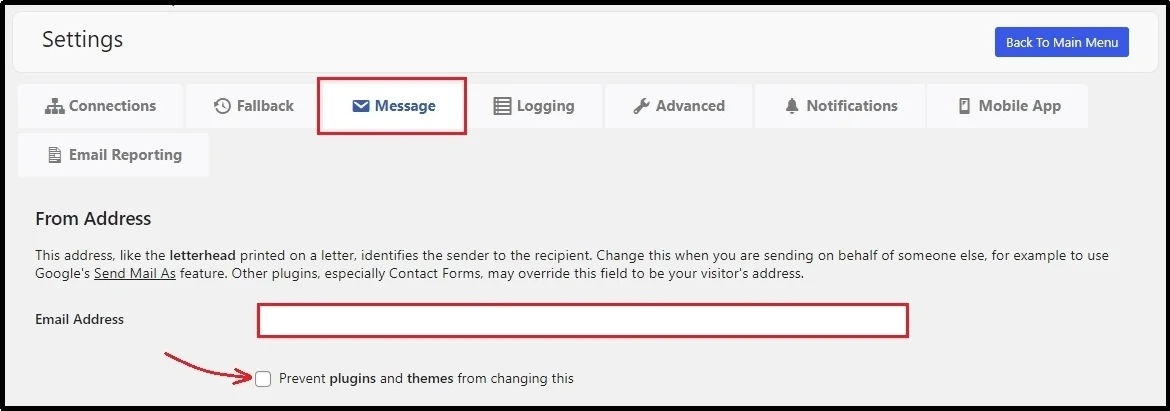
This should prevent further inconsistencies.
We have covered how to handle all kinds of plugins in case of deliverability problems and how to set them up correctly. Check them out below:
- WP Forms
- Forminator
- Elementor
- LifterLMS
- Bookly
- SeedProd
- Newsletter
- Cloudflare
- Wordfence
- WooCommerce
- Gravity Forms
- Fluent Forms
- And much more on our blog.
3. Replace the wp_mail() Function With Post SMTP
If the problem is not related to a specific plugin, but the website and increasing the email quota do not help, this one can surely fight the problem.
Before we proceed, download Post SMTP, the best SMTP plugin out there.
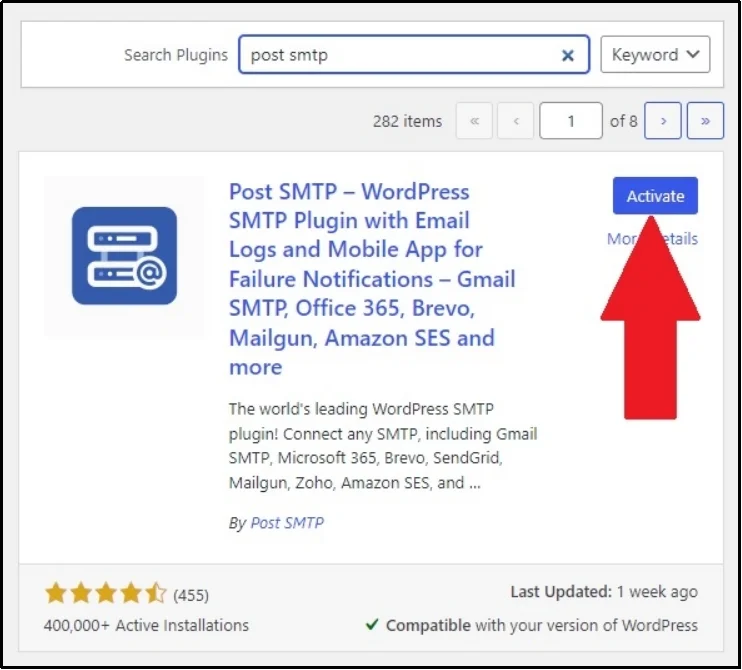
Head to your WordPress ⇒ Add Plugin ⇒ Search for Post SMTP ⇒ Download and activate the plugin.
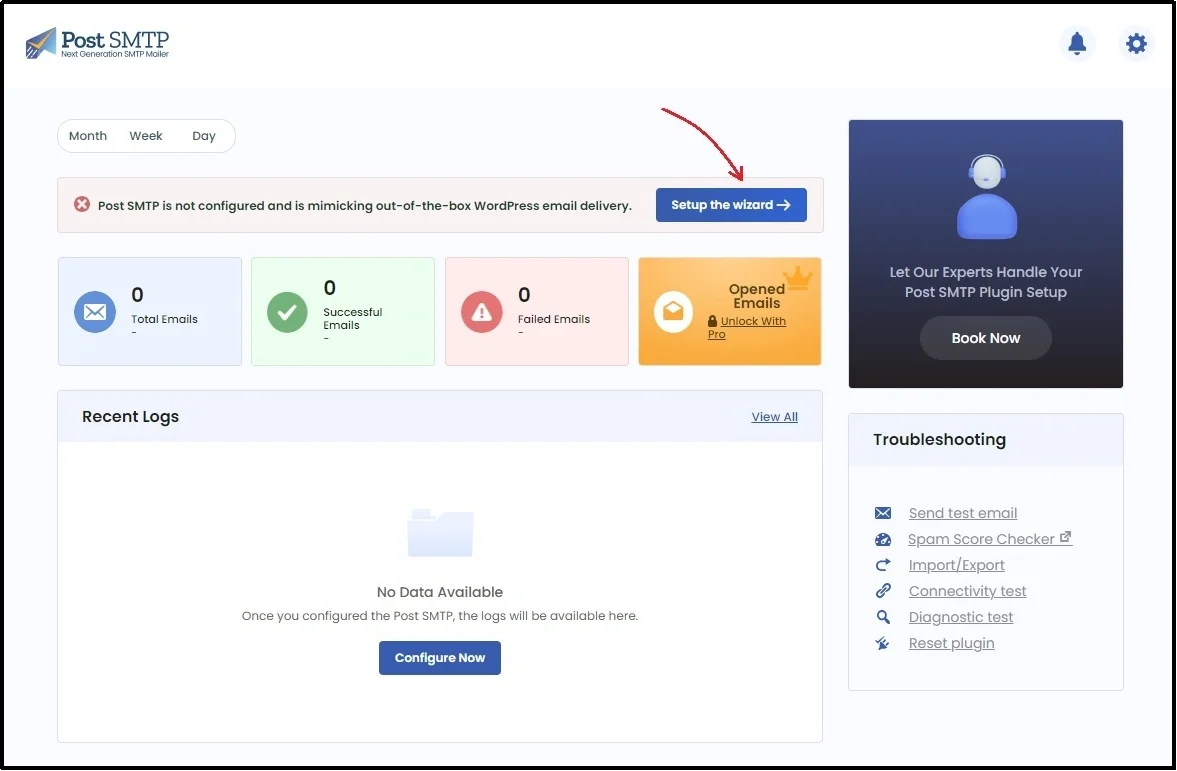
Once done, go to the plugin and open the setup wizard.
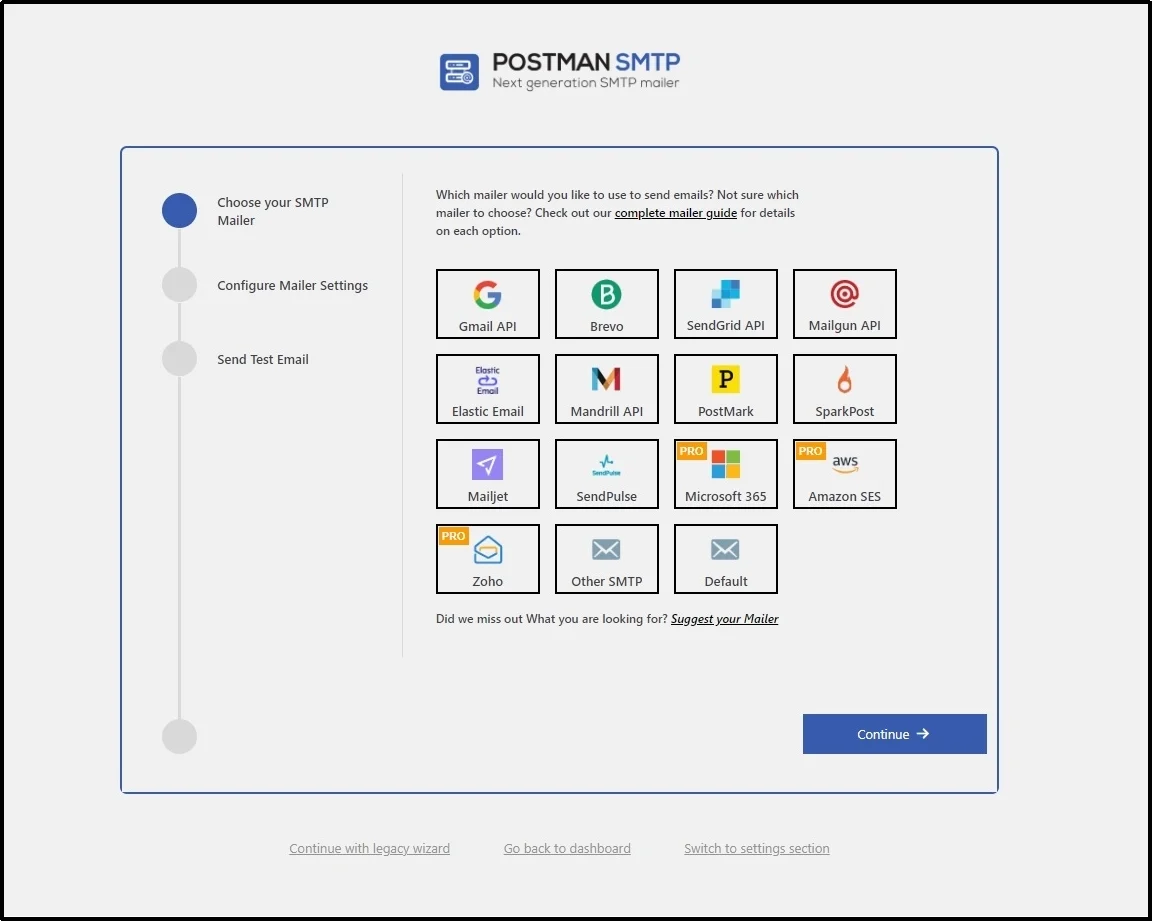
Choose the mailer you would like to replace the default mail function with.
Simultaneously, you must get the Mailer’s API keys.
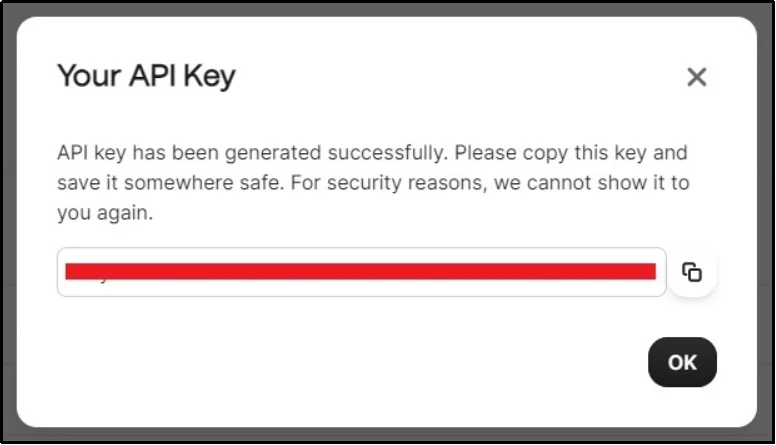
Add it to the plugin.
You can also send the test email to check if the integration works fine.
The process can vary depending on the mailer you choose.
Once done, you can send a test email to ensure the integration succeeded.
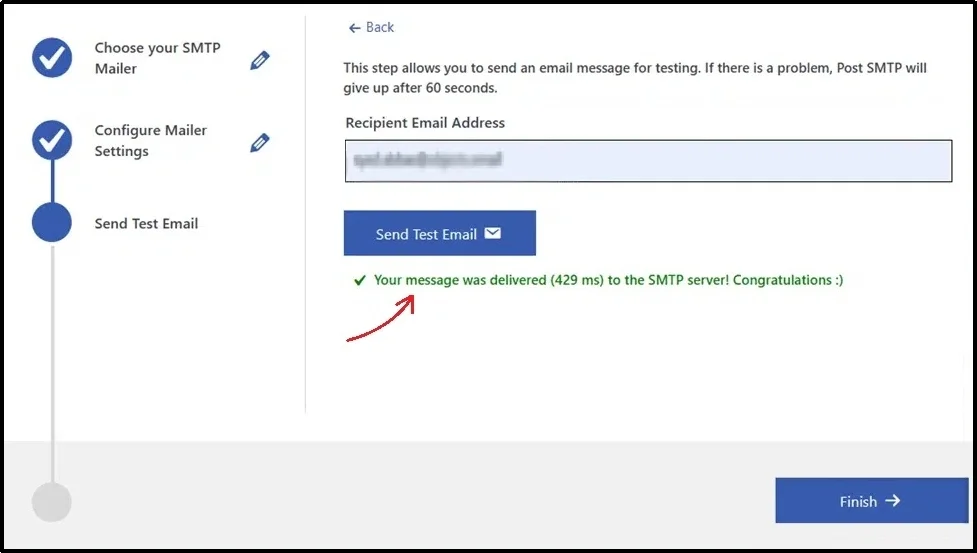
To avoid complications, ensure to check the boxes that prevent other plugins or themes from making changes that may cause inconsistencies as we learned earlier.
This entire configuration forces WordPress to send emails through your set mailer instead of the wp_mail() function. The replacing mailers sign emails and follow proper email security protocols, helping receiving servers evaluate the incoming email’s authenticity.
This allows receiving servers to accurately decide what to do with the incoming email.
4. Misconfigured Authentication Records
If there is still uncertainty about these authentication records and how they work, please refer to this article for a detailed description.
After changing your email server, it is common to still face deliverability problems. That’s because changing the servers can alter authentication records in the DNS. You must add them manually for it to work.
For that, navigate to Websites ⇒ Site Tools ⇒ Domain ⇒ DNS Zone Editor.
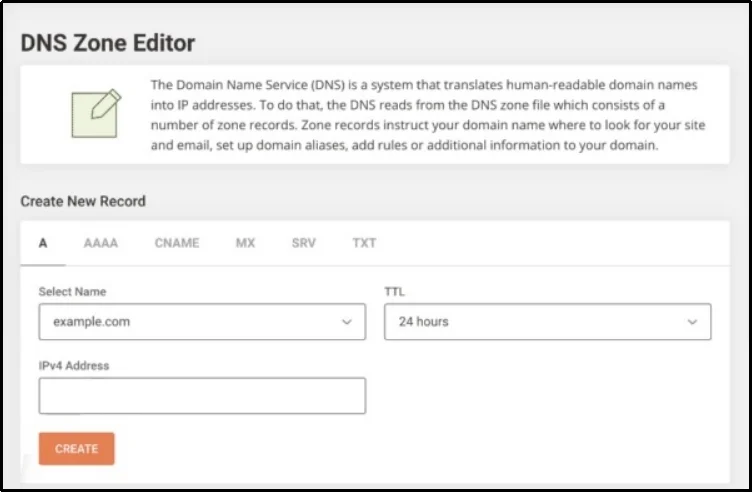
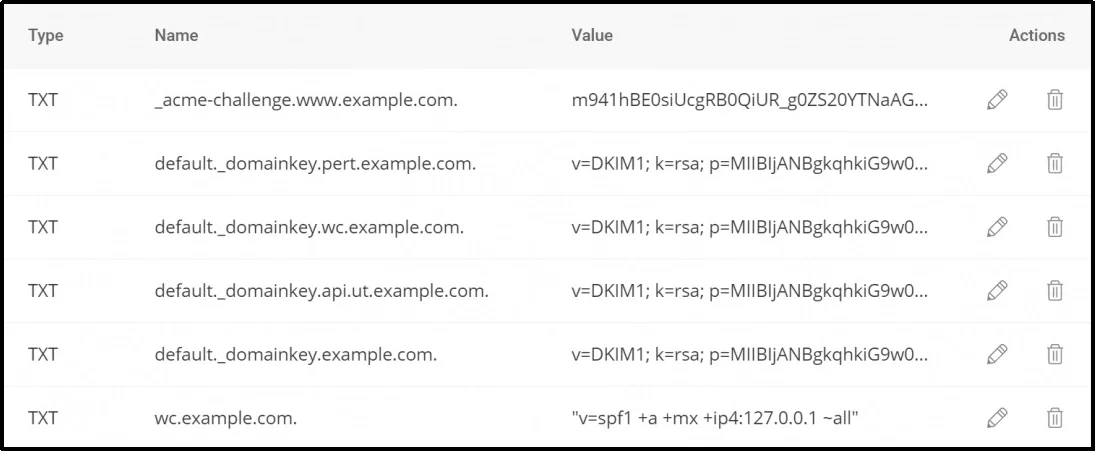
You can see all the records posted.
Add new records. Ensure to choose the correct type from the top.
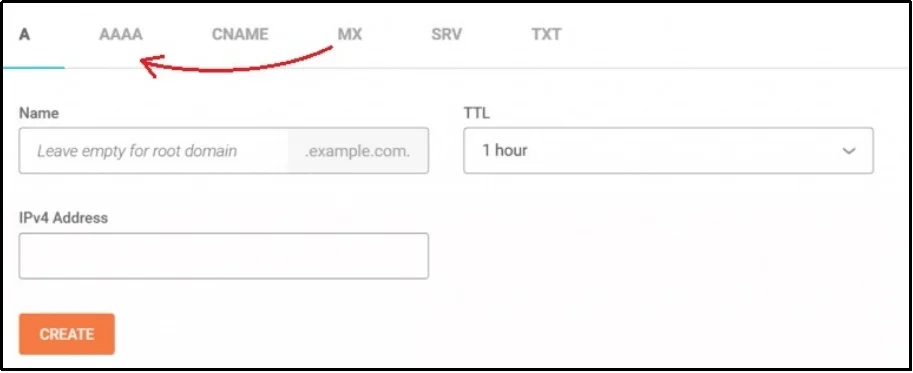
Use the Create button to create a new record. A text record is a type of record that you can create yourself. The guide we linked earlier explains more about them.
You can also use online tools to help create such records. There are plenty of them on the web.
Testing The Integration With Post SMTP
If you have finally added the records, you can visit our Domain Spam Score checker and send an email to the unique address.
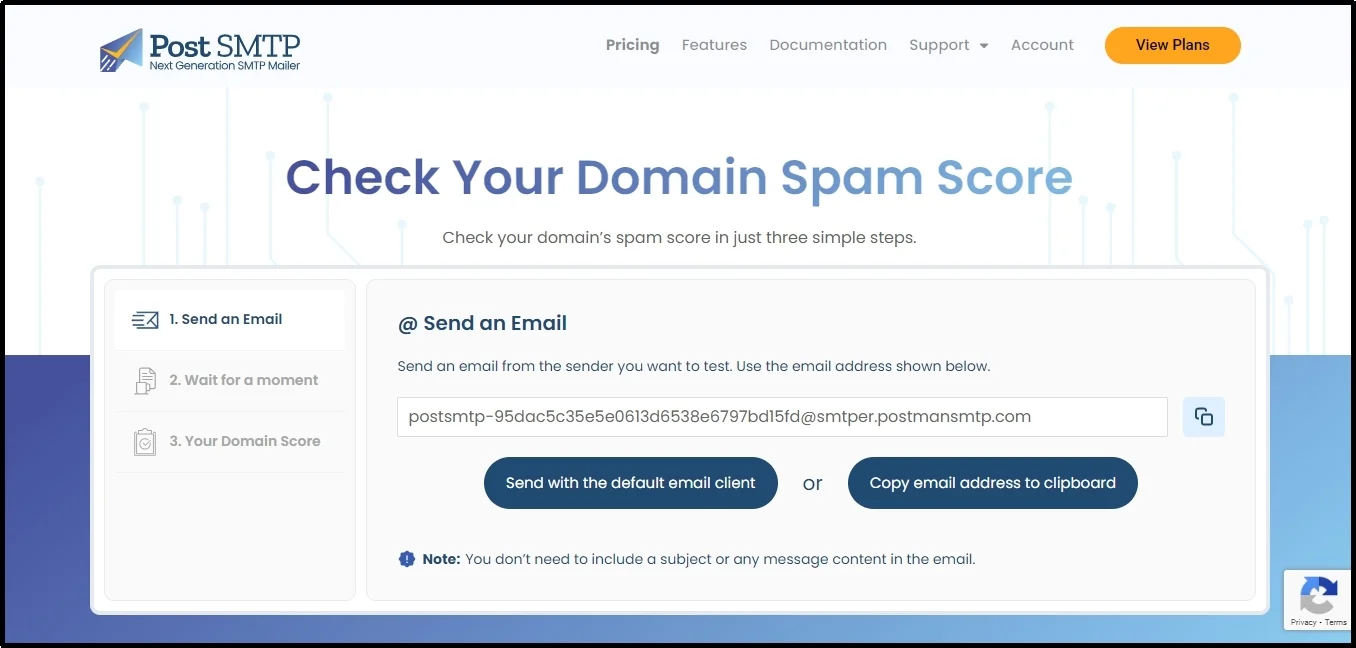
Wait until the tool evaluates your domain spam score. Once done, you can see if the authentication records are correctly set and the probability of an email from your domain landing in the spam folder.
Final Words
Email deliverability issues can be very disappointing, especially when they interrupt user communication, form submissions, or order confirmations. Fortunately, fixing the issue is just about changing your email quota, replacing the wp_mail() function, and correctly setting up the authentication records.
With Post SMTP, you can touch sky high email deliverability rates. The plugin not only helps replace the default mailer but also offers tons of other tools and benefits essential for your website or business.
Make the right choice today, download Post SMTP!
Frequently Asked Questions
Why is WordPress SiteGround not sending emails?
Multiple reasons might be causing WordPress not to send emails in the SiteGround issue. It can be that your email quota might be off, authentication protocols might be misconfigured, or your website uses the wp_mail() function to send emails. To combat the issue, increase your quota limit, manually add the necessary records in the DNS, and use a reliable third-party mailer instead of the WordPress default one.
Do I need to configure SMTP for every plugin on my site?
No! With Post SMTP, you can easily set up the SMTP mailer once, and check the “Prevent themes and plugins from changing this” box in the plugin’s settings to avoid inconsistency across your site.
How do I verify if my WordPress emails are working after setup?
After configuring Post SMTP, use its built-in test email feature to send a test message. You can also use a tool like our Domain Spam Score checker to verify whether your authentication records are correctly set and whether the email lands in the inbox or spam folder.