OpenAI
 Perplexity
WP 2FA is a powerful two-factor authentication plugin for WordPress that enhances security by requiring an additional verification step. However, sometimes, users face issues regarding the plugin’s email deliverability.
If you’re dealing with the “WP 2FA not sending email” issue, don’t worry! This is a common problem that you can easily fix. In most cases, it happens due to misconfigured email settings or WordPress’s default—wp_mail function()—failing to deliver emails properly due to email authentication protocols.
In this guide, we’ll walk you through five simple fixes to get your WP 2FA emails working again.
Ready? Let’s dive right in!
4 Reasons Why WP 2FA Not Sending Emails Issue Occurs
If WP 2FA is not sending authentication emails, the issue likely stems from misconfigured settings, conflicts, or server limitations. Below are some of the most common reasons for WP 2FA not sending emails issue and how they can impact email delivery.
#1: Incorrect email settings
One of the primary reasons WP 2FA emails don’t reach users is incorrect email settings within WordPress or the plugin itself. If the “From Email” address is invalid or not properly set, email servers may reject the message.
Additionally, some WordPress plugins, including WP 2FA, rely on the default WordPress wp_mail() function, which lacks proper email authentication protocols, making emails more likely to be blocked.
#2: Email spam filtering
Another common reason can be the strict spam filtering mechanisms that email servers follow to block suspicious or unauthenticated emails. If WP 2FA emails lack proper authentication records like SPF, DKIM, and DMARC, they may end up in the recipient’s spam folder. This issue also leads to other deliverability complications, such as the infamous WordPress not sending emails issue.
#3: Plugin conflicts
WP 2FA may not send emails if there’s a conflict with other WordPress plugins. Some security, caching, or email-related plugins can interfere with email delivery, causing failures. Common culprits include other two-factor authentication plugins, security plugins, or caching plugins.
#4: Hosting server limitations
Certain hosting providers impose email-sending limits, restricting the number of emails your website can send per hour or day. If your server reaches this limit, WP 2FA emails may fail to send. This problem usually happens in shared hosting servers or when hosting providers restrict third-party SMTP usage.
How to Fix WP 2FA Not Sending Emails [5 Easy Ways]
Now that you understand the common problems, let’s go through the solutions to fix WP 2FA not sending emails issue.
#1: Verify email settings
Earlier, we discussed the potential issue with incorrect email settings, which can cause problems with email deliverability. To ensure such a problem doesn’t occur, navigate to WordPress Dashboard >> Settings >> General and check the Email Address field. Ensure it is a valid email address. Set a custom “From Email” address that matches your domain and Use a dedicated email-sending service instead of relying on the default wp_mail() function.

#2: Configure an SMTP Plugin
Since WordPress’s default mail function is unreliable, setting up an SMTP plugin can significantly improve email deliverability. To do so, you have to install Post SMTP. Follow the following steps to configure an SMTP plugin.
Firstly, log in to your WordPress and navigate to Plugins >> Add New Plugin.

Next, using the plugin search bar, search for Post SMTP.
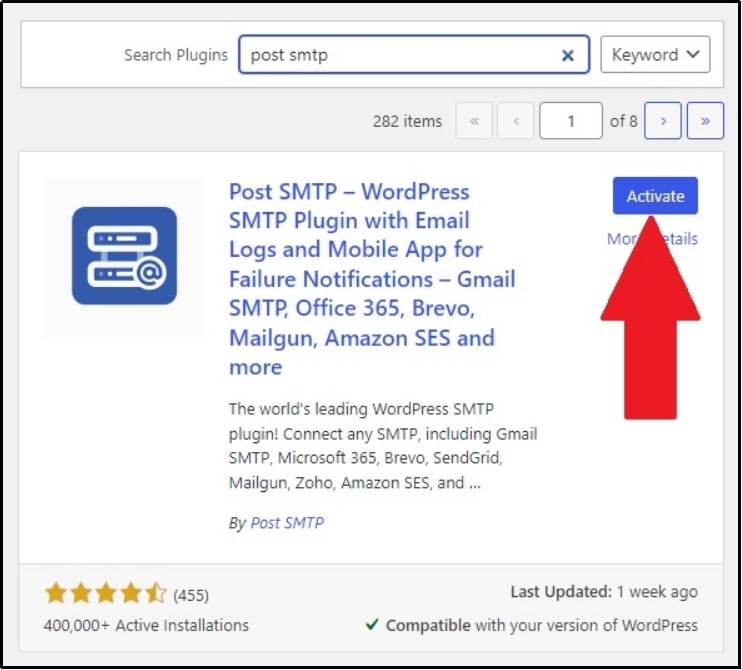
Finally, install the plugin, wait for a few seconds, and use the activate button to activate it.
Now, go to the plugin’s settings, and you will be welcomed with a setup wizard like this.
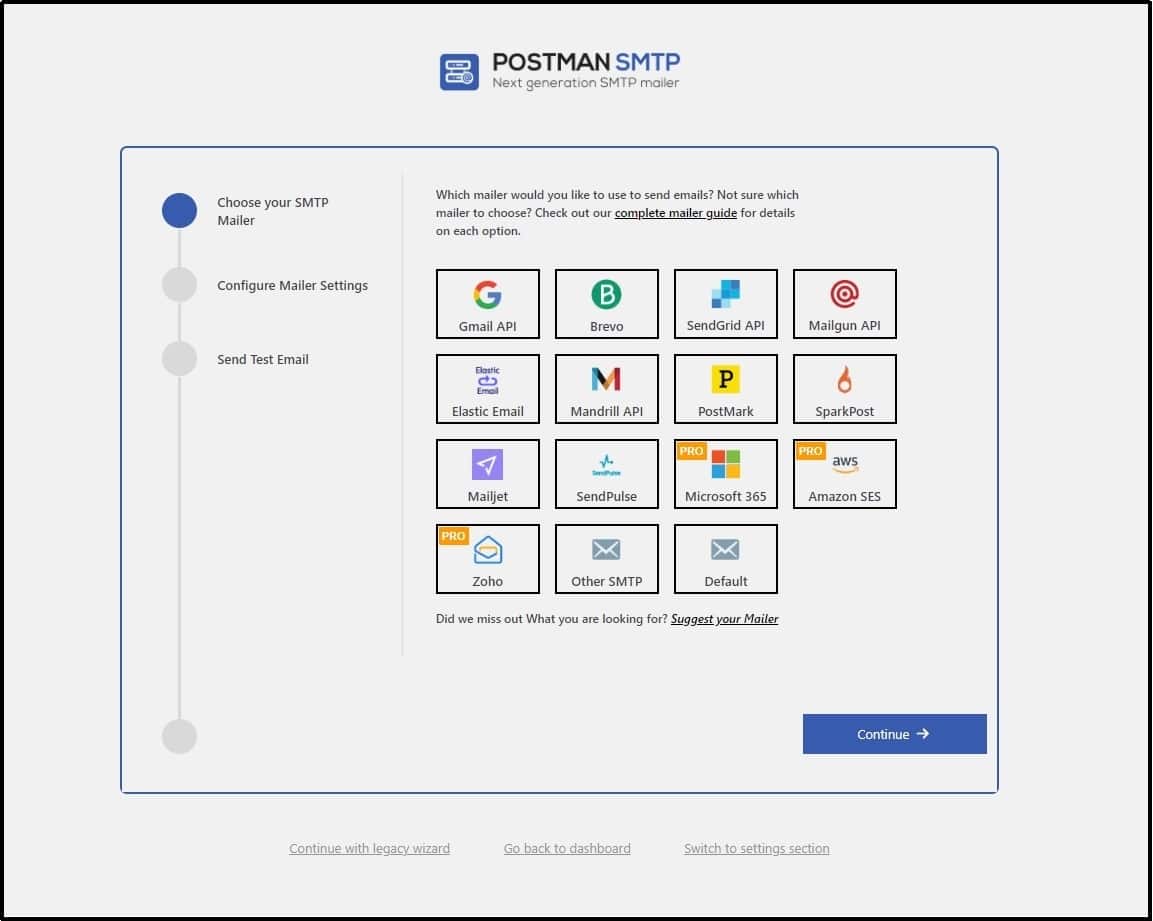
Choose your favorite mailer from one of the following and follow our detailed guide linked below:
- Gmail API
- Brevo
- SendGrid API
- Mailgun API
- Elastic Email
- Mandrill API
- PostMark
- SparkPost
- Mailjet
- SendPulse
- Microsoft 365
- Amazon SES
- Zoho
In this guide, we are choosing Brevo. You can select the one that you want and proceed further with the Continue → button.
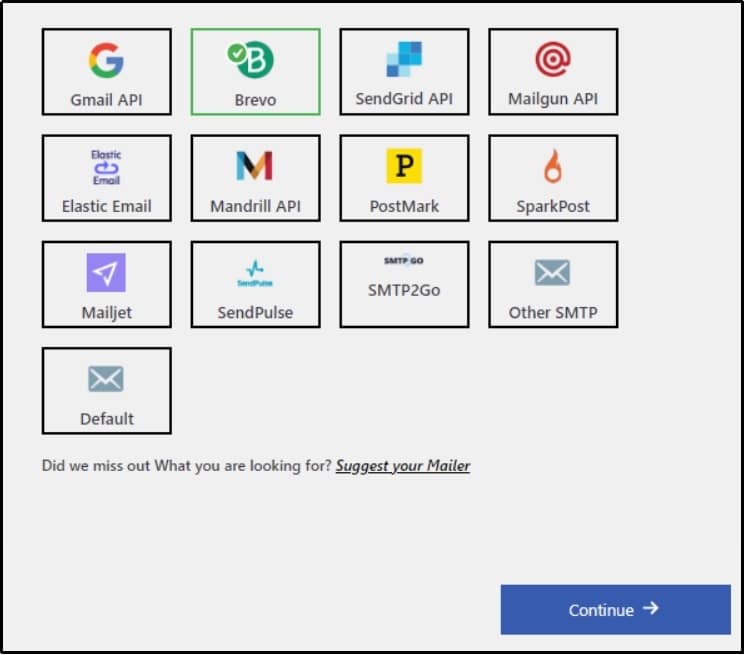
Afterward, you will be asked to enter the API keys of the service that you chose. Since we chose Brevo, we will get our API keys from Brevo.

Once you get the API keys, save them, return to the Post SMTP wizard, and paste them into the API Key input box, as you can see at the bottom of the image.
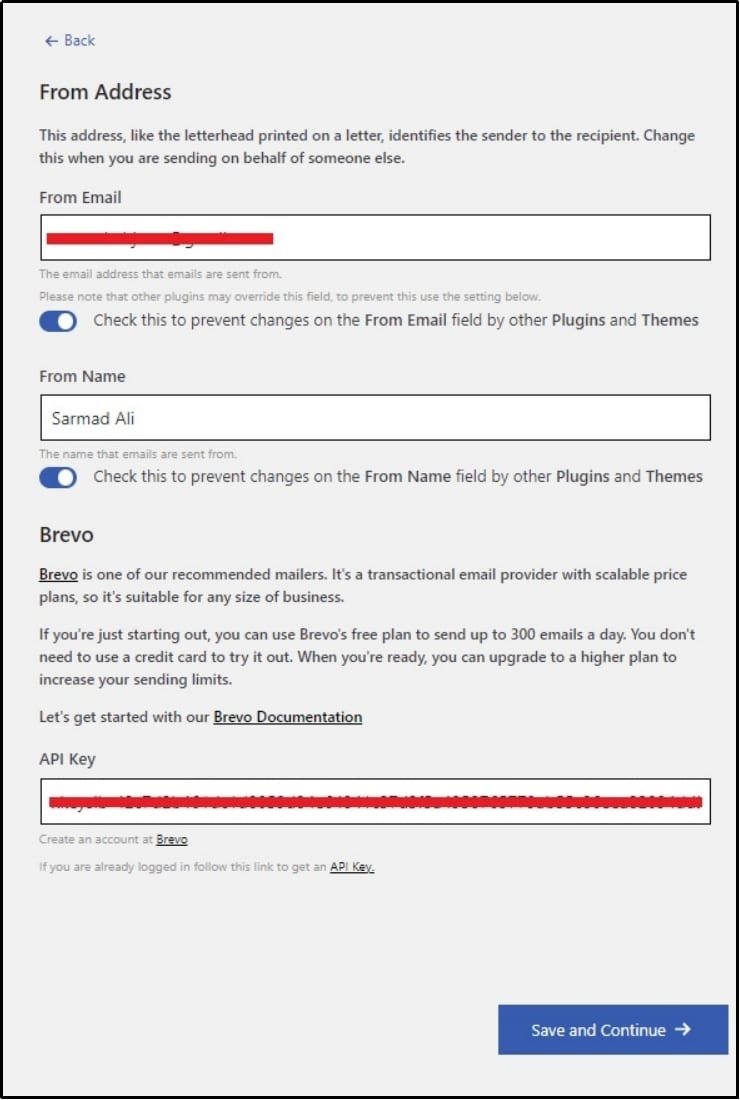
Use the Save and Continue → button to save your progress.
Once you set them up correctly, check your records again, and this should fix the deliverability problem.
#3: Check authentication records
If WP 2FA emails are being marked as spam or not being delivered at all, email authentication settings might be missing. Email authentication heavily relies on three protocols known as SPF, DKIM, and DMARC. These authentication records improve email trust and prevent emails from being blocked or landing in spam folders. Here’s a brief introduction of what each of these protocols do:
- SPF: Sender Policy Framework specifies the servers that can send emails from your domain and checks if the incoming email comes from a valid server.
- DKIM: Domain Keys Identified Mail adds a digital signature to the email that enables the receiving server to validate the authenticity of the email, ensuring the email wasn’t altered in the process.
- DMARC: Domain-Based Message Authentication, Reporting, and Conformance defines what should be done with the email if it fails the SPF and DKIM protocols. You can choose from quarantine, reject, or allow.
If you want to learn more about the three, please refer to this article: What are SPF, DKIM, and DMARC? [Everything You Need to Know]
You can test emails with Post SMTP to ensure your records are correctly set. If not, setting up these protocols can fix WP 2FA not sending email issue.
#4: Disable conflicting plugins and/or theme
Another reason behind the infamous issue can be a conflicting plugin or theme. You can easily do that by navigating to the Plugins >> Installed Plugins. Now, disable the plugins one by one until you find the culprit. This process might seem a little hectic, especially for those blogs or websites with numerous plugins.
To make the process less hectic, you can try caching, security, or email-related plugins initially. After each deactivation, test WP 2FA email functionality. If the issue is resolved, identify the conflicting plugin and check its settings for possible adjustments. If there is no solution for both of the plugins to work, find a substitute for one of them.
#5: Check hosting server limits
Sometimes, you may do everything in your power, and the WP 2FA not sending email issue may still persist. That’s when you can be sure it’s your hosting provider that has imposed email-sending restrictions.
Unfortunately, there’s no way to resolve this issue except just directly contacting your hosting provider to discuss the issue and settle for a potential solution. However, if you are on a shared hosting plan, switching to a virtual private server or any plan in general with a higher email limit can fix your problem instantly.
Conclusion
WP 2FA is a valuable security tool for WordPress, but email deliverability issues can disrupt its functionality.
Fortunately, you can fix the WP 2FA not sending email issue by:
- Verifying email settings
- Configuring an SMTP plugin
- Checking authentication records
- Disabling conflicting plugins
- Reviewing hosting server limits
Implementing these fixes ensures that authentication emails reach users without interruption, which can help you enhance customer experience and avoid operational problems. If the problem persists, you can always contact our dedicated support team, who will work tirelessly to resolve your issues as soon as possible.
Setting up Post SMTP plugin is the best way to enhance email deliverability. Download today and skyrocket your email deliverability rate!
Frequently Asked Questions
Can switching my email provider fix the issue?
Yes, switching to a reliable email provider with proper authentication settings can improve email deliverability. Make sure your provider supports SPF, DKIM, and DMARC records for better email authentication.
Will changing my WordPress admin email affect WP 2FA emails?
Changing your WordPress admin email can impact WP 2FA emails if it is not properly configured. As we discussed in the article, sometimes, many plugins use the default WordPress admin email to send emails. This can cause complications if the new email address is invalid or incorrectly set.
Does using a VPN or firewall impact WP 2FA email delivery?
Yes, using a strict firewall or VPN with high-security settings may interfere with email delivery by blocking SMTP ports or email authentication requests. If you experience issues, check your firewall rules and allowlist your email-sending service. Alternatively, you can make your website private with a plugin like Password Protected, take the VPN or firewall down, and recheck the email deliverability. And if the email delivers quickly, that could be a sign that your firewall settings need twitching.
How do I prevent WP 2FA emails from being flagged as suspicious?
To prevent WP 2FA emails from being flagged as suspicious, configure proper email authentication protocols like SPF, DKIM, and DMARC. Additionally, use a professional SMTP service and avoid sending emails with misleading subject lines or excessive links.